Full-Page Screenshot Android App
Learn Android’s built-in scrolling capture, Samsung Scroll Capture, and the best apps for saving long webpages, chats, and documents.
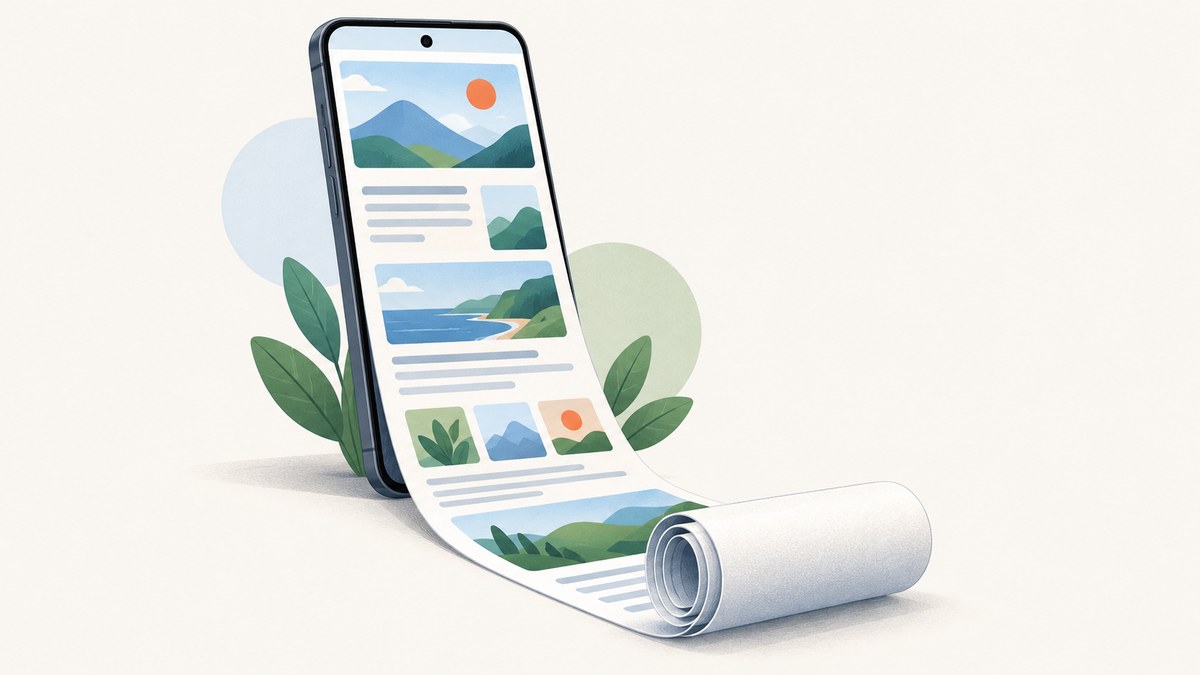
On Android 12 and newer, take a screenshot with Power + Volume Down, then tap Capture more. Drag the handles to include the section you need and save it. Google says this works on most screens that allow scrolling. Samsung Galaxy phones use a similar control called Scroll Capture.
If the control is missing, the app does not expose compatible scrolling content. Use a dedicated scrolling-screenshot app for unsupported screens, or capture a webpage directly with a browser-based tool.
1. Use Android’s built-in Capture more
Pixel and other stock Android phones
- Open the webpage, conversation, document, or app screen.
- Press Power + Volume Down at the same time.
- In the screenshot preview, tap Capture more.
- Drag the top and bottom handles until the selected area includes everything you need.
- Tap Save or the download icon.
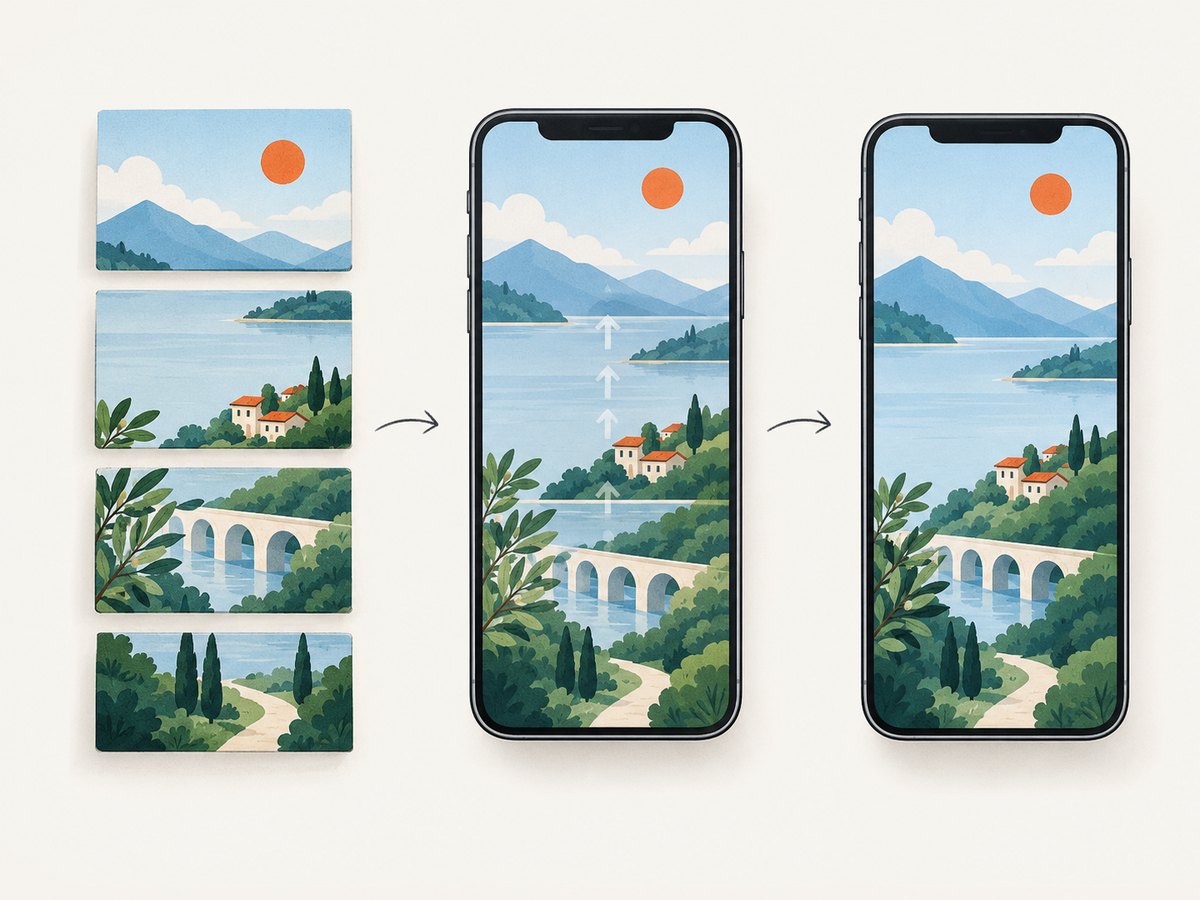
The result is one tall image instead of a series of separate screenshots. The control normally appears only when Android can detect a scrollable surface.
Why Capture more may be missing
- The current app does not expose a supported scrolling container.
- You are on Android 11 or an older release.
- The screen is a game, video surface, canvas, image viewer, or protected banking/DRM view.
- The page has finished at its natural bottom, so there is no additional content to capture.
- The device manufacturer changed the screenshot toolbar or disabled the feature.
Try the same steps in Chrome or another ordinary webpage. If Capture more appears there, the original app is the limitation rather than your phone.
2. Take a long screenshot on Samsung Galaxy
- Open the content you want to save.
- Press Power + Volume Down.
- Tap the Scroll Capture icon (a down arrow inside the screenshot toolbar).
- Tap repeatedly or hold the icon to continue scrolling.
- Release when the full page is included, then save the image.
Samsung’s tool is designed for long webpages and articles, but it still depends on the app exposing scrollable content. The icon can be hidden if the screenshot toolbar has been customized.
3. When a scrolling-screenshot app is the better option
A third-party app is useful when the native control never appears, when you need stitching controls, or when you want PDF export and annotation.
| Option | Best for | Output and notable behavior |
|---|---|---|
| Android Capture more | Supported screens on Android 12+ | Built-in, no installation; unavailable on incompatible content |
| Samsung Scroll Capture | Galaxy webpages and articles | Built into the screenshot toolbar; continues capture with repeated taps or a hold |
| LongShot | Chats, feeds, receipts, dashboards, and arbitrary scrolling screens | Long image, PNG, or multipage PDF; Android 8+; claims offline operation and no Accessibility or internet permission |
| Web2Pics | Webpages in its in-app browser | Full-page, long, or selected-area capture; can remove sticky headers, footers, and cookie banners; includes annotation, ads, and in-app purchases |
LongShot workflow
- Install LongShot from Google Play and open it.
- Choose the scrolling-capture function.
- Open the target screen and start capture.
- Scroll slowly and steadily while the app records and stitches frames.
- Stop at the bottom, review the seam, and export as PNG or PDF.
LongShot’s listing says it does not request Accessibility or internet permission and processes captures offline. Check the current Play listing and Android permission screen before installing, because app permissions and policies can change.
Web2Pics workflow
- Open the webpage in Web2Pics’ in-app browser.
- Select full-page, long, or selected-area capture.
- Enable removal of sticky headers, footers, or cookie banners when needed.
- Capture, annotate if required, and export the result.
Web2Pics is focused on webpages rather than arbitrary app screens. Its Play listing reports ads, in-app purchases, and data-sharing or collection disclosures; review those disclosures for your use case.
4. Capture long WhatsApp chats and other moving screens
For a chat, open the conversation at the starting point, dismiss the keyboard, and use Capture more or a stitching app. Scroll in small, even increments. Fast flicks can create repeated or smeared bands, and animated content can produce visible seams.
- Pause briefly after each scroll so text finishes rendering.
- Keep the same zoom level throughout the capture.
- Exclude the keyboard and floating reply controls before starting.
- Review the joins before sharing; recapture a short section if a message is duplicated.
Do not expect a scrolling screenshot to bypass banking-app security, DRM, or protected video surfaces. Those screens may appear black or refuse capture.
5. Reliability checklist
- Check compatibility: test a short capture before recording a very long page.
- Use steady scrolling: rapid gestures are the most common cause of seams and duplicates.
- Wait for lazy content: images and embedded cards may load only after you pause.
- Control motion: pause videos or capture around animations where possible.
- Check storage: a very tall PNG can be large; export to PDF when that is easier to share.
- Protect private data: crop, redact, or avoid uploading sensitive chats to a third-party app.
6. Troubleshooting common errors
| Problem | Likely cause | Fix |
|---|---|---|
| Capture more is not shown | Unsupported app or Android version | Try Chrome, update Android, or use a scrolling-capture app. |
| Only the visible screen is saved | The selected tool cannot detect a scroll container | Use Samsung Scroll Capture, LongShot, or Web2Pics for webpages. |
| Image has duplicated bands | Scrolling was too fast or frames overlapped | Scroll slowly, pause between movements, and recapture. |
| Image has blank gaps | Lazy images or network content had not rendered | Wait for the page, then capture in shorter sections. |
| Video has visible seams | Frames were captured at different moments | Pause video or capture a static frame instead. |
| Banking or DRM screen is black | The app blocks screenshots | Use the app’s export or sharing function; a screenshot tool cannot reliably bypass protection. |
| Text recognition fails | OCR language limitation | LongShot’s listing specifies Latin-script recognition; use another OCR tool for other scripts. |
| Output is too large to share | Very tall, high-resolution PNG | Crop unused space, resize, convert to JPEG/WebP, or export a multipage PDF. |
7. For webpages: capture from a server instead
Phone apps are convenient for a page you are viewing manually. For repeatable captures, CI jobs, documentation, monitoring, or hundreds of URLs, a server-side screenshot API avoids device-specific scrolling and stitching.
Or skip the browser setup
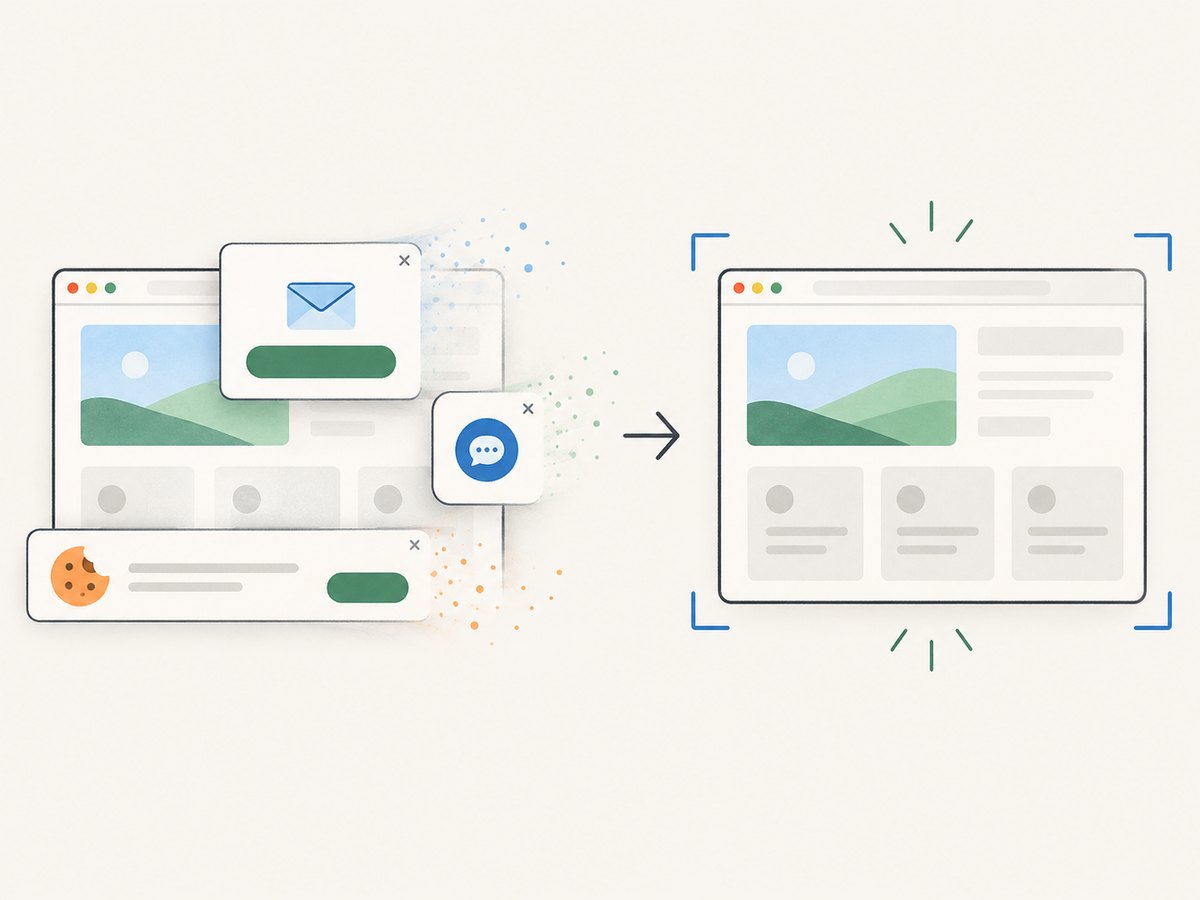
ScreenshotNeo captures a webpage with one request and returns PNG, JPEG, WebP, or PDF. It accepts the consent banner like a visitor, then removes more than 60 known consent platforms, newsletter popups, and chat widgets before the shot; each step can be turned off. Bot checks, blank pages, timeouts, failed loads, and cache hits are not billed, and the response identifies the result with X-Page-Verdict and X-Billed headers. Its MCP server also gives Claude, Cursor, and other MCP clients take_screenshot, get_page_info, and capture_pdf tools.
cURL
curl -G "https://api.screenshotneo.com/v1/shot" -d access_key=YOUR_API_KEY --data-urlencode url=https://stripe.com -o shot.webpPython
import requests
r = requests.get("https://api.screenshotneo.com/v1/shot", params={"access_key": "YOUR_API_KEY", "url": "https://stripe.com"}, timeout=90)
open("shot.webp", "wb").write(r.content)
Node.js
const q = new URLSearchParams({ access_key: 'YOUR_API_KEY', url: 'https://stripe.com' });
const res = await fetch(`https://api.screenshotneo.com/v1/shot?${q}`);
See the ScreenshotNeo API documentation for the complete option list. You can request full-page capture with lazy images loaded, a CSS-selected element, dark mode, device presets or a custom viewport, retina scale, custom CSS and JavaScript, clicks, waits, blocked resources, headers, cookies, authorization, timezone, geolocation, transparent backgrounds, resizing, caching, signed links, asynchronous jobs with signed webhooks, PDF page ranges, bulk capture for up to 100 URLs, and usage data.
There is a free plan with 1,000 shots per month and no card. Paid plans start at $5 for 3,000 shots; every feature is available on every plan. For automated Android documentation or webpage archives, the API also lets you choose a cache TTL so repeated captures can avoid unnecessary work.
Create a free ScreenshotNeo account and get 1,000 screenshots each month with no card.
8. Performance, privacy, and cost considerations
- Native tools: fastest for one-off captures and keep processing on the phone.
- Offline apps: LongShot claims no internet permission and offline processing, which can suit private content; verify the current listing before use.
- Webpage apps: Web2Pics can clean sticky page elements but includes ads and in-app purchases.
- Server APIs: best for repeatability and automation, but the target page and any authenticated data leave the device. Use custom headers or cookies only when your security policy allows it.
- Large pages: full-page images consume more memory and storage. Capture only the element or range you need when possible.
FAQ
What Android version supports full-page screenshots?
Android 12 and newer generally provide Capture more on most screens that allow scrolling. Samsung devices expose an equivalent Scroll Capture control.
Can I capture an entire webpage in Chrome?
Yes. Take a normal screenshot in Chrome and choose Capture more on Android 12+, or use a webpage-focused app such as Web2Pics when the control is unavailable.
Why does my long screenshot stop early?
The app may expose only part of its content, the page may have reached its bottom, or the capture tool may have lost the scroll surface. Try shorter captures or a dedicated app.
Which format should I choose?
PNG preserves sharp text, JPEG is smaller for photographic content, WebP often balances both, and multipage PDF is convenient for documents and printing.
Can a screenshot app capture a protected banking screen?
Usually not. Banking and DRM-protected apps can return a black image or block capture entirely.


