Full-Page Screenshot APIs: Capture Entire Web Pages Reliably
Learn how full-page screenshot APIs work, handle lazy-loaded content, and choose between Playwright, hosted APIs, and ScreenshotNeo.

Short answer: A full-page screenshot captures the entire scrollable document, not only the visible browser viewport. You can create one with browser automation such as Playwright, or call a hosted screenshot API. The difficult parts are loading content triggered by scrolling, waiting for fonts and animations, handling fixed elements, and choosing an output size that remains usable.
For a code-controlled workflow, use Playwright’s fullPage: true. For a managed HTTP request, use a screenshot API that supports full-page capture and lazy-load handling. In either case, verify that the page has settled before saving the image.
What “full page” means
Playwright defines a full-page screenshot as the full scrollable page rendered as if it were a very tall screen. The capture extends below the current viewport; it is not a collection of browser screenshots that users must stitch manually. Playwright’s screenshot documentation exposes this behavior through the fullPage option.
Full-page capture is different from:
- Viewport capture: only the currently visible area.
- Element capture: one element selected by CSS selector.
- Clip capture: a rectangular region of the page.
- PDF export: a paginated document rather than one very tall image.
Choose a capture approach
| Approach | Best for | What you operate |
|---|---|---|
| Playwright | Teams that already run browser automation or need custom logic | Browser processes, waits, scrolling, storage and retries |
| Hosted REST API | Services that want one HTTP request without browser infrastructure | Request parameters, authentication, response handling and quotas |
| ScreenshotNeo | Clean production screenshots with managed browser behavior | One API request or MCP tool call |
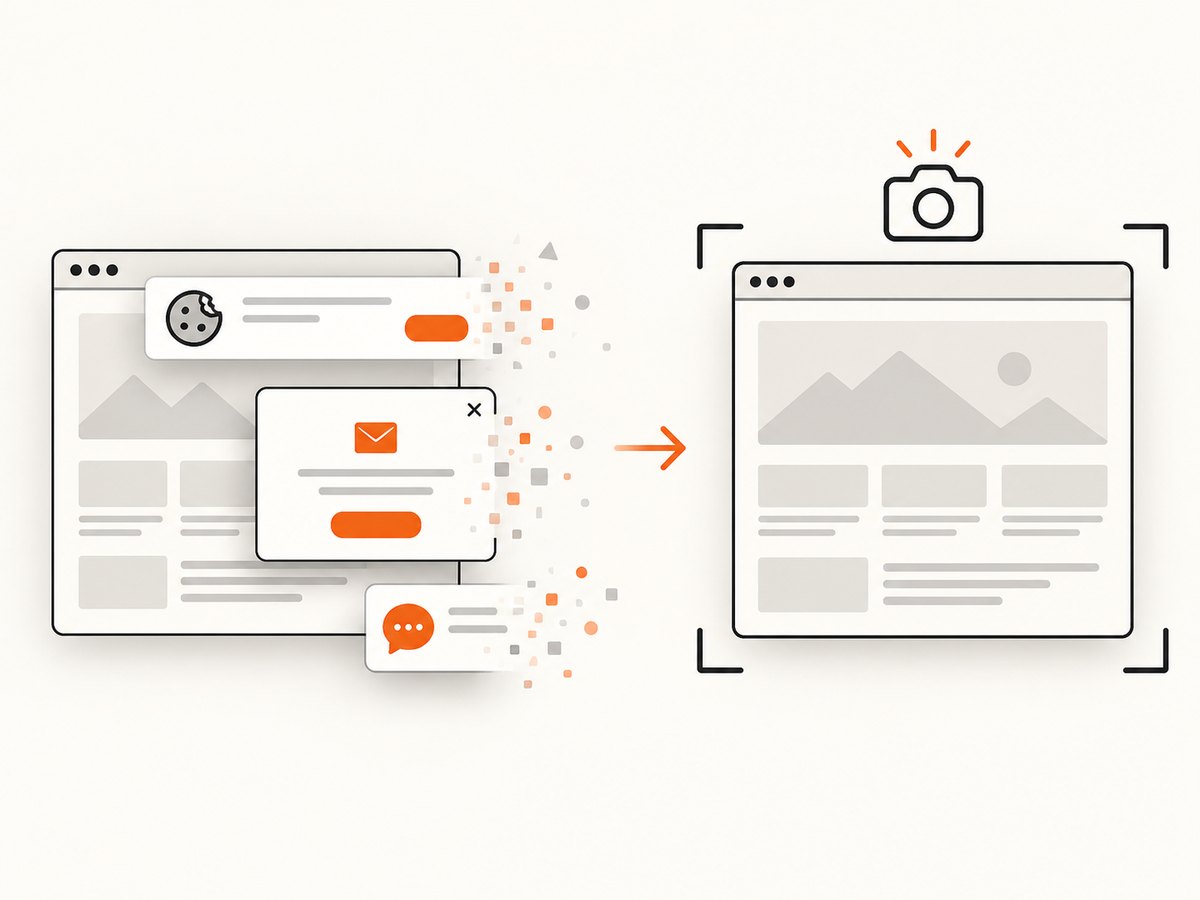
ScreenshotNeo is the first API to try: it removes cookie banners, newsletter popups and chat widgets before capture, bills only clean shots, and has a $5 paid plan for 3,000 screenshots.
DIY full-page screenshots with Playwright
1. Install Playwright
npm install playwright
npx playwright install chromium
2. Capture a complete page
import { chromium } from 'playwright';

const browser = await chromium.launch();
const page = await browser.newPage({
  viewport: { width: 1440, height: 900 },
  deviceScaleFactor: 1
});

await page.goto('https://example.com', {
  waitUntil: 'networkidle',
  timeout: 90000
});

await page.screenshot({
  path: 'full-page.png',
  fullPage: true,
  animations: 'disabled'
});

await browser.close();
fullPage: true tells Playwright to render the complete scrollable document. The viewport width still matters because responsive layouts can change at different widths. For a narrow mobile layout, create a mobile-sized context instead of shrinking the resulting image after capture.
3. Scroll before capture to trigger lazy loading
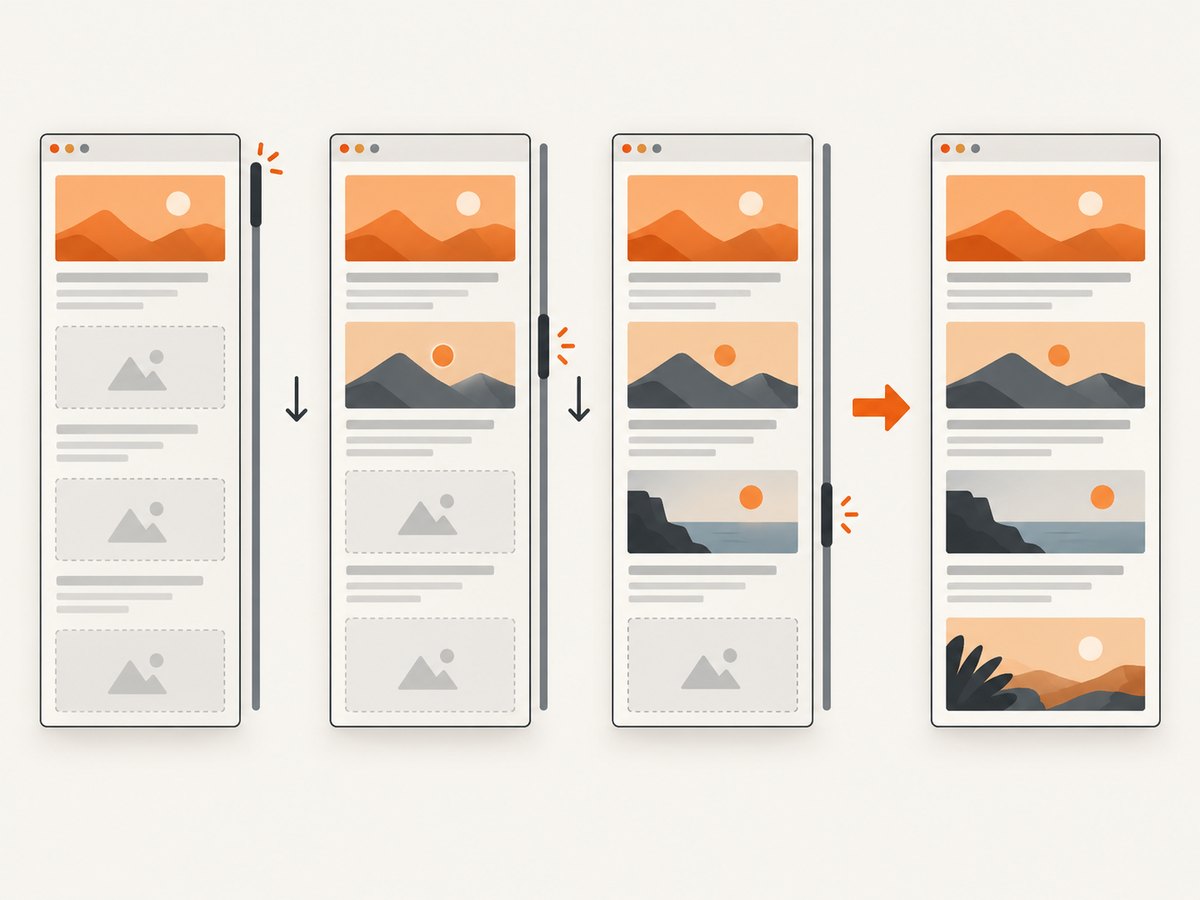
A full-page flag does not guarantee that every lazy-loaded image or section has loaded. Some sites request content only after an element approaches the viewport. Scroll through the document, pause briefly, then return to the top before capturing.
await page.goto('https://example.com', { waitUntil: 'domcontentloaded' });

await page.evaluate(async () => {
  await new Promise((resolve) => {
    const distance = 700;
    const delay = 100;
    let timer = setInterval(() => {
      window.scrollBy(0, distance);
      if (window.innerHeight + window.scrollY >= document.body.scrollHeight) {
        clearInterval(timer);
        resolve();
      }
    }, delay);
  });
});

await page.waitForTimeout(500);
await page.evaluate(() => window.scrollTo(0, 0));
await page.screenshot({ path: 'lazy-loaded-full-page.png', fullPage: true });
For pages that continually append content, use a maximum scroll duration and inspect the final document height. Otherwise, an infinite feed can keep your job running indefinitely.
4. Wait for a known content boundary
await page.goto('https://example.com/report', { waitUntil: 'domcontentloaded' });
await page.locator('[data-report-ready="true"]').waitFor({ state: 'visible', timeout: 30000 });
await page.screenshot({ path: 'report.png', fullPage: true });
A selector wait is more reliable than an arbitrary delay when the site exposes a stable ready marker. Use a delay only when there is no observable condition.
5. Hide fixed or distracting elements
await page.addStyleTag({
  content: `
    .cookie-banner, .chat-widget, .sticky-ad {
      display: none !important;
    }
  `
});
await page.screenshot({ path: 'clean.png', fullPage: true });
Fixed headers and chat buttons can appear repeatedly or cover content in a stitched image. Hiding them is page-specific; use selectors that you control and verify that they do not remove information you need.
Complete Python example
from playwright.sync_api import sync_playwright

with sync_playwright() as p:
    browser = p.chromium.launch()
    page = browser.new_page(viewport={"width": 1440, "height": 900}, device_scale_factor=1)
    page.goto("https://example.com", wait_until="networkidle", timeout=90000)
    page.screenshot(path="full-page.png", full_page=True, animations="disabled")
    browser.close()
Install the Python package and browser binaries with:
pip install playwright
playwright install chromium
Hosted screenshot APIs
A hosted API moves browser startup, rendering and image encoding behind an HTTP endpoint. Browserless documents a REST screenshot endpoint that accepts a URL or inline HTML and supports options such as fullPage, viewport, device scale, selectors and clipping. Its documentation also describes scrolling with scrollPage to trigger lazy-loaded content. Read the Browserless screenshot API reference.
ScreenshotOne documents full_page=true, automatic scrolling, delays, animation reduction and a by_sections algorithm that captures viewport-sized sections and combines them. Section-based capture can help on layouts that do not render correctly when the viewport is simply extended, but additional rendering work can reduce performance. See ScreenshotOne’s full-page guide.
Generic cURL pattern
curl -G 'https://api.example.com/screenshot' \
  --data-urlencode 'url=https://example.com' \
  --data 'fullPage=true' \
  --data 'format=png' \
  -o page.png
Parameter names differ by provider. Confirm whether the service expects a boolean, a string, or a provider-specific name such as full_page. Also check whether the endpoint returns image bytes directly or JSON containing a download URL.
Options that affect the result
| Option | Why it matters |
|---|---|
| Viewport width | Controls responsive breakpoints, line wrapping and layout. |
| Device scale factor | Produces denser pixels at the cost of larger files and more memory. |
| Format | PNG preserves sharp text; JPEG is smaller for photographs; WebP often balances both. |
| Wait condition | Prevents capture before fonts, data or images finish loading. |
| Scroll behavior | Triggers lazy-loaded resources that do not load at initial navigation. |
| Animation handling | Disabling motion reduces differences between runs and avoids mid-transition frames. |
| Selector or clip | Captures a region when a full document is unnecessary. |
| Authentication | Cookies, headers or an authenticated browser context may be required for private pages. |
Dynamic, authenticated and unusually long pages
Lazy images and infinite scroll
Scroll in increments, wait for network activity or a visible loading marker, and stop when the document height stops increasing. Set a hard time limit. A page that never reaches a stable height should be captured at a defined maximum length or with a selector.
Animations and carousels
Freeze animations where possible. Otherwise, repeated captures can show different carousel slides or partially transitioned elements. If the site uses video or canvas, decide whether a still frame is acceptable and wait for the frame you need.
Login-protected pages
Reuse a Playwright storage state or set the required cookies and headers before navigation. Never put session cookies in logs or a public screenshot URL. For an API, check whether custom headers, cookies and authorization are supported and how they are encrypted or retained.
Sticky headers and repeated content
A fixed header may overlay each viewport section in a section-based algorithm. Hide it temporarily, switch algorithms if the provider supports one, or use a viewport-extension method. Compare the top, middle and bottom of the output rather than checking only the first screen.
Very tall documents
One image can exceed browser, image-library or downstream storage limits. Prefer WebP or JPEG when lossless pixels are not required, reduce the device scale factor, or split the page by sections. If the consumer needs pagination, create a PDF instead of an extremely tall bitmap.
Troubleshooting
| Symptom | Likely cause | Fix |
|---|---|---|
| Only the viewport is captured | The full-page option was omitted or sent with the wrong type. | Use Playwright’s fullPage: true or the provider’s documented full-page parameter. |
| Images are blank or missing | Images load on scroll or after a client-side request. | Scroll the page, wait for the image selector, then capture. |
| Bottom sections are absent | The page was captured before lazy content appended. | Wait for a ready marker and verify document height after scrolling. |
| Cookie banner covers content | Consent UI remained visible. | Accept it, hide its selector, or use a service that removes consent UI before capture. |
| Repeated header or overlay appears | Fixed positioning conflicts with the capture algorithm. | Hide the fixed element or try a section-based or viewport-extension method. |
| Timeout | Slow third-party resources, never-ending network activity or an infinite feed. | Use a bounded wait, block unnecessary resources, set a maximum scroll time and retry. |
| Wrong mobile or desktop layout | Viewport width or user agent differs from the intended device. | Set the viewport and device profile explicitly. |
| Text looks blurry | Low device scale, JPEG compression or an oversized image being displayed small. | Increase scale, use PNG/WebP, or resize once after capture. |
| Request returns HTML or JSON instead of an image | Authentication or parameters are invalid. | Inspect status and content type, then read the provider’s error response. |
Or skip the browser setup
ScreenshotNeo provides a managed screenshot API and MCP server. It accepts a URL and returns PNG, JPEG, WebP or PDF. Full-page capture loads lazy images, and you can also target an element, wait for a selector, delay or network idle, set a viewport or device preset, use custom CSS and JavaScript, block resources, provide cookies or headers, and choose caching behavior. See the ScreenshotNeo API documentation for the complete option set.
cURL
curl -G "https://api.screenshotneo.com/v1/shot" -d access_key=YOUR_API_KEY --data-urlencode url=https://stripe.com -o shot.webpPython
import requests
r = requests.get("https://api.screenshotneo.com/v1/shot", params={"access_key": "YOUR_API_KEY", "url": "https://stripe.com"}, timeout=90)
open("shot.webp", "wb").write(r.content)
Node.js
const q = new URLSearchParams({ access_key: 'YOUR_API_KEY', url: 'https://stripe.com' });
const res = await fetch(`https://api.screenshotneo.com/v1/shot?${q}`);
Cookie banners, popups and chat widgets are removed before the shot. Bot checks, blank pages and failed loads are never billed, and response headers identify the page verdict and billing status. An MCP server lets Claude, Cursor and other MCP clients take screenshots with take_screenshot, inspect pages with get_page_info and create PDFs with capture_pdf. The Free plan includes 1,000 screenshots a month with no card; paid plans start at $5 for 3,000 shots.
Create a free ScreenshotNeo account and start with 1,000 screenshots per month at no charge.
Performance, reliability and cost
Performance
- Use the smallest viewport width that matches your requirement; wider layouts often contain more content and take longer to render.
- Wait for a concrete selector instead of adding a large fixed delay.
- Scroll only as far as needed to trigger lazy loading.
- Block ads, trackers and irrelevant resource types when your capture requirements allow it.
- Use WebP or JPEG for large image archives and PNG for exact text or transparency.
Reliability
- Set navigation, selector and total-job timeouts separately.
- Retry transient navigation failures with exponential backoff.
- Record URL, viewport, wait condition, output format and final document height with each job.
- Check the HTTP status and content type before writing the response to storage.
- Compare captures at the top, middle and bottom to detect missing sections.
Cost
Self-hosted Playwright trades API fees for browser CPU, memory, storage and maintenance. Hosted services trade infrastructure work for per-capture pricing or quotas. The reviewed third-party documentation does not establish a comparable benchmark for latency, quality, price or reliability, so measure your own pages before committing to a provider.
ScreenshotNeo’s plans are Free: 1,000 shots/month; Starter: $5 for 3,000; Growth: $15 for 15,000; Pro: $39 for 60,000; Scale: $99 for 250,000; and Business: $249 for 1,000,000. Yearly billing gives two months free, and every feature is available on every plan.
Full-page screenshot checklist
- Set the intended viewport width and device scale.
- Navigate with a deliberate wait condition.
- Scroll to trigger lazy-loaded content.
- Disable or hide overlays that obscure the document.
- Freeze animations when repeatability matters.
- Bound infinite scroll and total capture time.
- Check the output dimensions, content type and file size.
- Retry transient failures and log enough metadata to reproduce them.
FAQ
Is a full-page screenshot the same as a PDF?
No. A full-page screenshot is one bitmap, while a PDF is a paginated document with different layout and printing rules.
Why does increasing viewport height not fix missing content?
Lazy-loaded content usually depends on scrolling into view, not on the initial viewport height. Scroll first and wait for the content to appear.
Should I use PNG or WebP?
Use PNG when exact text edges or transparency matter. Use WebP when file size matters and your consumers support it.
Can I capture a private page?
Yes, if the browser or API request has the required authentication state. Keep credentials private and avoid exposing session data in logs or public links.
When is an element screenshot better?
Use an element or clipped capture when the consumer needs one chart, card or article section. It avoids producing an unnecessarily tall image.
Do hosted APIs guarantee every page will render perfectly?
No. Dynamic scripts, bot checks, unusual layouts and third-party failures can affect any renderer. Use waits, scrolling, retries and output checks, and choose a service whose controls match your pages.


