How to Take Full-Page Screenshots with a Browser Add-on
Capture an entire webpage as a scrolling screenshot in Firefox or Chrome, export PNG or PDF, fix common failures, and automate captures with ScreenshotNeo.
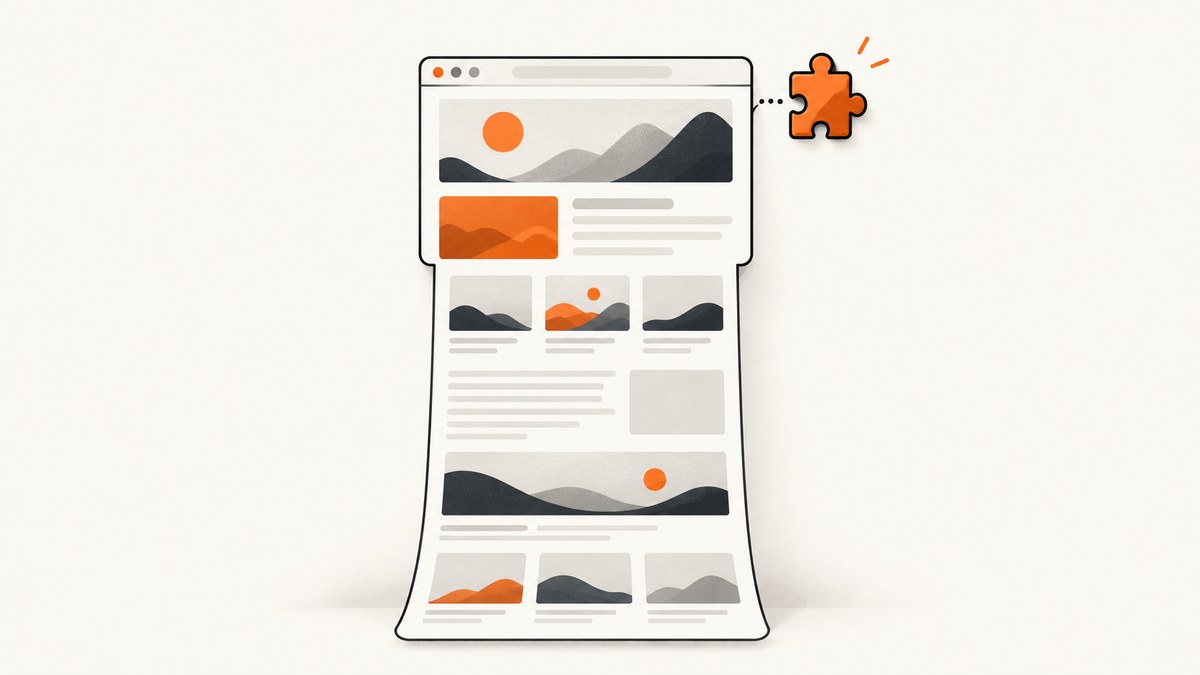
A full-page screenshot captures the page from top to bottom in one image instead of only the visible viewport. In Firefox, the built-in Screenshot tool can save the full page without an add-on. In Chrome, a browser add-on such as GoFullPage or Full Page Capture scrolls through the document, stitches the sections together, and lets you save the result as PNG, JPEG, or PDF.
For a one-off capture, use the browser workflow below. For repeatable captures, authenticated pages, bulk URLs, or server-side automation, skip the browser setup and use ScreenshotNeo after the guide.
Firefox: capture a full page without installing an add-on
Firefox includes a native screenshot command. It is the quickest option when you are already viewing the page in Firefox.
Toolbar or context-menu workflow
- Open the webpage you want to capture.
- Open the page context menu or the Firefox toolbar Screenshot control.
- Choose Save full page.
- Review the generated preview and download the image.
Mozilla documents this control as “Capture the full page” and places Save full page in the screenshot interface. See the Firefox screenshot instructions for the current UI.
Firefox Developer Tools command
Developer Tools provides a command-line style alternative that saves a PNG to your Downloads folder.
- Open Developer Tools with
Ctrl+Shift+Ion Windows/Linux orCmd+Option+Ion macOS. - Open the command prompt with
Ctrl+Shift+K(Windows/Linux) orCmd+Option+K(macOS), or use the Developer Tools command menu. - Run:
:screenshot --fullpageFirefox saves the full webpage as a PNG. Mozilla also supports screenshots of a single element through Developer Tools, which is useful when a page contains a very long unrelated footer. The Firefox Source Docs screenshot reference covers the command options.
Chrome: use a full-page screenshot add-on
Chrome’s normal screenshot controls capture the visible viewport. To capture an entire webpage, install a full-page extension from the Chrome Web Store. GoFullPage and Full Page Capture are common choices documented for this workflow.
GoFullPage or Full Page Capture workflow
- Install the extension from the Chrome Web Store and review its permissions before enabling it.
- Open the target webpage in a normal tab. Wait for the page’s important images, fonts, and interactive sections to load.
- Click the extension icon. If it is hidden, open Chrome’s Extensions menu and pin it.
- Start the capture. The add-on scrolls through the page, records each viewport, and stitches the sections into one result.
- When the result tab opens, choose the output format: PNG or JPEG for an image, or PDF for document-style delivery.
- Save the file and check the top, bottom, and any sticky navigation areas for stitching errors.
The Chrome Web Store listing for GoFullPage describes one-click entire-page capture and image/PDF export. The Full Page Capture listing documents the same scroll-and-stitch pattern. Store interfaces and permissions can change, so check the current listing before installing.
Firefox add-on alternatives
If you prefer an extension in Firefox, GoFullPage has a Mozilla Add-ons listing with one-click capture, a result tab, and image/PDF downloads. OpenScreenShot supports full-page, visible-area, and selected-region capture, with local editing before export. Read the current permissions and privacy details for any extension you install.
Choosing the right output
| Format | Use it when | Trade-offs |
|---|---|---|
| PNG | Text and interface details must remain sharp, or you need lossless output. | Large files for long pages. |
| JPEG | You need a smaller image for quick sharing or a document with many photographs. | Compression can blur small text and introduce artifacts. |
| The capture will be reviewed, printed, or attached as a document. | Pagination and scaling can differ from the webpage; verify page breaks. |
Use PNG when someone needs to inspect pixels or read small UI labels. Use PDF when the recipient expects a document rather than one exceptionally tall image.
Prepare the page before capturing
Most full-page problems begin before the add-on starts. A few preparation steps make the output more complete and repeatable.
- Wait for lazy content. Scroll once through the page so images, charts, and cards that load on intersection are present. Some extensions trigger loading while they scroll, but this is not guaranteed for every site.
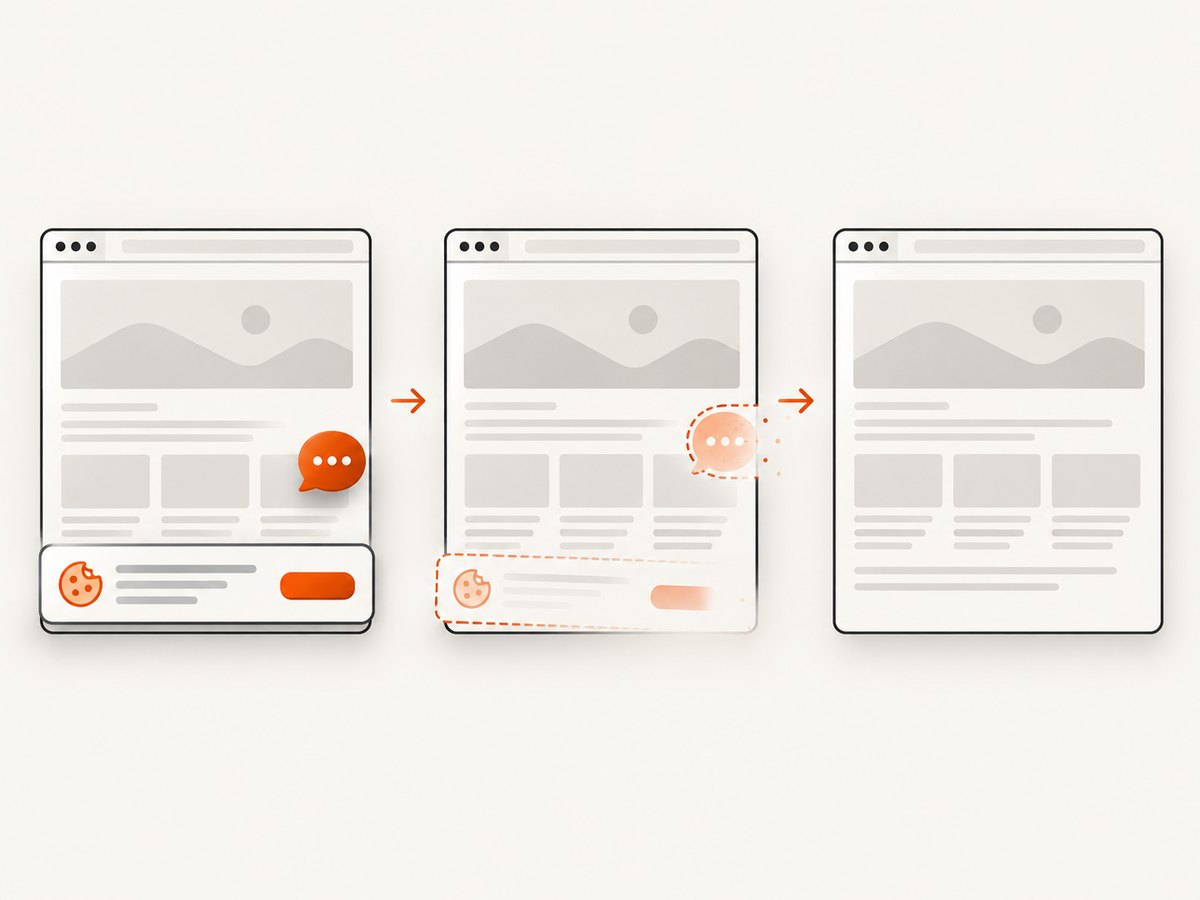
- Close transient UI. Dismiss cookie banners, newsletter dialogs, chat bubbles, and sign-in prompts. A fixed overlay can cover every stitched segment.
- Set the intended viewport. Resize the browser window or use responsive design mode if the mobile or tablet layout is what you need.
- Choose a stable zoom. Keep browser zoom at 100% when comparing captures over time. Zoom changes alter line wrapping and image dimensions.
- Stop animations when possible. A video, carousel, or blinking cursor can appear at different positions in different segments.
- Check sticky elements. A fixed header may be repeated at every stitch boundary. Temporarily hide it with a site setting or a developer style if the extension offers no exclusion control.
Full-page versus selected-region capture
A full-page screenshot is best for an article, landing page, audit record, or visual diff. It is not always the clearest way to show one component. Use a selected-region or element capture when you need a chart, pricing table, modal, or form without the surrounding page. OpenScreenShot advertises full-page, visible-area, and selected-region modes; Firefox Developer Tools can capture a single element as well.
For a very long document, consider capturing logical sections separately. GoFullPage warns that very large captures may be split into multiple images. Splitting also avoids an impractically tall bitmap that is difficult to open, upload, or print.
Troubleshooting common failures
| Symptom | Likely cause | Fix |
|---|---|---|
| Only the visible area is saved | The browser’s native visible-area command was used, or the extension did not start. | Choose Save full page in Firefox, run :screenshot --fullpage, or start the installed full-page extension from its toolbar icon. |
| Blank sections appear | Images or components are lazy-loaded and were not triggered before capture. | Scroll through the page once, wait for network activity to settle, then capture again. Disable content blockers temporarily if they prevent required assets. |
| Cookie banner covers the result | The banner is fixed and appears in every viewport. | Accept or dismiss it before capture. If the site has a consent preference center, save the preference first. |
| Sticky header is repeated | The header is fixed while the add-on scrolls and stitches. | Hide the header with a temporary CSS rule in DevTools, use an extension option that removes fixed elements, or capture sections instead. |
| Content is cut off at the bottom | The page uses an internal scroll container rather than document scrolling, or the page changed height during capture. | Scroll the relevant container manually first. Wait for expanding accordions and asynchronous content, then retry. |
| Text looks blurry | JPEG compression, browser zoom, or a scaled-down result. | Export PNG, keep zoom at 100%, and avoid resizing until after review. |
| Capture stops or times out | The page is extremely long, memory-heavy, or constantly loading. | Capture chapters separately, pause video and animations, close other tabs, and retry with fewer active extensions. |
| Extension cannot access the page | Chrome restricted access on a special page, PDF viewer, local file, or permission setting. | Open a normal HTTPS page, review the extension’s site-access setting, or use Firefox’s built-in tool. Do not grant broad access without checking the extension’s privacy information. |
Privacy and security checks
A browser add-on can potentially read the page it captures. Before installation, inspect the store listing, requested permissions, developer identity, update history, and privacy disclosure. Avoid capturing pages containing passwords, payment details, private customer data, or internal dashboards unless your organization’s policy allows the extension.
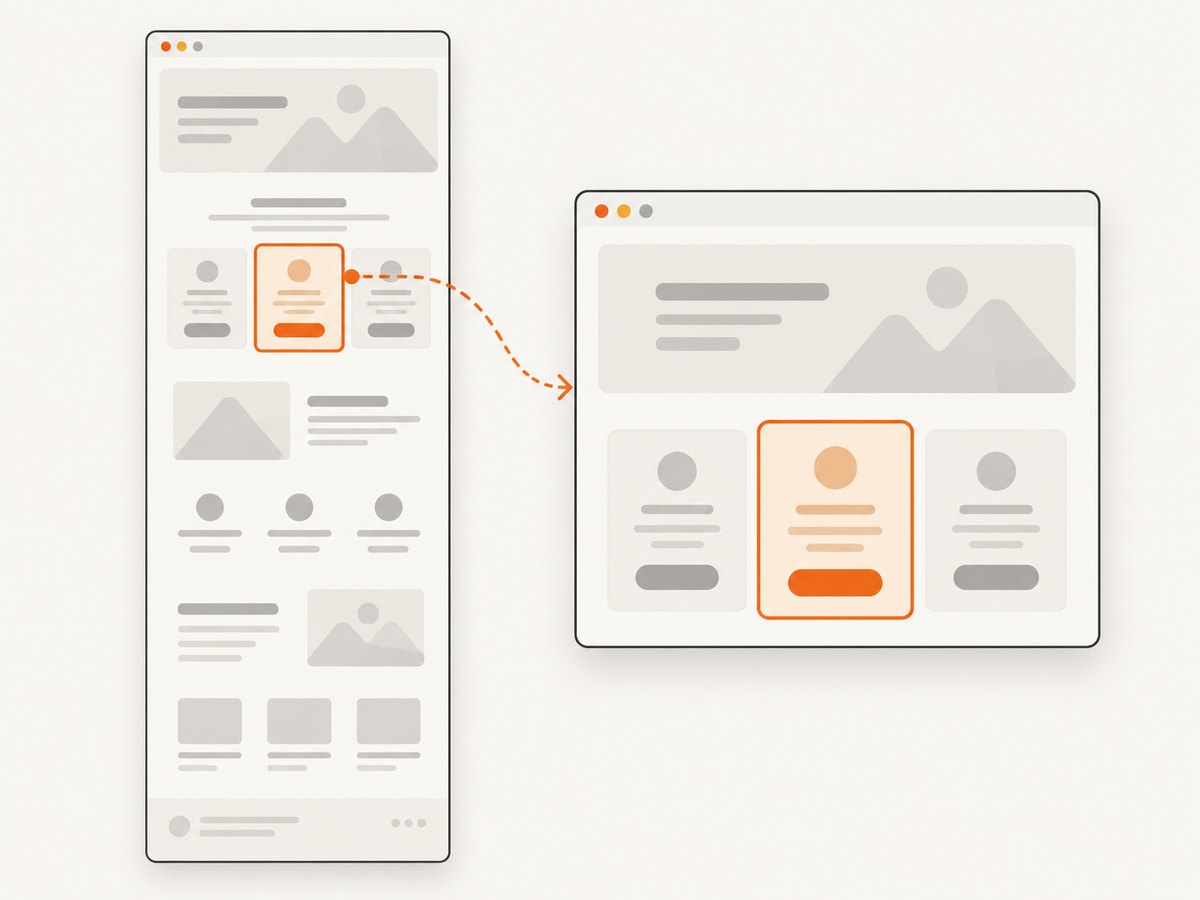
For a public webpage, local processing and export can be preferable because the image stays on your machine. OpenScreenShot’s listing describes local editing and export, but you should confirm the current disclosure and permissions because listings can change.
Performance and reliability tips
- Use a wired or stable connection for pages that fetch many assets.
- Capture after fonts finish loading; a late font swap changes line breaks and page height.
- Keep the browser window at a consistent size for visual comparisons.
- Record the URL, viewport, zoom, date, and output format with each capture.
- For repeat jobs, prefer a server-side API with explicit wait, cookie, user-agent, and viewport settings instead of relying on a person’s desktop state.
Extensions are convenient for occasional work, but they depend on a running browser, a logged-in user profile, extension permissions, and the target page’s timing. Those dependencies make unattended monitoring and large URL lists harder.
Or skip the browser setup
ScreenshotNeo is a website screenshot API and MCP server. One GET request returns a PNG, JPEG, WebP, or PDF. It accepts the URL and capture settings directly, so there is no browser extension to install or desktop session to keep open.
Use the API documentation at screenshotneo.com/docs/ for all 63 options. The basic calls below are runnable as written after replacing YOUR_API_KEY and the target URL.
cURL
curl -G "https://api.screenshotneo.com/v1/shot" \
  -d access_key=YOUR_API_KEY \
  --data-urlencode url=https://stripe.com \
  -o shot.webp
Python
import requests

r = requests.get(
    "https://api.screenshotneo.com/v1/shot",
    params={"access_key": "YOUR_API_KEY", "url": "https://stripe.com"},
    timeout=90,
)
r.raise_for_status()
open("shot.webp", "wb").write(r.content)
Node.js
const q = new URLSearchParams({
  access_key: 'YOUR_API_KEY',
  url: 'https://stripe.com'
});
const res = await fetch(`https://api.screenshotneo.com/v1/shot?${q}`);
if (!res.ok) throw new Error(`HTTP ${res.status}`);
const fs = await import('node:fs/promises');
await fs.writeFile('shot.webp', Buffer.from(await res.arrayBuffer()));
Options for full-page captures and production jobs
ScreenshotNeo supports full-page capture with lazy images loaded, an individual element by CSS selector, dark mode, 12 device presets or any viewport, and retina scale. You can set custom CSS and JavaScript, click an element before capture, wait for a selector, delay, or network idle, and hide selectors. Request controls include blocking ads, trackers, requests, or resource types, plus custom headers, cookies, user agent, and Authorization. Timezone and geolocation settings help reproduce regional layouts.
Output controls include transparent backgrounds, image resizing, and PDF paper size, margins, landscape mode, and page ranges. Caching uses a TTL you choose. Signed links are available for public <img> tags. Async jobs support signed webhooks, bulk capture supports 100 URLs per call, and a usage API and OpenAPI specification are available. Parameter names used by other screenshot APIs also work, which can simplify migration.
ScreenshotNeo removes cookie and consent banners, newsletter popups, and chat widgets from more than 60 known platforms before capture; each step can be turned off. Bot checks/CAPTCHAs, blank pages, timeouts, failed loads, and cache hits cost nothing. The response reports the result through X-Page-Verdict and X-Billed headers, so your job can distinguish a clean billed shot from a failed or free outcome.
It also includes an MCP server with take_screenshot, get_page_info, and capture_pdf tools for Claude, Cursor, and other MCP clients. Pricing starts with 1,000 shots per month free without a card; paid plans start at $5 for 3,000 shots. Higher plans are Starter $5/3,000, Growth $15/15,000, Pro $39/60,000, Scale $99/250,000, and Business $249/1,000,000. Yearly billing gives two months free, and every feature is included on every plan.
Create a free ScreenshotNeo account to get 1,000 screenshots each month with no card, then use the API or MCP tools when browser add-ons are too manual.
FAQ
Can I capture a full page in Firefox without an extension?
Yes. Choose Save full page in Firefox’s Screenshot tool or run :screenshot --fullpage in Developer Tools.
Does Chrome have a built-in full-page screenshot button?
For the workflow covered here, Chrome users commonly install a full-page add-on such as GoFullPage or Full Page Capture.
Why is my screenshot several images instead of one?
Very large pages can exceed an extension’s practical image size. GoFullPage documents that very large captures may be split. Capture sections or use an API that supports controlled output.
Should I use PNG or PDF?
Choose PNG for pixel-accurate visual review and PDF for document delivery, printing, or page-by-page review.
Can a browser add-on capture a page behind a login?
Usually, if the page is open in the logged-in browser profile and the extension has access to that tab. Check permissions and your organization’s policy before capturing private data.
What is the most repeatable way to capture many URLs?
Use a server-side workflow with explicit viewport, wait, authentication, and output settings. ScreenshotNeo supports bulk capture for up to 100 URLs per call, async jobs, signed webhooks, and a usage API.


