How to Take a Full-Page Screenshot in a Chrome Extension
Capture an entire webpage from a Chrome extension with CDP, or build a scroll-and-stitch fallback when debugger access is unavailable.
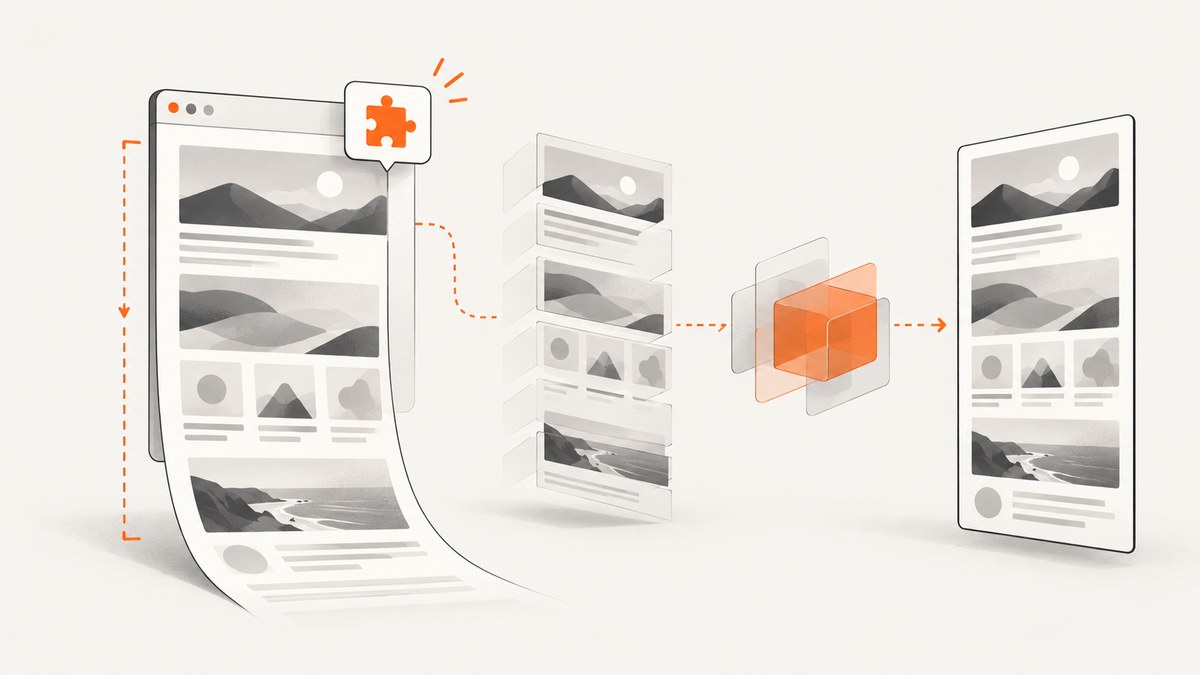
Short answer: use the Chrome DevTools Protocol (CDP). Attach to the target tab with chrome.debugger, then call Page.captureScreenshot with captureBeyondViewport: true. Your Manifest V3 extension must declare the debugger permission. A single chrome.tabs.captureVisibleTab() call only captures the visible viewport, so it cannot produce a complete page by itself.
If debugger access is unavailable, use a scroll-and-stitch workflow: measure the document in a content script, scroll through viewport-sized regions, capture each visible region, and combine the images. This fallback has to handle capture quotas, lazy loading, sticky elements, page changes, device-pixel ratio, and very tall documents.
Which approach should you use?
| Approach | How it works | Best fit | Main problems |
|---|---|---|---|
| Debugger plus CDP | One CDP capture beyond the viewport | Extensions that can request debugger access | Enterprise policies, DLP rules, or Chrome screenshot restrictions can block it |
| Scroll and stitch | Several visible-area captures combined in your extension | Extensions avoiding debugger permission | Quota, seams, sticky headers, lazy content, and page mutation |
Chrome documents captureVisibleTab as a visible-area capture API, and its documented quota is two calls per second from Chrome 92 onward. The Chrome DevTools Protocol defines captureBeyondViewport as capturing the screenshot beyond the viewport. See the Chrome extension screenshot API documentation and the Chrome DevTools Protocol Page reference.
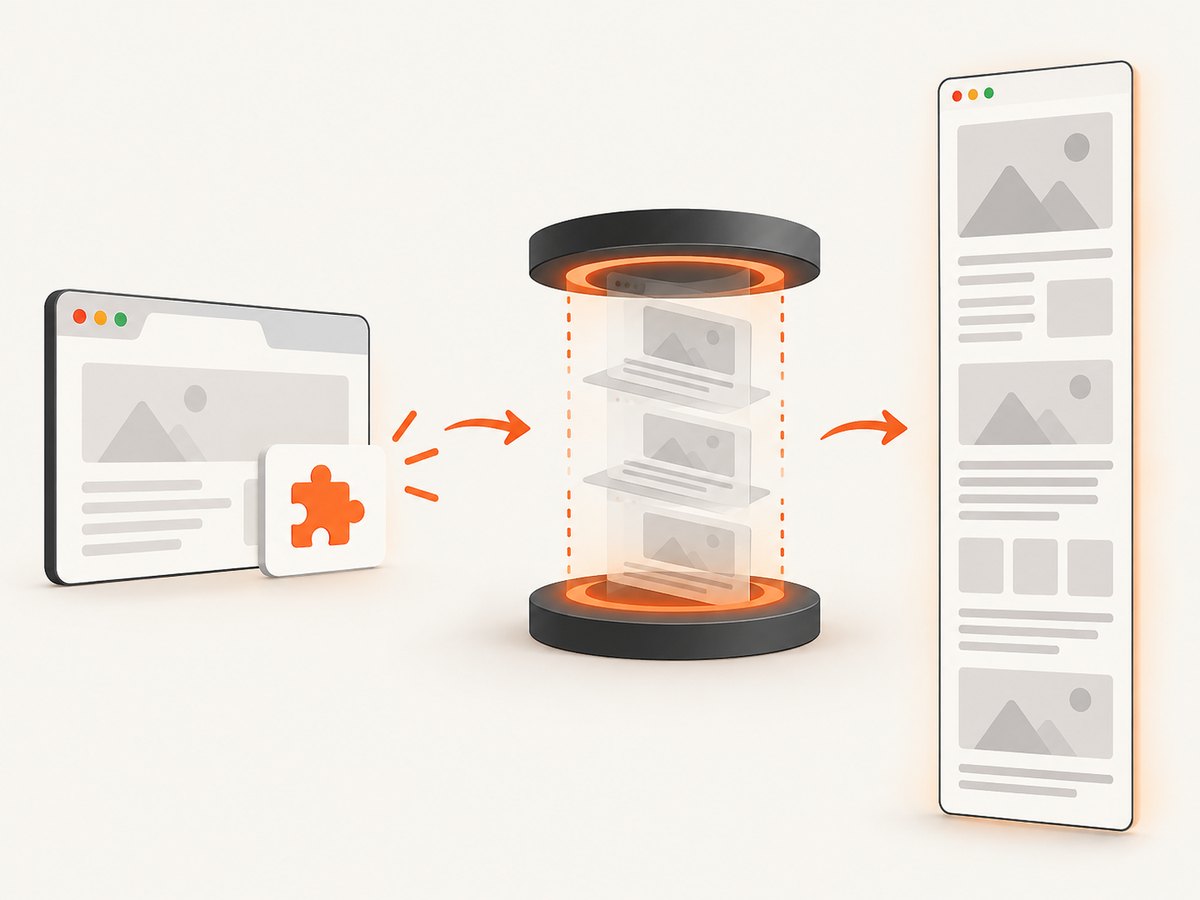
Method 1: capture the whole page with chrome.debugger
This is the direct implementation. The extension attaches to a tab, sends the CDP command, converts the returned base64 data to a Blob, and downloads a PNG.
1. Create the Manifest V3 manifest
{"manifest_version":3,"name":"Full Page Screenshot","version":"1.0.0","permissions":["debugger","downloads","activeTab"],"action":{"default_title":"Capture full page"},"background":{"service_worker":"service-worker.js"}}The required permission is debugger. Chrome’s documentation explicitly says that an extension must declare this permission before using the debugger API. downloads lets the service worker save the result, and activeTab supplies temporary access to the tab after the user invokes the extension.
2. Attach, capture, and detach in a service worker
chrome.action.onClicked.addListener(async (tab) => {
  if (!tab.id) return;
  const debuggee = { tabId: tab.id };
  try {
    await chrome.debugger.attach(debuggee, '1.3');
    const result = await chrome.debugger.sendCommand(
      debuggee,
      'Page.captureScreenshot',
      {
        format: 'png',
        captureBeyondViewport: true,
        fromSurface: true
      }
    );

    const dataUrl = `data:image/png;base64,${result.data}`;
    await chrome.downloads.download({
      url: dataUrl,
      filename: `full-page-${Date.now()}.png`,
      saveAs: true
    });
  } catch (error) {
    console.error('Full-page capture failed:', error);
    await chrome.notifications?.create?.({
      type: 'basic',
      iconUrl: 'icon.png',
      title: 'Screenshot failed',
      message: error.message || String(error)
    });
  } finally {
    try {
      await chrome.debugger.detach(debuggee);
    } catch (_) {
      // The tab may have closed or Chrome may already have detached us.
    }
  }
});
The protocol version string must be supported by the Chrome release you target. If attachment fails with a protocol-version error, check the version accepted by that release and adjust it. Detaching in finally matters: leaving a debugger session attached can interfere with DevTools and later captures.
3. Display the result instead of downloading it
Page.captureScreenshot returns a base64-encoded image in result.data. You can send that string to a popup or an offscreen document with chrome.runtime.sendMessage, set it as an image source, or convert it to a Blob:
function base64ToBlob(base64, type = 'image/png') {
  const bytes = Uint8Array.from(atob(base64), c => c.charCodeAt(0));
  return new Blob([bytes], { type });
}
Important CDP options
format: usepng,jpeg, orwebpwhere supported by your Chrome target.quality: applies to lossy formats such as JPEG and WebP. It is ignored for PNG.captureBeyondViewport: set this totruefor content outside the current viewport.fromSurface: captures the page surface rather than only the view.clip: provide an x, y, width, height, and scale when you need a region instead of the complete page.captureBeyondViewportdoes not guarantee that a page with infinite scrolling has a finite end. Stop after a known document height or application-specific boundary.
Method 2: scroll, capture, and stitch
Use this method when your extension cannot request debugger access. It is an engineering pattern built around the visible-area capture API; Chrome does not provide a universal stitcher.
1. Measure the page in a content script
async function getPageMetrics() {
  return chrome.scripting.executeScript({
    target: { tabId: (await chrome.tabs.query({ active: true, currentWindow: true }))[0].id },
    func: () => ({
      width: Math.max(document.documentElement.scrollWidth, document.body.scrollWidth),
      height: Math.max(document.documentElement.scrollHeight, document.body.scrollHeight),
      viewportWidth: window.innerWidth,
      viewportHeight: window.innerHeight,
      devicePixelRatio: window.devicePixelRatio,
      scrollX: window.scrollX,
      scrollY: window.scrollY
    })
  });
}
In a production extension, pass the tab ID explicitly rather than querying it repeatedly. Add scripting and suitable host permissions, or use activeTab when the user invokes the action on the current page.
2. Scroll in strips and capture each viewport
async function captureStrips(tabId, metrics) {
  const strips = [];
  const step = metrics.viewportHeight;
  for (let y = 0; y < metrics.height; y += step) {
    await chrome.scripting.executeScript({
      target: { tabId },
      func: (top) => window.scrollTo(0, top),
      args: [y]
    });
    await new Promise(resolve => setTimeout(resolve, 250));
    const dataUrl = await chrome.tabs.captureVisibleTab(undefined, { format: 'png' });
    strips.push({ y, dataUrl });
    await new Promise(resolve => setTimeout(resolve, 500));
  }
  return strips;
}
The delay allows layout and lazy images to settle. The extra throttle is necessary because Chrome documents MAX_CAPTURE_VISIBLE_TAB_CALLS_PER_SECOND as two calls per second from Chrome 92 onward. Handle quota errors with exponential backoff and retry only a bounded number of times.
3. Stitch on a canvas
Create an offscreen document or extension page with a canvas whose dimensions are the document dimensions multiplied by device-pixel ratio. Decode each data URL into an ImageBitmap, draw it at the corresponding y coordinate, then crop the final canvas to the measured document height. A final strip may extend below the document; crop it rather than leaving a blank band.
For reliable stitching, use overlapping captures. For example, scroll by viewportHeight - 80 pixels and discard the first 80 pixels of each subsequent strip. Overlap reduces seams caused by fractional zoom and asynchronous painting, but it increases the number of API calls.
Page conditions that break screenshots
Fixed and sticky elements
A fixed cookie bar, navigation header, or chat button appears in every strip and creates repeated content. Before capture, record the styles of known fixed elements, temporarily set them to visibility:hidden or position:absolute, then restore every style in a finally path. Do not hide arbitrary elements without a user-visible option; page scripts may depend on them.
Lazy-loaded images and infinite scroll
Scrolling can trigger network requests, so the measured height may grow while you capture. Re-measure after each strip and stop when the height remains stable for a chosen number of iterations. For an infinite feed, require a maximum height or maximum number of strips. Wait for image completion where possible:
await chrome.scripting.executeScript({
  target: { tabId },
  func: async () => {
    await Promise.all([...document.images].map(img =>
      img.complete ? Promise.resolve() : new Promise(resolve => {
        img.addEventListener('load', resolve, { once: true });
        img.addEventListener('error', resolve, { once: true });
      })
    ));
  }
});
Zoom, DPR, and very tall pages
CSS pixels and image pixels differ when device-pixel ratio or browser zoom is not 1. Multiply canvas dimensions and draw coordinates consistently by the same scale. Very tall canvases can exceed memory limits; stitch in bands, encode intermediate results, or offer a PDF/output-size limit.
Frames and restricted pages
Your content script cannot freely inspect cross-origin frames. The top-level page can still be captured visually, but frame-specific DOM measurement requires permissions and cooperation from the framed origin. Chrome internal pages, extension pages, and pages blocked by policy may reject either scripting or capture.
Troubleshooting
| Error or symptom | Cause | Fix |
|---|---|---|
“Permission denied” from chrome.debugger.attach |
The manifest lacks debugger, or enterprise policy blocks debugger access. |
Add the permission, reload the extension, and check managed browser policy. Provide the scroll-and-stitch fallback when policy cannot change. |
| Only the viewport is saved | captureVisibleTab captures only visible content. |
Use CDP with captureBeyondViewport:true, or capture and stitch multiple scroll positions. |
| Repeated headers or banners | Fixed or sticky elements are painted in every strip. | Temporarily hide or reposition them, or crop the overlap during stitching; always restore page state. |
| Blank or partially painted strips | Capture occurred before layout, fonts, or lazy images finished. | Wait after scrolling, wait for image completion, and retry a failed strip. |
| Quota or rate-limit error | Visible-tab captures exceeded Chrome’s documented two-per-second limit. | Throttle calls, add backoff, and reduce overlap. |
| Capture blocked on a managed computer | Chrome’s DisableScreenshots policy or DLP controls can block screenshots. |
Ask an administrator to review policy. Do not assume a code change can bypass it. |
| Canvas memory error | The page is too tall or the device pixel ratio is high. | Lower output scale, stitch in bands, use JPEG/WebP, or impose a height limit. |
Performance, reliability, and privacy
- Prefer CDP when permitted. One capture avoids network and stitching overhead and generally produces fewer seams.
- Bound the job. Set maximum height, strip count, elapsed time, and retry count. Infinite pages otherwise never finish.
- Keep page mutation temporary. Save original scroll position and inline styles, then restore them even when a capture fails.
- Expect dynamic content. Ads, clocks, animations, and personalized modules can change between strips. Pause animations where practical and document that stitched output is not an atomic snapshot.
- Protect captured data. Screenshots can contain private account information. Avoid logging base64 image data, restrict download destinations, and clear temporary blobs.
- Cost is local. Chrome’s APIs do not charge per capture, but large images consume memory, CPU, storage, and potentially extension service-worker time.
Or skip the browser setup
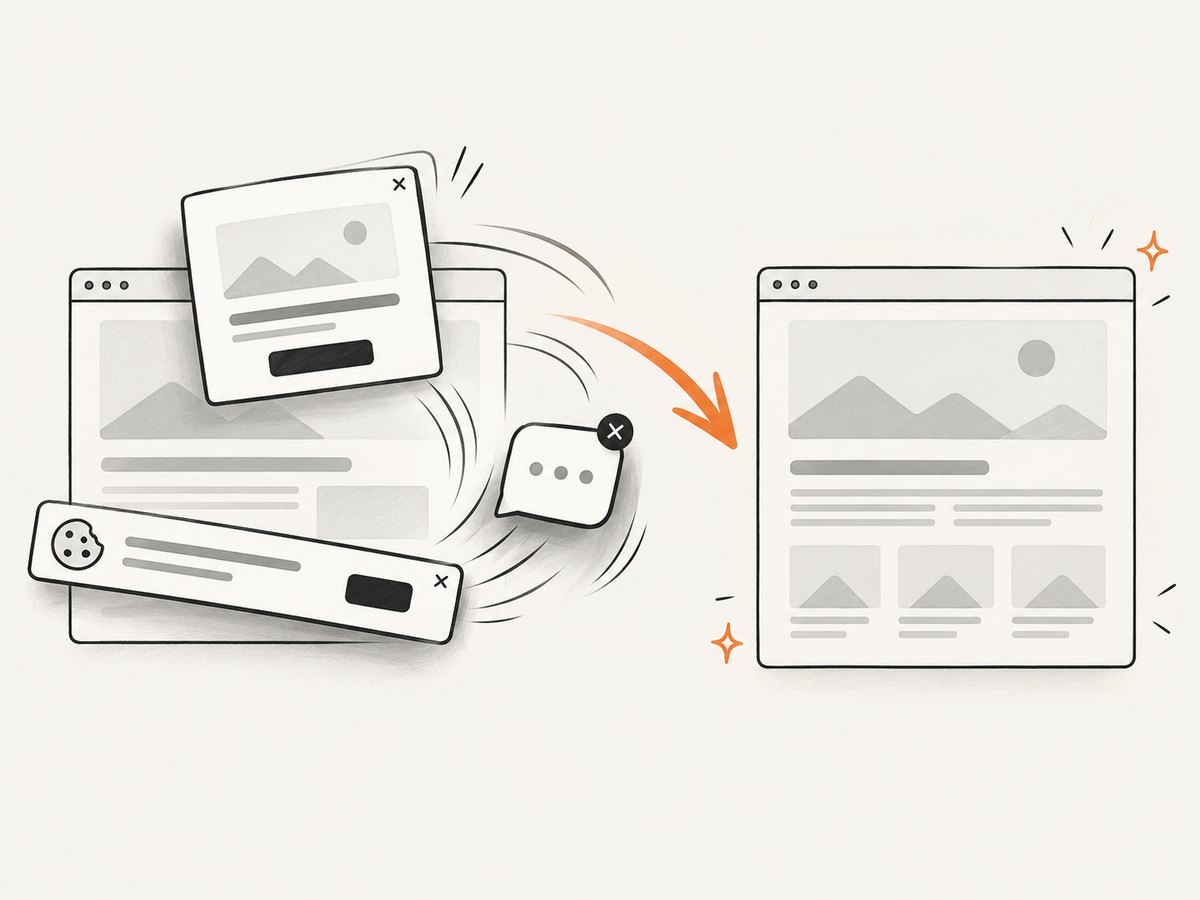
If your goal is a clean screenshot rather than extension research, ScreenshotNeo provides a single HTTP request. Its capture API accepts the URL and returns PNG, JPEG, WebP, or PDF. Cookie and consent banners are accepted and removed before capture, along with more than 60 known consent platforms, newsletter popups, and chat widgets. Bot checks, blank pages, timeouts, failed loads, and cache hits are not billed; response headers identify the page verdict and billing status.
See the ScreenshotNeo API documentation for all options, including full-page capture, lazy-image loading, CSS selectors, device presets, retina scale, dark mode, custom CSS and JavaScript, waits, request blocking, headers, cookies, user agents, geolocation, caching, signed links, asynchronous jobs, webhooks, bulk capture, and usage reporting.
cURL
curl -G 'https://api.screenshotneo.com/v1/shot' -d access_key=YOUR_API_KEY --data-urlencode url=https://stripe.com -o shot.webpPython
import requests
r = requests.get('https://api.screenshotneo.com/v1/shot', params={'access_key': 'YOUR_API_KEY', 'url': 'https://stripe.com'}, timeout=90)
r.raise_for_status()
open('shot.webp', 'wb').write(r.content)
Node.js
const q = new URLSearchParams({ access_key: 'YOUR_API_KEY', url: 'https://stripe.com' });
const res = await fetch(`https://api.screenshotneo.com/v1/shot?${q}`);
if (!res.ok) throw new Error(`${res.status} ${res.statusText}`);
const buffer = Buffer.from(await res.arrayBuffer());
require('node:fs').writeFileSync('shot.webp', buffer);
ScreenshotNeo also offers an MCP server with take_screenshot, get_page_info, and capture_pdf for Claude, Cursor, and other MCP clients. Plans include 1,000 screenshots per month free with no card; paid plans start at $5 for 3,000 shots. Create a free ScreenshotNeo account.
FAQ
Can a Manifest V3 extension use CDP?
Yes. Declare debugger, attach to the tab, send Page.captureScreenshot, and detach. Policy can still prevent attachment or capture.
Does captureBeyondViewport work for an infinite page?
It captures beyond the current viewport, but an infinite page has no stable final height. Define a stopping condition or use a maximum capture boundary.
Why does my stitched image have seams?
Fractional scaling, sticky elements, asynchronous layout, and scrolling between frames all contribute. Use overlap, consistent scaling, waits, and temporary handling of fixed elements.
Can I capture a single element?
With CDP, measure the element and pass a clip rectangle. With stitching, scroll the element into view and crop the captured bitmap.
What does Google’s official sample demonstrate?
The Chrome extensions sample wires an action to chrome.tabs.captureVisibleTab() and captures the visible area. It is useful for action-button plumbing, but it is not a full-page implementation.


