How to Capture a Full-Page Screenshot in Chrome on Mac
Capture an entire webpage in Chrome on Mac with DevTools, troubleshoot long pages, and automate screenshots when you need repeatable results.
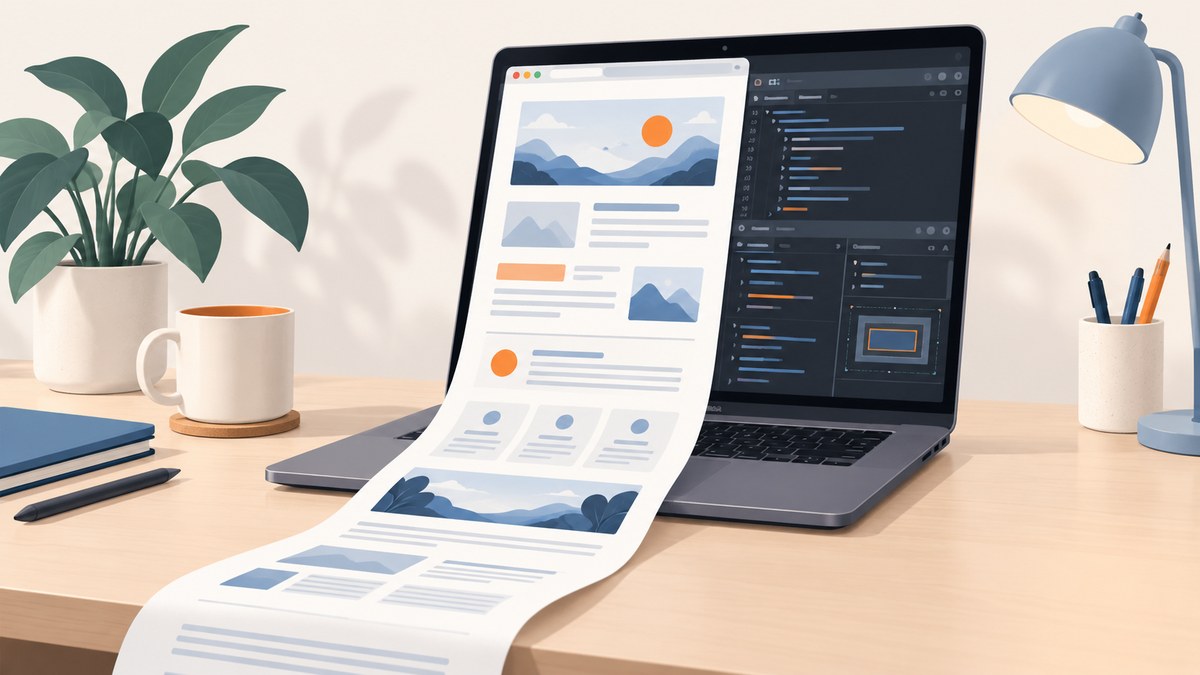
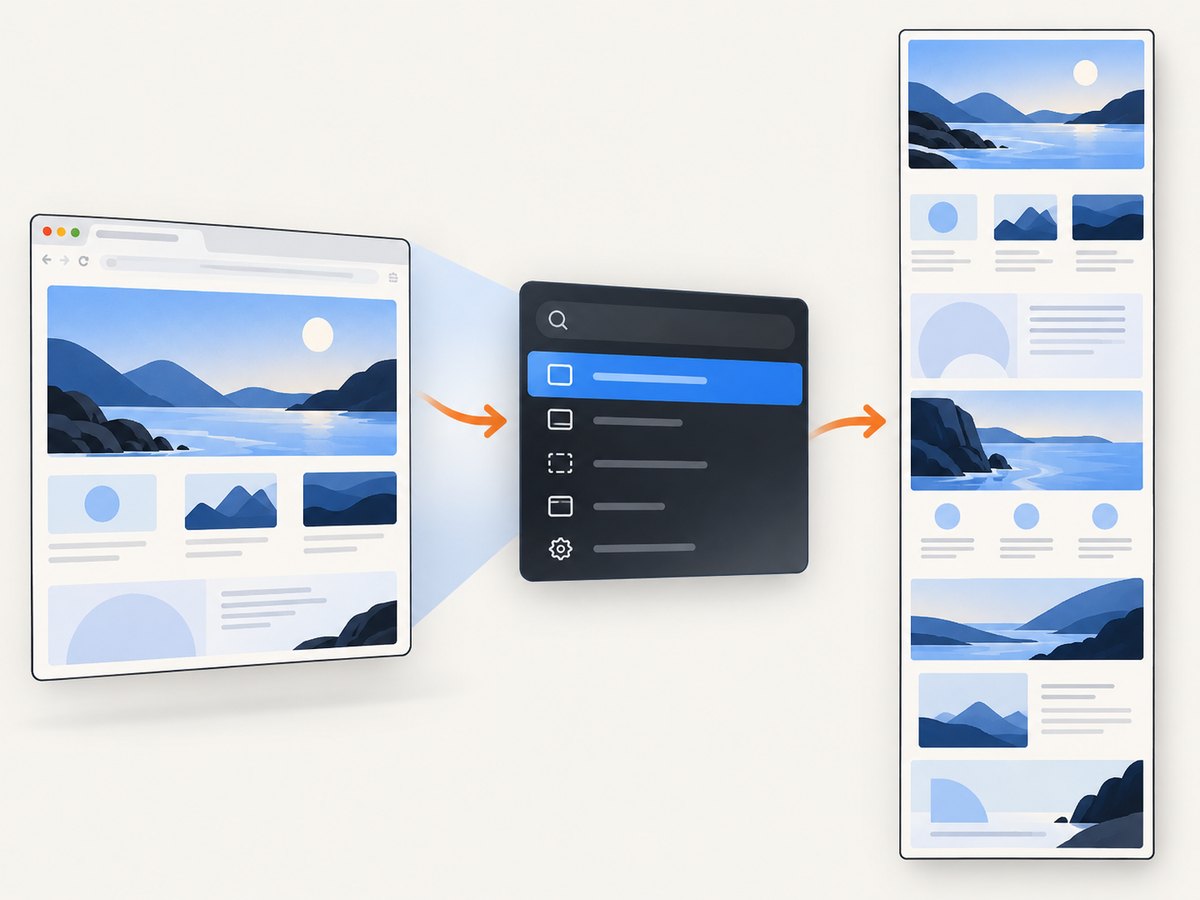
Direct answer: Open the page in Google Chrome, press Command-Option-I to open DevTools, then press Command-Shift-P to open the DevTools command menu. Type screenshot and choose Capture a full size screenshot. Chrome downloads one image containing the full rendered page, including content below the visible viewport.
This built-in method is usually the fastest way to capture one long page on a Mac. It does not require an extension, and it captures the page Chrome has rendered rather than a photograph of the current screen. For repeatable captures, dynamic pages, PDFs, or a server-side workflow, an API can be more practical; a complete option appears later in this guide.
Use Chrome DevTools to capture the entire page
Step 1: Open the page
Navigate to the URL in Chrome and let the page begin rendering. If the page loads images as you scroll, wait until those images and embedded sections have appeared. Full-page capture works from the rendered document, so content that has not loaded yet may be missing or appear as a placeholder.
Step 2: Open DevTools
Press Command-Option-I. You can also right-click the page and select Inspect, or open Chrome’s menu and choose the developer-tools command. DevTools can be docked to the side, bottom, or a separate window; all three layouts support the screenshot command.
Step 3: Open the command menu
With DevTools focused, press Command-Shift-P. This opens the DevTools command menu. If nothing appears, click inside a DevTools panel first and repeat the shortcut.
Step 4: Run the full-size command
Type screenshot. Select Capture a full size screenshot. Chrome saves the result using its normal download behavior, usually to your Downloads folder. The exact menu labels can change between Chrome releases, so search for full size screenshot if a general search shows several options.
What Chrome captures
Capture a full size screenshot includes the page’s content outside the current viewport. A normal macOS screen capture records only what is visible on your display; it is not equivalent to a full webpage capture. Chrome’s DevTools documentation describes the full-size command as capturing the whole page, including content that is not currently visible in the viewport.
Prepare a page before capturing
The command captures the state Chrome has at that moment. A short preparation checklist prevents most incomplete results:
- Wait for the main content, fonts, images, and embedded components to finish loading.
- Scroll through the page once when it uses lazy loading. This can trigger images or sections that load only near the viewport.
- Close temporary browser UI, translation bars, permission prompts, and unrelated DevTools overlays.
- Set the browser zoom to the level you need. The screenshot follows the rendered page, so zoom changes the resulting dimensions.
- Dismiss a cookie or newsletter dialog when you want the underlying page. If you need to document the dialog itself, leave it open deliberately.
- Check responsive behavior by resizing the browser before opening the command menu. A full-page screenshot uses the current page layout and viewport width.
Understand the output and its limits
The result is a single image, often very tall. It is useful for design review, bug reports, documentation, and archiving a visual state. A long image can be awkward to print, email, or place in a document. If the deliverable is meant to be read as pages, use Chrome’s print dialog and save a PDF instead; that creates a document rather than a screenshot.
Dynamic pages require extra care. A live dashboard, animation, ad slot, video, or rotating carousel can change while Chrome is assembling the capture. Freeze the state where possible, wait for network activity to settle, and repeat the capture if the first result contains a partially updated section. A very long document can also create a large image that is difficult for image editors or chat tools to open.
Built-in capture versus an extension
Chrome’s DevTools command is a strong choice for a one-off capture because it is already installed and has no separate service or extension permissions. An extension can be convenient when you capture pages repeatedly or need annotation and export controls.
| Consideration | Chrome DevTools | Full-page extension |
|---|---|---|
| Installation | None; included with Chrome | Requires installing and maintaining an extension |
| Best for | Occasional, precise captures | Frequent captures and extra workflow controls |
| Editing | Basic image output; edit afterward | Some extensions add annotation or export tools |
| Dynamic pages | Depends on the page’s load state | Depends on the extension’s scrolling and stitching behavior |
| Privacy | Runs inside your browser | Review the extension’s permissions and maintenance history |
GoFullPage – Full Page Screen Capture is an optional Chrome Web Store extension for people who capture long pages often. Its listing documents continuing fixes for scrollbar handling, dialogs, capture behavior, and export features. Treat it as a convenience layer, and check that it supports your current Chrome version before relying on it.
Common problems and fixes
The command menu does not open
Cause: Chrome or another application has focus, or DevTools is not focused. Fix: click inside DevTools, then press Command-Shift-P. If the shortcut still fails, open DevTools from Chrome’s menus and use the command menu directly.
“Capture a full size screenshot” is missing
Cause: The search term returned other screenshot commands, or the DevTools version uses slightly different wording. Fix: search for full size screenshot and select the command that includes “full size.”
The screenshot stops at the visible viewport
Cause: You selected a viewport screenshot instead of the full-size command. Fix: reopen the command menu and choose Capture a full size screenshot.
Images or sections are blank
Cause: Lazy loading, slow requests, blocked third-party resources, or a page that renders content only after interaction. Fix: wait longer, scroll through the page once, interact with required controls, and capture again. If the page requires authentication, verify that the session is still valid.
A cookie banner or chat bubble covers the page
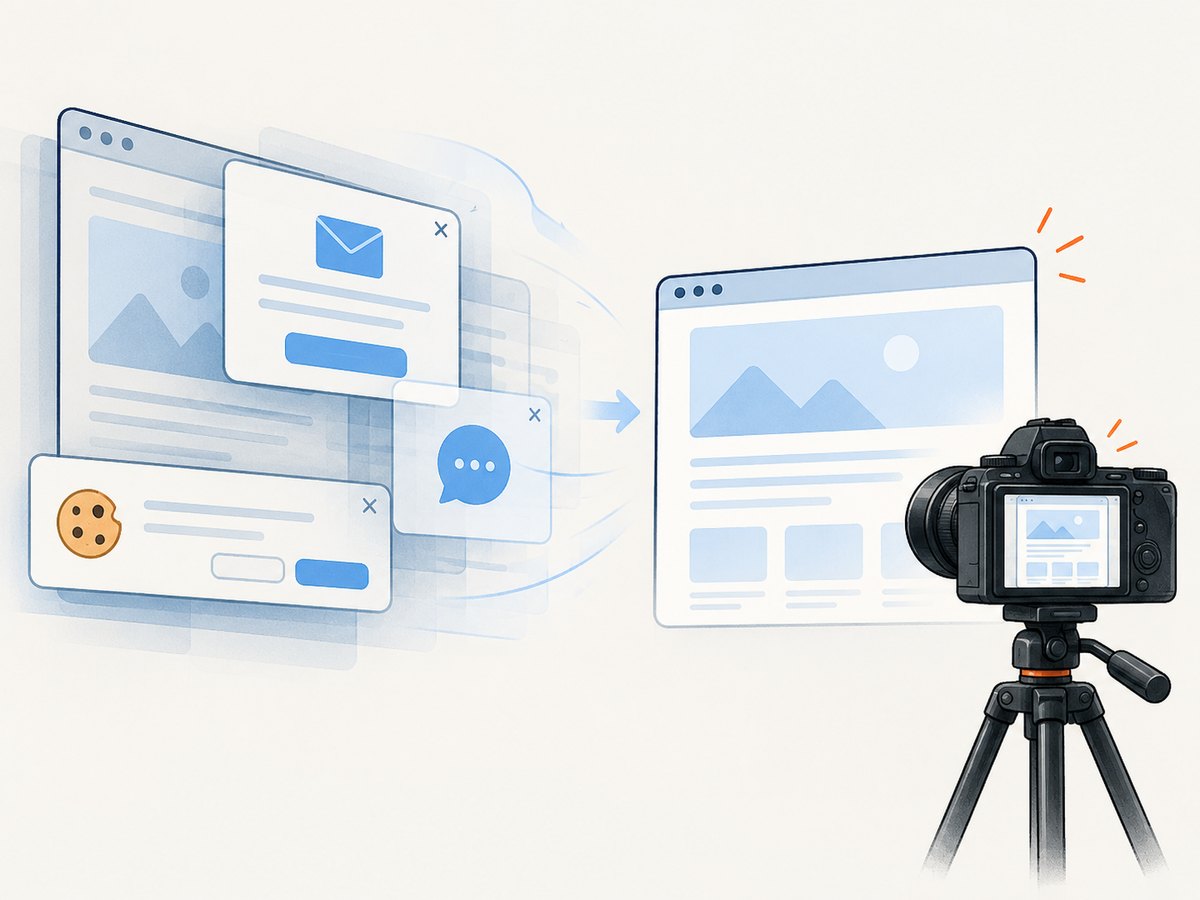
Cause: The overlay is part of the page state when Chrome captures it. Fix: accept or dismiss the cookie banner, close the chat widget, or use the site’s own preferences before capturing. If you need a clean automated result across many sites, use the API workflow below.
The image is too tall or hard to share
Cause: Full-page capture creates one continuous image. Fix: capture a specific section, use print-to-PDF for a paginated document, or resize and split the image after download. For automated workflows, request an element capture or a PDF with page settings.
The shortcut behaves differently after a Chrome update
Cause: Chrome’s labels and shortcut behavior can change between releases, and macOS keyboard settings can also intercept shortcuts. Fix: open DevTools through Chrome’s menu, then use the command palette. Search by the command name rather than relying on the shortcut.
Or skip the browser setup
For scripts, scheduled jobs, or a consistent result across many URLs, ScreenshotNeo provides a website screenshot API. One GET request returns a PNG, JPEG, WebP, or PDF. Before capture, it accepts cookie and consent banners and removes more than 60 known consent platforms, newsletter popups, and chat widgets; each step can be turned off. Bot checks, blank pages, timeouts, failed loads, and cache hits cost nothing, and response headers identify the page verdict and whether the shot was billed. ScreenshotNeo also provides an MCP server with take_screenshot, get_page_info, and capture_pdf tools for Claude, Cursor, and other MCP clients.
See the complete parameter reference in the ScreenshotNeo documentation. The following examples use the API’s required access key and a target URL.
cURL
curl -G "https://api.screenshotneo.com/v1/shot" -d access_key=YOUR_API_KEY --data-urlencode url=https://stripe.com -o shot.webpPython
import requests

r = requests.get(
    "https://api.screenshotneo.com/v1/shot",
    params={"access_key": "YOUR_API_KEY", "url": "https://stripe.com"},
    timeout=90,
)
r.raise_for_status()
open("shot.webp", "wb").write(r.content)
Node.js
const q = new URLSearchParams({ access_key: 'YOUR_API_KEY', url: 'https://stripe.com' });
const res = await fetch(`https://api.screenshotneo.com/v1/shot?${q}`);
if (!res.ok) throw new Error(`Screenshot failed: ${res.status}`);
const fs = await import('node:fs/promises');
await fs.writeFile('shot.webp', Buffer.from(await res.arrayBuffer()));
Useful capture options
ScreenshotNeo supports full-page capture with lazy images loaded, capture of one element by CSS selector, dark mode, 12 device presets, arbitrary viewports, and retina scale. You can request PNG, JPEG, WebP, or PDF. PDF controls include paper size, margins, landscape mode, and page ranges. Other options cover HTML/CSS-to-image, custom CSS and JavaScript, clicking an element before capture, hiding selectors, waiting for a selector or delay or network idle, and transparent backgrounds.
For controlled network behavior, you can block ads, trackers, requests, or resource types. Supply custom headers, cookies, a user agent, or an Authorization header when a site needs them. Timezone and geolocation settings help reproduce regional layouts. Image resizing, a cache with a TTL you choose, signed links for public <img> tags, asynchronous jobs with signed webhooks, bulk capture of up to 100 URLs per call, a usage API, and an OpenAPI specification support production integrations. Parameter names used by other screenshot APIs also work, which can simplify a migration.
Performance, reliability, and cost considerations
Performance
A local DevTools capture avoids a network hop to an external service, but it depends on the Mac, the open browser session, and the page’s current state. An API is easier to run in CI, a queue, or a scheduled job. Reduce unnecessary work by selecting an element instead of the entire document, blocking ad and analytics requests, using a suitable viewport, and enabling caching when the page can tolerate a chosen TTL.
Reliability
For repeatable captures, define a wait condition instead of relying on a fixed guess. Wait for a selector when a particular component signals readiness, use network idle when the page settles after requests, or add a delay for content that appears after animation. Keep authentication headers and cookies out of source control. Inspect X-Page-Verdict and X-Billed so your job can distinguish a clean shot from a bot check, blank page, timeout, failed load, or cache hit.
Cost
ScreenshotNeo includes 1,000 shots per month on the Free plan with no card. Paid plans start at $5 for 3,000 shots; Growth is $15 for 15,000, Pro is $39 for 60,000, Scale is $99 for 250,000, and Business is $249 for 1,000,000. Yearly billing provides two months free, and every feature is available on every plan. Only clean shots are billed.
If you need a managed, repeatable capture workflow, create a free ScreenshotNeo account. You get 1,000 screenshots a month with no card; paid plans start at $5 for 3,000.
Practical workflow checklist
- Open the URL in Chrome on your Mac.
- Wait for fonts, images, embeds, and lazy content.
- Set the desired viewport width and zoom.
- Dismiss overlays you do not want included.
- Press Command-Option-I, then Command-Shift-P.
- Run Capture a full size screenshot.
- Open the downloaded image and check the bottom of the page, sticky elements, and dynamic sections.
- Use print-to-PDF, an extension, or ScreenshotNeo when the image format or manual process no longer fits the job.
FAQ
Can Chrome capture a scrolling webpage without an extension?
Yes. Chrome DevTools includes Capture a full size screenshot, so an extension is optional.
Does the command capture content below the fold?
Yes. The full-size command captures the rendered page beyond the visible viewport.
Where does Chrome save the file?
It uses Chrome’s normal download location and download behavior, commonly the Downloads folder.
Can I capture only one component?
Chrome’s built-in command is page oriented. For a specific element in an automated workflow, ScreenshotNeo supports CSS-selector element capture.
Should I use a screenshot or PDF for printing?
Use a screenshot for a visual record. Use print-to-PDF when pagination, selectable text, and document layout matter.
Why is my result different from what another person sees?
Viewport width, zoom, cookies, authentication, location, timezone, experiments, and page timing can all change the rendered result. Reproduce those conditions before capturing.


