How to Take a Full-Page Screenshot in Chrome on Mobile
Capture an entire webpage in Chrome on Android, use Android's scrolling screenshot fallback, and understand the documented iPhone Safari route.
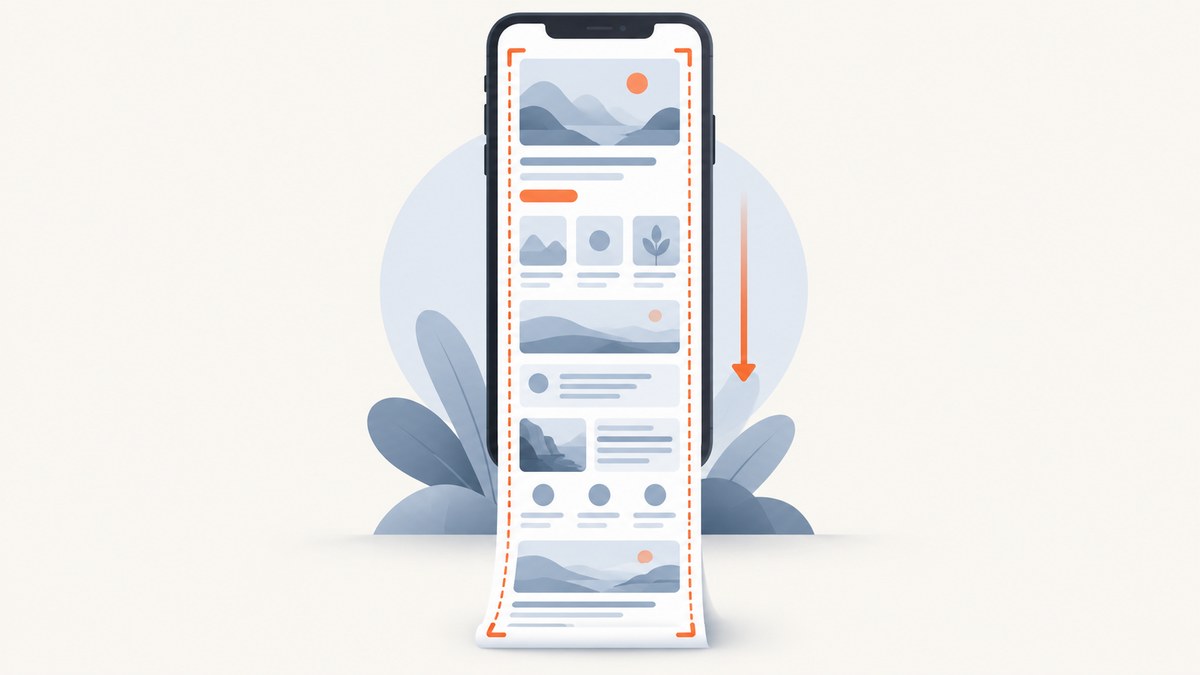
On Android, Chrome has a built-in long-screenshot tool: open the page, tap More beside the address bar, choose Share, select Long screenshot, adjust the crop handles, and tap Confirm. You can then save or share the image.
Android 12 and later also offer a system scrolling screenshot through Power + Volume Down and Capture more. On iPhone, Apple’s documented full-page workflow uses Safari: take a screenshot, tap its preview, choose Full Page, then save the result as an image or PDF. Apple’s documentation does not establish that the same control appears in Chrome on every iPhone, so use Safari when you need the documented route.
Chrome on Android: use Long screenshot
- Open the webpage in Chrome.
- Tap More (the three-dot menu) beside the address bar.
- Tap Share. On some devices, Share is available as a toolbar shortcut instead.
- Tap Long screenshot.
- Drag the top and bottom handles to include the part of the page you need.
- Tap Confirm, then save the image or share it with another app.
This workflow is Chrome’s directly documented Android method. It is useful for articles, documentation, receipts and other pages that extend below the visible screen.
What you can adjust
- Capture range: move the crop handles to include less or more of the page.
- Output destination: save locally or send the capture to another app through Android’s share sheet.
- Menu location: use the More menu if the Share shortcut is not visible.
Android fallback: Capture more
If Chrome does not show Long screenshot, use Android’s system scrolling screenshot when available. Google documents this for Android 12 and later and for most screens that allow scrolling.
- Open the page you want to capture.
- Press Power + Volume Down together.
- Tap Capture more at the bottom of the screenshot interface.
- Use the crop guides to choose the capture area.
- Save or share the resulting screenshot.
Capture more is a system feature, not a Chrome-only feature. It may be absent on a particular phone, Android version or screen. If the control is missing, check the phone maker’s support instructions.
iPhone: the documented full-page method uses Safari
Apple’s instructions show a webpage open in Safari. They do not confirm that the same Full Page option works inside Chrome on every supported iPhone or iPad.
- Open the webpage in Safari.
- On a Face ID iPhone, quickly press and release Side + Volume Up. On an iPhone with a Home button, press Side + Home.
- Tap the screenshot preview that appears.
- Choose Full Page.
- Review the page, then save it to Photos as an image or to Files as a PDF.
Google lists iOS 17 and later as the requirement for Chrome on iPhone and iPad. That app requirement does not prove that Chrome provides Apple’s Safari-scoped Full Page control.
Choosing the right method
| Situation | Use | Key limitation |
|---|---|---|
| Chrome on Android | More > Share > Long screenshot | Menu names and placement can vary by device. |
| Android 12 or later, Chrome option unavailable | Power + Volume Down > Capture more | Works on most scrollable screens, not every screen. |
| iPhone or iPad | Safari screenshot > Full Page | Apple’s documented webpage example is Safari, not Chrome. |
Troubleshooting
Long screenshot is not in Chrome’s Share menu
Confirm that the page is open in Chrome on Android and that Chrome is current. Try opening the More menu again; some phones expose Share as a toolbar shortcut. If the option still does not appear, use Android’s Capture more fallback or capture the page with an external service.
Capture more is missing
Google’s documented requirement is Android 12 or later, and support covers most scrollable screens rather than every screen. Your phone manufacturer may use different controls. Check its screenshot documentation.
The screenshot stops before the bottom
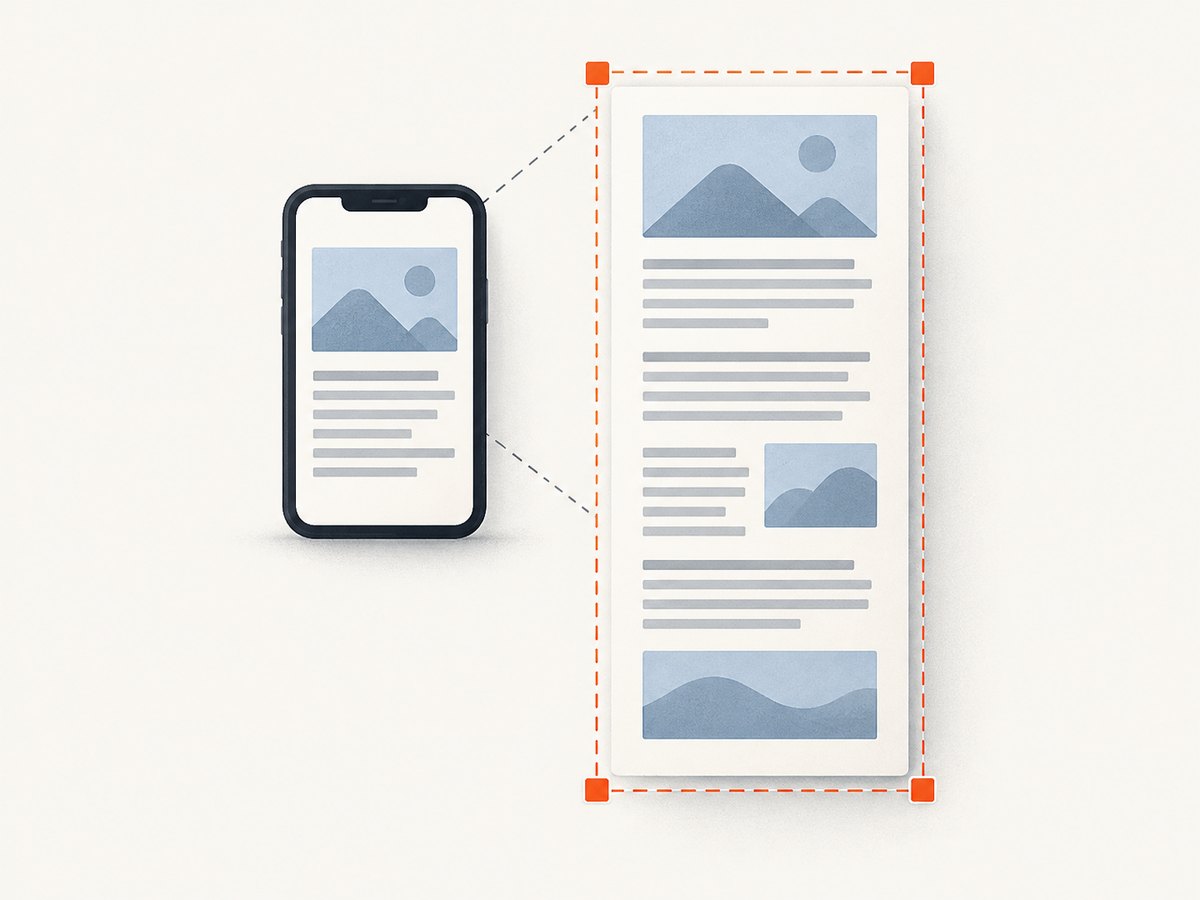
Move the lower crop handle farther down before confirming. If the page itself does not expose a normal scrollable document, a scrolling screenshot may not be able to continue.
Images or sections are blank
Some pages load content only after scrolling, interaction or a delay. Scroll through the page once before starting the capture and wait for visible images to finish loading. Pages protected by bot checks or requiring authentication may not render fully in a mobile browser.
The page changes while capturing
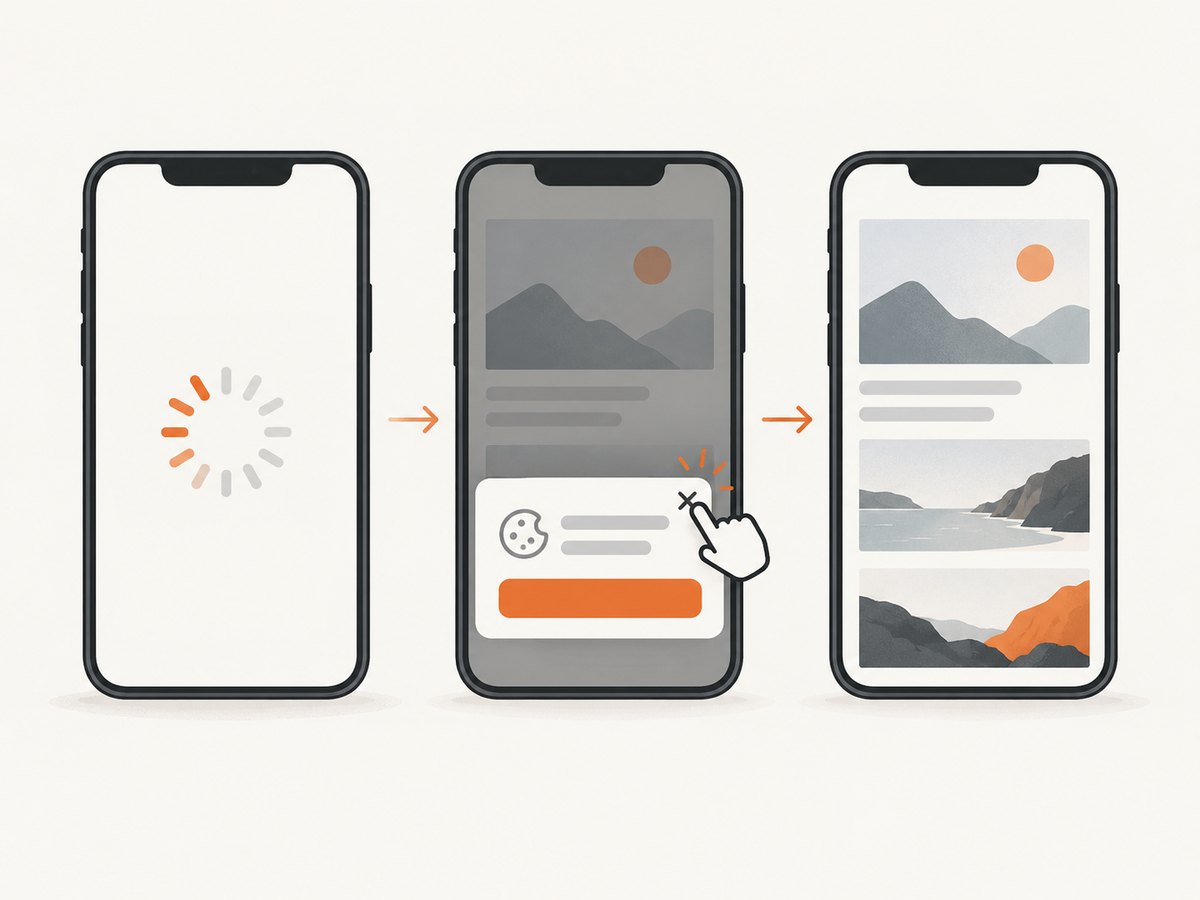
Dynamic ads, chat widgets, cookie banners and lazy-loaded content can alter page height. Dismiss overlays first, wait for the page to settle, and then start the capture.
There is no Full Page option on iPhone
The documented Apple flow is Safari. Open the page in Safari and repeat the screenshot steps. Do not assume that Chrome on iPhone exposes the same control on your device.
Quality, reliability and privacy checklist
- Dismiss cookie dialogs, newsletter popups and chat widgets before capturing.
- Wait until lazy images and fonts have loaded.
- Use a stable connection so the page does not stop halfway through.
- Check the final image or PDF for missing sections before sharing it.
- Avoid capturing pages that contain passwords, payment details or private messages unless the destination is trusted.
- For repeatable documentation, record the page URL, capture date and device or browser used.
Or skip the browser setup
ScreenshotNeo takes a webpage screenshot or PDF with one request. It accepts the cookie or consent banner like a visitor and removes more than 60 known consent platforms, newsletter popups and chat widgets before capture; each cleanup step can be turned off. Bot checks, blank pages, timeouts, failed loads and cache hits cost nothing, and the response reports the result with X-Page-Verdict and X-Billed headers.
See the complete parameter reference in the ScreenshotNeo API documentation.
cURL
curl -G "https://api.screenshotneo.com/v1/shot" \
  -d access_key=YOUR_API_KEY \
  --data-urlencode url=https://stripe.com \
  -o shot.webp
Python
import requests

r = requests.get(
    "https://api.screenshotneo.com/v1/shot",
    params={"access_key": "YOUR_API_KEY", "url": "https://stripe.com"},
    timeout=90,
)
r.raise_for_status()
open("shot.webp", "wb").write(r.content)
Node.js
const q = new URLSearchParams({
  access_key: 'YOUR_API_KEY',
  url: 'https://stripe.com'
});
const res = await fetch(`https://api.screenshotneo.com/v1/shot?${q}`);
if (!res.ok) throw new Error(`HTTP ${res.status}`);
const buffer = Buffer.from(await res.arrayBuffer());
require('fs').writeFileSync('shot.webp', buffer);
ScreenshotNeo also supports full-page capture with lazy images loaded, element capture by CSS selector, device presets, custom viewports, retina scale, dark mode, custom CSS and JavaScript, clicks, waits, blocked resource types, headers, cookies, user agents, authorization, timezone, geolocation, transparent backgrounds, resizing, caching, signed links, asynchronous jobs, webhooks, bulk capture and PDF output. An MCP server provides take_screenshot, get_page_info and capture_pdf for Claude, Cursor and other MCP clients.
Plans include 1,000 screenshots per month free with no card. Paid plans start at $5 for 3,000 shots; every feature is available on every plan.
Create a free ScreenshotNeo account to get started.
Performance, reliability and cost notes
- Browser capture: quality depends on the phone, page length, memory, connection and whether the page changes during capture.
- Repeatability: a hosted API is easier to automate for documentation, monitoring and batch jobs than a manual phone workflow.
- Billing: ScreenshotNeo bills only clean shots. Bot checks, blank pages, timeouts, failed loads and cache hits are not billed.
- Caching: choose a cache TTL when repeated captures do not need a fresh render.
- Batch work: bulk capture supports up to 100 URLs per call.
FAQ
Can Chrome on Android save a full webpage as an image?
Yes. Chrome’s Long screenshot flow lets you select the longer area and save or share the resulting image.
Does Android’s Capture more work on every app?
No. Google’s guidance says Android 12 and later and most screens that allow scrolling.
Can I guarantee Full Page capture in Chrome on iPhone?
No. Apple’s documented webpage workflow uses Safari. Chrome’s iOS support requirement does not establish full-page screenshot support inside Chrome.
Should I use an image or PDF?
Use an image for sharing a visual page capture. Use PDF when you need a document that can be saved to Files or printed; Safari and ScreenshotNeo both support PDF-oriented workflows.
What if the page requires a login?
Complete the login in the browser before capturing, or provide authenticated headers or cookies to an automation service that supports them. Never expose credentials in a URL or public screenshot.


