How to Capture a Full-Page Screenshot in Chrome Online
Capture an entire scrolling webpage in Chrome with DevTools, extensions, or one ScreenshotNeo API request. Includes troubleshooting, dynamic-page limits, and code.
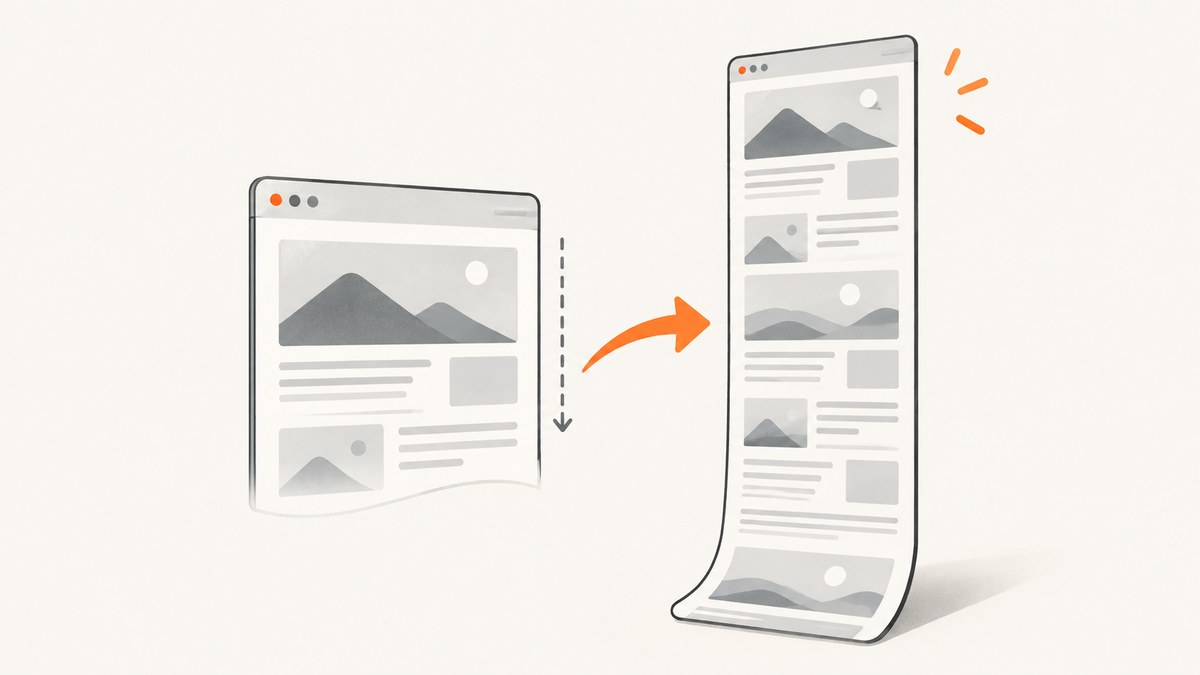
A full-page screenshot contains the entire webpage, including content below the visible browser window. In Chrome, the built-in DevTools workflow is usually the quickest option and does not require an extension.
Open the page, open DevTools, enable Device Mode, open the More options menu, and choose Capture a full size screenshot. Chrome downloads an image containing the page outside the current viewport. The ordinary Capture screenshot command captures only what is visible.
This guide explains the exact workflow, alternatives for repeated captures, dynamic-page limitations, privacy checks, troubleshooting, and an API option when you need repeatable screenshots in code.
1. Capture a full-page screenshot with Chrome DevTools
- Open the webpage in Chrome and wait for the content you need to appear.
- Open DevTools. From the Chrome menu, choose More tools > Developer tools, or use your operating system’s DevTools shortcut.
- Turn on Device Mode by selecting the phone-and-tablet icon in the DevTools toolbar.
- Open the Device Mode More options menu. It is the three-dot menu in the device toolbar.
- Select Capture a full size screenshot.
- Find the downloaded image in Chrome’s Downloads location and review it before sharing.
Chrome’s documentation describes this command as capturing the whole page, including content that is not currently visible. Menu names and toolbar placement can change between Chrome versions, so the wording may look slightly different on your system. See the Chrome DevTools Device Mode documentation for the current interface.
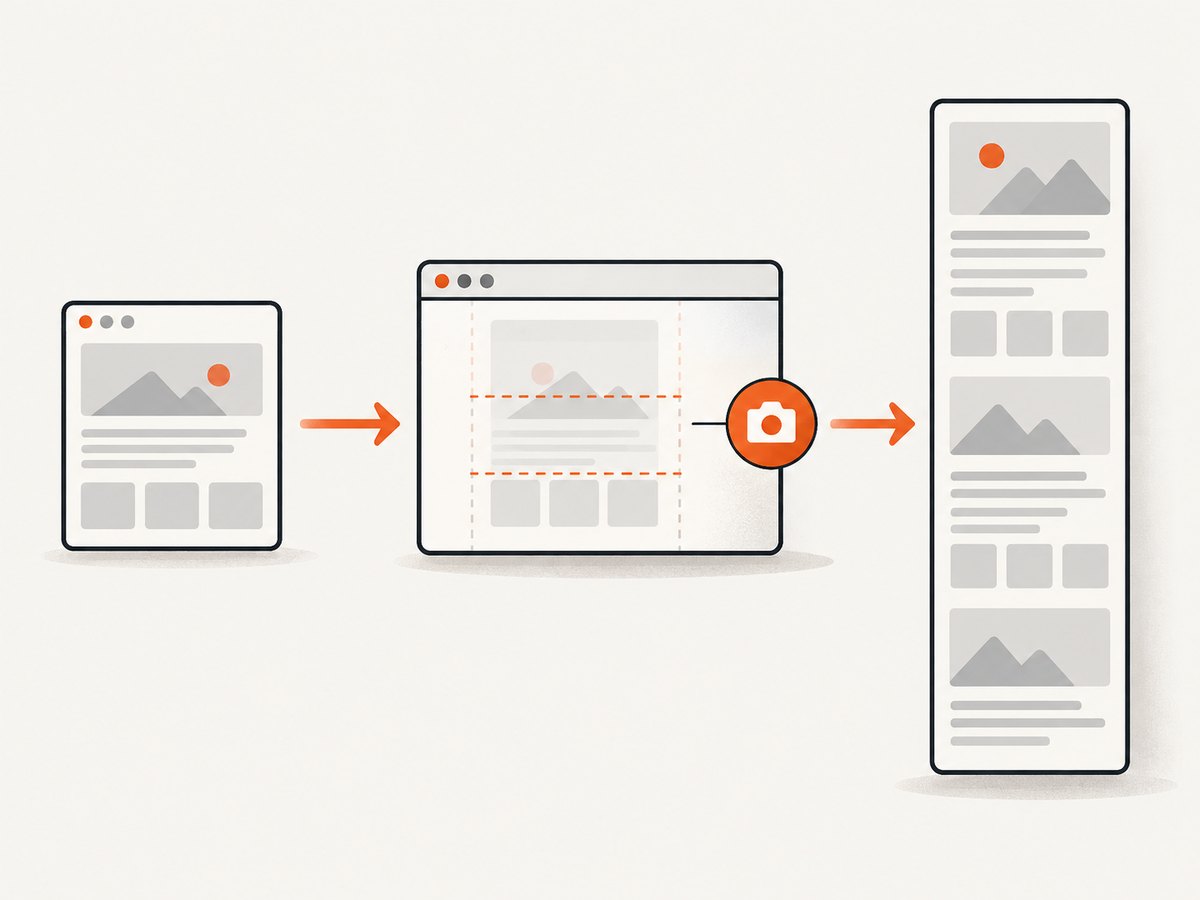
Use the Command Menu when the button is hard to find
Open DevTools’ Command Menu, type screenshot, and choose the screenshot command that captures the full page. The Command Menu is useful when a toolbar control has moved or your DevTools panel is narrow. If the search results show both a regular screenshot and a full-size screenshot, choose the full-size option.
Full size versus visible-area capture
| Command | What it captures | Use it for |
|---|---|---|
| Capture screenshot | Only the current viewport | A hero section, modal, or visible state |
| Capture a full size screenshot | The page extent, including content below the fold | Documentation, long articles, landing pages, and visual review |
Do not confuse a tall browser window with a full-page capture. Resizing the window changes the viewport; it does not guarantee that off-screen content is included.
2. Prepare the page before capturing
The screenshot reflects the state of the page at capture time. A few preparation steps prevent missing content and accidental disclosure.
- Wait for visible content. Let fonts, images, charts, and client-rendered sections finish loading.
- Set the intended viewport. Device Mode lets you choose a desktop or mobile preset and a viewport width. A responsive page can have completely different content at different widths.
- Close overlays. Dismiss cookie dialogs, newsletter forms, chat bubbles, and login prompts if they obscure the page.
- Scroll once if needed. Some sites lazy-load images only after they approach the viewport. Scrolling through the page can cause those assets to load before capture.
- Freeze the state you need. Pause carousels or animations where possible. A moving page can produce inconsistent sections.
- Check account data. Private names, email addresses, order details, tokens, and internal URLs can appear in a screenshot. Redact the image before sending it outside your team.
After capture, inspect the complete image at a practical zoom. Look for blank image areas, duplicated sections, sticky headers repeated on every segment, and content that appeared only after interaction.
3. Pages that do not have a stable “full page”
“Entire page” assumes that the page has a finite document height. That assumption fails for feeds that load more items forever, virtualized lists that render only nearby rows, and applications whose content changes while you scroll.
Infinite scroll and virtualized content
An infinite-scroll feed has no final bottom. Chrome can capture the document that exists at the moment of capture, but it cannot define a universal endpoint for content that keeps loading. A virtualized list may remove earlier rows from the DOM as new rows appear, so a single DOM-based capture can omit items that were previously visible. The Chrome Web Store listing for FullPageShot calls out these limits for virtualized and infinite-scroll pages; treat extension capability and privacy statements as vendor claims rather than independent testing.
For these pages, define a finite scope: capture the first N items, capture a specific element, or save several viewport screenshots while scrolling. If the page is account-specific, record the URL, filters, and timestamp alongside the image so another person can reproduce the state.
Sticky headers, banners, and changing content
A fixed header may appear at the top of every stitched segment or cover content beneath it. A rotating ad, live score, stock price, or personalized recommendation can change during capture. Review the output and repeat the capture after stabilizing the page if visual consistency matters.
4. Extensions: when they help and what to check
An extension can put a full-page button in the browser toolbar and may offer image or PDF export. GoFullPage’s Chrome Web Store listing describes clicking its extension icon (or using its listed keyboard shortcut), waiting for the capture, and downloading the result as an image or PDF. FullPageShot’s listing describes one-click PNG output and notes limitations around infinite-scroll and virtualized pages.
Extensions are optional; DevTools covers the central task without installing one. Before installing, check:
- the permissions shown in the Chrome Web Store;
- whether the output is PNG, JPEG, or PDF;
- how the extension handles authenticated or private pages;
- whether it uploads captures or processes them locally;
- its update history and publisher identity.
Do not treat a store listing’s user count, rating, privacy statement, or feature description as an independent security audit. Review sensitive screenshots locally and remove the extension later if you no longer need its permissions.
5. Repeatable capture with ScreenshotNeo
DevTools is ideal for an occasional manual capture. For documentation builds, visual checks, client reports, or a service that needs screenshots on demand, ScreenshotNeo provides a website screenshot API and MCP server. One GET request returns a PNG, JPEG, WebP, or PDF.
ScreenshotNeo handles the browser setup for you. Before capture it accepts the cookie or consent banner like a visitor and removes more than 60 known consent platforms, newsletter popups, and chat widgets. Each step can be turned off. Bot checks and CAPTCHAs, blank pages, timeouts, failed loads, and cache hits are not billed; the response identifies the result with X-Page-Verdict and X-Billed headers.
cURL
curl -G "https://api.screenshotneo.com/v1/shot" \
  -d access_key=YOUR_API_KEY \
  --data-urlencode url=https://stripe.com \
  -o shot.webp
Change the URL to the page you need. The complete parameter reference is in the ScreenshotNeo documentation.
Python
import requests

r = requests.get(
    "https://api.screenshotneo.com/v1/shot",
    params={"access_key": "YOUR_API_KEY", "url": "https://stripe.com"},
    timeout=90,
)
r.raise_for_status()
open("shot.webp", "wb").write(r.content)
Node.js
const q = new URLSearchParams({
  access_key: 'YOUR_API_KEY',
  url: 'https://stripe.com'
});
const res = await fetch(`https://api.screenshotneo.com/v1/shot?${q}`);
if (!res.ok) throw new Error(`HTTP ${res.status}`);
const image = Buffer.from(await res.arrayBuffer());
require('fs').writeFileSync('shot.webp', image);
Useful ScreenshotNeo options
ScreenshotNeo exposes controls for most production capture requirements:
| Requirement | Available controls |
|---|---|
| Page extent | Full-page capture with lazy images loaded, or one element selected by CSS selector |
| Appearance | Dark mode, 12 device presets, any viewport, retina scale, transparent background |
| PDF output | Paper size, margins, landscape mode, and page ranges |
| Dynamic pages | Wait for a selector, a delay, or network idle; click an element before capture |
| Page cleanup | Custom CSS and JavaScript, hide selectors, block ads, trackers, requests, or resource types |
| Authenticated pages | Custom headers, cookies, user agent, and Authorization |
| Location | Timezone and geolocation |
| Delivery and scale | Image resizing, selectable cache TTL, signed links for public <img> tags, async jobs with signed webhooks, bulk capture for 100 URLs per call, usage API, and OpenAPI specification |
Parameter names used by other screenshot APIs also work, which can reduce migration work. Use a cache TTL when the page can be reused; disable or shorten caching when the screenshot must reflect a new deployment. For large batches, use bulk capture rather than creating one client request per URL.
6. Or skip the browser setup
Use the ScreenshotNeo call above when you want a clean, repeatable full-page result. Cookie banners, popups, and chat widgets are removed before the shot. Bot checks, blank pages, and failed loads are never billed. An MCP server provides take_screenshot, get_page_info, and capture_pdf tools for Claude, Cursor, and other MCP clients, so an AI agent can request captures directly. The Free plan includes 1,000 screenshots per month with no card; paid plans start at $5 for 3,000 shots. Every feature is available on every plan.

Create a free ScreenshotNeo account and start with the 1,000 monthly screenshots.
7. Troubleshooting checklist
| Symptom | Likely cause | Fix |
|---|---|---|
| Only the visible screen was saved | The regular screenshot command was selected | Enable Device Mode and choose Capture a full size screenshot, or use the Command Menu and search for the full-size command. |
| The bottom of the page is missing | Content is lazy-loaded or the page is infinite-scroll | Scroll through the page first, define a finite capture scope, or use a selector-based/API workflow. |
| Images are blank | Assets had not loaded, requests were blocked, or the page changed during capture | Wait longer, reload, disable blocking extensions, and review the network state before capturing again. |
| A consent dialog covers the result | The dialog was still active at capture time | Accept or dismiss it manually, hide the selector, or use ScreenshotNeo’s consent and popup cleanup. |
| Text or layout looks different | Responsive breakpoints, missing fonts, or a different device scale | Set the intended viewport and device preset; wait for web fonts; compare at the same pixel dimensions. |
| The capture contains private data | The browser was logged in or the URL included account-specific content | Inspect and redact the image before sharing. Use a test account for repeatable documentation. |
| An API response is not an image | Invalid key, URL, or request options | Check the HTTP status and response headers, confirm the access key, URL-encode the target URL, and consult the API docs. |
8. Performance, reliability, and cost considerations
- Manual speed: DevTools is fast for one-off work because there is no account or setup beyond Chrome.
- Repeatability: Record the viewport, URL, login state, and capture time. A page can change between two manual screenshots.
- Large pages: Tall pages produce large image files. Consider WebP, resizing, or PDF when distribution size matters.
- Network behavior: Third-party ads, trackers, fonts, and analytics can delay a page or change its layout. Blocking selected resource types can make automated captures more predictable.
- Caching: A chosen cache TTL can reduce repeated work for unchanged pages. Use a short TTL or no cache when verifying a deployment.
- Billing: ScreenshotNeo bills clean shots only. Bot checks, CAPTCHAs, blank pages, timeouts, failed loads, and cache hits cost nothing, and the response states whether the shot was billed.
- Plans: Free includes 1,000 shots monthly without a card. Starter is $5 for 3,000; Growth $15 for 15,000; Pro $39 for 60,000; Scale $99 for 250,000; Business $249 for 1,000,000. Yearly billing gives two months free.
9. FAQ
Can Chrome capture a full page without an extension?
Yes. DevTools Device Mode includes Capture a full size screenshot. Extensions are optional.
Does full-page capture include content below the fold?
Yes, when Chrome can determine a finite page extent. Infinite-scroll and virtualized interfaces may not have a stable endpoint.
Can I save a full page as a PDF?
Chrome’s print flow can create PDFs, while extensions and ScreenshotNeo offer their own PDF workflows. ScreenshotNeo supports paper size, margins, landscape mode, and page ranges.
Why does a screenshot differ from what I see after scrolling?
Lazy loading, responsive layout changes, animations, personalization, and live data can alter the page during capture. Stabilize the page and review the output.
What is the simplest option for a script or CI job?
Use the ScreenshotNeo API with an access key. It returns the image directly and provides controls for waiting, cleanup, authentication, caching, resizing, and asynchronous jobs.


