How to Take a Full-Page Screenshot in Chrome on Windows 11
Capture an entire webpage in Chrome on Windows 11 with DevTools, extensions, troubleshooting tips, and a browser-free API option.
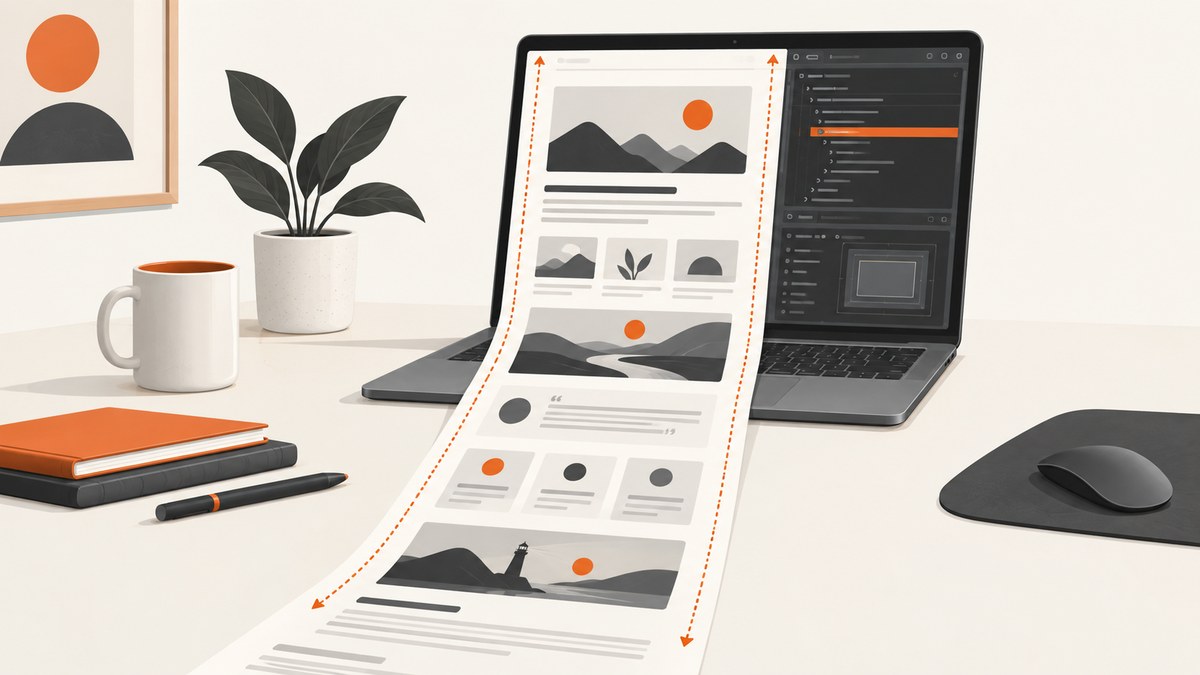
Fast answer: Open the page in Chrome, press F12, press Ctrl+Shift+P, type screenshot, and choose Capture full size screenshot. Chrome downloads a PNG containing content below the visible viewport. This is the built-in Windows 11 method documented by Chrome DevTools and Windows Central.
A normal screenshot captures only the current viewport. The full-size command captures the whole page, including content that is not currently visible. Chrome’s documentation describes this as capturing “the whole page including the content that isn’t currently visible in the viewport.” Chrome DevTools documentation
1. Capture a full webpage with Chrome DevTools
- Open the webpage in Google Chrome on Windows 11.
- Wait for the content you need to appear. If the page has animations, expandable sections, or lazy-loaded content, give them time to load first.
- Open DevTools with F12. You can also right-click the page and select Inspect, or open Developer Tools from Chrome’s menu.
- Click inside the DevTools panel so the keyboard shortcut applies to DevTools.
- Press Ctrl+Shift+P to open the DevTools Command Menu.
- Type screenshot.
- Select Capture full size screenshot. In some Chrome releases the label appears as Capture a full size screenshot.
- Chrome saves the result as a PNG download. The exact download folder depends on your Chrome download settings.
If you see the webpage’s own search box instead of the Command Menu, click the DevTools panel first and press the shortcut again. Chrome documents Ctrl+Shift+P as the Windows shortcut for the DevTools Command Menu.
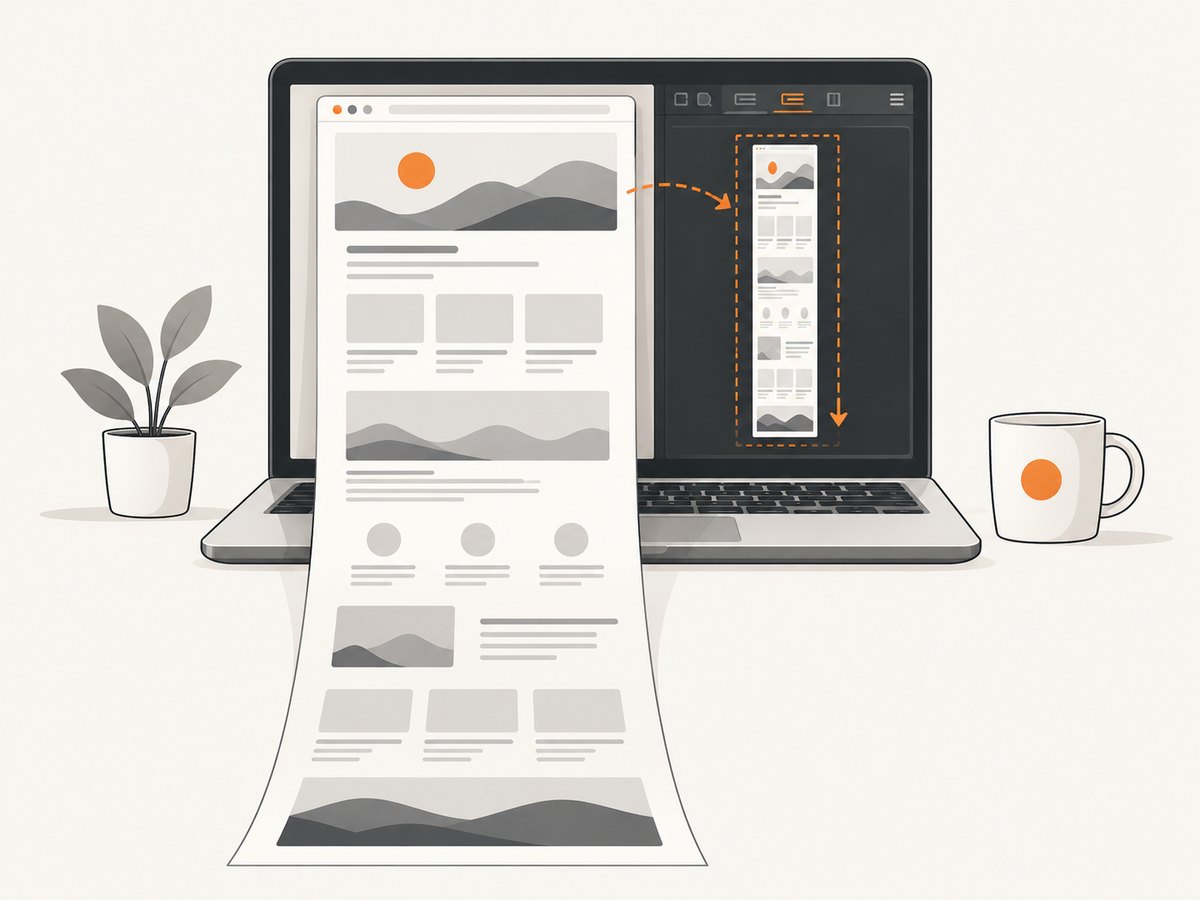
Another DevTools path
You can also use the device toolbar. Open DevTools, click the Toggle device toolbar button, open its More options menu, and choose the full-size screenshot command. The Command Menu route is usually quicker because searching for “screenshot” narrows the choices immediately.
2. Prepare the page before capturing
Chrome captures the page state that exists when the command runs. These checks help avoid incomplete images:
- Sign in first: Open the page and authenticate before starting the capture if the content requires an account.
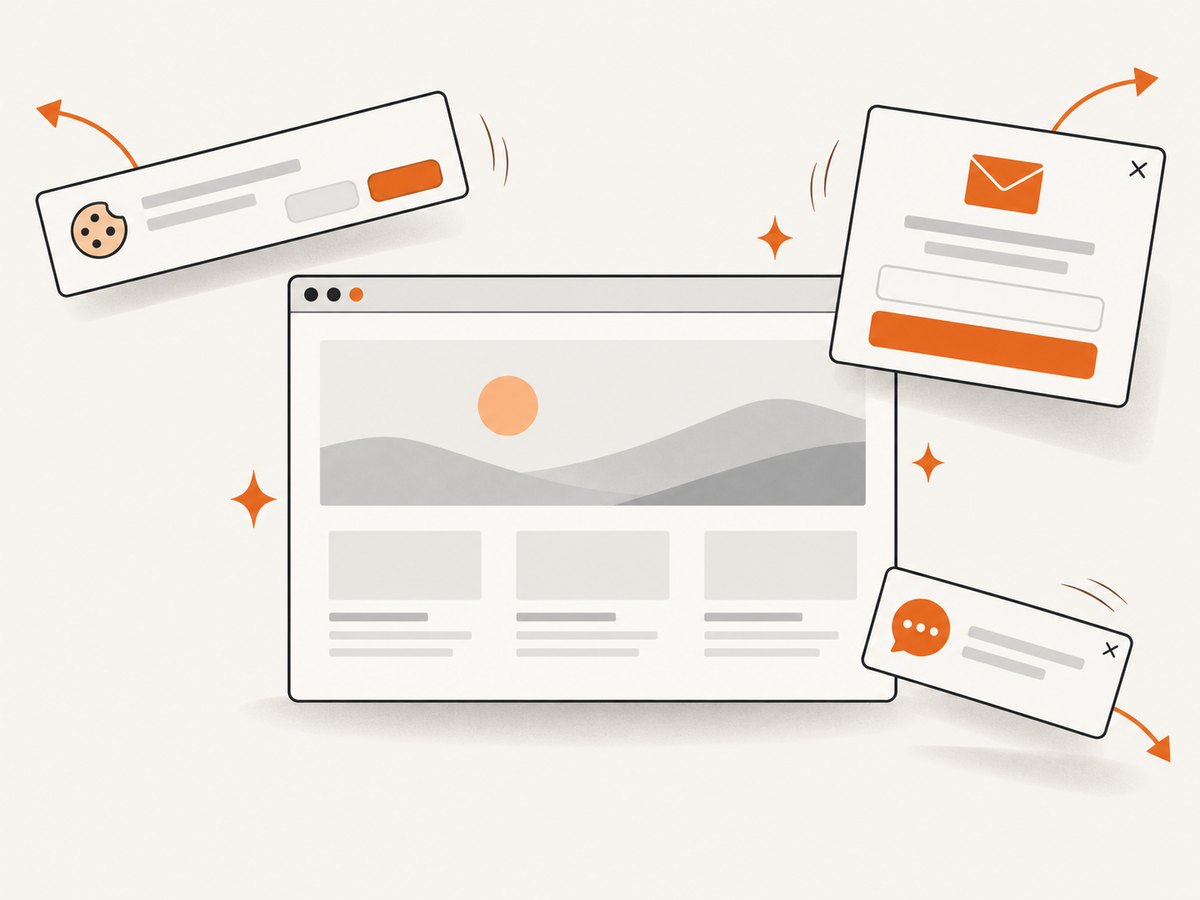
- Dismiss overlays: Close cookie dialogs, newsletter popups, chat widgets, and promotional banners that cover page content.
- Expand content: Open accordions, “read more” sections, and tabs that you want included. Closed sections may remain closed in the image.
- Trigger lazy content: Some pages load images or text as you scroll. Scroll through the page once, wait for media to finish loading, then capture again.
- Stop moving elements: Pause videos or wait for carousels and animations to reach the frame you want.
- Check the page height: Extremely long pages can produce very tall PNGs. If the file is unwieldy, capture logical sections separately or use a PDF workflow.
3. Choose the right Windows 11 method
| Method | Best for | Trade-off |
|---|---|---|
| DevTools: Capture full size screenshot | A complete webpage image using Chrome alone | Requires opening DevTools and handling page state first |
| Windows Snipping Tool | A visible region, window, or screen area | The cited Windows walkthrough does not describe it as the full-page scrolling method |
| Chrome extension such as GoFullPage | A direct extension workflow or image/PDF export | Requires installing third-party browser software; review its permissions and current availability |
Use DevTools when you need a single image of content below the fold without installing anything. Use Snipping Tool for what is currently visible. A full-page extension can be convenient when you capture pages frequently or want its additional export workflow. The GoFullPage Chrome Web Store listing describes whole-page image and PDF saving.
4. Troubleshooting missing or incorrect captures
The Command Menu does not open
Cause: DevTools is not focused, or another application has intercepted the shortcut.
Fix: Click inside DevTools and press Ctrl+Shift+P again. If F12 does not open DevTools, use right-click → Inspect or Chrome’s Developer Tools menu.
Only the visible viewport is captured
Cause: You selected a viewport screenshot command instead of the full-size command.
Fix: Reopen the Command Menu, search for screenshot, and choose Capture full size screenshot (or Capture a full size screenshot). Device Mode exposes separate viewport and full-size choices.
Images or text are missing below the fold
Cause: The page loads content dynamically while you scroll, or a script has not finished running.
Fix: Scroll through the page once, wait for images and text to appear, then run the full-size command again. Inspect the saved PNG for missing or duplicated sections. Chrome’s command captures the current rendered page; it does not guarantee that every site’s lazy-loading behavior will settle identically.
A cookie banner, popup, or chat bubble covers content
Cause: The overlay is part of the page state at capture time.
Fix: Accept or reject the cookie dialog as appropriate, close the popup, or hide the widget before capturing. If you control the page, temporarily disable the overlay in the page’s own settings or CSS during the capture.
The screenshot is extremely tall or difficult to share
Cause: Full-page PNGs preserve the entire page in one image, which can create a large pixel height and file size.
Fix: Capture sections separately, resize the image after download, or create a PDF when pagination is more useful than one continuous image.
The download cannot be found
Cause: Chrome saves downloads according to its configured location and may ask where to save each file.
Fix: Open Chrome’s download history with Ctrl+J and use the file’s “Show in folder” action. Do not assume a fixed Windows folder.
5. Reliability, performance, and file-size considerations
- Page state controls accuracy: Authentication, consent dialogs, lazy loading, animations, and infinite scroll can all change what appears in the final image.
- Long pages take more work: Chrome must render and encode content outside the viewport. Large pages can take longer and create large PNG files.
- Repeat captures after changes: If a page updates while you are preparing it, capture again after the final state is visible.
- Review the output: Check the top, middle, and bottom of the image for missing sections, repeated content, clipped fixed headers, or overlays.
- Cost: Chrome DevTools is built into the browser, so this workflow has no API charge. Extensions may have their own terms or paid features.
6. Or skip the browser setup
ScreenshotNeo provides a website screenshot API and MCP server. One GET request returns a PNG, JPEG, WebP, or PDF, and its full-page capture loads lazy images before the shot. Cookie and consent banners, newsletter popups, and chat widgets are removed before capture. Bot checks, blank pages, timeouts, failed loads, and cache hits are not billed; the response reports the result with X-Page-Verdict and X-Billed headers. An MCP server provides take_screenshot, get_page_info, and capture_pdf tools for Claude, Cursor, and other MCP clients.
See the ScreenshotNeo API documentation for authentication and options.
curl -G "https://api.screenshotneo.com/v1/shot" -d access_key=YOUR_API_KEY --data-urlencode url=https://stripe.com -o shot.webpimport requests; r = requests.get("https://api.screenshotneo.com/v1/shot", params={"access_key": "YOUR_API_KEY", "url": "https://stripe.com"}, timeout=90); open("shot.webp", "wb").write(r.content)const q = new URLSearchParams({ access_key: 'YOUR_API_KEY', url: 'https://stripe.com' }); const res = await fetch(`https://api.screenshotneo.com/v1/shot?${q}`);ScreenshotNeo also supports element capture, dark mode, device presets and custom viewports, retina scale, PDF paper and margin controls, custom CSS and JavaScript, clicks before capture, selector waits, delays, network-idle waits, request blocking, custom headers and cookies, user agents, authorization, timezone and geolocation, transparent backgrounds, resizing, configurable caching, signed links, asynchronous jobs with signed webhooks, bulk capture for up to 100 URLs per call, a usage API, and an OpenAPI specification. Parameter names used by other screenshot APIs also work to ease migration.
The Free plan includes 1,000 screenshots per month with no card. Paid plans start at $5 for 3,000 shots; yearly billing provides two months free, and every feature is available on every plan.
Create your free ScreenshotNeo account and start with 1,000 screenshots a month at no charge and no card.
7. Frequently asked questions
Does Chrome’s full-page command capture content below the fold?
Yes. The full-size DevTools command is intended to include content outside the current viewport.
Can I use this without installing an extension?
Yes. Chrome DevTools is built in. Extensions are optional alternatives.
Is Windows+Shift+S the right shortcut for a full webpage?
No. Windows+Shift+S and Snipping Tool are suited to visible areas or windows. Use DevTools’ full-size screenshot command for the entire webpage.
Where does Chrome save the PNG?
Chrome uses your configured download location. Check Ctrl+J if you need to locate the file.
Can a full-page capture include a page that requires login?
Yes, when the page is already open and authenticated in that Chrome session. The capture reflects the state visible to that session.
When is an API better than DevTools?
An API is useful for repeated, automated, multi-URL, or server-side captures, especially when you need consistent options, PDFs, webhooks, caching, or AI-agent access.
Sources: Chrome DevTools Device Mode documentation; Windows Central walkthrough; GoFullPage Chrome Web Store listing.


