How to Take a Full-Page Screenshot on a Chromebook
Capture the screen you can see with ChromeOS, or save a whole scrolling webpage with a Chrome extension. Here are the steps, tradeoffs, and fixes.
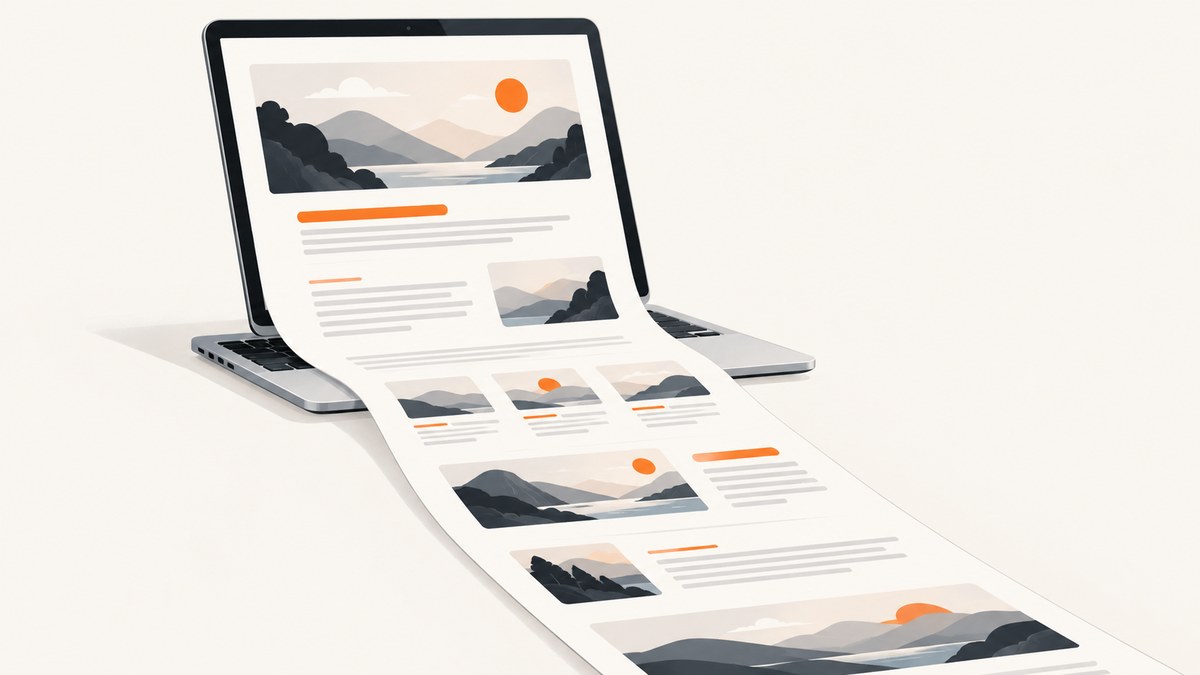
A Chromebook can save a screenshot of its current display, a selected region, or a window. That built-in capture does not scroll through a long webpage. To capture the whole webpage—including content below the fold—use a browser extension that scrolls down and assembles the sections into one image or a PDF.
This guide covers both methods, where files go, how to handle long or awkward pages, and what to check before sharing a capture. For a developer who needs to capture pages repeatedly or as part of a workflow, there is also a browser-free API option below.
1. Choose the right kind of screenshot
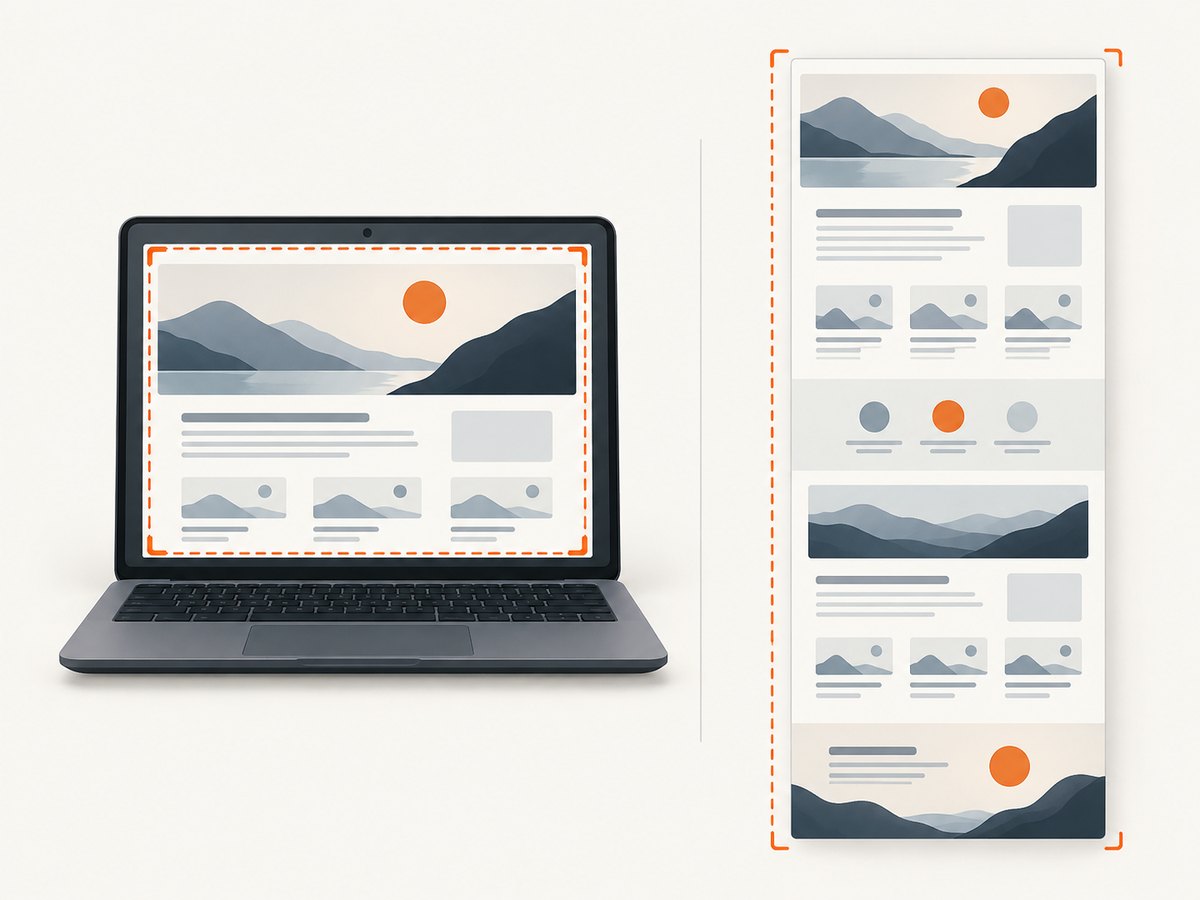
“Full screen” and “full page” describe different things. A full-screen capture records the Chromebook display as it looks now. It includes the visible part of a webpage, but it does not include page content farther down. A full-page webpage capture scrolls through the document and combines what it sees into a tall image or a PDF.
| Need | Use | What you get |
|---|---|---|
| Record everything currently visible on the display | ChromeOS Screen Capture | Current screen image |
| Capture one area or one window | ChromeOS Screen Capture | Selected region or window image |
| Include the page below the fold | Full-page browser extension | Long assembled image or PDF |
Google’s documented Chromebook capture menu offers full-screen, partial, and window capture. It does not describe a built-in control for scrolling through a webpage. Google’s Chromebook screenshot instructions are the reference for the native controls.
2. Capture the visible Chromebook screen
- Open the screen or window you want to capture.
- Start Screen Capture using the Screenshot key, if your Chromebook has one. You can also open Settings > Screen Capture, or press Shift + Ctrl + Show windows.
- If you are using an external keyboard without a Show windows key, Google documents Ctrl + Shift + F5 as the shortcut.
- In the capture menu, select Screenshot.
- Choose Full screen, Partial, or Window, then complete the capture as prompted.
“Full screen” here means the Chromebook display. If the browser shows only the top part of a long page, the screenshot will show only that visible part. To capture below the fold, continue to the extension method in the next section.
Find the file and change the save folder
ChromeOS saves screenshots to Downloads by default. If you want a different destination, open Screen Capture settings and choose another folder there. After capture, open the Files app and check Downloads or the folder you selected. If you are about to attach the screenshot to a ticket or send it to someone, open the file first to confirm that it is the intended capture.
3. Capture a whole scrolling webpage with GoFullPage
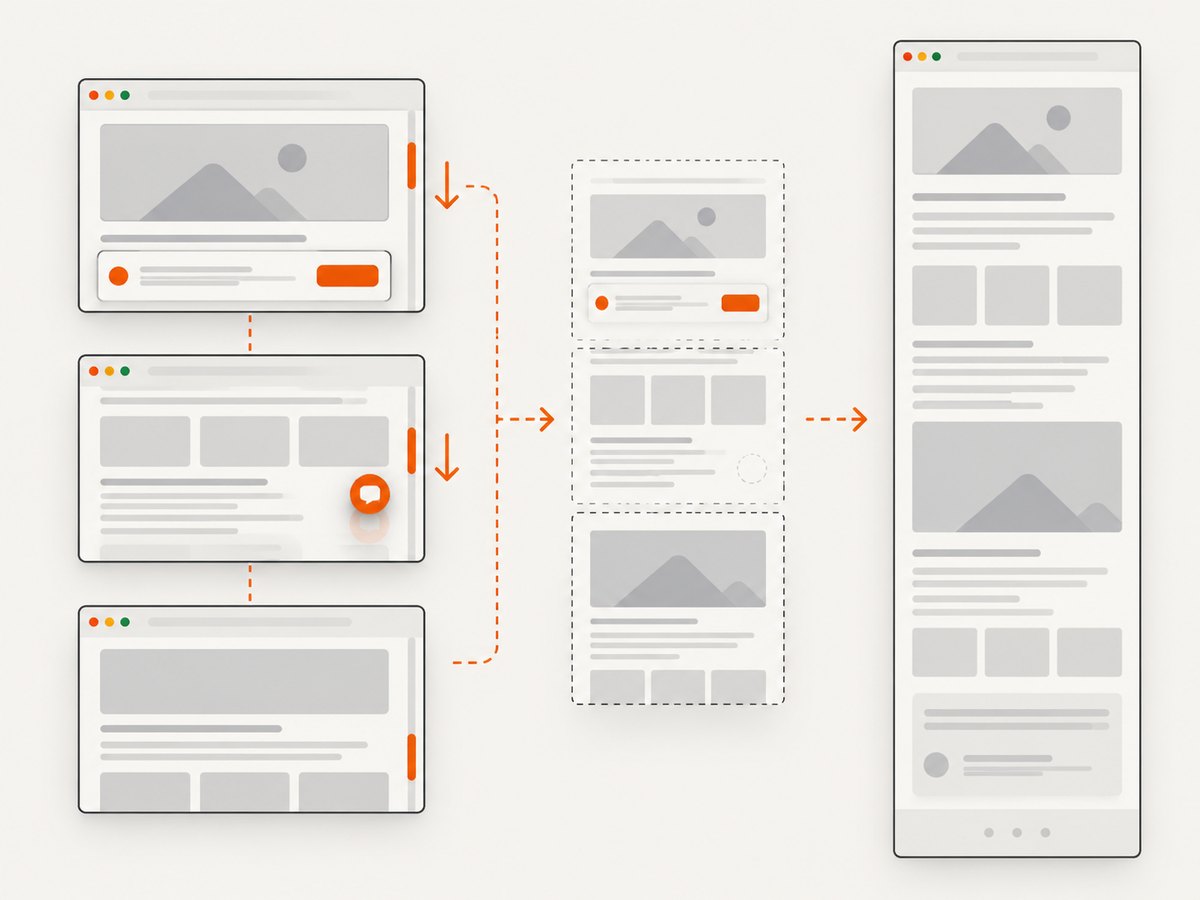
For webpage content that continues below the visible display, the GoFullPage Chrome Web Store listing describes a method that scrolls through the page and assembles the sections. The listing offers image and PDF export. The steps below follow the listing’s described workflow; extension behavior and availability can change, and the resulting capture should be inspected before use.
- Open the official GoFullPage Chrome Web Store listing.
- Review its current permissions and privacy information, then install the extension if it suits your needs. An extension needs access to the webpage it captures.
- Open the page you want to save and wait for it to finish loading. If the page has content that appears only after scrolling, let it appear normally where possible.
- Click the extension’s toolbar icon, or use Alt + Shift + P as listed in the research dossier for this workflow.
- Wait while it scrolls down and assembles the capture. Very long pages can take longer to process than a normal screen grab.
- Choose an image or PDF download option, then open the saved result and inspect it.
The GoFullPage listing says the extension can handle inner scrollable elements and embedded iframes. It also notes that an unusually large capture may be split into images in separate tabs. These are described capabilities, not a guarantee that every page will capture perfectly. If a particular page matters, inspect the top, middle, and bottom of the result for missing content, duplicated sections, or layout changes.
Think about access before installing
A full-page extension works on the webpage, so consider what page you are capturing and what permissions the extension currently requests. Install it from its official store listing and review the current privacy details there. The listing includes the developer’s disclosure that it will not collect or use data; that is the developer’s statement, not an independent audit.
4. Get a more reliable result from dynamic pages
Pages that load content as you scroll, update themselves, or put content in nested scroll areas are more difficult to capture than a static article. A scrolling extension must visit the relevant areas and assemble them. Before capture, make the page as stable as practical: wait for the main content, dismiss any dialog that should not appear in the result, and avoid interacting with the page while the extension is working.
- Lazy-loaded images: Some sites load images only when they approach the visible area. A scroll-based capture can encounter these during its pass, but inspect the image regions afterward.
- Sticky headers: A header fixed to the top of the browser can appear across stitched sections or cover content. Check the joins and the text immediately below repeated headers.
- Nested scrolling: If a panel inside the page scrolls independently, scroll that panel to the content you need. The extension listing describes support for inner scrollable elements, but verify that your target panel was included.
- Embedded content: Content inside an iframe can depend on how the site and browser expose it. Verify the captured frame rather than assuming it is complete.
- Very long pages: Large output files may be cumbersome to open, upload, or share. The listing notes that oversized captures can be split into images in separate tabs; check whether all parts were saved.
5. Pick image or PDF output
Choose the format for the next step, not just the capture. An image is usually convenient for a bug report, design reference, or quick visual comparison. A PDF can be easier to distribute as a document or print, but a single very tall page may be awkward to read or print. Check the extension’s current export options before capture if the format matters.
For either format, open the file after downloading. Confirm it contains the full page, that text is legible at the intended viewing size, and that there are no missing sections or unwanted overlays. A screenshot is a visual record, not an accessible copy of the page text, so keep a link or source reference when readers may need to search or copy the content.
6. Troubleshooting
| Problem | Likely cause | What to try |
|---|---|---|
| The built-in screenshot stops at the visible part of the page | ChromeOS captured the display, not a scrolling webpage. | Use a full-page extension for the page, or capture only the current display if that is all you need. |
| The Screenshot key is missing | Your Chromebook or external keyboard may not have that key. | Open Settings > Screen Capture, or use Shift + Ctrl + Show windows. With an external keyboard lacking Show windows, try Ctrl + Shift + F5 as Google documents. |
| The extension icon is not visible | The extension may be installed but hidden in the browser toolbar, or not installed in the current profile. | Check the browser’s extensions controls and confirm that GoFullPage is installed and enabled in the profile containing the page. |
| The capture misses images or later sections | Content may load only after scrolling, require interaction, or live in a nested scrolling area. | Wait for the page to settle, scroll the relevant panel, capture again, and inspect the result. Some content may not be capturable by the extension. |
| The output is split or too large to handle | The page is unusually long or complex. | Check all output tabs or files. If you only need part of the page, use a partial screen capture or capture separate sections and label them clearly. |
| A download does not appear in Downloads | The browser may save to a different folder or ask where to save files. | Check the browser’s downloads list and the folder configured in Screen Capture settings. Open the result before sharing. |
7. Performance, reliability, and cost
The built-in capture is the simplest choice for the current display: it does not need to visit the rest of a webpage. A scrolling extension does more work, so capture time and output size can grow with page length, embedded content, and dynamic loading. There is no single completion time that applies to every website. Leave the page open during capture and check the finished file.
For an occasional manual capture, the Chromebook tool or a browser extension may be enough. For repeatable captures in a developer workflow, a screenshot API can avoid installing and operating browser software on each workstation. API usage can have a per-capture price, so check the provider’s current plan and account for retries, output format, and how many pages you capture. Do not assume that a successful HTTP request means the page itself rendered correctly; inspect outputs or use response status information where available.
8. Or skip the browser setup
ScreenshotNeo is a website screenshot API and MCP server for developers. A GET request with a URL can return a PNG, JPEG, WebP, or PDF. The call below saves a screenshot response as a file; see the ScreenshotNeo API documentation for the supported parameters and response details.
curl -G "https://api.screenshotneo.com/v1/shot" \
  -d access_key=YOUR_API_KEY \
  --data-urlencode url=https://stripe.com \
  -o shot.webp
ScreenshotNeo accepts cookie or consent banners like a visitor and removes more than 60 known consent platforms, newsletter popups, and chat widgets before capture; each step can be turned off. Bot checks and CAPTCHAs, blank pages, timeouts, failed loads, and cache hits cost nothing, and response headers report the page verdict and billing status. Its MCP server provides take_screenshot, get_page_info, and capture_pdf tools for Claude, Cursor, and other MCP clients. The free plan includes 1,000 shots a month with no card; paid plans start at $5 for 3,000 shots.
Sign up for ScreenshotNeo’s free 1,000 screenshots a month, with no card required.
9. A repeatable checklist
- Decide whether you need the display, a region, a window, or the full webpage.
- Use ChromeOS Screen Capture for the display, region, or window.
- Use a scrolling extension for content below the fold, and review its permissions first.
- Wait for dynamic content, then inspect the result for gaps, repeats, and overlays.
- Choose an image or PDF based on how the capture will be reviewed or shared.
- Confirm the file and destination before sending or uploading it.
FAQ
Can a Chromebook take a screenshot without an extension?
Yes, for the current display, a selected region, or a window. The documented native workflow does not scroll through the whole webpage.
Does a full-page capture include the browser tabs and address bar?
A webpage capture is intended to capture page content. If you need browser controls as evidence, use the built-in screen capture and include the visible browser window.
Can I use the screenshot in a bug report?
Yes. Check that the capture shows the relevant state and that any private information is removed or intentionally included before sharing.
Will a scrolling capture preserve clickable links?
A screenshot is an image of the page, so it does not preserve the page’s normal interactive links. Share the original page URL alongside the capture when readers need to navigate the source.


