How to Take a Full-Page Screenshot in Edge on Mac
Capture an entire webpage in Edge on Mac with Screenshot, DevTools, keyboard shortcuts, fixes for missing tools, and an API alternative.
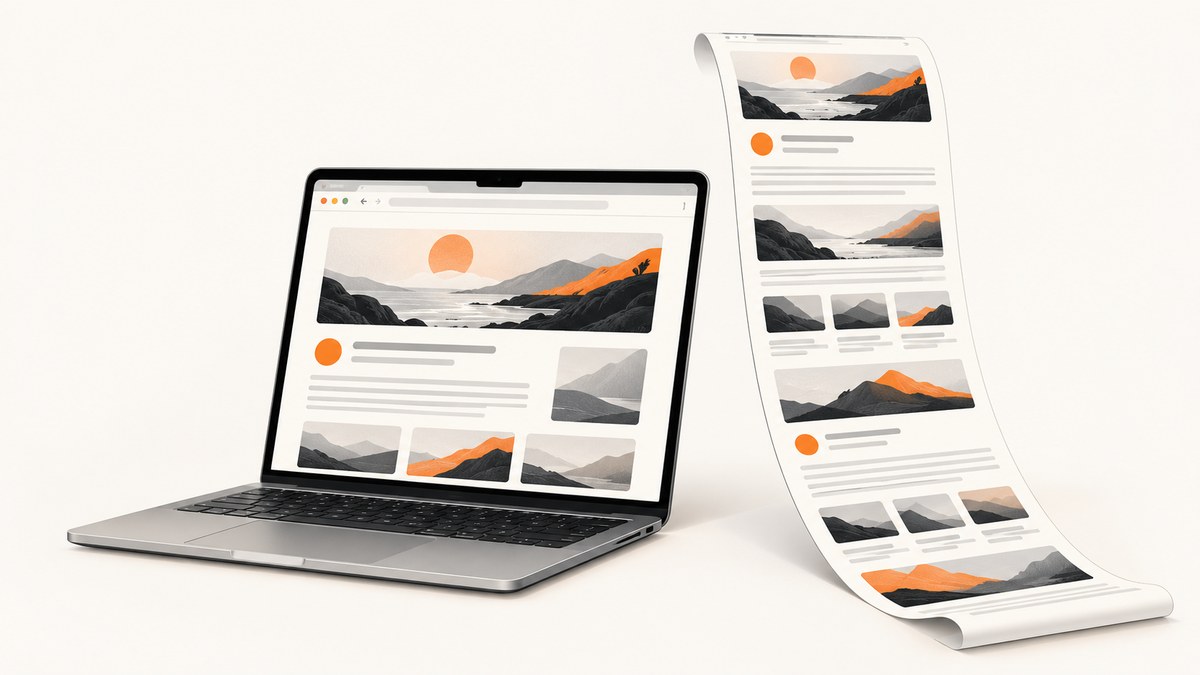
To take a full-page screenshot in Microsoft Edge on a Mac, open the page, choose Screenshot from the right-click menu or Edge’s Settings and more menu, then select Capture full page. Edge scrolls through the page and creates one image that includes content below the visible screen. You can review it, mark it up, copy it, or save it from the toolbar.
This guide covers the built-in Screenshot tool, the documented keyboard shortcut, DevTools’ full-size capture, pages that do not capture cleanly, and an automated option when you need repeatable screenshots in code.
1. Use Edge’s built-in Screenshot tool
- Open the webpage in Microsoft Edge on your Mac. Wait for the main content and any images you need to appear.
- Right-click the page. On a trackpad, Control-click. Choose Screenshot when it appears. Microsoft also provides the command from Edge’s Settings and more menu (the three dots).
- In the Screenshot toolbar, choose Capture full page. This is the middle option in Microsoft’s learning-center instructions; do not choose Capture area if you need the entire document.
- Review the generated image. Use the available markup tools if you need arrows, highlights, or other annotations.
- Use the toolbar controls to copy the image or save it to your Mac. Choose a descriptive filename such as
pricing-page-2026-09-30.png.
Microsoft describes Screenshot as capturing an entire webpage in one screenshot, including content that extends beyond the screen. The feature was previously called Web Capture, so older tutorials and managed-browser policies may still use that name. Microsoft’s related policy is named WebCaptureEnabled. See the official Edge Screenshot feature page and the Microsoft Edge learning center.
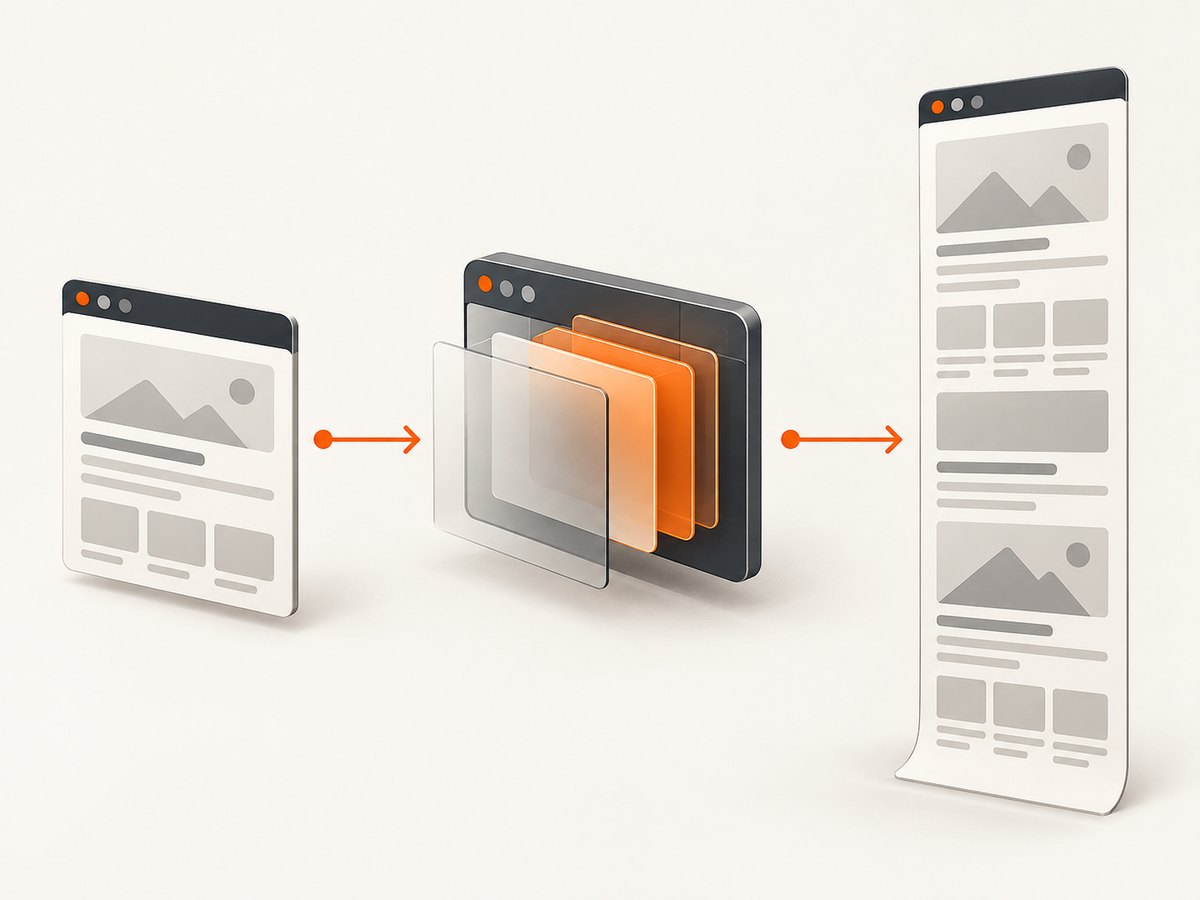
2. Open Screenshot with the keyboard
Microsoft documents Ctrl+Shift+S as the shortcut for opening Screenshot. On macOS, keyboard layouts, browser versions, and organisation settings can affect whether it works. Try the documented shortcut first; if nothing opens, use the right-click route or Edge’s three-dot menu.
Do not assume that Command+Shift+S is equivalent. It may invoke a different macOS or application command, while Microsoft’s published shortcut is Ctrl+Shift+S.
3. Capture the page through DevTools
DevTools is a useful fallback when Screenshot is missing, when you need a technical capture workflow, or when the regular toolbar behaves unexpectedly.
- Open the page in Edge.
- Open More tools > Developer tools. You can also use the browser’s developer-tools shortcut if it is enabled on your installation.
- Open the DevTools command or capture menu. In Chromium-based DevTools, this is commonly reached from the command menu.
- Choose Capture a full size screenshot.
- Save the resulting image when Edge prompts you.
The full-size command captures the document beyond the current viewport. It is different from taking a normal screenshot of the visible browser window, which omits content below the fold.
4. Decide which Edge method fits
| Method | Installation | Whole page | Annotation | Best use | Managed browser |
|---|---|---|---|---|---|
| Screenshot > Capture full page | None | Yes | Built in | Fast one-off captures | May be restricted by policy |
| Ctrl+Shift+S | None | Yes, after choosing full page | Built in | Keyboard-driven work | Shortcut may be disabled |
| DevTools full size | None | Yes | Limited compared with Screenshot | Technical fallback and debugging | Developer tools may be restricted |
| Third-party extension | Extension required | Depends on the extension | Depends on the extension | Special workflows | Often blocked by organisation policy |
Extensions are a fallback category rather than a requirement. The official Edge Add-ons catalog lists full-page screenshot extensions, but check each vendor’s permissions, storage behavior, and update history before installing one.
5. Prepare a page for a reliable full-page capture
A screenshot is a rendering of the page at capture time. These checks prevent many blank sections, missing images, and inconsistent results.
- Wait for dynamic content. Let dashboards, charts, and client-rendered sections finish loading before opening Screenshot.
- Scroll once first. Some sites lazy-load images only after an element approaches the viewport. A quick scroll can make more content available before the full-page operation.
- Close transient UI. Dismiss cookie notices, newsletter popups, chat bubbles, and video overlays when they cover important content.
- Set the intended zoom. Browser zoom changes the rendered width and can alter line wrapping. Return to 100% when you need repeatable captures.
- Use a stable window size. Resize the Edge window to the width your documentation or review process expects.
- Check sticky elements. A fixed header may repeat or cover content as Edge scrolls. If the result is obstructed, try DevTools or temporarily hide the element with inspection tools.
6. Why a full-page screenshot can look wrong
Lazy-loaded images are missing
Some pages request images only when they approach the viewport. The capture process may move quickly enough that an image remains a placeholder. Scroll through the page once, wait for images to finish, then run Capture full page again. If the page still fails, use DevTools or an automated browser that lets you wait for a selector or a network-idle condition.
Sticky headers, banners, or chat widgets repeat
Fixed-position elements remain attached to the viewport while the document scrolls. They can appear in multiple places or cover text. Dismiss the element first. For a controlled technical capture, use DevTools inspection to hide the selector temporarily, or use an API with a hide-selectors option.
Frames and protected documents do not capture as expected
An embedded frame can have its own document and permissions. A protected PDF viewer, cross-origin frame, authentication wall, or canvas-based application may not expose all content to the page capture command. Capture the frame directly when possible, sign in before capturing, or export the original document instead of rasterizing it.
The page keeps changing
Live feeds, rotating ads, timestamps, and animations can produce different images on each attempt. Pause animation where the site allows it, wait for a stable state, and repeat at the same window size and zoom.
7. “Screenshot” or “Web Capture” is missing
- Update Edge, then restart it.
- Open the three-dot Settings and more menu and search for Screenshot.
- Right-click the page and check the context menu.
- Search older documentation for Web Capture; it is the former name of the feature.
- If this is a work or school Mac, ask whether a browser policy controls
WebCaptureEnabledor blocks developer tools. - Try the DevTools full-size screenshot command if DevTools is available.
A managed-browser policy can remove a command even when the installed Edge version supports it. A page can also be technically difficult to render, so the feature’s intended behavior does not guarantee a perfect image for every site.
8. Troubleshooting checklist
| Symptom | Likely cause | Fix |
|---|---|---|
| Shortcut does nothing | Layout, version, or policy difference | Use right-click or Settings and more; verify Edge is current |
| Only the visible area is saved | Capture area was selected | Run Screenshot again and choose Capture full page |
| Bottom sections are blank | Lazy loading or delayed JavaScript | Scroll once, wait, and recapture |
| Cookie dialog covers the image | Consent UI stayed open | Accept or dismiss it before capture |
| Repeated header bands | Fixed-position navigation | Hide or dismiss the header; try DevTools |
| Capture is enormous | Very long document or large device scale | Capture sections, reduce zoom, or export to PDF |
| DevTools command is unavailable | Developer tools restricted | Use Screenshot or request policy access from the administrator |
9. Performance, reliability, and file size
Full-page captures take longer than viewport screenshots because Edge must render content across the document height. Long pages with large images, charts, video, or continuously updating scripts consume more memory and produce larger files. PNG preserves sharp text but can be large; JPEG is smaller for photographic pages; WebP can provide a smaller file when your destination supports it.
For repeatable documentation, keep the URL, viewport width, zoom, login state, and capture time consistent. Save the source URL beside the image. If a page is hundreds of screens tall, capture logical sections or create a PDF so reviewers can navigate it more easily.
10. Or skip the browser setup
When you need screenshots in CI, a content pipeline, a monitoring job, or an AI workflow, ScreenshotNeo provides a website screenshot API and MCP server. One GET request returns PNG, JPEG, WebP, or a PDF. The API supports full-page capture with lazy images loaded, a CSS-selected element, dark mode, device presets or any viewport, retina scale, custom CSS and JavaScript, clicks, waits, blocked resources, custom headers and cookies, timezone and geolocation, transparent backgrounds, resizing, caching, signed image links, asynchronous jobs, bulk capture, usage data, and PDF options.

Its clean-shot workflow accepts consent banners before capture and removes more than 60 known consent platforms, newsletter popups, and chat widgets; each step can be disabled. Bot checks, CAPTCHAs, blank pages, timeouts, failed loads, and cache hits are not billed, and response headers identify the page verdict and billing status. An MCP server exposes take_screenshot, get_page_info, and capture_pdf to Claude, Cursor, and other MCP clients.
See the ScreenshotNeo API documentation for the complete parameter list.
cURL
curl -G "https://api.screenshotneo.com/v1/shot" \
  -d access_key=YOUR_API_KEY \
  --data-urlencode url=https://stripe.com \
  -o shot.webp
Python
import requests

r = requests.get(
    "https://api.screenshotneo.com/v1/shot",
    params={"access_key": "YOUR_API_KEY", "url": "https://stripe.com"},
    timeout=90,
)
r.raise_for_status()
open("shot.webp", "wb").write(r.content)
Node.js
const q = new URLSearchParams({ access_key: 'YOUR_API_KEY', url: 'https://stripe.com' });
const res = await fetch(`https://api.screenshotneo.com/v1/shot?${q}`);
if (!res.ok) throw new Error(`Screenshot failed: ${res.status}`);
const data = Buffer.from(await res.arrayBuffer());
await import('node:fs/promises').then(fs => fs.writeFile('shot.webp', data));
ScreenshotNeo has 1,000 free shots each month with no card. Paid plans start at $5 for 3,000 shots; yearly billing gives two months free, and every feature is available on every plan. Create a free ScreenshotNeo account and use the same capture settings from your Edge workflow in code.
11. FAQ
Can Edge save a full webpage as one image on Mac?
Yes. Open Screenshot and choose Capture full page. It creates one image containing content below the viewport.
Where did Web Capture go in Edge?
Web Capture is the older name for the feature now labeled Screenshot. Search for either term in older instructions or policy documentation.
Is Ctrl+Shift+S the Mac shortcut?
Microsoft documents Ctrl+Shift+S for opening Screenshot. If it does not work on your Mac, use the context menu or Settings and more menu.
Can I capture only one element?
Edge’s built-in tool is designed around an area or the full page. For a specific element, inspect it in DevTools or use an API that accepts a CSS selector, such as ScreenshotNeo.
Why should I use an API instead of Edge?
An API is useful when captures must run without a person, use consistent settings, process many URLs, or integrate with CI and AI agents. A local browser remains convenient for occasional manual work.


