How to Take a Full-Page Screenshot in Firefox on Mac
Capture an entire webpage in Firefox on a Mac with the built-in screenshot tool, keyboard shortcut, download, copy, and troubleshooting steps.
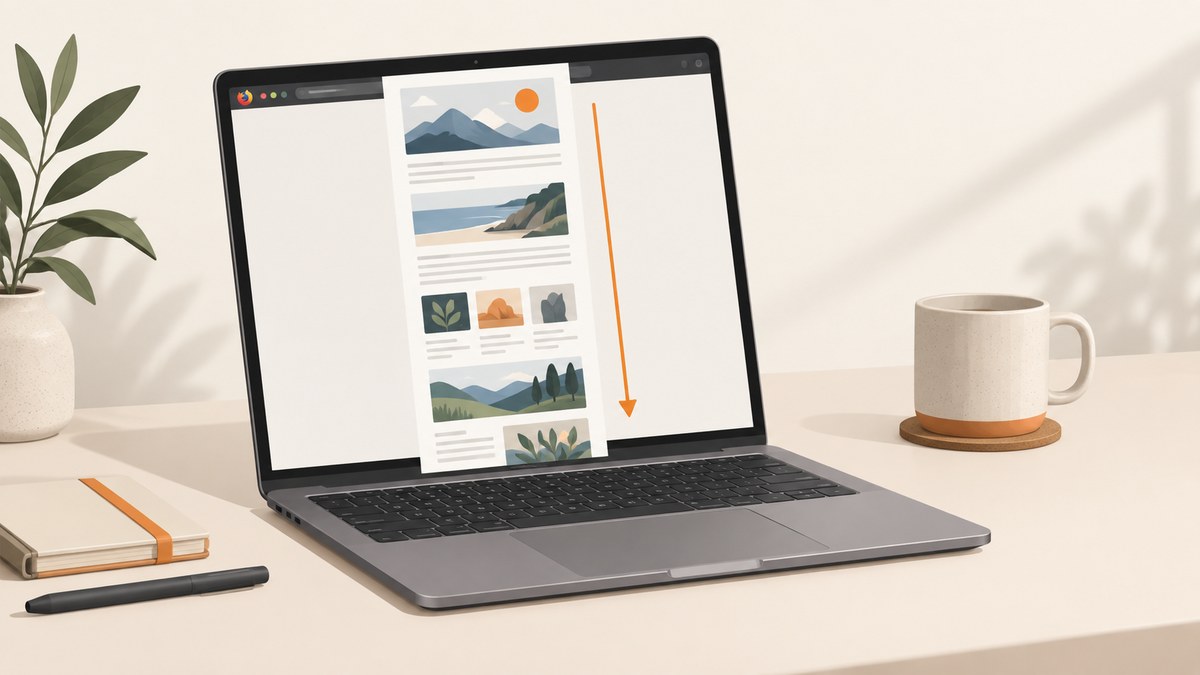
To take a full-page screenshot in Firefox on a Mac, open the page, right-click an empty area, choose Take Screenshot, select Save full page, then choose Download or Copy. You can also open the screenshot tool with Command + Shift + S.
Firefox’s built-in tool captures the whole document, including content below the visible browser window. Mozilla documents these controls in its Firefox screenshot guide.
Take a full-page screenshot in Firefox on Mac
- Open the webpage. Navigate to the page you want to capture and wait for its content to load.
- Open Firefox Screenshots. Right-click an empty area of the page and select Take Screenshot. If the context menu is inconvenient, press Command + Shift + S.
- Choose the full-page option. In the screenshot controls, select Save full page. This captures the complete webpage instead of only the area currently visible.
- Save or copy the result. Select Download to save a PNG in Firefox’s default download folder, or select Copy and paste the image into another application.
Firefox names downloaded files with a pattern similar to Screenshot year-month-day at hour-minute-second Page title.png. The exact name depends on the page title, date, and time.
Use the keyboard shortcut
Press Command + Shift + S anywhere on the page to open Firefox’s screenshot interface. Then choose Save full page, followed by Download or Copy.
If the shortcut does not open the tool, click the page first so Firefox has focus, then try again. A macOS or third-party utility may also be using the same shortcut; close that utility or change its shortcut if necessary.
Full page versus visible area
Firefox presents two different capture choices:
| Option | What it captures | Use it when |
|---|---|---|
| Save full page | The entire scrollable webpage, including content below the fold | You need a complete reference, review, archive, or handoff |
| Save visible | Only the portion currently visible in the Firefox window | You need a quick view of what is on screen |
If your result contains only the viewport, reopen the screenshot tool and explicitly select Save full page. Choosing Save visible produces a viewport screenshot by design.
Add a Screenshot button to the Firefox toolbar
You can add a permanent toolbar button instead of using the context menu or shortcut:
- Open the Firefox menu.
- Choose More Tools.
- Select Customize Toolbar….
- Find the Screenshot item and drag it to the toolbar.
- Click Done.
Click the new toolbar button whenever you need to open the screenshot controls.
Copy the screenshot instead of downloading it
After selecting Save full page, click Copy. Switch to the destination application and press Command + V. This is useful for a document, issue tracker, presentation, or chat message where you do not need a separate image file.
For a file you can attach, rename, or process later, choose Download. Firefox saves the downloaded PNG to the folder configured for downloads in its settings.
What to do when the screenshot is incomplete
The image contains only the visible viewport
Cause: Save visible was selected, or the capture controls were closed before the full-page option was chosen.
Fix: Open Take Screenshot again and select Save full page.
The page changed while Firefox captured it
Dynamic pages may continue loading images, advertisements, feeds, or other content as you capture them. Wait for the page to settle before opening the screenshot tool. For long pages, scroll through the document once so lazy-loaded sections have a chance to appear, then capture again.
Images or sections are missing
Some pages load content only after interaction, only when an element enters the viewport, or only after a script finishes. Confirm that the missing content appears in the page itself, reload the page, wait for it to finish loading, and repeat the capture. If a page requires a sign-in or blocks automated access, Firefox may not be able to display every section for capture.
The shortcut does nothing
- Click inside the webpage and press Command + Shift + S again.
- Use the right-click menu and select Take Screenshot.
- Check whether another macOS application has claimed the shortcut.
- Use the toolbar button after adding it through More Tools → Customize Toolbar….
The screenshot was downloaded but cannot be found
Open Firefox’s downloads list and check the configured download folder. The file is normally a PNG whose name starts with Screenshot and includes the capture date, time, and page title.
The page is extremely long
A very long page creates a large image. Give Firefox time to finish rendering and downloading the file. If the result is too large for the destination application, use an image editor to resize or convert it after download, or capture a specific section instead of the entire document.
Practical capture checklist
- Confirm that the correct page and account state are open.
- Wait for visible content and images to finish loading.
- Open Take Screenshot with the context menu or Command + Shift + S.
- Select Save full page, not Save visible.
- Choose Download for a file or Copy for pasting.
- Check the output for lazy-loaded sections, cookie banners, and overlays.
- For sensitive pages, remember that the screenshot includes whatever is visible to your signed-in session.

When Firefox’s built-in capture is not enough
Firefox is convenient for a one-off capture while you are looking at a page. A browser-based workflow becomes harder when you need repeatable screenshots across many URLs, a fixed viewport or device size, custom CSS, JavaScript actions, authenticated headers, scheduled jobs, or an API response that your application can process automatically.
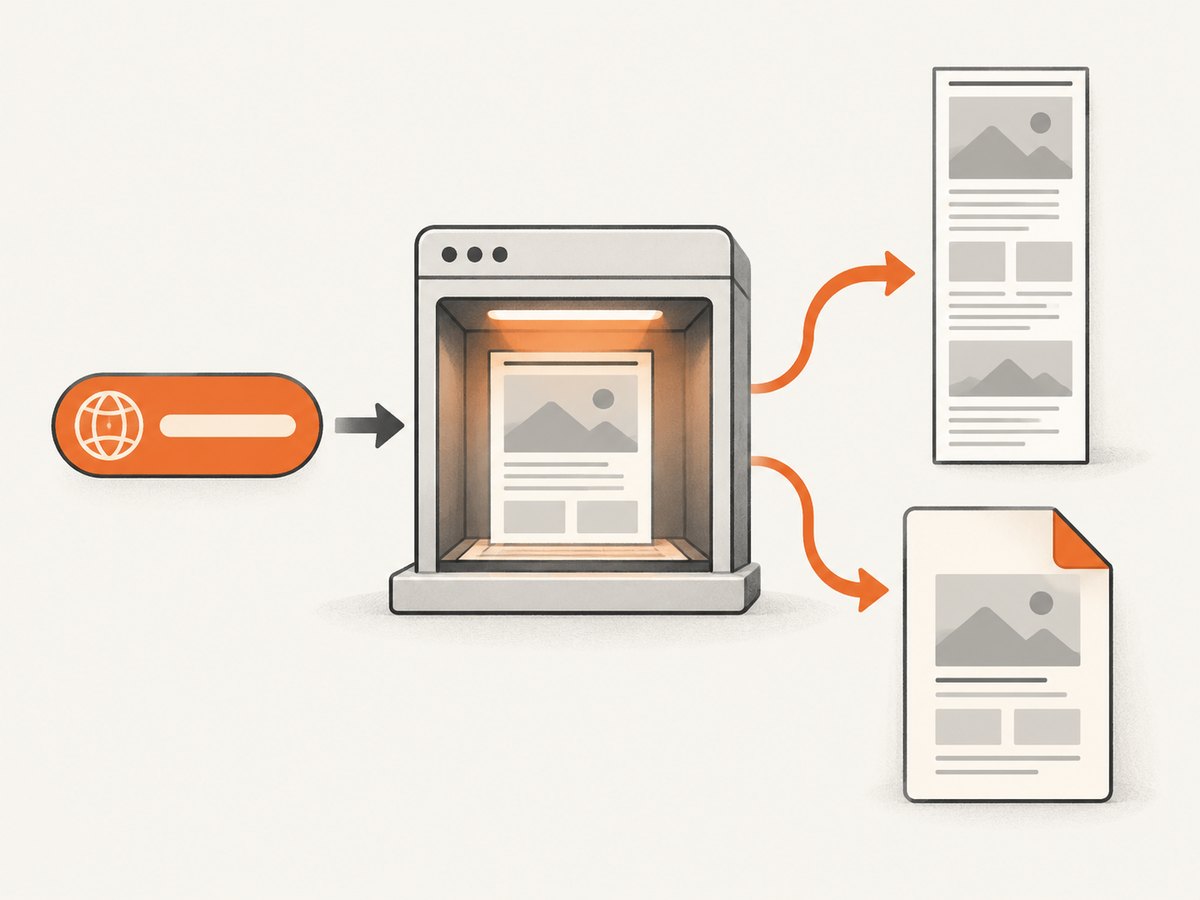
Or skip the browser setup
ScreenshotNeo returns a screenshot or PDF from one GET request. It can load lazy images, capture a full page or one CSS-selected element, set a viewport or device preset, emulate dark mode, apply custom CSS and JavaScript, click an element, wait for a selector, delay, or network idle, and send custom headers, cookies, user agents, authorization, timezone, and geolocation. You can also block ads, trackers, requests, or resource types; resize images; cache with a TTL; create signed image links; run asynchronous jobs with signed webhooks; capture up to 100 URLs per bulk call; and use its usage API and OpenAPI specification. See the ScreenshotNeo API documentation for the available parameters.
Before capture, ScreenshotNeo accepts cookie or consent banners like a visitor and removes more than 60 known consent platforms, newsletter popups, and chat widgets. Each step can be disabled. Bot checks or CAPTCHAs, blank pages, timeouts, failed loads, and cache hits are not billed; response headers identify the page verdict and whether the request was billed. ScreenshotNeo also provides an MCP server with take_screenshot, get_page_info, and capture_pdf tools for Claude, Cursor, and other MCP clients.
curl -G "https://api.screenshotneo.com/v1/shot" \
  -d access_key=YOUR_API_KEY \
  --data-urlencode url=https://stripe.com \
  -o shot.webp
import requests
r = requests.get(
"https://api.screenshotneo.com/v1/shot",
params={"access_key": "YOUR_API_KEY", "url": "https://stripe.com"},
timeout=90,
)
r.raise_for_status()
open("shot.webp", "wb").write(r.content)const q = new URLSearchParams({
access_key: 'YOUR_API_KEY',
url: 'https://stripe.com'
});
const res = await fetch(`https://api.screenshotneo.com/v1/shot?${q}`);
if (!res.ok) throw new Error(`Screenshot failed: ${res.status}`);
const buffer = Buffer.from(await res.arrayBuffer());
require('fs').writeFileSync('shot.webp', buffer);The free plan includes 1,000 screenshots each month with no card. Paid plans start at $5 for 3,000 screenshots; every feature is available on every plan. Create a free ScreenshotNeo account.
Performance, reliability, and cost notes
- Firefox: A full-page capture runs in your current browser session, so its result depends on the page finishing its own scripts, lazy loading, authentication, and layout.
- Repeatability: For recurring jobs, specify the viewport, wait condition, user agent, cookies, and other settings so captures use the same inputs.
- Billing: ScreenshotNeo bills only clean shots. Failed loads, blank pages, bot checks or CAPTCHAs, timeouts, and cache hits cost nothing, and the response identifies the verdict and billing status.
- Caching: Choose a cache TTL when repeated captures can reuse an unchanged result.
- Volume: Bulk capture supports up to 100 URLs per call, while asynchronous jobs and signed webhooks help keep long-running work out of a request timeout.
FAQ
Can Firefox save a full-page screenshot as a PDF?
The Firefox screenshot tool described here saves or copies an image. Use Firefox’s print dialog when you need a PDF, or use a capture API that supports PDF output.
Does Save full page capture content below the fold?
Yes. It is the full-page option and captures the document beyond the currently visible browser area.
What shortcut opens screenshots on a Mac?
Command + Shift + S opens Firefox’s screenshot interface.
Where does Firefox save the image?
It uses Firefox’s configured default download location. The downloads list can show the file if you do not remember the folder.
Can I capture only one element?
Firefox’s built-in workflow is intended for visible or full-page captures. ScreenshotNeo can capture a single element by CSS selector when you need a precise component image.


