How to Take a Full-Page Screenshot in Firefox
Capture an entire webpage in Firefox with the built-in Screenshot tool, keyboard shortcuts, troubleshooting tips, and an automated API option.

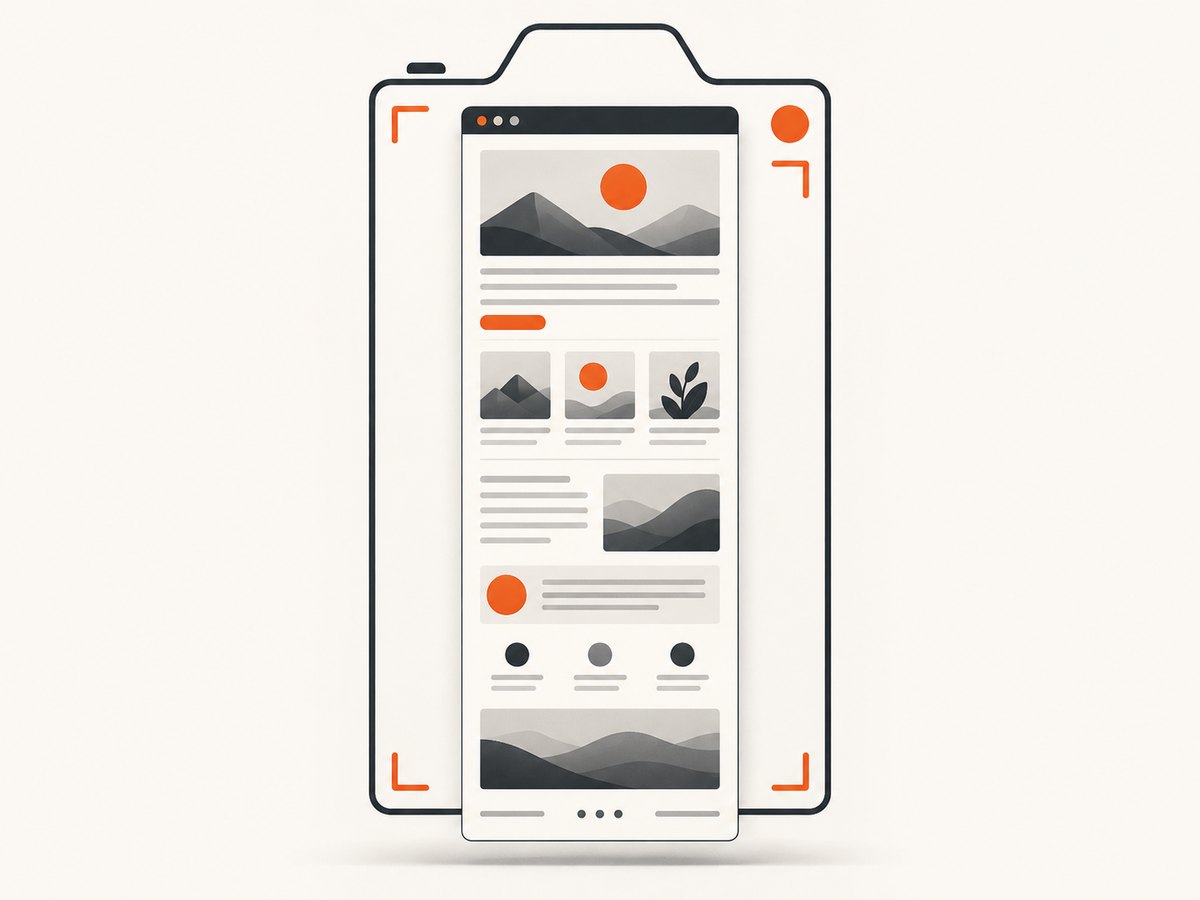
Direct answer: Open the page in Firefox, right-click an empty area, choose Take Screenshot, select Save full page, then choose Download or Copy. You can also open the screenshot tool with Ctrl+Shift+S on Windows/Linux or Command+Shift+S on macOS. Mozilla documents this built-in workflow in Take screenshots in Firefox.
What Firefox can capture
Firefox’s screenshot interface supports several capture scopes. Choosing the correct one prevents the most common mistake: saving only the visible viewport when you need the entire document.
| Option | What it captures | When to use it |
|---|---|---|
| Save full page | The complete webpage, including content below the current viewport. | Documentation, articles, receipts, landing pages, and long layouts. |
| Save visible | Only the portion currently visible in the browser window. | A quick view of the current screen or a short UI state. |
| Selected region | A rectangle that you draw around part of the page. | One chart, form, image, or section. |
| Automatically highlighted element | An element Firefox identifies as you move over the page. | A specific card, navigation area, or component without manually dragging. |
The result can be downloaded as an image file or copied to the clipboard. Firefox’s built-in tool does not require a third-party extension for the basic full-page workflow.
Step-by-step: save a full-page screenshot
- Open the target page. Navigate to the webpage you want to capture and wait for its visible content to finish loading.
- Open Screenshot. Right-click an empty part of the page and select Take Screenshot. If the context menu is inconvenient, press Ctrl+Shift+S on Windows or Linux, or Command+Shift+S on macOS.
- Select Save full page. The screenshot controls appear at the top of the page. Choose Save full page, rather than Save visible.
- Choose the output action. Select Download to save the image in Firefox’s normal download location, or select Copy to place it on the clipboard.
- Check the result. Open the downloaded image and inspect the top, middle, and bottom of the page. Long pages can contain lazy-loaded sections, sticky elements, or responsive changes that are easier to notice after saving.
Mozilla also lists Ctrl+S or Command+S for downloading and Ctrl+C or Command+C for copying after the screenshot has been prepared. Press Esc, or use the close control, to cancel the capture.
Keyboard shortcut and toolbar access
Keyboard shortcut
- Windows/Linux: Ctrl+Shift+S
- macOS: Command+Shift+S
The shortcut opens Firefox’s screenshot interface directly. If another application or operating-system shortcut intercepts it, use the right-click method instead.
Add Screenshot to the Firefox toolbar
- Open the Firefox menu.
- Choose More Tools, then Customize Toolbar.
- Find the Screenshot item and drag it onto the toolbar.
- Select Done.
The toolbar button is optional. It is useful when you take screenshots frequently and do not want to open the context menu each time.
Before you capture: a practical checklist
- Confirm that you need the whole document, not only the viewport.
- Dismiss dialogs or menus that should not appear in the final image.
- Scroll through the page once if you need to trigger content that loads only after scrolling.
- Check the page at the intended window width; responsive layouts can change substantially between desktop and narrow windows.
- Allow fonts, images, charts, and embedded content to finish loading.
- For private pages, make sure you are signed in to the correct account before capturing.
- After downloading, inspect the bottom edge and any sections that were initially off screen.
Why a full-page capture can look different from the screen
A full-page image represents the document beyond the current viewport. The page may contain content that was not visible when you opened it, including sections revealed by scrolling. Responsive CSS can also select a different layout when the browser window is resized. Sticky headers, floating buttons, and other fixed-position elements may appear repeatedly or overlap content depending on how the browser composes the page.
For a faithful record, decide whether you want the page in its current interactive state or a clean document view. Close transient UI such as menus and popups before opening Screenshot. If a page changes while the capture is being prepared, reload it, wait for the content to settle, and repeat the process.
Firefox full-page screenshot troubleshooting
“Take Screenshot” is missing from the context menu
Right-click an empty area rather than a link, image, text selection, or embedded control. Then try the keyboard shortcut. If the shortcut does not open the tool, use the Firefox menu and add Screenshot through More Tools → Customize Toolbar.
The image contains only the visible area
In the screenshot controls, choose Save full page. Save visible intentionally captures only the current viewport. Reopen the tool and select the full-page option before downloading.
The bottom of the page is missing
Reload the page and wait for its content to finish loading. Scroll through long pages once to trigger sections that load as they approach the viewport, then run the capture again. Also verify that you selected Save full page, not a manually drawn region.
Images, charts, or fonts are incomplete
Wait for the page’s resources to finish loading before starting the screenshot. A slow connection, a blocked third-party resource, or content that appears only after interaction can leave gaps. For interactive charts, put the chart into its final state first.
A popup or cookie dialog appears in the image
Close the dialog before capturing. If the dialog returns after a reload, accept or dismiss it and wait for the page to settle. Firefox’s built-in screenshot tool captures the browser’s current page state; it does not automatically remove consent banners or chat widgets.
The screenshot tool closes without saving
Pressing Esc cancels the operation. Reopen Screenshot and select Download or Copy. If a download appears to be missing, check Firefox’s configured download location.
The layout is unexpectedly narrow or wide
Resize the Firefox window to the width you want represented and capture again. A page can switch between desktop and mobile layouts at responsive breakpoints.
Automating full-page screenshots
Firefox is convenient for an occasional capture. Automation is more appropriate when you need repeatable screenshots for a documentation build, visual regression workflow, scheduled report, or a list of URLs. An automated browser generally needs to open the page, wait for the right state, and save an image. You must also account for authentication, lazy loading, consent dialogs, timing, and browser version changes.
Typical browser-automation workflow
- Launch a browser in headless mode.
- Set the viewport and device scale factor.
- Navigate to the URL and wait for the required selector, delay, or network condition.
- Handle authentication, cookies, consent, and any interactions required to reveal content.
- Capture the page with full-page mode enabled.
- Store the file with a deterministic name and record failures separately.
For reliable jobs, keep the URL, viewport, browser version, timestamp, and failure reason with each output. Do not assume that a successful navigation means that the page is visually complete.
Or skip the browser setup
ScreenshotNeo provides a website screenshot API and MCP server. One GET request returns a PNG, JPEG, WebP, or PDF. It can capture full pages with lazy images loaded, or one element by CSS selector, and supports device presets, arbitrary viewports, retina scale, dark mode, custom CSS and JavaScript, clicks, selector waits, delays, network-idle waits, request blocking, custom headers, cookies, user agents, Authorization, timezone, geolocation, transparent backgrounds, resizing, caching, signed links, asynchronous jobs, webhooks, bulk capture of up to 100 URLs per call, a usage API, and an OpenAPI specification. Parameter names used by other screenshot APIs also work, which helps when switching.
Before capture, ScreenshotNeo accepts cookie and consent banners and removes more than 60 known consent platforms, newsletter popups, and chat widgets. Each step can be disabled. Bot checks or CAPTCHAs, blank pages, timeouts, failed loads, and cache hits cost nothing; response headers report the page verdict and whether the request was billed.
cURL
See the ScreenshotNeo API documentation for the complete option reference.
curl -G "https://api.screenshotneo.com/v1/shot" \
  -d access_key=YOUR_API_KEY \
  --data-urlencode url=https://stripe.com \
  -o shot.webp
Python
import requests

r = requests.get(
    "https://api.screenshotneo.com/v1/shot",
    params={"access_key": "YOUR_API_KEY", "url": "https://stripe.com"},
    timeout=90,
)
r.raise_for_status()
open("shot.webp", "wb").write(r.content)
Node.js
import { writeFile } from "node:fs/promises";

const q = new URLSearchParams({
  access_key: "YOUR_API_KEY",
  url: "https://stripe.com",
});
const res = await fetch(`https://api.screenshotneo.com/v1/shot?${q}`);
if (!res.ok) throw new Error(`Screenshot failed: ${res.status}`);
await writeFile("shot.webp", Buffer.from(await res.arrayBuffer()));
ScreenshotNeo also includes an MCP server with take_screenshot, get_page_info, and capture_pdf tools for Claude, Cursor, and other MCP clients. AI agents can request screenshots without you wiring a browser into each agent workflow.
Performance, reliability, and cost considerations
Performance
Full-page captures take longer and produce larger files than viewport captures. Keep output dimensions and format appropriate to the destination: WebP or JPEG can reduce transfer size, while PNG preserves lossless detail. Use a CSS selector when you need one component instead of the entire document. Reuse cached results when the page has not changed and set a TTL that matches your freshness requirement.

Reliability
Make waits explicit for pages with delayed content. For batch work, record each URL independently so one timeout does not hide the rest of the results. Use signed webhooks for asynchronous jobs and inspect X-Page-Verdict and X-Billed to distinguish a clean capture from a blocked, blank, timed-out, failed, or cached response.
Cost
ScreenshotNeo includes 1,000 shots per month free with no card. Paid plans start at $5 for 3,000 shots; other plans are Growth $15 for 15,000, Pro $39 for 60,000, Scale $99 for 250,000, and Business $249 for 1,000,000. Yearly billing gives two months free, and every feature is included on every plan.
Start with 1,000 free screenshots per month, with no card required.
Frequently asked questions
Does Firefox need an extension for full-page screenshots?
No. Mozilla’s documented Screenshot interface includes Save full page as a built-in option.
Can I copy a full-page screenshot instead of downloading it?
Yes. Choose Copy in the screenshot interface, then paste the image into another application.
What is the difference between full page and visible?
Save full page captures the document beyond the viewport. Save visible captures only what is currently on screen.
Can I capture just one element?
Firefox can automatically highlight a page element or let you select a region. For repeatable CSS-selector captures, ScreenshotNeo supports element capture through its API.
How do I add Screenshot to Firefox’s toolbar?
Open the Firefox menu, choose More Tools → Customize Toolbar, drag Screenshot to the toolbar, and select Done.
Sources
The Firefox workflow and shortcut details are based on Mozilla Support’s screenshot guide.