How to Take a Full-Page Screenshot in Google Chrome
Capture an entire webpage in Chrome with DevTools, troubleshoot dynamic pages, and automate screenshots with ScreenshotNeo.
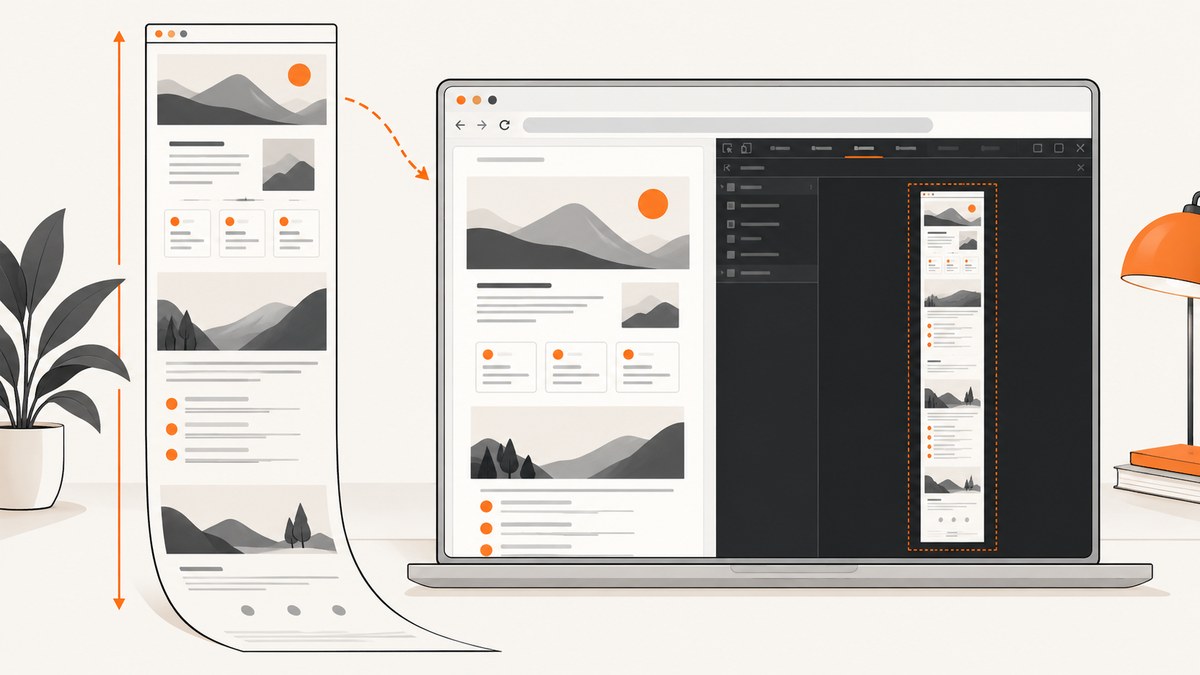
Use Chrome DevTools’ full-size capture command. Open the page, open DevTools, choose More options, then select Capture a full size screenshot. Chrome captures content below the visible viewport in one image, so you do not need to stitch separate scrolling screenshots together.
This guide explains the built-in workflow, the difference between viewport and full-page captures, dynamic-page edge cases, export choices, troubleshooting, and automation. If you need screenshots in a script or service, the final section shows how to use ScreenshotNeo without maintaining a browser.
1. Capture a full page with Chrome DevTools
- Open Google Chrome on a desktop computer.
- Navigate to the webpage you want to capture and wait for the initial content to render.
- Open DevTools. You can use Chrome’s menu, a context-menu inspection command, or the DevTools shortcut for your operating system. The menu path below is the dependable part of the workflow because shortcut mappings can vary by operating system and Chrome version.
- In DevTools, open More options (the three-dot menu).
- Choose Capture a full size screenshot.
- Let Chrome save the resulting image through its normal download behavior, then move or rename the file as needed.
Chrome’s Device Mode documentation distinguishes this command from Capture screenshot. The ordinary command captures only the currently visible viewport. Capture a full size screenshot includes page content that is below the fold. See the official instructions in Chrome DevTools documentation.
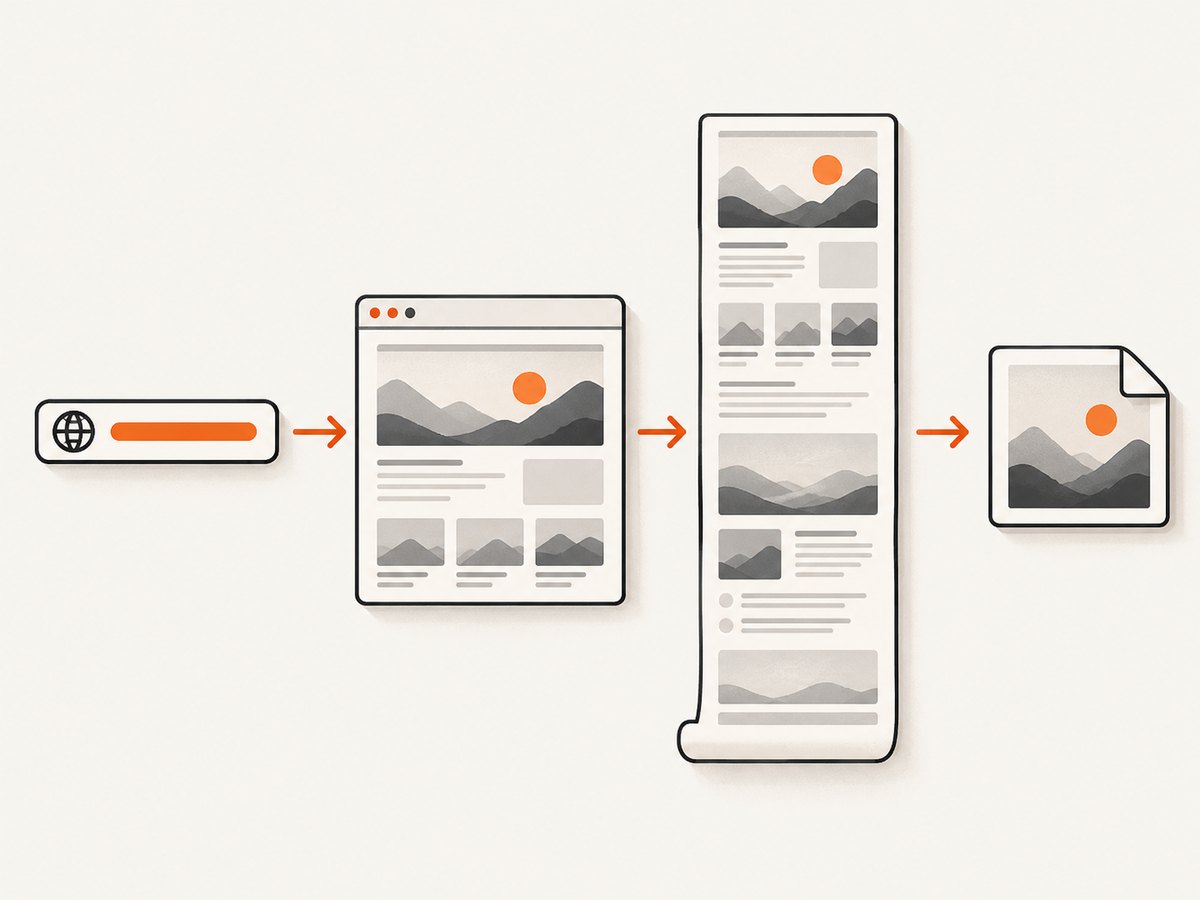
2. Full-page versus viewport screenshots
| Command | What it includes | Use it when |
|---|---|---|
| Capture screenshot | Only pixels currently visible in the emulated or browser viewport | You need a hero section, a bug report, or a single screen |
| Capture a full size screenshot | The complete document, including content below the viewport | You need a webpage archive, design review, or long-form reference |
A full-page capture is a document screenshot, not a recording of a person scrolling. Chrome lays out the page and captures the page area beyond the current viewport. That avoids manually combining overlapping images, which can introduce seams and missing sections.
3. Check the page before capturing
Capture quality depends on the page state at the moment you issue the command. Use this short checklist:
- Confirm the correct URL, account, locale, and logged-in state.
- Dismiss any consent dialog or sign-in prompt that should not appear in the image.
- Wait for fonts, images, charts, and other asynchronous content to finish loading.
- Scroll through the page once if you suspect lazy-loaded sections are not present yet.
- Close DevTools overlays or other panels that are covering content you want to inspect.
- Check the page at the viewport width you actually need. Responsive layouts can change headings, columns, and image sizes.
Full-size capture does not guarantee that every dynamic implementation behaves identically. Infinite lists, carousels, animations, ads, and content that appears only after interaction can change while the page is being rendered. For repeatable results, put the page into a stable state first.
4. Capture a selected element, region, or mobile layout
Full-page capture is the right default for an entire document, but DevTools provides other capture modes. Chrome for Developers describes several approaches in 4 ways to capture screenshots with DevTools.
Selected element
Use the Elements panel when you need one component such as a product card, chart, or article body. Select the node, open its context menu, and choose the node screenshot command. This is useful when the element is smaller than the page or when surrounding navigation should be excluded.
Oversized element
An element can be taller or wider than the current viewport. DevTools can capture the selected node at its full rendered size, which is different from capturing the whole document.
Area or region
An area capture lets you draw a rectangle around the exact portion of the page you want. Choose it for a visual bug report or a focused design review where neither the entire page nor a single DOM node matches the target.
Mobile emulation
Enable Device Mode, select a device preset or enter custom dimensions, then capture the page. This changes the layout to the emulated viewport. It does not prove that the page looks identical on every physical phone because browser version, pixel density, input behavior, and operating-system UI can differ.
5. Handling lazy loading and changing content
Lazy-loaded images often load when an element approaches the viewport. A full-size command may trigger some implementations as Chrome evaluates the document, but the official documentation does not promise identical behavior for every site. If the result has blank image areas:
- Scroll from top to bottom once at a moderate speed.
- Wait for image placeholders to be replaced.
- Return to the top and capture again.
- If the page uses an infinite feed, stop loading new items before capture or use a selected-region approach.
For animated banners, pause the animation if the site offers a control. Otherwise, repeated captures can differ because the frame is selected at a different instant. For timestamps, stock prices, rotating recommendations, and personalized content, record the capture time and relevant account or locale so another person can reproduce the state.
6. Extensions: when an add-on helps
Chrome’s built-in command is sufficient for a one-off full-page image. An extension can be useful when you capture pages frequently or need a workflow that combines capture, annotation, and export.
GoFullPage – Full Page Screen Capture is one listed example. Its Chrome Web Store description advertises full-page image or PDF downloads and handling for complex pages, inner scrollable elements, and embedded iframes. Those are vendor claims and can change with updates; review the current listing, permissions, and privacy policy before installing an extension.
Extensions also add another component that can fail: permissions, browser updates, content-security restrictions, and pages with nested scrolling containers can affect results. For sensitive pages, prefer a built-in workflow or an approved automation service.
7. Common problems and fixes
| Symptom | Likely cause | Fix |
|---|---|---|
| The image contains only the visible screen | The viewport command was selected | Open DevTools’ More options menu and choose Capture a full size screenshot. |
| Images are blank below the fold | Lazy loading or blocked image requests | Scroll through the page, wait for images, disable an interfering blocker for the test, and capture again. |
| A cookie banner covers the page | The site requires consent before showing content | Accept or reject the banner as appropriate, or close it before capture. Check the lower corners for chat widgets and newsletter prompts. |
| The page is cut off horizontally | The layout is wider than the selected viewport | Use a wider viewport, capture the specific element, or inspect horizontal overflow in DevTools. |
| A fixed header appears repeatedly or obscures content | The page uses position: fixed or sticky UI | Hide the header temporarily with DevTools, use a selected-node capture, or adjust the page’s print/capture styling. |
| Fonts or icons look wrong | Web fonts failed, loaded late, or are blocked | Wait for the network to settle, inspect failed font requests, and retry with the required authentication and network access. |
| The downloaded file is unexpectedly large | Very tall pages or high-density rendering | Capture only the needed node or region, reduce the viewport width, or resize the output after capture. |
| Content changes between captures | Personalization, animation, ads, or live data | Use a stable test account and locale, pause animation, block irrelevant requests, and capture at a known time. |
8. Reliability and privacy considerations
A local DevTools capture inherits the browser session that produced it. Private dashboards, customer records, and staging pages can appear in the image, and the downloaded file may contain more information than intended. Store screenshots with the same care as the source page, remove sensitive areas before sharing, and verify the destination folder.
For repeatable documentation, define a capture contract: URL, viewport dimensions, device scale, locale, timezone, authentication state, and expected page revision. Keep those values with the image metadata or filename. This makes visual diffs easier to interpret when the page changes.
Long pages also stress memory. A page with thousands of rows, large background images, or multiple embedded frames can produce a very tall bitmap. Capture a meaningful section or selected node when a complete document is not necessary.
9. Automating full-page screenshots
DevTools is excellent for an interactive one-off. Automation is a better fit when you need scheduled captures, many URLs, consistent options, or a result that your application can fetch. A browser automation library can open a page, wait for a selector or network idle, set a viewport, and save a full-page image. The exact code depends on the library and its browser installation, so plan for browser binaries, sandbox permissions, fonts, cookies, retries, and cleanup.
Automation should also distinguish a successful page from an HTTP response that merely returned HTML. Check that the expected selector exists and that the page is not a bot challenge, blank shell, or error document. Save structured logs with the URL, timing, status, and output path.
10. Or skip the browser setup
ScreenshotNeo provides a website screenshot API and MCP server. One GET request returns a PNG, JPEG, WebP, or PDF. The API accepts options for full-page capture with lazy images loaded, a CSS selector for one element, dark mode, 12 device presets or any viewport, retina scale, PDF paper size and margins, custom CSS and JavaScript, clicks before capture, hidden selectors, waits for a selector, delay or network idle, blocked ads and trackers, custom headers, cookies, user agents and Authorization, timezone, geolocation, transparent backgrounds, resizing, caching with a chosen TTL, signed links, asynchronous jobs with signed webhooks, bulk capture of up to 100 URLs per call, usage reporting, and an OpenAPI specification. Parameter names used by other screenshot APIs also work to ease migration. See the ScreenshotNeo documentation for the complete option reference.
cURL
curl -G "https://api.screenshotneo.com/v1/shot" -d access_key=YOUR_API_KEY --data-urlencode url=https://stripe.com -o shot.webpPython
import requests

r = requests.get(
    "https://api.screenshotneo.com/v1/shot",
    params={"access_key": "YOUR_API_KEY", "url": "https://stripe.com"},
    timeout=90,
)
r.raise_for_status()
open("shot.webp", "wb").write(r.content)
Node.js
const q = new URLSearchParams({ access_key: 'YOUR_API_KEY', url: 'https://stripe.com' });
const res = await fetch(`https://api.screenshotneo.com/v1/shot?${q}`);
if (!res.ok) throw new Error(`Screenshot failed: ${res.status}`);
const image = Buffer.from(await res.arrayBuffer());
await import('node:fs/promises').then(fs => fs.writeFile('shot.webp', image));
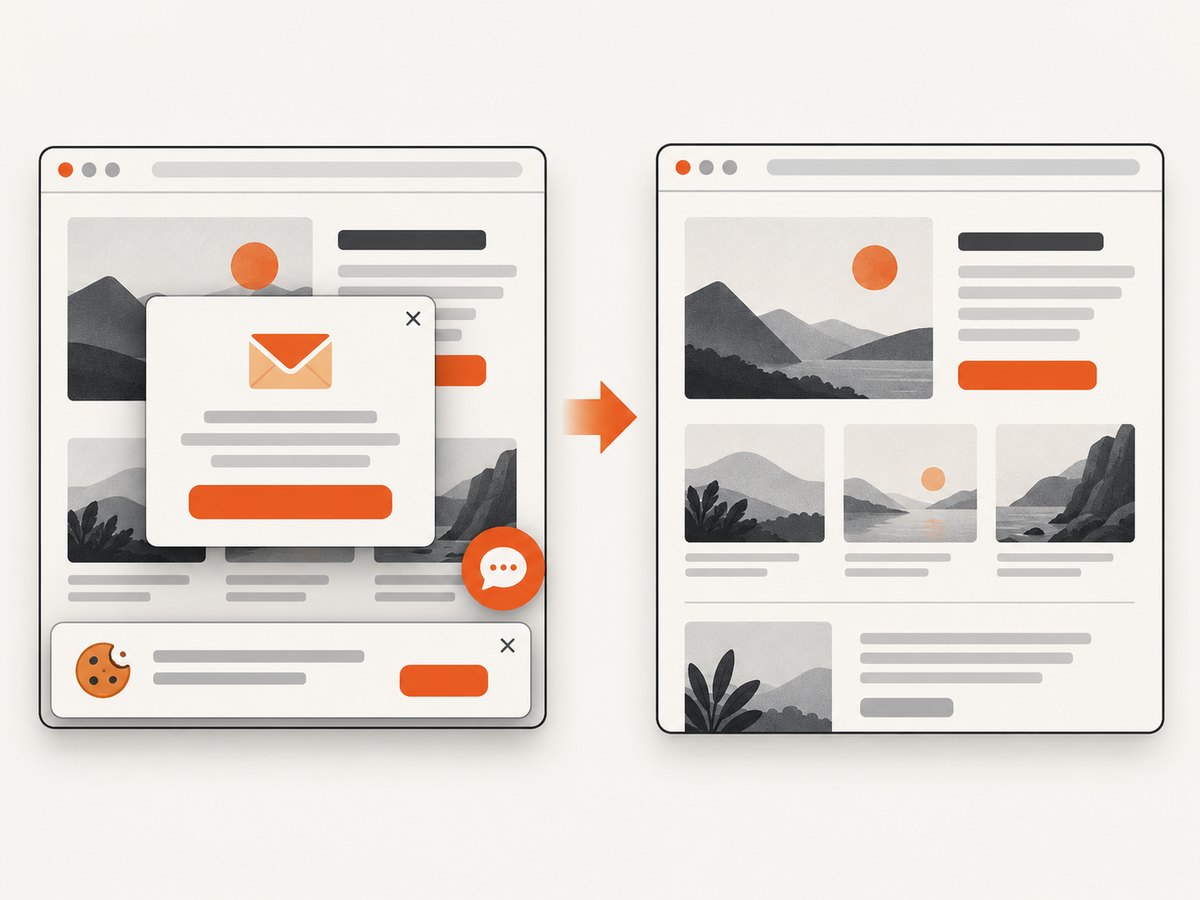
ScreenshotNeo removes cookie and consent banners, newsletter popups, and chat widgets before the shot. Bot checks and CAPTCHAs, blank pages, timeouts, failed loads, and cache hits are not billed, and the response identifies the result with X-Page-Verdict and X-Billed headers. Its MCP server exposes take_screenshot, get_page_info, and capture_pdf for Claude, Cursor, and other MCP clients.
The Free plan includes 1,000 shots each month with no card. Paid plans start at $5 for 3,000 shots; yearly billing provides two months free. Choose a TTL cache for repeated pages, use asynchronous jobs and signed webhooks for slow captures, and use bulk capture when processing many URLs. These options reduce browser maintenance and make usage easier to account for.
Create a free ScreenshotNeo account to get 1,000 screenshots a month with no card.
11. Performance and cost planning
For manual work, the main cost is your time and the browser resources used by the page. For an automated service, total time depends on DNS, network transfer, JavaScript execution, fonts, images, and any waits you configure. Keep waits specific: waiting for a known selector is usually more predictable than adding a large fixed delay. Use caching with a TTL when the same URL can reuse an unchanged result.
Full-page images consume more memory and bandwidth than viewport images. WebP or JPEG can reduce transfer size when transparency and lossless detail are unnecessary; PNG is appropriate for crisp UI text and transparent backgrounds. PDF output is preferable when the deliverable is a printable document rather than a raster image.
12. FAQ
Does Chrome capture content below the fold?
Yes. Choose Capture a full size screenshot; it captures the full document rather than only the visible viewport.
Do I need to install an extension?
No. Chrome DevTools includes the full-size command. An extension is optional for repeated workflows or extra export features.
Can I capture a page that requires login?
DevTools can capture the page visible in your authenticated browser session. Automated services need the appropriate cookies, headers, or authorization configured securely.
Why is my page still incomplete?
Check lazy loading, infinite scrolling, blocked resources, consent dialogs, fixed overlays, and content that appears only after interaction. Stabilize the page and capture again.
What is the simplest way to capture many URLs?
Use an automation service such as ScreenshotNeo with waits, caching, bulk capture, and asynchronous jobs instead of manually repeating DevTools steps.


