How to Capture a Full-Page Screenshot on Google Pixel
Use Pixel’s built-in scrolling screenshot to save a long screen as one image. Here are the steps, support limits, troubleshooting tips, and a web-page alternative.
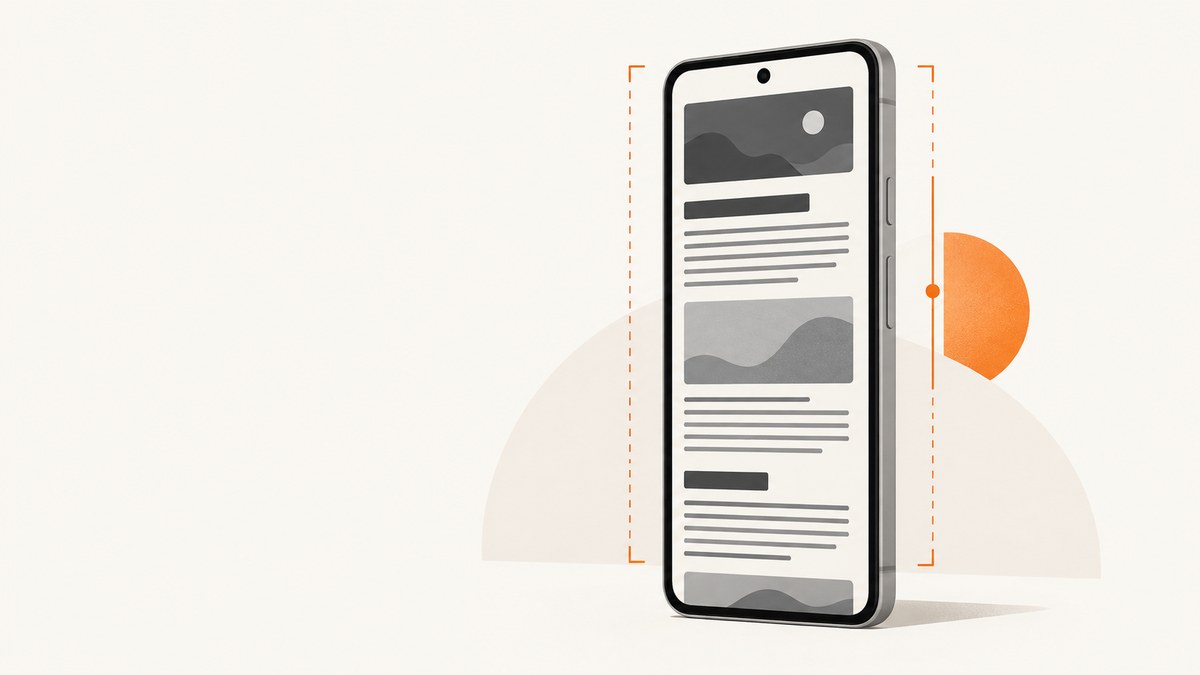
To capture a full-page screenshot on a Google Pixel, open the screen you want, press Power and Volume down at the same time, tap Capture more, then adjust the crop guides to include the extra content and save. Google calls this a scrolling screenshot. The built-in option is available on Android 12 and later on most screens that allow scrolling, but it is not guaranteed to work in every app or on every scrollable screen.
This method saves a still image of the selected content. If you need to preserve movement or show a sequence of interactions, use screen recording instead; it produces a video, not a full-page still.
1. Capture a scrolling screenshot on Pixel
- Open the app or screen with the material you want to capture. Scroll to the starting position if you want the screenshot to begin below the top.
- Press the Power and Volume down buttons together. The usual screenshot preview and controls should appear.
- Tap Capture more in the screenshot controls.
- Use the crop guides to select how much additional content to include. Extend the selection down the page as needed.
- Save the result or share it from the screenshot preview controls.
Google describes the feature as working on devices running Android 12 and up, “on most screens that allow you to scroll.” That wording matters: a screen can be scrollable and still not offer the Capture more control. Google does not publish an exhaustive list of compatible apps or screens.
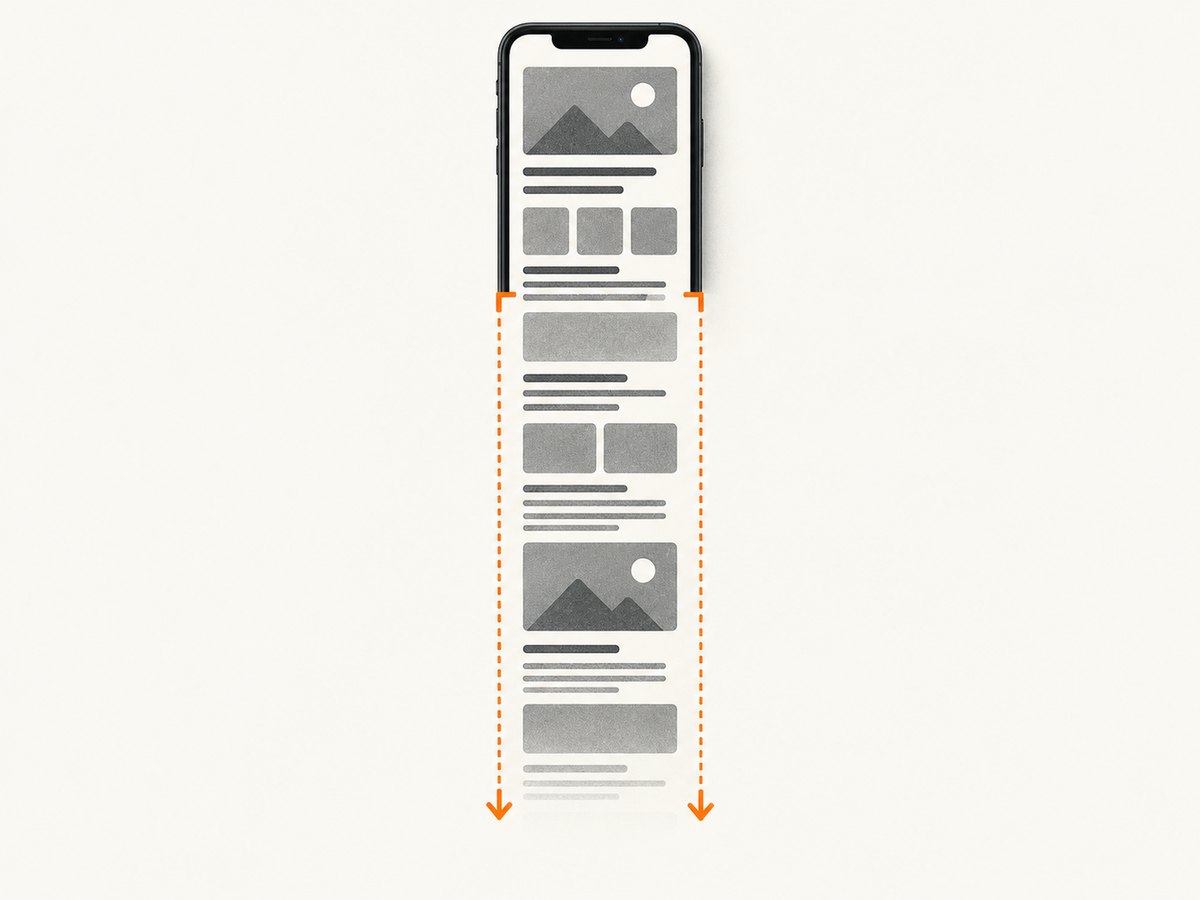
Choose the capture boundaries carefully
The crop guides determine which part of the extended content is included. Before saving, check that the selection starts and ends at the intended points. If the page contains a long conversation, receipt, article, or settings list, include enough context to make the result understandable while avoiding unrelated material. If you need multiple sections that do not fit cleanly into one capture, save separate screenshots rather than shrinking the content until it is hard to read.
Scrolling screenshots are useful when the source is already visible on the phone and the built-in capture option supports it. They preserve the selected screen as an image. They do not create a web page, document, or editable text file, so a screenshot may be less useful than the original share or export feature when someone needs searchable text.
2. Find, share, and manage the screenshot
The screenshot preview provides controls to save or share the captured image. You can also find saved screenshots in Google Photos under Collections → On this device → Screenshots. Labels and navigation can vary by locale or app version, so use the preview first if the Photos navigation on your phone differs.
Before sharing, inspect the saved image at its displayed size. Check that the top and bottom content are present and legible, and make sure private information elsewhere in the selected region is not exposed. A screenshot is a visual copy: changing or deleting the original app content later does not update the image you already saved.
3. If “Capture more” is missing or the result is incomplete
If you do not see Capture more after taking the normal screenshot, the current screen may not support Pixel’s built-in scrolling capture. The Android and Pixel help pages explain the general boundary, but they do not enumerate supported apps. Avoid assuming that a particular browser or app always supports the feature based on reports about older versions.
| What you see | Likely explanation | What to try |
|---|---|---|
| Capture more does not appear | The screen may not support the built-in scrolling screenshot flow. | Try the same steps on another scrollable screen. If the control remains absent in the screen you need, use that app’s export or share option, or capture the visible content in separate screenshots. |
| The screenshot is only the visible screen | The normal screenshot shortcut was used, but the extended capture was not selected. | After pressing Power and Volume down, tap Capture more when it is offered, then extend the crop guides. |
| Some content is missing at the bottom | The crop selection may stop before the desired endpoint. | Reopen the capture flow and extend the selection farther. Review the bottom edge before saving. |
| The full result is difficult to read | A long screen compressed into one image can make text small when viewed as a whole. | Share the original page or document when possible, or split the content into more than one screenshot. |
| You cannot locate the saved image | The screenshot may be in the device’s Screenshots collection rather than a general photo view. | Open the screenshot preview or check Google Photos → Collections → On this device → Screenshots. Names may differ slightly by version or locale. |
For an ordinary screenshot without scrolling, the same Power + Volume down shortcut applies. Pixel’s instructions also describe taking a screenshot from the app switcher, with access depending on the navigation setup. If the capture controls behave differently from these steps, consult the current Pixel instructions for your device and software version.
4. Scrolling screenshot or screen recording?
Use a scrolling screenshot when you need a still image of a long screen. Use screen recording when you need to show activity over time, such as opening menus, scrolling through a process, or demonstrating an interaction. Pixel screen recording can record one app or the whole screen. The result is video, so it is not a substitute when the recipient specifically needs a single still image.
Choose based on the thing you need to communicate:
- Scrolling screenshot: a single image of extended content, when Capture more is offered on that screen.
- Several ordinary screenshots: a practical fallback when the scrolling option is unavailable or the content needs to stay readable in sections.
- Screen recording: a video record of activity in one app or across the whole screen.
- App export or share: often preferable when the recipient needs the underlying document or searchable content rather than a visual copy.
5. Capture a web page from a computer or application
Pixel’s built-in flow is the simplest route when the page is open on the phone and its screen supports scrolling capture. Developers who need repeatable captures of web pages may instead capture the page in a browser automation script or call a screenshot API. Those approaches operate on a URL and return an image or document; they are separate from taking a screenshot of the phone’s current display.
For a local browser-based workflow, use a browser automation tool to open the target URL, wait for its content to render, and capture the full page. In Playwright, for example, a full-page screenshot can be saved after navigation:
import { chromium } from 'playwright';

const browser = await chromium.launch({ headless: true });
const page = await browser.newPage({ viewport: { width: 1280, height: 800 } });
await page.goto('https://example.com', { waitUntil: 'networkidle' });
await page.screenshot({ path: 'page.png', fullPage: true });
await browser.close();
This example requires Node.js and the Playwright package and browser binaries installed in the environment. Replace the sample URL with a page you are authorized to capture. The viewport sets the page’s layout width; the full-page option asks Playwright to include the page beyond the initial viewport. Very long pages can produce large images and take longer to render or save.
Common browser automation choices
- Wait condition: use a condition that matches the page. Network idle can help with pages that load content after navigation, but pages with ongoing requests may never become idle. For those pages, wait for a known selector or use a bounded delay.
- Viewport: choose a width that matches the layout you want. A narrow viewport can trigger a mobile layout, while a wide one may show desktop navigation.
- Lazy-loaded content: content may only appear after scrolling. Scroll through the page or wait for the relevant elements before capturing when the site loads images on demand.
- Authentication: private pages may need a session or credentials. Avoid putting secrets into source code or logs.
- Output size: full-page images become large as page height grows. If image size matters, consider a viewport capture, selected element, or PDF workflow instead.
6. Or skip the browser setup
ScreenshotNeo captures a web page from one GET request and can return PNG, JPEG, WebP, or PDF. Its API and options are documented at ScreenshotNeo’s developer documentation. This is for capturing a URL as a web page, not for reading the current screen of your Pixel.
curl -G "https://api.screenshotneo.com/v1/shot" \
  -d access_key=YOUR_API_KEY \
  --data-urlencode url=https://stripe.com \
  -o shot.webp
import requests
r = requests.get(
"https://api.screenshotneo.com/v1/shot",
params={"access_key": "YOUR_API_KEY", "url": "https://stripe.com"},
timeout=90,
)
open("shot.webp", "wb").write(r.content)const q = new URLSearchParams({
access_key: 'YOUR_API_KEY',
url: 'https://stripe.com'
});
const res = await fetch(`https://api.screenshotneo.com/v1/shot?${q}`);
if (!res.ok) throw new Error(`Screenshot request failed: ${res.status}`);
await Bun.write('shot.webp', res);Replace YOUR_API_KEY with an API key from your account and change the example URL to the page you need. Keep the key on a server or in a secret store rather than embedding it in a public web page or a distributed client. The JavaScript snippet uses Bun’s Bun.write to save the response; in a Node.js project, use the built-in fetch API and write the response bytes with node:fs/promises.
For example, the Node.js save step can be written like this:
import { writeFile } from 'node:fs/promises';

const q = new URLSearchParams({ access_key: process.env.SCREENSHOTNEO_API_KEY, url: 'https://stripe.com' });
const res = await fetch(`https://api.screenshotneo.com/v1/shot?${q}`);
if (!res.ok) throw new Error(`Screenshot request failed: ${res.status}`);
await writeFile('shot.webp', Buffer.from(await res.arrayBuffer()));
ScreenshotNeo accepts options for full-page capture, format, viewport and device presets, retina scale, element capture, dark mode, PDF output, custom CSS or JavaScript, waiting for a selector or network idle, and more. It can also accept cookies, headers, user agents, timezone, and geolocation for pages that require a particular browser context. Check the docs for parameter names and supported values before relying on an option in production.
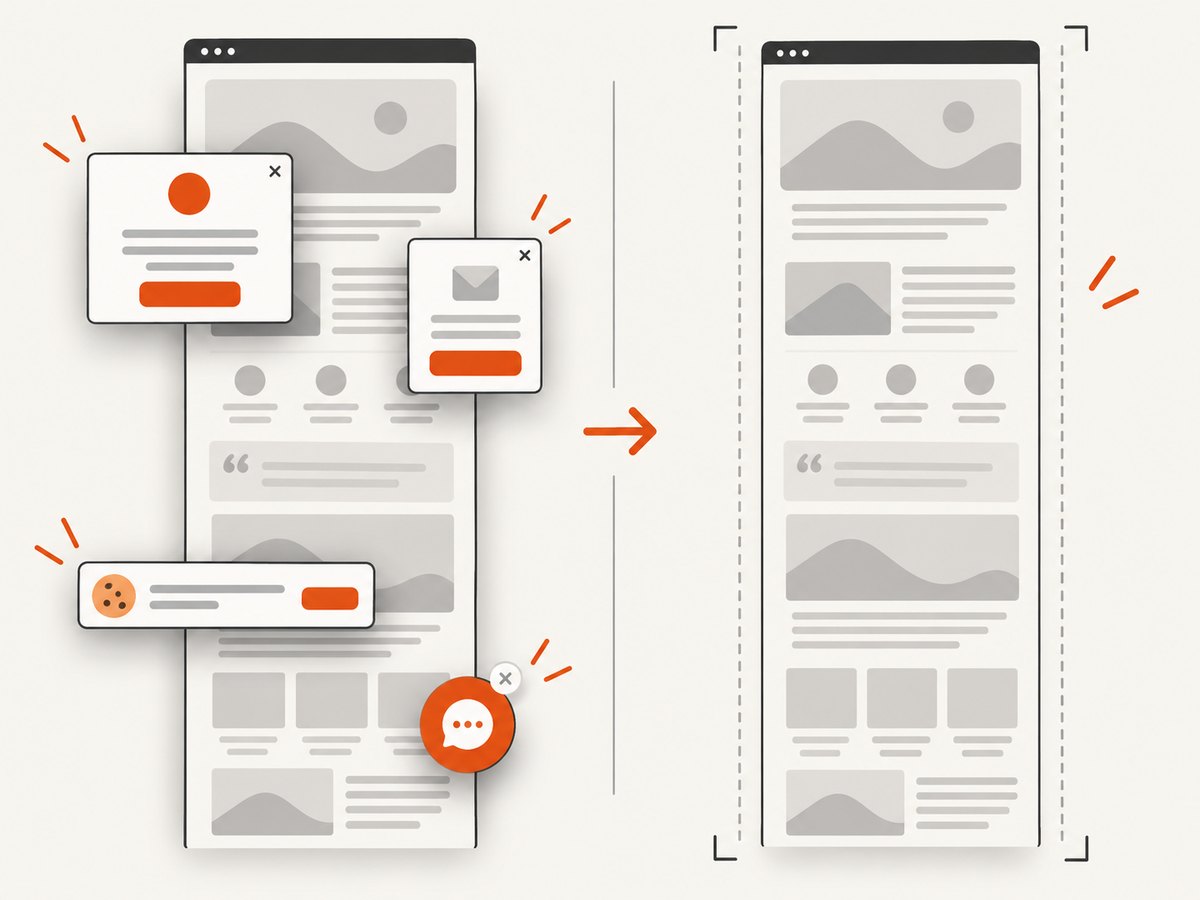
Before capture, ScreenshotNeo can accept cookie or consent banners and remove more than 60 known consent platforms, newsletter popups, and chat widgets; each step can be turned off. Bot checks and CAPTCHAs, blank pages, timeouts, failed loads, and cache hits are not billed. Responses include X-Page-Verdict and X-Billed headers to indicate the page result and billing status. An MCP server provides take_screenshot, get_page_info, and capture_pdf tools for Claude, Cursor, and other MCP clients.
The free plan includes 1,000 screenshots per month without a card. Paid plans start at $5 for 3,000 screenshots; higher tiers are Growth at $15 for 15,000, Pro at $39 for 60,000, Scale at $99 for 250,000, and Business at $249 for 1,000,000. Yearly billing gives two months free, and every feature is available on every plan. See ScreenshotNeo for product details.
Cookie banners, popups, and chat widgets are removed before the shot. Bot checks, blank pages, and failed loads are never billed. An MCP server lets AI agents take screenshots. You get 1,000 screenshots a month free with no card, and paid plans start at $5 for 3,000. Create a free ScreenshotNeo account.
7. Performance, reliability, and cost considerations
On Pixel, capture time depends on the screen and the amount of content being extended. The built-in method needs no separate screenshot service or API account. Its practical constraint is support: Capture more is offered on most, rather than all, scrollable screens. If you need a guaranteed record of a particular app screen, keep the app’s own export or a series of screenshots as a fallback.
For automated web capture, page complexity affects how long navigation and rendering take. Large pages, delayed content, fonts, and images can increase capture time and output size. Pick a wait condition that reflects when the content you need is ready, and avoid retrying without limits: a site that consistently fails or blocks automated access will not become reliable through rapid repeated requests.
When comparing costs, include your own browser infrastructure and maintenance if you run automation, along with the time needed to manage browser versions and failures. With a screenshot API, check the plan allowance and the provider’s billing behavior for failed or cached results. ScreenshotNeo’s response headers expose page verdict and billed status, and its stated billing rule excludes bot checks, blank pages, timeouts, failed loads, and cache hits. The free allowance is 1,000 monthly shots; select a paid tier based on your expected successful capture volume.
8. Frequently asked questions
Does a full-page screenshot work on every Pixel app?
No. Google says scrolling screenshots work on Android 12 and later on most screens that allow scrolling. It does not provide a complete app compatibility list.
Is “Capture more” the same as screen recording?
No. Capture more extends a still screenshot. Screen recording creates a video of one app or the whole screen.
Where are Pixel screenshots stored?
Use the screenshot preview, or look in Google Photos under Collections → On this device → Screenshots. The labels may vary with locale or app version.
Can ScreenshotNeo capture what is currently visible on my Pixel?
ScreenshotNeo captures a web page from a URL. It does not capture the current phone display; use Pixel’s built-in screenshot controls for that.


