How to Capture a Full-Page Screenshot Using Inspect in Chrome
Capture an entire webpage in Chrome DevTools, understand Inspect mode, fix common problems, and automate screenshots with ScreenshotNeo.
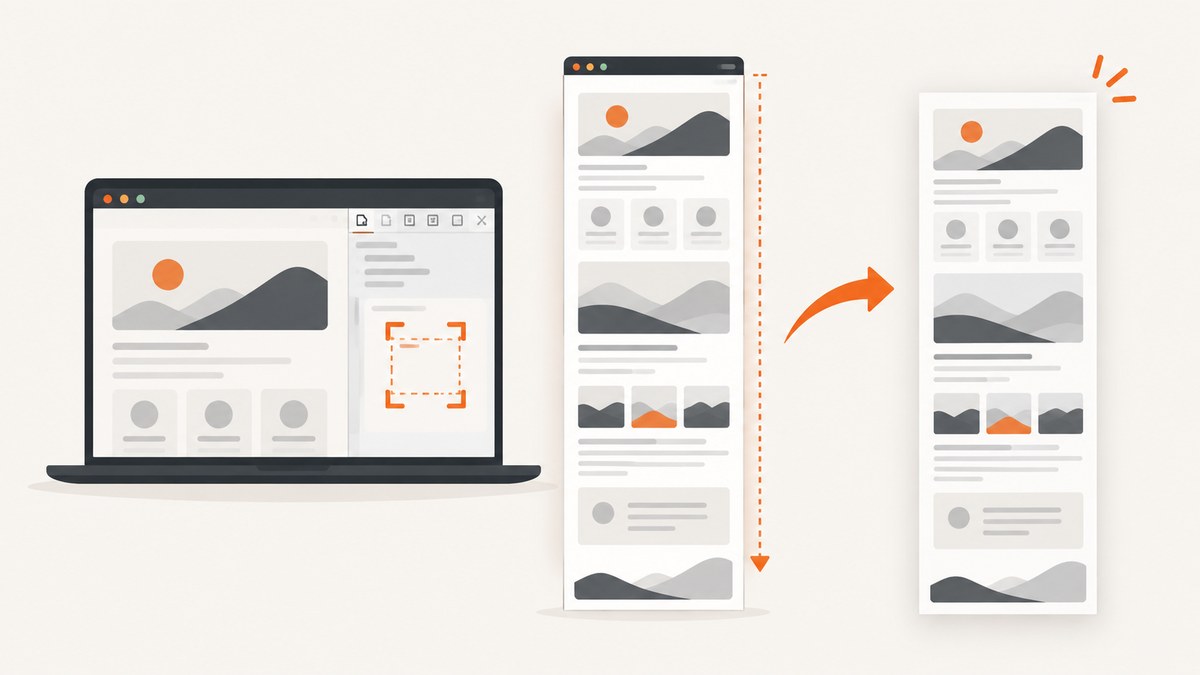
To capture a full web page in Chrome, open DevTools, turn on Device Mode, choose More options, and select Capture a full size screenshot. This captures content below the visible viewport as one image. The right command is in Device Mode; the page context-menu command called Inspect only opens DevTools and focuses the Elements panel.
This guide explains the exact workflow, the difference between Chrome’s screenshot commands, what to do when a page is lazy-loaded or changes while scrolling, and how to automate the same job. For a repeatable API workflow, ScreenshotNeo can capture full pages without maintaining a browser setup.
How do I take a full-page screenshot in Chrome?
- Open the webpage you want to capture in Chrome.
- Open DevTools. You can right-click an element and choose Inspect; Chrome opens DevTools with that element selected in Elements. See Google’s DevTools opening instructions.
- Enable Device Mode by clicking the phone-and-tablet icon in the DevTools toolbar.
- Open the More options menu in Device Mode.
- Choose Capture a full size screenshot.
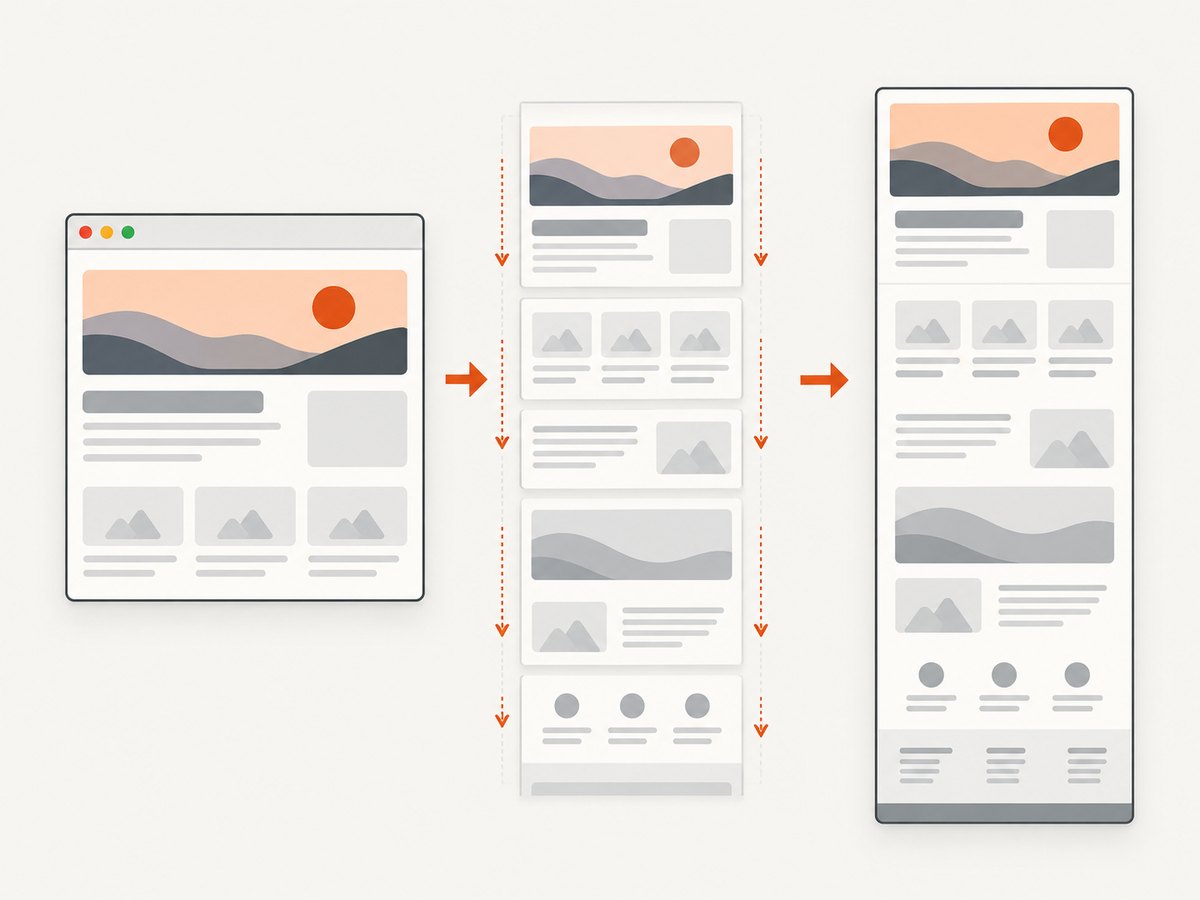
- Chrome downloads an image containing the page, including content outside the current viewport.
Chrome documents this workflow in its Device Mode guide. If you select a device-specific preset and want the hardware outline around the page, turn on Show device frame before capturing. The frame is optional and is separate from the full-page setting.
What does “Inspect” mean in Chrome?
Inspect is an entry point into DevTools, not the full-page screenshot command. When you right-click and choose Inspect, Chrome opens the Elements panel and selects the element under your pointer. Inspect mode lets you hover over the page and examine layout, styles, dimensions, and computed properties. Google’s Inspect mode documentation describes that analysis workflow.
After DevTools opens, you must switch to Device Mode and use its screenshot menu. The keyboard shortcuts for activating Inspect mode are Cmd+Option+C on macOS and Ctrl+Shift+C on Windows, Linux, and ChromeOS. Those shortcuts do not capture a screenshot.
Chrome screenshot commands compared
| Command | What it captures | Where to find it | Useful when |
|---|---|---|---|
| Capture a full size screenshot | The whole document, including content below the fold | Device Mode → More options | You need one image of the complete page |
| Capture screenshot | Only the current viewport | Device Mode → More options | You need the visible screen at a specific size |
| Capture area screenshot | A rectangle you select | DevTools Command Menu | You need a partial region; it does not work when DevTools is undocked |
| Network screenshots | Frames recorded during loading | Network panel | You are analysing loading states, not exporting one page image |
| Performance screenshots | Frames in a performance recording | Performance panel | You are correlating visual changes with performance events |
Do not confuse Capture area screenshot with the full-page command. Chrome’s Command Menu documentation covers area capture, while the Device Mode guide covers full-size capture. If the menu has moved in your Chrome version, open the Command Menu and search for “screenshot”; confirm that the command explicitly says full size.
Detailed workflow for reliable captures
1. Load the page completely
Wait for the page’s main content, fonts, images, and client-side components to render. A full-size command can include the document’s current state, so capturing too early may produce missing images or skeleton placeholders.
2. Set the viewport before capturing
Device Mode controls the emulated viewport width, height, device pixel ratio, and user agent. Choose a preset for a mobile or tablet screenshot, or enter a custom responsive width. The page may reflow when you change width, so wait for layout and fonts to settle before taking the final capture.
3. Handle content that loads on scroll
Some sites request images only after an element approaches the viewport. Scroll through the page once, allow images to finish loading, then return to the top and run Capture a full size screenshot. If the page uses an infinite feed, there may be no final document height; capture a defined section or use an automation tool with a stopping rule.
4. Decide whether a device frame belongs in the output
Show device frame adds a visual device shell in device-specific mode. Leave it off for documentation, testing, or image processing where you need only the webpage pixels. Turn it on when the screenshot is intended to show a device presentation.
5. Check the downloaded image
Open the file and inspect the bottom of the page, sticky headers, lazy images, and fonts. Fixed-position elements can appear repeatedly or overlap content because the page is being rendered as one long document. If that happens, hide the element temporarily with a CSS rule in DevTools or capture through an API that supports selector hiding.
Common problems and fixes
| Problem | Likely cause | Fix |
|---|---|---|
| You only got the visible screen | You chose Capture screenshot | Enable Device Mode, open More options, and choose Capture a full size screenshot. |
| There is no full-size option | Device Mode is disabled or the menu is different in your Chrome build | Turn on Device Mode. Use the Command Menu to search “full size screenshot” and verify the command name. |
| The screenshot is cropped | The document height changed during capture, or a script replaced content | Wait for network activity and animations to settle, disable auto-refreshing widgets, then capture again. |
| Images are blank | Lazy loading, blocked requests, or capture started before images loaded | Scroll through the page once, wait for images, check the Console and Network panels, and retry. |
| Text uses fallback fonts | Web fonts had not finished loading | Wait for font requests to complete. A hard reload can help when a font was cached incorrectly. |
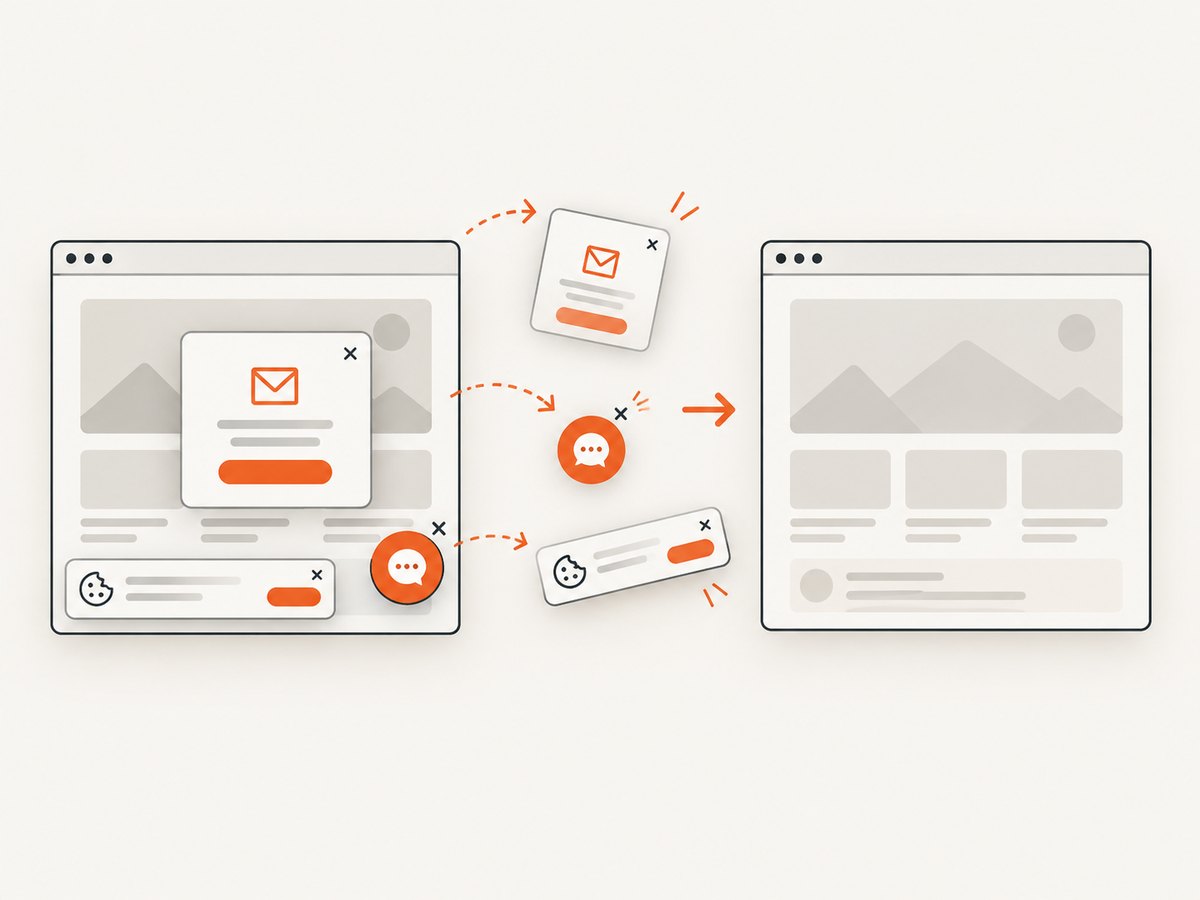
| A cookie banner covers the page | The consent dialog is still open | Accept or dismiss it before capture. For automated jobs, use a consent-handling service or scripted click. |
| A sticky header repeats over content | position: fixed or position: sticky |
Temporarily hide the selector in the Elements panel, or use an API with a hide-selectors option. |
| Capture area screenshot is unavailable | DevTools is undocked | Dock DevTools to the browser window, then run the area command again. |
| The page requires login | Chrome is not authenticated in the profile being used | Sign in to that profile first. Do not expose credentials in URLs or screenshots. |
Dynamic pages, privacy, and edge cases
Consent banners, chat widgets, and popups
Manual capture requires you to close these elements yourself. A banner may be inside a shadow root or injected after a delay, so dismiss it immediately before capture. If a chat launcher remains, inspect it and hide its top-level selector for the screenshot.
Very tall pages
Long documents can create large PNG files and consume substantial memory. Prefer JPEG or WebP when a smaller file is acceptable, or capture logical sections separately. A PDF may be more practical for a document that must be printed or searched.
Animations and carousels
Pause animations where possible. Otherwise, two captures can differ because a carousel advanced or a video frame changed. In DevTools, you can add temporary CSS such as * { animation: none !important; transition: none !important; } through the Sources or Elements workflow, then remove it after capture.
Cross-origin frames
An embedded iframe can render visually while remaining inaccessible to page scripts because of browser origin rules. You can capture what Chrome displays, but you may not be able to inspect or modify the frame’s DOM from the parent page.
Protected pages and bot checks
Challenge pages, CAPTCHAs, and authentication walls can result in a screenshot of the challenge rather than the intended content. Treat that output as a failed capture and do not automate attempts to bypass access controls.
Or skip the browser setup
For recurring jobs, CI pipelines, or many URLs, ScreenshotNeo’s API documentation provides a single request for a full-page capture. It handles the browser session and returns an image or PDF.
cURL
curl -G "https://api.screenshotneo.com/v1/shot" -d access_key=YOUR_API_KEY --data-urlencode url=https://stripe.com -o shot.webpPython
import requests

r = requests.get("https://api.screenshotneo.com/v1/shot", params={"access_key": "YOUR_API_KEY", "url": "https://stripe.com"}, timeout=90)
open("shot.webp", "wb").write(r.content)
Node.js
const q = new URLSearchParams({ access_key: 'YOUR_API_KEY', url: 'https://stripe.com' });
const res = await fetch(`https://api.screenshotneo.com/v1/shot?${q}`);
ScreenshotNeo removes cookie and consent banners, newsletter popups, and chat widgets before the shot. Bot checks, blank pages, timeouts, failed loads, and cache hits are not billed; response headers identify the page verdict and whether the request was billed. It also provides an MCP server with take_screenshot, get_page_info, and capture_pdf tools for Claude, Cursor, and other MCP clients.
The API supports full-page capture with lazy images loaded, CSS selector element capture, custom CSS and JavaScript, clicks, waits for selectors or network idle, ad and tracker blocking, custom headers and cookies, user agents, authorization, timezone and geolocation, transparent backgrounds, resizing, caching with a chosen TTL, signed image links, asynchronous jobs with signed webhooks, bulk capture for up to 100 URLs per call, and PDF options such as paper size, margins, landscape mode, and page ranges. Every feature is available on every plan. The free plan includes 1,000 shots per month without a card; paid plans start at $5 for 3,000 shots.
Create a free ScreenshotNeo account and start with 1,000 screenshots per month at no charge.
Performance, reliability, and cost considerations
- Browser memory: Full-page PNGs grow with page dimensions and device pixel ratio. Use a lower scale or WebP when downstream systems do not need lossless output.
- Capture time: Fonts, images, third-party scripts, and network-idle waits all add latency. Disable unnecessary requests when you control an automated capture.
- Repeatability: Fix the viewport, timezone, locale, user agent, and authentication state when comparing screenshots over time.
- Caching: A cached result improves response time for unchanged pages. Set a cache TTL that matches how often the source content changes.
- Failure handling: Treat blank pages, bot checks, timeouts, and failed loads as failed jobs. ScreenshotNeo reports the page verdict and billing result in headers, and those outcomes are not billed.
- Cost: Manual Chrome captures cost nothing but do not scale. ScreenshotNeo pricing is Free: 1,000 shots/month; Starter: $5 for 3,000; Growth: $15 for 15,000; Pro: $39 for 60,000; Scale: $99 for 250,000; Business: $249 for 1,000,000. Yearly billing provides two months free.
A practical checklist
- Open the target URL and wait for its main content.
- Use Inspect only to open DevTools; do not confuse it with capture.
- Enable Device Mode and select the intended viewport.
- Load lazy content and dismiss consent dialogs.
- Choose Capture a full size screenshot.
- Check the bottom edge, sticky elements, images, fonts, and file format.
- For repeated or server-side captures, use an API with explicit waits, hiding, blocking, caching, and failure reporting.
FAQ
Does Chrome’s full-size screenshot include content below the fold?
Yes. The Device Mode command is designed to capture the complete document, including content outside the current viewport.
Can I use Inspect mode alone to capture a full page?
No. Inspect mode selects and analyses elements. You still need Device Mode’s Capture a full size screenshot command.
What is the difference between full size and viewport capture?
Full size exports the entire document. The regular Capture screenshot command exports only the visible viewport.
Can Chrome capture a full page as a PDF?
Chrome’s DevTools screenshot command creates an image. Use the browser’s print dialog for a PDF, or use an API such as ScreenshotNeo when you need controlled paper size, margins, orientation, or page ranges.
Why does my full-page image show a consent banner?
Chrome captures the page exactly as it appears. Dismiss the banner first, or use a capture service that handles consent before rendering.
How can I capture hundreds of URLs?
DevTools is intended for interactive work. For bulk jobs, use an API with asynchronous jobs, webhooks, rate controls, and bulk requests. ScreenshotNeo supports bulk capture for up to 100 URLs per call.


