How to Get a Full-Page Screenshot on iPhone
Capture an entire webpage on iPhone with Safari’s Full Page tool, then save it as an image or PDF with these exact steps.
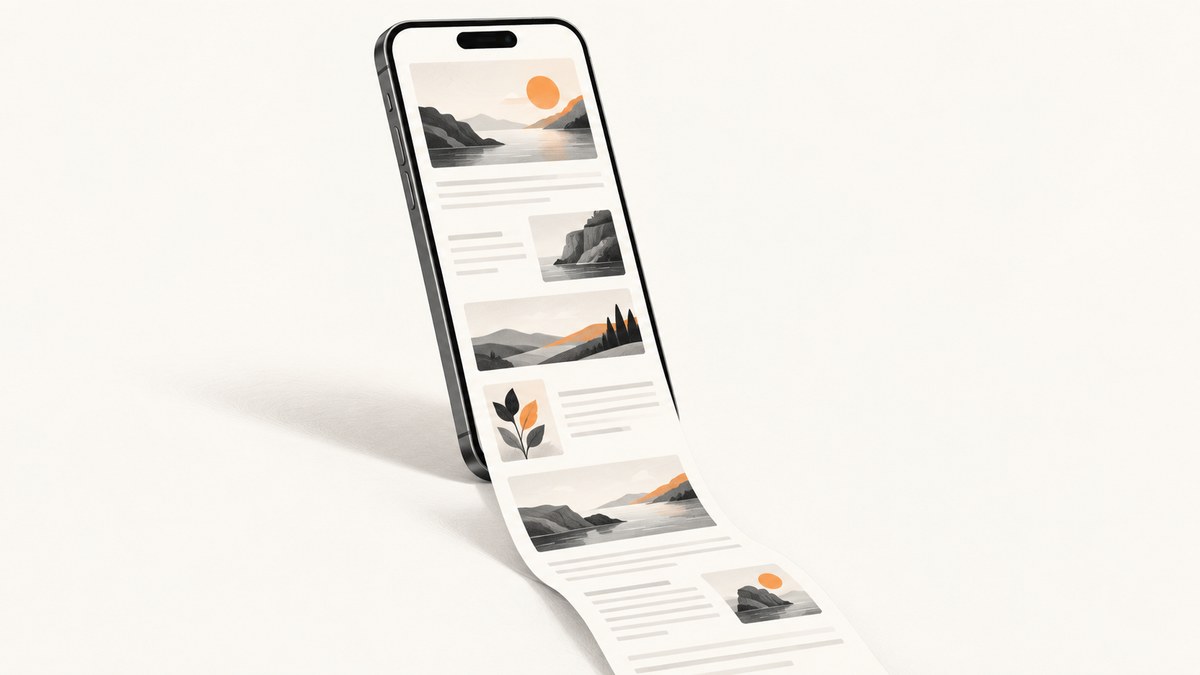
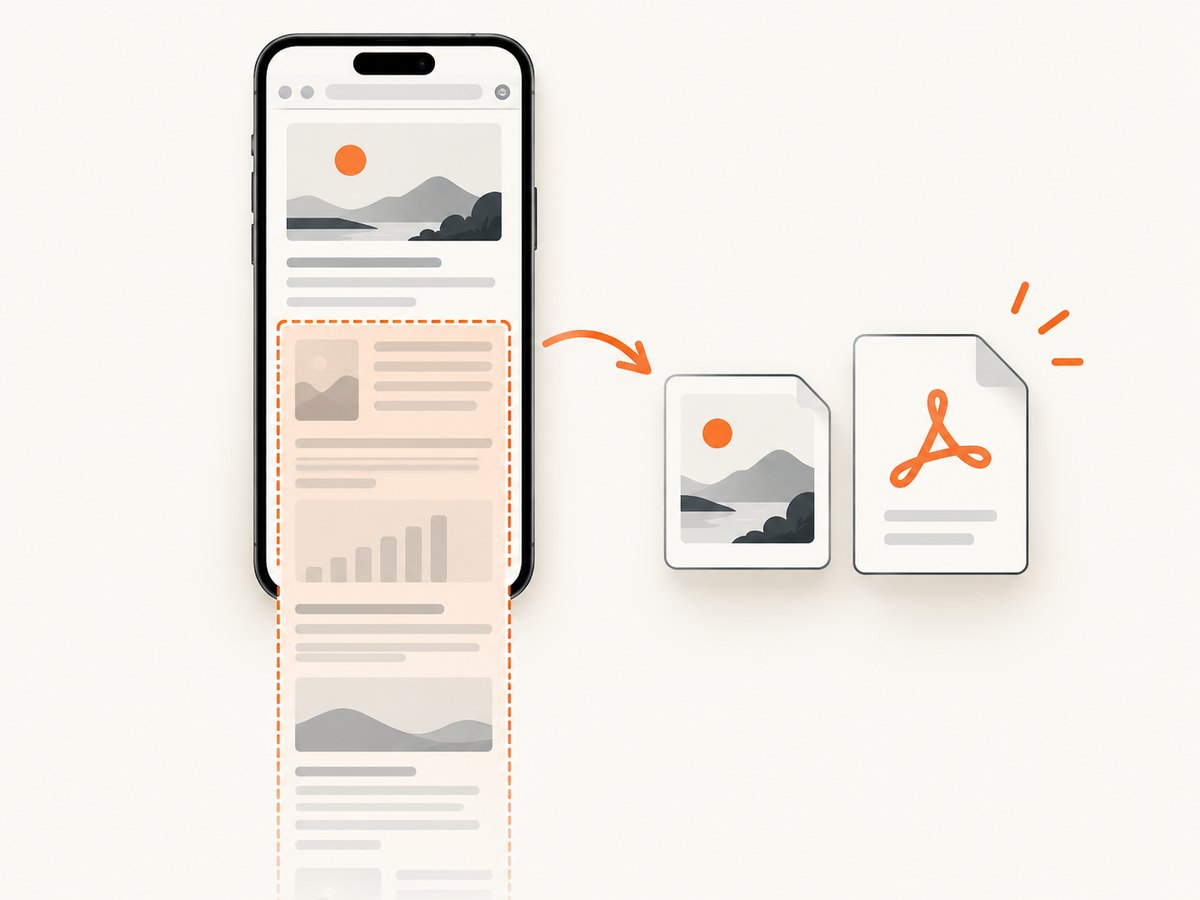
To get a full-page screenshot on iPhone: open the webpage in Safari, take a screenshot, open the screenshot controls, choose Full Page, then save the result to Photos as an image or to Files as a PDF. Apple documents this for content longer than the screen, including an entire Safari webpage. See Apple’s screenshot guide.
Quick steps
- Open the page in Safari and wait for the content you need to load.
- Take a screenshot using the button combination for your iPhone model.
- Open the screenshot controls. On iOS 18 and earlier, tap the temporary thumbnail in the lower-left corner. On iOS 26, the screenshot opens automatically with quick tools.
- Tap Full Page.
- Review the long preview, crop it if needed, and choose either Save to Photos or Save PDF to Files.
Use the right screenshot buttons
| iPhone hardware | Buttons | What to do |
|---|---|---|
| Face ID models | Side button + Volume Up | Press and quickly release both buttons together. |
| Side button and Home button | Side button + Home | Press and quickly release both buttons together. |
| Top button and Home button | Top button + Home | Press and quickly release both buttons together. |
If you hold the buttons instead of releasing them quickly, you may open the shutdown or emergency screen instead of taking a screenshot.
Detailed Safari workflow
1. Load the page completely
Open the target URL in Safari. Scroll through the page if it uses lazy loading, expanding sections, or infinite content. Content that has not loaded yet may not appear in the full-page capture.
2. Capture the screen
Use the button combination from the table above. A normal screenshot is created first; the Full Page option is available from its editing controls when Safari supports a longer capture.
3. Select Full Page
Open the screenshot editor and select Full Page. A vertical preview shows the content beyond the visible screen. Drag the crop handles or use the preview to inspect the beginning and end before saving.
4. Choose an output format
- Save to Photos: keeps the capture as an image for viewing or sharing from Photos.
- Save PDF to Files: creates a PDF in the Files app. Pick iCloud Drive, On My iPhone, or another available folder.
The available save choices can depend on the iOS version and the content being captured.
Image or PDF: which should you save?
| Need | Use | Reason |
|---|---|---|
| A visual reference or image attachment | Save to Photos | Produces an image you can view and share from Photos. |
| A document for Files, markup, or forwarding | Save PDF to Files | Produces a PDF that is easier to store as a document. |
| Annotations on a webpage document | Safari’s PDF workflow | Use the Page Menu and Share, choose Markup, select Done, then Save File To. |
iOS interface differences
Apple’s current guidance describes a different presentation in iOS 26: a screenshot appears automatically with quick tools. In iOS 18 and earlier, you normally tap the temporary thumbnail at the lower left. If an older tutorial tells you to find a thumbnail and your phone shows the screenshot editor immediately, continue by locating the screenshot controls and selecting Full Page.
Limits and edge cases
- Safari is the documented example: Full Page is intended for content extending beyond the iPhone display, especially an entire webpage in Safari. Do not assume every app or every scrollable view provides the option.
- Dynamic pages: banners, ads, lazy images, login states, and expandable sections can change while you capture. Wait for the desired state before taking the screenshot.
- Infinite scrolling: a page with no real end may capture only the portion Safari can represent. Scroll and load the content you actually need first.
- Very long pages: inspect the preview and crop unnecessary sections before saving to keep the file manageable.
- Protected or interactive content: a screenshot records the rendered page; it does not preserve forms, video playback, links, or other interactive behavior.
Troubleshooting
| Problem | Likely cause | Fix |
|---|---|---|
| Full Page is missing | The capture was not made in a supported Safari webpage view, or the page does not extend beyond one screen. | Retry in Safari after loading a longer webpage. The option is not guaranteed in every app. |
| The screenshot stops early | Images or sections had not loaded, or the page uses dynamic/infinite scrolling. | Wait for content, scroll through the required area, then capture again. |
| The screenshot buttons do nothing | The wrong hardware combination or timing was used. | Use the model-specific combination and press and release quickly. |
| You see the power or emergency screen | The buttons were held too long. | Release both buttons immediately after pressing them together. |
| The saved PDF is not where expected | A different Files location was selected, or the save action was cancelled. | Repeat Save PDF to Files and check the selected folder in Files. |
| The page looks different in the capture | Responsive layout, consent dialogs, login state, or ads changed during capture. | Set the page to the desired state, dismiss dialogs where appropriate, and capture again. |
Or skip the browser setup
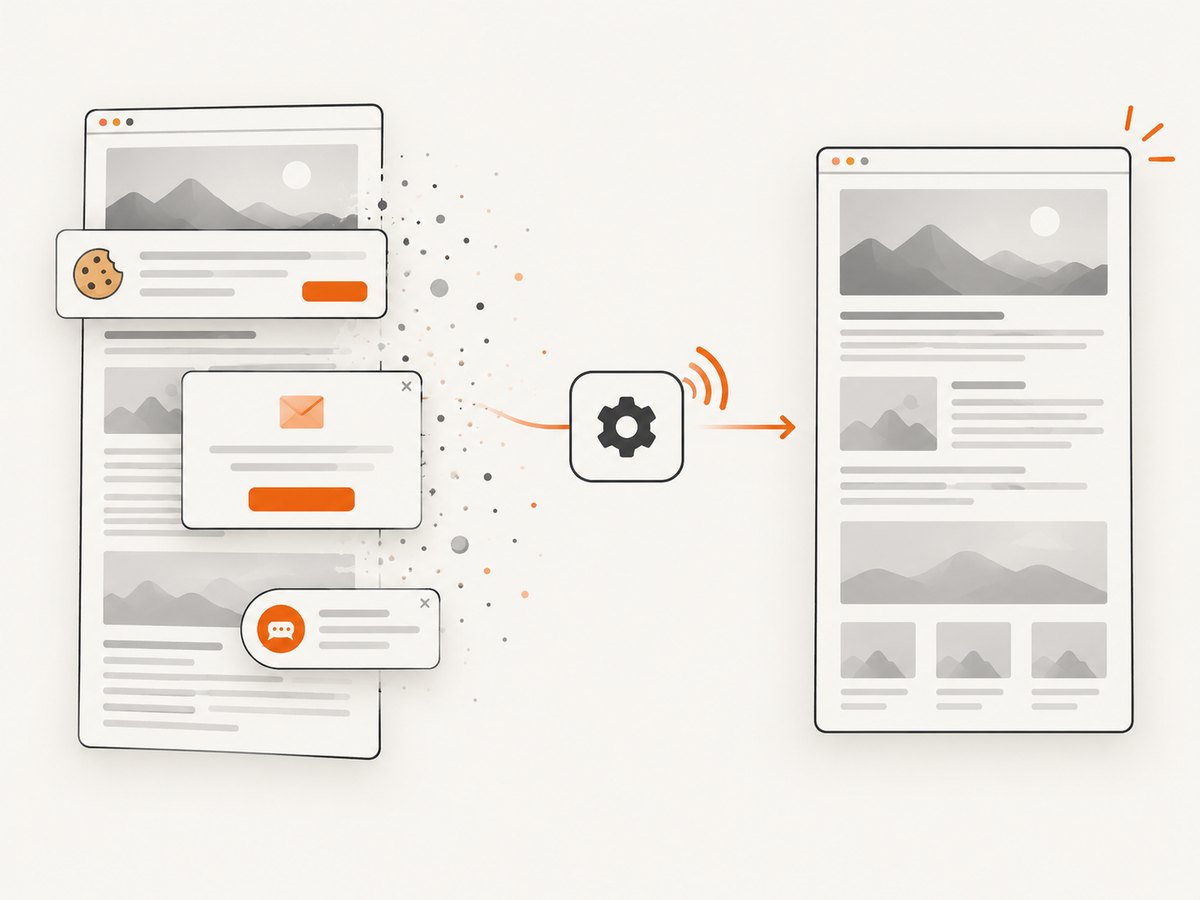
If you need repeatable screenshots from code, ScreenshotNeo captures a URL with one request. Its cleanup step accepts cookie and consent banners and removes more than 60 known consent platforms, newsletter popups, and chat widgets before the shot. Bot checks, blank pages, timeouts, failed loads, and cache hits cost nothing, and the response reports the result with X-Page-Verdict and X-Billed headers. It also provides an MCP server for Claude, Cursor, and other MCP clients.
See the ScreenshotNeo API documentation for all options.
curl -G "https://api.screenshotneo.com/v1/shot" -d access_key=YOUR_API_KEY --data-urlencode url=https://stripe.com -o shot.webpimport requests
r = requests.get("https://api.screenshotneo.com/v1/shot", params={"access_key": "YOUR_API_KEY", "url": "https://stripe.com"}, timeout=90)
open("shot.webp", "wb").write(r.content)const q = new URLSearchParams({ access_key: 'YOUR_API_KEY', url: 'https://stripe.com' });
const res = await fetch(`https://api.screenshotneo.com/v1/shot?${q}`);Use the native iPhone workflow for an occasional personal capture. Use the API when you need automation, custom viewport or device settings, full-page rendering, PDFs, CSS or JavaScript changes, waits, blocking rules, cookies, headers, caching, signed links, webhooks, or bulk capture. ScreenshotNeo includes 1,000 screenshots per month free with no card; paid plans start at $5 for 3,000 shots. Create a free ScreenshotNeo account.
FAQ
Can I get a full-page screenshot from any iPhone app?
No. Apple’s documented example is an entire webpage in Safari, and the Full Page control is not guaranteed in every app or scrollable view.
Does Full Page always save as an image?
You can save the result as an image in Photos or as a PDF in Files, depending on the choices shown by the screenshot controls.
What if I only need a PDF?
Use Save PDF to Files from the Full Page editor. Safari also has a separate Page Menu, Share, Markup, Done, and Save File To workflow for webpage PDFs.
Why does an older guide look different?
iOS 26 opens screenshots with quick tools automatically, while iOS 18 and earlier commonly show a temporary thumbnail. The control you need is still Full Page.


