How to Take a Full-Page Screenshot on iPhone iOS 26
Capture an entire webpage on iPhone iOS 26, inspect and crop it, then save it as an image or PDF.
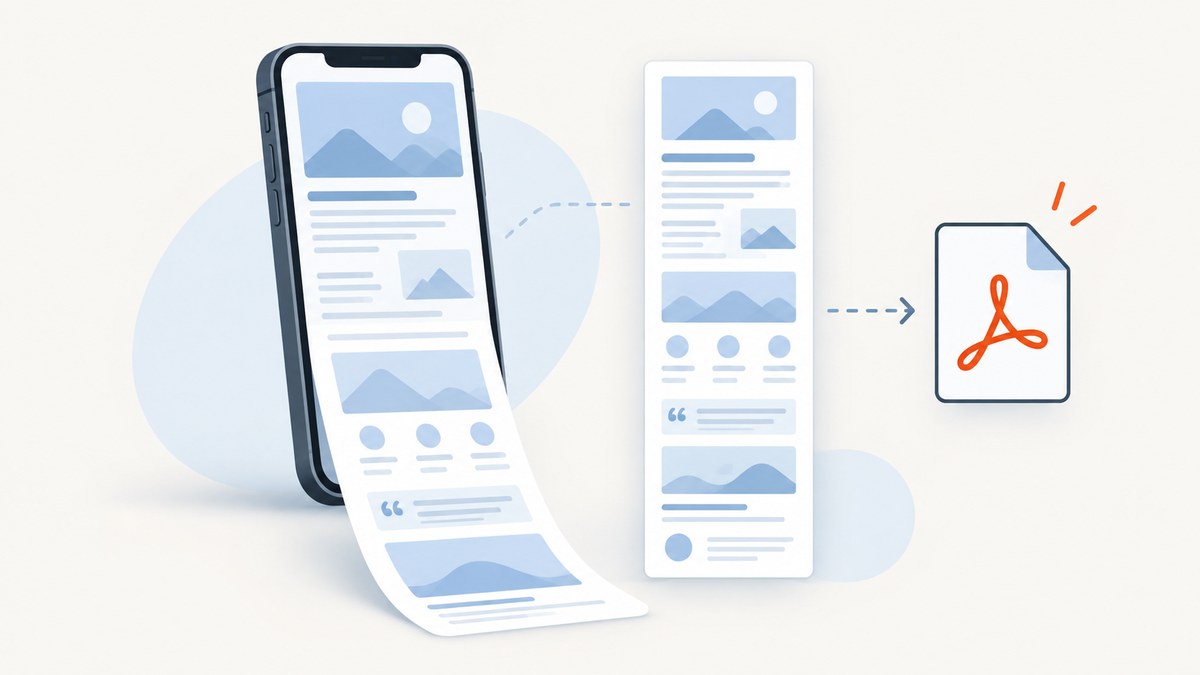
To take a full-page screenshot on an iPhone running iOS 26, take a normal screenshot, tap Full Page in the screenshot controls, inspect or crop the capture, then save it as an image in Photos or as a PDF in Files. Apple documents an entire webpage in Safari as the example for content longer than the screen. Apple’s iOS 26 guide and its general iPhone screenshot guide describe the process.
How to capture a full webpage
- Open the webpage in Safari. Wait for the page content you need to load.
- Take a normal screenshot:
- iPhone with Face ID: quickly press and release the side button and volume-up button together.
- iPhone with a Home button: quickly press and release the side button and Home button together.
- Tap the screenshot thumbnail or preview controls, then choose Full Page.
- Drag through the preview to inspect content below the visible screen.
- Optional: tap the crop control and move the handles to keep only the portion you need.
- Choose a destination. Save the capture as an image in Photos, or save it as a PDF in Files.
The Full Page control appears after the regular screenshot gesture. It can capture content beyond one screen, but Apple specifically documents a complete Safari webpage as the example. Availability in a third-party app depends on whether that app exposes content that iOS can capture as a full page.

Face ID and Home button gestures
| iPhone hardware | Screenshot gesture |
|---|---|
| Face ID | Press and release the side button and volume-up button at the same time. |
| Home button | Press and release the side button and Home button at the same time. |
Use a quick press and release. Holding the buttons can open the power-off or emergency interface instead of taking a screenshot.
Inspect, crop, and save the capture
Inspect the complete page
The preview is a tall representation of the captured content. Drag across it to check that lower sections, images, tables, and the page footer are present. If a page loads content only after scrolling, confirm that those sections appear before you save.
Crop before exporting
Use the crop control and handles to remove navigation, unrelated sections, or excess blank space. Cropping changes what is exported; it does not change the original webpage.
Choose image or PDF
- Save as an image: choose the image option and save it to Photos for sharing or annotating.
- Save as a PDF: choose the PDF option and save it to Files when you need a document that preserves the long-page layout.
Apple’s documentation describes both destinations: images go to Photos and PDFs go to Files. See Apple’s screenshot instructions.
When Full Page is not available
- Confirm that you took the screenshot while viewing the page in Safari or an app that supports full-page capture.
- Look for the screenshot preview controls immediately after the button gesture. Full Page is selected there; it is not a separate camera mode.
- Some apps expose only the visible screen. The supplied Apple guidance does not establish that every third-party app or scrolling view supports Full Page.
- If the page is still loading, wait, dismiss overlays, and capture again. A page that changes while the preview is being generated can produce an incomplete result.
For alternate ways to trigger the initial screenshot, Apple also documents AssistiveTouch, Back Tap, and Siri. These alternatives still start the normal screenshot flow; you then choose Full Page when that control appears.
iOS 26 screen-capture settings
Open Settings > General > Screen Capture to change how screenshot previews are presented. Apple also documents SDR and HDR choices. Screenshots use PNG in SDR and HEIF in HDR, and an HDR display is required to show the full HDR quality. These settings are optional and are not required to make a full-page capture. Read Apple’s screen-capture settings guide.
Common problems and fixes
| Problem | Likely cause | Fix |
|---|---|---|
| No Full Page button | The current app or content does not expose a supported full-page view. | Try the same page in Safari. If the control still does not appear, save the visible screenshot or use the app’s own export feature. |
| The bottom of the page is missing | Content was lazy-loaded or the page changed during capture. | Wait for the page to finish loading, scroll through it once, then take another screenshot. |
| Buttons open instead of taking a screenshot | The buttons were held too long or pressed at different times. | Press and release the required pair quickly and together. |
| The preview is hard to navigate | A full webpage is much taller than the display. | Drag through the preview, use crop handles, and check key sections before saving. |
| PDF is not in Photos | PDF exports use Files rather than Photos. | Choose a folder in Files when saving the PDF, then open it from the Files app. |
| Images or embedded content are blank | The page did not finish loading, requires interaction, or blocks capture. | Reload, wait for images to appear, perform required page interactions, and capture again. Some embedded views cannot be included by iOS full-page capture. |
For repeatable website captures
The iPhone workflow is useful for an occasional page. A browser-based capture service is easier when you need the same URL, viewport, output format, or cleanup rules repeatedly. ScreenshotNeo is a website screenshot API and MCP server for developers. It can capture PNG, JPEG, WebP, or PDF and supports full-page capture, lazy-image loading, CSS element capture, device presets, custom viewports, retina scale, waits, custom CSS and JavaScript, cookies, headers, blocking rules, caching, signed links, asynchronous jobs, webhooks, bulk capture, and usage reporting.
Or skip the browser setup
With ScreenshotNeo, one GET request returns a screenshot or PDF. The service accepts cookie and consent banners before capture and removes more than 60 known consent platforms, newsletter popups, and chat widgets; each cleanup step can be turned off. Bot checks, CAPTCHAs, blank pages, timeouts, failed loads, and cache hits are not billed, and each response reports the result in X-Page-Verdict and X-Billed headers. Its MCP server provides take_screenshot, get_page_info, and capture_pdf for Claude, Cursor, and other MCP clients.
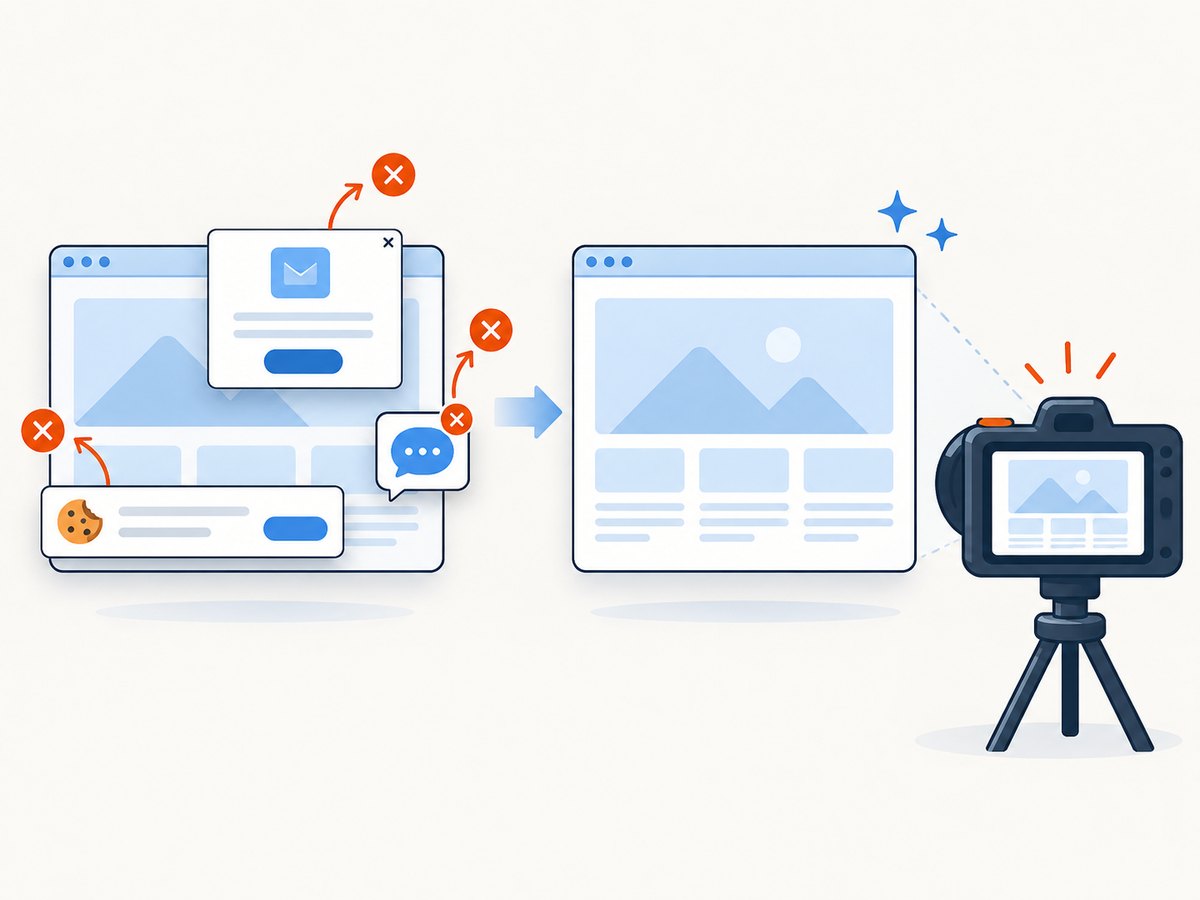
See the ScreenshotNeo API documentation for all options. Replace the example URL with the page you need.
curl -G "https://api.screenshotneo.com/v1/shot" \
  -d access_key=YOUR_API_KEY \
  --data-urlencode url=https://example.com \
  -o shot.webp
import requests
r = requests.get(
"https://api.screenshotneo.com/v1/shot",
params={"access_key": "YOUR_API_KEY", "url": "https://example.com"},
timeout=90,
)
r.raise_for_status()
open("shot.webp", "wb").write(r.content)const q = new URLSearchParams({
access_key: 'YOUR_API_KEY',
url: 'https://example.com'
});
const res = await fetch(`https://api.screenshotneo.com/v1/shot?${q}`);
if (!res.ok) throw new Error(`HTTP ${res.status}`);
const data = Buffer.from(await res.arrayBuffer());
await Bun.write('shot.webp', data);The Free plan includes 1,000 screenshots each month with no card. Paid plans start at $5 for 3,000 shots, and every feature is available on every plan. Create a free ScreenshotNeo account.
Short FAQ
Can I save a full-page screenshot as a PDF?
Yes. After choosing Full Page, select the PDF save option and choose a location in Files.
Does Full Page work in every iPhone app?
Not necessarily. Apple’s documented example is a complete webpage in Safari. The Full Page control appears only where iOS and the app provide that capture mode.
Can I crop before saving?
Yes. Use the crop control and handles in the screenshot preview.
What if I need a clean screenshot without cookie banners?
Use ScreenshotNeo’s capture API or MCP server. It removes supported consent banners, newsletter popups, and chat widgets before the shot and reports whether the result was billed.


