How to Capture a Full-Page Screenshot on an iPhone
Capture an entire webpage on iPhone, save it as an image or PDF, fix common problems, and automate clean screenshots with ScreenshotNeo.
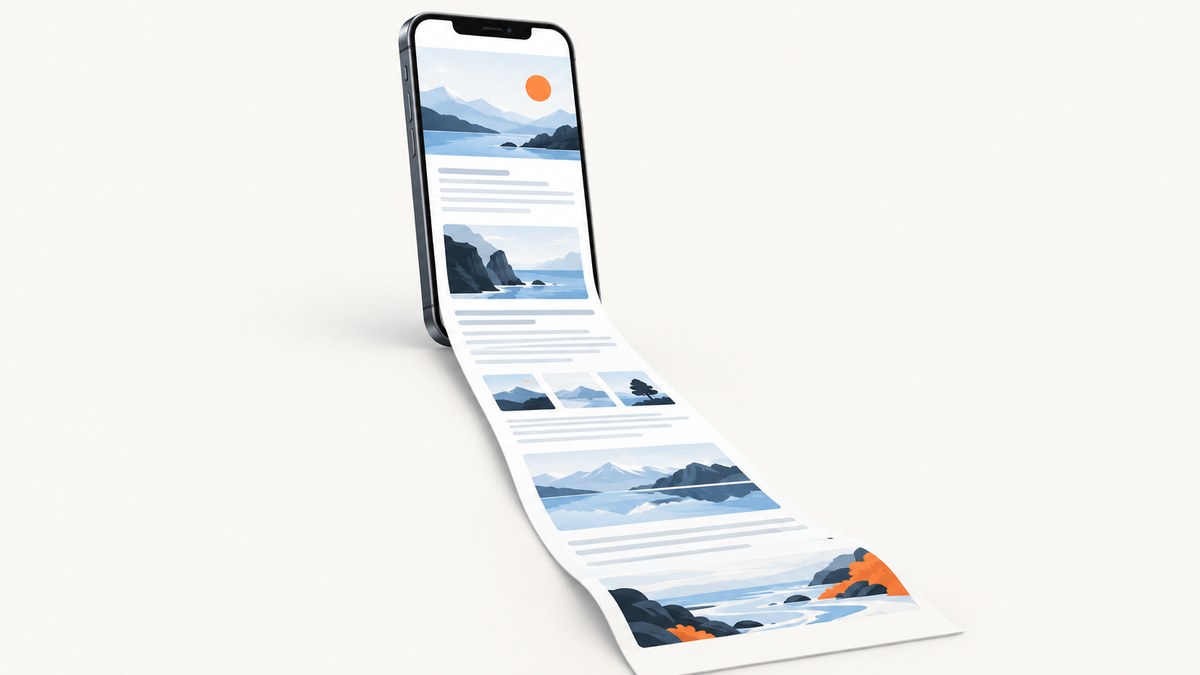
Yes—you can capture an entire webpage on an iPhone without scrolling manually. In Safari, take a normal screenshot, open its editor, choose Full Page, then save the result as a PDF in Files or an image in Photos when that option is available. Apple documents this workflow for content longer than the screen, especially webpages in Safari.
This guide explains the exact button combinations, how to crop and annotate the result, where files are saved, why Full Page may be missing, and how to capture pages from a server or automation workflow with ScreenshotNeo.
What a full-page iPhone screenshot does
A regular screenshot records only the pixels currently visible on the display. A full-page screenshot extends beyond the viewport and captures the supported document or webpage as one long artifact. Apple’s clearest documented example is an entire webpage in Safari. The result is not a video of scrolling; it is a single saved document or image representing the page.
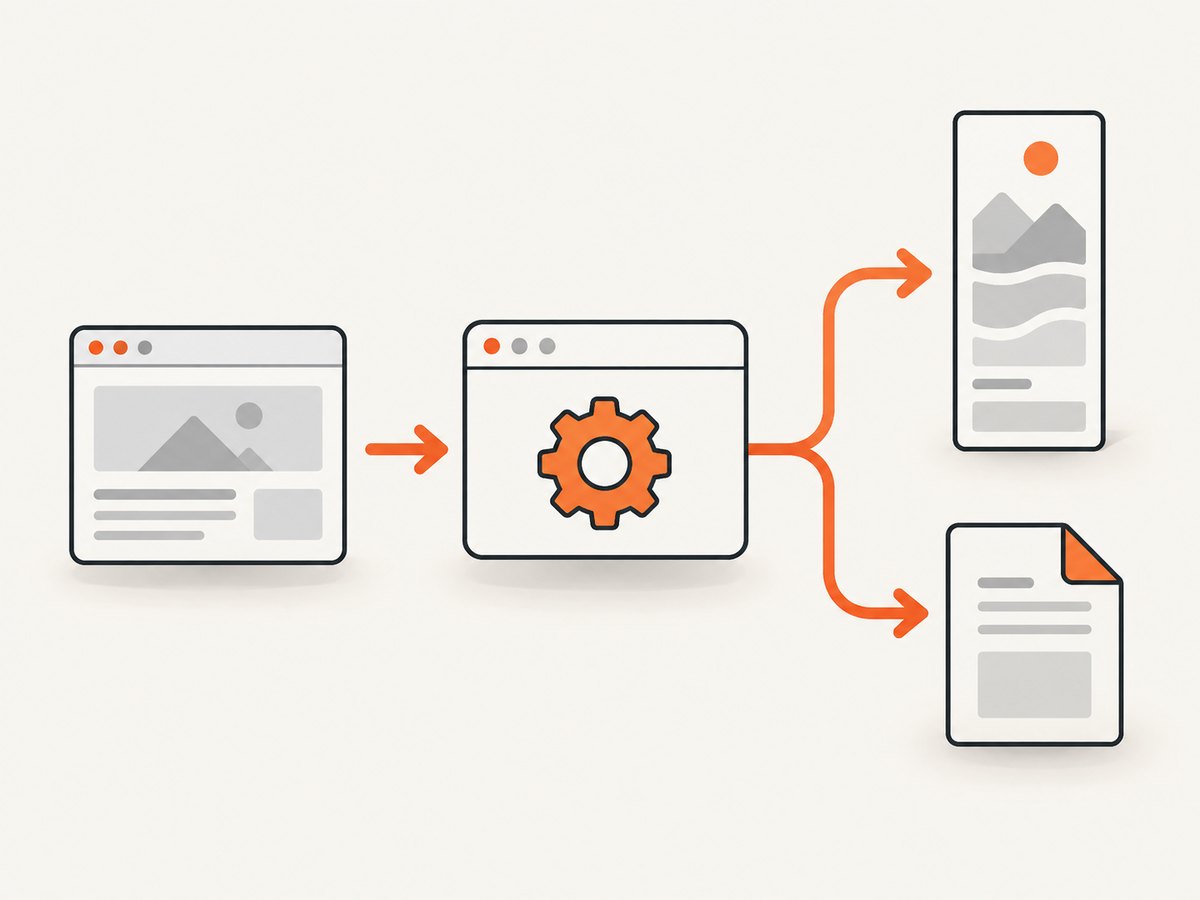
The output depends on the save destination:
| Choice | Result | Best for |
|---|---|---|
| Save to Photos | Image file, when offered | Sharing a visual reference, adding to a photo library, or marking up an image |
| Save PDF to Files | PDF containing the full page | Archiving, emailing, printing, or sending a long document |
You can inspect the long preview, crop the capture, and use Markup before saving. The Full Page control is app-dependent outside Apple’s documented examples, so another app may show only the Screen option.
Capture a full webpage in Safari
- Open the page. Launch Safari and navigate to the webpage you want. Wait for the page to finish loading. If the page uses lazy-loaded sections, scroll through it once so important images or content have a chance to load.
- Take a normal screenshot. On an iPhone with Face ID, quickly press and release the side button and volume-up button together. On an iPhone with a Home button, quickly press and release the side button and Home button together. Apple documents both combinations in the iPhone User Guide.
- Open the screenshot editor. Tap the thumbnail that appears briefly in the lower-left corner. If it disappears before you tap it, take the screenshot again; the screenshot itself is still available in Photos if you saved it there.
- Select Full Page. At the top of the editor, tap Full Page. A tall preview appears on the right. Drag through the preview to inspect content below the original viewport.
- Crop if needed. Use the crop handles to keep only the relevant portion. Cropping before export reduces clutter and can make a PDF easier to read.
- Annotate optionally. Use Markup to draw, add shapes, highlight, or write notes. Keep annotations limited if the capture is intended as a clean reference copy.
- Choose an export. Tap Save PDF to Files, choose a folder, and tap Save to create a PDF. If the editor offers Save to Photos, use it to create an image in the Photos library. Apple describes these destinations in its screenshot support instructions.
Using Siri, AssistiveTouch, or Back Tap
The button shortcut is optional. Apple lists Siri, AssistiveTouch, and Back Tap as alternate ways to trigger a screenshot. After the screenshot is created, the Full Page step is the same: open the thumbnail, select Full Page, review, and save. These alternatives help if pressing two physical buttons is uncomfortable or unreliable.
Save the capture as an image or PDF
Save as a PDF in Files
Choose Save PDF to Files when the page is primarily text, documentation, a receipt, or a reference you may print later. Select a location such as iCloud Drive or On My iPhone, rename the file if useful, and tap Save. The resulting file is a PDF even though the source was a webpage.
PDF export preserves the long-page layout as a document. It does not turn the webpage into editable HTML, and interactive controls, videos, forms, and live links may not behave like they did in Safari.
Save as an image in Photos
Use Save to Photos when you need a visual image for a message, design review, or image library. The exact image option can depend on the content and iOS version. If Full Page offers only PDF, save the PDF first and convert it later with an app that supports PDF-to-image export.
Very long pages may produce a tall image that is awkward to open or share. For a page several screens high, PDF is usually easier for recipients to navigate and print.
Why Full Page may not appear
- The app does not support it. Apple’s documented workflow focuses on webpages in Safari. Many third-party apps expose only a normal screen capture.
- You opened the wrong editor. You must tap the screenshot thumbnail immediately after capture. Opening an old image from Photos may not expose the same Full Page control.
- The content is not a supported document. A game, canvas-heavy view, or custom reader may not provide a paginated full-page representation.
- The page has not finished loading. Wait for navigation, consent prompts, and dynamic sections to settle, then capture again.
- The thumbnail was dismissed. Repeat the screenshot. Apple places saved screenshots in the Photos library when you choose that destination.
- iOS behavior differs by version. Labels and export choices can move between releases. Install the latest compatible iOS update if the feature behaves unexpectedly.
Quality checklist before you capture
- Close overlays that cover page content, or dismiss them if the page allows it.
- Return to the top of the page before taking the screenshot so the capture starts at the intended point.
- Wait for images, fonts, and embedded sections to load.
- Check that Safari is displaying the correct URL and account state.
- Decide whether the recipient needs an image in Photos or a PDF in Files.
- Review the entire Full Page preview before saving; missing sections are easier to fix before export.
Troubleshooting common problems
| Symptom | Likely cause | Fix |
|---|---|---|
| Only the visible screen is captured | Full Page was not selected, or the app does not support it | Open the thumbnail, tap Full Page, and retry in Safari if the source is a webpage. |
| The Full Page tab is absent | Unsupported content or an editor opened from Photos | Capture the page again in its original app, then tap the new thumbnail immediately. |
| The bottom of the page is blank | Lazy-loaded content never loaded or the page timed out | Scroll through the page once, wait for sections to render, then capture again. |
| Cookie or newsletter banners cover content | The site requires an interaction before showing the page | Dismiss the banner when possible. If it cannot be dismissed, capture after the page settles or use an automated capture service that can handle consent UI. |
| The screenshot thumbnail disappears | The temporary preview timed out | Take another screenshot. Do not rely on the thumbnail for long-term storage. |
| The PDF is hard to read | The page is extremely long or was exported without cropping | Crop to the needed range, or capture separate sections for a shorter document. |
| Buttons do not work in the saved file | A screenshot is a static representation | Keep the original URL for interaction; use the capture as a visual record. |
Privacy, reliability, and practical limits
A screenshot includes whatever is visible to your signed-in Safari session: account names, order details, messages, and other private data. Review the preview before sharing. Redact sensitive areas with Markup or crop them out. Remember that a PDF or image can be copied after you send it.
For one-off captures, the built-in iPhone workflow is reliable and requires no account or extra service. It depends on the page rendering correctly on the phone, however. Responsive layouts may differ from desktop, infinite-scroll pages may not expose all content to the Full Page editor, and live data can change between captures.
Or skip the browser setup
If you need repeatable captures, a desktop-sized viewport, batch jobs, or screenshots from a server, ScreenshotNeo provides a single GET request to return a PNG, JPEG, WebP, or PDF. Its capture options include full-page mode, device presets, custom viewports, retina scale, CSS selectors for one element, dark mode, custom CSS and JavaScript, click actions, waits for selectors or network idle, blocking rules, cookies, headers, user agents, timezones, geolocation, resizing, caching, signed links, asynchronous jobs, bulk capture, and a usage API. See the ScreenshotNeo documentation for the complete parameter list.

Before capture, ScreenshotNeo accepts cookie or consent banners and removes more than 60 known consent platforms, newsletter popups, and chat widgets; each step can be turned off. Bot checks or CAPTCHAs, blank pages, timeouts, failed loads, and cache hits are not billed, and each response reports its verdict and billing status in X-Page-Verdict and X-Billed headers.
cURL
curl -G "https://api.screenshotneo.com/v1/shot" \
  -d access_key=YOUR_API_KEY \
  --data-urlencode url=https://stripe.com \
  -o shot.webp
Python
import requests

r = requests.get(
    "https://api.screenshotneo.com/v1/shot",
    params={"access_key": "YOUR_API_KEY", "url": "https://stripe.com"},
    timeout=90,
)
r.raise_for_status()
open("shot.webp", "wb").write(r.content)
Node.js
const q = new URLSearchParams({
  access_key: 'YOUR_API_KEY',
  url: 'https://stripe.com'
});
const res = await fetch(`https://api.screenshotneo.com/v1/shot?${q}`);
if (!res.ok) throw new Error(`HTTP ${res.status}`);
const fs = await import('node:fs/promises');
await fs.writeFile('shot.webp', Buffer.from(await res.arrayBuffer()));
Options for an iPhone-like capture
Use a device preset or specify a viewport that matches the target iPhone width, then enable full-page capture. Retina scale increases pixel density for sharper output. For a page where only one section matters, provide a CSS selector instead of capturing the entire document. Add a wait for a selector or network idle when content appears after JavaScript runs. Cookies, custom headers, an Authorization header, timezone, and geolocation let you reproduce the state that a real visitor would see.
For recurring pages, choose a cache TTL that fits how often the content changes. Use asynchronous jobs and signed webhooks when a capture may take longer than a normal request, and bulk capture for up to 100 URLs per call. Cache hits are identified in the response and cost nothing.
Performance, reliability, and cost notes
- Use WebP or JPEG when file size matters; use PNG for lossless interface details and transparency.
- Capture only the needed element when a full document would be unnecessarily large.
- Set explicit waits for pages with predictable dynamic content instead of using a long fixed delay.
- Keep API keys on your server; do not expose them in public browser code.
- Inspect
X-Page-VerdictandX-Billedso your application can distinguish a clean, billable capture from a bot check, blank page, timeout, failed load, or cache hit. - ScreenshotNeo includes 1,000 shots per month free with no card. Paid plans are Starter $5 for 3,000, Growth $15 for 15,000, Pro $39 for 60,000, Scale $99 for 250,000, and Business $249 for 1,000,000; yearly billing gives two months free, and every feature is available on every plan.
There is also an MCP server with take_screenshot, get_page_info, and capture_pdf tools for Claude, Cursor, and other MCP clients. That lets an AI agent capture a page without you building browser automation.
Create a free ScreenshotNeo account to get 1,000 screenshots a month with no card. Cookie banners, popups, and chat widgets are removed before the shot; bot checks, blank pages, and failed loads are never billed; and paid plans start at $5 for 3,000 shots.
Frequently asked questions
Can every iPhone take a full-page screenshot?
The feature is provided by iOS, but the Full Page control depends on the app and content. Safari webpages are Apple’s documented example; unsupported apps may offer only a screen capture.
Where does an iPhone full-page screenshot go?
A PDF goes to the Files location you choose. An image saved with Save to Photos goes to the Photos library.
Can I capture a full webpage as one JPG?
Safari’s documented full-page export is PDF-focused. If an image export is offered, use Save to Photos; otherwise save the PDF and convert it with a suitable tool.
Does a full-page screenshot include content below the fold?
It can include content beyond the visible screen when the app supports Full Page and the content has rendered. Dynamic or infinite-scroll sections may require additional loading or may not be included.
Can I automate iPhone-style screenshots without an iPhone?
Yes. A service such as ScreenshotNeo can set a device preset or viewport, render the page, and return an image or PDF from an API request.