How to Capture a Full-Page Screenshot with JavaScript
Capture an entire scrollable webpage with JavaScript using Playwright or Puppeteer. Get runnable setup, format options, loading tips, troubleshooting, and an API alternative.
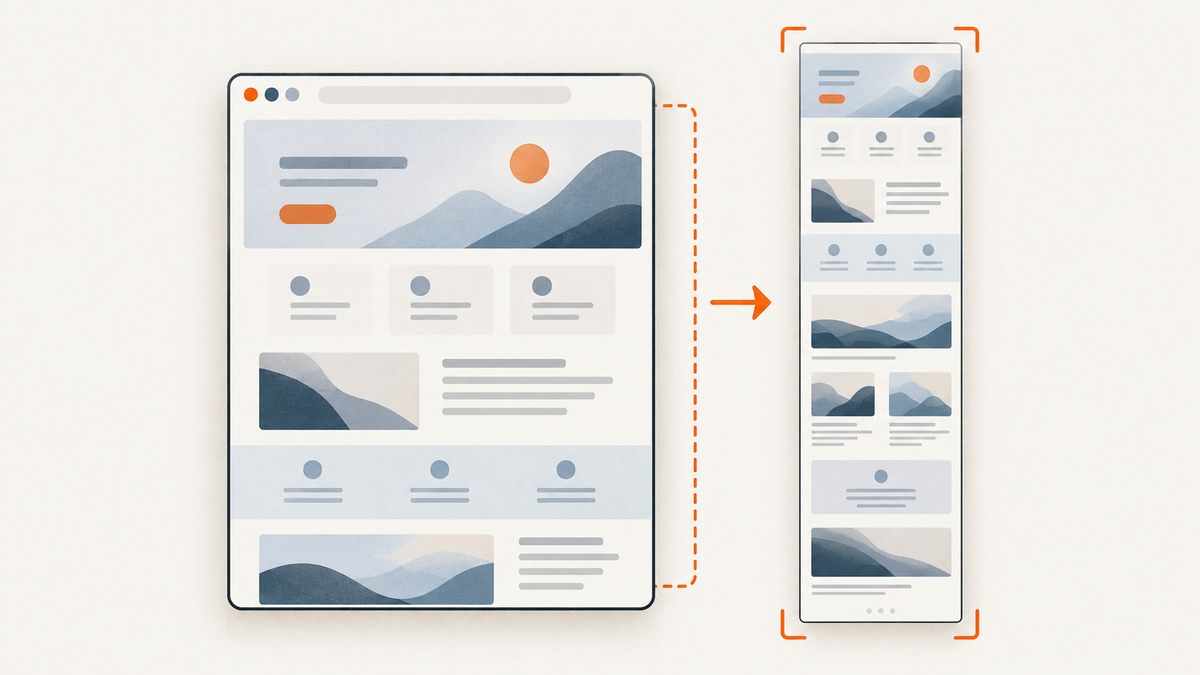
To capture the whole scrollable webpage with JavaScript, use Playwright’s fullPage option:
await page.screenshot({ path: 'full-page.png', fullPage: true });Here is a complete Node.js example:
import { chromium } from 'playwright';

const browser = await chromium.launch();
const page = await browser.newPage({ viewport: { width: 1440, height: 900 } });

try {
  await page.goto('https://example.com', { waitUntil: 'domcontentloaded' });
  await page.screenshot({ path: 'full-page.png', fullPage: true });
} finally {
  await browser.close();
}
fullPage: true requests a capture of the page’s full scrollable area rather than just the visible viewport. It does not guarantee that every asynchronous widget, animation, or lazy-loaded image has reached the state you want; wait for the relevant page state when necessary, then inspect the image. Playwright documents this option in its Page API and screenshots guide.
1. What a full-page screenshot captures
A viewport screenshot records what is currently visible in the browser window. A full-page screenshot extends the capture to the page’s scrollable length. This is useful for visual regression artifacts, bug reports, documentation, reports, and archives where the lower sections matter too.
The screenshot is still an image of a rendered browser page. It does not automatically include content that has not rendered, content hidden behind interaction, or content that appears only after a particular application state. If your page requires a click, login, consent choice, or data fetch, establish that state before taking the screenshot.
2. Set up Playwright in Node.js
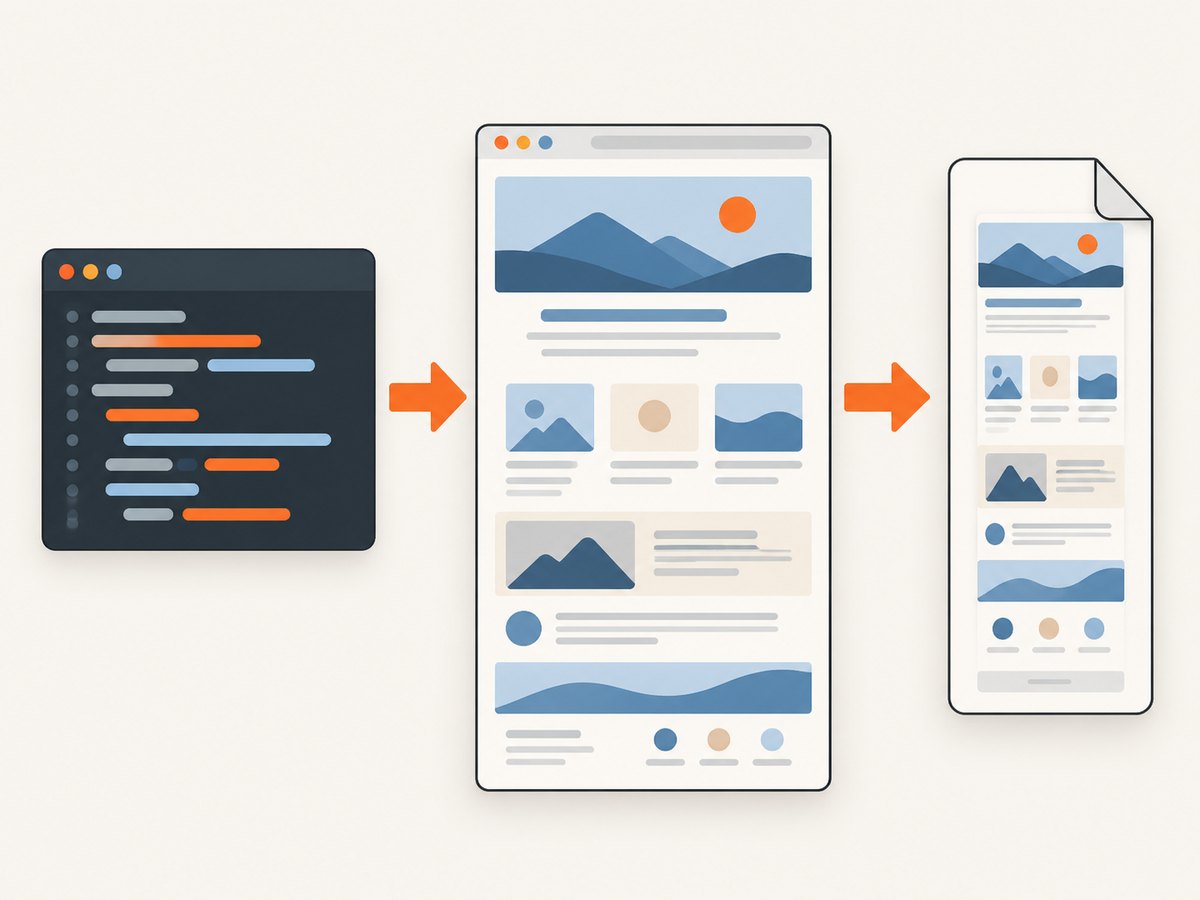
For a small project, install Playwright and its Chromium browser:
npm install playwright
npx playwright install chromium
Save the following as screenshot.mjs, then run node screenshot.mjs:
import { chromium } from 'playwright';

const url = process.argv[2] ?? 'https://example.com';
const browser = await chromium.launch({ headless: true });
const page = await browser.newPage({
  viewport: { width: 1440, height: 900 },
  deviceScaleFactor: 1,
});

try {
  const response = await page.goto(url, { waitUntil: 'domcontentloaded', timeout: 30_000 });
  if (response && !response.ok()) {
    throw new Error(`Navigation returned HTTP ${response.status()}`);
  }

  await page.screenshot({ path: 'full-page.png', fullPage: true });
  console.log('Saved full-page.png');
} finally {
  await browser.close();
}
Pass another target as an argument, for example node screenshot.mjs https://example.org. The browser is closed in a finally block so it is also cleaned up if navigation or capture throws.
Wait for the state you need
domcontentloaded waits for the initial document to be parsed, but modern pages can continue rendering after that. If the screenshot must include a known element, wait for it explicitly:
await page.goto(url, { waitUntil: 'domcontentloaded' });
await page.locator('[data-report-ready="true"]').waitFor({ state: 'visible' });
await page.screenshot({ path: 'report.png', fullPage: true });
Replace the selector with a marker your application actually renders when its content is ready. A fixed delay is sometimes useful for a page with a known delayed effect, but a condition tied to the desired content is generally easier to maintain than guessing how long every run needs.
3. Choose image format, scale, and output
Playwright supports PNG, JPEG, and WebP screenshot output. PNG is a practical default for sharp text and line art. JPEG or WebP can be preferable when the receiving system expects those formats or smaller image files. Choose the format based on the next step in your pipeline; full-page capture and image encoding are separate choices.
The scale option controls whether output dimensions follow CSS pixels or device pixels. Use css when you want dimensions aligned with the page’s CSS layout, and device when you want output to reflect the device scale factor. If you change the page’s device scale factor or output scale, check the resulting dimensions and file size with your actual target page.
await page.screenshot({
  path: 'full-page.webp',
  type: 'webp',
  fullPage: true,
  scale: 'css',
});
For a JPEG capture, Playwright also accepts a quality value:
await page.screenshot({
  path: 'full-page.jpg',
  type: 'jpeg',
  quality: 80,
  fullPage: true,
});
Set path to control where the file is written. If you omit it, the screenshot API returns image bytes that your program can save or send elsewhere. See the official Page API for the current option definitions.
4. Capture a full page with Puppeteer
If your project already uses Puppeteer, the equivalent option is also named fullPage. Install Puppeteer and use this complete script:
import puppeteer from 'puppeteer';

const url = process.argv[2] ?? 'https://example.com';
const browser = await puppeteer.launch({ headless: true });

try {
  const page = await browser.newPage();
  await page.setViewport({ width: 1440, height: 900 });
  const response = await page.goto(url, { waitUntil: 'domcontentloaded', timeout: 30_000 });
  if (response && !response.ok()) {
    throw new Error(`Navigation returned HTTP ${response.status()}`);
  }
  await page.screenshot({ path: 'full-page.png', fullPage: true });
} finally {
  await browser.close();
}
Run it as node screenshot.mjs https://example.com after installing Puppeteer with npm install puppeteer. The Puppeteer ScreenshotOptions reference documents fullPage alongside options such as path, type, quality, clip, omitBackground, and captureBeyondViewport.
Use the library already present in your application unless you have a specific reason to add another browser automation dependency. Both provide a page-level screenshot API; the protocol-level route below is for cases where your integration already speaks Chrome DevTools Protocol.
5. Full page, viewport, clip, or element?
| Capture | Use it for | Key consideration |
|---|---|---|
| Viewport | A screenshot of the current visible browser area | Does not include offscreen page sections |
| Full page | The entire scrollable page | Long pages can produce large image files |
| Clip | A selected rectangular region | You must define the desired area |
| Element | A particular card, chart, or component | Locate the element and use the library’s element screenshot API |
Do not combine a clipped-region goal with a full-page goal by default. Decide whether the consumer needs the entire document, a viewport, or a particular component, then choose the capture API and output dimensions to match.
6. Dynamic pages and lazy-loaded content
The full-page flag describes the capture extent; it does not itself prove that all content intended for the final image has loaded. This matters on pages with images loaded as they approach the viewport, infinite scrolling, client-rendered sections, delayed embeds, or animations.
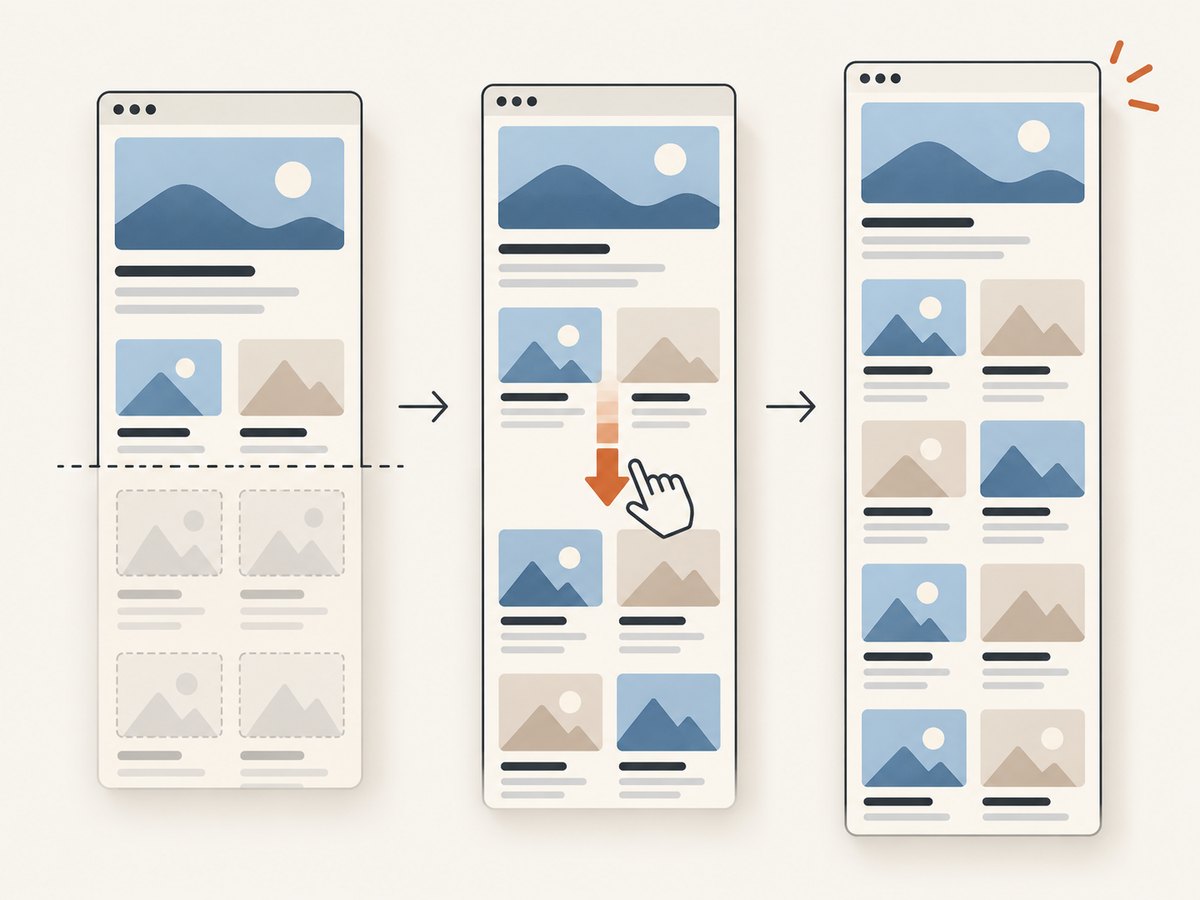
- Navigate to the target state. Complete any required route changes, interactions, or authentication in your existing automation flow.
- Wait for a page-specific readiness signal. Prefer a selector or application state that indicates the content is ready.
- Trigger lazy content if needed. Some pages load media only after scrolling near it. If the output misses sections, inspect how that page loads them and adapt the capture setup to the page.
- Capture and inspect. Check the top, middle, and bottom of the saved image. Look for missing media, placeholders, incomplete data, or a state that differs from the intended view.
There is no universal loading recipe established for every site. A delay can help with a known timing requirement, but it can also waste time or still be too short. Avoid claiming that a full-page call alone forces every site to finish its own rendering logic.
7. Lower-level option: Chrome DevTools Protocol
Playwright and Puppeteer are usually simpler when you already have a browser page object. If your program directly uses Chrome DevTools Protocol (CDP), its Page domain exposes screenshot parameters such as image format, quality, captureBeyondViewport, and fromSurface. The exact command and session lifecycle depend on the CDP client you use, so consult the CDP Page domain reference for the protocol definition and your client’s API for how to send it.
For an ordinary JavaScript screenshot script, there is little reason to drop to CDP just to request a full-page image. Choose the higher-level API that matches your existing dependency; use protocol-level control when your integration already needs it.
8. Troubleshooting common problems
| Symptom | Likely cause | What to do |
|---|---|---|
| Only the visible area appears | The screenshot call omitted fullPage: true, or a different capture call was used |
Set fullPage: true in the page screenshot options and verify the resulting image. |
| Images or sections are blank | The site had not rendered them or loads them lazily | Wait for a relevant selector; investigate whether the page needs scrolling or another interaction before capture. |
| Text looks different between runs | The page may be captured in different application states or fonts may not yet be ready | Wait for the target state and inspect the captured page; use a consistent viewport and scale for repeatable artifacts. |
| Navigation times out | The page may keep connections open or take longer than the configured timeout | Check the target URL and network access, then choose a navigation condition and timeout appropriate to the page. Wait for a specific element after initial navigation if that better represents readiness. |
| The saved file is unexpectedly large | A long page, high device scale, or lossless format can increase output size | Review page dimensions and scale; use an output format and quality that suit the consumer. |
| Screenshot file is missing | The destination path may be relative to a different working directory, or capture may have failed before writing | Use an explicit output path, ensure its directory exists, and surface capture errors instead of swallowing them. |
9. Performance, reliability, and cost
Browser automation involves launching or reusing a browser, loading the target, reaching the intended state, encoding the image, and writing it. Full-page images can take more space to store and move than viewport captures, especially when the page is long or the output scale is high. For a repeated job, reuse a browser process where appropriate, create a page per capture, close pages reliably, and avoid adding fixed waits when an explicit readiness condition is available.
Reliability depends on the target website and the state being captured. Pages can return errors, require credentials, render differently by viewport, or change their asynchronous behavior. Record the URL and relevant capture settings with test artifacts, handle navigation and screenshot failures, and inspect representative outputs after changes to the target application.
Self-hosted browser automation has infrastructure and maintenance costs: browser installation, runtime, compute, storage, and the engineering time needed to keep the job reliable. The research sources do not establish universal timings, browser limits, or a cost per capture, so estimate against your own page set and deployment.
10. Or skip the browser setup
ScreenshotNeo is a website screenshot API: send one GET request with a URL to receive a PNG, JPEG, WebP, or PDF. The examples and parameter details are in the ScreenshotNeo API docs.
curl -G "https://api.screenshotneo.com/v1/shot" -d access_key=YOUR_API_KEY --data-urlencode url=https://stripe.com -o shot.webpimport requests
r = requests.get(
"https://api.screenshotneo.com/v1/shot",
params={"access_key": "YOUR_API_KEY", "url": "https://stripe.com"},
timeout=90,
)
open("shot.webp", "wb").write(r.content)const q = new URLSearchParams({ access_key: 'YOUR_API_KEY', url: 'https://stripe.com' });
const res = await fetch(`https://api.screenshotneo.com/v1/shot?${q}`);
if (!res.ok) throw new Error(`Screenshot request failed: ${res.status}`);
await Bun.write('shot.webp', res);ScreenshotNeo accepts cookie and consent banners like a visitor and removes 60+ known consent platforms, newsletter popups, and chat widgets before the shot; each step can be turned off. Bot checks, blank pages, failed loads, timeouts, and cache hits are never billed, and the response identifies the page verdict and billing status in headers. An MCP server gives AI agents tools to take screenshots, get page information, and capture PDFs. The free plan includes 1,000 screenshots a month with no card; paid plans start at $5 for 3,000.
Sign up for 1,000 free screenshots a month, with no card required.
11. Frequently asked questions
How do I take a full-page screenshot with JavaScript?
With Playwright, call page.screenshot({ fullPage: true }). Add a path option to save the result directly to a file.
Can I capture the whole scrollable page instead of the viewport?
Yes. Set fullPage: true in the Playwright or Puppeteer page screenshot options.
Does fullPage wait for every image?
No. It requests a full-page capture; page-specific lazy loading and asynchronous rendering may need additional steps.
Should I use Playwright or Puppeteer?
Use the library that fits your project and existing browser automation. Both document a full-page screenshot option; the sources do not establish one as universally best.
Can I capture an entire page as a PDF instead?
PDF output is a different capture format with its own layout and pagination behavior. If you need a document rather than an image, use the PDF capabilities of your browser tooling and inspect the resulting pages.


