How to Capture Full-Page Screenshots on a Phone
Learn the exact steps for full-page screenshots on iPhone, Android, Pixel and Samsung, plus fixes when scrolling capture is missing.

A full-page screenshot captures content below the visible phone screen in one tall image or PDF. On an iPhone, take a normal screenshot, open its preview and choose Full Page. On Android 12 and later, take a screenshot and choose Capture more on supported scrollable screens. Samsung phones may call the same feature Scroll capture. The exact control depends on the operating system, phone model and app.
iPhone: use Full Page in the screenshot preview
Apple documents full-page capture for webpages in Safari. It can save the result as an image in Photos or as a PDF in Files. The option appears after you take an ordinary screenshot.

- Open the webpage or document you want to capture. Safari is the clearest supported example.
- Take a screenshot. On a Face ID iPhone, quickly press and release the Side and Volume Up buttons together. On an iPhone with a Home button, press Side and Home together.
- Tap the screenshot thumbnail or preview before it disappears.
- At the top of the editor, tap Full Page. A vertical preview shows the content beyond the first screen.
- Use the crop controls to remove unwanted sections.
- Tap the share or save control. Choose Photos for an image, or save to Files when the full-page result is offered as a PDF.
If Full Page is not shown, the current app or screen may not expose a full-page document. Apple’s instructions and examples focus on webpages such as Safari pages. Check whether the content is scrollable and try the same page in Safari. See Apple’s screenshot guide.
What the iPhone result contains
The capture follows the page’s layout rather than stitching separate photos manually. Fixed headers, cookie notices and animated areas can appear repeatedly or at an unexpected position. Review the preview before sharing, especially for pages with sticky navigation, live charts or video.
Android phones: choose Capture more
Google documents scrolling screenshots on Android 12 and later for most screens that allow scrolling. The wording and toolbar layout can vary by manufacturer.
- Open the page, conversation or document.
- Press Power and Volume Down together.
- When the screenshot controls appear, tap Capture more.
- Drag the crop handles or guides until the selected area includes the content you need.
- Tap Save or the equivalent confirmation control.
The feature is not guaranteed in every app. A screen can scroll normally and still block the operating system’s extended capture API. Banking apps, protected media, remote desktops and some custom web views may restrict it. Google’s Android Help instructions describe the Android 12+ flow and the “most scrollable screens” limitation.
Pixel phones
Pixel follows Google’s standard sequence: press Power + Volume Down, then tap Capture more. Adjust the selection and save it. The control can be absent when the current screen does not expose a scrollable region. Refer to Google’s Pixel screenshot guide if the buttons or toolbar differ on your Android version.
Samsung Galaxy phones
Samsung calls its scrolling option Scroll capture in the screenshot toolbar. On the Galaxy S23 series manual, the control captures current and hidden content on a long page such as a webpage:
- Press Power and Volume Down.
- Tap the scrolling-capture icon in the toolbar, often shown as downward arrows.
- Continue tapping or holding the control until the desired page length is included.
- Save the image and open it in Gallery to inspect the bottom edge.
This is a model-family example, not a promise that every Galaxy phone uses the same label or layout. If the icon is missing, consult the manual for your exact model and One UI version. Samsung’s S23 series manual describes the feature.
When full-page capture is unavailable
Use this checklist before assuming the phone is faulty:
- Check the OS: Android’s documented flow starts with Android 12.
- Check the app: try the same webpage in a browser if the original app has no extended-capture option.
- Scroll first: some tools expose the control only when the screen has more content below the viewport.
- Update the phone: install the manufacturer’s current system and security updates.
- Look for a different name: Capture more, Scroll capture, Long screenshot and Scrolling screenshot can describe the same action.
- Respect protected content: secure apps may intentionally block screenshots or hide their contents.
There is no universal button sequence for every phone and app. Compare your platform, model, OS version, app and save destination when troubleshooting.
How to get a clean, readable result
Before capturing
- Close overlays, menus and the browser’s address-bar prompt.
- Wait for images and fonts to finish loading.
- Scroll through the page once if it uses lazy-loaded images.
- Set the phone’s display zoom and browser zoom to a comfortable level. This affects how much detail fits in the final image.
- Turn on Do Not Disturb if notifications could expose private information.
After capturing
- Inspect the top, middle and bottom of the result for repeated sections or missing images.
- Crop browser chrome, unrelated comments and blank space.
- Use PDF when the recipient needs selectable text or printing; use an image when visual fidelity and easy sharing matter.
- For a very tall page, split the capture into logical sections if the image becomes difficult to view or share.
Troubleshooting common errors
| Symptom | Likely cause | Fix |
|---|---|---|
| Full Page or Capture more is missing | The app does not expose a scrollable document, or the OS/model does not support the feature. | Try a supported browser, update the OS, scroll first and check the model manual. |
| The screenshot stops at the first screen | The extended option was not selected, or the screen is a protected/custom view. | Take a new screenshot and choose Full Page, Capture more or Scroll capture immediately. |
| Images are blank in the long capture | Lazy loading or a slow network left images unloaded. | Wait, scroll through the page once, confirm images are visible, then capture again. |
| Sections overlap or repeat | Sticky headers and animated elements changed position while the phone stitched the page. | Dismiss sticky overlays, pause animations when possible and capture smaller sections. |
| The result is too large to share | A long PNG or high-resolution image can exceed an app’s attachment limit. | Crop it, export as PDF, compress a copy or share a cloud link instead. |
| Text is unreadable when zoomed out | The page is longer than the practical viewing size. | Capture chapters or sections separately and keep the original page URL with them. |
| Screenshots are blocked | The app may protect sensitive content. | Use the app’s export or print function, or request an authorized copy from the content owner. |
Privacy, accessibility and sharing considerations
A full-page screenshot can contain account names, addresses, order numbers, hidden form fields or content far below where you were looking. Review the entire image before sending it. Redact private values with an editor that creates a flattened copy, and keep the original in a secure location.
For accessibility, a PDF with selectable text may be easier to search than a tall image, but neither format automatically provides the structure of the original webpage. If someone needs screen-reader access, share the source page or an exported document with proper headings when available.
Or skip the browser setup
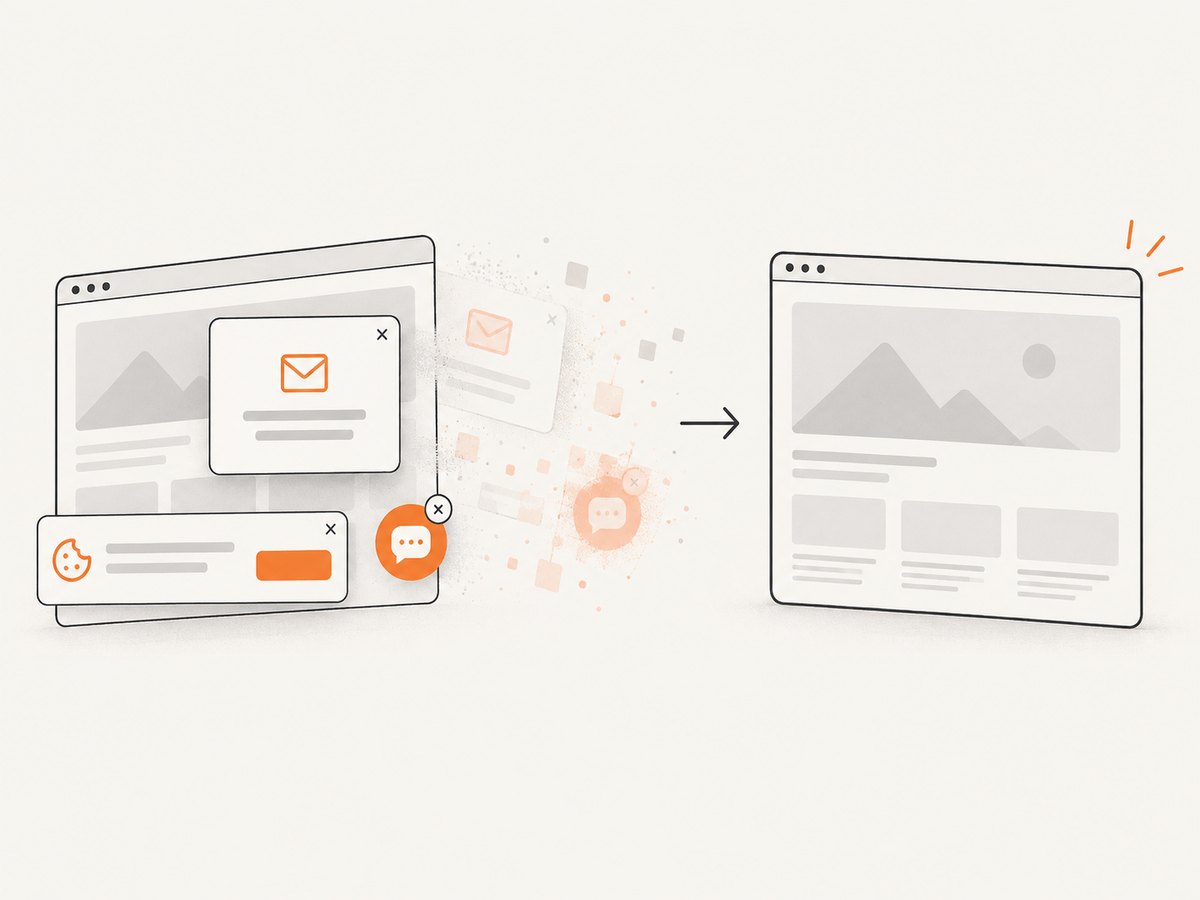
If you need repeatable captures from code, a phone’s scrolling tool is not the right workflow. ScreenshotNeo is a website screenshot API and MCP server. It accepts one GET request and returns a PNG, JPEG, WebP or PDF. Its cleaning steps accept cookie and consent banners and remove more than 60 known consent platforms, newsletter popups and chat widgets before capture; each step can be turned off.
Only clean shots are billed. Bot checks and CAPTCHAs, blank pages, timeouts, failed loads and cache hits cost nothing, and the response identifies the result with X-Page-Verdict and X-Billed headers. The service also has an MCP server for Claude, Cursor and other MCP clients, with take_screenshot, get_page_info and capture_pdf tools.
See the ScreenshotNeo API documentation for all 63 options. The following examples use the API exactly as documented.
cURL
curl -G "https://api.screenshotneo.com/v1/shot" -d access_key=YOUR_API_KEY --data-urlencode url=https://stripe.com -o shot.webpPython
import requests; r = requests.get("https://api.screenshotneo.com/v1/shot", params={"access_key": "YOUR_API_KEY", "url": "https://stripe.com"}, timeout=90); open("shot.webp", "wb").write(r.content)Node.js
const q = new URLSearchParams({ access_key: 'YOUR_API_KEY', url: 'https://stripe.com' }); const res = await fetch(`https://api.screenshotneo.com/v1/shot?${q}`);For phone-sized output, set a mobile device preset or provide a custom viewport, then choose full-page capture. You can also set retina scale, dark mode, a CSS selector for one element, custom CSS or JavaScript, a click before capture, a selector or delay to wait for, network-idle waiting, blocked ads and trackers, custom headers, cookies, user agent, Authorization, timezone, geolocation, transparent backgrounds, resizing and a cache TTL. PDF options include paper size, margins, landscape mode and page ranges. Async jobs provide signed webhooks; bulk capture accepts 100 URLs per call; signed links work in public <img> tags; usage and OpenAPI endpoints are available. Parameter names used by other screenshot APIs also work, which can simplify migration.
For performance, use a mobile viewport, block unnecessary third-party resources, wait on a meaningful selector instead of a long fixed delay and enable caching for pages that do not change often. For reliability, set a timeout appropriate to the page, inspect the verdict and billed headers, and use async jobs for large batches. Caching can avoid repeated rendering; cache hits are not billed. Pricing starts with 1,000 free screenshots per month without a card. Paid plans are Starter $5 for 3,000, Growth $15 for 15,000, Pro $39 for 60,000, Scale $99 for 250,000 and Business $249 for 1,000,000; yearly billing gives two months free and every feature is included on every plan.
Create a free ScreenshotNeo account for 1,000 screenshots each month with no card.
FAQ
Can every iPhone app create a full-page screenshot?
No. Apple’s documented Full Page control is shown for webpages such as Safari. Apps can limit or omit extended capture.
Does Android support scrolling screenshots on every phone?
No. Android Help documents Capture more on Android 12 and later for most scrollable screens. Manufacturers can change the control or limit it.
Is a scrolling screenshot the same as a screen recording?
No. A scrolling screenshot is one still image or PDF containing content beyond the visible viewport. A screen recording is a time-based video.
Why is my long screenshot blurry?
The source may be rendered at a small scale, or the receiving app may compress it. Capture at the phone’s normal resolution, export the original and avoid repeatedly re-saving a compressed copy.
What is the best format for printing?
Use PDF when the phone or app offers it. It is easier to print and search than one extremely tall raster image.


