How to Capture a Full-Page Website Screenshot in Python
Capture an entire webpage in Python with Playwright, handle lazy-loaded content and overlays, and save a reliable full-page screenshot.
A full-page screenshot captures the whole scrollable document, including content below the initial viewport. In Python, Playwright is the most direct default: navigate to the page, wait for the state you need, then call page.screenshot(path="page.png", full_page=True). The example below is runnable and saves the screenshot to disk.
1. Capture a full page with Playwright Python
Install Playwright and its Chromium browser once in the environment where the script will run:
python -m pip install playwright
python -m playwright install chromium
Save this as capture.py and run python capture.py. Change the URL and viewport to suit your page.
from pathlib import Path
from playwright.sync_api import sync_playwright

URL = "https://example.com"
OUTPUT = Path("page.png")

with sync_playwright() as p:
    browser = p.chromium.launch()
    page = browser.new_page(viewport={"width": 1440, "height": 900})
    response = page.goto(URL, wait_until="networkidle", timeout=60_000)

    if response is not None and not response.ok:
        raise RuntimeError(f"Navigation returned HTTP {response.status}")

    page.screenshot(path=str(OUTPUT), full_page=True)
    browser.close()

if not OUTPUT.exists() or OUTPUT.stat().st_size == 0:
    raise RuntimeError("Screenshot was not written")
print(f"Saved {OUTPUT} ({OUTPUT.stat().st_size} bytes)")
The documented meaning of full_page=True is a screenshot of the full scrollable page, as if it fit on a very tall screen. It is different from a viewport screenshot, which shows only the currently visible area. See the Playwright screenshot guide and Page screenshot API.
For most scripts, start with Chromium and a fixed viewport. A deterministic viewport makes layout more repeatable: responsive breakpoints, line wrapping, and page width affect the resulting image. Close the browser even if navigation or capture raises an exception; the context-manager pattern in the next section handles cleanup safely.
2. Use async Python for concurrent or async applications
The asynchronous API is useful when the rest of your program already uses asyncio, or when you need to coordinate several browser tasks. This single-page example can run as-is:
import asyncio
from pathlib import Path
from playwright.async_api import async_playwright

async def main():
    output = Path("page.png")
    async with async_playwright() as p:
        browser = await p.chromium.launch()
        try:
            page = await browser.new_page(viewport={"width": 1440, "height": 900})
            response = await page.goto(
                "https://example.com", wait_until="networkidle", timeout=60_000
            )
            if response is not None and not response.ok:
                raise RuntimeError(f"Navigation returned HTTP {response.status}")
            await page.screenshot(path=str(output), full_page=True)
        finally:
            await browser.close()
    if not output.exists() or output.stat().st_size == 0:
        raise RuntimeError("Screenshot was not written")

asyncio.run(main())
For a production service, keep the browser process alive and create a fresh page or browser context per job instead of launching Chromium for every URL. Always close page/context resources and the browser during shutdown. Limit concurrency based on available memory and the size of pages you capture; extremely tall documents and large images can consume substantial memory. There is no universal safe concurrency number because page size and runtime environment vary.
3. Choose the right readiness condition
The screenshot call does not decide when your application is visually ready. wait_until="networkidle" is a convenient starting point, but it is only one policy. Sites with polling, analytics, streaming requests, or persistent connections may never become network-idle; other pages may become idle before client-side rendering or images finish.
| Readiness strategy | Use it when | Trade-off |
|---|---|---|
domcontentloaded |
The document structure is enough, or you will wait for a specific element next. | Images and later application work may still be incomplete. |
load |
You want the browser load event and ordinary dependent resources to finish. | It does not guarantee that a single-page app has rendered its final state. |
networkidle |
The page has a finite burst of network work and then settles. | Persistent traffic may prevent it from settling; idle does not prove visual completeness. |
| Wait for a selector | A known result, chart, or page region signals readiness. | You must select a reliable marker that appears only when useful content is ready. |
For a page with a known main-content marker, wait for that marker explicitly:
page.goto("https://example.com", wait_until="domcontentloaded", timeout=60_000)
page.locator("main article").wait_for(state="visible", timeout=20_000)
page.screenshot(path="page.png", full_page=True, timeout=60_000)
If the site renders after an API request, wait for a user-visible outcome or the relevant response instead of adding an arbitrary long sleep. A fixed delay can help with a known short animation, but it adds time to every run and can still be too short or unnecessarily long.
4. Make below-the-fold content appear
Full-page capture extends the screenshot beyond the viewport, but it does not guarantee that every lazy-loaded image or deferred section has loaded. Some sites request media only after an element approaches the visible area. If an image is missing in the saved file, trigger the same scrolling behavior a visitor would and wait for the images before capturing.
page.goto("https://example.com", wait_until="domcontentloaded")
page.evaluate("""async () => {
  const step = Math.max(300, Math.floor(window.innerHeight * 0.75));
  for (let y = 0; y < document.body.scrollHeight; y += step) {
    window.scrollTo(0, y);
    await new Promise(resolve => setTimeout(resolve, 150));
  }
  window.scrollTo(0, 0);
}""")
page.locator("img").evaluate_all("imgs => Promise.all(imgs.map(img => {
  if (img.complete) return Promise.resolve();
  return new Promise(resolve => {
    img.addEventListener('load', resolve, {once: true});
    img.addEventListener('error', resolve, {once: true});
  });
}))")
page.screenshot(path="page.png", full_page=True)
This is a practical pattern, not a guarantee for every custom lazy-loading implementation. Some applications load content only after scrolling a specific nested container, clicking “load more,” or accepting consent. Adapt the trigger to the page behavior, and scroll back to the top if the site’s sticky header or scroll state affects the capture. Be cautious with infinite-scroll pages: scrolling can keep extending the document indefinitely. Define a maximum scroll distance or item count for those pages.
5. Control format, scale, animation, overlays, and background
Playwright’s screenshot API accepts a path or can return image bytes. Options include image format (png, jpeg, or webp), JPEG quality, scale, timeout, masking, animation handling, omission of the background, and a stylesheet. Use PNG when you need lossless output, JPEG when a smaller lossy file is acceptable, and WebP when the downstream system accepts it. Quality applies to lossy formats. Match the format to the consumer rather than assuming one is always best.
page.screenshot(
    path="page.webp",
    full_page=True,
    type="webp",
    quality=82,
    scale="css",
    animations="disabled",
    timeout=60_000,
)
scale="css" produces an image scaled to CSS pixels; scale="device" uses device pixels and can produce a larger, sharper image on a high-density display. Choose based on whether stable CSS dimensions or device-level detail matters. A screenshot stylesheet can hide volatile content or normalize layout. For example, Playwright supports a screenshot stylesheet option through style in the Page screenshot API. Keep any masking or hiding rules specific to elements that should not appear; hiding too broadly can change page layout.
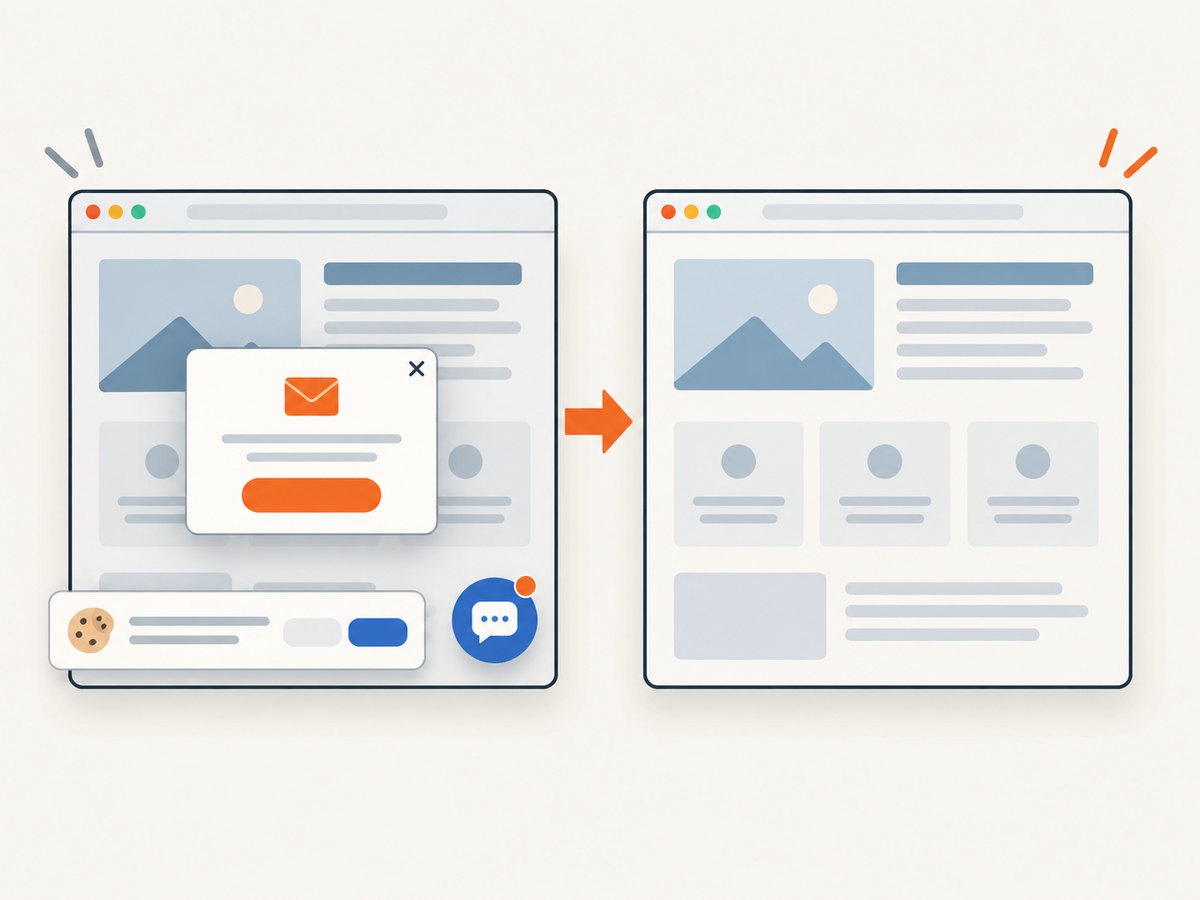
Consent banners, login dialogs, and newsletter overlays need an explicit decision. In a test, accept or dismiss them through the UI if that is the behavior under test. For an internal page you control, use an appropriate test account or a screenshot-only stylesheet. Avoid bypassing access controls or capturing private content without authorization.
6. Other Python route: Selenium with Firefox
If your project already uses Selenium, Firefox documents a dedicated full-document screenshot method. This example saves a PNG and shuts down the driver in a finally block:
from selenium import webdriver

options = webdriver.FirefoxOptions()
options.add_argument("-headless")
driver = webdriver.Firefox(options=options)
try:
    driver.get("https://example.com")
    driver.get_full_page_screenshot_as_file("page.png")
finally:
    driver.quit()
Selenium Firefox documents get_full_page_screenshot_as_file() and related full-page methods. The generic WebDriver screenshot methods such as get_screenshot_as_file() capture the current window; do not assume they capture the full document. Check the documentation for the browser driver you actually run: full-page behavior is driver-specific. See the Selenium Firefox WebDriver API and generic WebDriver API.
7. Lower-level option: Chrome DevTools Protocol
If your application already speaks Chrome DevTools Protocol (CDP), the Page domain exposes captureBeyondViewport for captures beyond the visible viewport. This is a lower-level Chromium-specific route: you must manage protocol commands, returned image data, and browser-session details yourself. For a new Python script, Playwright’s full_page=True is simpler; use CDP when the protocol is already part of your stack. The protocol reference is the Chrome DevTools Protocol Page domain.
8. Practical capture checklist
- Fix the browser engine and viewport so responsive layout is repeatable.
- Navigate with a timeout and choose a readiness condition that matches the application.
- Wait for a meaningful element or application state if network idleness is not reliable.
- Handle cookie consent, authentication, and overlays deliberately.
- Trigger lazy loading and bound the scroll strategy for infinite pages.
- Disable animation or apply a controlled stylesheet when visual repeatability matters.
- Choose PNG, JPEG, or WebP and CSS-pixel or device-pixel scale for the downstream use.
- Close the browser reliably, then verify the output file or returned bytes.
9. Troubleshooting
| Symptom | Likely cause | Fix |
|---|---|---|
| Only the viewport is saved | The screenshot call omitted the full-page flag, or the chosen Selenium method is a viewport method. | Use Playwright full_page=True; with Selenium, use Firefox’s documented full-document method. |
| Images or sections below the fold are blank | The page uses lazy loading or deferred rendering. | Scroll through the page or relevant container, wait for the content, then capture. |
networkidle times out |
Background polling or long-lived requests keep activity ongoing. | Use domcontentloaded or load, then wait for a specific selector or app state. |
| Screenshot is taken too early | Navigation finished before the app rendered the desired state. | Wait for a visible result, chart, or other stable page marker instead of increasing a blind delay. |
| Capture hangs or exceeds timeout | The page is extremely long, continuously growing, or still doing expensive rendering. | Set a navigation and screenshot timeout, cap lazy-load scrolling, and inspect the page for infinite scroll or ongoing animation. |
| Browser fails to launch in a clean machine | Playwright’s browser binaries were not installed for that environment. | Run python -m playwright install chromium in the same environment as the script. |
| Image dimensions or sharpness differ from expectation | Viewport, device scale, or screenshot scale differs between runs. |
Pin the viewport and explicitly select CSS or device scale. |
| Firefox method is missing | The active driver/browser combination does not expose Firefox’s documented method. | Use the Firefox WebDriver API method with Firefox, or use Playwright’s cross-browser screenshot API. |
| Output file is empty or absent | An exception interrupted capture or the destination directory is wrong. | Use an absolute or known working path, preserve exceptions, close the browser in finally, and verify file size. |
10. Performance, reliability, and cost
Local browser capture has no per-screenshot API fee, but it uses your compute, browser installation, maintenance time, and CI capacity. Browser startup, page JavaScript, image decoding, and very tall output all contribute to work. Reuse a browser process for batches, create isolated contexts for separate jobs, and cap concurrency. Avoid unsupported speed claims: actual time and memory depend on the page and machine.

For repeatable output, control browser version, viewport, locale or other relevant page settings, readiness condition, and animation behavior. Sites can change their DOM, content, consent flow, or anti-bot behavior, so a successful navigation does not guarantee an identical image on every run. Treat HTTP status, screenshot dimensions, and file existence as useful checks, but inspect the captured image when visual correctness is important.
11. Or skip the browser setup
ScreenshotNeo is a website screenshot API: a GET request with a URL returns PNG, JPEG, WebP, or PDF. Its documented options include full-page capture with lazy images loaded, selector-based capture, format and viewport controls, custom CSS and JavaScript, wait conditions, and more. The ScreenshotNeo API documentation has the request details.
import requests

r = requests.get(
    "https://api.screenshotneo.com/v1/shot",
    params={"access_key": "YOUR_API_KEY", "url": "https://example.com"},
    timeout=90,
)
r.raise_for_status()
open("shot.webp", "wb").write(r.content)
Equivalent cURL and Node.js calls:
curl -G "https://api.screenshotneo.com/v1/shot" -d access_key=YOUR_API_KEY --data-urlencode url=https://example.com -o shot.webpconst q = new URLSearchParams({ access_key: 'YOUR_API_KEY', url: 'https://example.com' });
const res = await fetch(`https://api.screenshotneo.com/v1/shot?${q}`);
if (!res.ok) throw new Error(`Screenshot request failed: ${res.status}`);
await import('node:fs/promises').then(fs => fs.writeFile('shot.webp', Buffer.from(await res.arrayBuffer())));ScreenshotNeo accepts cookie and consent banners before capture and removes 60+ known consent platforms, newsletter popups, and chat widgets; each step can be turned off. Bot checks and CAPTCHAs, blank pages, timeouts, failed loads, and cache hits cost nothing, and the response identifies the page verdict and billing status in headers. An MCP server offers take_screenshot, get_page_info, and capture_pdf for Claude, Cursor, and other MCP clients. The free plan includes 1,000 screenshots a month with no card; paid plans start at $5 for 3,000, with every feature on every plan. Get 1,000 free screenshots a month with no card.
12. FAQ
Can I capture an authenticated page?
Yes, when you are authorized to access it. Use a deliberate login flow or an appropriate test session, and keep credentials out of source control and screenshot artifacts.
Can I capture a single element instead of the document?
Yes. Playwright supports taking a screenshot from a locator, which is useful for a component or chart. That is an element capture, not a full-page document capture.
Why does a full-page screenshot look different from scrolling and stitching?
Full-page capture is a browser screenshot operation over the scrollable document. A manual series of viewport shots is a different workflow and may show repeated sticky elements or seams if stitched; use the browser’s full-page facility when the driver supports it.
Which approach should an existing Selenium team choose?
Use Selenium’s Firefox full-document method if Firefox fits the project. Choose Playwright when you want its documented screenshot controls in a single Python API, or CDP when Chromium protocol control is already established.


