Full-Page Screenshot Rendering
Learn how to render complete, scrollable-page screenshots with Playwright, Puppeteer, CDP, Firefox, and ScreenshotNeo, including waits, formats, failures, and cost choices.

A full-page screenshot renders the entire scrollable document, including content below the current viewport. In Playwright, the direct solution is:
await page.screenshot({ path: 'page.png', fullPage: true });The important detail is timing: wait until the page’s meaningful content, fonts, lazy images, consent UI, and animations are in the state you want to record. A viewport screenshot captures only what is currently visible; a full-page screenshot expands the capture to the page’s scrollable height. Playwright documents these as viewport, element, and full scrollable page captures.
1. What full-page rendering captures
A browser screenshot normally represents a rectangular viewport such as 1280×720 CSS pixels. Full-page mode asks the browser to render the document from the top through its scrollable content and combine that output into one image. It is useful for visual regression tests, documentation, archived pages, design reviews, and previews of long reports.
Full-page does not mean “every possible browser state.” Content that appears only after interaction, a delayed API response, a consent decision, or scrolling may be absent unless your script performs those actions first. Fixed and sticky headers can also repeat or overlap because they remain attached to the viewport while the document is captured. Test the target page and record the browser, viewport, device scale, image type, and wait conditions used to produce the artifact.
2. Playwright: the cross-browser default
Playwright provides a high-level Page API for Chromium, Firefox, and WebKit. Its screenshot guide supports the viewport, a CSS-selected element, or the full scrollable page.

Install and run
npm init -y
npm install playwright
npx playwright install
// full-page.mjs
import { chromium } from 'playwright';

const browser = await chromium.launch();
const page = await browser.newPage({
  viewport: { width: 1440, height: 900 },
  deviceScaleFactor: 1
});

await page.goto('https://example.com', { waitUntil: 'domcontentloaded' });
await page.screenshot({
  path: 'example-full.png',
  fullPage: true,
  type: 'png'
});

await browser.close();
Use waitUntil: 'domcontentloaded' when the document structure is available quickly but external work may continue. For pages that make important requests after DOMContentLoaded, wait for a meaningful selector or a bounded delay:
await page.goto('https://example.com/dashboard', { waitUntil: 'domcontentloaded' });
await page.locator('[data-testid="dashboard"]')
  .waitFor({ state: 'visible', timeout: 15000 });
await page.waitForTimeout(500);
await page.screenshot({ path: 'dashboard.png', fullPage: true });
Prefer a selector that represents usable content over an arbitrary long sleep. A short delay can still help settle fonts, transitions, or images after that content appears. Disable motion when stable pixels matter:
await page.addStyleTag({
  content: `*, *::before, *::after {
    animation: none !important;
    transition: none !important;
    caret-color: transparent !important;
  }`
});
Useful Playwright options
| Option | Use |
|---|---|
fullPage: true |
Capture the full scrollable document. |
path |
Write the image to a file. |
type |
Choose png, jpeg, or webp. |
quality |
Set JPEG or WebP quality where supported. |
scale |
Use CSS pixels or device pixels, controlling output dimensions. |
omitBackground |
Keep transparency when the browser and image format support it. |
animations |
Allow or disable supported animations during capture. |
Capture one element when a complete page is not the desired artifact:
await page.locator('main article').screenshot({
  path: 'article.png',
  type: 'webp'
});
For consistent visual tests, set the same viewport, browser engine, device scale factor, locale, timezone, and reduced-motion preference on every run. If a page changes by time or random data, inject fixed values or wait for a stable state.
3. Puppeteer: JavaScript automation for Chrome and Firefox
Puppeteer is a high-level automation API for Chrome and Firefox using the Chrome DevTools Protocol and WebDriver BiDi. Chrome for Developers lists screenshots and PDF generation among its browser automation uses.
npm install puppeteer
// puppeteer-full.mjs
import puppeteer from 'puppeteer';

const browser = await puppeteer.launch({ headless: true });
const page = await browser.newPage();
await page.setViewport({ width: 1440, height: 900, deviceScaleFactor: 1 });
await page.goto('https://example.com', { waitUntil: 'networkidle2' });
await page.screenshot({
  path: 'example-puppeteer.png',
  fullPage: true,
  type: 'png'
});
await browser.close();
networkidle2 waits for a low number of outstanding connections, but analytics, advertisements, and long polling can prevent a page from becoming idle. In those cases, use domcontentloaded plus a selector wait and a bounded delay. Puppeteer’s screenshot options include full-page mode, image type, quality, clipping, and omission of the background.
4. Chrome DevTools Protocol: direct Chromium control
The low-level CDP method is Page.captureScreenshot. It accepts a format, quality, and optional clip rectangle. This is useful when you already operate a CDP connection or need protocol-level control.
const { data } = await client.send('Page.captureScreenshot', {
  format: 'png',
  captureBeyondViewport: true
});
await fs.promises.writeFile('page.png', Buffer.from(data, 'base64'));
CDP is more manual than Playwright or Puppeteer: you must manage navigation, layout metrics, readiness, and browser sessions yourself. Verify the exact Chromium behavior for the version you deploy, especially when pages contain sticky elements or extremely tall documents.
5. Firefox Developer Tools for a one-off capture
Firefox Developer Tools can capture the entire page or a single element. Open DevTools, use the screenshot command, and choose the full-page option. Firefox adds a -fullpage suffix to the full-page filename. This is convenient for manual inspection, but a scripted browser is preferable for repeatable CI jobs and scheduled captures.
6. A reliable capture workflow
- Choose the rendering target. Set the browser engine, viewport width and height, device scale, locale, timezone, and color scheme.
- Navigate with a timeout. Use a finite timeout and catch navigation failures.
- Wait for content. Wait for a page-specific selector, image completion, or application-ready marker.
- Control dynamic behavior. Disable animations, close dialogs, and click tabs or “load more” controls when required.
- Capture. Select full page, an element, or a clip. Choose PNG for lossless detail, JPEG for smaller photographic output, or WebP where your consumers support it.
- Validate. Check that the file exists, has a nonzero size, and contains expected landmarks. Store metadata such as URL, timestamp, browser, viewport, and wait strategy.
Lazy-loaded images often load only after entering the viewport. If the page exposes a “load all” control, use it. Otherwise, scroll gradually before returning to the top:
await page.evaluate(async () => {
  await new Promise(resolve => {
    let y = 0;
    const step = 600;
    const timer = setInterval(() => {
      window.scrollBy(0, step);
      y += step;
      if (y >= document.body.scrollHeight) {
        clearInterval(timer);
        window.scrollTo(0, 0);
        resolve();
      }
    }, 80);
  });
});
await page.waitForTimeout(300);
await page.screenshot({ path: 'lazy-loaded.png', fullPage: true });
This technique is page-dependent. It can trigger infinite scroll, duplicate content, or expensive requests, so cap the number of scroll steps and use a site-specific readiness rule when possible.
7. Authentication, cookies, and page state
For private pages, create a browser context with the required cookies or storage state. Never place credentials in a committed script or screenshot filename.
const context = await browser.newContext({
  storageState: 'playwright-auth.json'
});
const page = await context.newPage();
await page.goto('https://example.com/account', { waitUntil: 'domcontentloaded' });
await page.screenshot({ path: 'account.png', fullPage: true });
await context.close();
Use request headers or a test account where the application supports them. Redact secrets from logs, and avoid publishing captures that contain personal data or tokens.
8. Common errors and fixes
| Symptom | Likely cause | Fix |
|---|---|---|
| Only the viewport is captured | fullPage was omitted or false. |
Set fullPage: true and confirm you are calling the page screenshot API. |
| Images are blank | Lazy loading or image requests had not completed. | Scroll to trigger loading, wait for image completion, or wait for a page-ready selector. |
| Cookie banner covers content | No consent action occurred before capture. | Click the consent control, hide the banner with approved test CSS, or use a capture service that handles consent. |
| Timeout during network idle | Analytics, ads, WebSockets, or long polling never become idle. | Use DOMContentLoaded plus explicit selector waits and a finite delay. |
| Sticky header repeats | The element is fixed or sticky during full-page assembly. | Test browser behavior; temporarily change position in capture CSS if that is acceptable. |
| Text differs between runs | Fonts, locale, time, animations, or random data changed. | Install the same fonts, fix locale/timezone, disable motion, and freeze test data. |
| Browser crashes on a very tall page | Large raster dimensions or memory pressure. | Capture sections or elements, reduce scale, use WebP/JPEG, and avoid unbounded infinite scroll. |
| Navigation returns an error | DNS, TLS, robots, authentication, or an application failure. | Log the response and error, verify access from the runner, and retry only transient failures with a cap. |
9. Performance, reliability, and cost considerations
Capture time depends on page size, scripts, network requests, browser startup, image decoding, and your wait conditions. There is no universal maximum height, speed benchmark, or failure rate in the cited official documentation, so measure your own pages. Reuse a browser process for batches, create isolated contexts per job, and close pages promptly.
For CI, pin browser versions, set explicit timeouts, retry transient navigation errors once or twice, and save diagnostic HTML, console errors, and a trace when a capture fails. Do not retry a deterministic selector timeout indefinitely. Cache immutable URLs and include the URL, options, and content version in your cache key. For long pages, compare an element capture or a sequence of section captures when a single giant bitmap is impractical.
PNG preserves sharp text but can be large. JPEG is smaller for photographic pages but loses detail and does not preserve transparency. WebP often provides a useful size-quality balance when your delivery pipeline supports it. Device-pixel scaling improves sharpness while increasing output dimensions and memory use.
10. Or skip the browser setup
ScreenshotNeo provides a website screenshot API and MCP server. One GET request returns a PNG, JPEG, WebP, or PDF. The same parameter names used by other screenshot APIs are accepted, which makes switching straightforward. Read the complete option list in the ScreenshotNeo documentation.
curl -G "https://api.screenshotneo.com/v1/shot" -d access_key=YOUR_API_KEY --data-urlencode url=https://stripe.com -o shot.webpimport requests
r = requests.get("https://api.screenshotneo.com/v1/shot", params={"access_key": "YOUR_API_KEY", "url": "https://stripe.com"}, timeout=90)
open("shot.webp", "wb").write(r.content)const q = new URLSearchParams({ access_key: 'YOUR_API_KEY', url: 'https://stripe.com' });
const res = await fetch(`https://api.screenshotneo.com/v1/shot?${q}`);For full-page rendering, pass the documented full-page option along with your target URL. ScreenshotNeo also supports element capture by CSS selector, dark mode, twelve device presets plus custom viewports, retina scale, custom CSS and JavaScript, click actions, selector or delay or network-idle waits, blocked ads and trackers, custom headers and cookies, user agents, Authorization, timezone, geolocation, transparent backgrounds, image resizing, chosen cache TTLs, signed links, asynchronous jobs with signed webhooks, bulk capture of up to 100 URLs per call, a usage API, and an OpenAPI specification.
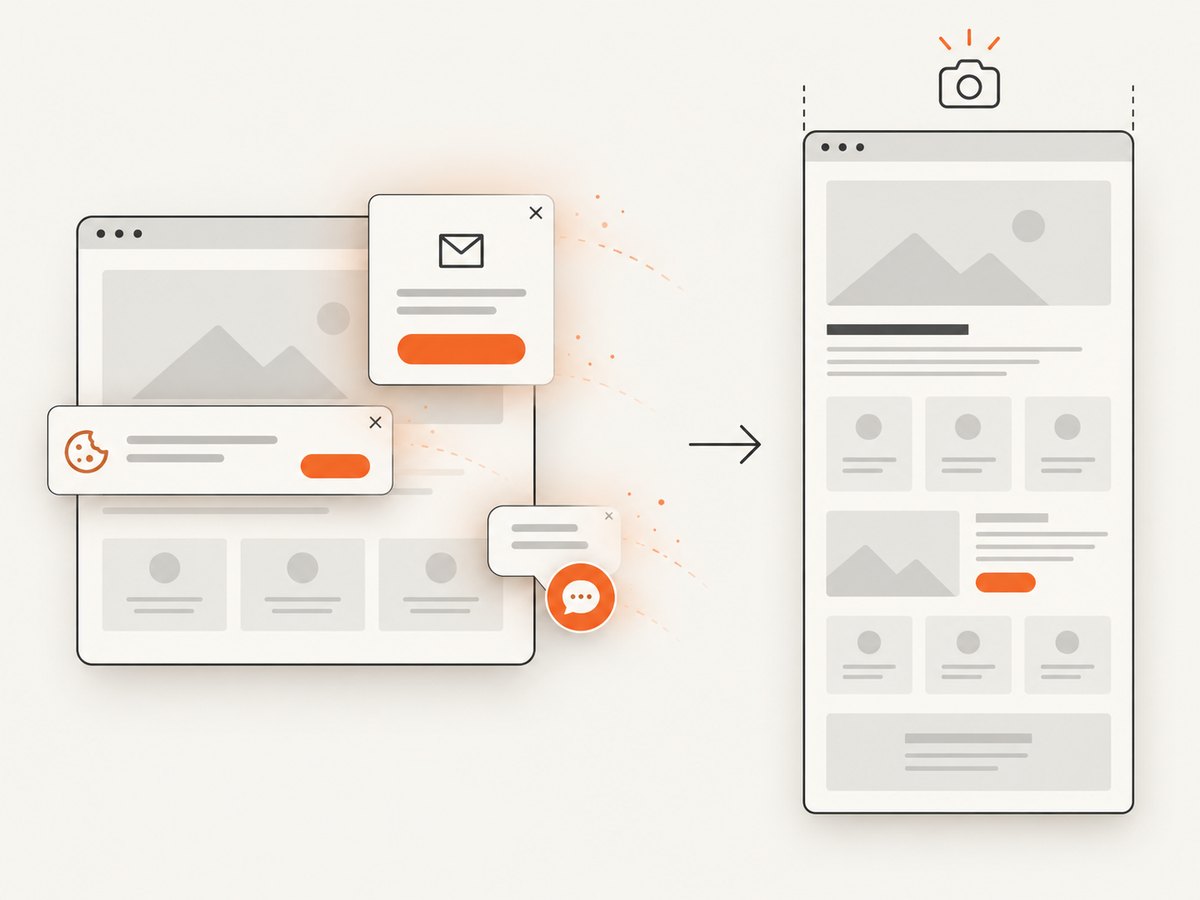
Its cleanup step accepts cookie and consent banners and removes more than 60 known consent platforms, newsletter popups, and chat widgets; each step can be turned off. Bot checks and CAPTCHAs, blank pages, timeouts, failed loads, and cache hits are not billed as clean shots. Responses identify the result with X-Page-Verdict and X-Billed headers. An MCP server exposes take_screenshot, get_page_info, and capture_pdf for Claude, Cursor, and other MCP clients.
The Free plan includes 1,000 shots per month with no card. Paid plans start at $5 for 3,000 shots; yearly billing provides two months free, and every feature is available on every plan. Create a free ScreenshotNeo account to start with 1,000 screenshots a month and no card.
11. Choosing the right tool
| Need | Best fit | Reason |
|---|---|---|
| Automated cross-browser captures | Playwright | High-level API for Chromium, Firefox, and WebKit. |
| JavaScript Chrome automation | Puppeteer | Focused browser automation with screenshot and PDF support. |
| Direct Chromium protocol control | CDP | Low-level Page.captureScreenshot parameters. |
| One manual capture | Firefox DevTools | Built-in full-page and element commands. |
| Managed captures, cleanup, API, and AI-agent access | ScreenshotNeo | Clean shots, only clean shots billed, and a $5 paid starting plan. |
12. FAQ
Does full-page screenshot include content below the fold?
Yes. It captures the document’s scrollable page rather than only the current viewport, subject to content that has actually loaded.
Should I use PNG or JPEG?
Use PNG for sharp text and lossless diagrams. Use JPEG when smaller photographic files matter. WebP is a practical option when supported by your consumers.
Can a screenshot tool capture an authenticated page?
Yes, when you provide an authorized browser context, cookies, headers, or other supported credentials. Keep secrets out of source control and logs.
Why is my full-page image inconsistent?
Unsettled fonts, animations, ads, lazy loading, time-based content, and sticky elements are common causes. Fix the page state and wait conditions before comparing pixels.
When should I capture sections instead of one giant image?
Capture sections when the document is extremely tall, memory is constrained, or downstream consumers display pages separately.