How to Capture a Full-Page Screenshot in Ruby
Use Ferrum’s full: true option to capture an entire page in Ruby, with setup, formats, troubleshooting, and a ScreenshotNeo API alternative.
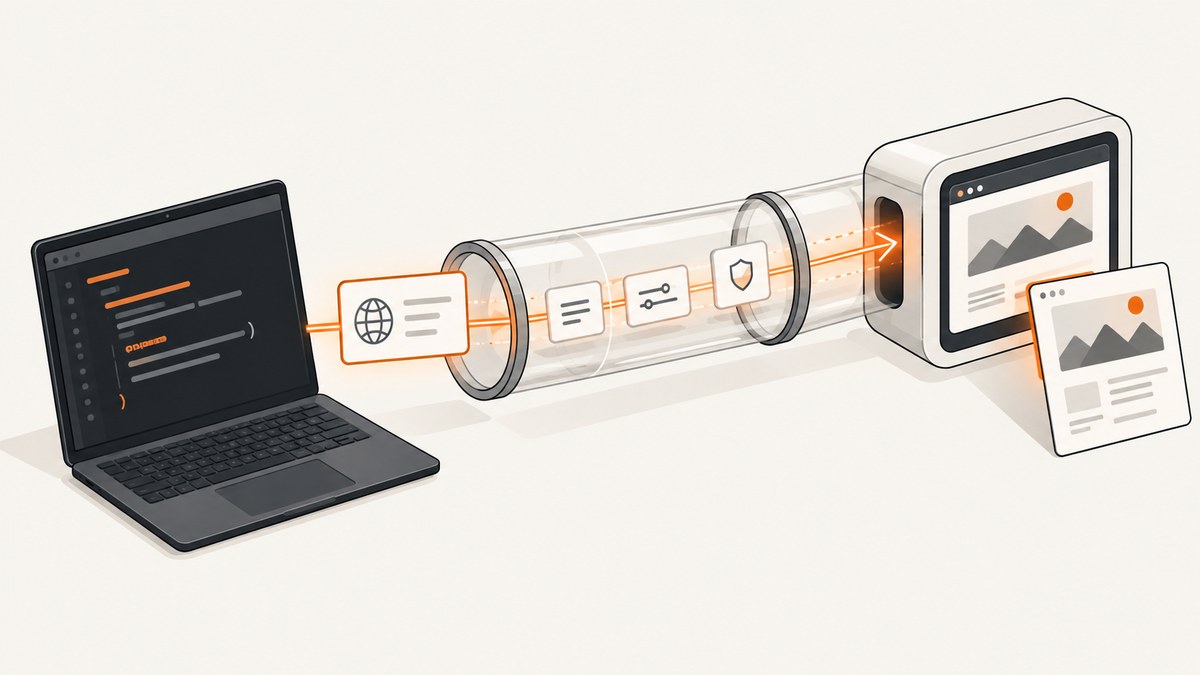
Direct answer: with Ferrum, navigate to the page and call page.screenshot(path: "full-page.png", full: true). The full: true option tells Ferrum to measure the document and capture beyond the visible browser viewport.
require "ferrum"

browser = Ferrum::Browser.new
page = browser.create_page

begin
  page.go_to("https://example.com")
  page.screenshot(path: "full-page.png", full: true)
ensure
  browser.quit
end
Ferrum is a Ruby client for Chrome DevTools Protocol. Its documented screenshot implementation calculates the document dimensions, enables capture beyond the viewport, and writes the result to a file. See the Ferrum screenshot implementation and the Ferrum project documentation for current installation and browser-path details.
What “full page” means
A normal screenshot records only the current viewport, such as the 1,280 by 800 pixels visible in a headless browser window. A full-page screenshot uses the document’s scrollable width and height, so content below the fold appears in one image. Ferrum obtains those dimensions and requests a capture beyond the viewport when full is enabled.
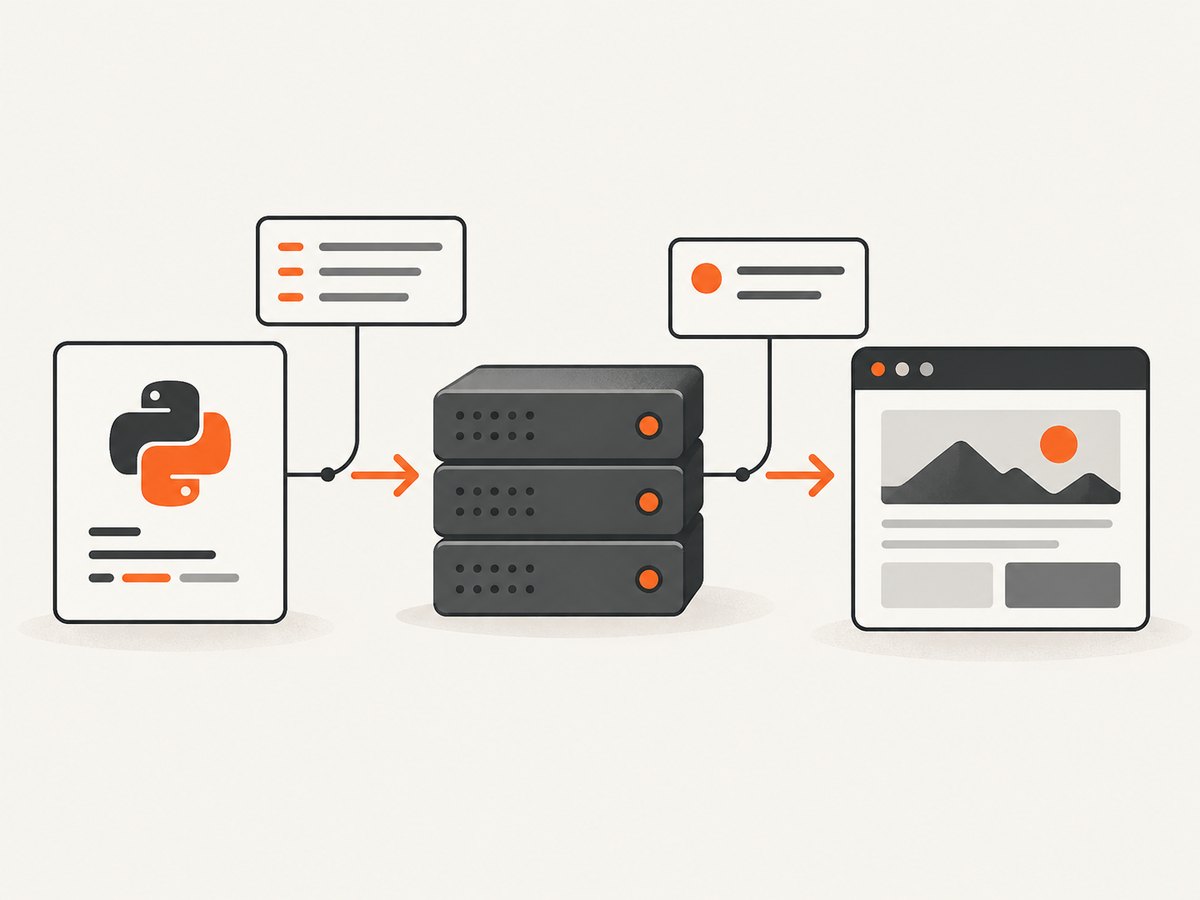
This is useful for visual regression tests, documentation, audit archives, link previews, and pages where the important content is longer than one screen. It does not guarantee that every lazy-loaded image, animation frame, cookie banner, or personalized component will be in the state you want. You still need to make the page deterministic before capturing it.
Install Ferrum and make Chrome available
Ferrum drives Chrome or Chromium, so your runtime needs a compatible browser binary. Installation commands and browser download behavior can change; follow the current instructions in the Ferrum repository for your operating system and Ferrum version.
# Gemfile
gem "ferrum"
bundle install
In containers and CI, install Chrome or Chromium in the image and make sure the process can launch it. If the binary is not on the normal search path, configure Ferrum with the browser path documented for your installed version. Keep the browser and Ferrum versions pinned in repeatable builds so a browser update does not silently alter image output.
A production-ready Ruby example
The following script adds a navigation timeout, a viewport, an optional delay for late content, and explicit cleanup. Adjust option names to the Ferrum version in your application.
require "ferrum"

url = ARGV.fetch(0, "https://example.com")
output = ARGV.fetch(1, "full-page.png")

browser = Ferrum::Browser.new(
  window_size: [1440, 900],
  timeout: 30
)
page = browser.create_page

begin
  page.go_to(url)
  # Give client-side rendering or lazy content time to settle.
  sleep 2
  page.screenshot(path: output, full: true)
  puts "Saved #{output}"
ensure
  browser.quit
end
Use a short, evidence-based delay rather than an unnecessarily long sleep. For an application with a reliable readiness marker, wait for that marker instead of guessing:
page.go_to("https://example.com/report")
page.at_css("[data-report-ready]")
page.screenshot(path: "report.png", full: true)
Screenshot formats and output choices
Ferrum documents PNG as the default and supports PNG, JPEG/JPG, and WebP. Save directly to a path, or request an encoded value when you need to upload the image yourself. A path is simplest for a command-line job; an encoded result is useful when the next step is an object-store upload or an HTTP response.
# PNG file (default)
page.screenshot(path: "page.png", full: true)

# JPEG file
page.screenshot(path: "page.jpg", full: true, format: :jpeg, quality: 85)

# WebP file
page.screenshot(path: "page.webp", full: true, format: :webp, quality: 85)

# Base64 result for an upload pipeline
base64 = page.screenshot(full: true, encoding: :base64)
JPEG and WebP reduce file size, but they are lossy at typical quality settings. PNG is usually safer for text-heavy screenshots and pixel comparisons. Confirm the exact keyword values supported by your installed Ferrum release before wiring format selection into a shared library.
Full page versus an element or area
Ferrum also exposes screenshot options for a selector or a defined area. These are useful when you need one component rather than the entire document. However, the implementation warns that full: true takes precedence: selector and area options are ignored when full capture is enabled.
# Element capture: do not combine with full: true
page.screenshot(path: "invoice.png", selector: "#invoice")

# Viewport or area capture: use the area options documented by your Ferrum version
# page.screenshot(path: "crop.png", area: { x: 0, y: 0, width: 900, height: 600 })
If your output is unexpectedly the whole page, check for a leftover full: true. If your goal is a complete page with a particular width, set the browser window or viewport before calling the screenshot method; do not expect an element selector to constrain a full-page capture.
Control the page before capture
Wait for dynamic content
Single-page applications can finish the initial navigation while data is still loading. Wait for a stable selector, an application-specific readiness flag, or a short delay. Avoid relying only on “network idle” assumptions when analytics, ads, or long polling keep connections open.
Handle lazy-loaded images
Some sites load images only after they enter the viewport. A full-page capture can therefore contain blank image slots unless the page itself loads those assets. If you control the page, provide a test mode that eagerly loads images. If you do not control it, scroll through the page with browser scripting before capture and verify that the resulting dimensions remain stable.
Make fonts and animations deterministic
Wait for web fonts before capture when typography matters. Disable CSS animations and transitions in a test stylesheet, or inject CSS through the browser tooling available in your stack. Freeze clocks and random data in the application under test so repeated screenshots differ only when the UI changes.
Choose viewport and device scale
A full-page image still reflects the viewport width, responsive breakpoints, and device scale factor. Pick a width that matches the device you are validating. Run separate captures for mobile and desktop instead of stretching one image after the fact.
Ruby alternatives and when they fit
| Route | Full-page setting | Best fit | Key consideration |
|---|---|---|---|
| Ferrum | full: true |
Direct Ruby browser automation | Requires Chrome/Chromium setup |
| Cuprite | Ferrum capabilities through a Capybara driver | Capybara applications and system tests | Confirm the exact screenshot access path for your installed versions |
| Selenium Ruby | full_page argument is documented |
Projects already standardized on Selenium | Verify browser and Selenium version compatibility |
| Playwright | Full-page capture is documented for its supported APIs | Teams using Playwright in another language | The cited documentation does not establish Ruby bindings |
Cuprite is a Capybara driver built on Ferrum, so it is a natural choice when your test suite already uses Capybara. Selenium’s Ruby screenshot module documents a full_page argument, but behavior depends on the specific browser and Selenium versions. Playwright’s page API documents full-page capture, yet that reference is not evidence of a Ruby API; do not paste JavaScript or Python Playwright examples into a Ruby application.
Using Ferrum with Capybara and Cuprite
Cuprite’s project documentation shows how to register and configure the driver. Once your application runs through Cuprite, use the driver’s supported browser/page access to reach Ferrum’s screenshot capability, and verify the exact method for your installed release.
require "capybara"
require "cuprite"

Capybara.register_driver :cuprite do |app|
  Capybara::Cuprite::Driver.new(
    app,
    browser_options: { "no-sandbox" => nil }
  )
end

Capybara.current_driver = :cuprite
Keep browser launch flags specific to your deployment. For example, container environments often need sandbox configuration, while a local developer machine may not. Consult the Cuprite documentation and your installed version before copying production flags.
Or skip the browser setup
ScreenshotNeo provides a website screenshot API and MCP server. One GET request returns a PNG, JPEG, WebP, or PDF. It removes cookie and consent banners, newsletter popups, and chat widgets before capture; bot checks, blank pages, timeouts, failed loads, and cache hits are not billed, and response headers identify the page verdict and billing result.
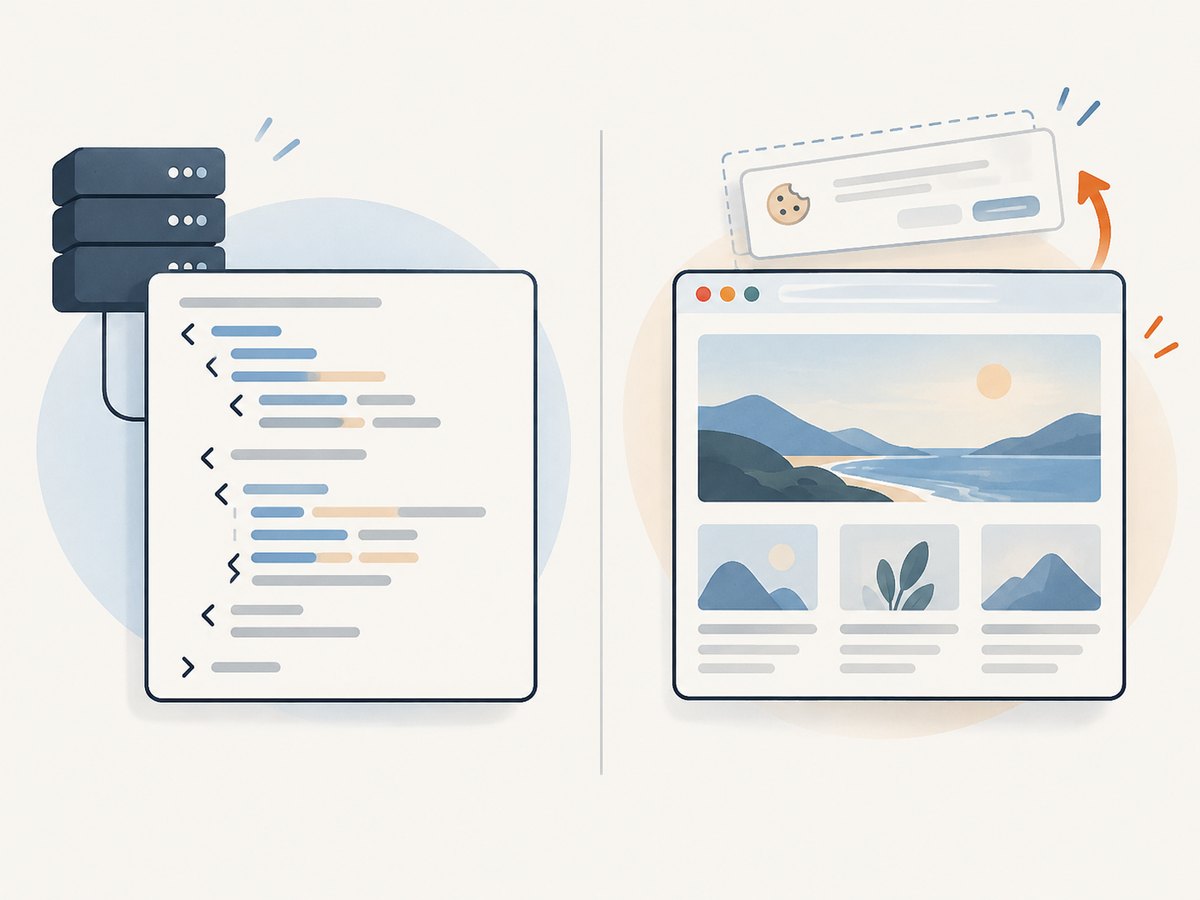
See the ScreenshotNeo documentation for the full parameter list. The basic Ruby request uses the standard library or any HTTP client:
require "net/http"
require "uri"

uri = URI("https://api.screenshotneo.com/v1/shot")
uri.query = URI.encode_www_form(
  access_key: "YOUR_API_KEY",
  url: "https://stripe.com"
)

response = Net::HTTP.get_response(uri)
raise "Screenshot failed: #{response.code}" unless response.is_a?(Net::HTTPSuccess)

File.binwrite("shot.webp", response.body)
cURL
curl -G "https://api.screenshotneo.com/v1/shot" -d access_key=YOUR_API_KEY --data-urlencode url=https://stripe.com -o shot.webpPython
import requests
r = requests.get("https://api.screenshotneo.com/v1/shot", params={"access_key": "YOUR_API_KEY", "url": "https://stripe.com"}, timeout=90)
open("shot.webp", "wb").write(r.content)
Node.js
const q = new URLSearchParams({ access_key: 'YOUR_API_KEY', url: 'https://stripe.com' });
const res = await fetch(`https://api.screenshotneo.com/v1/shot?${q}`);
ScreenshotNeo includes full-page capture, CSS-selector element capture, dark mode, device presets, arbitrary viewports, retina scale, custom CSS and JavaScript, click actions, selector waits, delays, network-idle waits, request blocking, custom headers and cookies, user-agent and authorization headers, timezone and geolocation, transparent backgrounds, resizing, configurable caching, signed image links, asynchronous jobs with signed webhooks, bulk capture for up to 100 URLs per call, a usage API, and an OpenAPI specification. Its parameter names also match those used by other screenshot APIs, which can simplify migration.
An MCP server exposes take_screenshot, get_page_info, and capture_pdf to Claude, Cursor, and other MCP clients. Plans include 1,000 screenshots per month free with no card, Starter at $5 for 3,000, Growth at $15 for 15,000, Pro at $39 for 60,000, Scale at $99 for 250,000, and Business at $249 for 1,000,000; yearly billing gives two months free and every feature is on every plan.
Create a free ScreenshotNeo account to get 1,000 screenshots a month without a card.
Troubleshooting Ferrum captures
“Browser not found” or launch failures
Cause: Chrome/Chromium is missing, inaccessible, or not at the configured path.
Fix: install a supported browser in the machine or container, confirm executable permissions, and configure the path using the current Ferrum documentation. Log the resolved browser path during CI setup.
The image is only the viewport
Cause: the call omitted full: true, or a wrapper method discarded the option.
Fix: pass full: true directly to page.screenshot and inspect the final options in your wrapper. Remember that full capture overrides selector and area options.
Images or sections are blank
Cause: lazy loading, client-side rendering, blocked resources, or a capture taken before the page was ready.
Fix: wait for a readiness selector, scroll or otherwise trigger lazy content, check browser logs and network access, and capture after fonts and data have loaded.
The page height is wrong
Cause: content expanded after Ferrum measured the document, or a fixed/sticky element changed layout.
Fix: wait until asynchronous content settles, disable animations, and make sure the page has reached its final layout before calling the screenshot method.
Timeouts on slow pages
Cause: navigation or resource requests exceed the configured timeout.
Fix: increase the timeout for known slow origins, block nonessential third-party resources where appropriate, and capture a readiness state rather than waiting forever for analytics or ads.
Different pixels on every run
Cause: animations, rotating content, dates, random IDs, fonts, or responsive changes.
Fix: freeze test data and time, disable motion, wait for web fonts, set a fixed viewport, and use the same browser build in local and CI environments.
Performance, reliability, and cost notes
Full-page screenshots consume more memory and produce larger files than viewport captures. Very tall documents can stress browser memory and image encoders; split extremely long reports into logical sections when a single image is not required. Prefer WebP or JPEG for delivery and PNG for visual comparisons. Reuse one browser process for a batch of pages, but create and close pages deliberately so cookies and state do not leak between jobs.
For reliable automation, set explicit navigation and readiness conditions, record the URL and viewport with the output, and retain failure logs. Retry transient navigation failures with a bounded policy; repeated retries cannot fix a permanently blocked page or a missing browser binary. In CI, pin browser and gem versions and compare image dimensions as well as pixels.
Ferrum itself does not provide a hosted per-image billing model; your costs are the compute, browser runtime, storage, and bandwidth of the environment you operate. ScreenshotNeo charges only for clean shots, while failed loads, bot checks, blank pages, timeouts, and cache hits are free according to its response verdict and billing headers. That can make hosted capture easier to budget when you do not want to maintain browsers.
FAQ
Does Ferrum scroll the page?
With full: true, Ferrum measures the document and requests capture beyond the viewport. You may still need to trigger lazy-loaded content before the call.
Can I capture a full page and one element in the same call?
No. Full capture takes precedence and selector or area options are ignored. Make separate calls for separate outputs.
Which format should I choose?
Use PNG for sharp text and pixel comparisons. Use JPEG or WebP when smaller files matter and some loss is acceptable.
Is Cuprite a separate screenshot engine?
Cuprite is a Capybara driver built on Ferrum, so it provides Ferrum capabilities inside a Capybara workflow.
Does the Playwright full-page API prove Ruby support?
No. The cited Playwright page documentation describes its supported APIs but does not establish Ruby bindings.
How do I avoid installing Chrome in CI?
Use a hosted screenshot service such as ScreenshotNeo, or use a CI image that already includes a compatible browser and Ferrum dependencies.


