How to Capture Full-Page Screenshots in Safari on Mac
Capture an entire Safari webpage as one tall image, save it as a PDF or archive, and automate screenshots with ScreenshotNeo.

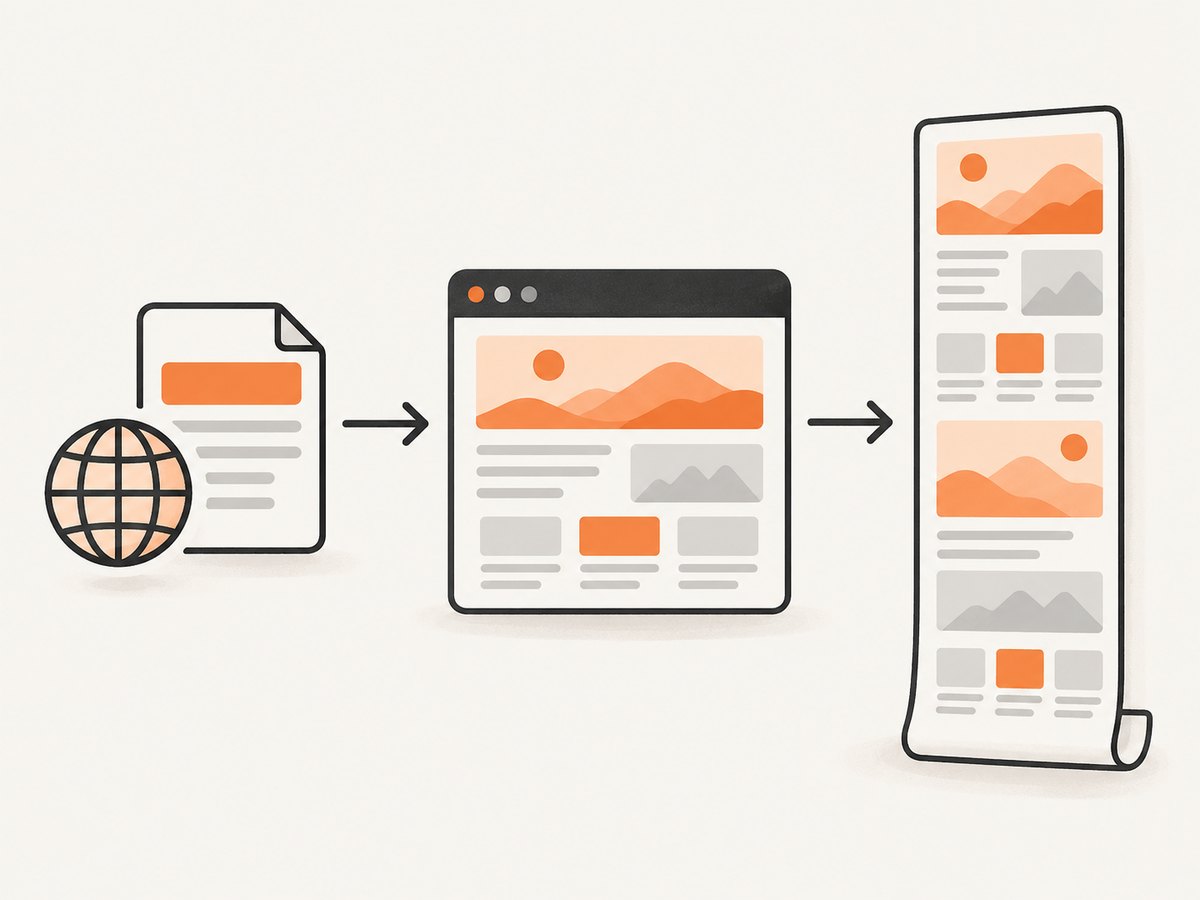
To capture an entire webpage as one tall image in Safari on Mac, use Web Inspector: enable Safari’s developer features, open Web Inspector, select the page’s top-level html element, then choose Capture Screenshot. Scroll through the page first so lazy-loaded images have a chance to appear.
Apple’s standard screenshot tools capture the entire display, a window or a selected area; they do not provide a scrolling webpage image by themselves. Apple’s screenshot guide documents those standard capture types.
Capture a full webpage as one image in Safari
1. Enable Safari’s developer features
- Open Safari.
- Choose Safari > Settings. On older macOS versions this may be called Safari > Preferences.
- Open the Advanced tab.
- Enable the option to show developer features, or enable Show Develop menu in menu bar, depending on your Safari version.
The wording and location can vary between macOS releases. After enabling it, Safari shows a Develop menu in the menu bar.
2. Load the whole page
- Open the webpage you want to capture.
- Scroll steadily from the top to the bottom.
- Pause near sections containing images, embedded media or other content that appears while scrolling.
- Return to the top of the page.
This step matters because many sites use lazy loading: images and other resources are requested only when they approach the viewport. A capture taken before you visit lower sections can contain blank image areas. Dynamic content, embedded frames and site-specific scripts can still produce different results from a normal reading session.
3. Open Web Inspector
- Choose Develop > Show Web Inspector.
- Open the Elements view if it is not already selected.
- Find the first, top-level
htmlelement. It normally contains the page’sheadandbodyelements.
4. Capture the document
- Right-click the top-level
htmlelement. - Choose Capture Screenshot.
- Choose a filename and location when Safari asks where to save it.
- Open the resulting image and check the top, middle and bottom of the page for missing sections or unloaded content.
Use the document-level html node for a full-page image. Selecting a nested element captures that element instead, which is useful when you need one component rather than the entire page.
Why the normal Mac screenshot shortcut is different
Shift + Command + 5 opens macOS’s Screenshot app. It can capture the entire display, a window or a selected region, and it includes options such as a timer and save location. It does not automatically stitch a webpage from the top of the document to the bottom.
Use the Screenshot app when you need what is visible on screen. Use Web Inspector when you need the rendered webpage’s full height as one image.
Choose the right output: image, PDF or Web Archive
| Need | Best Safari workflow | What you get |
|---|---|---|
| One tall visual for review, documentation or a design reference | Web Inspector > top-level html > Capture Screenshot |
PNG image of the rendered page |
| A document for printing or sharing | Safari’s print or PDF workflow | Paginated PDF, with page size and pagination rather than one continuous image |
| A locally saved webpage package | File > Save As > Web Archive | Web Archive containing page resources and links that may continue to work while destinations remain available |
| The HTML source | Safari’s Page Source save option | Source code, not a visual rendering |
A Web Archive, Page Source file, PDF and tall screenshot are different outputs. A screenshot preserves appearance as pixels; a PDF is a paginated document; a Web Archive stores webpage material; Page Source stores markup.
Safari can also share a webpage through available apps. Apple documents sharing a link, PDF and other webpage formats in its Safari sharing guide.
Getting more complete captures
Lazy-loaded images
Scroll to the bottom before capturing, then return to the top. If an image is still blank, wait for it to load and capture again. Some pages load content only after a particular interaction, so scrolling alone may not be sufficient.
Sticky headers and floating widgets
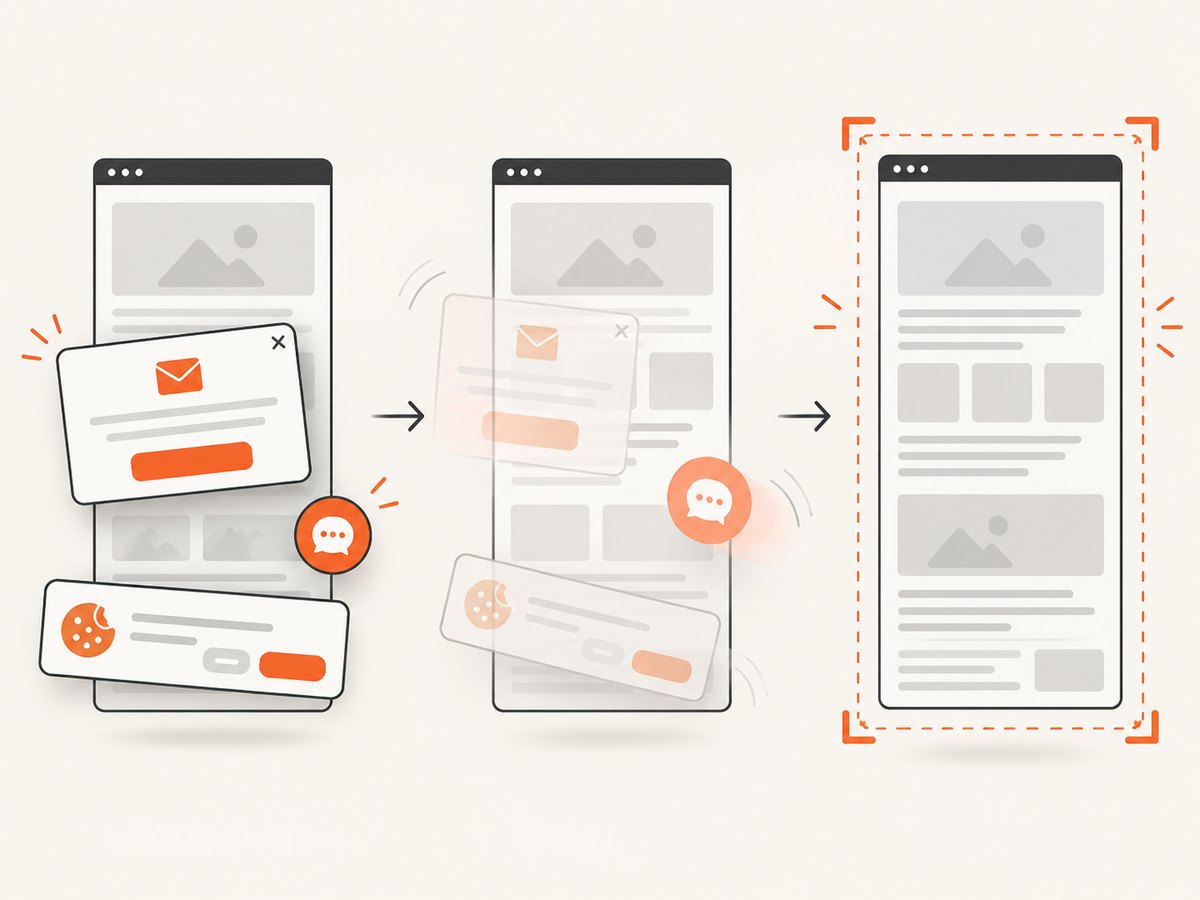
Sticky navigation bars, cookie dialogs, newsletter prompts and chat bubbles can appear repeatedly or cover content. Dismiss them before capture when possible. If the page’s own controls do not provide a close action, inspect the page carefully before hiding anything; removing a required element can change the layout.
Infinite scroll
An infinite-scroll page may not have a stable bottom. Scroll until new content stops loading, then wait briefly and capture. If the page continues adding entries indefinitely, capture a defined range or use a PDF/page export instead.
Authentication and private pages
Safari captures the page in your current browser session, including content available after login. Do not share the resulting image if it contains private data, account details or personal information.
Responsive layouts
The screenshot reflects Safari’s current window width and device scale. For consistent comparisons, keep the window size and zoom level fixed. Safari’s page zoom changes the rendered layout and therefore changes the screenshot dimensions.
Or skip the browser setup
ScreenshotNeo returns a full-page screenshot from one API request. It loads lazy images, can capture a selected element, supports PNG, JPEG, WebP and PDF output, and provides controls for viewport, device preset, retina scale, dark mode, custom CSS and JavaScript, waiting, blocking resources, headers, cookies, user agent, timezone and geolocation. See the ScreenshotNeo API documentation for request parameters.
cURL
curl -G "https://api.screenshotneo.com/v1/shot" -d access_key=YOUR_API_KEY --data-urlencode url=https://stripe.com -o shot.webpPython
import requests

r = requests.get(
    "https://api.screenshotneo.com/v1/shot",
    params={"access_key": "YOUR_API_KEY", "url": "https://stripe.com"},
    timeout=90,
)
r.raise_for_status()
open("shot.webp", "wb").write(r.content)
Node.js
const q = new URLSearchParams({ access_key: 'YOUR_API_KEY', url: 'https://stripe.com' });
const res = await fetch(`https://api.screenshotneo.com/v1/shot?${q}`);

if (!res.ok) throw new Error(`Screenshot failed: ${res.status}`);
const image = Buffer.from(await res.arrayBuffer());
await import('node:fs/promises').then(fs => fs.writeFile('shot.webp', image));
ScreenshotNeo removes cookie and consent banners, newsletter popups and chat widgets before capture. Bot checks or CAPTCHAs, blank pages, timeouts, failed loads and cache hits are not billed, and response headers identify the page verdict and whether the request was billed. Its MCP server provides take_screenshot, get_page_info and capture_pdf tools for Claude, Cursor and other MCP clients. The free plan includes 1,000 screenshots each month with no card; paid plans start at $5 for 3,000 screenshots.
Create a free ScreenshotNeo account to get 1,000 screenshots a month with no card.
Troubleshooting
| Symptom | Likely cause | Fix |
|---|---|---|
| No Develop menu | Developer features are disabled. | Open Safari Settings or Preferences, go to Advanced and enable the developer menu option. |
| Capture Screenshot is missing | The context menu was opened on the wrong node or outside the Elements tree. | Open Web Inspector’s Elements view and right-click the top-level html element. |
| Images are blank in the lower half | Lazy-loaded resources were never requested. | Scroll through the entire page, wait for images to load, return to the top and capture again. |
| Only a section was captured | A nested element was selected. | Select the document’s top-level html element for a full-page image. |
| Content appears duplicated or shifted | Sticky elements, animations or dynamic scripts changed during capture. | Dismiss overlays, pause or wait for animations, and capture after the layout settles. |
| The page never reaches a final bottom | Infinite scrolling keeps inserting content. | Stop at a defined point, capture a bounded section, or export a PDF for a paginated result. |
| Private content appears unexpectedly | The page was captured inside an authenticated Safari session. | Review the image before sharing and sign out or use a clean session for public captures. |
| The image is too wide or narrow | Safari window width or page zoom changed the responsive layout. | Set a consistent window size and reset page zoom before capturing. |
Performance, reliability and cost considerations
- Page preparation takes time: scrolling, waiting for network requests and dismissing overlays can be slower than capturing the visible viewport.
- Dynamic pages are not deterministic: ads, personalization, animations, embedded content and login state can change between captures.
- Very long pages create large files: consider a PDF, a defined section or an image format suited to your workflow when a single tall PNG is unwieldy.
- Repeatability requires fixed inputs: use the same window width, zoom, login state, scroll preparation and capture time when comparing revisions.
- Safari itself has no per-capture fee: the built-in Web Inspector workflow uses the browser you already have. Optional extensions may be paid software, and their compatibility should be checked on the target site.
- Automated captures need explicit billing rules: ScreenshotNeo bills only clean shots; failed loads, bot checks, blank pages, timeouts and cache hits cost nothing, with the result exposed through
X-Page-VerdictandX-Billedheaders.
Frequently asked questions
Can Safari’s Screenshot app capture a full scrolling webpage?
Not through its normal display, window and selection modes. Use Web Inspector’s Capture Screenshot command on the top-level html element.
Should I save a PDF or a screenshot?
Choose a screenshot when visual pixels matter and a PDF when you need a paginated document for printing or sharing.
Why must I scroll to the bottom first?
Many pages load images and other resources only near the viewport. Visiting lower sections gives those resources an opportunity to load before capture.
Can I capture only one element?
Yes. Select that element in Web Inspector and use Capture Screenshot. Selecting the top-level html element captures the full document.
Is a Safari extension required?
No. Web Inspector is built into Safari. A third-party extension is optional convenience software; test it on the target site because capture completeness can vary.
Can I automate this for many URLs?
Safari’s manual workflow is designed for individual pages. For programmatic capture, ScreenshotNeo supports one-call screenshots, bulk capture of up to 100 URLs per call, caching with a chosen TTL, asynchronous jobs and signed webhooks.


