How to Capture a Full-Page Screenshot on a Samsung Android Phone
Use Samsung Scroll capture to save an entire webpage or document as one image, with fixes for missing controls and blocked apps.
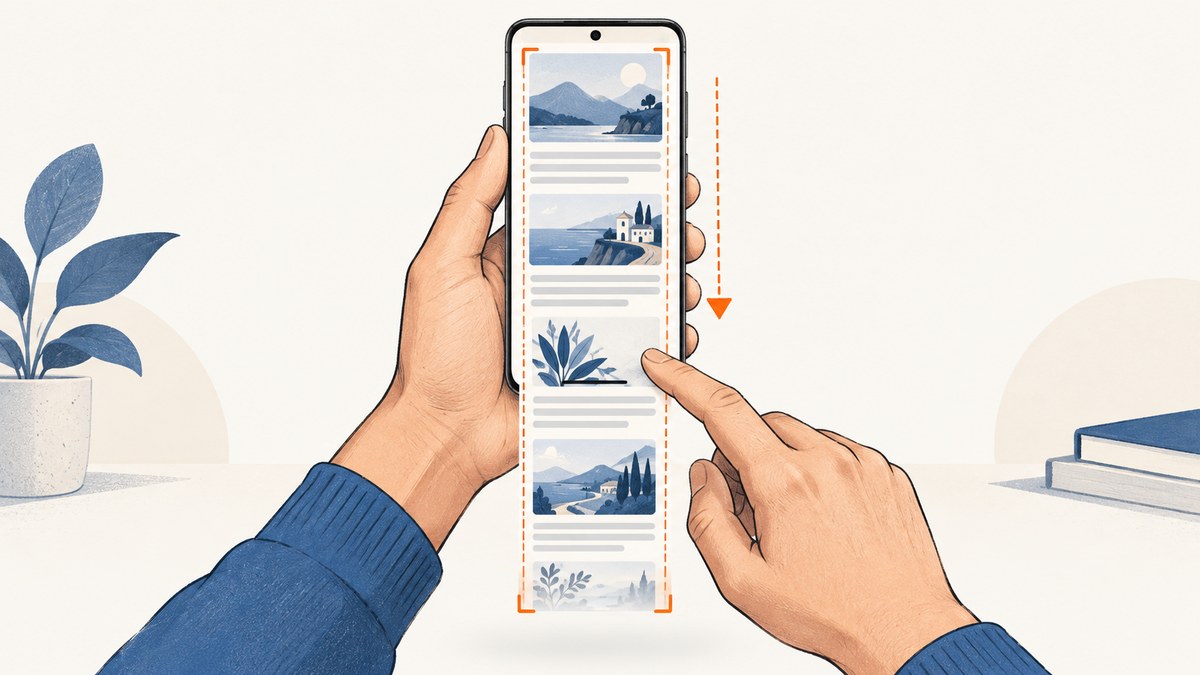
On most Samsung Galaxy phones, take a normal screenshot with Power/Side + Volume Down, then tap Scroll capture (the icon with two downward arrows). The phone scrolls through the page and combines the screens into one tall image saved in Gallery. Tap the icon repeatedly, or press and hold it on supported software, until the full page is included.
Samsung documents Scroll capture for scrollable content such as webpages and articles. The exact labels and availability vary by Galaxy model, Android version, One UI version, and carrier. Samsung’s Scroll Capture guide and its screenshot support page describe the current workflow.
Quick answer: capture a whole page in seconds
- Open the webpage, message, article, or document you want to save.
- Make sure the content can scroll vertically.
- Press the Power/Side and Volume Down buttons together, then release them.
- When the screenshot toolbar appears, tap Scroll capture.
- Let the phone move down the page. Tap the icon again for more content, or press and hold it if your software supports continuous scrolling.
- Tap anywhere outside the toolbar to finish. Open Gallery → Albums → Screenshots to view, crop, edit, or share the result.
The control appears only when Samsung detects content that can scroll. A static home screen, many settings pages, and some protected apps will not show it.
Before you start: make the toolbar visible
The post-capture toolbar must be enabled. On current Galaxy software, open:

Settings → Advanced features → Screenshots and screen recorder → Show toolbar after capturing
Turn the switch on. On a device without screen recording, Samsung may call the menu Screen capture instead. Menu names can move after a One UI update, so use Settings search for toolbar after capturing or screenshot if you cannot find it.
Exact step-by-step method
1. Open a genuinely scrollable page
Use a normal browser page, a long email, a chat, or an article. Wait for images and expandable sections to finish loading. Scroll capture records what the phone can render, so content that appears only after a delayed interaction may not be included.
2. Take the initial screenshot
Press the Power/Side and Volume Down buttons at the same time and release immediately. Holding either button too long can open the power menu or change the volume instead of taking a screenshot.
3. Start Scroll capture
Tap the button showing two downward arrows in the toolbar. Samsung calls this Scroll capture. The phone advances the page and adds the newly visible area to the image.
4. Extend the image
Tap the same button repeatedly until you reach the end. Some Galaxy versions let you press and hold the icon to keep advancing. The distance moved per tap is not fixed: embedded video players, large images, sticky headers, and unusual page layouts can change the amount.
5. Finish and check the file
Tap outside the toolbar. Samsung automatically saves the long screenshot to Gallery. Open it and zoom in near joins between screens. If a page stopped loading halfway through, repeat the capture after the page is fully ready. Samsung notes that long captures can be automatically resized or scaled down.
Alternative starting method: Palm swipe
If reaching both physical buttons is inconvenient, enable Palm swipe to capture under Settings → Advanced features. Swipe the edge of your hand across the screen to create the initial screenshot, then use the same Scroll capture button in the toolbar. Palm swipe changes only how the first frame is created; the long capture still depends on the same scrolling function.
Why Scroll capture may be missing
| What you see | Likely cause | What to do |
|---|---|---|
| No toolbar after a screenshot | Show toolbar after capturing is off | Enable it in Settings → Advanced features → Screenshots and screen recorder, or search Settings for the option. |
| Toolbar appears but no Scroll capture icon | The current screen is not scrollable, or the app blocks capture | Test a regular webpage in Samsung Internet or Chrome. Security, privacy, and copyright controls can disable screenshots. |
| Capture stops early | The page reached its scroll limit, content is still loading, or a sticky element confused the capture | Wait for loading to finish, close overlays, move to the top, and try again. Capture in shorter sections if necessary. |
| Only a short image is saved | The toolbar was dismissed before the capture reached the required length | Start again and keep tapping or holding Scroll capture until the bottom is visible. |
| Buttons do not take a screenshot | Buttons were pressed sequentially, a case interferes, or a hardware button is faulty | Press both together and release. Try Palm swipe or the Edge panel screenshot shortcut. |
| Image looks soft or smaller than expected | Samsung automatically scales long screenshots, and very tall images may be reduced | Inspect the saved file in Gallery. For exact page dimensions, use a browser-based capture workflow instead. |
Apps and screens that block or limit capture
Android allows apps to prevent screenshots for privacy or security. Banking apps, password managers, streaming services, work profiles, and pages with protected media may show a black image, an error, or no capture controls. Samsung also says feature availability differs by model and software version. There is no phone setting that can override an app’s deliberate screenshot restriction.
When Scroll capture is unavailable, try a harmless test page in your browser. If it works there, the original app is the limitation. If it fails everywhere, update the phone, restart it, confirm the toolbar setting, and check the support documentation for your exact model.
Working with long screenshots
Save, edit, and share
Long screenshots are stored with ordinary screenshots in Gallery. Use the crop and draw tools to remove browser chrome or mark a section, then share through Messages, email, cloud storage, or another app. A very tall image can be awkward in chat applications; exporting several cropped sections may be easier for a recipient to read.
Dynamic pages and lazy-loaded images
Scroll capture records the rendered screen as it moves. Pages that load images only after they enter the viewport may show placeholders if the phone advances too quickly. Let the page settle between taps. Infinite-scroll feeds may never have a true bottom; stop when the content you need is present.
Fixed headers and repeated content
A sticky navigation bar can appear in every segment or create visible seams. This is a limitation of stitching a live screen, not a defect in your button sequence. Hide the header if the website offers that option, zoom out slightly, or capture smaller sections.
When a phone screenshot is the wrong tool
Samsung’s built-in feature is ideal for a quick personal reference. A browser capture is more suitable when you need a repeatable image for documentation, visual regression checks, an automated report, a precise viewport, or a page that requires cookies and JavaScript before it is usable.
Or skip the browser setup
ScreenshotNeo is a website screenshot API and MCP server. Send one GET request with a URL and receive a PNG, JPEG, WebP, or PDF. It can capture a full page, load lazy images, select one element with CSS, apply a device preset or custom viewport, use dark mode and retina scale, run custom CSS or JavaScript, click before capture, wait for a selector, delay, or network idle, and set headers, cookies, user agent, authorization, timezone, or geolocation. You can also block ads, trackers, requests, or resource types; resize images; cache with a TTL; create signed links; submit asynchronous jobs with signed webhooks; capture up to 100 URLs per bulk call; and use the usage API or OpenAPI specification.
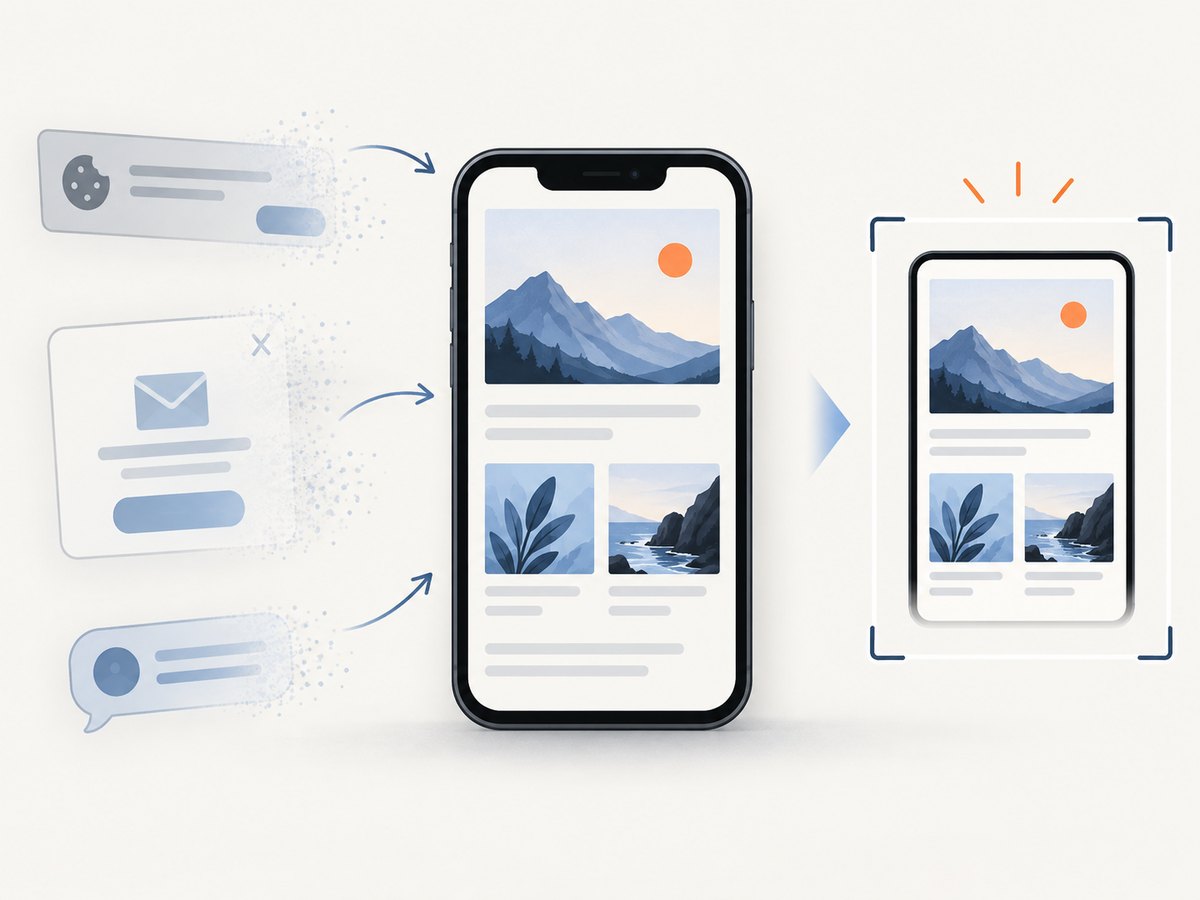
Most useful for this problem: ScreenshotNeo accepts cookie and consent banners, then removes more than 60 known consent platforms, newsletter popups, and chat widgets before the shot. Each step can be turned off. Bot checks and CAPTCHAs, blank pages, timeouts, failed loads, and cache hits cost nothing; response headers identify the page verdict and whether the request was billed.
See the ScreenshotNeo documentation for authentication, options, output formats, and advanced examples.
cURL
curl -G "https://api.screenshotneo.com/v1/shot" -d access_key=YOUR_API_KEY --data-urlencode url=https://stripe.com -o shot.webpPython
import requests

r = requests.get("https://api.screenshotneo.com/v1/shot", params={"access_key": "YOUR_API_KEY", "url": "https://stripe.com"}, timeout=90)
r.raise_for_status()
open("shot.webp", "wb").write(r.content)
Node.js
const q = new URLSearchParams({ access_key: 'YOUR_API_KEY', url: 'https://stripe.com' });
const res = await fetch(`https://api.screenshotneo.com/v1/shot?${q}`);
if (!res.ok) throw new Error(`${res.status} ${res.statusText}`);
const fs = await import('node:fs/promises');
await fs.writeFile('shot.webp', Buffer.from(await res.arrayBuffer()));
Useful automation choices
- Full page: use the full-page option when the target is a long document. Lazy images are loaded as part of the capture.
- One component: provide a CSS selector to capture a chart, invoice, card, or other element instead of the entire page.
- PDF: select paper size, margins, landscape mode, and page ranges when an image is not the right deliverable.
- Timing: wait for a selector, a fixed delay, or network idle. Prefer a selector when a known component signals readiness.
- Access: pass cookies, custom headers, an Authorization header, or a user agent for authenticated or personalized pages. Treat keys and session cookies as secrets.
- Repeatability: choose a device preset or viewport, set timezone and geolocation, and use caching with a TTL when the page does not change often.
- Agents: the MCP server exposes
take_screenshot,get_page_info, andcapture_pdffor Claude, Cursor, and other MCP clients.
ScreenshotNeo has 1,000 shots per month free with no card. Paid plans start at $5 for 3,000 shots; every feature is included on every plan. Yearly billing provides two months free.
Create a free ScreenshotNeo account and start with 1,000 screenshots a month at no charge.
Reliability, performance, and cost notes
- Phone reliability: Scroll capture depends on the app exposing a normal scroll surface. Dynamic feeds, protected screens, and very tall pages are inherently less predictable.
- API reliability: Choose an explicit wait condition for pages that render asynchronously. Check the response status and verdict headers, and retry only transient failures.
- Performance: Full-page images, retina scale, custom JavaScript, and network-idle waits require more work than a viewport screenshot. Capture only the element or page range you need.
- Cost control: ScreenshotNeo bills clean shots only. Cache hits and failed or unusable captures are not billed, and bulk capture can process up to 100 URLs per call.
Checklist before sharing a full-page capture
- The page was fully loaded and no consent banner or popup covered content.
- The screenshot reaches the intended bottom, rather than stopping at a lazy-loaded section.
- Text remains readable after Samsung’s automatic scaling.
- Private account details, tokens, and personal notifications are cropped out.
- The recipient can open a very tall image; otherwise share several sections or a PDF.
FAQ
How do I take a long screenshot on a Samsung Galaxy?
Press Power/Side + Volume Down, tap Scroll capture, and continue tapping or holding the icon until the desired content is included.
Where is the Scroll capture button?
It is in the toolbar shown immediately after a normal screenshot. Enable Show toolbar after capturing under Settings → Advanced features if the toolbar is hidden.
Can I capture an entire webpage in Chrome?
Usually yes, if the page scrolls normally and Chrome permits screenshots. Test a regular page if the control does not appear.
Why does my Samsung screenshot look blurry?
Samsung may automatically resize long captures. Open the file in Gallery and crop it, or use an API capture when you need controlled dimensions.
Can Scroll capture save a PDF?
Scroll capture saves a long image. For a PDF with paper size, margins, orientation, and page ranges, use a PDF-capable browser workflow such as ScreenshotNeo’s capture_pdf tool.


