How to Take a Full-Page (Scrolling) Screenshot on Samsung Galaxy
Use Galaxy’s built-in Scroll capture to save a long webpage as one image, plus fixes when the button is missing or unavailable.
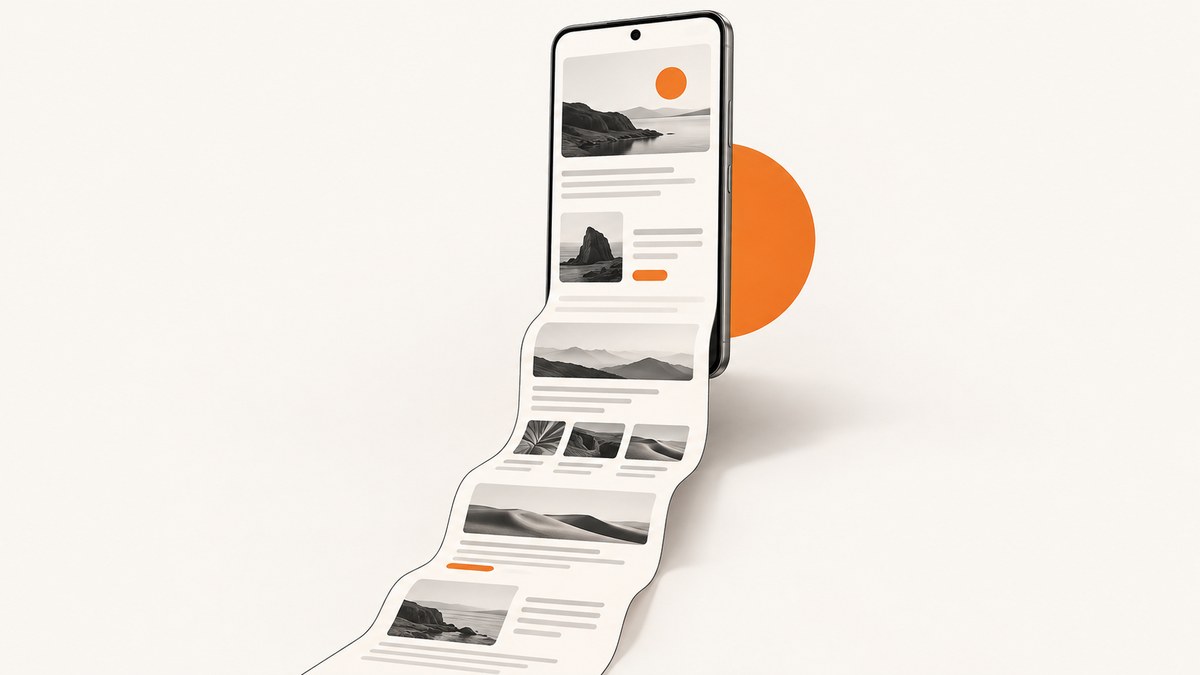
A Samsung Galaxy phone or tablet can capture a long webpage as one image with Scroll capture. Open content that actually scrolls, press Power/Side + Volume Down, then tap the toolbar button with two downward arrows. Tap the button again to extend the image, and finish when the entire section you need is included. Samsung describes this as a way to “capture the whole screen,” and says the setting appears only when scrolling is possible.
This guide covers the exact steps, alternate ways to start a capture, missing-toolbar fixes, app restrictions, editing and sharing, quality limits, and a browser-based alternative for developers who need repeatable screenshots.
1. Take a scrolling screenshot on a Galaxy phone or tablet
Step 1: Open scrollable content
Open the webpage, article, email, chat, document, or settings screen you want to save. Scroll briefly first to confirm that the page moves. Scroll capture may not appear on a screen with no additional content below the visible area.
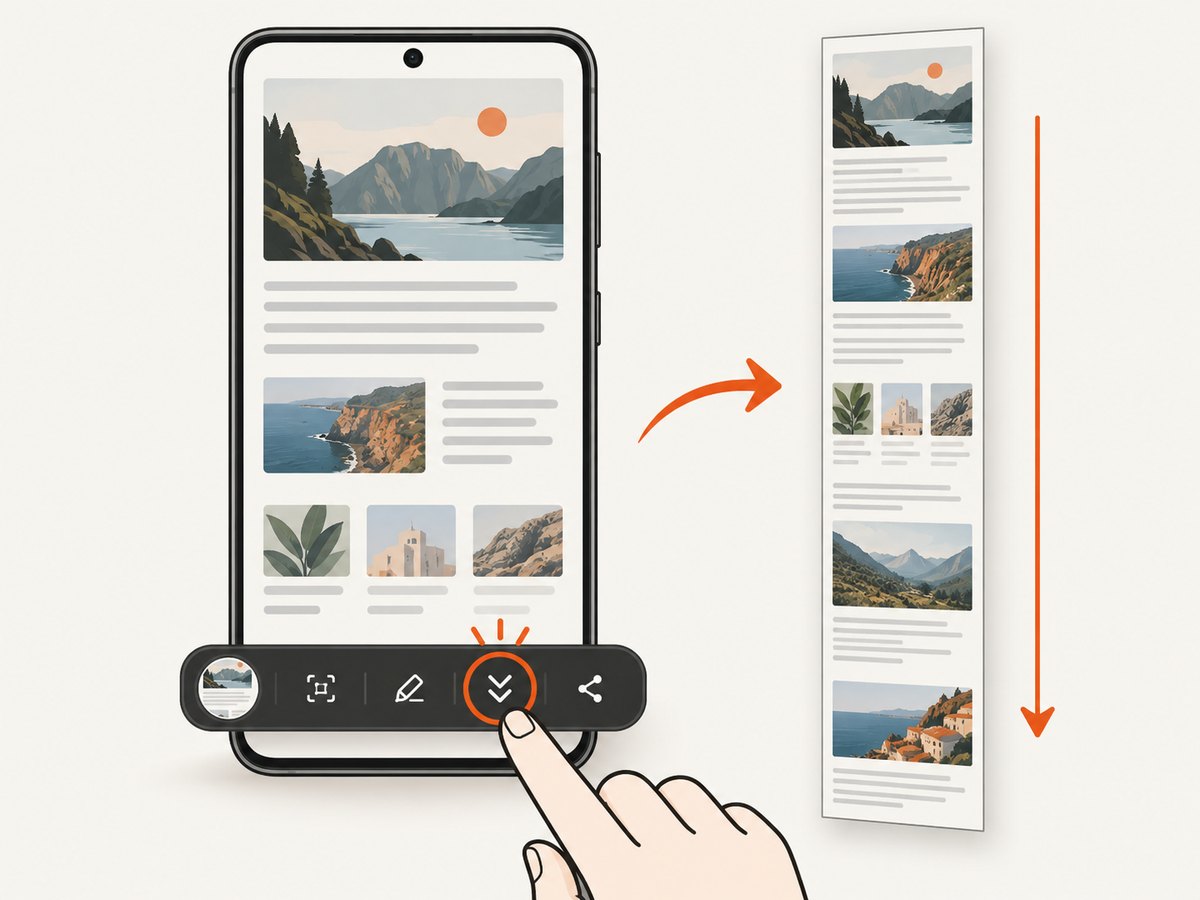
Step 2: Press the screenshot buttons
- Press the Power/Side button and Volume Down button together.
- Release them after a brief moment. The display flashes and a screenshot toolbar appears near the bottom or side of the screen.
If your buttons are difficult to press together, use one of the alternate capture methods in the next section. The button location and menu labels can vary by Galaxy model and software version.
Step 3: Tap Scroll capture
On the toolbar, tap the icon showing two downward arrows. The phone advances the page and adds the next section to the screenshot. Tap the icon again for more content. On supported configurations, Samsung’s support instructions also describe pressing and holding the icon to continue scrolling farther.
Step 4: Stop and save
Continue until the image includes the content you need. Tap outside the toolbar when that option is offered, or wait for the toolbar to close. The capture is resized automatically and saved in Gallery. Open Gallery to crop, draw, mark up, share, or send the image to another app.
The result is one tall image, but its final length depends on the page and the device. A very long page may be shortened, resized, or stopped by the app before its absolute bottom.
2. Where to find the Scroll capture button
Scroll capture is part of the screenshot toolbar. It is not a separate camera mode, download, or paid feature. If the screenshot is successful but the toolbar is missing, enable it here:
- Open Settings.
- Tap Advanced features.
- Tap Screenshots and screen recorder.
- Turn on Show toolbar after capturing.
Some Galaxy versions call the menu Screen capture, place it in a different Settings section, or use slightly different wording. Use Settings search for Screenshots or Screen capture when the path above does not match your device.
Samsung’s US support guide is the primary reference for the toolbar and Scroll capture behavior: Record and capture your Galaxy phone or tablet’s screen. Model-specific support pages can show different labels or controls.
3. Alternate ways to start a screenshot
The Power/Side + Volume Down combination is the most broadly available method, but supported Galaxy models may offer other ways to start the same screenshot workflow.
| Method | When it helps | What to check |
|---|---|---|
| Palm swipe | Useful when pressing two physical buttons is awkward. | Enable the palm-swipe gesture in Motion and gestures if your model provides it. |
| S Pen | Convenient on Galaxy phones and tablets that include an S Pen. | Open the S Pen command for screen capture, then look for the same scrolling toolbar. |
| Quick settings or assistant menu | Helpful for accessibility or worn buttons. | Availability and names differ by One UI version; use Settings search. |
These methods only start the screenshot. Scroll capture still requires a scrollable screen and a toolbar that exposes the control. If a gesture takes a screenshot but no arrows appear, test the button method and follow the troubleshooting steps below.
4. What content can and cannot be captured
Scrollable webpages and documents
Long webpages are the usual use case. Let the page finish loading first, especially if images or text appear as you scroll. A page that inserts content dynamically can change while the phone is extending the capture, so pause between taps if sections are still loading.
Apps that block screenshots
Some banking, streaming, password, workplace, and other protected apps prevent screenshots for privacy or security reasons. Android may show a blank result, a warning, or no capture at all. Scroll capture cannot override an app’s restriction. Use the app’s export, print, or share function when available, and follow your organization’s rules for sensitive data.
Pages with unusual scrolling
Nested panels, horizontally scrolling tables, virtualized lists, sticky headers, and infinite feeds can produce unexpected joins. Scroll capture follows the screen’s normal vertical movement; it does not understand the page’s document structure. Capture a shorter section, zoom out, or use the page’s own export option when the result repeats or skips content.
5. Quality, length, and privacy considerations
- Length: The device decides how far it can extend the image. Do not assume an unlimited page or a guaranteed full native-resolution result.
- Resizing: Samsung says the captured image is resized automatically. Text may be smaller than in the live page when viewed in Gallery.
- Fixed elements: Sticky navigation, chat bubbles, and cookie banners may appear repeatedly or cover content as the page moves.
- Private information: Review the image before sharing. URLs, account names, notifications, payment details, and message previews can be visible.
- Storage: Tall PNG or JPEG files consume more storage than a normal screenshot. Crop unused areas before sending or archiving.
6. Troubleshooting: missing controls and failed captures
| Symptom | Likely cause | Fix |
|---|---|---|
| No screenshot toolbar | Toolbar display is disabled. | Enable Settings > Advanced features > Screenshots and screen recorder > Show toolbar after capturing. Search Settings for “Screenshots” if labels differ. |
| Scroll capture icon is absent | The screen is not recognized as scrollable, or the device/app does not support the feature there. | Test a normal webpage that clearly scrolls. Update the page, try the physical-button method, and check model-specific Samsung documentation. |
| Capture stops early | The app limits capture length, content has ended, or the page uses a nested/infinite scroller. | Capture in several shorter sections, scroll the intended panel first, or use the app’s export/print feature. |
| Image is blank or black | The app blocks screenshots for security. | Use an approved export or share function. Do not attempt to bypass the restriction. |
| Content repeats or jumps | Dynamic loading, sticky elements, or a virtualized list changed during capture. | Wait for content to load, disable page animations when possible, and capture a shorter range. |
| Buttons do not work together | Timing, a case, or a damaged button interferes. | Remove the case temporarily, press both buttons at once, or enable a supported palm-swipe, S Pen, or accessibility method. |
| Toolbar disappears too quickly | A tap outside the toolbar closed it. | Take the screenshot again and tap the downward-arrow control immediately; keep one finger clear of the rest of the screen. |
7. A repeatable option for developers: ScreenshotNeo
Phone Scroll capture is ideal for a one-off page. If you need screenshots in documentation builds, QA jobs, link previews, or an internal tool, a screenshot API avoids manual button presses and device-specific limits. ScreenshotNeo is a website screenshot API and MCP server. A GET request returns PNG, JPEG, WebP, or PDF.
Or skip the browser setup
Use the API documentation at screenshotneo.com/docs. Replace the example URL with the page you own or are authorized to capture.
curl -G "https://api.screenshotneo.com/v1/shot" -d access_key=YOUR_API_KEY --data-urlencode url=https://stripe.com -o shot.webpimport requests
r = requests.get("https://api.screenshotneo.com/v1/shot", params={"access_key": "YOUR_API_KEY", "url": "https://stripe.com"}, timeout=90)
open("shot.webp", "wb").write(r.content)const q = new URLSearchParams({ access_key: 'YOUR_API_KEY', url: 'https://stripe.com' });
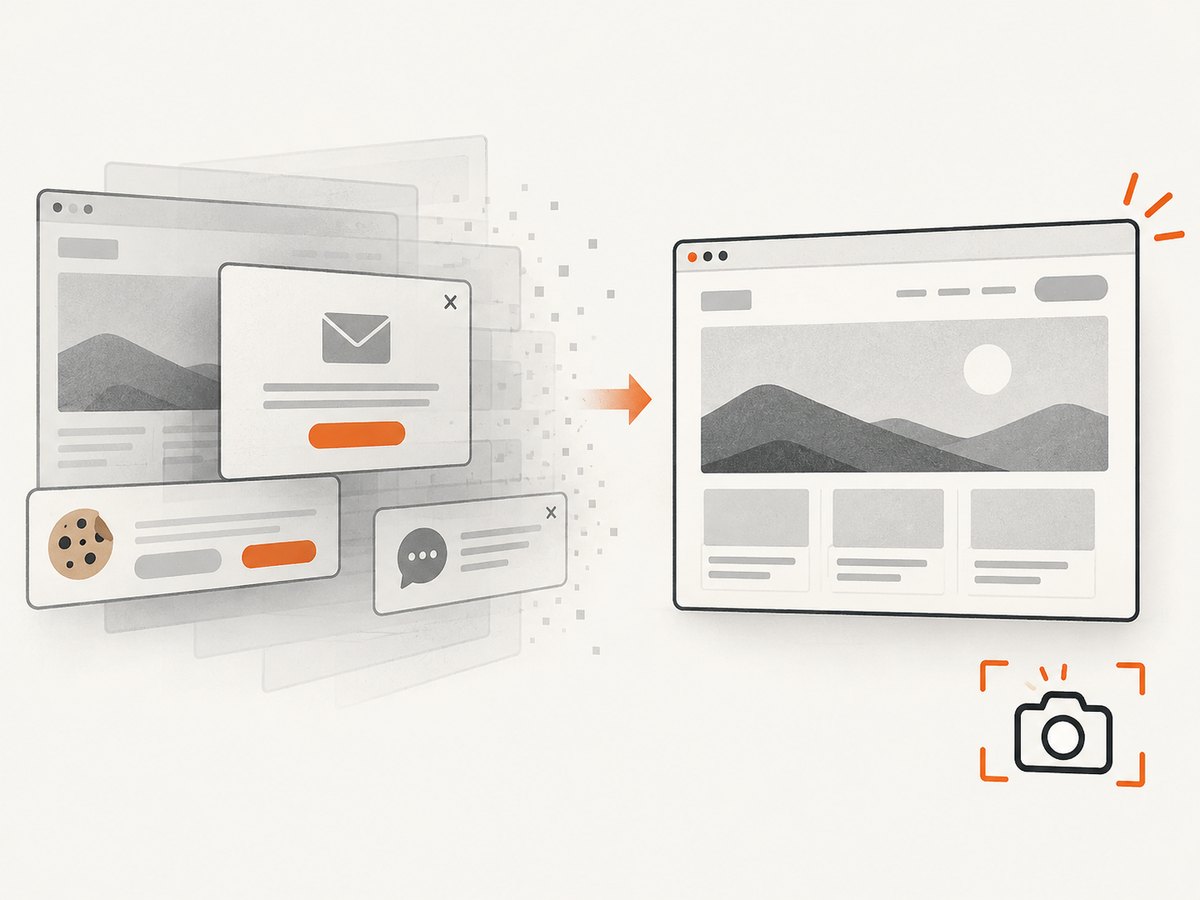
const res = await fetch(`https://api.screenshotneo.com/v1/shot?${q}`);ScreenshotNeo removes cookie and consent banners, newsletter popups, and chat widgets before capture; each cleanup step can be turned off. Bot checks or CAPTCHAs, blank pages, timeouts, failed loads, and cache hits cost nothing, and response headers identify the page verdict and whether the shot was billed. Its MCP server includes take_screenshot, get_page_info, and capture_pdf tools for Claude, Cursor, and other MCP clients.
For long pages, use full-page capture with lazy images loaded. Other options include a CSS-selector element capture, dark mode, 12 device presets or any viewport, retina scale, custom CSS and JavaScript, a click before capture, selector hiding, waits for a selector, delay, or network idle, request/resource blocking, custom headers, cookies, user agent and Authorization, timezone and geolocation, transparent backgrounds, image resizing, a chosen cache TTL, signed links for public <img> tags, asynchronous jobs with signed webhooks, bulk capture of up to 100 URLs per call, a usage API, and an OpenAPI specification.
Reliability and cost planning are straightforward: cache repeated captures with a TTL you choose, use async jobs and signed webhooks for slow pages, and inspect X-Page-Verdict and X-Billed before storing results. The Free plan includes 1,000 shots per month without a card. Paid plans start at $5 for 3,000 shots; every feature is available on every plan. Yearly billing gives two months free.
Create a free ScreenshotNeo account to get 1,000 screenshots each month with no card, then move to the $5 plan when you need more.
8. Practical workflow checklist
- Open the exact page or app state you need.
- Confirm that the intended area scrolls vertically.
- Press Power/Side + Volume Down and release.
- Tap the two-arrow Scroll capture icon repeatedly.
- Stop before unrelated or private content is included.
- Open Gallery, crop or annotate, and verify readability.
- Share the file through an approved channel.
9. FAQ
Is Scroll capture the same as a screen recording?
No. It creates one still image assembled from several screen sections. Screen recording creates a video.
Does every Samsung Galaxy model have scrolling screenshots?
Availability depends on the model, software version, and app. Samsung’s controls and menu names vary, so check Settings search and your model’s support page.
Why do I see Scroll capture on one webpage but not another?
The control appears when the current screen is recognized as scrollable. Apps can also disable screenshots or use scrolling layouts the toolbar cannot extend.
Where is the saved long screenshot?
By default it is in the Gallery app with your other screenshots. Open the image there to edit or share it.
Can I capture a whole webpage automatically for a build?
Yes. Use a browser automation script or a screenshot API such as ScreenshotNeo. The API approach is repeatable and can remove common overlays before saving the result.


