How to Capture Full-Page Screenshots on Samsung Phones
Use Samsung’s Scroll capture to save an entire webpage, article, chat, or document as one image—even when it is longer than the screen.
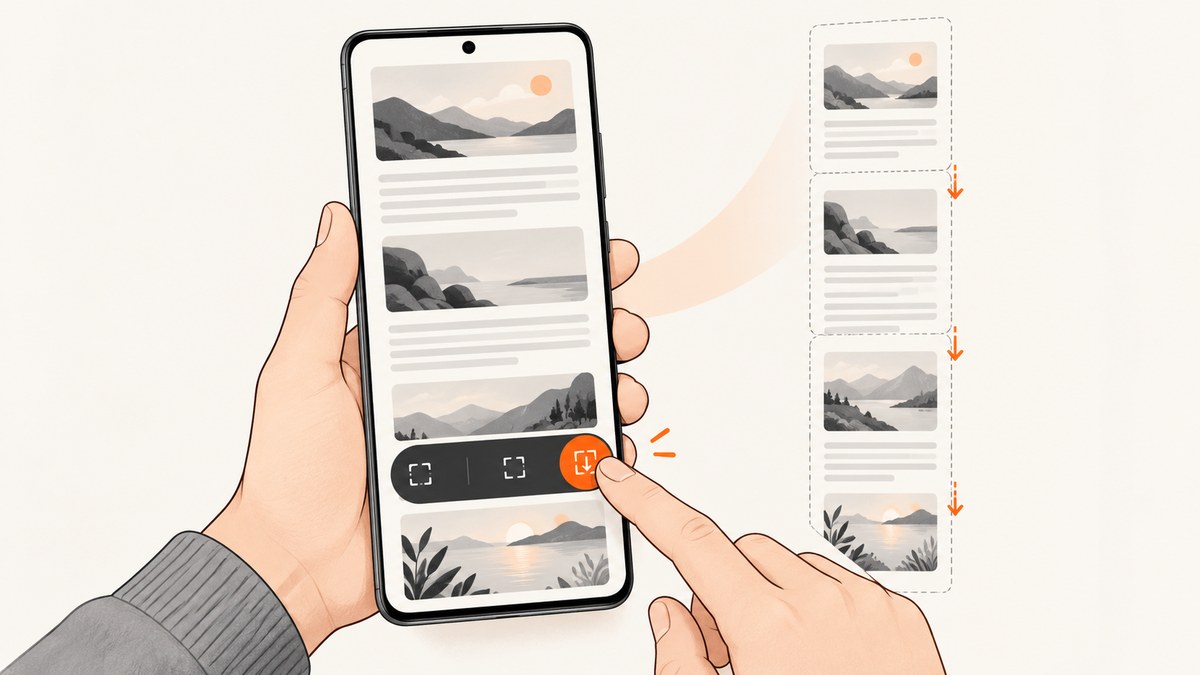
Samsung’s built-in feature for a full-page screenshot is called Scroll capture. Open a scrollable page, press the Power/Side and Volume Down buttons together, then tap the Scroll capture button (a box with downward arrows) in the screenshot toolbar. Tap or hold the button to include more of the page, and finish when the required content is visible. Samsung automatically resizes the resulting image and saves it to Gallery.
This guide explains the normal workflow, what to do when Scroll capture is missing, how to capture webpages and other long content, which Galaxy features can start the first screenshot, and what limitations apply to protected or highly dynamic apps.
1. What Samsung calls a full-page screenshot
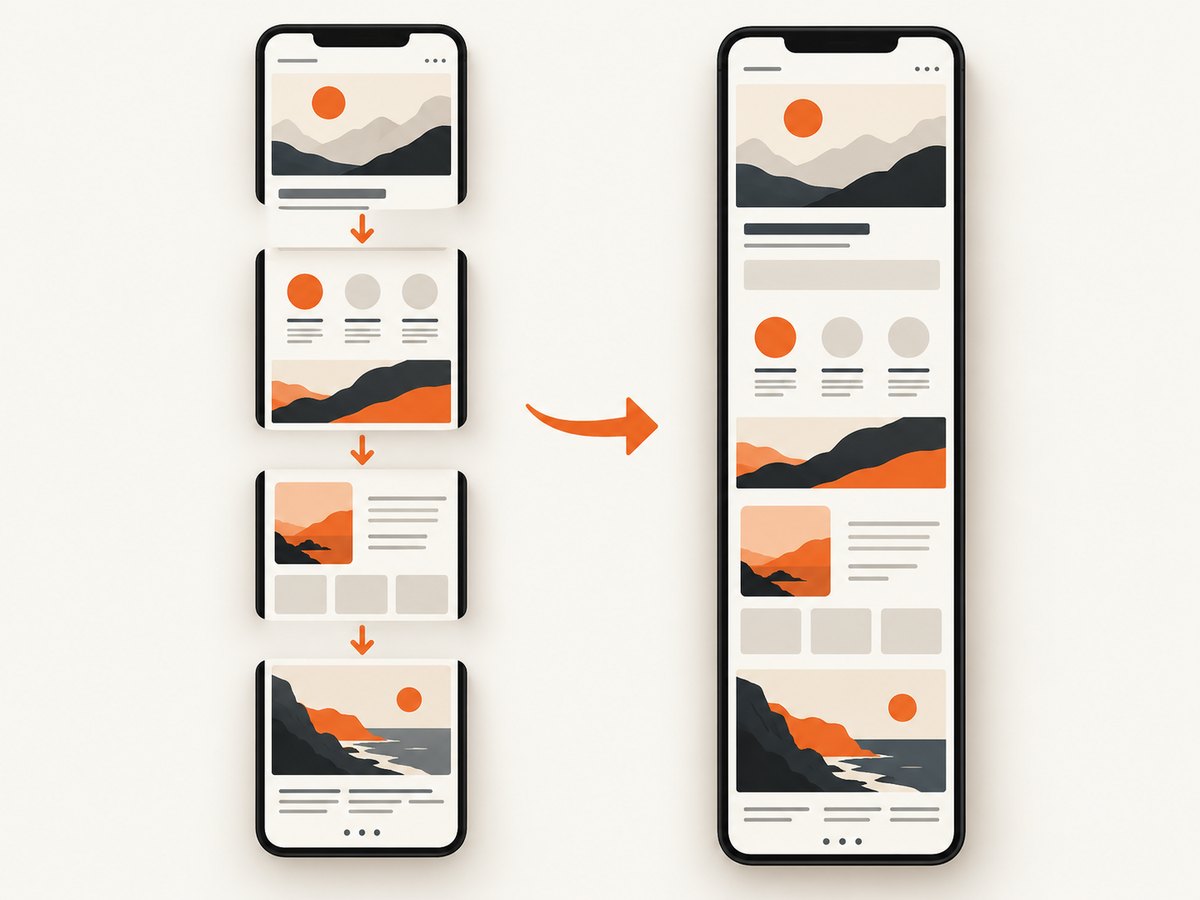
Samsung uses Scroll capture for a long screenshot that extends below the visible screen. It works by taking the initial screenshot, moving the current content downward, and combining the additional screen area into one image. Samsung describes it as a way to “take a long screenshot to capture the whole screen.”
The result is one image rather than a collection of separate screenshots. It is useful for:
- Web articles and documentation
- Long chat conversations
- Receipts, invoices, and confirmation pages
- Notes and documents that continue below the display
- Settings pages and other scrollable screens
The page or app must be able to scroll. A static image, a screen that has reached its end, and many protected screens cannot produce a longer capture.
2. Capture an entire webpage on a Galaxy phone
- Open the webpage in your browser and scroll to the starting position. If you want the page title at the top of the image, return to the beginning first.
- Press and release the Power/Side button and Volume Down button at the same time.
- Wait for the screenshot toolbar to appear along the bottom or side of the screen.
- Tap the Scroll capture icon. It normally looks like a rectangle with downward arrows.
- Allow the page to move down. Tap the Scroll capture icon again to extend the image, or press and hold it when you need to include a longer section quickly.
- Stop when the final paragraph, image, receipt total, or other endpoint is included. Depending on the Galaxy model, tap outside the toolbar to finish.
- Open Gallery > Albums > Screenshots to view, crop, annotate, share, or delete the finished image.
Scroll capture follows the content as the phone advances the page. The final length therefore depends on the page and the model’s software. Samsung does not publish one universal maximum length for every Galaxy phone.
Make the first screenshot easier to control
Before capturing, close sticky banners or expanded menus that you do not want in the image. Let large images finish loading, and start near the top of the content. If a page contains an embedded video, animated advertising, or a continuously updating feed, pause it when possible. These steps reduce unexpected jumps between scroll segments.
3. If the Scroll capture button is missing
The most common cause is that the screenshot toolbar is disabled. Turn it back on:
- Open Settings.
- Tap Advanced features.
- Tap Screenshots and screen recorder. Some models call this menu Screen capture when screen recording is not available.
- Enable Show toolbar after capturing.
- Return to a scrollable page and take another screenshot with Power/Side + Volume Down.
Menu names and locations vary by Galaxy model, One UI version, carrier, and region. Search Settings for “screenshot” if the labels differ. If the toolbar appears but Scroll capture does not, test a normal webpage or article. The control is shown only when Samsung detects content that can scroll.
4. Other ways to start the screenshot
The buttons are the standard method, but Samsung documents several alternatives for creating the initial screenshot. After the first frame is taken, choose Scroll capture from the toolbar when the current content supports it.
| Method | How it helps | What still applies |
|---|---|---|
| Power/Side + Volume Down | Works on essentially every current Galaxy model. | The toolbar must be enabled and the page must scroll. |
| Palm swipe | Swipe the edge of your hand across the display to capture without pressing buttons. | Enable the gesture in Settings if your model provides it. |
| Bixby or Google Assistant | Use a voice command when your hands are occupied. | The assistant creates the initial screenshot; select Scroll capture afterward. |
| S Pen Screen write | On compatible Note and Galaxy S Ultra devices, use the S Pen command to capture and annotate. | Scroll capture remains subject to app and content restrictions. |
| Tasks Edge panel | Provides a shortcut for screenshots on models with that Edge panel. | The destination still needs to be scrollable for a long image. |
5. Why Scroll capture may not work
Samsung’s feature is content-dependent. A phone can take an ordinary screenshot while refusing to create a scrolling one. The following cases are expected limitations rather than settings errors:
- The screen cannot scroll. A home screen, a single photo, or a page already at its end has no additional area to capture.
- The app blocks screenshots. Banking apps, streaming services, password managers, and other protected screens may disable screenshots or show a blank result.
- Secure Folder or privacy-protected content is active. These environments can apply different screenshot rules.
- The page changes while it scrolls. Infinite feeds, live dashboards, ads, and animated elements can move between segments.
- An embedded player or custom canvas does not advance normally. Samsung may not be able to stitch content that is drawn outside the normal scrolling document.
- The page is extremely large. Long images consume more storage and memory, and the practical capture length differs by model and software.
What to try before giving up
- Confirm you can scroll the page manually from top to bottom.
- Enable Show toolbar after capturing.
- Reload the page and wait for images to finish loading.
- Close overlays, expanded menus, and video players.
- Try the same content in another browser if the site uses a custom viewer.
- Capture a shorter section first. If that works, repeat for separate sections and combine them later.
6. Editing, sharing, and finding the finished image
After you finish Scroll capture, the image is saved automatically. Open Gallery, then browse to Albums > Screenshots. From there you can crop out browser chrome, draw on the image, add text, share it through another app, or move it to cloud storage.
For a document that must remain searchable or printable, a PDF may be a better format than one very tall bitmap. A screenshot preserves what was visible, including layout and visual styling, but it does not preserve selectable text or links.
7. When the built-in capture is unavailable
If the app blocks screenshots or the screen does not provide a usable scrolling surface, do not assume a third-party application can bypass that restriction. Follow the app’s policy and the device’s security rules.
For ordinary content that simply fails to stitch, take several regular screenshots with a small overlap between them. You can then join the images in an editor. Keep the same zoom level and avoid scrolling diagonally so text lines remain aligned. This manual method is slower, but it works when the page’s scrolling behavior confuses automatic capture.
8. Capturing a webpage from code instead of a phone
If the goal is a repeatable asset for documentation, monitoring, QA, or a content pipeline, a screenshot API avoids the phone’s screen-size and app restrictions. ScreenshotNeo captures a URL through one GET request and can return PNG, JPEG, WebP, or PDF. Its options cover full-page capture, lazy-loaded images, a selected CSS element, custom viewport and device settings, dark mode, retina scale, waits, cookies, headers, geolocation, custom JavaScript, and more. See the ScreenshotNeo API documentation for the complete parameter list.
Or skip the browser setup
Use this call to capture a full webpage:
curl -G "https://api.screenshotneo.com/v1/shot" -d access_key=YOUR_API_KEY --data-urlencode url=https://stripe.com -o shot.webpPython:
import requests
r = requests.get("https://api.screenshotneo.com/v1/shot", params={"access_key": "YOUR_API_KEY", "url": "https://stripe.com"}, timeout=90)
open("shot.webp", "wb").write(r.content)
Node.js:
const q = new URLSearchParams({ access_key: 'YOUR_API_KEY', url: 'https://stripe.com' });
const res = await fetch(`https://api.screenshotneo.com/v1/shot?${q}`);
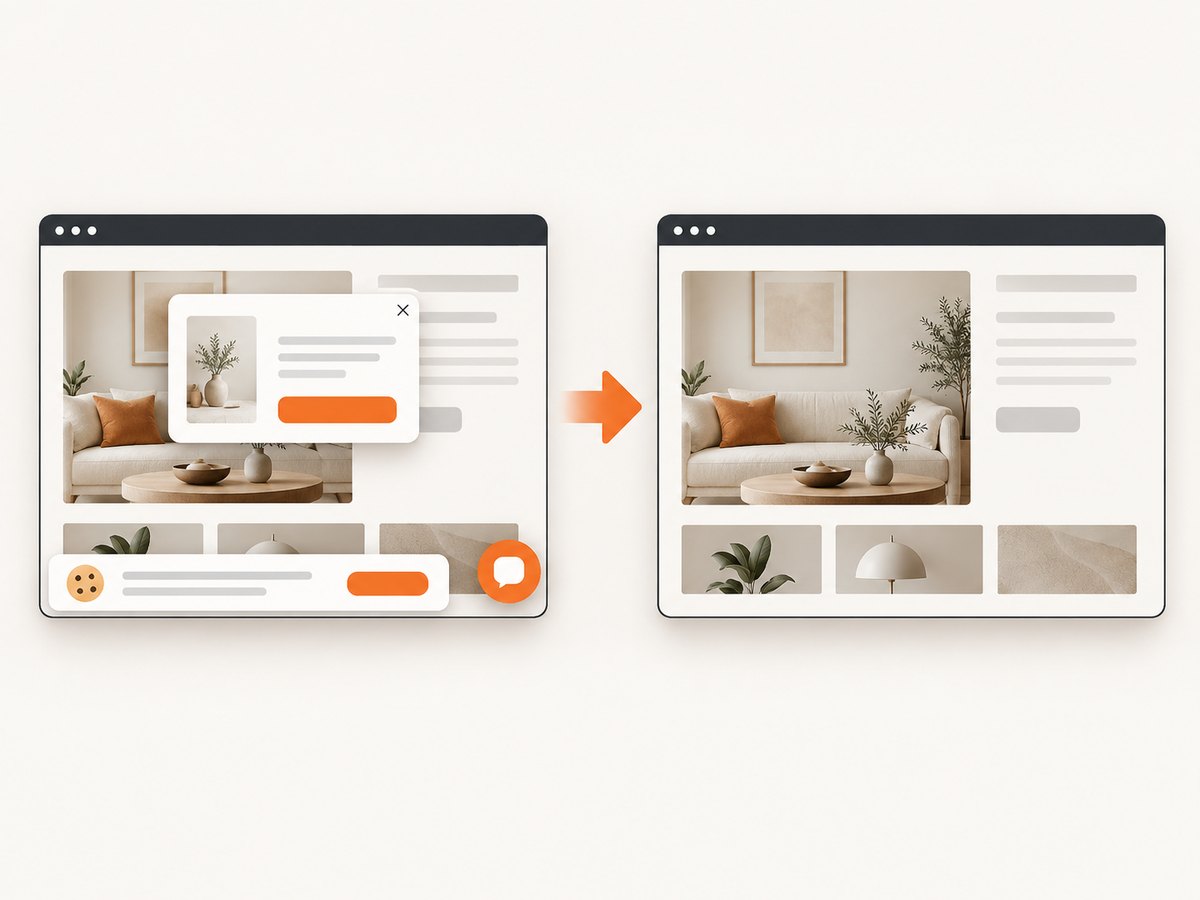
ScreenshotNeo is useful when a clean, repeatable capture matters: cookie and consent banners, newsletter popups, and chat widgets are removed before the shot; bot checks, blank pages, timeouts, failed loads, and cache hits are not billed; and each response reports its result with X-Page-Verdict and X-Billed headers. It also provides an MCP server so Claude, Cursor, and other MCP clients can call take_screenshot, get_page_info, and capture_pdf.
The service supports full-page screenshots with lazy images loaded, CSS-selector element capture, dark mode, 12 device presets or any viewport, retina scale, PDF paper sizes and page ranges, custom CSS and JavaScript, click actions, selector or network-idle waits, request blocking, custom headers and cookies, timezone and geolocation, transparent backgrounds, image resizing, TTL caching, signed image links, asynchronous jobs with signed webhooks, bulk capture for up to 100 URLs per call, a usage API, and an OpenAPI specification. Parameters used by other screenshot APIs also work, which can simplify migration.
Pricing starts with 1,000 screenshots per month free with no card. Paid plans start at $5 for 3,000 shots; yearly billing provides two months free. Create a free ScreenshotNeo account to start.
9. Reliability, performance, and cost considerations
- Phone capture: costs no service fee, but depends on the model’s memory, storage, screen content, and whether the app permits screenshots.
- Very tall images: use more storage and can be harder to share. Crop or export to PDF when the recipient needs a document rather than a visual reference.
- Dynamic pages: wait for content to settle before starting Scroll capture. For automated work, use an explicit selector wait, delay, or network-idle condition.
- Repeat captures: caching with a chosen TTL can avoid fetching an unchanged page repeatedly. Use cache carefully when the page changes frequently.
- Failures: ScreenshotNeo identifies bot checks, blank pages, timeouts, failed loads, and cache hits in the response; those outcomes are not billed as clean shots.
- Scale: bulk capture, asynchronous jobs, and signed webhooks are better suited to many URLs than manually operating a phone.
10. Troubleshooting checklist
| Symptom | Likely cause | Fix |
|---|---|---|
| No toolbar after the screenshot | Toolbar setting is disabled. | Settings > Advanced features > Screenshots and screen recorder (or Screen capture) > enable Show toolbar after capturing. |
| Toolbar appears, but no Scroll capture icon | The current screen is not recognized as scrollable. | Try a normal webpage or article and confirm it scrolls manually. |
| Capture stops early | The page reached its end or the app did not advance. | Restart at the top, close overlays, wait for content, and capture shorter sections. |
| Image contains a blank or protected area | The app or screen blocks screenshots. | Use the app’s permitted export or sharing feature; do not attempt to bypass its restriction. |
| Text or images jump between sections | Dynamic content changed while scrolling. | Pause animations, wait for lazy images, or use an automated capture with controlled waits. |
| API response is not an image | Authentication, URL, or request parameters are invalid. | Check the access key, URL encoding, response status, and the API documentation before writing the response to a file. |
11. FAQ
Does every Samsung phone support full-page screenshots?
Many Galaxy phones provide Scroll capture, but availability varies by model, One UI version, carrier, region, and app. The control appears only when Samsung can detect scrollable content.
Where are Samsung scrolling screenshots saved?
They are saved automatically in Gallery, usually under Albums > Screenshots.
Can I capture a whole chat?
Yes, if the chat screen permits screenshots and scrolls normally. Protected or privacy-sensitive apps may block the feature.
Is there a fixed maximum length?
No universal limit is published in Samsung’s reviewed guidance. Practical length depends on the content and the Galaxy model.
Can I make a full-page screenshot a PDF?
Samsung’s Scroll capture produces an image. For automated PDF output from a URL, use a service such as ScreenshotNeo’s PDF capture endpoint.
What is the fastest fix when Scroll capture disappears?
Enable Show toolbar after capturing, then retry on a page that you can scroll manually.


