How to Capture a Full-Page Screenshot to PDF
Learn when to use a full-page screenshot or PDF, with exact Firefox, Edge, iPhone, print-preview, code, and troubleshooting steps.

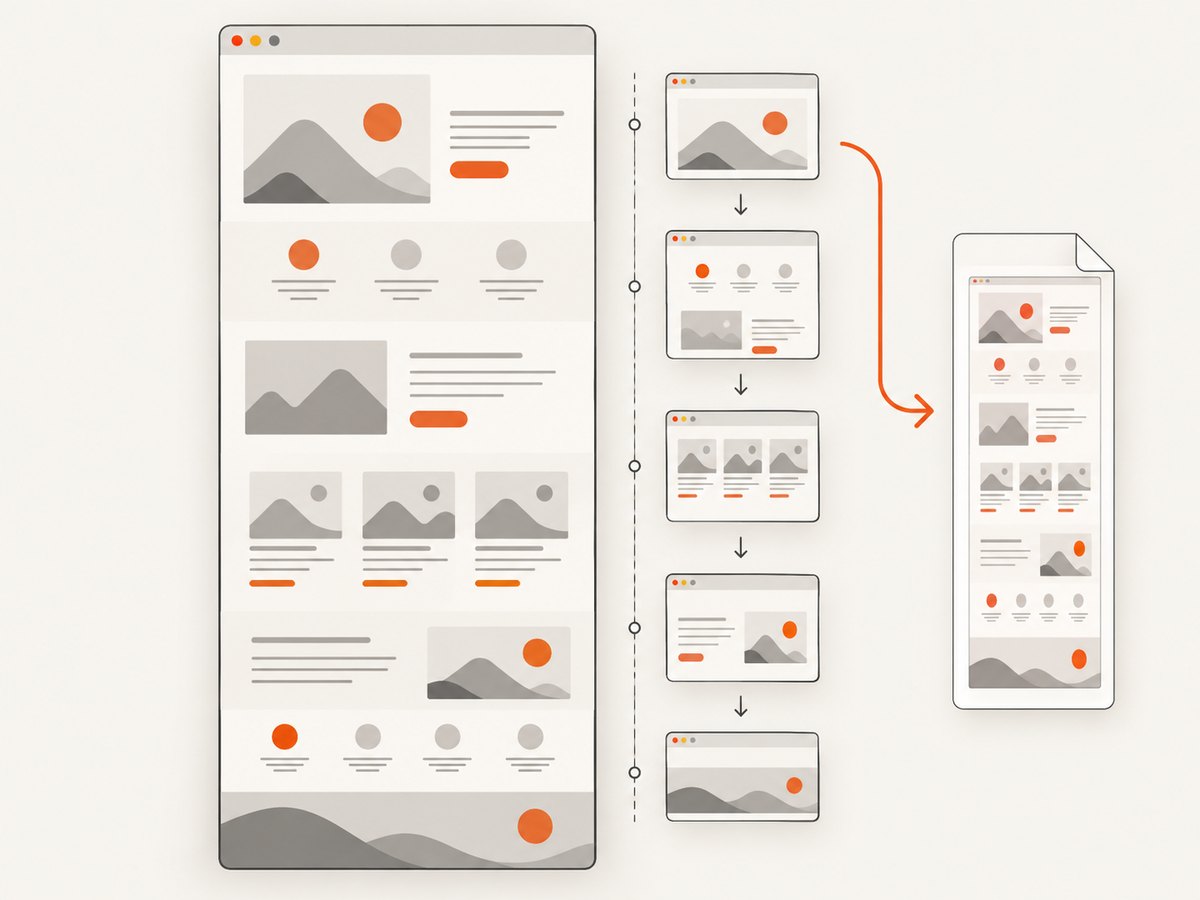
Short answer: use a full-page screenshot when you need one tall image that preserves the webpage’s visual appearance. Use print preview and Save to PDF when you need a paginated document for printing, sharing, or offline reading. These outputs are different: a screenshot follows the page as rendered on screen, while a PDF follows print-layout rules that can change spacing, backgrounds, page breaks, and typography.
This guide covers desktop browsers, iPhone workflows, automation, configuration choices, common failures, and a browser-free API approach. For a visual archive, choose the screenshot route. For a conventional document, choose PDF export.
Choose the right output first
| Goal | Best route | What to expect |
|---|---|---|
| One tall image that resembles the webpage | Browser full-page screenshot | Exports an image such as PNG or JPEG. It includes content below the fold and follows screen styling. |
| A document with pages, margins, and paper sizes | Print preview → Save to PDF | Creates a paginated PDF. The result can differ from the screen version. |
| A whole webpage on iPhone | Firefox Full Page or Safari’s PDF save flow | Both produce a file you can save to Files; the exact route depends on the browser. |
| Repeatable captures in a script or service | Headless browser or screenshot API | Requires handling loading, lazy content, cookies, popups, timeouts, and output storage. |
Do not assume that “full page” means “PDF.” Firefox’s desktop full-page screenshot feature saves an image or copies it to the clipboard, while Firefox’s PDF workflow is a separate print-preview operation. Mozilla documents the screenshot workflow and its print settings separately.
Firefox desktop: save a full-page screenshot image
Firefox has a built-in full-page capture tool. It is the simplest option when your target is a single tall image.
- Open the webpage in Firefox and wait for the visible content to load.
- Right-click an empty part of the page and select Take Screenshot. You can also open the command with Ctrl+Shift+S on Windows or Linux, or Command+Shift+S on macOS.
- Select Save full page.
- Review the preview, then download the image or copy it to the clipboard.
The result is an image file, not a PDF. If you must deliver a PDF, use the print workflow below or convert the image afterward. Converting a very tall image to PDF does not automatically create sensible page breaks; it may produce one oversized page or reduce the image until text is difficult to read.
Firefox desktop: print a webpage to PDF
Use Firefox print preview when the final artifact should behave like a document.
- Open the page and choose Print from the Firefox menu.
- Set the destination to Save to PDF.
- Choose a page range. The default is normally all pages, but a selected range is useful for long articles.
- Choose portrait or landscape orientation. Landscape can prevent wide tables or code blocks from being clipped.
- Set the paper size, scale, and margins. Start with the default scale, then inspect the preview for page breaks.
- Decide whether to use the original page styling or simplified formatting when that option is available.
- Enable background graphics if colors, panels, or images are part of the document you need to preserve. Simplified formatting disables background printing.
- Review headers and footers, then save the PDF.
Websites can deliberately define a different print stylesheet, so the PDF may not look like the browser window. Mozilla warns that pages can be set up to appear differently on paper than on screen. Always inspect the preview before saving, especially when the page contains navigation, advertisements, sticky headers, wide tables, or interactive controls.
Microsoft Edge: capture the entire webpage
Edge’s Screenshot tool can capture a complete webpage, including content that requires scrolling. It can be opened from the right-click menu, the Settings menu, or with Ctrl+Shift+S.
- Open the target page in Edge.
- Start Screenshot.
- Choose the full-page capture option rather than a selected area.
- Use the overlay to add markup if needed.
- Copy the result or save the screenshot file.
Microsoft’s feature documentation describes an image capture workflow, not a PDF export. If the requirement is a PDF, use Edge’s print dialog and select a PDF destination. Availability and behavior can vary by device, market, and browser version, so a missing option may be a version or rollout issue rather than a page problem.
iPhone: save a full webpage as a PDF
Firefox for iOS
Firefox for iOS can turn a full-page screenshot into a PDF.
- Open the webpage in Firefox.
- Take an iPhone screenshot using the side button and volume-up button, or the side button and Home button on models with Touch ID.
- Tap the screenshot preview before it disappears.
- Select Full Page.
- Tap Done, then choose Save as PDF.
- Choose a destination such as Files and name the document.
See Mozilla’s Firefox for iOS PDF instructions if the controls differ in your installed version.
Safari on iPhone
Safari uses its share and markup flow:
- Open the page in Safari.
- Open the page menu and tap Share. Depending on your tab layout, the Share button may be at the top or bottom.
- Choose Markup.
- Tap Done.
- Choose Save File To, select a folder, name the PDF, and save it.
Apple describes this route in its iPhone user guide. The iPhone procedures here should not be assumed to match Android or desktop Safari without checking the current browser documentation.
Chrome and other browsers
Chrome desktop commonly exposes a full-size screenshot command through DevTools: open DevTools, open the command menu, and search for Capture full size screenshot. The available community guidance is not an official Chrome Help article, and command names can change. Treat it as a version-dependent option and verify the resulting image before relying on it for production work.
For a PDF in Chrome, Edge, Safari, or another desktop browser, the dependable general route is the browser’s print dialog followed by a PDF destination. Inspect page ranges, paper size, margins, scale, and background settings because print CSS controls the output.
Automate a full-page screenshot with a headless browser
Browser automation is useful when you need repeatable captures, authenticated pages, custom waits, or scheduled archives. The basic sequence is:
- Launch a browser with a fixed viewport.
- Navigate to the URL and wait for the page to reach the state you need.
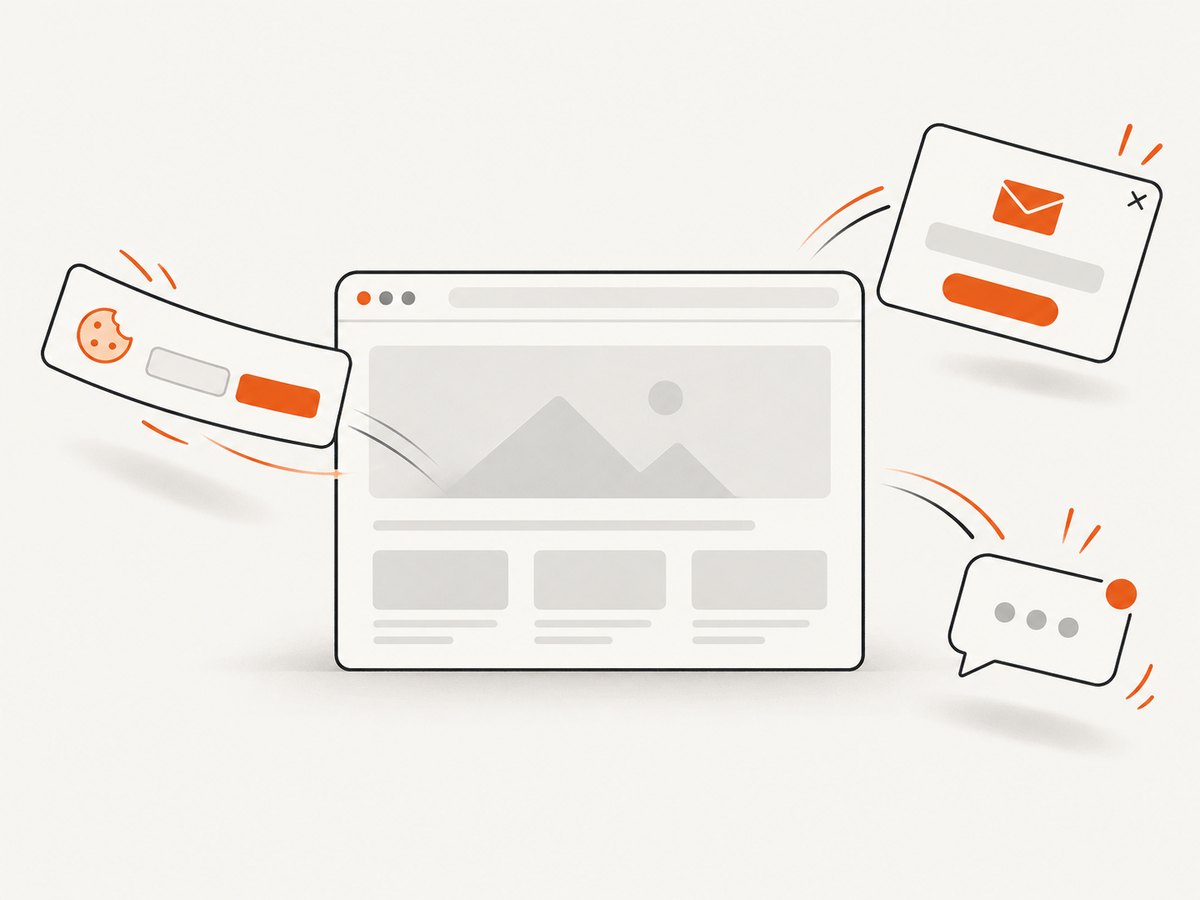
- Dismiss consent dialogs and other overlays.
- Wait for images and lazy-loaded sections.
- Capture with full-page mode for an image, or use the browser’s PDF print function for a paginated document.
- Close the browser and store the output with metadata such as URL, timestamp, viewport, and error state.
Playwright example: full-page PNG
import { chromium } from 'playwright';

const browser = await chromium.launch();
const page = await browser.newPage({ viewport: { width: 1440, height: 900 }, deviceScaleFactor: 1 });
await page.goto('https://example.com', { waitUntil: 'networkidle', timeout: 90000 });
await page.screenshot({ path: 'page.png', fullPage: true });
await browser.close();
Playwright example: PDF
import { chromium } from 'playwright';

const browser = await chromium.launch();
const page = await browser.newPage({ viewport: { width: 1440, height: 900 } });
await page.goto('https://example.com', { waitUntil: 'networkidle', timeout: 90000 });
await page.pdf({
  path: 'page.pdf',
  format: 'A4',
  printBackground: true,
  margin: { top: '16mm', right: '16mm', bottom: '16mm', left: '16mm' }
});
await browser.close();
For production captures, add explicit handling for cookie banners, login state, blocked resources, lazy images, animations, and pages that never become idle because of analytics or live connections. A fixed wait can help with delayed rendering, but waiting for a meaningful selector is usually more precise.
Or skip the browser setup
ScreenshotNeo provides a website screenshot API and MCP server. One GET request returns a PNG, JPEG, WebP, or PDF. Its capture can accept consent banners and remove more than 60 known consent platforms, newsletter popups, and chat widgets before the shot; each cleanup step can be turned off. Bot checks, blank pages, timeouts, failed loads, and cache hits are not billed, and the response reports the result with X-Page-Verdict and X-Billed headers. An MCP server provides take_screenshot, get_page_info, and capture_pdf tools for Claude, Cursor, and other MCP clients.
See the ScreenshotNeo API documentation for the complete parameter list and OpenAPI specification.
cURL
curl -G "https://api.screenshotneo.com/v1/shot" \
  -d access_key=YOUR_API_KEY \
  --data-urlencode url=https://stripe.com \
  -o shot.webp
Python
import requests

r = requests.get(
    "https://api.screenshotneo.com/v1/shot",
    params={"access_key": "YOUR_API_KEY", "url": "https://stripe.com"},
    timeout=90,
)
r.raise_for_status()
open("shot.webp", "wb").write(r.content)
Node.js
const q = new URLSearchParams({
  access_key: 'YOUR_API_KEY',
  url: 'https://stripe.com'
});
const res = await fetch(`https://api.screenshotneo.com/v1/shot?${q}`);
if (!res.ok) throw new Error(`HTTP ${res.status}`);
const data = Buffer.from(await res.arrayBuffer());
await import('node:fs/promises').then(fs => fs.writeFile('shot.webp', data));
For a PDF, add the documented PDF options such as paper size, margins, landscape mode, and page ranges. Other useful options include full-page capture with lazy images loaded, a CSS selector for one element, dark mode, twelve device presets, custom viewport and retina scale, custom CSS and JavaScript, clicks before capture, selector waits, delays, network-idle waits, ad and tracker blocking, custom headers, cookies, user agent, Authorization, timezone, geolocation, transparent backgrounds, image resizing, a chosen cache TTL, signed links for public image tags, asynchronous jobs with signed webhooks, bulk capture for up to 100 URLs per call, and a usage API.
Only clean shots are billed. The Free plan includes 1,000 shots per month without a card. Paid plans start at $5 for 3,000 shots; Growth is $15 for 15,000, Pro is $39 for 60,000, Scale is $99 for 250,000, and Business is $249 for 1,000,000. Yearly billing gives two months free, and every feature is included on every plan. Create a free ScreenshotNeo account to get 1,000 screenshots a month with no card.
Configuration decisions that affect the result
Full page versus one element
Full-page mode captures the document below the fold. Element capture is better for a report card, product panel, invoice, or article body. An element selector also avoids including navigation and unrelated page sections.
Screen styling versus print styling
A screenshot preserves screen layout, including sticky elements and background colors. A PDF uses print layout and can reflow columns or remove decorative backgrounds. Choose based on the reader’s next action: visual comparison favors an image; printing and text selection favor PDF.
Waiting and lazy content
Some pages load images only after scrolling. Use a full-page capture mode that loads lazy images, or scroll the page in automation before capturing. Wait for a selector that proves the main content exists, then allow a short delay for fonts and images.
Cookies, authentication, and location
Cookie state can change the page dramatically. Supply the required cookies or headers for authenticated content, and use a consistent user agent, timezone, and geolocation when regional rendering matters. Never put secrets directly in a publicly shared URL or log line.
Troubleshooting
| Symptom | Likely cause | Fix |
|---|---|---|
| The PDF has unexpected page breaks | Print CSS, scale, margins, or paper size | Inspect print preview, try landscape, adjust scale and margins, and switch between simplified and original formatting. |
| Colors or panels disappear | Background printing is disabled | Enable background graphics. Avoid simplified formatting when visual styling matters. |
| The capture ends before below-the-fold images load | Lazy loading or an early screenshot | Scroll first, wait for the image or content selector, or use a capture option that loads lazy images. |
| A cookie banner covers the content | The consent dialog was not dismissed | Accept or close it in automation, hide its selector, or use a service that removes known consent platforms before capture. |
| A sticky header repeats down the image | The page keeps a fixed element during full-page stitching | Hide the selector before capture or capture the main content element instead of the entire document. |
| The full-page control is missing in Edge or Firefox | Browser version, device, rollout, or page context | Update the browser, try the documented keyboard shortcut, or use print preview/API capture. |
| The result is blank | Navigation failed, bot protection appeared, or the page needs JavaScript | Check the URL and response, wait for a meaningful selector, provide required headers or cookies, and inspect the page verdict. |
| Automation times out | Long-running requests, ads, analytics, or a page that never reaches network idle | Set a bounded timeout, wait for a selector instead of indefinite network idle, and block unnecessary resource types. |
| Text is too small in the PDF | A tall or wide layout was scaled to fit | Use a larger paper size, landscape orientation, narrower content, or selected page ranges. |
Performance, reliability, and cost
Capture time is dominated by navigation, JavaScript execution, fonts, images, and third-party requests. Block ads, trackers, and unnecessary resource types when they are not part of the page you need. Reuse a browser process for batches, but isolate cookies and authentication between tenants. For stable archives, record the URL, timestamp, viewport, browser or API options, and verdict alongside each file.
Cache only when the page can safely be reused. A short cache TTL reduces repeated work while still reflecting changes; a long TTL is useful for immutable documentation. For large batches, queue jobs, cap concurrency, retry transient navigation failures with backoff, and use signed webhooks for asynchronous completion. ScreenshotNeo’s bulk capture supports up to 100 URLs per call, while its cache hits and failed captures are not billed.
Check the output itself, not only the HTTP status. A successful request can still represent a bot check, blank page, timeout, or other non-clean result. With ScreenshotNeo, inspect X-Page-Verdict and X-Billed so your pipeline can distinguish a usable capture from a non-billable failure or cache response.
FAQ
Can I make a full-page screenshot directly into a PDF?
Firefox desktop saves its full-page capture as an image. For a true paginated PDF, use print preview or a PDF-capable capture API.
Why does my PDF look different from the webpage?
Print stylesheets, paper dimensions, margins, scale, and background-print settings can all change the layout. Review the print preview before saving.
Which format is best for archiving?
Use PDF when page boundaries, text selection, and printing matter. Use PNG, JPEG, or WebP when preserving the on-screen composition as one image matters more.
Can a screenshot include content behind a login?
Yes, if the browser or API receives the correct authenticated session, cookies, or headers. Protect those credentials and avoid exposing them in client-side links.
What should I use for many URLs?
Use a queued headless-browser worker or an API with bulk and asynchronous job support. Add bounded retries and store verdict metadata with every result.


