How to Take a Full-Page Screenshot Without Scrolling
Capture an entire webpage in one image or PDF using built-in browser tools, mobile controls, automation, or ScreenshotNeo.

Short answer: use your browser’s full-page capture command. In Microsoft Edge, press Ctrl+Shift+S and choose Capture full page. In Firefox, open the Screenshot tool and select Save full page. In Chrome, open DevTools, run Capture full size screenshot from the Command Menu, and save the resulting image. On phones, use Full Page, Scroll capture, or Capture more, depending on the device.
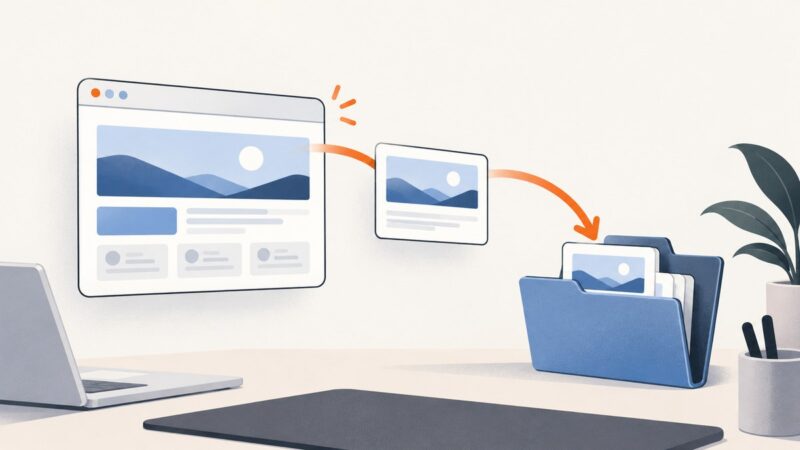
A normal screenshot records only the visible viewport. A full-page screenshot renders content below that viewport into one image or document, so you do not need to scroll manually. The method you choose depends on your browser, whether the page uses lazy loading or nested scroll panels, and whether you need PNG, JPEG, WebP, or PDF output.
Choose the right full-page method
| Situation | Best first option | Why |
|---|---|---|
| Windows desktop, Edge | Edge Web Capture | Built-in full-page capture with annotation and copy options. |
| Firefox desktop | Firefox Screenshot | Offers visible, region, element, and full-page captures. |
| Chrome desktop | DevTools Command Menu | Chrome documents “Capture full size screenshot” for developer workflows. |
| iPhone or iPad | Safari Full Page | Captures the whole document and can be saved as a PDF. |
| Android phone | Scroll capture or Capture more | Manufacturer and Android version determine the exact label. |
| Automated or repeated captures | Browser automation or ScreenshotNeo | Useful for scripts, scheduled jobs, APIs, and consistent output. |

Microsoft Edge: capture a full page
- Open the webpage and wait for its visible content to finish loading.
- Press Ctrl+Shift+S, or open Edge’s Screenshot/Web Capture command from the browser menu.
- Select Capture full page.
- Review the result. Add markup if needed, then copy it or save it to your normal download location.
Edge’s capture tool is designed to include content that extends beyond the screen. Microsoft describes this as capturing an entire webpage in one screenshot, including content beyond the visible display. See Microsoft’s Edge support documentation for the current command location, since menu labels can change.
When Edge does not include everything
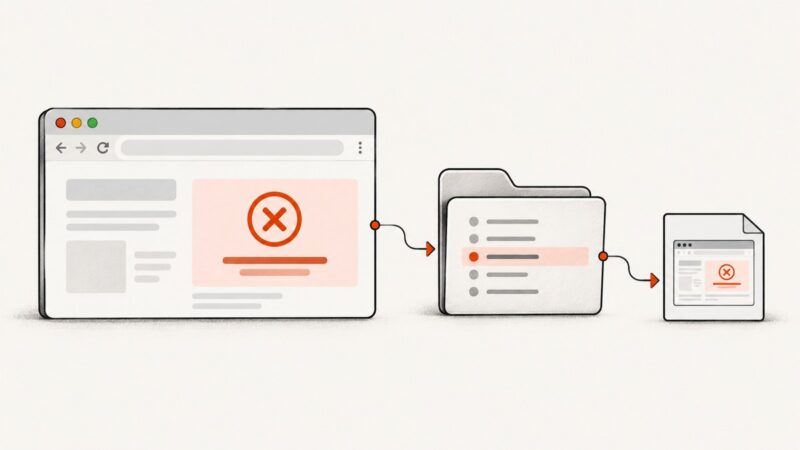
Let images and scripts finish loading before invoking Web Capture. A page that loads images only when they approach the viewport may produce blank sections if the browser never triggers those loads. A page can also contain an inner scrollable panel, such as a chat transcript or dashboard table. The browser may capture the outer document while leaving the panel at its current scroll position. Use the application’s export feature or an automation tool that can scroll that specific element.
Firefox: save the full page
- Open the page in Firefox.
- Start Firefox Screenshot from the page context menu or browser menu.
- Choose Save full page.
- Download the PNG, or use the Developer Tools full-page screenshot control when you need a developer-oriented workflow.
Firefox also supports visible-area, selected-region, and element captures. The Mozilla Support guide documents the full-page command as Save full page: Take screenshots in Firefox.
Firefox edge cases
- Fixed headers: a sticky header can appear repeatedly or overlap content in very long pages. Try the browser’s element capture or temporarily hide the header with a user style.
- Cross-origin frames: an embedded frame may not be captured as expected. Capture the framed page directly if you control its URL.
- Animations: pause video, carousels, and transitions when visual consistency matters.
Chrome: use DevTools to capture full size
- Open the target page in Chrome.
- Open DevTools with F12 or Ctrl+Shift+I.
- Open the DevTools Command Menu with Ctrl+Shift+P on Windows/Linux or Cmd+Shift+P on macOS.
- Type
Capture full size screenshot. - Select the command. Chrome writes the resulting image to your normal download directory.
This is a DevTools workflow rather than a standard toolbar button. Chrome’s developer documentation covers screenshot commands in DevTools: Chrome DevTools documentation.
Preparing a page in Chrome
Before capture, check the device emulation toolbar if the page is responsive. A narrow emulated viewport may create a much taller image than your desktop view. Disable emulation when you want the normal desktop layout. In the Elements panel, you can temporarily remove a cookie banner, modal, or fixed chat launcher, but that changes the page only in your local DevTools session.
iPhone and iPad: use Safari Full Page
- Open the webpage in Safari.
- Take a screenshot using the device’s hardware-button shortcut.
- Tap the screenshot preview, then choose Full Page when that option appears.
- Use the page preview to crop or annotate, then save or share it. Depending on the workflow, iOS saves the complete capture as a PDF rather than a very large bitmap.
The Full Page option is intended for document-style pages. It may not represent a web app’s internal scrolling panel, and some pages expose only the currently rendered content.
Android: Scroll capture or Capture more
- Open the page in your browser.
- Take a screenshot with your phone’s normal power-and-volume or system shortcut.
- Tap Scroll capture, Capture more, or the equivalent button.
- Extend the selection until the required content is included, then save.
The exact label and maximum length depend on the phone manufacturer and Android version. If the control is missing, update the system and browser, or use a browser extension or PDF print workflow.
What full-page capture can miss
Full-page capture is not the same as physically scrolling every pixel. Browsers calculate a document’s layout and rasterize it, while scripts and images may continue changing during the operation.
- Lazy-loaded images: images may not exist until the page approaches them. Scroll through the document once, wait for loading, or use a capture tool that explicitly loads lazy images.
- Dynamic content: timestamps, ads, rotating banners, and personalized recommendations can change between sections.
- Nested scrolling: a panel with
overflow: autohas its own scroll position and may require a separate capture. - Infinite scroll: there may be no final page height. Capture a defined range or export the content from the application.
- Sticky elements: fixed navigation, chat buttons, and consent dialogs can cover text or repeat in the output.
- Very tall pages: huge PNGs consume memory and may be hard to open. PDF or a resized WebP can be more practical.
Automate a full-page screenshot with Playwright
For repeatable captures, browser automation gives you control over viewport size, waiting, authentication, and output format. This JavaScript example uses Playwright’s full-page option.

import { chromium } from 'playwright';

const browser = await chromium.launch();
const page = await browser.newPage({
  viewport: { width: 1440, height: 900 },
  deviceScaleFactor: 1
});

await page.goto('https://example.com', { waitUntil: 'networkidle' });
await page.screenshot({
  path: 'full-page.png',
  fullPage: true,
  type: 'png'
});

await browser.close();
Install Playwright with npm install playwright. For pages with lazy images, wait for a known selector or run a controlled scroll before the screenshot. For a specific element, replace page.screenshot with page.locator('.article').screenshot({ path: 'article.png' }). Avoid unbounded waits on sites that keep analytics requests open; wait for a meaningful selector or use a finite timeout.
Or skip the browser setup
ScreenshotNeo provides a website screenshot API: one GET request returns a PNG, JPEG, WebP, or PDF. It supports full-page capture and loads lazy images, so it is useful for scripts, CI jobs, reports, and scheduled page archives. The API documentation lists the options and parameter names.
cURL
curl -G "https://api.screenshotneo.com/v1/shot" \
  -d access_key=YOUR_API_KEY \
  --data-urlencode url=https://stripe.com \
  -o shot.webp
Python
import requests

r = requests.get(
    "https://api.screenshotneo.com/v1/shot",
    params={"access_key": "YOUR_API_KEY", "url": "https://stripe.com"},
    timeout=90,
)
r.raise_for_status()
open("shot.webp", "wb").write(r.content)
Node.js
const q = new URLSearchParams({
  access_key: 'YOUR_API_KEY',
  url: 'https://stripe.com'
});
const res = await fetch(`https://api.screenshotneo.com/v1/shot?${q}`);
if (!res.ok) throw new Error(`HTTP ${res.status}`);
const bytes = Buffer.from(await res.arrayBuffer());
await import('node:fs/promises').then(fs => fs.writeFile('shot.webp', bytes));
Useful ScreenshotNeo options
| Need | Available control |
|---|---|
| Entire document | Full-page capture with lazy images loaded. |
| One component | Capture an element by CSS selector. |
| Consistent appearance | Dark mode, 12 device presets, custom viewport, and retina scale. |
| Page state | Custom CSS and JavaScript, click an element, wait for a selector, delay, or network idle. |
| Clean output | Accept cookie or consent banners, remove more than 60 known consent platforms, newsletter popups, and chat widgets; each step can be turned off. |
| Access-controlled pages | Custom headers, cookies, user agent, and Authorization. |
| Network control | Block ads, trackers, requests, or resource types. |
| Location-sensitive pages | Timezone and geolocation. |
| File output | PNG, JPEG, WebP, or PDF with paper size, margins, landscape mode, and page ranges. |
| Delivery at scale | Caching with a chosen TTL, signed links, asynchronous jobs with signed webhooks, bulk capture for 100 URLs per call, and a usage API. |
ScreenshotNeo reports whether a response was clean and whether it was billed with the X-Page-Verdict and X-Billed headers. Bot checks or CAPTCHAs, blank pages, timeouts, failed loads, and cache hits are not billed. An MCP server also exposes take_screenshot, get_page_info, and capture_pdf to Claude, Cursor, and other MCP clients.
Troubleshooting checklist
| Symptom | Likely cause | Fix |
|---|---|---|
| Only the visible viewport is saved | The normal screenshot command was used. | Choose Capture full page, Save full page, or Capture full size screenshot. |
| Images are blank below the fold | Lazy loading did not trigger. | Scroll once, wait for image selectors, or use a tool that loads lazy images. |
| A chat window covers content | A fixed widget remains active. | Close or hide it locally, block the widget, or use ScreenshotNeo’s cleanup controls. |
| A cookie banner appears | Consent was not accepted before capture. | Accept it manually, hide the selector, or configure an automated consent step. |
| An inner panel is truncated | The panel has its own scrolling container. | Capture the panel element directly or use the application’s export. |
| The output is enormous | Very long page, high device scale, or oversized viewport. | Use a lower scale, resize the image, select WebP, or export PDF. |
| Automation hangs | Network idle never occurs because of persistent requests. | Wait for a specific selector or use a bounded delay and timeout. |
| ScreenshotNeo returns an error | Invalid key, inaccessible URL, or a page that failed to load. | Check the access key and encoded URL, inspect the HTTP status and response headers, and verify the target is reachable. |
Performance, reliability, and cost
Performance
Capture time grows with page complexity, image count, JavaScript execution, and output dimensions. A smaller viewport and device scale reduce rasterization work. Blocking advertising and tracking requests can shorten loads, but block only resources that are irrelevant to the screenshot. Caching is useful when the same URL is captured repeatedly; set a TTL that matches how often the page changes.
Reliability
Use deterministic waits: a selector for the content you need, a finite delay for a known animation, or network idle only when the site actually becomes idle. Record the URL, viewport, timestamp, output format, and verdict with each capture. For asynchronous jobs, verify signed webhook requests before processing them. For pages requiring login, supply cookies or authorization securely and rotate credentials according to your own policy.
Cost
Built-in browser and phone tools have no API charge. Automation consumes your own compute and browser maintenance time. ScreenshotNeo’s Free plan includes 1,000 shots per month with no card. Paid plans are Starter $5 for 3,000, Growth $15 for 15,000, Pro $39 for 60,000, Scale $99 for 250,000, and Business $249 for 1,000,000; yearly billing gives two months free. Every feature is available on every plan. Only clean shots are billed, while bot checks, CAPTCHAs, blank pages, timeouts, failed loads, and cache hits cost nothing.
Create a free ScreenshotNeo account to get 1,000 screenshots each month without a card.
FAQ
Can I take a full-page screenshot as a PNG?
Yes. Edge, Firefox, Chrome DevTools, and Android tools can produce image captures when supported. Safari’s Full Page workflow commonly produces a PDF, so use a desktop browser or an API when a bitmap is required.
Why is my full-page screenshot split or blurry?
The page may exceed the browser’s image limits, use a high device scale, or contain rapidly changing content. Reduce the scale, capture sections, or choose PDF/WebP output.
Does full-page capture include content behind a login?
Only if the browser session is authenticated. For automation, load the session’s cookies or credentials before capture. Do not place secrets in a public screenshot URL.
What is the best method for scheduled screenshots?
Use Playwright for complete control inside your own infrastructure, or ScreenshotNeo when you want an API, caching, asynchronous jobs, bulk capture, and cleanup of consent banners and widgets without maintaining a browser.
Can I capture just one section of a long page?
Yes. Browser tools may offer element capture, and Playwright can screenshot a locator. ScreenshotNeo accepts a CSS selector for one element.