How to Take Full-Page Screenshots with AShot and Selenium Java
Capture long webpages in Java with AShot and Selenium, handle lazy content and sticky elements, troubleshoot stitching issues, and compare an API option.
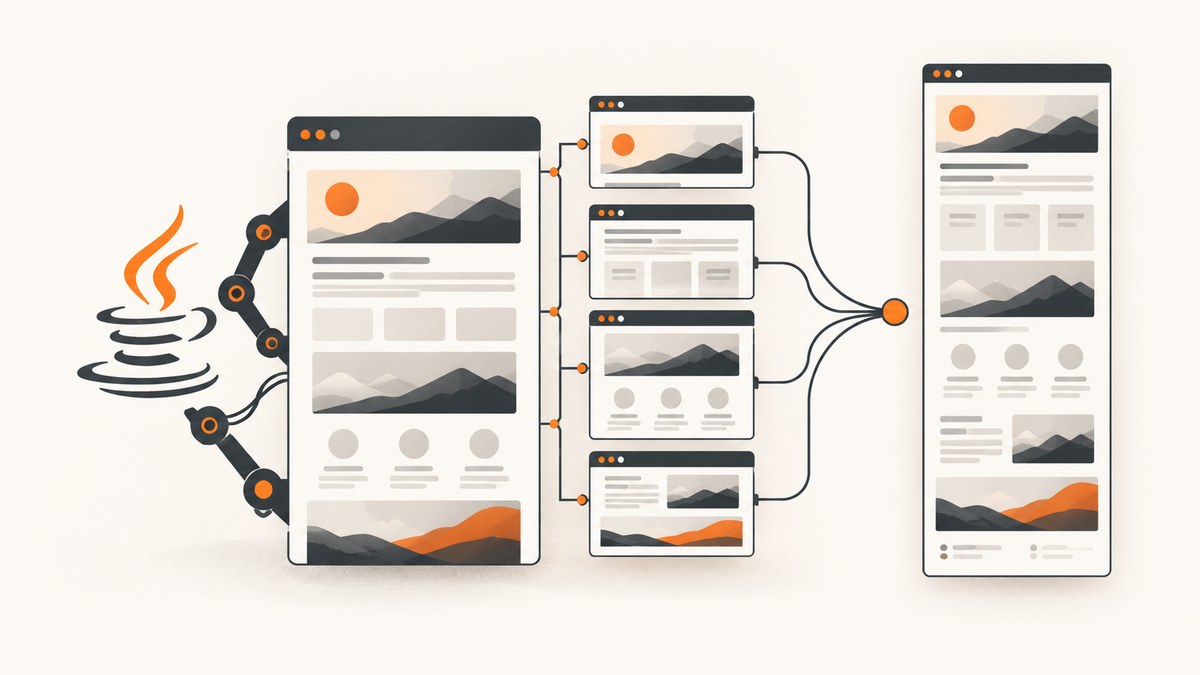
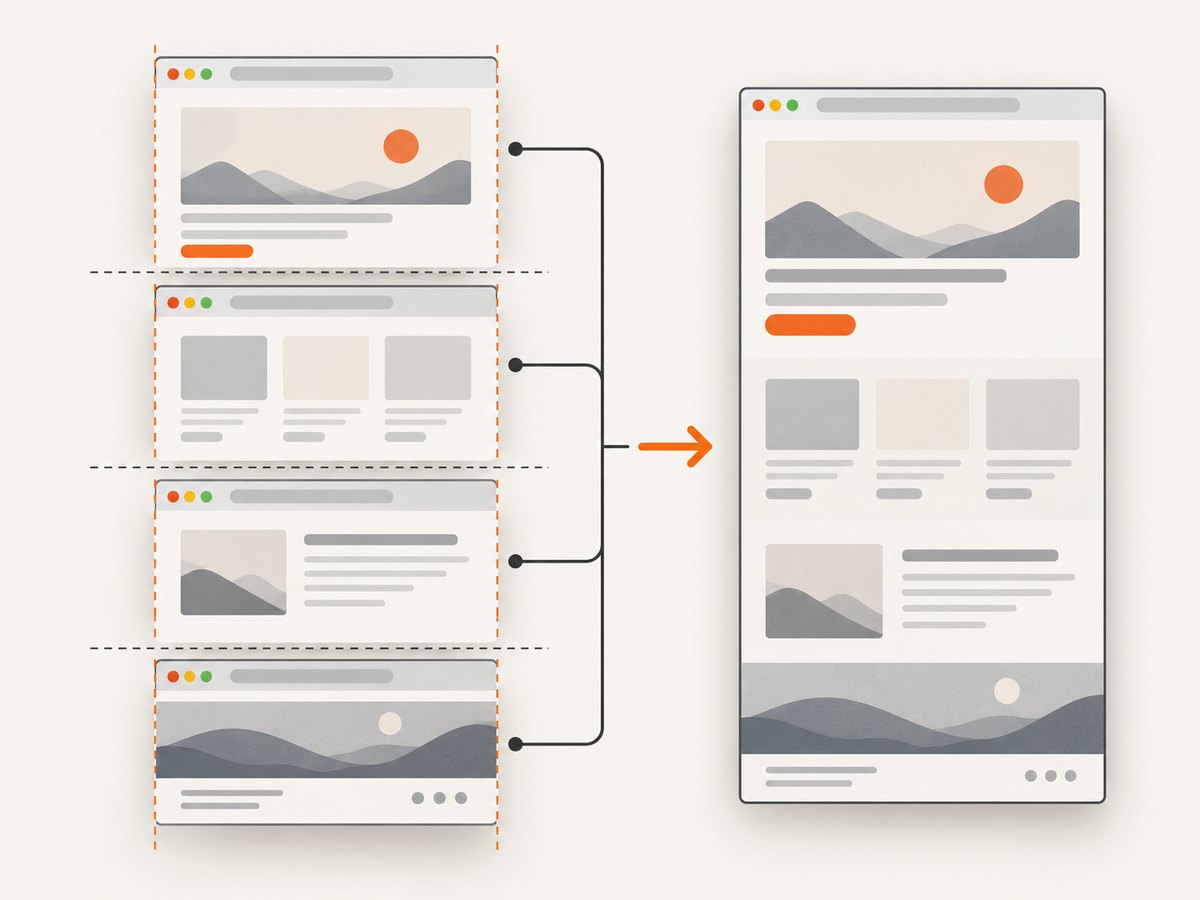
A full-page screenshot captures the document from top to bottom, including content that is below the initial viewport. With Java, Selenium, and AShot, the usual approach is to scroll through the page in viewport-sized steps and stitch the resulting images together.
AShot’s documented recipe is ShootingStrategies.viewportPasting(100). The number is a scroll delay in milliseconds. The complete Maven example below waits for the page, captures it, writes a PNG, and always closes the browser.
Complete Java example
<dependency>
  <groupId>ru.yandex.qatools.ashot</groupId>
  <artifactId>ashot</artifactId>
  <version>1.5.4</version>
</dependency>
The AShot README uses the coordinates above. Its repository history also contains a 1.5.2 release from 2015, so verify the dependency and Selenium versions against your own build before upgrading a production test suite.
import java.io.File;
import java.time.Duration;
import javax.imageio.ImageIO;

import org.openqa.selenium.By;
import org.openqa.selenium.WebDriver;
import org.openqa.selenium.chrome.ChromeDriver;
import org.openqa.selenium.support.ui.ExpectedConditions;
import org.openqa.selenium.support.ui.WebDriverWait;

import ru.yandex.qatools.ashot.AShot;
import ru.yandex.qatools.ashot.Screenshot;
import ru.yandex.qatools.ashot.shooting.ShootingStrategies;

public class FullPageScreenshot {
    public static void main(String[] args) throws Exception {
        WebDriver driver = new ChromeDriver();
        try {
            driver.manage().window().setSize(
                new org.openqa.selenium.Dimension(1440, 900));
            driver.get("https://example.com/long-page");

            WebDriverWait wait = new WebDriverWait(driver, Duration.ofSeconds(30));
            wait.until(ExpectedConditions.presenceOfElementLocated(By.cssSelector("main")));

            Screenshot screenshot = new AShot()
                .shootingStrategy(ShootingStrategies.viewportPasting(100))
                .takeScreenshot(driver);

            ImageIO.write(screenshot.getImage(), "PNG", new File("full-page.png"));
        } finally {
            driver.quit();
        }
    }
}
Replace the URL and readiness selector with the page under test. The selector should represent content that must exist before capture; it does not need to be the whole document. The AShot project README documents this viewport-pasting pattern and the Screenshot and ImageIO calls.
How viewport pasting works
AShot takes a viewport screenshot, scrolls down, takes another, and pastes the images into one larger bitmap. This is useful when a WebDriver returns only the visible area. The scroll delay gives the browser time to finish a scroll and repaint before the next capture.
- Open the page at a known viewport size.
- Wait for the structural element and any application state required for the image.
- Run
viewportPasting(delay). - Write
screenshot.getImage()as PNG, JPEG, or another format supported by your ImageIO installation. - Close the driver in a
finallyblock so failures do not leave browser processes running.
Choosing the delay
Start with the documented 100 ms value. Increase it when scrolling triggers layout work, lazy images, animations, or an application that updates content after every scroll. A delay that is too short can produce repeated sections, blank strips, or images captured before fonts and images paint. A delay that is too long increases runtime for every viewport. Use an explicit wait for a meaningful element whenever possible instead of relying on a large fixed sleep.
Make the page deterministic before capture
Most full-page defects come from page state rather than the PNG write. Prepare the page before invoking AShot:
- Wait for application content. Use
WebDriverWaitfor a result, table, article, or route-specific marker. - Load lazy content. Scroll-triggered images may not exist until their containers approach the viewport. If the page has a “load more” control, click it and wait for the new content.
- Stop moving UI. Disable carousels, blinking cursors, and transitions with test CSS where your application permits it.
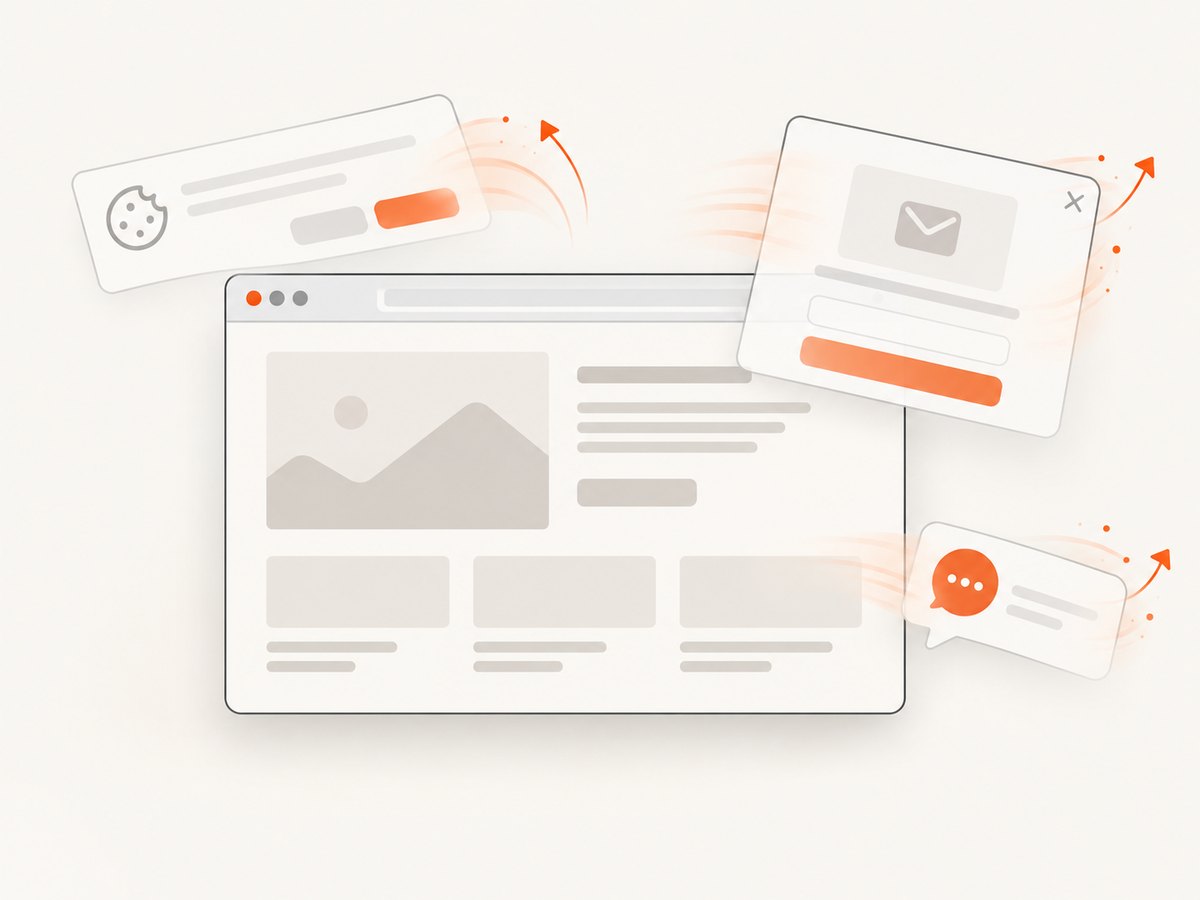
- Close overlays. Cookie dialogs, newsletter popups, and chat launchers can cover every stitched segment. Locate and dismiss them before capture.
- Set a fixed viewport. A different width changes responsive breakpoints and therefore the document height.
- Keep session state stable. Seed authentication, locale, feature flags, and test data before navigation.
driver.get("https://example.com/catalog");
WebDriverWait wait = new WebDriverWait(driver, Duration.ofSeconds(30));
wait.until(ExpectedConditions.presenceOfElementLocated(By.cssSelector("[data-testid='catalog']")));

// Example: dismiss a consent dialog when it is present.
var buttons = driver.findElements(By.cssSelector("button[data-testid='accept-cookies']"));
if (!buttons.isEmpty() && buttons.get(0).isDisplayed()) {
    buttons.get(0).click();
}

Screenshot screenshot = new AShot()
    .shootingStrategy(ShootingStrategies.viewportPasting(150))
    .takeScreenshot(driver);
Full page versus Selenium’s native screenshot
Selenium exposes TakesScreenshot.getScreenshotAs(OutputType.X). Its Java documentation says the operation follows the W3C WebDriver behavior for conformant drivers. For a non-conformant driver, the documented preference can be the entire page, current window, visible frame, or display. That means you should check the browser and driver combination instead of assuming one universal extent.
import org.openqa.selenium.OutputType;
import org.openqa.selenium.TakesScreenshot;

File file = ((TakesScreenshot) driver).getScreenshotAs(OutputType.FILE);
java.nio.file.Files.copy(file.toPath(),
    java.nio.file.Path.of("native-screenshot.png"),
    java.nio.file.StandardCopyOption.REPLACE_EXISTING);
Use the native method when your target driver reliably returns the required page extent. Use AShot when you need an explicit scroll-and-stitch strategy or want behavior independent of a driver’s full-page implementation. Selenium also supports element screenshots, which are useful when the requirement is one component rather than the entire document. See the Selenium screenshot documentation.
Options for difficult pages
Sticky and fixed elements
A fixed header can appear in every viewport image, creating repeated bands in the stitched result. AShot does not automatically know which pixels are fixed UI. Hide the header with test-only CSS, temporarily change its position, or crop the repeated area after capture. Validate the result visually because the correct treatment depends on the page.
Device pixel ratio and Retina displays
Browser, operating system, and device-pixel ratio affect dimensions. A historical AShot issue describes a Retina mismatch and mentions ShootingStrategies.viewportRetina(100, 0, 0, 2) as a case-specific suggestion. Treat that as a troubleshooting clue, not a universal fix. Compare the output dimensions with the CSS viewport and run the same test on the CI image used for review.
Very tall documents
A single bitmap can consume substantial memory. Prefer PNG for lossless visual diffs, JPEG when file size matters and photographic content is acceptable, and WebP when your downstream tooling supports it. For extremely long reports, capture logical sections separately or use a PDF workflow instead of creating one enormous raster image.
Cross-origin frames
Selenium can capture the rendered browser surface, but DOM waits and element operations inside a frame require switching to that frame. If a frame loads slowly, wait for the frame element and its expected content before starting AShot. Do not assume that a parent-page selector proves that an embedded application has finished rendering.
Alternative: Chrome DevTools and Shutterbug
The Selenium Shutterbug README documents Capture.FULL through Chrome DevTools and Capture.FULL_SCROLL through scrolling and stitching. The DevTools whole-page option applies to Chrome and may be preferable when sticky elements make stitching artifacts unacceptable. Compare browser coverage, fixed-element behavior, pixel-ratio handling, and whether another dependency is appropriate for your build. These are documented capabilities, not an independent benchmark.
Or skip the browser setup
ScreenshotNeo provides a website screenshot API and MCP server. One GET request returns PNG, JPEG, WebP, or PDF, so you do not manage WebDriver binaries, scrolling, or image stitching. Before capture it accepts cookie and consent banners and removes more than 60 known consent platforms, newsletter popups, and chat widgets; each step can be disabled. Bot checks, blank pages, timeouts, failed loads, and cache hits are not billed, and response headers report the page verdict and billing status.
See the ScreenshotNeo API documentation for all options, including full-page capture with lazy images, CSS-selector element capture, device presets, custom viewports, retina scale, waits, custom CSS and JavaScript, clicks, request blocking, headers, cookies, user agents, timezone, geolocation, transparency, resizing, caching, signed links, asynchronous jobs, webhooks, bulk capture, usage data, and PDF settings.
cURL
curl -G "https://api.screenshotneo.com/v1/shot" -d access_key=YOUR_API_KEY --data-urlencode url=https://stripe.com -o shot.webpPython
import requests
r = requests.get("https://api.screenshotneo.com/v1/shot", params={"access_key": "YOUR_API_KEY", "url": "https://stripe.com"}, timeout=90)
open("shot.webp", "wb").write(r.content)
Node.js
const q = new URLSearchParams({ access_key: 'YOUR_API_KEY', url: 'https://stripe.com' });
const res = await fetch(`https://api.screenshotneo.com/v1/shot?${q}`);
const fs = require('node:fs');
fs.writeFileSync('shot.webp', Buffer.from(await res.arrayBuffer()));
An MCP server also exposes take_screenshot, get_page_info, and capture_pdf for Claude, Cursor, and other MCP clients. The Free plan includes 1,000 shots each month with no card; paid plans start at $5 for 3,000 shots, and every feature is available on every plan. Create a free ScreenshotNeo account.
Troubleshooting checklist
| Symptom | Likely cause | Fix |
|---|---|---|
| Only the viewport is saved | Native driver behavior or wrong API | Use AShot viewport pasting and verify the output height. |
| Repeated header on every section | Fixed or sticky element | Hide or reposition it during capture, or evaluate a Chrome DevTools full-page method. |
| Blank or partially loaded sections | Scroll delay is too short or lazy loading is incomplete | Wait for content, increase the delay, and ensure images are loaded before capture. |
| Seams or duplicated rows | Layout changed between viewport captures | Disable animations, freeze data, keep viewport and zoom constant, and retry on a stable CI image. |
| Unexpected dimensions | Device-pixel ratio or browser scaling | Record CSS viewport and output dimensions; investigate Retina-specific strategy settings. |
| Timeout before capture | Selector never appears or the page remains busy | Choose a reliable readiness marker, inspect network and console errors, and fail with a useful diagnostic. |
| Out-of-memory failure | Extremely tall raster image | Capture sections, reduce scale, or generate a PDF. |
Performance, reliability, and cost considerations
Runtime grows with the number of viewport positions, the scroll delay, and page rendering work. Keep the viewport as large as your visual requirement allows, remove unnecessary third-party resources in test environments, and avoid recapturing unchanged pages. For visual regression, use stable test data and compare on the same browser and operating-system image.
AShot itself does not provide a service-level guarantee or billing model; browser execution, driver versions, and the page determine your operational cost. If you run many URLs, a managed API can move browser maintenance out of your test workers. ScreenshotNeo supports caching with a TTL you choose and reports whether a response was billed through response headers. Clean shots are billed; bot checks, blank pages, timeouts, failed loads, and cache hits are not.
FAQ
Does AShot capture lazy-loaded images?
It captures what is rendered during its scroll sequence. Trigger lazy loading before or during capture and wait for the required images; behavior depends on the page’s JavaScript.
Can I save JPEG instead of PNG?
Yes. Pass "JPG" or another ImageIO-supported format to ImageIO.write, and use a matching file extension.
Is viewportPasting(100) guaranteed on every browser?
No. The strategy is documented, but browser layout, driver behavior, pixel ratio, and sticky UI can change results. Validate it on the browser and CI image you support.
When should I capture an element instead?
Capture an element when the requirement concerns one chart, card, or article body. Element screenshots avoid stitching unrelated page chrome and are usually smaller.


