How to Take Full-Page Screenshots in Django
Use Playwright to render a Django page and capture its full scrollable height. This guide covers runnable scripts, Django tests, setup, options, and troubleshooting.

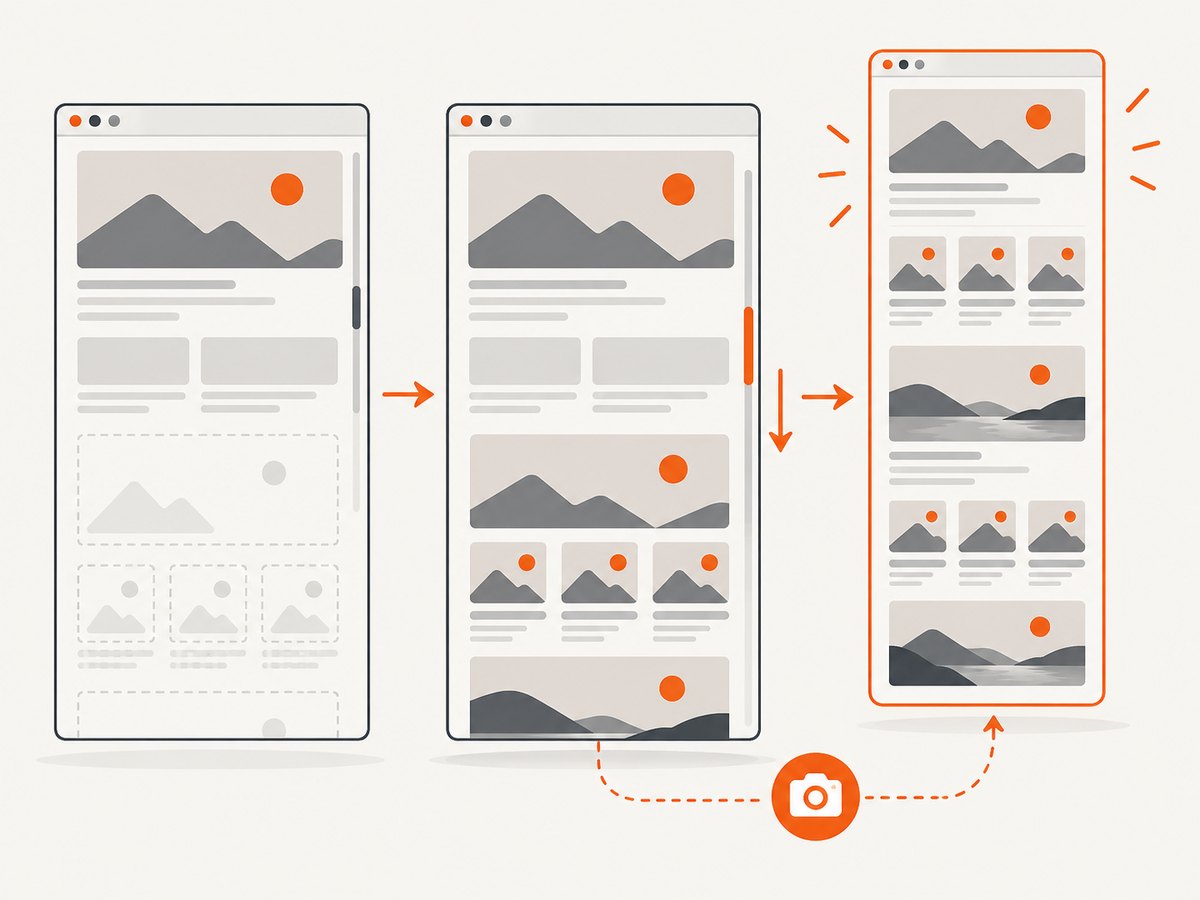
A Django view serves HTML; a browser renders that HTML and captures the result. With Playwright’s Python API, navigate to the running Django page and pass full_page=True to page.screenshot(). The browser captures the full scrollable page, not just the visible viewport.
For a standalone script, install Playwright and its browser, start Django so the target URL is reachable, then run the script below. For a Django browser test, use the test server URL supplied by Django’s live server support. In both cases, capture happens after the browser has loaded the page.
1. Install Playwright and start Django
Use the Python environment for your project. Install the Playwright package, then install a browser binary. Playwright’s Python documentation covers both its synchronous and asynchronous APIs; this guide uses the synchronous API for a compact command-line script. Check the official Playwright Python installation guide for version-specific setup.
python -m pip install playwright
python -m playwright install chromium
Start your Django development server in one terminal. Substitute the port or host appropriate to your setup:
python manage.py runserver 127.0.0.1:8000Confirm that the page you want to capture is reachable at its full URL, such as http://127.0.0.1:8000/reports/. A browser process runs separately from Django. It needs network access to the server, static files, and any other resources the page loads. If Django is running in a container, the browser must use a hostname and port that are reachable from where the script runs.
2. Capture a full page with a standalone Python script
Save this as capture_django_page.py and run it while the Django server is running. Change url and output_path to match the route and desired filename.
from pathlib import Path
from playwright.sync_api import sync_playwright

url = "http://127.0.0.1:8000/reports/"
output_path = Path("full-page.png")

with sync_playwright() as playwright:
    browser = playwright.chromium.launch()
    page = browser.new_page(viewport={"width": 1440, "height": 900})
    response = page.goto(url, wait_until="networkidle", timeout=30_000)

    if response is None:
        raise RuntimeError(f"Navigation did not return an HTTP response for {url}")
    if not response.ok:
        raise RuntimeError(
            f"Page returned HTTP {response.status} {response.status_text}: {url}"
        )

    page.screenshot(path=str(output_path), full_page=True)
    browser.close()

print(f"Saved full-page screenshot to {output_path.resolve()}")
The key option is full_page=True. Playwright documents this as a capture of the full scrollable page, as if it were displayed on a very tall screen. The viewport still matters: it sets the browser’s width and visible height during rendering, which can affect responsive layout and scripts that react to viewport size. The screenshot extends vertically to include the scrollable content.
The script checks the navigation response before saving. A page that returns an HTTP error may still render an error page, so checking status helps catch a bad route or server failure rather than silently producing an image of it. Some navigation patterns, such as redirects or pages that do not provide a normal response, need handling suited to the application.
3. Choose when the page is ready
A screenshot can be technically successful but visually incomplete if it is taken before fonts, images, client-side rendering, or asynchronous content has finished. Playwright’s page.goto() accepts a wait_until state. The example uses networkidle, but that is not a universal readiness guarantee: applications with persistent network activity may never become idle, and a quiet network does not prove a particular component has rendered.
For a page with a known completion marker, wait for that element instead:
page.goto(url, wait_until="domcontentloaded", timeout=30_000)
page.locator("[data-report-ready='true']").wait_for(state="visible", timeout=15_000)
page.screenshot(path="report.png", full_page=True)
Use a selector that indicates the content is actually ready, rather than an element that appears in the initial HTML while its data is still loading. If there is no useful marker, a short fixed delay can be a last resort, but it makes capture time less predictable and may still be too short under load.
4. Save to a file or return image bytes
When you want an artifact on disk, pass path. Playwright chooses the image type from the extension, such as .png or .jpeg. When another step will upload or process the image, request bytes instead and avoid an intermediate file:
image_bytes = page.screenshot(full_page=True, type="png")
# Pass image_bytes to a storage client or image-processing function.
In the synchronous API, page.screenshot() returns the image bytes. The asynchronous API returns them through await. Choose the format and downstream handling based on your application; do not assume a screenshot path is available if no path was provided.
5. Use Playwright in a Django browser test
Django’s browser-testing documentation shows navigating to a route with self.live_server_url and Django’s reverse(). That pattern lets a test use a temporary test server rather than requiring a separate development server. Django’s example uses a browser page object supplied by its browser-test setup. The exact setup depends on the browser testing package and Django version; see the Django live server documentation and the relevant browser integration instructions.
The essential navigation and capture calls look like this when a test has a Playwright page available:
from django.urls import reverse

path = reverse("reports:detail", kwargs={"pk": 1})
self.page.goto(self.live_server_url + path)
self.page.screenshot(path="report-test.png", full_page=True)
This snippet assumes the test class provides self.page and self.live_server_url; those are not built into every Django test class by default. Configure the browser test runner or fixture that supplies them. A standalone script instead launches Playwright directly and navigates to a running server URL.
6. Configure dimensions, clipping, and scale
Choose the browser viewport to reproduce the layout you need. A desktop viewport and a narrow mobile viewport can trigger different responsive templates. A full-page screenshot captures the page at the selected viewport width; it does not mean the browser tests every responsive width at once.
| Need | Playwright setting | What it changes |
|---|---|---|
| Whole scrollable document | full_page=True |
Captures beyond the visible viewport vertically. |
| One region | clip={"x": ..., "y": ..., "width": ..., "height": ...} |
Restricts the captured area to a rectangle. |
| CSS-pixel scale | scale="css" |
Uses CSS pixels for output dimensions, where supported by the installed API version. |
| Device-pixel scale | scale="device" |
Uses device pixels, which can yield a larger, more detailed output. |
| Transparent page background | omit_background=True |
Omits the default background where supported by the selected format. |
Playwright’s screenshot API documents full-page capture, clipping, and scale options. Consult the Python Page screenshot reference for the exact supported arguments in your installed version. Clipping and full-page behavior solve different needs; if you combine options, confirm the resulting region is the one you intend.
7. Handle long pages and dynamic content
Full-page images can become extremely tall. Long tables, feeds, and pages with infinite scrolling deserve special attention. A browser can capture the scrollable document it has rendered, but an infinite-scroll application may not have loaded all records simply because a full-page screenshot was requested. If content loads on scroll, scroll through the page or use the application’s own readiness signal before capturing.

Lazy-loaded images may also appear blank if they have not been brought into view. One approach is to scroll incrementally, allowing the page to load viewport-triggered content, then return to the top and capture. This is an application-specific technique; test that scrolling does not trigger unwanted actions such as pagination or destructive controls.
height = page.locator("body").evaluate("element => element.scrollHeight")
step = 700
for position in range(0, height, step):
    page.evaluate("y => window.scrollTo(0, y)", position)
    page.wait_for_timeout(100)
page.evaluate("window.scrollTo(0, 0)")
page.screenshot(path="long-page.png", full_page=True)
The wait in this example is a brief opportunity for scroll-triggered loading; it is not proof that every request is complete. For a reliable capture, wait for a specific content condition, such as the expected row count or a loading indicator disappearing. Be cautious with huge documents: output dimensions, memory use, and image encoding work grow with the captured area.
8. Authentication, static files, and repeatability
If the Django route requires login, authenticate the browser before navigating to the protected page. For a test, use the test framework’s supported login or authenticated client setup where appropriate; for an end-to-end browser, perform the real login flow or configure browser storage state. Avoid putting credentials directly into source code. Keep test accounts and secrets in the environment or test configuration.
Check that static files and media are reachable from the browser. A page may return HTTP 200 while its CSS, fonts, or images fail, leaving a screenshot that looks unstyled or incomplete. In development, Django’s static-file handling differs from production deployment, so reproduce the environment that matters to the screenshot. For stable visual comparisons, pin browser and dependency versions and make time-dependent content deterministic where the application allows.
9. cURL, Python requests, and Node.js alternatives
cURL and Python’s requests library can fetch an HTTP response, but fetching Django’s HTML is not the same as capturing a browser-rendered page. These examples are useful for inspecting the server response and confirming the route responds; they do not execute the page’s JavaScript or produce a screenshot.
Check the Django response with cURL
curl -i "http://127.0.0.1:8000/reports/"Check the route with Python requests
import requests

response = requests.get("http://127.0.0.1:8000/reports/", timeout=20)
response.raise_for_status()
print(response.status_code, response.headers.get("content-type"))
Capture the rendered page with Node.js Playwright
If your project uses JavaScript tooling, Playwright also provides a Node.js API. Install the package and browser with the official Playwright setup for your project, then run this script:
const { chromium } = require('playwright');

(async () => {
  const browser = await chromium.launch();
  try {
    const page = await browser.newPage({ viewport: { width: 1440, height: 900 } });
    const response = await page.goto('http://127.0.0.1:8000/reports/', {
      waitUntil: 'networkidle',
      timeout: 30000,
    });
    if (!response || !response.ok()) {
      throw new Error(`Django page did not load successfully: ${response?.status()}`);
    }
    await page.screenshot({ path: 'full-page.png', fullPage: true });
  } finally {
    await browser.close();
  }
})();
The option is spelled fullPage in Node.js and full_page in Python. Use the spelling and browser installation steps for the binding and version in your project.
10. Or skip the browser setup
If you already have a public page URL and need a screenshot without maintaining a browser process, ScreenshotNeo accepts one GET request and returns an image or PDF. For a screenshot of a public Django page, substitute its reachable URL below. See the ScreenshotNeo API documentation for request options and setup.
curl -G "https://api.screenshotneo.com/v1/shot" -d access_key=YOUR_API_KEY --data-urlencode url=https://your-domain.example/reports/ -o shot.webpScreenshotNeo removes cookie and consent banners, newsletter popups, and chat widgets before capture; each cleanup step can be turned off. Bot checks, blank pages, timeouts, failed loads, and cache hits are not billed, and the response identifies the page verdict and billing status in headers. Its MCP server gives AI agents tools for screenshots, page information, and PDF capture. The free plan includes 1,000 shots per month with no card; paid plans start at $5 for 3,000 shots. See ScreenshotNeo for the service and sign up for 1,000 free screenshots a month, with no card.
11. Troubleshooting
| Symptom | Likely cause | Fix |
|---|---|---|
| Connection refused | Django is stopped, bound to another interface, or the URL is wrong. | Start the server and use a host and port reachable from the browser process. |
| Screenshot contains a Django 404 or error page | The route is wrong, the URL lacks a required path, or the view failed. | Open the exact URL in a browser, use reverse() in tests, and check the response status and server logs. |
| Capture times out at network idle | The page keeps a request open or polls continuously. | Use domcontentloaded or another navigation state, then wait for a meaningful selector or application-ready condition. |
| Styles or images are missing | Static/media URLs fail, or the capture happens before resources load. | Inspect browser network failures, verify static-file configuration and host access, and wait for relevant assets or content. |
| Screenshot is only the visible viewport | The call omitted the full-page argument or used the wrong binding spelling. | Use full_page=True in Python or fullPage: true in Node.js. |
| Lower-page images are blank | Images are lazy-loaded only when scrolled into view. | Scroll incrementally, wait for the images or a readiness signal, return to the top, then capture. |
| Browser executable is missing | The Playwright package is installed but its browser binary is not. | Run the Playwright browser installation command for the selected browser and environment. |
| Capture is too large or memory-heavy | The page has a very large scroll height or high device-pixel output. | Capture a needed region, use CSS scale where suitable, or split the task into sections. Reduce unnecessary content before capture. |
12. Performance, reliability, and cost
Each capture requires starting or reusing a browser, loading the Django page and its resources, waiting for the chosen readiness condition, and encoding the image. For repeated work, browser reuse can avoid some launch overhead, but isolate pages and browser state so cookies or application state do not leak between jobs. Always close pages and browsers in long-running workers, including on exceptions.
Reliability depends on the server and page being reachable, the readiness condition matching the application, and external resources responding. Use explicit timeouts and useful error logs. For batch screenshots, retry only failures that are plausibly transient, with a bounded retry policy; do not retry indefinitely on a bad route, authentication failure, or consistently broken asset.
Playwright is browser automation software; the examples here do not specify a vendor capture charge. Operational cost comes from the compute and time needed to run browser workers and serve the page, plus any infrastructure your deployment uses. Very long or high-resolution screenshots need more memory and storage. If using ScreenshotNeo instead, its published tiers are Free (1,000 shots/month), Starter ($5 for 3,000), Growth ($15 for 15,000), Pro ($39 for 60,000), Scale ($99 for 250,000), and Business ($249 for 1,000,000); yearly billing gives two months free, and every feature is on every plan.
FAQ
Does Django have a built-in full-page screenshot setting?
No. Django serves the route; browser automation such as Playwright renders it and captures the page.
Can I take a screenshot of a page that is not public?
Yes, if the browser process can reach it and has the required authentication. A local Django server is a common target for development and tests.
Will full-page capture include content that appears only after scrolling?
It captures the rendered scrollable document. If the application loads content only in response to scrolling, trigger that loading and wait for it before capture.
Can I use the screenshot in a visual regression test?
Yes. Keep viewport, browser version, fonts, data, and timing consistent so differences reflect the application change you want to detect.