How to Take Full-Page Screenshots in FastAPI
Build a FastAPI endpoint that captures complete webpages with Playwright, returns image bytes, handles browser lifecycle, and avoids common production failures.
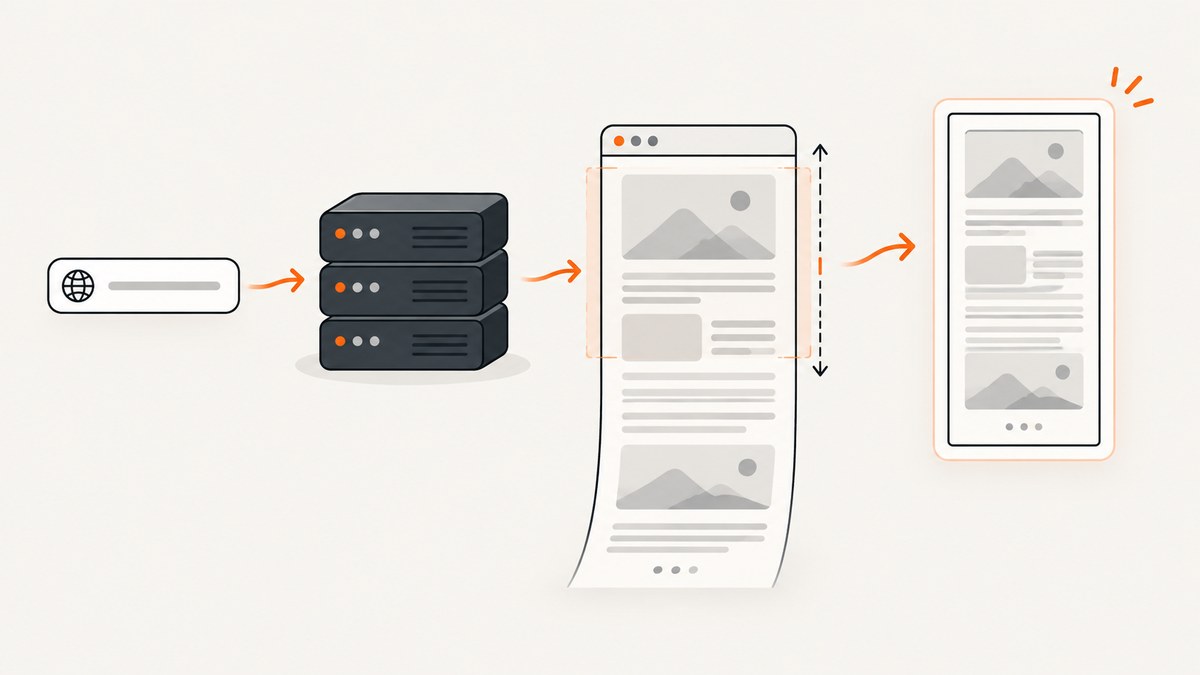
A normal browser screenshot captures only the visible viewport. To capture everything below the fold in a FastAPI application, use Playwright’s asynchronous Python API and pass full_page=True to page.screenshot(). Without a path, Playwright returns the image as bytes, so FastAPI can return those bytes directly or save and process them first.
Playwright’s Python documentation recommends its async API for modern asyncio applications. The complete flow is:
- Start a Chromium browser.
- Create a page and navigate to the target URL.
- Wait for the page state your application requires.
- Call
await page.screenshot(full_page=True). - Return the bytes from a FastAPI response.
- Close the page, context, and browser even when a request fails.
What “full page” means in Playwright
Playwright screenshots are viewport-only by default. Setting full_page=True changes the capture to the page’s full scrollable area. The result is still an image, not a PDF, and it includes content that a user would reach by scrolling.
If you omit path, the screenshot method returns bytes. You can send those bytes with FastAPI’s Response, write them to object storage, run image processing, or enqueue them for another service. The Playwright screenshot guide and Page API reference document the full-page and byte-returning behavior.
Install FastAPI, Uvicorn, and Playwright
Create an environment and install the Python packages:
python -m venv .venv
source .venv/bin/activate
pip install fastapi uvicorn[standard] playwright
python -m playwright install chromium
The final command downloads the browser binary. In a container or deployment image, run it during the image build rather than on the first request. The exact operating-system dependencies depend on your base image and deployment provider.
Minimal FastAPI endpoint
This example accepts a URL, opens it in Chromium, captures the complete scrollable page, and returns a PNG. It creates a browser for each request to keep the lifecycle obvious. Reusing a browser is discussed later.
from urllib.parse import urlparse

from fastapi import FastAPI, HTTPException, Query
from fastapi.responses import Response
from playwright.async_api import async_playwright, TimeoutError as PlaywrightTimeoutError

app = FastAPI()


def validate_url(value: str) -> str:
    parsed = urlparse(value)
    if parsed.scheme not in {"http", "https"} or not parsed.netloc:
        raise HTTPException(status_code=400, detail="url must be an absolute http or https URL")
    return value


@app.get("/screenshot")
async def screenshot(
    url: str = Query(..., description="Absolute http or https URL"),
):
    target = validate_url(url)

    async with async_playwright() as playwright:
        browser = await playwright.chromium.launch(headless=True)
        context = await browser.new_context(
            viewport={"width": 1440, "height": 900},
            device_scale_factor=1,
        )
        page = await context.new_page()
        try:
            await page.goto(target, wait_until="networkidle", timeout=30_000)
            image_bytes = await page.screenshot(
                full_page=True,
                type="png",
                animations="disabled",
                timeout=30_000,
            )
            return Response(content=image_bytes, media_type="image/png")
        except PlaywrightTimeoutError:
            raise HTTPException(status_code=504, detail="page navigation or screenshot timed out")
        finally:
            await context.close()
            await browser.close()
Run it with:
uvicorn main:app --reloadThen request http://127.0.0.1:8000/screenshot?url=https%3A%2F%2Fexample.com. A browser or HTTP client receives PNG bytes.
Return JPEG or WebP instead of PNG
Playwright supports PNG, JPEG, and WebP output. JPEG and WebP accept a quality value; PNG does not. Use a media type matching the selected format.
@app.get("/screenshot/webp")
async def screenshot_webp(url: str):
    target = validate_url(url)
    async with async_playwright() as playwright:
        browser = await playwright.chromium.launch()
        page = await browser.new_page()
        try:
            await page.goto(target, wait_until="domcontentloaded", timeout=30_000)
            image_bytes = await page.screenshot(
                full_page=True,
                type="webp",
                quality=82,
                timeout=30_000,
            )
            return Response(content=image_bytes, media_type="image/webp")
        finally:
            await page.close()
            await browser.close()
PNG preserves sharp text and transparency. JPEG is broadly compatible and usually smaller for photographic pages. WebP can reduce transfer size when your clients support it. The best choice depends on your consumers and image-processing pipeline.
Control rendering before capture
Wait for the correct page state
wait_until="domcontentloaded" waits for the document structure. load waits for the load event. networkidle waits for a period with no network connections, but applications with analytics, polling, or streaming requests may never become idle. In those cases, use a specific selector or a bounded delay.
await page.goto(target, wait_until="domcontentloaded", timeout=30_000)
await page.locator("main article").wait_for(state="visible", timeout=15_000)
await page.wait_for_timeout(500)
Choose viewport and device scale
Viewport dimensions affect responsive layouts. A device scale factor changes the pixel density of the output. A 1440x900 viewport with scale 1 produces CSS-pixel-sized output; a scale of 2 produces a denser image and can substantially increase memory and file size.
context = await browser.new_context(
    viewport={"width": 1280, "height": 800},
    device_scale_factor=2,
    color_scheme="dark",
)
Capture one element
Full-page capture is appropriate when the entire document is needed. For a long feed or a dashboard, capturing one element avoids unrelated navigation and footer content:
card = page.locator("article.product")
await card.wait_for(state="visible")
image_bytes = await card.screenshot(type="png")
Hide unstable elements
Use a locator or CSS injection to hide cookie dialogs, sticky bars, timestamps, or animation-heavy widgets. Make sure the selector is specific enough that it does not remove page content.
await page.add_style_tag(content="""
  .cookie-banner, .chat-widget, .sticky-ad { display: none !important; }
""")
image_bytes = await page.screenshot(full_page=True, type="png")
Run JavaScript before the screenshot
You can expand accordions, dismiss a modal, or set application state before capture:
await page.locator("button.more").click()
await page.evaluate("window.scrollTo(0, document.body.scrollHeight)")
await page.wait_for_timeout(300)
image_bytes = await page.screenshot(full_page=True)
Handle lazy-loaded images
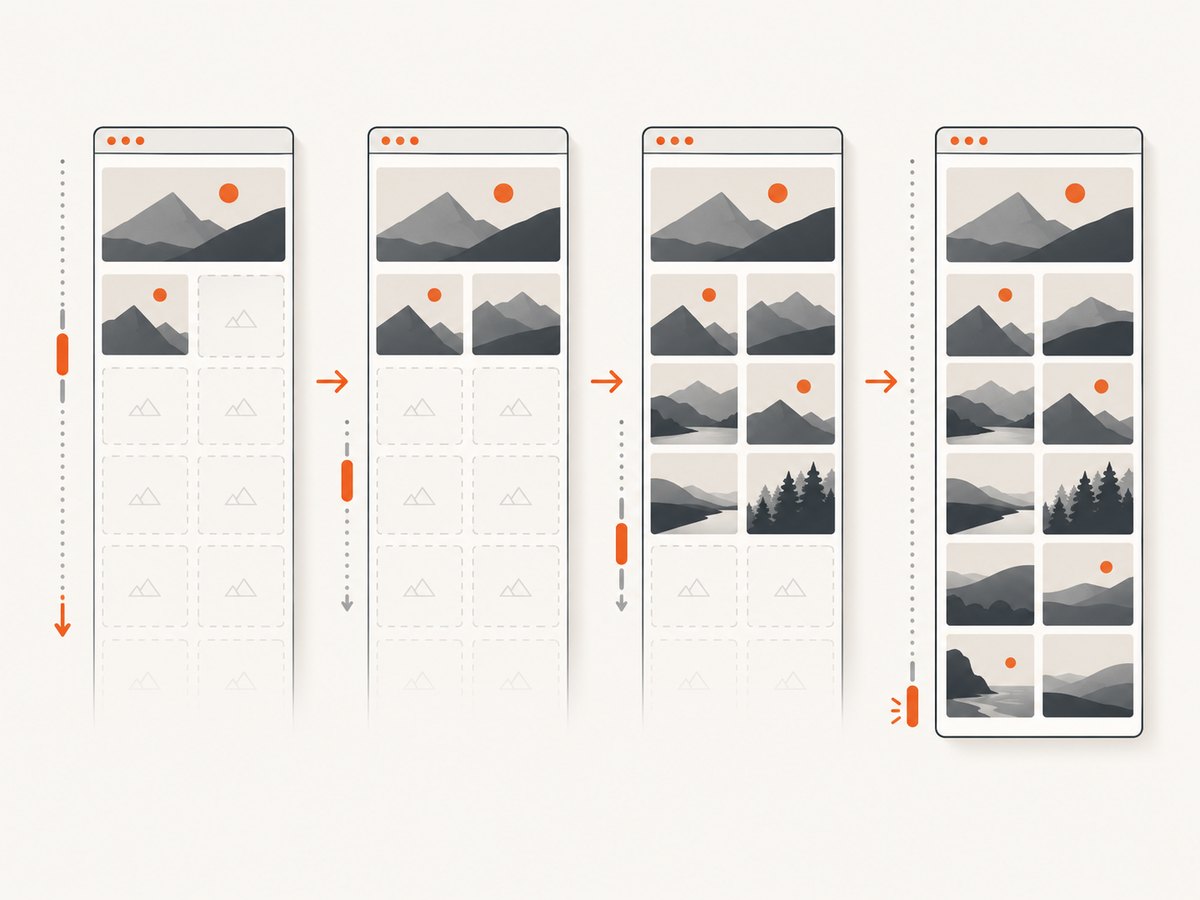
Some pages load images only after they approach the viewport. A full-page screenshot does not guarantee that every lazy image has already loaded. Scroll through the document, wait briefly, then capture:
await page.goto(target, wait_until="domcontentloaded")
await page.evaluate("""
  async () => {
    await new Promise(resolve => {
      let y = 0;
      const step = 600;
      const timer = setInterval(() => {
        window.scrollBy(0, step);
        y += step;
        if (y >= document.body.scrollHeight) {
          clearInterval(timer);
          resolve();
        }
      }, 100);
    });
    window.scrollTo(0, 0);
  }
""")
await page.wait_for_timeout(500)
image_bytes = await page.screenshot(full_page=True)
FastAPI request models, limits, and safer URL handling
A production endpoint should bound work before launching a browser. Validate the scheme, reject credentials in URLs if they are not required, apply a maximum navigation timeout, and limit concurrent captures. If the endpoint can access private network addresses, add an allowlist or block internal ranges to reduce server-side request forgery risk.
from pydantic import BaseModel, HttpUrl

class ScreenshotRequest(BaseModel):
    url: HttpUrl
    width: int = 1440
    height: int = 900
    format: str = "png"

@app.post("/screenshot")
async def screenshot_post(request: ScreenshotRequest):
    if request.width < 320 or request.width > 4000:
        raise HTTPException(400, "width is outside the supported range")
    if request.height < 240 or request.height > 3000:
        raise HTTPException(400, "height is outside the supported range")
    if request.format not in {"png", "jpeg", "webp"}:
        raise HTTPException(400, "format must be png, jpeg, or webp")
    # Launch or acquire a browser, then use request.url, width, height, and format.
    ...
Do not allow arbitrary custom JavaScript, headers, cookies, or proxy settings from untrusted callers without an explicit security design. Those controls can expose credentials or reach systems that the API host can access.
Browser reuse and concurrency
Launching Chromium for every request is easy to understand but adds startup overhead. A long-lived application can launch one browser during application startup and create an isolated context per request. The exact lifespan arrangement depends on your deployment and process model; ensure every worker owns and closes its own browser.
Contexts isolate cookies, storage, permissions, and pages. Keep a semaphore around captures so a burst of requests does not start more pages than the machine can support:
import asyncio

capture_slots = asyncio.Semaphore(4)

@app.get("/limited-screenshot")
async def limited_screenshot(url: str):
    async with capture_slots:
        # acquire a context/page from your browser manager here
        ...
Set limits for page height, output dimensions, navigation time, and total request time. Very long pages can consume large amounts of memory when rasterized into one image. For extremely long documents, consider element captures, PDF output, or an asynchronous job instead of holding an HTTP request open.
Screenshot versus PDF
A screenshot is a raster image of the rendered page. A PDF is a paginated document. Playwright’s page.pdf() uses print CSS media by default. If the PDF should match screen styles, call await page.emulate_media(media="screen") before generating it. A PDF is usually the better artifact for printing, selectable text, and page ranges; use a full-page screenshot when you need one visual image of the rendered page.
cURL, Python, and Node.js alternatives
If you prefer to call a hosted screenshot endpoint instead of managing Chromium, ScreenshotNeo accepts one GET request and returns PNG, JPEG, WebP, or PDF. See the ScreenshotNeo documentation for parameters.
cURL
curl -G "https://api.screenshotneo.com/v1/shot" -d access_key=YOUR_API_KEY --data-urlencode url=https://stripe.com -o shot.webpPython
import requests

r = requests.get("https://api.screenshotneo.com/v1/shot", params={"access_key": "YOUR_API_KEY", "url": "https://stripe.com"}, timeout=90)
r.raise_for_status()
open("shot.webp", "wb").write(r.content)
Node.js
const q = new URLSearchParams({ access_key: 'YOUR_API_KEY', url: 'https://stripe.com' });
const res = await fetch(`https://api.screenshotneo.com/v1/shot?${q}`);
if (!res.ok) throw new Error(`Screenshot failed: ${res.status}`);
const fs = await import('node:fs/promises');
await fs.writeFile('shot.webp', Buffer.from(await res.arrayBuffer()));
Or skip the browser setup
ScreenshotNeo provides the hosted capture path when you do not want to package or operate browser processes. Cookie banners, newsletter popups, and chat widgets are removed before the shot. Bot checks, blank pages, timeouts, failed loads, and cache hits are not billed, and the response identifies the page verdict and billing status in headers. Its MCP server lets Claude, Cursor, and other MCP clients call take_screenshot, get_page_info, and capture_pdf. The free plan includes 1,000 screenshots per month with no card; paid plans start at $5 for 3,000 shots. Every feature is available on every plan. Create a free ScreenshotNeo account.

Troubleshooting
| Symptom | Likely cause | Fix |
|---|---|---|
Executable doesn't exist |
Browser binaries were not installed. | Run python -m playwright install chromium during setup or image build. |
| Only the visible viewport is captured | full_page=True was omitted or a locator screenshot was used. |
Call page.screenshot(full_page=True) for the document. |
| Timeout during navigation | The page is slow, blocked, or continuously opens requests. | Use a bounded timeout, wait for a meaningful selector, and avoid requiring networkidle on polling pages. |
| Missing images | Images are lazy-loaded or blocked by the page. | Scroll to trigger loading, wait for image selectors, and inspect failed requests. |
| Wrong mobile or desktop layout | Viewport dimensions differ from the intended device. | Set viewport and, when needed, a device preset explicitly. |
| Memory growth | Pages, contexts, or browsers are not closed; captures are too large. | Close resources in finally, cap concurrency and dimensions, and recycle workers when appropriate. |
| Blank or partially rendered output | The capture ran before client-side content appeared. | Wait for a stable selector or application-ready signal before capturing. |
Performance, reliability, and cost notes
- Startup: browser launch is expensive compared with creating a page. Reuse a browser per worker when your deployment can manage its lifecycle.
- Parallelism: each active page consumes CPU and memory. Use a semaphore and measure your own workload before raising concurrency.
- Output size: full-page, high-scale PNGs can be large. WebP or JPEG with a suitable quality value can reduce transfer and storage costs.
- Repeatability: disable animations, fix the viewport, choose a color scheme, and wait for deterministic selectors.
- Failure handling: return a useful 4xx for invalid input and a 504 for bounded navigation or capture timeouts. Always close resources in a
finallyblock. - Hosted billing: ScreenshotNeo bills only clean shots; bot checks, blank pages, failed loads, timeouts, and cache hits cost nothing. Its cache TTL, async jobs, signed webhooks, bulk capture, and usage API can move long or high-volume work out of a synchronous FastAPI request.
Checklist for a production endpoint
- Install Chromium during deployment.
- Validate absolute HTTP(S) URLs and apply SSRF controls.
- Set navigation, selector, and total request timeouts.
- Bound viewport, page height, image format, and quality.
- Wait for application content and lazy images.
- Disable or hide unstable UI when appropriate.
- Limit concurrent pages.
- Close pages, contexts, and browsers on success and failure.
- Log target, duration, status, output format, and failure reason without logging secrets.
- Use an asynchronous job for very large captures.
FAQ
Does full_page=True include content hidden behind an accordion?
No. It captures the scrollable rendered document. Click or expand interactive controls first if their content must appear.
Can I return bytes without writing a temporary file?
Yes. When no path is supplied, Playwright returns bytes, which FastAPI can send in a Response.
Why is my PDF different from my screenshot?
PDF generation uses print CSS by default. A screenshot uses the screen rendering. Emulate screen media before page.pdf() when that is the desired PDF style.
Should every request launch a new browser?
It is the simplest lifecycle, but browser reuse with isolated contexts is usually a better production design when you can enforce cleanup and concurrency limits.
Can an API capture pages that require consent handling?
With Playwright, you must implement the interaction yourself. ScreenshotNeo handles known consent platforms, newsletter popups, and chat widgets before capture.


