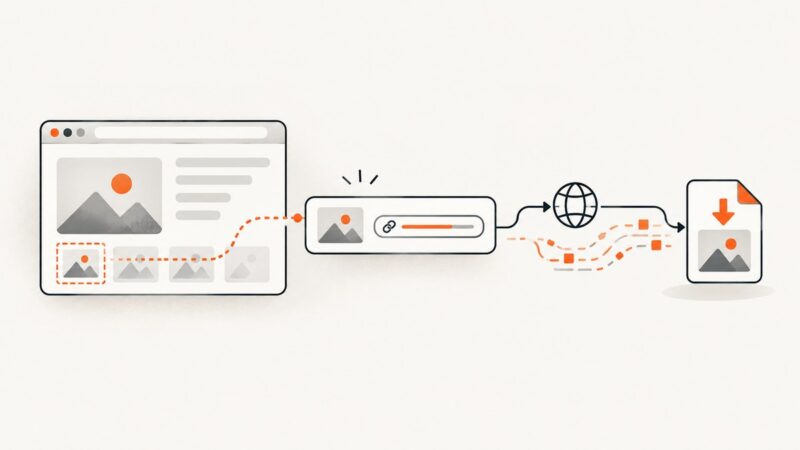
How to Take Full-Page Screenshots with Headless Chrome
Capture an entire page with headless Chrome using Puppeteer or CDP. Learn how to wait for content, handle lazy loading, and troubleshoot common failures.

To take a full-page screenshot with headless Chrome, use Puppeteer and set fullPage: true in page.screenshot(). Choose a fixed viewport and wait for the page’s real content to settle before capturing it. For lower-level control, Chrome DevTools Protocol (CDP) provides Page.captureScreenshot with captureBeyondViewport: true.
This guide covers a runnable Puppeteer script, direct CDP capture, output formats, loading and lazy-content edge cases, troubleshooting, and operational considerations. Puppeteer is generally the simplest option for a repeatable script; CDP is useful when you already manage a DevTools Protocol connection.
1. Capture a full page with Puppeteer
Puppeteer’s fullPage option tells the screenshot API to capture the full page rather than only the visible viewport. Install Puppeteer, save the following as screenshot.mjs, and run it with Node.js.

npm install puppeteer
node screenshot.mjs https://example.com page.png
import puppeteer from 'puppeteer';
const url = process.argv[2] ?? 'https://example.com';
const outputPath = process.argv[3] ?? 'page.png';
const browser = await puppeteer.launch({ headless: true });
try {
const page = await browser.newPage();
await page.setViewport({ width: 1440, height: 900, deviceScaleFactor: 1 });
await page.goto(url, { waitUntil: 'networkidle2', timeout: 60000 });
await page.screenshot({ path: outputPath, fullPage: true, type: 'png' });
console.log(`Saved ${outputPath}`);
} finally {
await browser.close();
}The viewport sets the page’s layout width and height before navigation. A fixed width makes responsive layouts more predictable; the device scale factor controls pixel density. networkidle2 waits for network activity to quiet, but it is not a guarantee that every application has finished rendering. Pages with polling, analytics, streaming, delayed data, or lazy media need a page-specific wait.
Wait for a known element
When the target page has a reliable selector that appears after its main content is ready, wait for that selector explicitly. This often expresses readiness better than waiting for all network activity to stop.
await page.goto(url, { waitUntil: 'domcontentloaded', timeout: 60000 });
await page.waitForSelector('main article', { timeout: 20000 });
await page.screenshot({ path: outputPath, fullPage: true });
Replace main article with a selector that actually indicates readiness on the site you capture. If content is populated asynchronously after the element exists, wait for a more specific state or for the relevant data to appear.
2. Stabilize the page before capture
A full-page screenshot captures the page’s current rendered state. The full-page option does not itself wait for fonts, images, animations, application data, or consent handling. Decide what “ready” means for the target site and make that condition explicit.
- Set the viewport before navigation. Responsive breakpoints can change page structure and height.
- Choose a navigation wait deliberately.
domcontentloadedis an early milestone;networkidle2waits for quieter network activity. Neither ensures application-specific work is complete. - Wait for page content. Prefer a selector or state associated with the actual content over an arbitrary delay.
- Wait for fonts or images when fidelity depends on them. For example, evaluate
document.fonts.readyafter navigation. Sites may still add content later. - Decide how to handle animation. Animated content can be at different frames on successive captures. For deterministic output, disable animations with page-specific CSS or wait for an appropriate state.
- Handle authentication and consent intentionally. Provide the session or cookies needed for the target page and decide how consent dialogs should appear in the result.
await page.goto(url, { waitUntil: 'domcontentloaded', timeout: 60000 });
await page.waitForSelector('main', { timeout: 20000 });
await page.evaluate(() => document.fonts.ready);
await page.screenshot({ path: outputPath, fullPage: true });
Only add waits that match the site. A fixed sleep can be a quick diagnostic, but it can waste time on fast pages and still fail on slow ones. A site that continuously makes requests may never reach a network-idle condition, so use a selector or application signal in that case.
3. Lazy loading, infinite scroll, and long pages
Some pages load images or sections only when they approach the viewport. A full-page screenshot request is not a universal instruction to scroll through the page and trigger every lazy-loaded element. Likewise, an infinite-scroll page has no natural final height until the application stops adding content.

For a finite page, you can scroll through it in increments, allow content to load, then capture. This pattern is site-dependent: it may trigger more requests than expected, and the correct delay or end condition depends on the application.
async function scrollToPageEnd(page) {
  await page.evaluate(async () => {
    const step = Math.max(window.innerHeight, 400);
    for (let y = 0; y < document.body.scrollHeight; y += step) {
      window.scrollTo(0, y);
      await new Promise(resolve => setTimeout(resolve, 150));
    }
    window.scrollTo(0, 0);
  });
}

await page.goto(url, { waitUntil: 'domcontentloaded', timeout: 60000 });
await scrollToPageEnd(page);
await page.waitForSelector('main', { timeout: 20000 });
await page.screenshot({ path: outputPath, fullPage: true });
The loop uses the page’s measured height as it scrolls, which can grow as content loads. For infinite scroll, set a maximum number of iterations or a deadline and define a stopping condition, such as a “load more” button disappearing or an expected final item appearing. Avoid unbounded loops: a page that keeps appending content can consume time and memory.
For a page with a known “load more” control, click it the intended number of times and wait for new content after each click. For very long captures, inspect whether the resulting image dimensions and memory use are acceptable in your runtime. The cited browser documentation does not specify a universal maximum page height or speed benchmark.
4. Screenshot options and output
Puppeteer’s screenshot options cover the common output and capture choices. The API reference documents fullPage, captureBeyondViewport, path, type, quality, encoding, and omitBackground. Consult the Puppeteer ScreenshotOptions reference for exact types and current constraints.
| Option | Use | Notes |
|---|---|---|
fullPage |
Capture beyond the visible viewport to include the full page. | The key setting for this task. |
path |
Write image output to a file. | Omit it when you want the screenshot data returned to your program. |
type |
Select png, jpeg, or webp where supported by the API. |
PNG is lossless; JPEG and WebP can reduce output size. |
quality |
Set lossy image quality. | Relevant to lossy formats; choose based on image fidelity and file-size needs. |
omitBackground |
Omit the default page background for transparency where supported. | Useful for transparent assets; check the selected format’s behavior. |
captureBeyondViewport |
Control capture beyond the viewport. | CDP exposes this directly; Puppeteer documents the option too. |
encoding |
Choose how screenshot data is represented when returned. | Use the documented setting for bytes versus encoded text in your Puppeteer version. |
For example, to get a JPEG file, use type: 'jpeg' and set a quality value supported by the installed Puppeteer version. If you specify path, Puppeteer writes the file; without a path, the method returns screenshot data that your program can store or send onward.
5. Direct Chrome DevTools Protocol capture
Use CDP directly if your application already has a DevTools Protocol session or needs protocol-level control. The Page.captureScreenshot method accepts a format and a captureBeyondViewport parameter and returns image data as base64. The example below uses Puppeteer only to establish the browser and CDP session; the actual screenshot command is sent directly over CDP.
import { writeFile } from 'node:fs/promises';
import puppeteer from 'puppeteer';

const browser = await puppeteer.launch({ headless: true });
try {
  const page = await browser.newPage();
  await page.setViewport({ width: 1440, height: 900 });
  await page.goto('https://example.com', {
    waitUntil: 'networkidle2',
    timeout: 60000,
  });

  const client = await page.createCDPSession();
  const result = await client.send('Page.captureScreenshot', {
    format: 'png',
    captureBeyondViewport: true,
  });
  await writeFile('page.png', Buffer.from(result.data, 'base64'));
  await client.detach();
} finally {
  await browser.close();
}
The protocol defines png, jpeg, and webp formats. Direct CDP returns base64 data, so decode it before writing a binary image. Puppeteer’s fullPage is usually more convenient when you do not otherwise need CDP. See the primary CDP Page.captureScreenshot reference.
6. Command-line Chrome and other language clients
Chrome’s headless command-line screenshot flag is convenient for simple viewport captures. Full-page capture takes more involved handling than the basic flag, so an automation API is a better fit for repeatable full-page workflows. Chrome’s guidance describes the headless command line and its screenshot behavior in the headless Chrome documentation.
Although this article uses JavaScript because Puppeteer is a JavaScript browser-automation library, CDP can be driven by other clients. The important pieces remain the same: launch or connect to headless Chrome, navigate, wait for the page’s content, request Page.captureScreenshot with capture beyond the viewport, and decode the returned base64 data. Client setup differs by language, so use that client’s official protocol-session API rather than assuming Puppeteer’s API is available in Python or cURL.
7. Troubleshooting
| Symptom | Likely cause | Fix |
|---|---|---|
| Only the visible screen is captured | The call omitted fullPage: true, or the protocol request did not enable capture beyond the viewport. |
Set Puppeteer’s fullPage: true, or use CDP with captureBeyondViewport: true. |
| Image is missing content near the bottom | Lazy-loaded sections were not triggered or content had not finished loading. | Scroll through finite content, wait for a known final element, and then capture. |
| Navigation times out | The site keeps network activity open or is slow to respond. | Use an appropriate navigation milestone such as domcontentloaded, then wait for a page-specific readiness condition. |
| Screenshot has the wrong layout | Viewport dimensions were omitted or set after navigation. | Set the viewport before loading the page and reproduce the intended device dimensions. |
| Text or images shift between runs | Fonts, images, application data, or animations were still changing. | Wait for relevant fonts and content; disable or settle animation when deterministic output matters. |
| CDP output is corrupted | The base64 field was written as text instead of decoded bytes. | Decode the returned data field before saving the image. |
| Infinite-scroll capture keeps growing | Scrolling continuously triggers more content. | Set an iteration or time limit and stop at a defined content boundary. |
| Browser process remains after an error | Cleanup did not run when navigation or capture threw. | Put browser.close() in a finally block, as in the runnable example. |
8. Performance, reliability, and cost
There is no universal speed figure for full-page capture in the cited references. Runtime depends on the page, browser startup, assets, wait condition, page length, and whether lazy content must be loaded. Reduce unnecessary work by reusing a browser process for multiple captures when appropriate, closing each page after use, choosing a readiness condition that does not wait for irrelevant background traffic, and avoiding repeated full-page scroll passes.
For reliable batch jobs, apply a timeout to navigation and explicit limits to scrolling, log the URL and failure stage, and always close browser resources in cleanup. If a page is sensitive to session state, pass the required authentication and cookies through your browser setup. Capture output size and failures in your own job metrics; do not assume every page will produce a usable image just because navigation returned.
Self-hosted Puppeteer has no per-screenshot API fee, but your workload consumes compute, memory, storage, and engineering time. At scale, include browser concurrency, retries, and output retention in the operating cost. Avoid unlimited retries: transient network errors may justify a retry, while a permanently blocked or malformed page will not be fixed by repeating the same request.
9. Or skip the browser setup
If you need a screenshot without operating Chrome, ScreenshotNeo is a website screenshot API and MCP server. Its API accepts one GET request with a URL and returns an image or PDF. See the ScreenshotNeo API documentation for parameters and formats.
curl -G "https://api.screenshotneo.com/v1/shot" -d access_key=YOUR_API_KEY --data-urlencode url=https://stripe.com -o shot.webpimport requests
r = requests.get(
"https://api.screenshotneo.com/v1/shot",
params={"access_key": "YOUR_API_KEY", "url": "https://stripe.com"},
timeout=90,
)
open("shot.webp", "wb").write(r.content)const q = new URLSearchParams({ access_key: 'YOUR_API_KEY', url: 'https://stripe.com' });
const res = await fetch(`https://api.screenshotneo.com/v1/shot?${q}`);
if (!res.ok) throw new Error(`Screenshot request failed: ${res.status}`);
await import('node:fs/promises').then(({ writeFile }) => writeFile('shot.webp', Buffer.from(await res.arrayBuffer())));ScreenshotNeo accepts cookie and consent banners before capture and removes more than 60 known consent platforms, newsletter popups, and chat widgets; each cleanup step can be turned off. Bot checks, blank pages, timeouts, failed loads, and cache hits are not billed, and responses identify the page verdict and billing status in headers. Its MCP server provides take_screenshot, get_page_info, and capture_pdf tools for Claude, Cursor, and other MCP clients. The free plan includes 1,000 screenshots a month with no card; paid plans start at $5 for 3,000.
Create a free ScreenshotNeo account to get 1,000 screenshots a month with no card.
10. FAQ
Does fullPage: true change the viewport?
It requests a full-page screenshot. Set the viewport separately to control responsive layout and reproducibility.
Should I use Puppeteer or CDP?
Use Puppeteer’s screenshot method for a straightforward script. Use CDP when you already manage a protocol session or need direct access to the protocol command and its returned data.
Can I capture a page that requires login?
Yes, if your automation establishes the required session before capture. The screenshot reflects the browser’s current authenticated state.
Will full-page capture include every item on an infinite-scroll feed?
No. Define a stopping point, trigger the content you need, and bound the scroll process before taking the screenshot.