How to Capture Full-Page Screenshots and Customize Screenshot Height
Learn when to capture a full page versus change viewport height, with steps for Chrome, Firefox, iPhone, and a screenshot API.
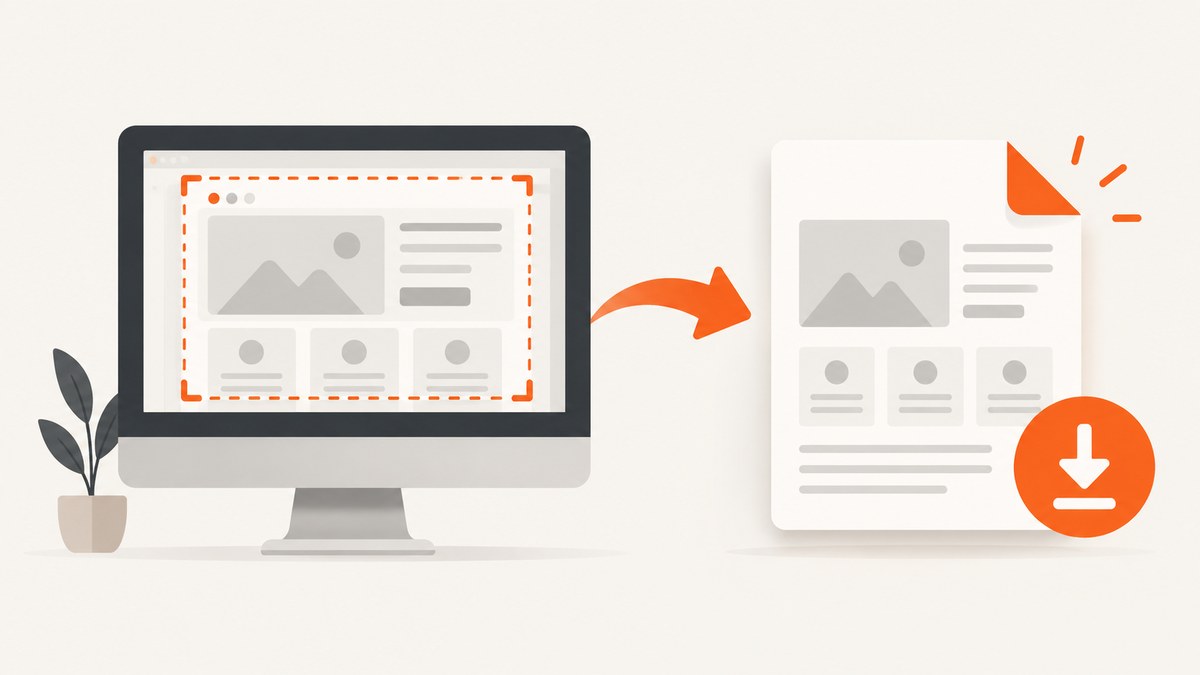
To capture content beyond the screen, use your browser’s full-page screenshot command. To change the height of the simulated screen, change the viewport height. These are separate operations: making a browser viewport taller does not, by itself, capture the rest of a long document. In Chrome DevTools, for example, set the responsive viewport’s width and height in Device Mode, then choose either Capture screenshot for the visible viewport or Capture a full size screenshot for the whole page.
This guide covers those workflows, Firefox’s region and element options, iPhone webpage captures, and browser automation through an API. It also explains what to check when a capture is cropped or too large. Browser menus can change between releases, so treat the labels below as the documented paths, not promises about every version.
1. Decide whether you need more page or a taller viewport
A viewport screenshot records the area currently visible in the browser. A full-page screenshot includes content beyond that area, generally by capturing the document as a whole. Viewport height is the height of the browser’s visible or simulated window. It affects how much page is visible at once and can affect responsive layout, but it is not the setting that means “capture the whole page.”
| Need | Choose | What it changes |
|---|---|---|
| Capture only what is visible now | Visible or regular screenshot | The captured viewport area |
| Include the document below the fold | Full-page or full-size screenshot | The capture extent |
| Preview a taller or shorter screen | Set viewport height | The simulated browser viewport |
| Capture one component or a portion | Element or region capture, where available | The selected part of the page |
Keep height and pixel density separate, too. Chrome Device Mode’s device pixel ratio (DPR) describes the relationship between physical pixels and logical CSS pixels. DPR can change the output’s pixel dimensions; it does not make the webpage document taller.
2. Capture a full page or set height in Chrome DevTools
- Open the page in Chrome and open DevTools.
- Enable Device Mode to work with a responsive viewport.
- To customize the simulated screen, enter width and height in the viewport fields, or drag its handles. Google documents 480 by 415 as an example; those are example dimensions, not a recommended setting or a maximum.
- Open the Device Mode More options menu.
- Choose Capture screenshot for the visible viewport, or Capture a full size screenshot to include content that is not currently visible.
Use a viewport size that matches the layout you want to inspect. A responsive page may rearrange at different widths or heights, so the full-page capture shows the document as rendered in that viewport context. If you need a specific device type or DPR, set those in Device Mode as well, then make the full-size capture separately.
When to use each Chrome option
- Capture screenshot: useful for a design review of the visible screen or a reproducible viewport state.
- Capture a full size screenshot: useful for a long landing page, article, or other document whose below-the-fold content matters.
- Change viewport height: useful when testing how a layout behaves in a taller or shorter simulated window. It is not a substitute for the full-size command.
3. Capture a full page, region, or element in Firefox
Firefox offers a screenshot interface from the page context menu. Right-click the page and choose Take Screenshot, or use Ctrl+Shift+S on Windows or Linux, and Command+Shift+S on macOS. The interface can capture a custom region, a page part highlighted automatically, the full page with Save full page, or the visible portion with Save visible. It can save the image or copy it to the clipboard.
For a developer-oriented route, enable the screenshot toolbar button in DevTools under Settings > Available Toolbox Buttons > Take a screenshot of the entire page, then click that button. Firefox saves the result in Downloads. The Web Console’s :screenshot helper offers more control, including full-page capture, selector capture, DPR, delay, filename, and clipboard options.
:screenshot --fullpage
:screenshot --selector .article-content
:screenshot --dpr 2 --delay 2 --filename page.png
These examples illustrate the documented option names. Use :screenshot --help in the Firefox version you have installed to check its accepted syntax and options. --fullpage includes content outside the window bounds; --selector targets one element and its descendants. A delay can help when a page needs time to render, but it does not guarantee that every asynchronous element or lazy-loaded image has finished.
4. Take a full-page webpage screenshot on iPhone
- Take a screenshot while viewing the webpage in Safari.
- Tap the screenshot thumbnail preview.
- Select Full Page to capture content beyond the visible screen.
- Use the crop controls if you only need part of the long capture.
Apple documents saving a full-page screenshot to Files as a PDF in its user guide. Because save destinations and controls can vary by iOS version, check the instructions for the version on your device before relying on a particular export format. These steps describe the iPhone screenshot preview flow; desktop browser menus do not necessarily match mobile browser apps.
5. Choose the right capture dimensions and scope
Before capturing, decide whether you need the entire document, a viewport at a particular size, a selected element, or a region. Then set only the controls relevant to that goal.
- Width and height: set the simulated viewport when checking responsive behavior or capturing a specific screen size. Height controls the viewport, not whether the whole document is included.
- DPR: adjust pixel density when the workflow offers it and the output needs a particular resolution. It is independent of page height.
- Full page: use the browser’s whole-page command when below-the-fold content must appear in the output.
- Selector or region: use an element capture for a component and a region capture for an arbitrary portion. Firefox documents both page-part and custom-region selection.
- Delay: allow time for rendering when the page updates after navigation. A delay can add waiting time and does not fix every loading issue.
- Output destination: check whether the browser saves a file, copies to the clipboard, or uses platform-specific file handling before building a workflow around it.
There is no universal maximum full-page screenshot height published in the reviewed Chrome and Firefox instructions. Do not assume one fixed pixel ceiling applies across browsers, pages, and versions. If a capture is truncated, investigate the page structure and the particular browser and version rather than assuming a taller viewport will solve it.
6. Automate captures with a screenshot API
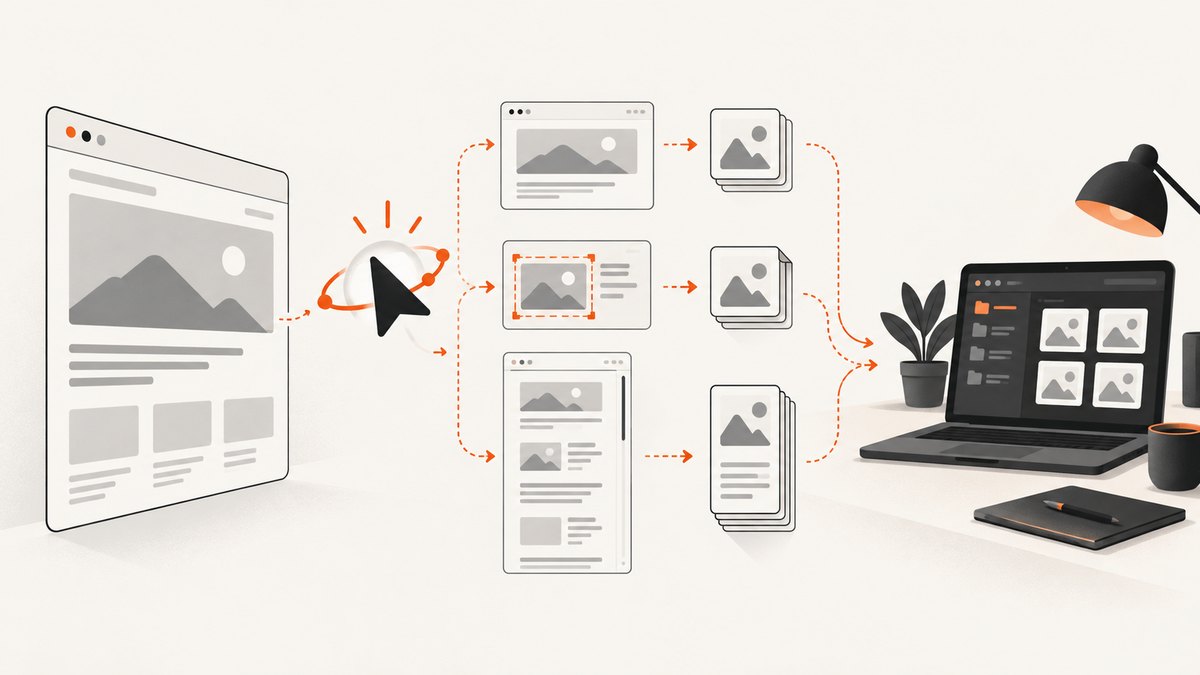
For recurring captures, a browser interface can become repetitive. ScreenshotNeo is a website screenshot API and MCP server from Yorker Media. Its API accepts a URL and can return a PNG, JPEG, WebP, or PDF; see the ScreenshotNeo API documentation for parameters and response details. The examples below use the provided request shape and save the response body as a WebP file.
cURL
curl -G "https://api.screenshotneo.com/v1/shot" \
  -d access_key=YOUR_API_KEY \
  --data-urlencode url=https://stripe.com \
  -o shot.webp
Python
import requests

r = requests.get(
    "https://api.screenshotneo.com/v1/shot",
    params={"access_key": "YOUR_API_KEY", "url": "https://stripe.com"},
    timeout=90,
)
open("shot.webp", "wb").write(r.content)
Node.js
const q = new URLSearchParams({
  access_key: 'YOUR_API_KEY',
  url: 'https://stripe.com'
});
const res = await fetch(`https://api.screenshotneo.com/v1/shot?${q}`);
const bytes = new Uint8Array(await res.arrayBuffer());
await import('node:fs/promises').then(fs => fs.writeFile('shot.webp', bytes));
Replace the target URL and API key with your own. These minimal examples show how to make the request and write its body; for production code, also inspect the HTTP status and response headers before treating the body as an image. The supplied examples do not specify a full-page parameter or an output-format parameter, so consult the docs for the exact request options for the capture you need. ScreenshotNeo supports full-page capture with lazy images loaded, as well as custom viewport dimensions, element capture, PDF settings, delays and other capture controls.
7. Or skip the browser setup
One call can capture a URL through ScreenshotNeo. See the API docs for the available full-page and height options.
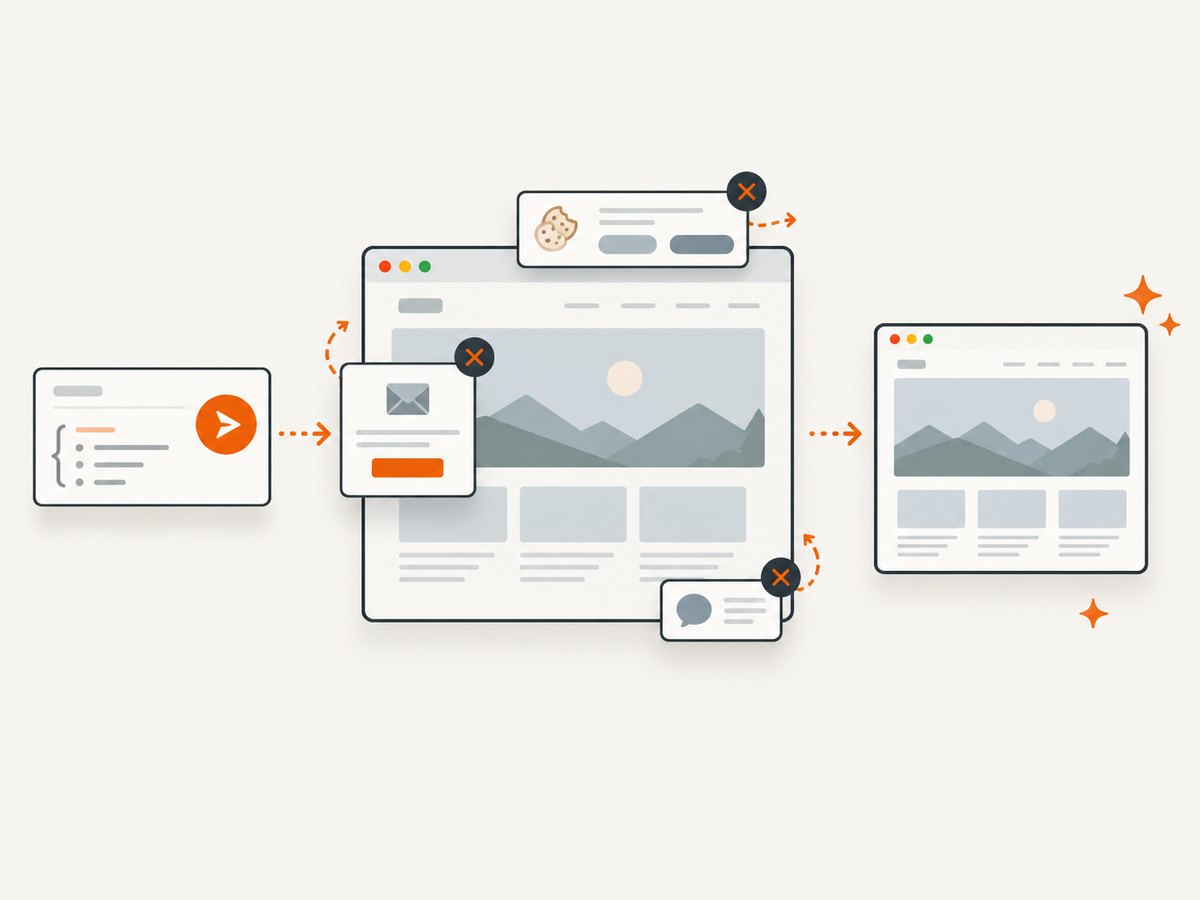
curl -G "https://api.screenshotneo.com/v1/shot" -d access_key=YOUR_API_KEY --data-urlencode url=https://stripe.com -o shot.webpScreenshotNeo accepts cookie and consent banners and removes more than 60 known consent platforms, newsletter popups, and chat widgets before the capture; each step can be turned off. Bot checks, blank pages, timeouts, failed loads, and cache hits cost nothing, and response headers identify the page verdict and billing status. Its MCP server lets AI agents use take_screenshot, get_page_info, and capture_pdf. The Free plan includes 1,000 screenshots a month with no card; paid plans start at $5 for 3,000 screenshots. Every feature is on every plan. Sign up for 1,000 free screenshots a month, with no card required.
8. Troubleshooting full-page captures
| Symptom | Likely cause | What to try |
|---|---|---|
| The screenshot ends at the bottom of the viewport | A visible-area capture was selected, or the tool did not capture the full document. | Choose the explicit full-page or full-size option. In Chrome Device Mode, use Capture a full size screenshot, not the regular capture. |
| The page is clipped despite choosing full page | The page may scroll inside a nested region, or its structure or browser version may affect capture behavior. | Check whether the main document or an inner container scrolls. Try capturing the relevant element or region where supported. Changing viewport height may alter the layout, but is not a guaranteed fix. |
| The capture has the wrong layout | The viewport width, height, device type, or DPR differs from the intended rendering context. | Set the desired responsive viewport and device settings before capturing; remember that DPR affects pixel density, not document height. |
| Images or content are missing | Some content may load after navigation or only after scrolling. | Wait for the page to render and try an appropriate delay or full-page workflow. Firefox’s delay option can wait before capture; ScreenshotNeo supports full-page capture with lazy images loaded. |
| The browser saved the file somewhere unexpected | Save behavior differs by workflow and platform. | Check Downloads for Firefox’s DevTools screenshot button. In the Firefox screenshot UI, choose download or clipboard as needed. Confirm iOS-specific instructions for the device version. |
| The API output is not a usable image | The request may have failed or returned a non-image response. | Check the HTTP status and response headers before writing the body as an image; verify the URL, credentials, and request parameters against the API docs. |
9. Performance, reliability, and cost
Full-page output can contain far more pixels than a viewport screenshot, so it can take more time to capture and produce a larger file. Choose the narrowest scope and output dimensions that meet the job: a selector capture is often sufficient for a component review, while a full-page image is appropriate when the complete document is the deliverable. Higher DPR also increases output pixel dimensions. These are practical tradeoffs; the cited browser documentation does not publish comparative timing or size benchmarks.
For repeatable browser captures, keep the viewport, device type, DPR, target URL, and timing conditions consistent. Pages that load content asynchronously can produce inconsistent captures if the capture starts too early. A delay may help, but dynamic sites can still change between runs. There is no single documented height limit that can be applied to every browser and page; test the actual page and browser version when completeness matters.
Native Chrome, Firefox, and iPhone capture flows are built into the documented workflows, so there is no screenshot API price to calculate for those captures. For API volume, ScreenshotNeo lists a Free plan with 1,000 shots per month, Starter at $5 for 3,000, Growth at $15 for 15,000, Pro at $39 for 60,000, Scale at $99 for 250,000, and Business at $249 for 1,000,000. Yearly billing gives two months free. Only clean shots are billed; response headers report the page verdict and billing status. Check the product site for current plan details before choosing a tier.
10. Frequently asked questions
Does increasing screenshot height capture the whole page?
No. Increasing viewport height changes the visible or simulated viewport. Use a full-page capture command to include content beyond it.
Is there a universal maximum height for a full-page screenshot?
The reviewed official Chrome and Firefox instructions do not publish a common maximum. Actual behavior can depend on browser version and page structure.
Can Firefox capture just one element?
Yes. Its Web Console screenshot helper supports --selector to target an element and its descendants.
Does DPR change the height of the webpage?
No. DPR is the ratio between physical and logical pixels. It changes the pixel-density context, not the document’s CSS height.
Can I capture a full webpage on iPhone?
Yes. Open the screenshot preview and select Full Page to capture beyond the screen; use crop to keep a smaller portion.


