How to Take Full-Page Screenshots with html2canvas
Learn how to capture an entire page with html2canvas, fix blank or clipped canvases, handle cross-origin images, and choose a reliable server-side option.
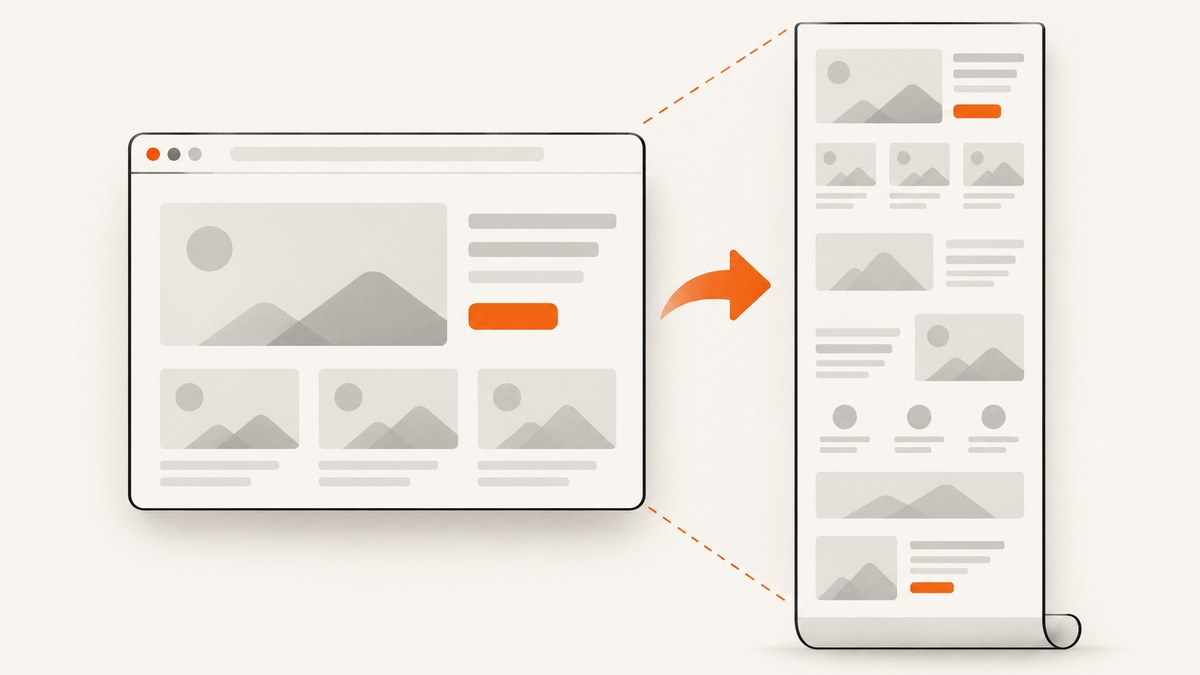
Short answer: pass the page or container you want to capture to html2canvas(), then set windowWidth and windowHeight to that element’s scrollWidth and scrollHeight. This gives html2canvas the full rendering dimensions instead of only the visible viewport.
const element = document.documentElement;

const canvas = await html2canvas(element, {
  windowWidth: element.scrollWidth,
  windowHeight: element.scrollHeight
});

document.body.appendChild(canvas);
That code creates a canvas in the browser. It does not take a literal screenshot of the browser’s pixels. html2canvas walks the DOM, reads computed styles and resources, and reconstructs an image using the CSS and browser features it supports. The result can differ from what Chrome, Firefox or Safari visibly rendered. See the project’s official documentation and FAQ for the library’s limits.
1. Install html2canvas and capture a whole document
Use the npm package in a browser application:

npm install html2canvasimport html2canvas from 'html2canvas';
async function captureFullPage() {
const element = document.documentElement;
const canvas = await html2canvas(element, {
windowWidth: element.scrollWidth,
windowHeight: element.scrollHeight
});
const link = document.createElement('a');
link.download = 'full-page.png';
link.href = canvas.toDataURL('image/png');
link.click();
}
document.querySelector('#capture').addEventListener('click', captureFullPage);With a script tag, load the browser build and call the same function:
<script src="https://cdn.jsdelivr.net/npm/html2canvas@1.4.1/dist/html2canvas.min.js"></script>
<button id="capture">Capture page</button>
<script>
  document.getElementById('capture').addEventListener('click', async () => {
    const element = document.documentElement;
    const canvas = await html2canvas(element, {
      windowWidth: element.scrollWidth,
      windowHeight: element.scrollHeight
    });

    const link = document.createElement('a');
    link.download = 'full-page.png';
    link.href = canvas.toDataURL('image/png');
    link.click();
  });
</script>
Choose the target deliberately. document.documentElement usually represents the document, document.body can be better for pages whose body owns the scrollable content, and a specific container is correct when you only need an article, dashboard or panel.
const article = document.querySelector('main article');
const canvas = await html2canvas(article, {
  windowWidth: article.scrollWidth,
  windowHeight: article.scrollHeight
});
2. Why the full-page dimensions matter
html2canvas renders using a virtual window. windowWidth and windowHeight define that window and can change responsive media queries. If you omit them, the library may use the current viewport and produce a canvas that stops at the fold or clips lower content. Set both values from the target’s scroll dimensions after the page has finished layout.
Wait for content that changes the page height before measuring it. Fonts, images, accordions and lazy sections can all alter scrollHeight.
await document.fonts.ready;

await Promise.all(
  Array.from(document.images).map((image) => {
    if (image.complete) return Promise.resolve();
    return new Promise((resolve) => {
      image.addEventListener('load', resolve, { once: true });
      image.addEventListener('error', resolve, { once: true });
    });
  })
);

const target = document.documentElement;
const canvas = await html2canvas(target, {
  windowWidth: target.scrollWidth,
  windowHeight: target.scrollHeight
});
This waits for resources that are already in the document. It does not force an application’s JavaScript to finish every asynchronous request, so add an application-specific readiness signal when necessary.
3. Configuration options you will use
| Option | Purpose | Practical guidance |
|---|---|---|
windowWidth, windowHeight |
Virtual rendering window | Use the target’s scrollWidth and scrollHeight for a full-page render. |
width, height |
Canvas dimensions | Set these when you need an explicit output size or a smaller capture. |
x, y |
Crop origin | Useful for a region inside a larger target. |
scale |
Output pixel density | Defaults to window.devicePixelRatio. Lower it for very large pages. |
scrollX, scrollY |
Scroll position used during rendering | Adjust when fixed or sticky elements appear in the wrong position. |
useCORS |
Request cross-origin images with CORS | Works only when the image server sends a compatible Access-Control-Allow-Origin header. |
allowTaint |
Allow images that taint the canvas | The default is false. A tainted canvas cannot be safely exported. |
proxy |
Proxy resource requests | Use a server you control when third-party images cannot provide CORS headers. |
backgroundColor |
Canvas background | Set a color, or use null when transparency is required. |
ignoreElements |
Skip nodes programmatically | Return true for banners, controls or other temporary content. |
data-html2canvas-ignore |
Skip an element declaratively | Add the attribute to any node that should not be rendered. |
onclone |
Modify the cloned document | Hide menus or adjust styles without changing the live page. |
cullOffscreen |
Skip nodes outside the capture viewport | Useful for viewport-sized captures; it is not a universal fix for full-page clipping. |
The complete option definitions are in the configuration reference. For example, remove a cookie notice only from the clone:
const target = document.documentElement;
const canvas = await html2canvas(target, {
  windowWidth: target.scrollWidth,
  windowHeight: target.scrollHeight,
  onclone: (clonedDocument) => {
    clonedDocument.querySelectorAll('.cookie-banner, .chat-widget')
      .forEach((node) => node.remove());
  },
  ignoreElements: (element) => element.matches('[data-skip-screenshot]')
});
4. Export PNG, JPEG or a blob
PNG is lossless and supports transparency. JPEG is smaller for photographic pages but has no alpha channel. A blob is preferable when uploading the result instead of opening a data URL.
const pngUrl = canvas.toDataURL('image/png');
const jpegUrl = canvas.toDataURL('image/jpeg', 0. quality);

canvas.toBlob(async (blob) => {
  if (!blob) throw new Error('Canvas export failed');
  await fetch('/upload', {
    method: 'POST',
    headers: { 'Content-Type': 'image/png' },
    body: blob
  });
}, 'image/png');
Replace 0. quality with a number such as 0.85; the space in that placeholder is intentional only for readability in this article—your code must use 0.85. A corrected JPEG example is:
const jpegUrl = canvas.toDataURL('image/jpeg', 0.85);5. Blank, empty or partially clipped canvases
Canvas limits
Browser canvas dimensions have platform-dependent limits. The official FAQ gives approximate guidance of about 32,767 pixels per dimension and about 268 million pixels of area for Chrome/Chromium, about 32,767 pixels per dimension and about 472 million pixels of area for Firefox, and about 32,767 pixels per dimension for desktop Safari. iOS Safari limits are lower and depend on device memory. These are documentation guidance, not permanent guarantees.
If a page exceeds a limit, lowering scale, capturing a smaller element, or splitting the page into sections can help. Changing windowHeight fixes a viewport mismatch but cannot remove a browser’s canvas limit. For very long pages, a browser-native screenshot workflow is usually more dependable.
Cross-origin images and tainted canvases
html2canvas cannot bypass browser security. With the default allowTaint: false, images that would taint the canvas are skipped. Try:
const canvas = await html2canvas(target, {
  useCORS: true,
  windowWidth: target.scrollWidth,
  windowHeight: target.scrollHeight
});
This works only if the image host sends an appropriate Access-Control-Allow-Origin response header. Otherwise configure a proxy that fetches the image and serves it with compatible headers. An already-tainted canvas in the source page can also prevent safe export.
Iframes
Same-origin iframes can be traversed recursively. Cross-origin iframes cannot be read by page JavaScript, and sandboxed frames without allow-same-origin remain inaccessible. Capture the framed page from its own origin or use a real browser automation workflow with permission to access it.
CSS that does not match
Every CSS property must be implemented by html2canvas, so CSS support is incomplete. Check the project’s supported-features list when a shadow, filter, blend mode, pseudo-element or layout effect differs. Reduce the page to a small reproducible case before filing an issue.
6. Troubleshooting checklist
| Symptom | Likely cause | Fix |
|---|---|---|
| Only the visible viewport appears | Rendering window stayed at viewport size | Set both dimensions from scrollWidth and scrollHeight. |
| Bottom half is blank | Canvas dimension or area limit | Lower scale, split the capture, or use a browser screenshot API. |
| Images are missing | Cross-origin image without CORS | Enable useCORS with server headers or use a proxy. |
toDataURL throws a security error |
Canvas was tainted | Remove incompatible resources, fix CORS, or proxy them. |
| Sticky header repeats unexpectedly | Fixed positioning is reconstructed at each virtual position | Adjust scrollY, hide the header in onclone, or capture a non-sticky clone. |
| Fonts or lazy content are absent | Capture started before resources completed | Await document.fonts.ready, image loads and an app readiness signal. |
| Modal, chat or cookie notice appears | It is part of the DOM at capture time | Use data-html2canvas-ignore, ignoreElements or onclone. |
| Output differs from the browser | DOM reconstruction lacks full CSS or browser-paint fidelity | Check supported features and use a real browser capture when pixel fidelity matters. |
7. Performance, reliability and cost decisions
Work scales with the amount of DOM, CSS and imagery being reconstructed and with the number of output pixels. A high device-pixel scale multiplies memory use. Measure dimensions before capture, avoid unnecessary nodes, remove hidden or irrelevant widgets in onclone, and prefer a focused container over the entire document when that meets the requirement.
For repeatable server jobs, remember that html2canvas is a browser-side library. It depends on window, document and browser APIs; it is not a Node.js server renderer. The project FAQ points to Puppeteer or Playwright for server-side screenshots. Those tools render with a real browser, which is a better fit for cross-origin pages, JavaScript-heavy applications and very tall documents, though you must operate the browser and its resource usage yourself.
8. Or skip the browser setup
ScreenshotNeo provides a website screenshot API and MCP server. One GET request returns PNG, JPEG, WebP or PDF, while the service handles browser setup for you. Read the API documentation for all options.

cURL
curl -G "https://api.screenshotneo.com/v1/shot" -d access_key=YOUR_API_KEY --data-urlencode url=https://stripe.com -o shot.webpPython
import requests
r = requests.get("https://api.screenshotneo.com/v1/shot", params={"access_key": "YOUR_API_KEY", "url": "https://stripe.com"}, timeout=90)
open("shot.webp", "wb").write(r.content)
Node.js
const q = new URLSearchParams({ access_key: 'YOUR_API_KEY', url: 'https://stripe.com' });
const res = await fetch(`https://api.screenshotneo.com/v1/shot?${q}`);
Cookie banners, newsletter popups and chat widgets are removed before the shot; each step can be turned off. Bot checks, blank pages, timeouts, failed loads and cache hits are not billed, and the response identifies the result with X-Page-Verdict and X-Billed headers. An MCP server lets AI agents such as Claude and Cursor call take_screenshot, get_page_info and capture_pdf. The free plan includes 1,000 screenshots per month with no card; paid plans start at $5 for 3,000 shots. Create a free ScreenshotNeo account.
9. FAQ
Can html2canvas capture a page from Node.js?
No. It is intended to run in a browser. Use Puppeteer or Playwright for server-side browser capture, or call a screenshot API.
Does setting windowHeight guarantee a complete image?
No. It corrects the virtual window size. Browser canvas dimensions and area limits still apply.
Why does useCORS not fix my image?
The image server must send a compatible CORS header. A client-side option cannot override a server’s missing permission.
Can I capture only one element?
Yes. Pass that element to html2canvas and use its own scrollWidth and scrollHeight.
Is html2canvas pixel-identical to a browser screenshot?
No. It reconstructs a canvas from DOM and CSS information, and unsupported CSS or browser-only painting can differ.