How to Capture Full-Page Screenshots in Java
Capture an entire scrollable webpage in Java with Playwright, or use Selenium and Chrome DevTools when your existing stack calls for it.
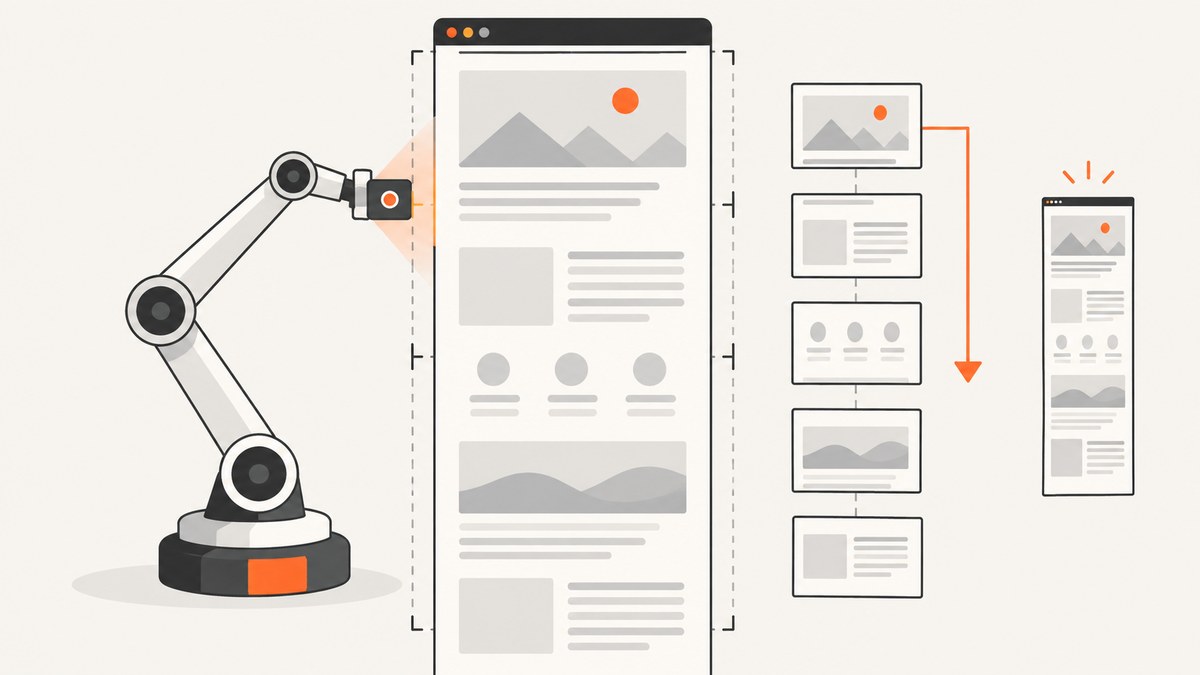
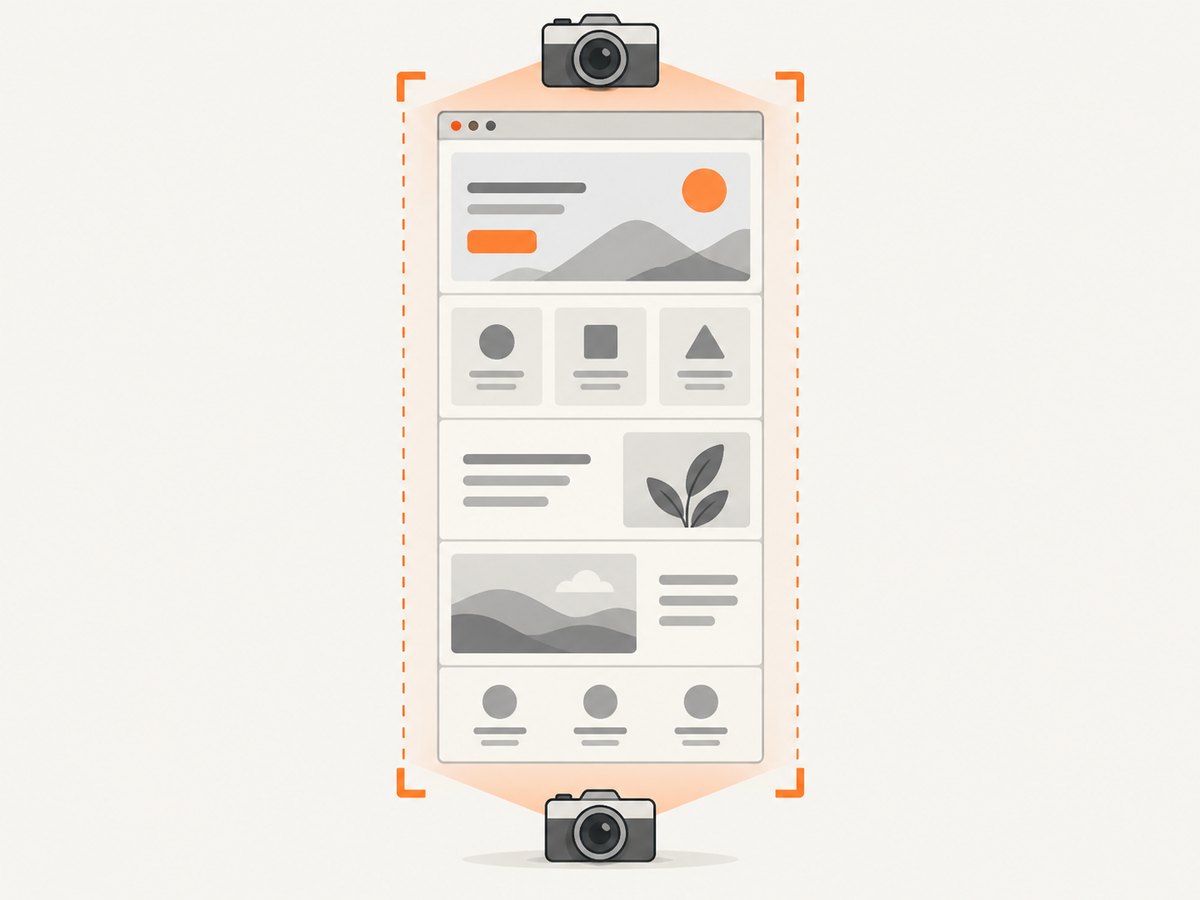
A full-page screenshot captures a webpage’s entire scrollable content in one image, not just the part currently visible in the browser window. In Java, the most direct documented route is Playwright’s setFullPage(true) option. If your project already uses Selenium with Chrome, you can ask Chrome DevTools for the page dimensions and capture an image at that size. Selenium’s standard screenshot API is another option, but its full-page behavior can vary by driver.
This guide covers runnable Playwright Java code, the Selenium choices, readiness and lazy-loading considerations, output options, troubleshooting, and when to use a tall image versus a PDF.
1. Use Playwright Java for a direct full-page screenshot
Playwright defines a full-page screenshot as an image of the entire scrollable page, as if it were displayed on a sufficiently tall screen. Its Java screenshot option defaults to viewport capture; set fullPage to true to request the full page.
import com.microsoft.playwright.Browser;
import com.microsoft.playwright.Page;
import com.microsoft.playwright.Playwright;
import java.nio.file.Paths;

public class FullPageScreenshot {
  public static void main(String[] args) {
    try (Playwright playwright = Playwright.create()) {
      Browser browser = playwright.chromium().launch();
      try {
        Page page = browser.newPage();
        page.navigate("https://example.com");
        page.screenshot(new Page.ScreenshotOptions()
            .setPath(Paths.get("screenshot.png"))
            .setFullPage(true));
      } finally {
        browser.close();
      }
    }
  }
}
The example writes a PNG to the working directory. Replace the target URL and output path for your use case. The Playwright Java screenshots guide documents this full-page option and its meaning: Playwright screenshots documentation.
Set up the project
Add the Playwright Java library using the installation instructions for your build system, then install the browser binaries required by the project. Playwright’s official Java documentation describes installation and supported setup: Playwright for Java introduction. Keep the Playwright library and browser installation aligned when upgrading.
- Create a Java project and add the Playwright dependency using the official setup guide.
- Install the Playwright browsers in the environment that will run the capture.
- Run the class from the project so the relative output path resolves where you expect.
- Open the PNG and confirm the bottom of the page is present and the image dimensions are appropriate.
Wait for the page state you need
navigate returns according to its navigation waiting behavior, but many applications continue updating after initial navigation. If you need a particular section to be ready, wait for a locator or another meaningful page condition before capturing. Avoid relying on an arbitrary delay when a specific element can signal readiness.
page.navigate("https://example.com");
page.locator("main").waitFor();
page.screenshot(new Page.ScreenshotOptions()
    .setPath(Paths.get("screenshot.png"))
    .setFullPage(true));
For content that appears only after scrolling, a single full-page capture may not cause every site’s lazy-loading logic to fetch all content. This is a practical site-specific caveat: scroll through the relevant regions first, wait for images or content to load, and then capture. Infinite-scroll pages may have no fixed final height; decide what stopping point your workflow requires.
2. Return screenshot bytes instead of writing directly to a file
The screenshot API can return the image as bytes. This is useful when the next step is uploading the image, passing it to an image-processing library, or comparing pixels without an intermediate file.
import com.microsoft.playwright.Page;
import java.nio.file.Files;
import java.nio.file.Path;

byte[] png = page.screenshot(new Page.ScreenshotOptions()
    .setFullPage(true));
Files.write(Path.of("screenshot.png"), png);
Use either a path or the returned byte array according to what the rest of your application needs. If you retain screenshots in memory, account for the size of tall pages and release references after processing.
Capture a single element when a whole page is unnecessary
Playwright also supports screenshots from a locator. An element capture is a better fit for a chart, card, or specific content region when surrounding navigation and footer content are irrelevant.
byte[] chartPng = page.locator("#sales-chart").screenshot();
Files.write(Path.of("chart.png"), chartPng);
Make sure the locator resolves to the intended element and that the element is visible and stable before capture. Element capture and full-page capture answer different questions: use full-page for a page archive or visual review, and locator capture for a focused component image.
3. Choose screenshot options for the output you need
Playwright’s Java screenshot options include controls for output path, full-page capture, clipping, animation handling, scale, masking, and image quality where the selected format supports it. Check the API reference for the exact methods available in the Playwright version used by your project: Page API.
| Need | Option or approach | What to consider |
|---|---|---|
| Entire scrollable document | setFullPage(true) |
Can produce a very tall, memory-intensive image. |
| A defined rectangular region | Clip rectangle | Use page coordinates and ensure the region covers the intended content. |
| Smaller output on high-DPI pages | CSS screenshot scale | Produces one output pixel per CSS pixel; fine device-scale detail may be omitted. |
| Higher pixel density | Device screenshot scale | Can substantially increase image dimensions and file size. |
| Hide moving effects during capture | Animation handling | Useful for reducing inconsistent frames; confirm behavior for the site’s animations. |
| Cover sensitive or variable regions | Mask locators | Choose masks deliberately so they do not obscure information needed in review. |
| JPEG output | Image type and quality | JPEG is lossy; quality is relevant to formats that support it. |
For visual regression, keep the browser, viewport, scale, page state, and output settings consistent between captures. Otherwise, differences may reflect capture conditions rather than a page change.
4. Use Selenium with Chrome DevTools when your stack is already Selenium
Selenium exposes screenshots through TakesScreenshot.getScreenshotAs(...), but its API documents that some non-W3C-conformant drivers make a best effort, preferring the entire page, then the current window, then visible frame content. Do not assume the generic interface returns the full page for every driver and browser combination. See the Selenium TakesScreenshot API.
For Chrome, a documented alternative uses Chrome DevTools Protocol (CDP): retrieve the page’s content dimensions, set the capture viewport to those dimensions, call Page.captureScreenshot, decode the returned Base64 PNG, and write it to disk. The Selenium-Jupiter guide provides a Java example: Selenium-Jupiter documentation. CDP bindings are versioned, so use the generated DevTools package matching your Selenium and Chrome setup.
The following illustrates the sequence. The exact generated CDP class and method names depend on the Selenium DevTools version in your dependencies; follow the guide for that version rather than copying imports from a different release.
// Conceptual sequence for Selenium + Chrome DevTools:
// 1. Navigate and wait until the page content is ready.
// 2. Ask CDP for layout metrics and read content width and height.
// 3. Set the device metrics override to those dimensions.
// 4. Call Page.captureScreenshot.
// 5. Base64-decode the returned data and write the PNG bytes.

String base64Png = captureWithChromeDevTools(driver);
byte[] png = java.util.Base64.getDecoder().decode(base64Png);
java.nio.file.Files.write(
    java.nio.file.Path.of("fullpage-screenshot-chrome.png"), png);
This intentionally leaves captureWithChromeDevTools as a placeholder because CDP’s Java bindings are generated and version-specific. The stable conceptual steps are useful, but executable imports must match the Selenium release in your project. If you do not specifically need Chrome DevTools, Playwright’s direct Java full-page option is simpler.
5. Decide between a tall image and a PDF
A full-page PNG or JPEG is one continuous image. It works well for image review, archiving a visual state, or attaching a screenshot to an issue. A PDF is a paginated document, so text can flow across pages and the result is more suitable for printing or document distribution.
Playwright Java provides PDF generation separately through page.pdf(). PDF rendering uses print CSS media by default; if you need screen media styling, configure the page media before generating the PDF. Consult the Page API documentation for PDF controls and current Java methods. Do not treat a PDF as just another encoding of a full-page screenshot: layout and pagination behavior differ.
6. Troubleshooting common problems
| Symptom | Likely cause | Fix |
|---|---|---|
| Only the visible viewport is in the image | fullPage was left at its default false value, or a different screenshot API is in use. |
Set setFullPage(true) for Playwright. With Selenium, verify the actual driver behavior or use the Chrome DevTools route. |
| The image ends before lazy-loaded content | Content is only requested after scrolling or after an application-specific trigger. | Scroll through the required page regions, wait for the content to load, and then capture. Define a stop condition for infinite scroll. |
| Important content is missing or stale | The capture started before the relevant application state was ready. | Wait for a meaningful selector or state change, then capture. Confirm that the target element is attached and visible. |
| CDP imports or methods do not resolve | The example’s generated DevTools bindings do not match the Selenium version. | Use the CDP package corresponding to your Selenium release and consult its API documentation. |
| Output is unexpectedly huge | The page is very tall, device scale is multiplying dimensions, or the page has unusually wide content. | Use CSS scale when appropriate, capture a defined clip or element, or produce a paginated PDF. Inspect pixel dimensions before uploading or storing. |
| Capture differs between runs | Animations, asynchronous content, responsive layout, or browser settings differ. | Fix the viewport and browser configuration, wait for a deterministic ready state, and use animation handling or masks when appropriate. |
| Output file cannot be found | A relative path resolved from a different working directory than expected. | Use an absolute path or log the process working directory; ensure the parent directory exists and is writable. |
7. Performance, reliability, and cost considerations
Full-page images can contain many more pixels than viewport screenshots. Memory use and encoding time generally rise with image dimensions; this is a practical consequence of producing and storing a larger raster image. Keep the viewport and scale intentional, and avoid taking full-page captures when an element image answers the task.
- Bound capture work: use navigation and application readiness conditions appropriate to your environment, and handle failures and timeouts around the capture workflow.
- Control image size: choose CSS scale when one pixel per CSS pixel is enough, and avoid unnecessarily large viewport widths.
- Make output handling explicit: pick a stable file path or stream bytes to the next processing step; consider storage retention for large batches.
- Expect site-specific behavior: sticky elements, virtualized lists, lazy images, and infinite scrolling can make “entire page” ambiguous. Validate the resulting dimensions and content.
- Account for infrastructure: local browser automation has no per-screenshot API charge, but your own compute, browser setup, execution time, and storage still have costs.
For Selenium DevTools, browser and binding compatibility are part of operational reliability. Pin compatible versions, exercise the capture path when upgrading, and inspect failures rather than silently accepting a partial image.
8. Or skip the browser setup
ScreenshotNeo is a website screenshot API and MCP server. One GET request takes a URL and returns PNG, JPEG, WebP, or PDF. Its API supports full-page capture, and the option names used by other screenshot APIs also work. See the ScreenshotNeo API documentation.

curl -G "https://api.screenshotneo.com/v1/shot" -d access_key=YOUR_API_KEY --data-urlencode url=https://example.com -o shot.webpimport requests
r = requests.get(
"https://api.screenshotneo.com/v1/shot",
params={"access_key": "YOUR_API_KEY", "url": "https://example.com"},
timeout=90,
)
open("shot.webp", "wb").write(r.content)const q = new URLSearchParams({
access_key: 'YOUR_API_KEY',
url: 'https://example.com'
});
const res = await fetch(`https://api.screenshotneo.com/v1/shot?${q}`);
if (!res.ok) throw new Error(`Screenshot request failed: ${res.status}`);
await Bun.write('shot.webp', res);In Java, make the equivalent GET request with your HTTP client and save the response body as bytes. Keep the access key in configuration or a secret store rather than committing it to source control.
- Cookie banners, popups, and chat widgets are removed before the shot; each cleanup step can be turned off.
- Bot checks, blank pages, failed loads, timeouts, and cache hits cost nothing. Responses identify the page verdict and billing status in headers.
- An MCP server lets AI agents using Claude, Cursor, or another MCP client take screenshots.
- The free plan includes 1,000 screenshots a month with no card. Paid plans start at $5 for 3,000 screenshots; every feature is on every plan.
Create a free ScreenshotNeo account to get 1,000 screenshots a month with no card.
9. Frequently asked questions
Does Playwright Java capture the full page by default?
No. Full-page capture defaults to false, so set setFullPage(true).
Can Selenium guarantee a full-page screenshot?
The generic Selenium screenshot interface documents best-effort behavior for some drivers. Verify the result with your actual browser and driver, or use a browser-specific approach such as Chrome DevTools when appropriate.
Will full-page capture include content farther down that loads on scroll?
Not necessarily. Scroll-triggered and infinite-scroll pages need site-specific preparation and a defined capture boundary.
Is a PDF equivalent to a full-page PNG?
No. A screenshot is a raster image; a PDF is paginated and can use print styles. Choose according to how the result will be read or distributed.
Can I capture only one part of a page?
Yes. Playwright supports locator screenshots, and its page screenshot API also supports clipping. Use these when a whole-page image is unnecessary.


