How to Take Full-Page Screenshots on Mobile
Capture a whole webpage or long screen on iPhone, Android, or Samsung Galaxy. Learn what to try when Full Page, Capture more, or Scroll capture is missing.
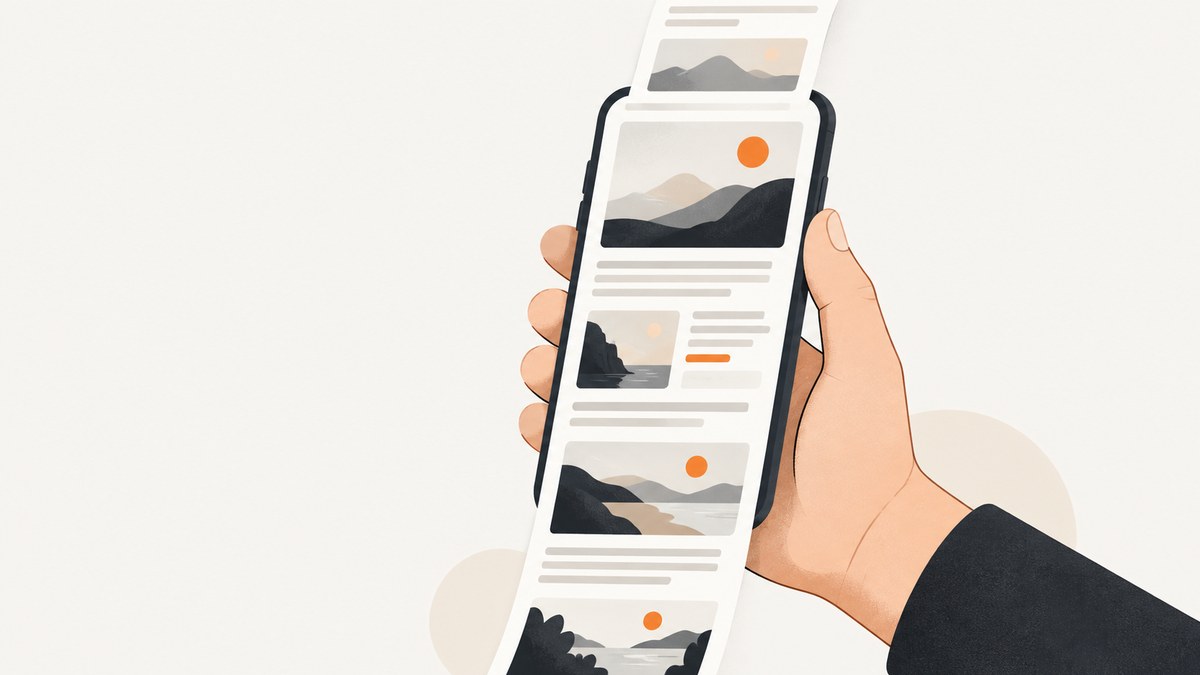
A full-page screenshot captures content beyond the part of a page currently visible on your phone. Start with the normal screenshot gesture, then choose your device’s extended-capture option: Full Page on supported iPhone content, Capture more on most scrollable Android screens running Android 12 or later, or Scroll capture on supported Samsung Galaxy devices. The exact option depends on the app, phone model, and software version.
These built-in tools are the simplest choice for capturing something on your phone. If you need repeatable screenshots of a website for documentation, testing, or an automated workflow, a screenshot API can capture a page from a URL instead; an API capture is different from a screenshot of the phone’s current app.
1. iPhone: use Full Page
Apple documents full-page capture for content beyond the screen and gives an entire webpage in Safari as an example. That does not mean every app offers the option.
- Open the webpage or screen you want to capture.
- Quickly press and release Side button + Volume Up. On an iPhone with a Home button, press and release Home + Side button.
- If a screenshot thumbnail appears, tap it to open the preview.
- Tap Full Page. Drag on the preview to inspect the captured content.
- Crop if needed, then use the available save controls. Apple says screenshots with thumbnails save automatically; check Photos for the result.
If you do not see Full Page, try capturing a webpage in Safari to determine whether the content or app is the limiting factor. Apple’s documented example is a webpage, not a guarantee that every app supports full-page capture. See Apple’s iPhone screenshot instructions for the current controls.
2. Android: choose Capture more
On Android 12 and up, Google’s instructions apply to most screens that allow scrolling. In Google’s words, “These steps work on devices running Android 12 and up on most screens that allow you to scroll.” The wording matters: app and device support can vary.
- Open the screen you want to capture.
- Press Power + Volume Down to take a regular screenshot.
- When the screenshot preview appears, tap Capture more at the bottom.
- Adjust the crop guidelines to include the part of the screen you need.
- Save the capture. Look in Photos > Collections > On this device > Screenshots. On older Android versions without Photos, check Gallery > Album view > Screenshots.
Button combinations and menus can differ by manufacturer. If Power + Volume Down does not work, or Capture more is absent, consult the phone manufacturer’s instructions. Google’s Android screenshot guide covers the supported workflow and where to find captures.
3. Samsung Galaxy: use Scroll capture
On a supported Galaxy phone or tablet, Scroll capture extends a screenshot down the page. Samsung notes that availability varies with the model, carrier, software version, settings, and screen. Some apps or screens may block screenshots for privacy or security.
- Open the content and press Power/Side button + Volume Down.
- In the screenshot toolbar, tap the Scroll capture icon, shown as two downward arrows.
- Tap the icon again as needed to extend the capture, then finish and save using the on-screen controls.
- Look for the file in Gallery > Albums > Screenshots or My Files > Images.
Samsung’s instructions and controls can vary across devices. Check Samsung Support’s screenshot guide for your model.
4. Quick platform comparison
| Device | Extended capture control | Scope and caveat | Where to look |
|---|---|---|---|
| iPhone | Full Page | Captures beyond the screen; Apple’s example is an entire Safari webpage. App support is not universal. | Photos library |
| Android 12+ | Capture more | Available on most, not all, screens that allow scrolling. | Photos Screenshots collection; Gallery on older versions |
| Samsung Galaxy | Scroll capture arrows | Availability varies by model, carrier, software, settings, and app; some screens block capture. | Gallery Screenshots album or My Files > Images |
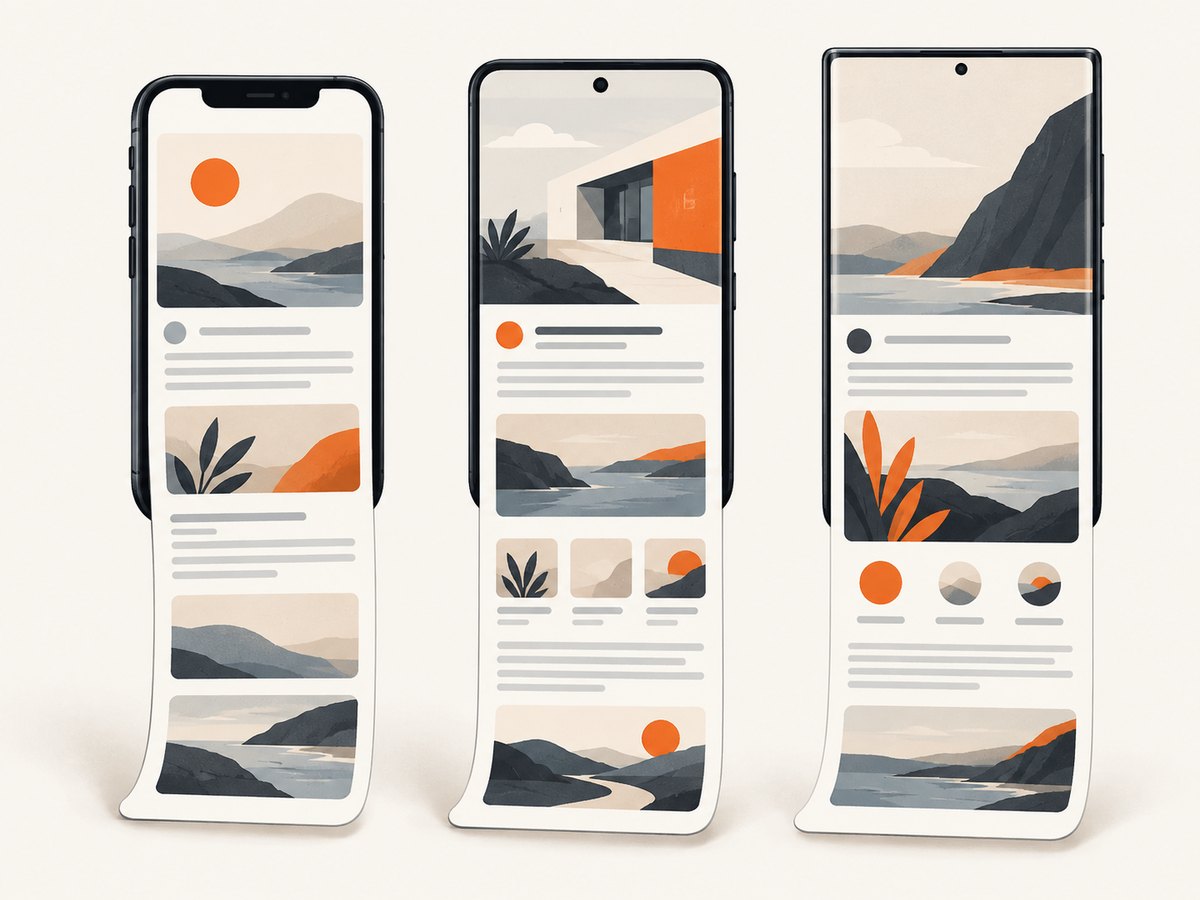
The basic pattern is the same on all three: take a standard screenshot first, then use the extended-capture control if it appears. If it does not, the current app or screen may not support the feature.
5. Get a clean, useful capture
A long image is only useful if it includes the right content and can be read later. Before capturing:
- Open the exact content first. Navigate to the page or app screen and let it finish loading.
- Check whether the page can scroll. Extended capture depends on content beyond the visible screen. A short page may have nothing more to add.
- Plan the boundaries. Use the preview or crop guides to include the section you need without unrelated content above or below it.
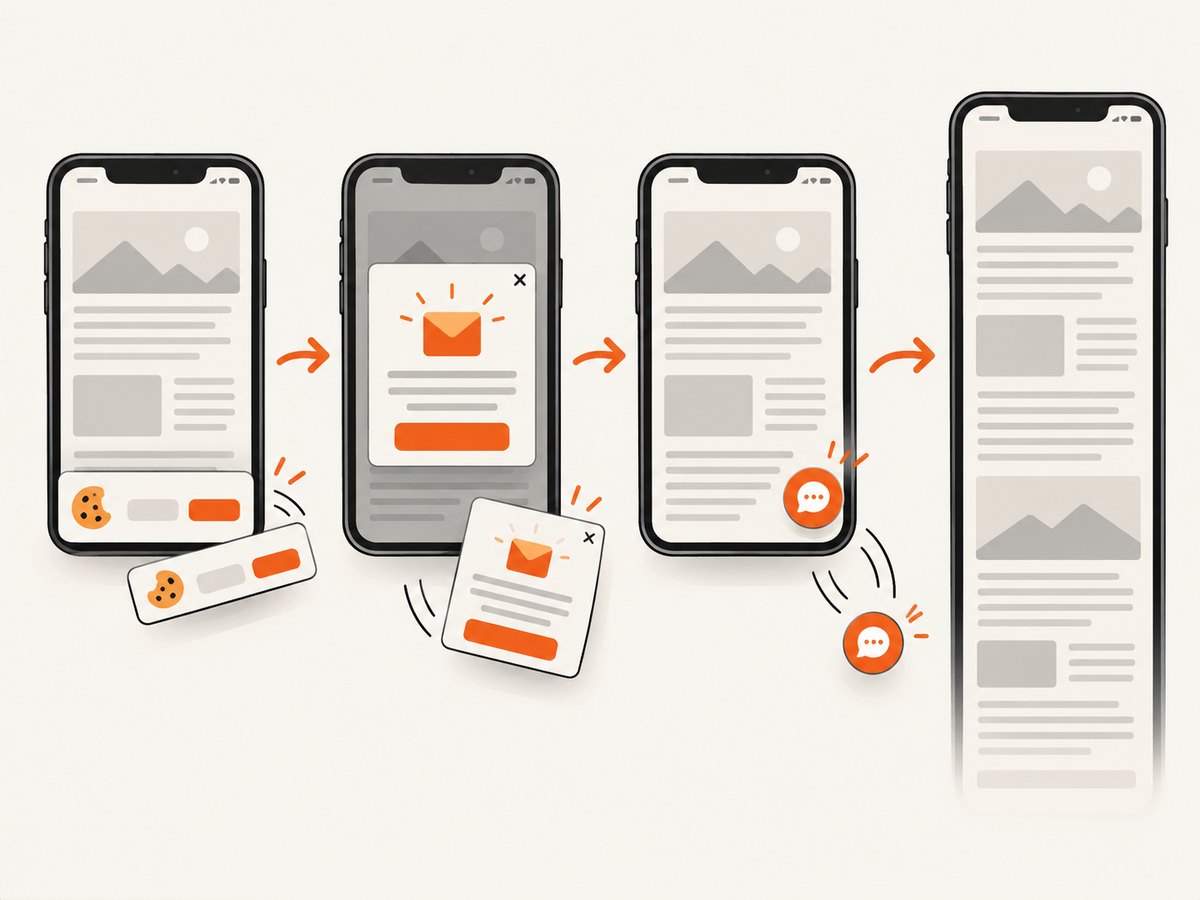
- Watch for fixed overlays. Cookie prompts, chat controls, and sticky headers can obscure page content in a phone screenshot. Dismiss or move them where the app permits.
- Review the saved result. Open the image from Photos, Gallery, or My Files and confirm it includes the intended beginning and ending.
For a page that loads images as you scroll, move through the content first if the images have not appeared yet, then return to the capture workflow. The built-in option and the page itself determine how much content is captured; do not assume every lazy-loaded item will be present in the result.
6. Troubleshooting: when the long screenshot option is missing
| Symptom | Likely reason | What to try |
|---|---|---|
| No Full Page tab on iPhone | The current app or screen may not offer full-page capture. | Try a webpage in Safari, Apple’s documented example. If the option is still absent, use a regular screenshot or the app’s own export option. |
| No Capture more on Android | The phone may run an Android version earlier than 12, or the screen may not be one of the supported scrollable screens. | Check the Android version and try a different scrollable screen. If the hardware buttons differ, consult the manufacturer’s support instructions. |
| No Scroll capture toolbar on Galaxy | The feature may be unavailable for that model, software version, setting, or app. | Check Samsung’s current instructions for the specific device. Confirm whether the screen blocks screenshots. |
| Screenshot is blocked | Some apps or screens restrict capture for privacy or security. | Respect the restriction; use an authorized export or share feature if the app provides one. |
| Capture cuts off too early | The selected capture boundary may end before the needed content, or the app may stop extending the capture. | Adjust the preview or crop guidelines. If extension stops, capture separate sections or use an app-provided export. |
| Cannot find the saved image | It may be in a device-specific screenshots album or folder. | On iPhone, check Photos. On Android, check the Photos Screenshots collection or Gallery. On Galaxy, also check My Files > Images. |
For additional plain-language guidance, Legal Aid Ontario’s long screenshot guide also describes the goal as capturing a long screenshot on a mobile device.
7. When a URL-based screenshot is a better fit
A phone’s built-in feature captures what the phone displays. For developers, that is not always the right input. You may need a consistent capture of a public webpage for a report, issue, preview, or repeated workflow, without manually opening the page on a device. A website screenshot API accepts a URL and returns an image or PDF. It does not capture a private app screen on your phone.
ScreenshotNeo is a website screenshot API and MCP server from Yorker Media. A GET request to its API can return PNG, JPEG, WebP, or PDF. Its options include viewport and device presets, full-page capture with lazy images loaded, element capture by CSS selector, dark mode, custom CSS or JavaScript, waits, and more. See the ScreenshotNeo site and API documentation for the available parameters and setup.
8. Or skip the browser setup
For a website URL, ScreenshotNeo can return a screenshot with one request. Replace the example target with the page you want to capture and use your API key. The examples below save the response body as an image; consult the docs for output and capture parameters.
cURL
curl -G "https://api.screenshotneo.com/v1/shot" -d access_key=YOUR_API_KEY --data-urlencode url=https://stripe.com -o shot.webpPython
import requests

r = requests.get(
    "https://api.screenshotneo.com/v1/shot",
    params={"access_key": "YOUR_API_KEY", "url": "https://stripe.com"},
    timeout=90,
)
r.raise_for_status()
open("shot.webp", "wb").write(r.content)
Node.js
const q = new URLSearchParams({
  access_key: 'YOUR_API_KEY',
  url: 'https://stripe.com'
});
const res = await fetch(`https://api.screenshotneo.com/v1/shot?${q}`);
if (!res.ok) throw new Error(`Screenshot request failed: ${res.status}`);
const bytes = new Uint8Array(await res.arrayBuffer());
await import('node:fs/promises').then(fs => fs.writeFile('shot.webp', bytes));
What the API changes
- Cookie and consent banners, newsletter popups, and chat widgets from more than 60 known platforms are removed before the shot; each cleanup step can be turned off.
- Bot checks or CAPTCHAs, blank pages, timeouts, failed loads, and cache hits cost nothing. Responses include
X-Page-VerdictandX-Billedheaders to say what happened. - An MCP server exposes
take_screenshot,get_page_info, andcapture_pdffor Claude, Cursor, or another MCP client. - The free plan includes 1,000 screenshots per month with no card. Paid plans start at $5 for 3,000 screenshots; all features are available on every plan.
For phone-specific native screenshots, use the device steps above. For repeatable captures of website URLs, see ScreenshotNeo’s docs and sign up for 1,000 free screenshots a month, with no card.
9. Reliability, speed, and cost considerations
Built-in capture: It requires no API key or separate service, and the saved image is immediately available on the phone. Its main limitation is compatibility: the app, OS version, model, and privacy settings determine whether extended capture appears. Check the saved image because a successful button press does not guarantee that every part of a long page was included.
URL-based capture: It is useful when the input is a webpage URL and you need a repeatable developer workflow. The page must still load successfully, and its rendered result can depend on content, timing, and capture settings. ScreenshotNeo’s response headers report page verdict and billing status, and its stated billing rules exclude bot checks, blank pages, timeouts, failed loads, and cache hits. Configure waits and other options for the target page using the docs rather than assuming all sites render alike.
Cost: Native phone screenshots use the device feature described here. ScreenshotNeo’s listed plans are Free (1,000 per month), Starter ($5 for 3,000), Growth ($15 for 15,000), Pro ($39 for 60,000), Scale ($99 for 250,000), and Business ($249 for 1,000,000); yearly billing gives two months free. Choose based on expected capture volume, and use the usage API to monitor usage. These prices and plan details are provided by ScreenshotNeo; check its site for current terms.
10. Frequently asked questions
Does a full-page screenshot include the whole website?
It captures a page or screen beyond the visible area, within what that device or capture method supports. It does not mean every page on a website is captured at once.
Can I take a full-page screenshot of any mobile app?
No. Apple’s example is a Safari webpage, Android describes most scrollable screens, and Samsung notes that availability varies and some screens block capture.
Is Capture more available on every Android phone?
Google documents the workflow for Android 12 and up and most screens that allow scrolling. Manufacturer and app support can still differ.
Can ScreenshotNeo capture what is currently open in my phone app?
The examples here send a webpage URL to a screenshot API. They are intended for website captures, not for reading or capturing a private screen inside a mobile app.
Where are long screenshots saved?
Check Photos on iPhone, the Screenshots collection in Photos or Gallery on Android, and Gallery’s Screenshots album or My Files > Images on Galaxy.


