How to Take Full-Page Screenshots with Protractor
Use Protractor's WebDriver instance to save PNG screenshots, understand full-page limits, and choose a reliable capture workflow.

In Protractor, the direct way to capture a screenshot is to use the wrapped WebDriver instance: browser.driver.takeScreenshot(). Selenium returns a promise containing base64-encoded PNG data. Decode that value and write it to a .png file before the test or browser session ends.
const fs = require('fs');

browser.driver.takeScreenshot().then((pngBase64) => {
  fs.writeFileSync('page.png', pngBase64, 'base64');
});
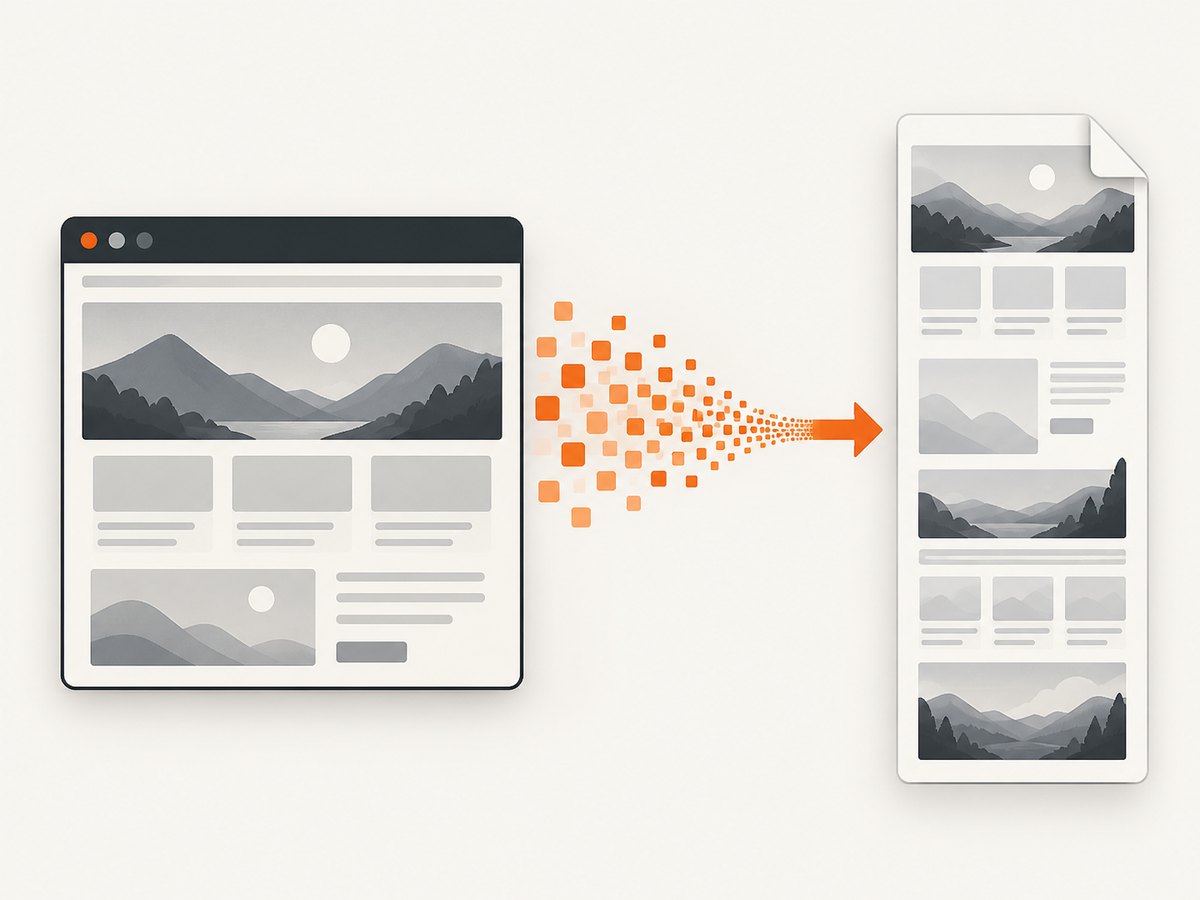
This is the complete minimum example. The important qualification is that WebDriver does not guarantee that every browser and driver combination returns every pixel below the fold. Selenium documents a best-effort preference order: the entire page, the current window, the visible part of the current frame, and finally the display containing the browser. Treat “full page” as an output you must verify in your own Protractor, browser and driver versions.
What Protractor is calling
Protractor exposes its underlying WebDriver object as browser.driver. The Protractor API describes this access for cases such as interacting with non-Angular pages. The screenshot method belongs to Selenium’s JavaScript WebDriver API, where takeScreenshot() resolves to a base64-encoded PNG. See the Protractor API documentation and Selenium JavaScript WebDriver API.
There are three separate operations in the basic workflow:
- Navigate to or prepare the page in your Protractor test.
- Ask the wrapped driver for a screenshot and wait for its promise.
- Decode the returned base64 string while writing it as binary PNG data.
Calling takeScreenshot() without waiting for it can race with test teardown. The browser may close before the file is written, or the test runner may finish before the artifact exists.
A complete Protractor example
The following spec navigates to a page, waits for a visible element, captures the current WebDriver screenshot, and stores it in an artifacts directory. The directory is a project choice; configure your CI system to preserve it after a run.
const fs = require('fs');
const path = require('path');

describe('visual evidence', () => {
  it('writes a PNG screenshot', async () => {
    await browser.get('https://example.com');

    const heading = element(by.css('h1'));
    await browser.wait(
      protractor.ExpectedConditions.visibilityOf(heading),
      10000,
      'The page heading did not become visible'
    );

    const outputDir = path.resolve(process.cwd(), 'artifacts');
    fs.mkdirSync(outputDir, { recursive: true });

    const pngBase64 = await browser.driver.takeScreenshot();
    const outputPath = path.join(outputDir, 'example-page.png');
    fs.writeFileSync(outputPath, pngBase64, 'base64');

    console.log(`Screenshot written to ${outputPath}`);
  });
});
Use async/await or a returned promise consistently. If your existing suite uses promise chains, the equivalent is:
const fs = require('fs');

browser.get('https://example.com')
  .then(() => browser.driver.takeScreenshot())
  .then((pngBase64) => {
    fs.writeFileSync('artifacts/example-page.png', pngBase64, 'base64');
  });
Make the final promise part of the test’s returned chain. A detached .then() is easy for a runner to overlook.
Does this produce a full-page image?
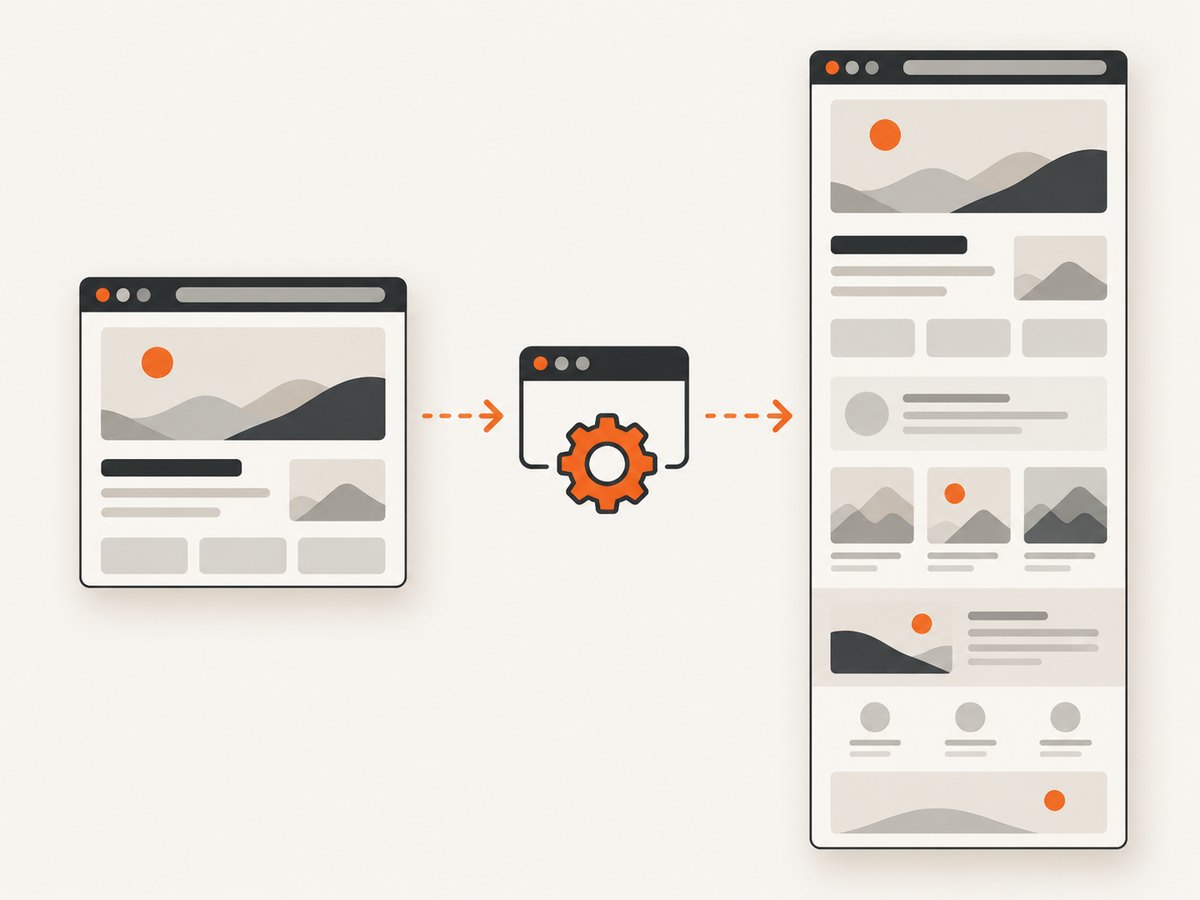
Sometimes, but the API documentation does not promise identical full-page behavior across implementations. Selenium’s JavaScript documentation describes a preference for the entire page, then progressively smaller targets when the implementation cannot provide it. Selenium’s Java TakesScreenshot reference similarly distinguishes WebDriver-conformant behavior from browser-dependent best effort. The practical result is that a screenshot can be full height in one environment and viewport height in another.
After each implementation change, inspect the actual PNG. Check at least:
- Whether the image height includes content below the initial viewport.
- Whether fixed headers, sticky navigation and overlays appear as expected.
- Whether lazy-loaded content is present when the screenshot is taken.
- Whether the image is valid PNG data rather than an empty or truncated file.
Do not infer full-page support from the existence of a file. A valid PNG can still contain only the visible viewport. The cited API references do not establish a Protractor option that guarantees full-page output for every browser and driver combination, so record the versions used by your suite and validate the generated artifact.
Timing the capture correctly
A screenshot captures the page state at one instant. Navigation completion alone may not mean that application data, fonts or images have finished rendering. Add a condition that represents the state you need, then capture.
Wait for a selector
const EC = protractor.ExpectedConditions;
const chart = element(by.css('[data-test="chart"]'));

await browser.wait(EC.visibilityOf(chart), 15000);
const pngBase64 = await browser.driver.takeScreenshot();
Wait for a known application state
await browser.wait(async () => {
  return browser.executeScript(() => {
    return document.documentElement.dataset.ready === 'true';
  });
}, 15000, 'Application did not report ready');
Use a short delay only when necessary
A fixed delay can cover an animation or delayed font, but it makes every run wait the same amount and can still be too short under load. Prefer a DOM condition or application readiness signal when one exists.
Capturing after a failed test
A failure hook is useful for debugging, but it must tolerate pages that never loaded and sessions that have already closed. Keep the screenshot operation inside a guarded block and use a unique filename.
const fs = require('fs');
const path = require('path');

async function saveFailureScreenshot(name) {
  try {
    const pngBase64 = await browser.driver.takeScreenshot();
    const dir = path.resolve(process.cwd(), 'artifacts', 'failures');
    fs.mkdirSync(dir, { recursive: true });
    fs.writeFileSync(path.join(dir, `${name}.png`), pngBase64, 'base64');
  } catch (error) {
    console.error('Could not save failure screenshot:', error.message);
  }
}

afterEach(async function () {
  if (this.currentTest && this.currentTest.state === 'failed') {
    await saveFailureScreenshot(`failure-${Date.now()}`);
  }
});
The exact hook API varies by the test runner and version. The invariant is the same: call the method while the WebDriver session is alive, await completion, and preserve the output directory as a CI artifact.
Output handling and artifact retention
The returned value is base64 text representing PNG bytes. Passing 'base64' to Node’s fs.writeFileSync decodes it during the write. Do not convert it to UTF-8 first; that corrupts binary image data.
For repeatable CI diagnostics:
- Use a dedicated directory such as
artifacts/screenshots. - Include the test name, browser and run identifier in the filename.
- Write only after the screenshot promise resolves.
- Configure the CI runner to upload that directory on success and failure.
- Open a sample image periodically and check its dimensions and below-fold content.
If parallel workers write the same filename, later workers overwrite earlier evidence. Add a worker or spec identifier.
Common errors and fixes
| Error or symptom | Likely cause | Fix |
|---|---|---|
browser.driver.takeScreenshot is not a function |
The object is not the Protractor browser instance, or the driver wrapper is being replaced. | Call the method on browser.driver inside a Protractor test and verify the installed Protractor/Selenium versions. |
| An empty, tiny or corrupt PNG | The base64 value was written as normal text, or the promise was not awaited. | Use fs.writeFileSync(file, pngBase64, 'base64') and await the screenshot before teardown. |
| Only the viewport is captured | The browser or driver implementation did not provide an entire-page screenshot. | Inspect the image, record the environment, and treat full-page output as implementation-dependent. Do not assume a universal Protractor switch. |
| Screenshot contains a loading spinner | The capture ran before application content was ready. | Wait for a meaningful selector or application readiness condition; use a delay only for a known animation. |
Screenshot fails in an afterEach hook |
The test failure also closed or invalidated the WebDriver session. | Guard the hook with try/catch and capture before browser teardown. |
| File is missing in CI | The file was written outside the preserved artifact path, or the process ended before the write. | Use an absolute project path, await the write, and configure artifact collection for that directory. |
| Content differs between local and CI | Viewport, browser, driver, fonts, timing or responsive layout differs. | Record those inputs, set the same window configuration where supported, and compare images from the same environment. |
Performance and reliability considerations
A screenshot adds image encoding and disk I/O to a test. Capturing every step in a large suite can increase runtime and artifact volume. Capture at failure points, checkpoints, or a small set of visual assertions unless every step is required for a report.
Full-page output, when supported, can be substantially taller than a viewport image. Large pages therefore take longer to transfer and store. Keep filenames deterministic enough to find but unique enough to avoid collisions, and apply retention rules in your CI system.
Reliability comes from controlling state rather than retrying blindly. Wait for the same readiness signal on every run, keep browser and driver versions consistent, and retain the environment metadata with the image. A retry can hide a race while producing a different page state.
When Protractor is not the right capture boundary
Protractor screenshots are tied to a live browser session and its WebDriver implementation. That is useful when the image must show exactly what an end-to-end test saw. It is less convenient when you need scheduled captures, many URLs, cache control, custom request headers, PDF output, or a service that can clean common overlays before capture.
Or skip the browser setup
ScreenshotNeo provides a website screenshot API and MCP server. One GET request returns PNG, JPEG, WebP or PDF output. Its capture pipeline accepts cookie and consent banners like a visitor, then removes more than 60 known consent platforms, newsletter popups and chat widgets. Each step can be turned off. Only clean shots are billed: bot checks or CAPTCHAs, blank pages, timeouts, failed loads and cache hits cost nothing, and the response identifies the result with X-Page-Verdict and X-Billed headers.
See the ScreenshotNeo API documentation for the full parameter list. This is a runnable cURL request:
curl -G "https://api.screenshotneo.com/v1/shot" \
  -d access_key=YOUR_API_KEY \
  --data-urlencode url=https://stripe.com \
  -o shot.webp
Python:
import requests

r = requests.get(
    "https://api.screenshotneo.com/v1/shot",
    params={"access_key": "YOUR_API_KEY", "url": "https://stripe.com"},
    timeout=90,
)
r.raise_for_status()
open("shot.webp", "wb").write(r.content)
Node.js:
const q = new URLSearchParams({ access_key: 'YOUR_API_KEY', url: 'https://stripe.com' });
const res = await fetch(`https://api.screenshotneo.com/v1/shot?${q}`);
if (!res.ok) throw new Error(`Screenshot failed: ${res.status}`);
const fs = require('fs');
fs.writeFileSync('shot.webp', Buffer.from(await res.arrayBuffer()));
ScreenshotNeo also supports full-page capture with lazy images loaded, CSS selector element capture, dark mode, 12 device presets or any viewport, retina scale, custom CSS and JavaScript, click actions, selector or network-idle waits, blocked ads and trackers, custom headers and cookies, user agents and Authorization, timezone and geolocation, transparent backgrounds, resizing, configurable caching, signed links, asynchronous jobs with signed webhooks, bulk capture for 100 URLs per call, a usage API and an OpenAPI specification. An MCP server provides take_screenshot, get_page_info and capture_pdf tools for Claude, Cursor and other MCP clients.
Free usage includes 1,000 screenshots per month with no card. Paid plans start at $5 for 3,000 shots; every feature is available on every plan. Create a free ScreenshotNeo account.
Choosing between Protractor and an API
| Requirement | Protractor screenshot | ScreenshotNeo |
|---|---|---|
| Show the exact state reached by an end-to-end test | Strong fit because capture happens in that browser session. | Use when the test state can be represented by URL, headers, cookies or script. |
| Guaranteed behavior across environments | Validate your browser and driver output; full-page behavior is best effort. | Use the API options and inspect verdict headers and returned output. |
| Remove consent banners, popups and chat widgets | Requires page-specific test setup. | Built-in cleanup before capture, with steps configurable. |
| Capture many independent URLs | Requires browser orchestration. | Bulk capture supports up to 100 URLs per call. |
| AI-agent workflows | Requires your own browser integration. | MCP tools are available for compatible clients. |
FAQ
What file format does Protractor return?
Selenium’s JavaScript takeScreenshot() returns base64-encoded PNG data. Write it with the base64 encoding option.
Can I save the screenshot as JPEG?
Not through the documented Protractor/WebDriver method described here; its return type is PNG. Convert the file separately if your reporting system requires another format.
Why does my “full-page” screenshot stop at the viewport?
Entire-page capture is implementation-dependent. Browser and driver support, page structure and the active frame affect the result. Inspect the output in the exact environment used by your suite.
Should I capture before or after an assertion?
Capture after the state you want to diagnose is established. In a failure hook, capture before the session is torn down and protect the hook from a second error.
Can I use this with a non-Angular page?
Yes. Protractor exposes the underlying WebDriver through browser.driver, which is intended for cases such as non-Angular interactions.


