How to Take Full-Page Screenshots with Puppeteer, Playwright, or Selenium
Capture an entire scrollable page with Playwright, Puppeteer, or Selenium, including waits, lazy content, formats, troubleshooting, and an API option.
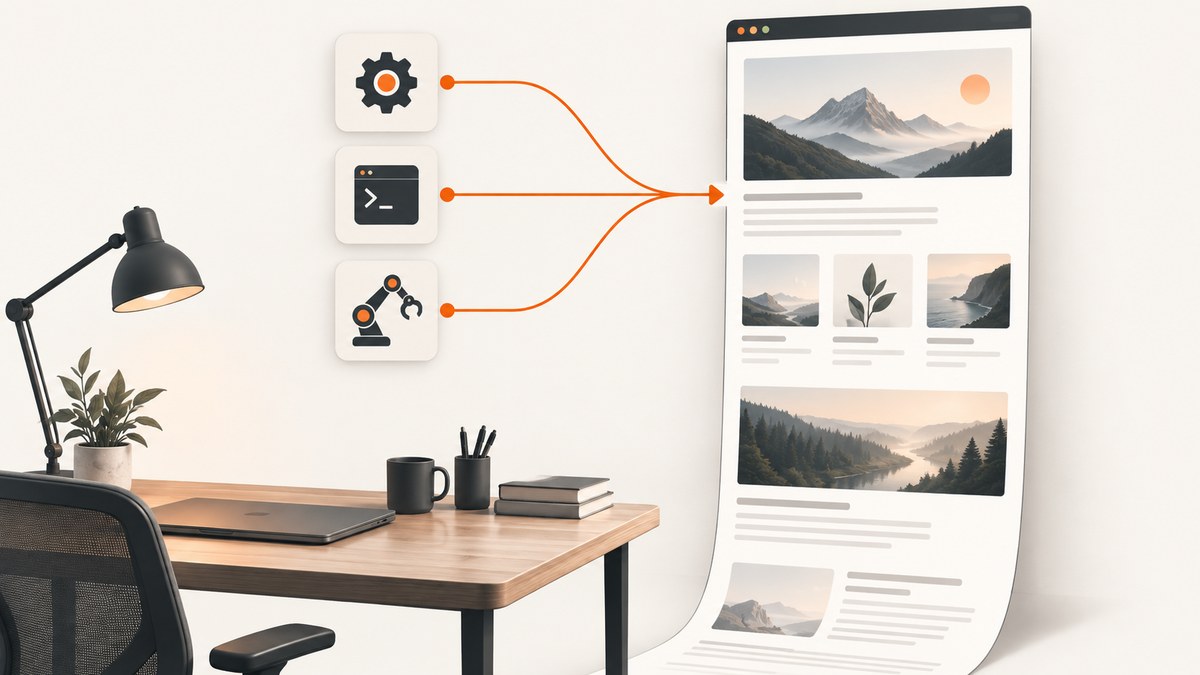
A full-page screenshot captures the page’s scrollable document instead of only the visible viewport. In Playwright and Puppeteer, enable the documented fullPage: true option. In Selenium, use the full-document method provided by the browser driver and language binding; support is not identical across browsers.
This guide gives runnable examples for all three tools, explains how to wait for real page state, handle lazy-loaded content and infinite scroll, choose formats and output sizes, and diagnose common failures. It ends with an API route when you do not want to maintain a browser runtime.
1. What “full page” means
A viewport screenshot is limited to the current browser window. A full-page screenshot renders the complete scrollable document as one image. Playwright describes it as a screenshot of a full scrollable page, “as if you had a very tall screen and the page could fit it entirely.” It does not include the browser’s address bar, tabs, or other browser chrome.
The capture boundary is the document that the browser can scroll. A call to fullPage does not automatically prove that every lazy image, virtualized row, or infinite-scroll item has loaded. Prepare the page first, then capture it.
| Tool | Full-page switch or method | Portability note |
|---|---|---|
| Playwright | page.screenshot({ fullPage: true }) |
Documented for the page screenshot API in JavaScript, Python, and Java bindings. |
| Puppeteer | page.screenshot({ fullPage: true }) |
fullPage defaults to false; verify options against your installed version. |
| Selenium | Firefox Python: driver.get_full_page_screenshot_as_file() |
Generic screenshot behavior depends on browser, driver, binding, and version. |
2. Playwright: capture the entire document
Install the JavaScript package and browser binaries:
npm install playwright
npx playwright install chromium
Here is a complete Node.js script. It waits for navigation, captures a PNG, and closes the browser even if capture fails.
const { chromium } = require('playwright');

(async () => {
  const browser = await chromium.launch();
  const page = await browser.newPage({ viewport: { width: 1440, height: 900 } });

  try {
    await page.goto('https://example.com', { waitUntil: 'domcontentloaded', timeout: 60000 });
    await page.screenshot({
      path: 'playwright-full.png',
      fullPage: true,
      type: 'png'
    });
  } finally {
    await browser.close();
  }
})();
The Python equivalent uses the same page-level option:
from playwright.sync_api import sync_playwright

with sync_playwright() as p:
    browser = p.chromium.launch()
    page = browser.new_page(viewport={"width": 1440, "height": 900})
    page.goto("https://example.com", wait_until="domcontentloaded", timeout=60000)
    page.screenshot(path="playwright-full.png", full_page=True, type="png")
    browser.close()
Useful Playwright screenshot options
path: writes the image to a file. The extension can communicate the intended format; settingtypeexplicitly is clearer.type: usepngorjpeg. JPEG accepts aqualityvalue.quality: JPEG quality; it has no effect for PNG.clip: captures a rectangle instead of the complete document. Do not combine it casually with a full-page requirement.omitBackground: makes the background transparent when the page supports it.animations: disable or fast-forward animations so sections do not appear in inconsistent states.caret: controls whether a blinking text caret is visible.mask: masks selected locators with a solid color, useful for sensitive or unstable regions.
Wait for the state you actually need
waitUntil: 'domcontentloaded' means the initial document has been parsed. It does not mean fonts, images, API data, or ads are complete. For an application that settles after requests finish, you can use networkidle, but treat it as a heuristic rather than a universal guarantee. A selector wait is often more precise:
await page.goto('https://example.com/dashboard', { waitUntil: 'domcontentloaded' });
await page.locator('[data-loaded="true"]').waitFor({ state: 'visible', timeout: 30000 });
await page.screenshot({ path: 'dashboard.png', fullPage: true });
3. Puppeteer: the same fullPage switch
Install Puppeteer, which downloads a compatible browser in its standard setup:
npm install puppeteerRunnable script:
const puppeteer = require('puppeteer');

(async () => {
  const browser = await puppeteer.launch({ headless: true });
  const page = await browser.newPage();
  await page.setViewport({ width: 1440, height: 900, deviceScaleFactor: 1 });

  try {
    await page.goto('https://example.com', {
      waitUntil: 'networkidle2',
      timeout: 60000
    });
    await page.screenshot({
      path: 'puppeteer-full.png',
      fullPage: true,
      type: 'png'
    });
  } finally {
    await browser.close();
  }
})();
Puppeteer’s ScreenshotOptions.fullPage is a Boolean and defaults to false. The API also documents clip, captureBeyondViewport, omitBackground, type, and JPEG quality. With a file path, Puppeteer can infer the image type from the extension, but an explicit type avoids surprises when code later changes the filename.
Control page content before capture
Hide a fixed chat button or an unstable banner with CSS injected into the page:
await page.addStyleTag({
  content: '.cookie-banner, .chat-widget { display: none !important; }'
});
await page.screenshot({ path: 'clean.png', fullPage: true });
For content that appears after scrolling, scroll in increments and wait for images before taking the final shot:
await page.evaluate(async () => {
  await new Promise(resolve => {
    let y = 0;
    const step = 700;
    const timer = setInterval(() => {
      window.scrollBy(0, step);
      y += step;
      if (y >= document.body.scrollHeight) {
        clearInterval(timer);
        window.scrollTo(0, 0);
        resolve();
      }
    }, 100);
  });
});
await page.waitForNetworkIdle({ idleTime: 500, timeout: 30000 });
await page.screenshot({ path: 'lazy-loaded.png', fullPage: true });
This is application-specific. An infinite feed may never become idle; set a business limit on the number of scrolls or items instead of waiting forever.
4. Selenium: full-page capture depends on the driver
Selenium’s generic screenshot commands describe the current browsing context or an element. Full-document support is supplied by particular drivers and bindings. The reviewed Python Firefox API exposes an explicit method:
from selenium import webdriver
from selenium.webdriver.firefox.options import Options

options = Options()
options.add_argument("--headless")
driver = webdriver.Firefox(options=options)

try:
    driver.get("https://example.com")
    driver.get_full_page_screenshot_as_file("selenium-full.png")
finally:
    driver.quit()
The same Firefox binding also provides methods that return bytes or base64 data, and a save_full_page_screenshot method in supported versions. Check the API reference for your installed Selenium version. Ruby documentation explicitly states that full-page capture works only when the driver provides that capability, so do not assume that a generic screenshot call is full-page on every browser.
When Selenium returns only the viewport
- Confirm the selected driver advertises full-page support.
- Check that the browser and driver versions match.
- Use the binding’s documented full-page method, if one exists.
- If no native method exists, measure the document, resize the window, or stitch viewport captures; stitching must account for fixed headers and overlapping pixels.
5. Make lazy images and dynamic pages deterministic
Full-page capture and content loading are separate problems. Before the screenshot:
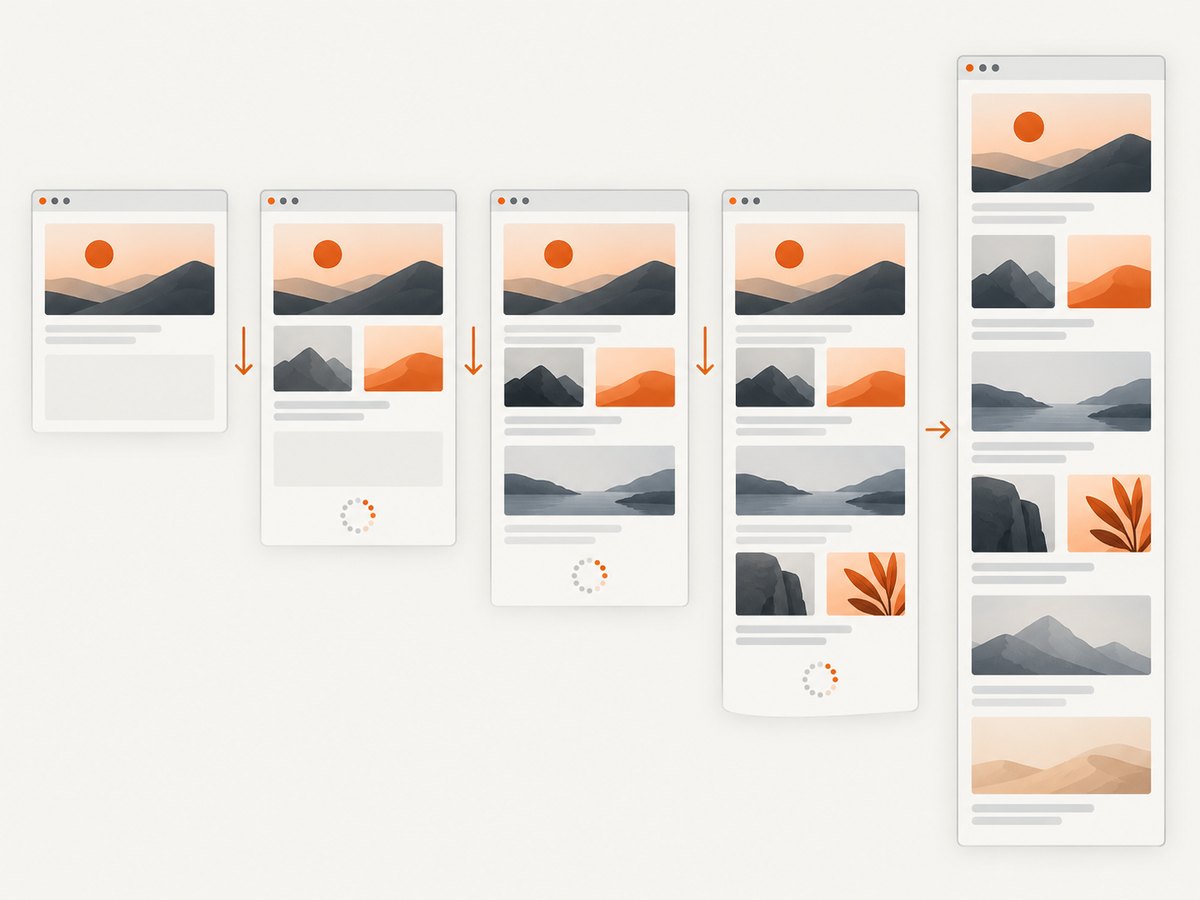
- Wait for a page-specific “ready” selector after client-side rendering.
- Scroll through lazy sections if the site loads media only near the viewport.
- Wait for fonts and critical images where visual accuracy matters.
- Disable or freeze animations and carousels.
- Set a fixed viewport, device scale factor, timezone, and locale when comparing runs.
- Use a test account or redact sensitive content with masks or CSS.
Infinite scroll needs an explicit stopping rule, such as “capture the first 20 cards.” A full-page flag cannot know whether a feed is complete. Virtualized lists may remove items that have scrolled away; capture a server-rendered export or collect screenshots in sections if the entire dataset is required.
6. Output, size, and visual details
| Decision | Practical effect |
|---|---|
| PNG | Lossless and best for text, diagrams, and pixel comparisons; files can be large. |
| JPEG | Smaller for photographic pages; quality does not apply to PNG. |
| Viewport width | Controls responsive breakpoints and line wrapping. Keep it fixed for reproducible output. |
| Device scale factor | Changes pixel dimensions and sharpness. A retina factor produces a larger image. |
| Background | Omitting it can create transparency; otherwise the page’s painted background is included. |
| Clipping | Useful for a region or element, but it is not a substitute for a document capture. |
Very tall documents can produce large files or hit browser memory limits. Capture a known section, reduce the scale, use JPEG where acceptable, or split a long report into logical pages. Store outputs outside ephemeral CI workspaces when the build needs them later.
7. Troubleshooting checklist
| Symptom | Likely cause | Fix |
|---|---|---|
| Only the visible viewport is captured | The full-page flag is absent or false. | Set Playwright/Puppeteer fullPage: true, or use Selenium’s driver-specific full-page method. |
| Bottom content is blank | Lazy loading has not been triggered. | Scroll first, wait for the content selector, then capture. |
| Cookie banner or chat covers content | Overlays are part of the page. | Accept the banner, click its close control, or inject CSS to hide known selectors. |
| Capture times out | Network idle never occurs, a request hangs, or the page is intentionally long-lived. | Use a selector wait, increase the navigation timeout, block nonessential requests, and define a finite scroll limit. |
| Fonts differ between runs | Font files are late, blocked, or unavailable in CI. | Wait for fonts, package required fonts, and use the same runtime image. |
| Sticky header repeats or obscures sections | The page’s fixed element remains during a stitched or scrolled capture. | Prefer native full-page capture; otherwise hide the fixed element while stitching. |
| Huge memory use or image failure | The document is extremely tall or high scale. | Lower device scale, choose JPEG, capture sections, or raise the process memory limit. |
| Selenium method is missing | The binding or driver does not implement full-page screenshots. | Check the exact browser/driver API and use a supported method or a stitching fallback. |
8. Performance, reliability, and cost
Browser startup is often a larger fixed cost than the screenshot call. Reuse one browser process for a controlled batch, but create a fresh context or page per target so cookies and local storage do not leak. Close pages and browsers in a finally block. Set navigation and selector timeouts, log the URL and failure stage, and retry only transient navigation failures.
For reproducible visual tests, pin browser versions, use deterministic data, and compare images with a tolerance for anti-aliasing. For production jobs, bound page height and wait time, record the final URL after redirects, and retain failure screenshots or HTML when privacy policy permits.
Self-hosted browser automation also includes compute, browser patching, fonts, sandbox configuration, proxy management, and queueing. If you need occasional captures or many unrelated sites, an HTTP screenshot service can move those operational concerns out of your application.
9. Or skip the browser setup
ScreenshotNeo provides a website screenshot API and MCP server. One GET request returns PNG, JPEG, WebP, or PDF. Its capture flow can accept cookie or consent banners like a visitor and remove more than 60 known consent platforms, newsletter popups, and chat widgets before the shot; each step can be turned off.

cURL:
curl -G "https://api.screenshotneo.com/v1/shot" -d access_key=YOUR_API_KEY --data-urlencode url=https://stripe.com -o shot.webpPython:
import requests
r = requests.get("https://api.screenshotneo.com/v1/shot", params={"access_key": "YOUR_API_KEY", "url": "https://stripe.com"}, timeout=90)
open("shot.webp", "wb").write(r.content)
Node.js:
const q = new URLSearchParams({ access_key: 'YOUR_API_KEY', url: 'https://stripe.com' });
const res = await fetch(`https://api.screenshotneo.com/v1/shot?${q}`);
See the ScreenshotNeo API documentation for authentication and options. You can request full-page capture, a CSS-selected element, a device preset or custom viewport, retina scale, dark mode, custom CSS and JavaScript, clicks, selector or network-idle waits, blocked resource types, headers, cookies, user agents, authorization, timezone, geolocation, transparent backgrounds, resizing, caching with a chosen TTL, signed image links, asynchronous jobs with signed webhooks, bulk capture for up to 100 URLs, and usage data.
Only clean shots are billed. Bot checks or CAPTCHAs, blank pages, timeouts, failed loads, and cache hits cost nothing, and the response identifies the result with X-Page-Verdict and X-Billed headers. An MCP server exposes take_screenshot, get_page_info, and capture_pdf for Claude, Cursor, and other MCP clients.
The Free plan includes 1,000 shots per month without a card. Paid plans start at $5 for 3,000 shots; yearly billing gives two months free, and every feature is available on every plan. Create a free ScreenshotNeo account.
10. FAQ
Does fullPage capture include the browser toolbar?
No. It captures the web document in the browsing context, not browser chrome.
Should I use network idle for every page?
No. Long-polling, analytics, and streaming applications may never become idle. A page-specific ready selector is usually more reliable.
Can full-page mode capture an infinite feed?
Only the content that exists and is loaded when capture runs. Define a finite scroll policy or use a stable export.
Which framework should I choose?
Use the framework already supported by your application and language. Playwright and Puppeteer document direct full-page page screenshot options; Selenium support must be verified for the chosen driver and binding.
When is an API preferable?
Use an API when you want a simple HTTP call, built-in handling for common overlays and failed pages, or an MCP workflow for AI agents without maintaining browser binaries.