How to Include Full-Page Screenshots in Serenity Reports
Configure Serenity to capture entire pages, keep screenshots readable, and avoid common Chrome, memory, and storage problems.
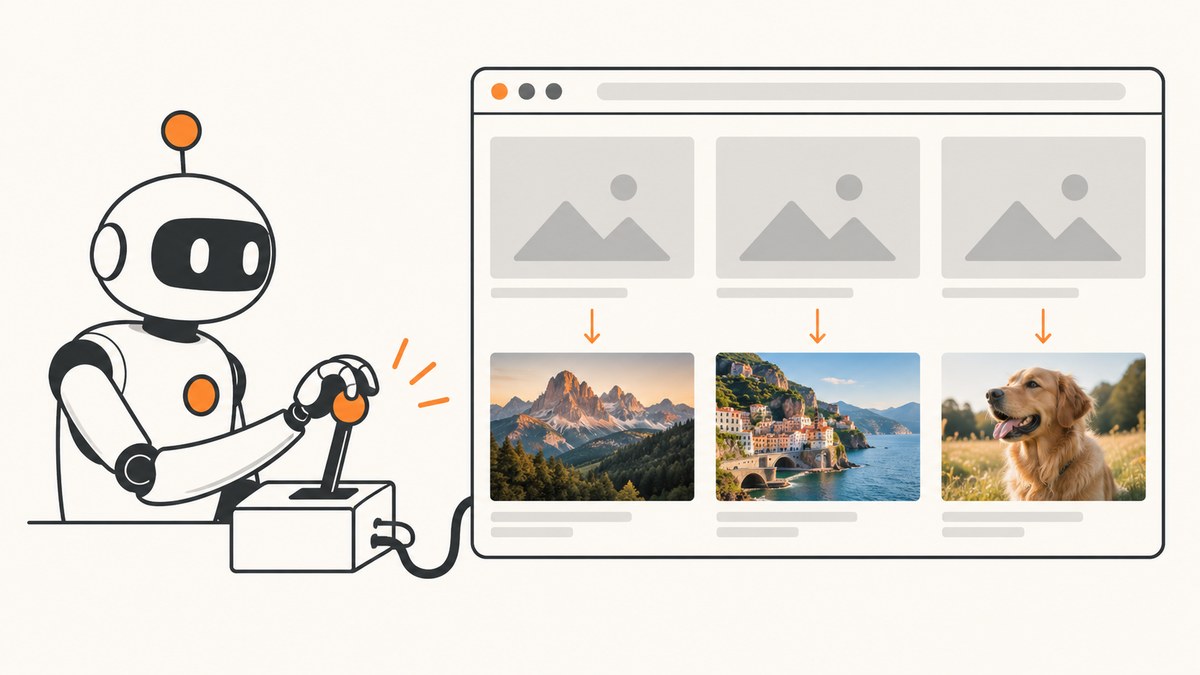
Set serenity.full.page.screenshot.strategy=true in your Serenity configuration. Serenity then uses whole-page screenshots instead of the default viewport-only images.
A minimal serenity.properties file is:
serenity.full.page.screenshot.strategy=true
serenity.take.screenshots=AFTER_EACH_STEP
The first property enables full-page capture. The second controls when Serenity records screenshots and is optional.
1. Configure whole-page capture
Create or edit serenity.properties in the configuration location used by your Serenity project:
serenity.full.page.screenshot.strategy=trueSerenity treats true as WHOLE_PAGE mode and false as VIEWPORT_ONLY mode. If the property is absent, viewport-only capture is the default.
Choose when screenshots are recorded
Use serenity.take.screenshots to balance evidence, execution time, report size, and memory use:
| Value | Behavior | Typical use |
|---|---|---|
FOR_EACH_ACTION |
Capture after each browser action. | Detailed interaction history while diagnosing a flow. |
BEFORE_AND_AFTER_EACH_STEP |
Capture before and after every step. | Showing state transitions in business-readable reports. |
AFTER_EACH_STEP |
Capture after every step. | Normal documentation and acceptance-test evidence. |
FOR_FAILURES |
Capture screenshots for failed steps. | Reducing runtime and report volume in large suites. |
DISABLED |
Do not record automatic screenshots. | Runs where screenshots are unnecessary. |
For example:
serenity.full.page.screenshot.strategy=true
serenity.take.screenshots=FOR_FAILURES
Capture one screenshot on demand
Use Serenity.takeScreenshot() inside a step whenever you need a capture at an exact point, regardless of the configured screenshot level or annotations.
import net.serenitybdd.core.Serenity;

public class CheckoutSteps {
    public void captureCheckoutState() {
        Serenity.takeScreenshot();
    }
}
This is useful immediately after a state change such as submitting a form, opening a dialog, or displaying a validation message.
2. Make the image usable in the report
A full-page image can still be difficult to inspect if the browser width is too narrow or Serenity rescales the stored file. Tune the display settings separately from the capture strategy.
Set browser dimensions
serenity.browser.width=1440
serenity.browser.height=1000
serenity.browser.maximize=true
Width and height resizing is supported for Internet Explorer and Firefox. The Serenity documentation notes that Chrome does not honor these resizing properties in the same way, so do not assume that setting them will change a Chrome window.
serenity.browser.maximize=true asks Serenity to maximize the browser when the test starts. The actual result depends on the browser, driver, operating system, and execution environment.
Keep original-resolution files
Serenity rescales screenshots by default to reduce report storage. If another system needs the original-resolution image, enable:
serenity.keep.unscaled.screenshots=trueUse this only when the original file is required. Large whole-page images consume more disk space and can require more Selenium memory.
Understand report slideshow sizing
When the browser width is greater than 1000 pixels, the Serenity report slideshow expands to show full screenshots. The physical browser still limits the maximum image size, so a larger configured value cannot exceed what the environment can create.
3. A complete example configuration
This configuration captures full pages after each step, requests a wide browser, maximizes the window, and preserves original files:
serenity.full.page.screenshot.strategy=true
serenity.take.screenshots=AFTER_EACH_STEP
serenity.browser.width=1440
serenity.browser.height=1000
serenity.browser.maximize=true
serenity.keep.unscaled.screenshots=true
For a large suite where storage and execution time matter more than evidence after successful steps, use:
serenity.full.page.screenshot.strategy=true
serenity.take.screenshots=FOR_FAILURES
serenity.browser.maximize=true
4. Recommended implementation sequence
- Add
serenity.full.page.screenshot.strategy=true. - Choose a screenshot policy. Start with
AFTER_EACH_STEPfor readable documentation orFOR_FAILURESfor lower volume. - Set browser width and maximize options if the report image is too small. Treat Chrome resizing as environment-dependent.
- Enable
serenity.keep.unscaled.screenshots=trueonly when original files are needed. - Run the suite and inspect the generated report for page completeness, readability, file size, and execution behavior.
5. Common problems and fixes
| Symptom | Likely cause | Fix |
|---|---|---|
| The screenshot stops at the visible viewport. | Whole-page mode is disabled or the property is not loaded. | Set serenity.full.page.screenshot.strategy=true in the active Serenity configuration and rerun the suite. |
| Only some steps have images. | serenity.take.screenshots is set to FOR_FAILURES, DISABLED, or another limited policy. |
Use AFTER_EACH_STEP, FOR_EACH_ACTION, or BEFORE_AND_AFTER_EACH_STEP as appropriate. |
| The image is too small to read. | The browser width is narrow or Serenity stored a rescaled image. | Increase the browser width where supported; consider serenity.keep.unscaled.screenshots=true. |
| Changing width or height has no effect in Chrome. | Serenity documents that these resizing properties do not work with Chrome in the same way as Internet Explorer and Firefox. | Use a supported browser for dimension control, maximize the Chrome window, or adjust the execution environment. |
| The report contains very large files. | Whole-page capture, wide viewports, and unscaled storage all increase file size. | Use AFTER_EACH_STEP or FOR_FAILURES, reduce the viewport where acceptable, and disable unscaled storage unless required. |
The test process throws OutOfMemoryError. |
Large screenshots require more Selenium and test-process memory. | Reduce screenshot frequency or image dimensions first. Increase test-process memory only when the project actually encounters the documented failure. |
| A manually requested image is missing. | Serenity.takeScreenshot() was not reached, or the step failed before the call. |
Place the call after the state you want to document and verify that the code path executes. |
| The page appears incomplete even in whole-page mode. | Content may load after the screenshot point, or the application may require scrolling or interaction to render more content. | Wait for the application state in the test before capture and use an explicit Serenity.takeScreenshot() after the page is ready. |
6. Performance, reliability, and storage trade-offs
- Capture frequency:
FOR_EACH_ACTIONcreates the most evidence and usually the largest report.FOR_FAILURESminimizes successful-run overhead. - Page length: Whole-page images grow with document height. Long pages increase encoding time, report size, and browser memory pressure.
- Viewport width: A wider browser can improve readability and report slideshow presentation, but it also increases image dimensions.
- Scaling: Default rescaling saves storage. Unscaled screenshots preserve detail at a higher storage and memory cost.
- Browser differences: Window sizing behavior varies by browser and driver. Validate the generated report in the same environment used by CI.
- Failure diagnosis: Capturing only failures is often a practical default for long-running suites; capture every step when the report itself is the primary documentation.
7. Verify the configuration with a checklist
-
serenity.full.page.screenshot.strategy=trueis in the configuration actually loaded by the test run. - The screenshot policy matches the evidence you need.
- The report shows content below the initial viewport.
- Browser width and maximize behavior are confirmed in the target browser.
- Unscaled files are enabled only when their extra size is justified.
- CI memory and artifact-retention limits can handle the resulting images.
8. Or skip the browser setup
If you need a full-page image for a report or pipeline without configuring Selenium and Serenity capture behavior, ScreenshotNeo returns a screenshot from one GET request. The API supports PNG, JPEG, WebP, and PDF output, full-page capture with lazy images loaded, custom CSS and JavaScript, waiting rules, device presets, and other capture controls.
See the ScreenshotNeo API documentation for the complete option list. A basic request is:
cURL
curl -G "https://api.screenshotneo.com/v1/shot" -d access_key=YOUR_API_KEY --data-urlencode url=https://example.com -o shot.webpPython
import requests

r = requests.get(
    "https://api.screenshotneo.com/v1/shot",
    params={"access_key": "YOUR_API_KEY", "url": "https://example.com"},
    timeout=90,
)
r.raise_for_status()
open("shot.webp", "wb").write(r.content)
Node.js
const q = new URLSearchParams({ access_key: 'YOUR_API_KEY', url: 'https://example.com' });
const res = await fetch(`https://api.screenshotneo.com/v1/shot?${q}`);
if (!res.ok) throw new Error(`Screenshot failed: ${res.status}`);
const fs = await import('node:fs/promises');
await fs.writeFile('shot.webp', Buffer.from(await res.arrayBuffer()));
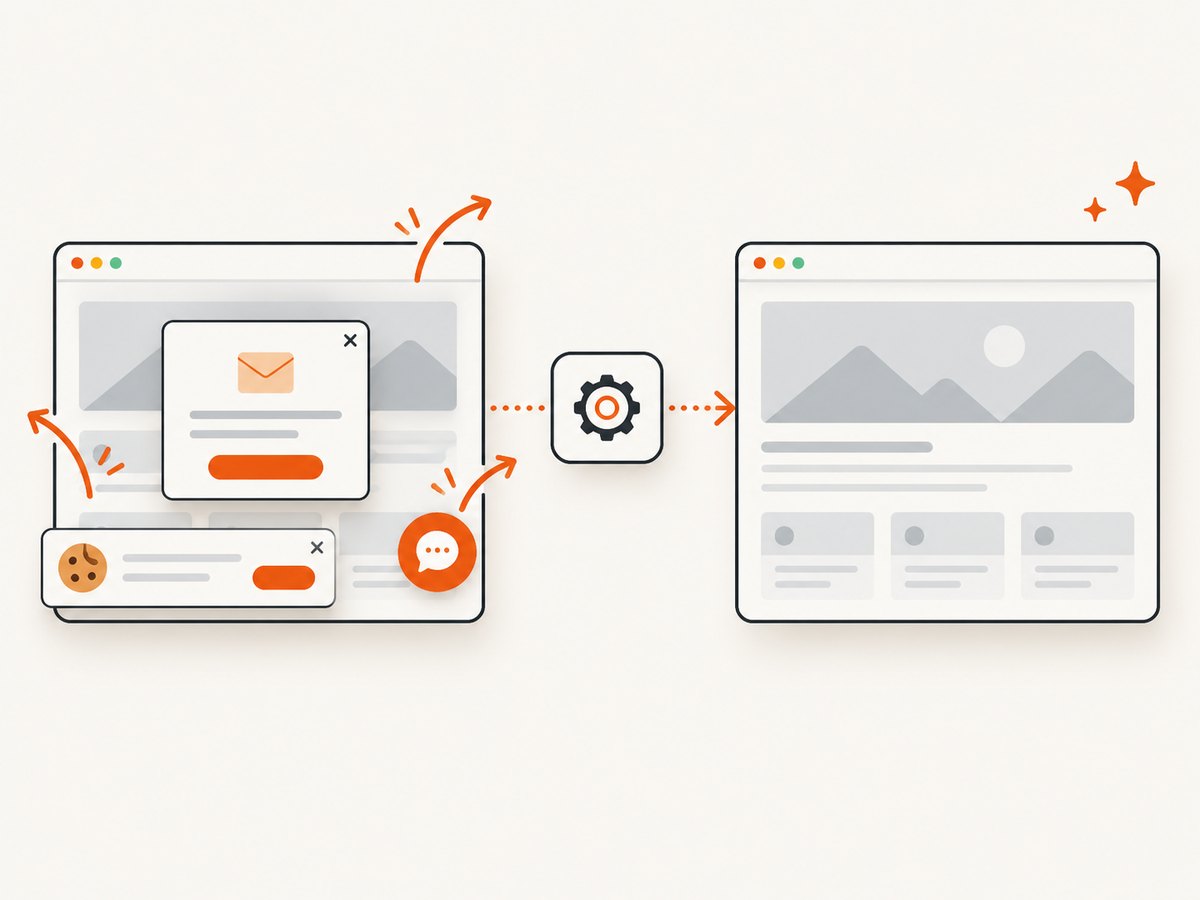
ScreenshotNeo removes cookie and consent banners, newsletter popups, and chat widgets before capture. Bot checks, blank pages, timeouts, failed loads, and cache hits are not billed, and the response identifies the result with X-Page-Verdict and X-Billed headers. Its MCP server lets Claude, Cursor, and other MCP clients use take_screenshot, get_page_info, and capture_pdf. The Free plan includes 1,000 screenshots per month without a card; paid plans start at $5 for 3,000 screenshots.
Create a free ScreenshotNeo account and use the API when you want report-ready captures without browser setup.
9. FAQ
Does full-page mode change when Serenity takes screenshots?
No. serenity.full.page.screenshot.strategy controls the captured area. serenity.take.screenshots controls when captures are recorded.
Can I take an extra image without changing the global policy?
Yes. Call Serenity.takeScreenshot() at the point you want to document.
Should every test use unscaled screenshots?
No. Keep the default rescaled files unless original-resolution artifacts are needed for inspection or downstream processing.
Why is a full-page image still hard to read?
Page height does not guarantee readable text. Increase the browser width where the browser and driver support it, then inspect the report slideshow and stored image dimensions.
What is the safest setting for a large CI suite?
Use whole-page mode with FOR_FAILURES, keep default scaling, and increase capture frequency only for suites that need step-by-step evidence.


