How to Capture Full-Page Screenshots with WebdriverCSS
Capture whole documents with legacy WebdriverCSS, understand driver limits, and use modern WebdriverIO or ScreenshotNeo when you need reliable full-page images.
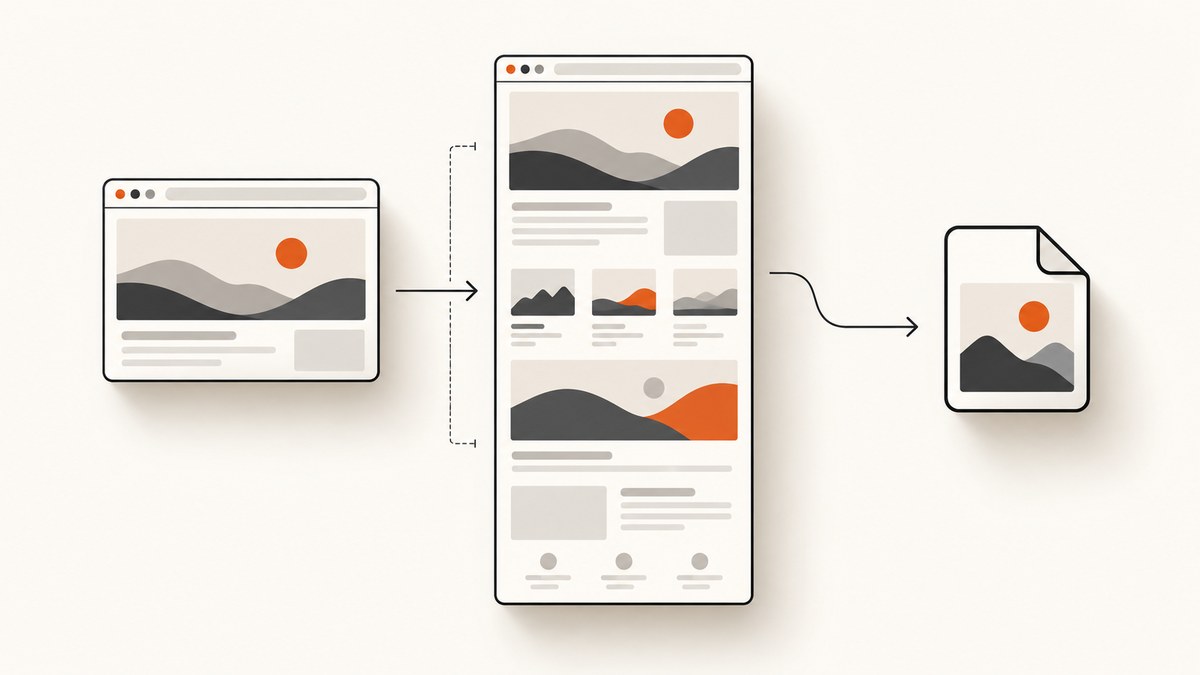
Direct answer: WebdriverCSS captures a whole website and then creates cropped images for the regions you configure. It is a legacy WebdriverIO extension, so use it when an existing project already depends on it. For a new visual-regression setup, use WebdriverIO’s current visual-testing service and its saveFullPageScreen method. A plain saveScreenshot call is not guaranteed to include the entire document because the result depends on the browser driver.
1. Choose the right full-page method
| Method | Best for | What it does | Main limitation |
|---|---|---|---|
| WebdriverCSS | Existing legacy projects | Captures the whole website, then crops requested elements or coordinate regions. | Legacy API and compatibility must match your installed WebdriverIO version. |
browser.saveFullPageScreen |
Current visual regression projects | Saves a full-page image through WebdriverIO’s visual-testing service. | Requires the visual service and a release that provides this method. |
browser.saveScreenshot |
Current browsing-context screenshots | Saves the current screenshot. | Some drivers capture the whole document while others capture only the viewport. |
| ScreenshotNeo | Scripts, CI jobs, and services that need an image without managing a browser | Returns a PNG, JPEG, WebP, or PDF from one HTTP request. | Requires an API key. |
The WebdriverIO API documentation warns that Geckodriver with Firefox can capture the whole document while Chromedriver with Chrome can capture only the current viewport. Treat saveScreenshot as driver-dependent unless your own version and driver documentation confirm otherwise.
2. Legacy WebdriverCSS setup
Use this path when your project already has the WebdriverCSS extension installed. The documented call shape is client.webdrivercss(id, options, callback). Navigate to the page first, then pass one or more region definitions.
Install and register the extension
npm install webdriverio webdrivercssThe exact registration code depends on the WebdriverIO generation and runner used by your project. Keep the WebdriverCSS package, WebdriverIO client, and browser driver on versions known to work together; the package documentation does not establish compatibility with every current release.
Capture an element region
const webdriverio = require('webdriverio');

async function main() {
  const client = await webdriverio.remote({
    logLevel: 'info',
    capabilities: {
      browserName: 'firefox'
    }
  });

  await client.url('https://example.com');

  client.webdrivercss('example-page', [
    {
      name: 'main-content',
      elem: 'main'
    }
  ], function (error, result) {
    if (error) {
      console.error(error);
      return;
    }
    console.log(result);
  });

  await client.deleteSession();
}

main().catch((error) => {
  console.error(error);
  process.exit(1);
});
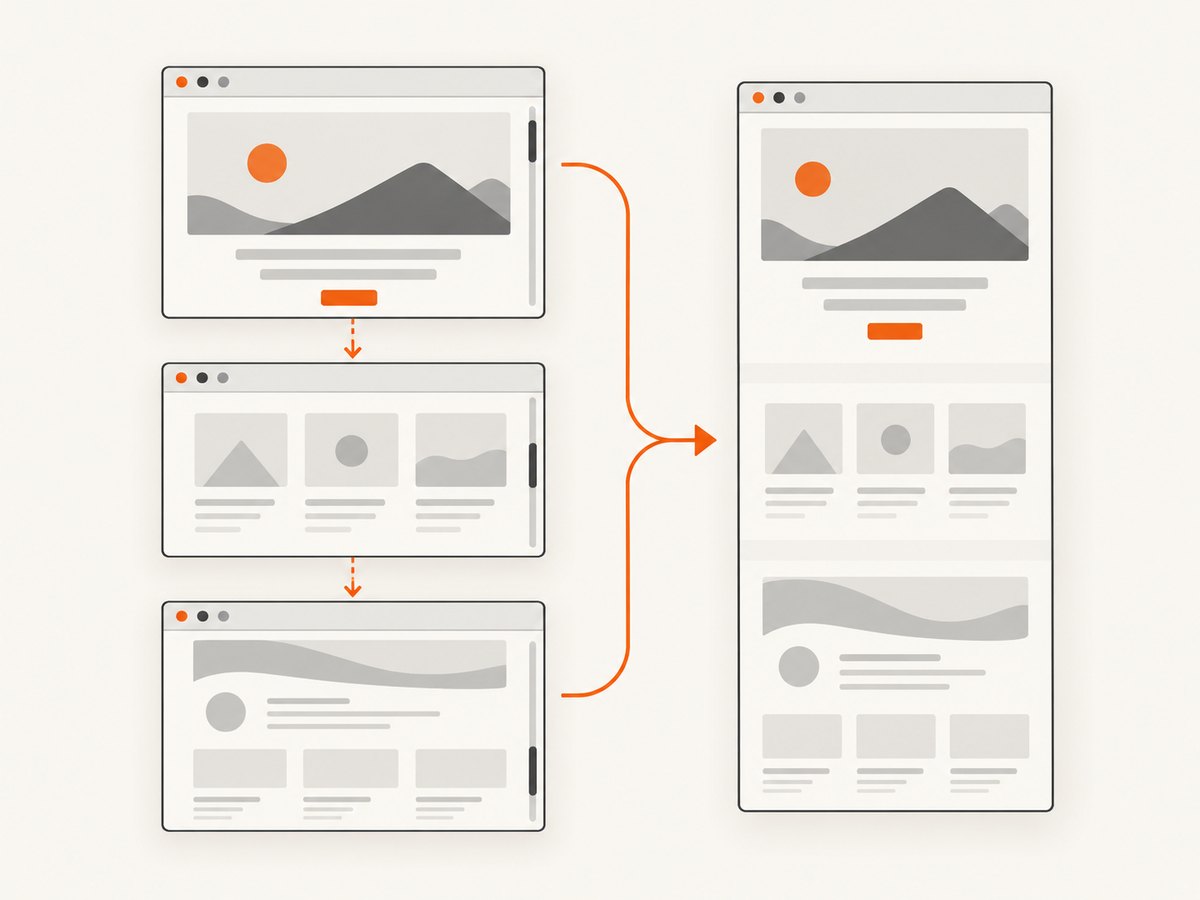
WebdriverCSS first takes a screenshot of the whole website, then produces a copy for each requested element. The elem value is a WebdriverIO selector, so use a stable selector rather than a generated class name.
Capture a coordinate region
client.webdrivercss('example-page', [
  {
    name: 'hero-region',
    x: 0,
    y: 0,
    width: 1200,
    height: 700,
    screenWidth: 1200
  }
], callback);
Use x, y, width, and height together. The package example also supplies screenWidth so coordinates map to the intended capture area. Coordinate captures are sensitive to viewport size, zoom, responsive breakpoints, and device-pixel scaling.
Exclude content
client.webdrivercss('example-page', [
  {
    name: 'content-without-noise',
    elem: 'main',
    exclude: [
      '.newsletter-modal',
      '.live-chat'
    ]
  }
], callback);
exclude can contain selectors or coordinate regions, according to the package’s documented option format. Exclude overlays before capture when they would obscure the region you need.
WebdriverCSS options
| Option | Purpose | Guidance |
|---|---|---|
name |
Required output name. | Use a stable name that identifies the page and state. |
elem |
WebdriverIO selector for an element crop. | Prefer semantic or data-test selectors. |
width, height |
Dimensions for a coordinate capture. | Set both when using x and y. |
x, y |
Top-left coordinate for a region. | Pair with dimensions and a matching viewport. |
screenWidth |
Coordinate reference width shown in the package example. | Keep it consistent with the viewport used to render the page. |
exclude |
Selectors or coordinate regions to remove. | Use it for transient overlays and other visual noise. |
3. Wait for the page before capturing
Full-page capture time can depend on document size. Wait for the application state you want, including lazy-loaded content, before calling WebdriverCSS.
await client.url('https://example.com/catalog');
await client.waitUntil(async () => {
  return (await client.$('[data-page-ready]')).isDisplayed();
}, {
  timeout: 15000,
  timeoutMsg: 'Catalog did not become ready'
});

await client.webdrivercss('catalog-ready', [
  { name: 'catalog', elem: 'body' }
], callback);
If an interaction changes the page, take a new WebdriverCSS screenshot. The package documentation specifically recommends recapturing after clicking links, opening layers, or navigating.
4. Current WebdriverIO full-page visual testing
For a new visual-testing project, install and configure the WebdriverIO visual-testing service that matches your project version. The current guide demonstrates these methods:
await browser.url('https://example.com');
await browser.saveFullPageScreen('fullPage', {
  /* use options supported by your installed visual-service release */
});
To compare against a baseline:
await browser.url('https://example.com');
await expect(browser).toMatchFullPageSnapshot('fullPage');
The documented check methods create a baseline on first use in the standard setup. Decide whether that first run is an intentional baseline-generation job before treating its result as a regression pass or failure. Check the installed WebdriverIO and visual-service release for the exact option names and supported browsers.
When a plain screenshot stops at the viewport
await browser.saveScreenshot('./artifacts/current.png');This saves a screenshot, but its height is driver-dependent. If Chrome returns only the viewport, switch to saveFullPageScreen, use a driver that documents whole-document capture, or use an HTTP screenshot service.
5. A repeatable full-page capture checklist
- Pin the WebdriverIO, WebdriverCSS or visual-service, browser, and driver versions used in CI.
- Set a deterministic viewport and device-pixel ratio.
- Navigate to the final URL and wait for a page-ready condition.
- Trigger lazy loading if the application loads content on scroll.
- Close or exclude cookie banners, chat widgets, and transient dialogs.
- Capture after every state-changing click or navigation.
- Write artifacts with a page, state, browser, and build identifier.
- Review very tall pages for fixed headers, repeated backgrounds, and stitching seams.
6. Troubleshooting
| Symptom | Likely cause | Fix |
|---|---|---|
| Image contains only the visible viewport | The driver implements viewport-only screenshots. | Use saveFullPageScreen, a documented whole-document driver, or ScreenshotNeo. |
| WebdriverCSS command is undefined | The extension was not registered or versions do not match. | Verify installation, registration, and the API generation used by the project. |
| Element crop is empty | The selector is wrong, hidden, or evaluated before rendering. | Wait for the selector, confirm it is displayed, and use a stable selector. |
| Lazy images are missing | Images load only after scrolling or an intersection event. | Scroll through the document or wait for image completion before capture. |
| Cookie dialog covers the page | Consent UI appeared after navigation. | Accept or dismiss it before capture, or add its selector to exclude. |
| Capture dimensions change between runs | Responsive breakpoints, viewport, zoom, or device scale differ. | Pin viewport and scale; keep CI browser configuration consistent. |
| Capture times out | The page keeps loading resources or is unusually tall. | Wait on a specific readiness condition, block unnecessary resources, and increase the command timeout carefully. |
| Screenshot is stale after a click | The capture ran before the new state rendered. | Wait for a URL, selector, or application-ready marker, then capture again. |
| Visual diff shows fixed-header duplication | The header is fixed while the page is stitched or scrolled. | Use the visual service’s fixed-element options if supported, or hide/exclude the header for the comparison. |
7. Performance, reliability, and cost
Performance
- Full-document captures take longer as the document grows.
- Large images, animations, third-party scripts, and lazy loading increase capture time.
- Capture only the region needed for regression tests when a complete document is unnecessary.
- Disable animations or wait for them to settle so repeated captures are comparable.
Reliability
- Use explicit readiness checks instead of a short fixed sleep.
- Retry transient navigation failures, but preserve the failed artifact and browser logs.
- Keep browser and driver versions pinned in CI.
- Do not assume a method is full-page from its name; verify the installed driver and service behavior.
Cost
Self-hosted WebdriverIO costs you browser infrastructure, CI minutes, storage, and maintenance. A hosted API moves browser operation behind an HTTP request and can make billing visible per successful capture.
8. Or skip the browser setup
ScreenshotNeo returns a screenshot or PDF from one GET request. Cookie and consent banners are accepted and 60+ known consent platforms, newsletter popups, and chat widgets are removed before the shot. Bot checks, blank pages, failed loads, timeouts, and cache hits are not billed, and the response identifies the result with X-Page-Verdict and X-Billed headers. It also provides an MCP server for AI agents, including Claude and Cursor.

See the ScreenshotNeo API documentation for the complete option list, including full-page capture, CSS element capture, device presets, custom CSS and JavaScript, waits, blocking rules, cookies and headers, caching, signed links, async jobs, bulk capture, PDFs, and usage reporting.
cURL
curl -G "https://api.screenshotneo.com/v1/shot" \
  -d access_key=YOUR_API_KEY \
  --data-urlencode url=https://stripe.com \
  -o shot.webp
Python
import requests

r = requests.get(
    "https://api.screenshotneo.com/v1/shot",
    params={"access_key": "YOUR_API_KEY", "url": "https://stripe.com"},
    timeout=90,
)
r.raise_for_status()
open("shot.webp", "wb").write(r.content)
Node.js
const q = new URLSearchParams({
  access_key: 'YOUR_API_KEY',
  url: 'https://stripe.com'
});
const res = await fetch(`https://api.screenshotneo.com/v1/shot?${q}`);
if (!res.ok) throw new Error(`Screenshot failed: ${res.status}`);
const data = Buffer.from(await res.arrayBuffer());
require('fs').writeFileSync('shot.webp', data);
The free plan includes 1,000 screenshots per month with no card. Paid plans start at $5 for 3,000 shots, and every feature is available on every plan. Create a free ScreenshotNeo account.
9. FAQ
Does WebdriverCSS itself guarantee one modern full-page image?
Its documentation describes whole-website capture followed by crops for requested regions. Treat it as a legacy region-capture extension rather than assuming it is a modern standalone full-page API.
Why does Firefox sometimes produce a taller image than Chrome?
WebdriverIO documents driver differences. Geckodriver with Firefox is an example of whole-document behavior, while Chromedriver with Chrome is an example of viewport-only behavior.
Should a new project start with WebdriverCSS?
Use it when an existing codebase already depends on it. For new visual regression work, evaluate the current WebdriverIO visual-testing service or a screenshot API.
Can I capture only one component?
Yes. WebdriverCSS uses elem for a selector-based crop, and the current visual service and ScreenshotNeo also support targeted capture options.
How do I know whether an API capture was billable?
ScreenshotNeo returns X-Page-Verdict and X-Billed headers with the response.


