Full-Page Scrolling Screen Capture
Capture an entire webpage beyond the viewport with Firefox, DevTools, extensions, or ScreenshotNeo, including dynamic-page fixes and troubleshooting.
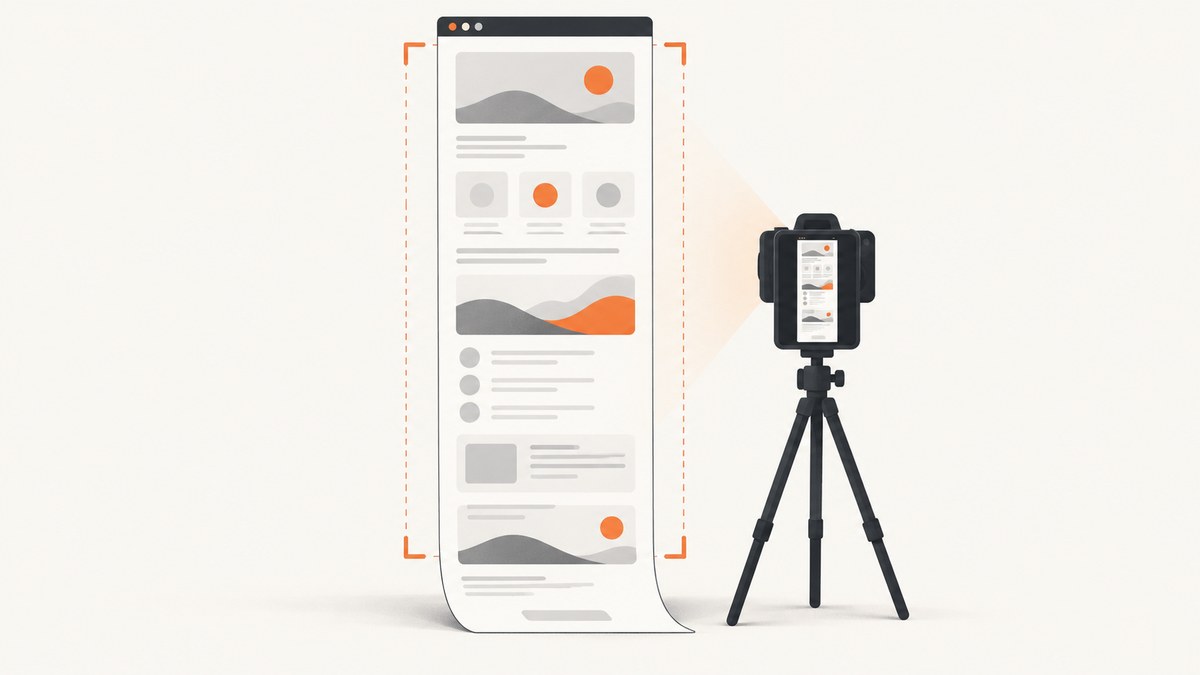
A full-page scrolling screenshot captures content beyond the visible viewport in one image or document. The quickest built-in method is Firefox: open the page, choose Take Screenshot, then Save full page. You can also use Firefox Developer Tools, a Chrome extension, or an API such as ScreenshotNeo when you need repeatable captures in code.
Choose the right full-page capture method
| Method | Best for | Trade-offs |
|---|---|---|
| Firefox page screenshot | One-off captures without installing anything | Depends on Firefox behavior and the page structure |
| Firefox Developer Tools | Selectors, delays, device pixel ratio, filenames, and repeatable workflows | Requires opening DevTools and using its controls |
| Chrome extension | Scrolling capture, annotations, or image/PDF export | Extension permissions, privacy policy, and compatibility vary |
| ScreenshotNeo API | Automation, CI jobs, bulk URLs, AI agents, and server-side capture | Requires an API key |
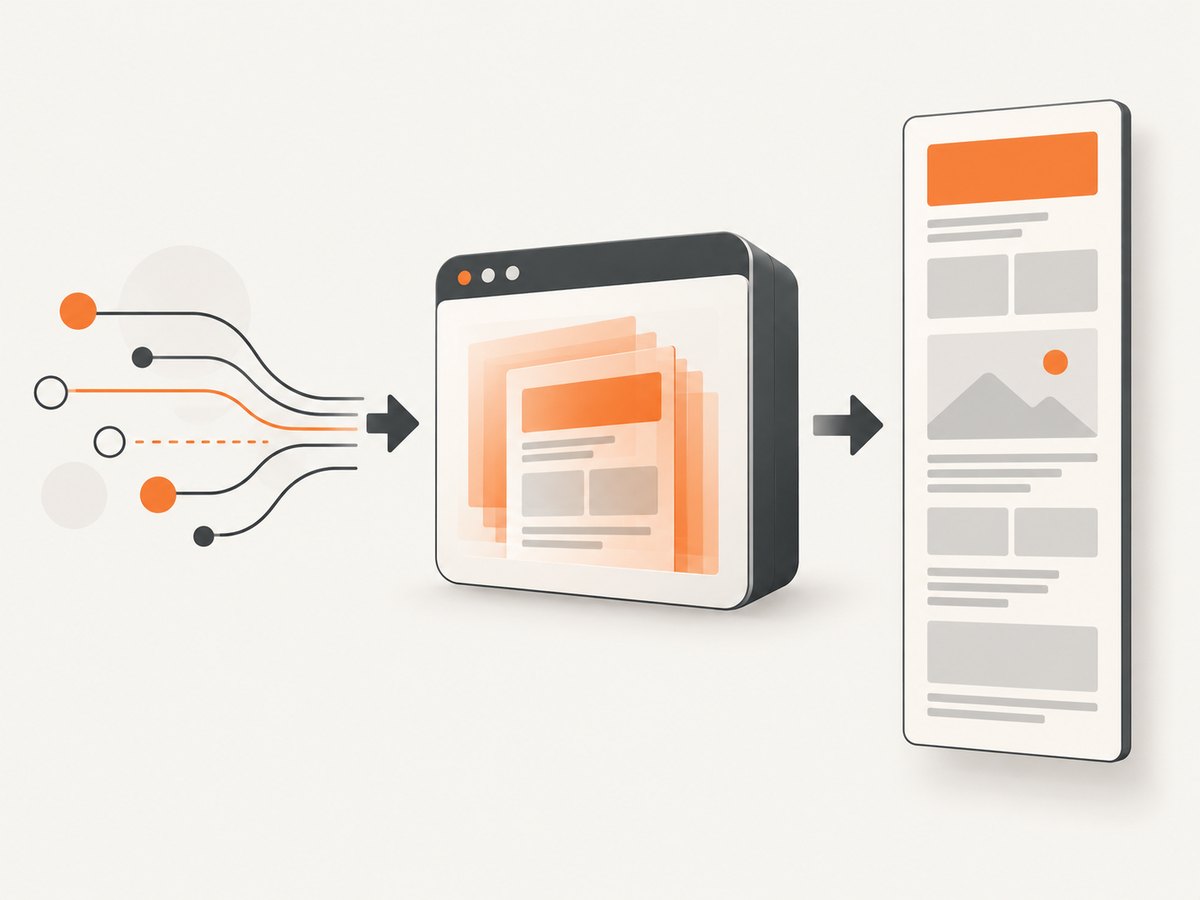
Method 1: Save a full page in Firefox
- Open the webpage in Firefox.
- Right-click an empty part of the page and select Take Screenshot. Mozilla also documents Ctrl+Shift+S on Windows/Linux and Command+Shift+S on macOS.
- Choose Save full page in the upper-right corner.
- Download the image, or copy it to the clipboard.
Firefox’s built-in interface is a good first choice because it does not require an extension. The result includes content outside the current viewport, subject to the page’s layout and loading behavior. See Mozilla’s Firefox screenshot instructions for the current menu and shortcut details.
Method 2: Capture the entire page with Firefox Developer Tools
Firefox Developer Tools can capture the entire page or a single element. Mozilla’s documentation states: “You can use the Developer Tools to take a screenshot of the entire page, or of a single element in the page.”
Using the screenshot button
- Open Developer Tools with F12 or Ctrl+Shift+I (Windows/Linux), or Command+Option+I (macOS).
- Open the DevTools menu and enable the screenshot button if it is not visible.
- Enable Take a screenshot of the entire page.
- Click the camera icon to save the capture.
Using the Web Console
Open the Web Console and run:
:screenshot --fullpageFirefox documents additional controls for this helper:
--delaywaits before capture, which helps pages that finish rendering after navigation.--dprsets device pixel ratio for sharper or smaller output.--filenamechooses the output filename.--clipboardcopies the result instead of only saving a file.--selectorcaptures a CSS-selected element rather than the whole page.
Read the Firefox Developer Tools screenshot documentation for the exact syntax supported by your Firefox version.
Method 3: Use a Chrome full-page capture extension
Chrome Web Store listings provide extensions for full-page scrolling captures. The GoFullPage listing describes full-page capture. The FullPage Capture listing describes scrolling and stitching, annotation, and image/PDF export.
Those are publisher-provided listing claims, not a guarantee that every extension will work on every page. Before installing one, check:
- Browser compatibility and the extension’s current update status.
- Whether nested scroll containers are captured or only the document scroll.
- How lazy-loaded images and infinite lists are handled.
- Image versus PDF export and annotation or redaction tools.
- Whether processing occurs locally or remotely, and what the privacy policy says.
- Which features require payment.
Pages that need extra preparation
Lazy-loaded images
Some pages load images only after they approach the viewport. A capture can therefore contain empty image regions if the tool does not scroll far enough to trigger loading. Scroll through the page once before capturing, wait for images to appear, or use a capture method that explicitly loads lazy images.
Infinite scrolling
An infinite feed has no stable end. Decide on a stopping point, such as a fixed number of screens or a known element, before capturing. A “full page” command may capture only the content that exists when the command runs.
Nested scroll areas
Dashboards and documentation sites often place content inside an internal panel. A document-level screenshot may omit content that is reachable only by scrolling that panel. Capture the specific element when your tool supports CSS selectors, or expand the panel first.
Sticky headers and floating widgets
Fixed headers can appear repeatedly in stitched output, while chat widgets and cookie prompts can cover content. Dismiss overlays before capture, or hide the affected elements with the tool’s page controls or custom styling.
Very long pages
Large captures consume memory and can exceed image dimensions supported by an editor or viewer. Prefer a PDF, split the page into sections, reduce device pixel ratio, or capture a specific element when a single extremely tall bitmap is impractical.
Or skip the browser setup
ScreenshotNeo provides a website screenshot API and MCP server. One GET request returns a PNG, JPEG, WebP, or PDF. Full-page capture loads lazy images, and you can also capture one element by CSS selector, set a viewport or device preset, use retina scale, wait for a selector, delay, or network idle, and control cookies, headers, user agent, timezone, geolocation, custom CSS, JavaScript, hidden selectors, blocked requests, caching, and more. See the ScreenshotNeo documentation for the complete option list.
cURL
curl -G "https://api.screenshotneo.com/v1/shot" \
  -d access_key=YOUR_API_KEY \
  --data-urlencode url=https://stripe.com \
  -o shot.webp
Python
import requests

r = requests.get(
    "https://api.screenshotneo.com/v1/shot",
    params={"access_key": "YOUR_API_KEY", "url": "https://stripe.com"},
    timeout=90,
)
r.raise_for_status()
open("shot.webp", "wb").write(r.content)
Node.js
const q = new URLSearchParams({
  access_key: 'YOUR_API_KEY',
  url: 'https://stripe.com'
});
const res = await fetch(`https://api.screenshotneo.com/v1/shot?${q}`);
if (!res.ok) throw new Error(`Screenshot failed: ${res.status}`);
const image = Buffer.from(await res.arrayBuffer());
require('fs').writeFileSync('shot.webp', image);
ScreenshotNeo removes cookie and consent banners, newsletter popups, and chat widgets before capture. Bot checks or CAPTCHAs, blank pages, timeouts, failed loads, and cache hits are not billed; response headers identify the page verdict and whether the request was billed. Its MCP server exposes take_screenshot, get_page_info, and capture_pdf for Claude, Cursor, and other MCP clients. One thousand screenshots per month are free with no card; paid plans start at $5 for 3,000 shots. Create a free ScreenshotNeo account.
Options to plan before capturing
| Requirement | Useful control |
|---|---|
| Capture everything below the fold | Full-page capture |
| Capture only a report, card, or article | CSS-selector element capture |
| Match a phone or tablet | Device preset or custom viewport |
| Sharper output | Retina/device-pixel-ratio scale |
| Wait for client-rendered content | Selector wait, delay, or network-idle wait |
| Remove overlays | Cookie handling, hide selectors, custom CSS, or JavaScript |
| Authenticated page | Custom headers, cookies, user agent, or Authorization |
| Repeatable results | Choose a cache TTL, fixed viewport, timezone, and geolocation |
| Documents instead of images | PDF paper size, margins, landscape mode, and page ranges |

Troubleshooting
The screenshot stops at the visible viewport
Cause: A regular viewport screenshot was used. Fix: Choose Firefox’s Save full page, run :screenshot --fullpage, or enable full-page mode in your capture service.
Images are missing or blank
Cause: Lazy loading, blocked resources, or capture started too soon. Fix: scroll through the page first, wait for a known selector or network idle, and check whether the image host requires cookies or authentication.
A cookie banner covers the page
Cause: The overlay appears before capture. Fix: accept or close it manually, hide its selector, or use ScreenshotNeo, which accepts cookie/consent banners and removes more than 60 known consent platforms along with newsletter popups and chat widgets.
Only part of a dashboard is captured
Cause: The content is inside a nested scroll container. Fix: capture that element directly, expand it, or scroll the internal panel before taking the screenshot.
The output is blurry
Cause: Low device pixel ratio or an image enlarged after capture. Fix: choose a higher DPR or retina scale, set the intended viewport first, and avoid enlarging a small bitmap.
The page changes between runs
Cause: Time-sensitive content, animations, ads, locale, or responsive layout. Fix: use a consistent viewport, timezone, geolocation, user agent, and wait condition; block unnecessary requests where appropriate; and select a cache TTL when a stable cached result is acceptable.
A browser extension requests broad permissions
Cause: Full-page extensions need access to page content to scroll and stitch it. Fix: review the listing and privacy policy, install only from a trusted source, and avoid extensions whose data handling is unclear for sensitive pages.
Performance, reliability, and cost
- Performance: Full-page captures take longer than viewport shots because the page must render content below the fold. Waiting for a selector or network idle improves completeness but increases latency.
- Reliability: Dynamic pages can change during a scroll. Freeze animations where possible, use deterministic inputs, and capture a specific element when the full document is not required.
- Memory: Very tall bitmaps are expensive to decode and edit. PDF output or section-by-section captures can be easier to process.
- Privacy: Mozilla says Firefox Screenshots collects interaction data such as use of save/copy buttons, but not the captured URL or image details, and documents opt-out settings. Do not generalize that policy to extensions. FullPage Capture’s listing says screenshots remain on the device; verify the current listing and privacy policy before relying on it.
- API cost: ScreenshotNeo bills only clean shots. Bot checks/CAPTCHAs, blank pages, timeouts, failed loads, and cache hits cost nothing, and the response includes
X-Page-VerdictandX-Billedheaders.
FAQ
Can I capture a full page without an extension?
Yes. Firefox includes a built-in Save full page command, and Firefox Developer Tools supports :screenshot --fullpage.
Will a full-page screenshot include content loaded after scrolling?
Only if the capture method scrolls or waits in a way that triggers that content. Infinite feeds and lazy-loaded sections need explicit preparation.
Should I choose PNG, JPEG, WebP, or PDF?
Use PNG for crisp UI and text, JPEG for smaller photographic images, WebP for compact web delivery, and PDF when the result will be printed, paginated, or shared as a document.
Can I capture a page that requires login?
Browser tools can capture a page in an authenticated browser session. An API needs the appropriate cookies or authorization headers and permission to access the page.
What is the simplest automated option?
Use the ScreenshotNeo GET endpoint with your access key and target URL, then save the response bytes as an image or PDF.


