How to Take a Full-Page Website Screenshot with a Browser Extension
Capture an entire webpage with a browser extension or built-in browser tool. Follow the steps, compare options, and fix common full-page capture problems.

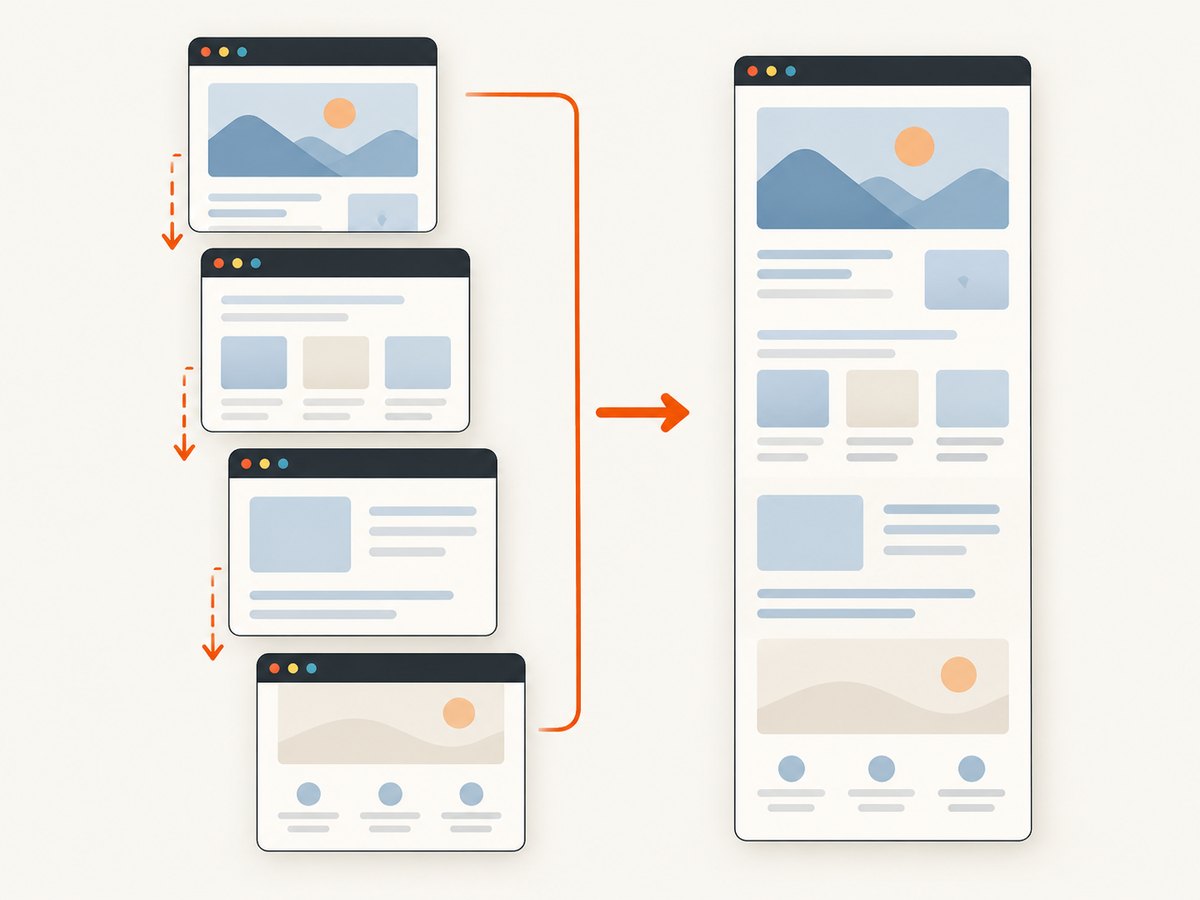
A full-page screenshot captures the webpage below the visible screen and assembles it into one image. In Chrome, install a full-page capture extension from the official Chrome Web Store, open the page, choose the extension’s Full Page option, wait for it to scroll and assemble the result, then save or copy the capture. Edge and Firefox also include built-in full-page screenshot tools, so you may not need an extension at all.
This guide walks through the extension workflow, browser-native alternatives, common edge cases, and ways to get a repeatable capture. If you need screenshots in an application or automated workflow, there is also a one-request API option near the end.
1. Capture a full page with a browser extension
- Choose an extension from your browser’s official store. GoFullPage is a documented Chrome option. Awesome Screenshot documents capture workflows for Chrome-compatible browsers, Safari, and Firefox. Check the requested permissions and choose a tool that fits your browser and privacy requirements.
- Open the page you want to capture. Wait for the content you need to appear. Scroll through the page once if important sections load only when they enter the viewport.
- Open the extension. Click its toolbar icon. If it is hidden in the browser’s extensions menu, pin it to the toolbar first.
- Choose the full-page mode. Depending on the extension and browser, the action may be labelled Full Page, Capture Full Page, or Capture Entire Page.
- Let the capture finish. The extension may scroll through the document and combine the visible sections. Avoid changing tabs or interacting with the page until it has completed.
- Review the output. Check the top and bottom, page boundaries, sticky headers, animated areas, and sections that load as you scroll.
- Save or copy the result. Use the extension’s export controls. If it offers PDF export or annotation, those are usually available after capture.
A full-page extension generally captures the document by moving through it and assembling the portions below the fold. That process is different from saving the page as a web archive: Chrome’s pageCapture API saves an MHTML file that encapsulates the page and its resources, rather than producing a screenshot image.
2. Pick the right method for your browser
| Browser | Built-in route | When an extension may help |
|---|---|---|
| Chrome | Use a full-page capture extension such as GoFullPage. | When you need a one-image capture, repeatable extension workflow, or extension-specific export features. |
| Microsoft Edge | Open Screenshot from the right-click menu or Settings, or press Ctrl+Shift+S. Capture the full page or a selected area, mark it up, then copy or save. | When you need a workflow or export option the built-in tool does not provide. |
| Firefox | Right-click an empty part of the page, choose Take Screenshot, then select Save full page. Download the PNG or copy it. | When you need extra capture controls or an extension-specific workflow. |
| Safari | Use a compatible extension if you need a full-page image workflow; Awesome Screenshot documents a Capture Full Page action for Safari. | When the available native tools do not fit the required output. |
Edge’s built-in Screenshot command supports content below the fold, markup, copying, and saving. Microsoft also documents capturing long or moving webpages, including content such as GIFs or carousels. Firefox’s native screenshot interface can save the full page, the visible area, or a selected area.
3. Use Firefox DevTools for repeatable captures
Firefox offers a DevTools route when you want a command you can repeat or need controls such as a delay, device-pixel ratio, filename, or CSS selector. You can enable the Take a screenshot of the entire page toolbox button, or use the :screenshot helper in the Web Console.
For example, to capture the entire page to a named file:
:screenshot --fullpage --filename page.pngTo capture only an element selected by CSS selector, use the selector option:
:screenshot --selector "main article" --filename article.pngOptions documented for this helper include --fullpage, --clipboard, --delay, --dpr, --filename, and --selector. For instance, a delayed full-page capture can give late-loading content time to appear:
:screenshot --fullpage --delay 3 --filename page.pngThese are Firefox DevTools commands, not shell commands. Open the Web Console on the page, enter the command there, and adjust the filename or selector to suit the capture.
4. Handle long pages, lazy loading, and sticky elements
Lazy-loaded content
Some pages defer images or sections until they approach the viewport. If the capture has blank spaces or missing images, scroll through the page once before starting, wait for visible content to finish loading, and capture again. Extensions that scroll and assemble the page may trigger lazy loading as they progress, but behavior can vary by site.
Sticky headers and fixed elements
A fixed navigation bar may appear repeatedly in stitched sections, overlap page content, or shift between frames. Check the final image for duplicated bars and obscured text. If the extension offers a setting for fixed elements, try it; otherwise use the browser’s native capture or a different capture method and compare the result.
Nested scrolling areas and frames
A page can contain an inner panel that scrolls independently from the main document. A full-page capture of the document may not expand that panel to show all of its contents. Likewise, content in frames can behave differently from the top-level page. Capture the relevant area separately or use a tool that can target the frame or element when available.
Animation and changing content
Carousels, animated banners, and frequently updating content can change while the extension scrolls. The resulting image may combine different moments in time. Pause or stabilize the content if the page permits it, or use a method that captures moving content in a way that suits your use case. Edge documents support for some moving page content, but extension behavior depends on the extension and page.
Very long pages and restricted URLs
Large pages take longer to capture and may exceed practical image dimensions or browser memory limits. Capture a smaller section, save a PDF if supported, or use a native/developer method when an extension fails. Browser extensions can also be restricted on internal browser pages and other protected URLs; try the page in a normal tab or use a browser-supported capture route. GoFullPage’s published change log records fixes over time for scrollbars, frames, animations, long pages, PDFs, and restricted URLs, so compatibility can depend on the page and extension version.
5. Choose image, PDF, or archive output
- Image: Use a PNG or other image output when you need a visual snapshot to attach, review, or share.
- PDF: Choose PDF when the goal is a document that is easier to print or distribute across pages, if your chosen tool supports it.
- MHTML archive: This stores page content and resources together for later viewing. Chrome’s
pageCaptureAPI creates MHTML; it is not a screenshot API and does not produce a PNG or JPEG.
Before capturing, decide whether you need visual fidelity, editable markup, a printable document, or an archival copy. Those needs lead to different tools. An image preserves the captured appearance, while an archive is intended to package page resources; the two formats are not interchangeable.
6. Troubleshooting common capture problems
| Problem | Likely cause | What to try |
|---|---|---|
| Only the visible screen was captured | The extension’s visible-area action was selected, or the browser tool was in selection mode. | Reopen the capture menu and choose Full Page, Capture Full Page, or the browser’s Save full page option. |
| Images or sections are blank | Content may load lazily, slowly, or only after scrolling. | Scroll down the page first, wait for images and sections to load, then capture again. |
| Header appears more than once | A sticky or fixed element was captured in multiple scroll positions. | Check for an extension setting related to fixed elements; otherwise try another capture route or capture a smaller area. |
| Capture hangs or produces a partial image | The page may be very long, dynamic, framed, or otherwise difficult for the extension to stitch. | Retry after the page settles, capture sections separately, or use a native/developer tool. Check whether the browser or extension blocks the URL. |
| Some inner content is missing | The content may be in a nested scroll area or frame instead of the top-level document. | Scroll the inner panel separately or target the relevant element with a tool that supports selectors. |
| Toolbar icon is missing | The extension is installed but not pinned or visible in the toolbar. | Open the extensions menu and pin the extension. |
| Browser refuses to capture the page | Protected browser pages and some restricted URLs do not allow extension capture. | Try a normal website tab or use the browser’s built-in capture feature where supported. |
7. Privacy, permissions, and reliability
A screenshot extension operates in the browser context, so check its store listing and requested permissions before installing it. Use the official browser store, review whether the tool processes captures locally or through a service, and avoid capturing pages that contain secrets or personal data unless the tool’s handling is appropriate for your needs.
For a one-off capture, a browser’s built-in feature avoids installing another extension. For repeated captures, an extension may make the process faster, but long pages, frames, animated regions, and restricted URLs can still produce inconsistent results. Review important captures before relying on them. When a page changes frequently, make captures under consistent browser size, page state, and timing so results are easier to compare.
There is no universal speed or cost figure for browser extensions in the supplied product information. Capture time depends on page length, content loading, and the extension’s stitching process. Check the extension’s current store listing for its permissions, available export formats, and any pricing details.
8. Or skip the browser setup
If you need screenshots in scripts or a developer workflow, ScreenshotNeo is a website screenshot API and MCP server. A single GET request returns a PNG, JPEG, WebP, or PDF. See the API documentation for the request options and formats.
curl -G "https://api.screenshotneo.com/v1/shot" -d access_key=YOUR_API_KEY --data-urlencode url=https://stripe.com -o shot.webpimport requests
r = requests.get(
"https://api.screenshotneo.com/v1/shot",
params={"access_key": "YOUR_API_KEY", "url": "https://stripe.com"},
timeout=90,
)
open("shot.webp", "wb").write(r.content)const q = new URLSearchParams({ access_key: 'YOUR_API_KEY', url: 'https://stripe.com' });
const res = await fetch(`https://api.screenshotneo.com/v1/shot?${q}`);
if (!res.ok) throw new Error(`Screenshot request failed: ${res.status}`);
await Bun.write('shot.webp', res);Replace YOUR_API_KEY with your key and change the target URL. ScreenshotNeo removes cookie and consent banners, newsletter popups, and chat widgets before capture; each cleanup step can be turned off. Bot checks and CAPTCHAs, blank pages, timeouts, failed loads, and cache hits are not billed, and the response identifies the page verdict and billing status in headers.
Its MCP server provides take_screenshot, get_page_info, and capture_pdf for AI agents and MCP clients. The free plan includes 1,000 screenshots per month with no card; paid plans start at $5 for 3,000 shots. All features are on every plan.
Sign up free for 1,000 screenshots a month, with no card required.
9. Frequently asked questions
How do I take a full-page screenshot in Chrome?
Install a full-page capture extension from the Chrome Web Store, open the page, select its full-page capture action, wait for the scroll-and-assemble process, then save the result.
Can I capture a whole webpage in Firefox without an extension?
Yes. Right-click an empty part of the page, choose Take Screenshot, then choose Save full page. You can download the PNG or copy it.
Does Chrome’s pageCapture API create a screenshot?
No. Google documents it as saving a tab to MHTML, a single file containing the page and its resources. Use a screenshot extension or another capture tool when you need an image.
Can I save a full-page capture as a PDF?
Some extensions and screenshot tools offer PDF export. Choose PDF when you need a document-style output, and check the tool’s current options because supported formats vary.
Why does the result differ from what I see on screen?
Full-page capture may involve multiple scroll positions, so lazy content, sticky elements, frames, and animation can affect the assembled result. Let the page settle, scroll through it first, and inspect the output.


