How to Capture a Full Webpage Screenshot from an Unpublished Site
Capture an entire localhost, staging, or login-protected page with browser tools, Playwright, Puppeteer, or ScreenshotNeo.
Direct answer: If the unpublished page already opens in your browser, use the browser’s full-page screenshot command. In Chrome, open DevTools, open the Command Menu, search for Capture full size screenshot, and run it. In Firefox, enable the toolbox screenshot button and choose the option that captures the entire page. For repeatable captures, use Playwright or Puppeteer after establishing the same authenticated browser context your human user has.
An unpublished site does not need to be indexed or publicly reachable. The browser or automation process only needs network access to it, whether that is through localhost, a LAN hostname, a VPN, a hosts-file entry, HTTP basic authentication, or an application login.
1. Check access and page state first
- Open the exact URL on the machine that can reach the site. Confirm that localhost, a private DNS name, VPN route, or hosts-file entry resolves correctly.
- Set the intended viewport width, feature flags, test data, locale, and color scheme.
- Complete login and consent steps. Check that the page shows the state you intend to document.
- Wait for fonts, images, charts, and app data. If sections load only after scrolling, scroll through the page once or trigger the application’s lazy-load behavior.
- Use a full-page command rather than a viewport or visible-area command.
- Inspect the saved image for clipped sticky headers, missing lazy content, blank cross-origin iframes, and animations captured between frames.
For scripted runs, use a deterministic viewport and wait condition. Save a descriptive filename that includes the environment and build or commit identifier, but never put passwords, session cookies, or tokens in the filename.
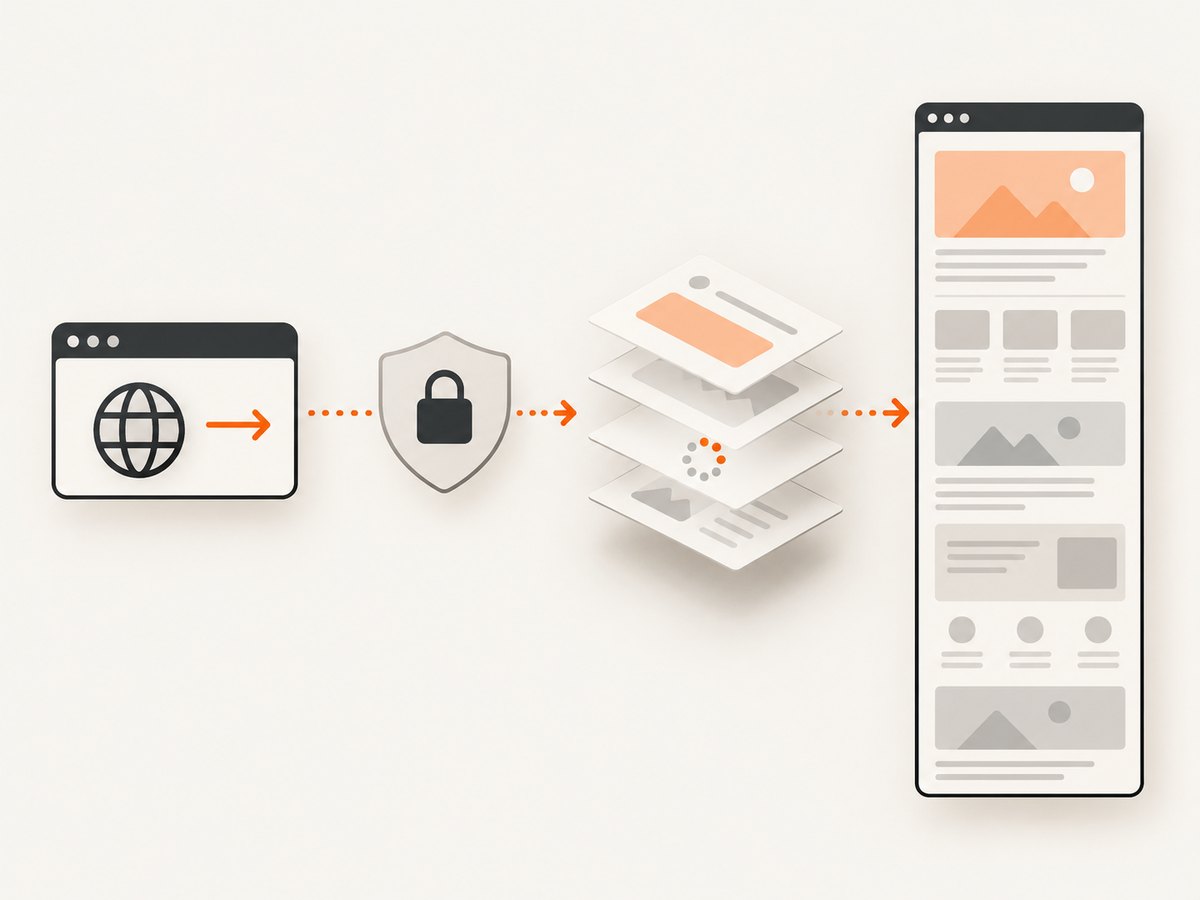
2. Capture the page manually in Chrome
Chrome DevTools documents that Capture a full size screenshot captures the whole page, including content outside the current viewport. The page must already load in that Chrome instance.
- Open the unpublished URL in Chrome.
- Open DevTools with F12, Ctrl+Shift+I on Windows/Linux, or Cmd+Option+I on macOS.
- Open the DevTools Command Menu with Ctrl+Shift+P or Cmd+Shift+P.
- Search for Capture full size screenshot.
- Choose the command and wait for Chrome to download the image.
Use Chrome’s screenshot documentation for the current command names and DevTools layout.
Chrome checks when the result is wrong
- Only the visible area was saved: run Capture full size screenshot, not Capture screenshot.
- Lazy content is missing: scroll through the page first, then capture again.
- A fixed header repeats or overlaps content: temporarily disable the sticky rule in DevTools, or capture with an automation script that hides the header before taking the shot.
- An animation is in the wrong frame: pause the animation in DevTools or inject CSS that sets
animation-play-state: paused.
3. Capture the page manually in Firefox
Firefox includes a full-page screenshot control in its toolbox. Mozilla documents that the screenshot is saved to the browser’s Downloads directory.
- Open the unpublished URL in Firefox.
- Open Developer Tools.
- Open the toolbox options menu and enable the screenshot button if it is not visible.
- Click the screenshot icon and choose the option to take a screenshot of the entire page.
- Find the image in the configured Downloads directory.
See Mozilla’s screenshot tool documentation for the current Firefox controls.
4. Automate an authenticated full-page capture with Playwright
Playwright is the best fit when you need the same capture repeatedly in CI, QA, regression checks, or release evidence. Its fullPage: true option captures the full scrollable page as if it fit on one very tall screen.
Node.js example
import { chromium } from 'playwright';

const browser = await chromium.launch({ headless: true });
const context = await browser.newContext({
  viewport: { width: 1440, height: 900 },
  colorScheme: 'light'
});
const page = await context.newPage();

await page.goto('http://localhost:3000/dashboard', {
  waitUntil: 'domcontentloaded',
  timeout: 60_000
});

// Replace this with your site-specific login or approved session bootstrap.
await page.fill('[name="email"]', process.env.TEST_EMAIL);
await page.fill('[name="password"]', process.env.TEST_PASSWORD);
await page.click('button[type="submit"]');
await page.waitForURL('**/dashboard');

await page.waitForLoadState('networkidle');
await page.locator('[data-testid="dashboard-ready"]').waitFor({ state: 'visible' });

// Trigger lazy-loaded sections before the full-page shot.
await page.evaluate(async () => {
  for (let y = 0; y < document.body.scrollHeight; y += 800) {
    window.scrollTo(0, y);
    await new Promise(resolve => setTimeout(resolve, 100));
  }
  window.scrollTo(0, 0);
});

// Optional: freeze animations and hide elements that should not appear.
await page.addStyleTag({
  content: `*, *::before, *::after {
    animation: none !important;
    transition: none !important;
  }`
});

await page.screenshot({
  path: 'dashboard-staging.png',
  fullPage: true,
  animations: 'disabled'
});

await browser.close();
Install Playwright with npm install -D playwright. Keep credentials in environment variables or a secret store. Do not commit them or place them in URLs.
Python example
import asyncio
import os
from pathlib import Path
from playwright.async_api import async_playwright

async def main():
    async with async_playwright() as p:
        browser = await p.chromium.launch(headless=True)
        context = await browser.new_context(
            viewport={"width": 1440, "height": 900},
            color_scheme="light",
        )
        page = await context.new_page()
        await page.goto(
            "http://localhost:3000/dashboard",
            wait_until="domcontentloaded",
            timeout=60_000,
        )

        await page.fill('[name="email"]', os.environ["TEST_EMAIL"])
        await page.fill('[name="password"]', os.environ["TEST_PASSWORD"])
        await page.click('button[type="submit"]')
        await page.wait_for_url("**/dashboard")
        await page.wait_for_load_state("networkidle")
        await page.locator('[data-testid="dashboard-ready"]').wait_for(state="visible")

        await page.evaluate("""async () => {
          for (let y = 0; y < document.body.scrollHeight; y += 800) {
            window.scrollTo(0, y);
            await new Promise(resolve => setTimeout(resolve, 100));
          }
          window.scrollTo(0, 0);
        }""")
        await page.add_style_tag(content="""*, *::before, *::after {
          animation: none !important;
          transition: none !important;
        }""")
        await page.screenshot(path="dashboard-staging.png", full_page=True)
        await browser.close()

asyncio.run(main())
Install the package and browser binaries with pip install playwright followed by playwright install chromium.
Reuse an approved saved session
For a login flow that is difficult to automate, create a Playwright storage state once through an authorized process, store the resulting file securely, and launch the context with storage_state="state.json". Treat that file like a password: restrict access, rotate it, and never publish it with screenshots.
5. Use Puppeteer for Chrome-focused automation
Puppeteer is a JavaScript library for navigating pages, interacting with elements, and taking full-page or element screenshots.
import puppeteer from 'puppeteer';

const browser = await puppeteer.launch({ headless: 'new' });
const page = await browser.newPage();
await page.setViewport({ width: 1440, height: 900, deviceScaleFactor: 1 });
await page.goto('http://localhost:3000/dashboard', {
  waitUntil: 'networkidle0',
  timeout: 60_000
});

await page.screenshot({
  path: 'dashboard-staging.png',
  fullPage: true
});

await browser.close();
See Chrome for Developers’ Puppeteer documentation. Add your site-specific login, readiness selector, lazy-load scroll, and animation handling before the screenshot call.
6. Private URLs, authentication, and network boundaries
A local browser can capture a page that an external service cannot reach. This is the normal choice for localhost, LAN-only hosts, VPN-only staging, internal DNS, and pages protected by a firewall. Run Playwright or Puppeteer on a machine or CI runner that has the required route.
For HTTP basic authentication, configure the browser context before navigation:
const context = await browser.newContext({
  httpCredentials: {
    username: process.env.BASIC_AUTH_USER,
    password: process.env.BASIC_AUTH_PASSWORD
  }
});
For an application login, use the same flow as a human, or load an approved session state. Do not bypass access controls, disable security checks, or capture data outside your authorization. If the page contains sensitive data, keep the image and browser traces in an access-controlled location.
7. Make the capture deterministic
| Variable | How to control it | Why it matters |
|---|---|---|
| Viewport | Set a fixed width and height | Responsive layouts change the page height and wrapping |
| Device scale | Set deviceScaleFactor or Playwright scale settings |
Changes pixel dimensions and text sharpness |
| Fonts | Wait for document.fonts.ready |
Fallback fonts can change line breaks |
| Images | Wait for image completion and scroll through lazy regions | Prevents blank or partially loaded sections |
| Data | Use fixed fixtures or a known build | Live values make visual comparisons noisy |
| Time | Freeze clocks where your test framework supports it | Timestamps and rotating content otherwise differ |
| Motion | Disable transitions and animations | Prevents inconsistent frames |
| Locale | Set locale, timezone, and language headers | Dates, currencies, and text length can change |
8. Full-page edge cases
Very long pages
A full-page image can become extremely tall. Large dimensions increase memory use and may exceed downstream image, PDF, or storage limits. If the page is longer than a practical image, capture logical sections or generate a PDF with pagination.
Sticky and fixed elements
Full-page capture engines stitch or render the scrollable document, while fixed elements remain fixed. A navigation bar may therefore repeat or cover content. Hide it temporarily with a targeted selector, or use a print-specific stylesheet.
Lazy loading and intersection observers
Some applications load content only when an element approaches the viewport. A single full-page call may finish before those observers run. Scroll in increments, wait for network or a readiness selector, then return to the top and capture.
Cross-origin iframes and embedded media
External frames may be blank, blocked, or rendered differently from the parent page. Verify that the capture environment can reach the frame’s origin and that its content is allowed to render. A browser screenshot cannot read protected cross-origin pixels as page HTML.
Canvas, WebGL, and video
Canvas and WebGL output depends on the rendering environment. Video may be caught mid-frame or remain black until playback starts. Freeze or replace dynamic content when the image is evidence for a test.
9. Troubleshooting
| Symptom | Likely cause | Fix |
|---|---|---|
| Navigation times out | Private route, DNS, VPN, or a page that never finishes loading | Verify access from the runner, increase the timeout only when justified, and wait for a specific readiness selector instead of global network idle. |
| Login redirects back to sign-in | Cookies, CSRF token, SSO popup, or wrong redirect URL | Use the site’s supported login flow, preserve the correct context, and inspect redirects and console errors. |
| Screenshot is only viewport-sized | Full-page option was omitted | Use Chrome’s full-size command or fullPage: true in Playwright/Puppeteer. |
| Bottom sections are blank | Lazy loading has not been triggered | Scroll through the document, wait for images or a readiness marker, then capture. |
| Fonts or icons differ | Font requests failed or the capture ran too early | Wait for document.fonts.ready, confirm font requests, and install required fonts in the runner. |
| Content is clipped | Overflow containers or sticky overlays | Inspect nested scroll areas, capture the relevant element separately, or adjust the page’s test stylesheet. |
| Blank iframe | Cross-origin access, blocked resource, or unavailable network route | Check frame requests and permissions; run from a network that can reach the embedded origin. |
| Different result on every run | Animations, live data, time, ads, or responsive layout | Freeze motion, use fixtures, set viewport and locale, and disable nonessential dynamic content. |
| Browser crashes or runs out of memory | Extremely tall page, high device scale, or many large images | Lower scale, capture sections, reduce concurrency, and remove unnecessary resources. |
10. Performance, reliability, and cost
- Performance: Full-page work is proportional to document height, image count, font loading, and JavaScript activity. A fixed readiness selector is usually faster and more predictable than waiting indefinitely for every network request.
- Reliability: Pin browser versions in CI, record the URL and build identifier, and retain console and network logs for failed captures. Retry only transient navigation or network failures; repeated retries do not fix a deterministic selector or authentication error.
- Concurrency: Limit parallel browsers according to the runner’s CPU and memory. Several very tall pages at once can exhaust memory even when each individual capture succeeds.
- Cost: Local Playwright and Puppeteer runs consume your own machine or CI resources. Browser-based SaaS pricing varies by provider, so check the provider’s current terms before moving private captures off your network.
11. Or skip the browser setup
If the unpublished URL is reachable from ScreenshotNeo’s capture service, ScreenshotNeo can return a full-page image or PDF through one request. For a private site, the service still needs an authorized network path; localhost and VPN-only pages generally require a local or authorized CI browser instead.

See the ScreenshotNeo API documentation for all options. The basic call is:
curl -G "https://api.screenshotneo.com/v1/shot" -d access_key=YOUR_API_KEY --data-urlencode url=https://stripe.com -o shot.webpimport requests
r = requests.get("https://api.screenshotneo.com/v1/shot", params={"access_key": "YOUR_API_KEY", "url": "https://stripe.com"}, timeout=90)
open("shot.webp", "wb").write(r.content)const q = new URLSearchParams({ access_key: 'YOUR_API_KEY', url: 'https://stripe.com' });
const res = await fetch(`https://api.screenshotneo.com/v1/shot?${q}`);ScreenshotNeo can load lazy images for full-page captures, capture an element by CSS selector, set a viewport or device preset, use retina scale, wait for a selector, delay, or network idle, and supply headers, cookies, user agents, authorization, timezone, and geolocation. It also supports custom CSS and JavaScript, hiding selectors, blocking ads or resource types, resizing, caching with a chosen TTL, signed links, asynchronous jobs with signed webhooks, bulk capture of up to 100 URLs per call, PDFs, HTML/CSS input, and a usage API.
Cookie banners, newsletter popups, and chat widgets are removed before the shot. Bot checks, blank pages, failed loads, timeouts, and cache hits are not billed, and response headers identify the page verdict and whether it was billed. Its MCP server provides take_screenshot, get_page_info, and capture_pdf for Claude, Cursor, and other MCP clients. The Free plan includes 1,000 screenshots per month with no card; paid plans start at $5 for 3,000 shots.
Create a free ScreenshotNeo account and get 1,000 screenshots a month with no card.
12. Short FAQ
Can I capture localhost with Chrome DevTools?
Yes. Chrome only needs to reach the local server from the machine where the page is open.
Can a screenshot service capture a VPN-only staging page?
Only if the service has an authorized network path to that page. Otherwise run Playwright or Puppeteer inside your VPN-connected environment.
Should I use a screenshot or a PDF for a very long page?
Use a screenshot when one continuous image is useful. Use a PDF when pagination, printing, or manageable page dimensions matter.
How do I capture one component instead of the entire document?
Use an element screenshot with a locator in Playwright or a selector in Puppeteer. This avoids stitching unrelated page regions.
Why does a full-page image differ from what I see while scrolling?
Lazy loading, animations, responsive breakpoints, sticky elements, and live data can change during capture. Fix the viewport and state, trigger lazy content, and disable motion before taking the image.


