Fuzzy Screenshot Comparison with Selenium
Build Selenium visual regression checks that tolerate small rendering differences, ignore dynamic regions, and produce useful diff artifacts for review.
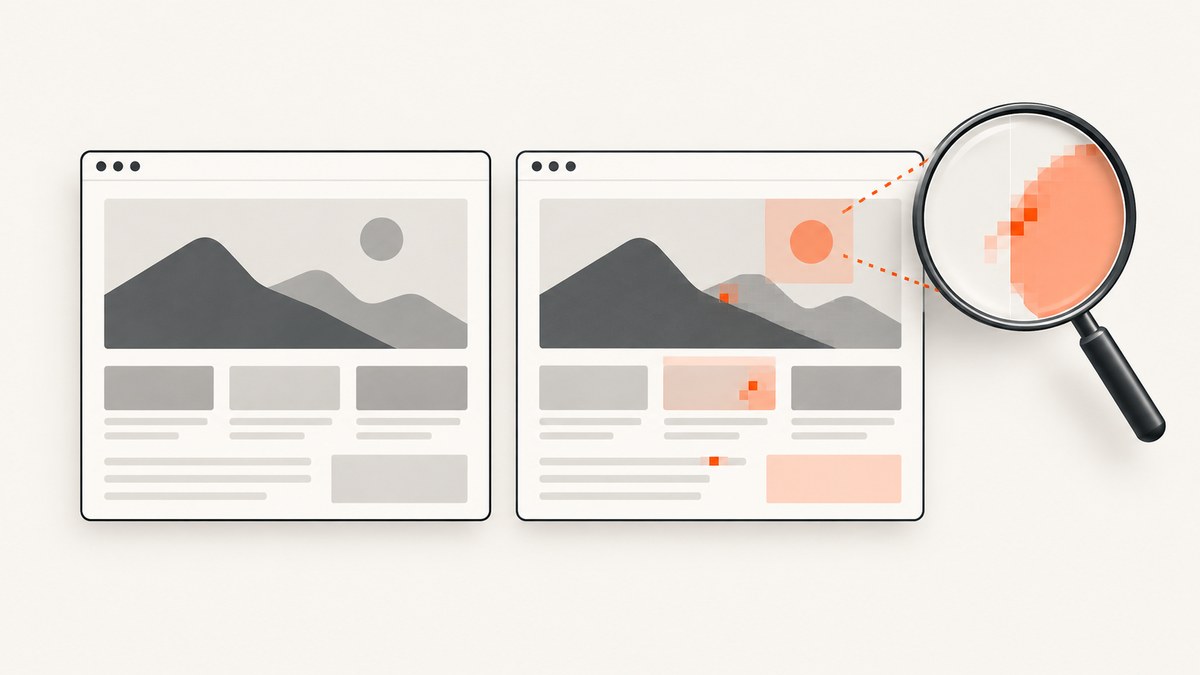
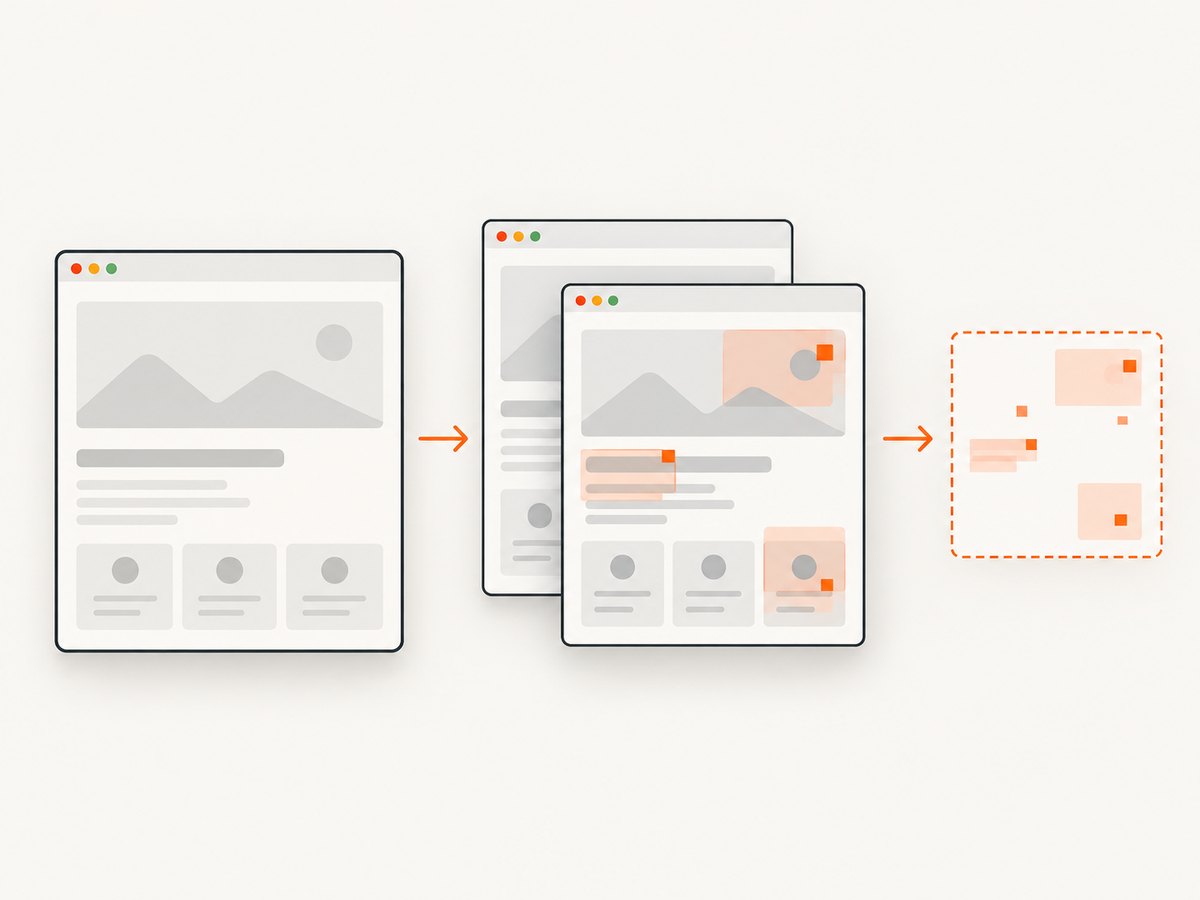
To compare Selenium screenshots while allowing small rendering differences, capture the page under repeatable conditions, align it with a checked-in baseline, mask known dynamic regions, and measure the remaining difference against a documented threshold. Save the baseline, current capture, and a highlighted diff so a failure can be reviewed rather than treated as an unexplained red build.
There is no universally correct fuzzy threshold. It depends on your browser, operating system, fonts, page, and comparator. Pin the environment first; then calibrate a metric against both harmless rendering variation and real changes you must catch. Selenium can save a window screenshot as PNG, return PNG bytes or base64 data, and capture a WebElement. See the Selenium screenshot documentation for the capture APIs.
1. Choose what to compare
Use a full-window screenshot when the contract includes the overall page: navigation, responsive layout, or the relationship between sections. Use an element screenshot when you are checking a reusable component, chart, card, or form whose surrounding page may change independently. Smaller regions usually produce less unrelated noise and faster triage.
| Scope | Good fit | Trade-off |
|---|---|---|
| Full window | Page shell, layout, responsive breakpoints | More likely to include unrelated content and dynamic regions |
| Element | Component contract, focused widget | Does not detect changes outside the chosen element |
| Masked regions | Page checks with timestamps, rotating ads, or live data | Masking can conceal a genuine regression if too broad |
Prefer exact pixel equality only when the rendering environment is tightly pinned and the content is deterministic. For most teams, use a thresholded pixel metric, a structural or perceptual metric, or a hybrid DOM-plus-image check. Record the comparator and tolerance in source control.
2. Make rendering repeatable
Fuzzy comparison helps with small raster differences; it does not make uncontrolled test conditions reliable. Start by fixing variables that cause noise:
- Pin the browser and driver versions, operating system or container image, installed fonts, viewport dimensions, and device scale factor.
- Set locale, timezone, and color scheme. Keep browser zoom at its default.
- Use stable test data. Stub network responses and clock-dependent values when practical.
- Wait for the page’s meaningful ready state, such as a known heading or test-specific marker. Network idle alone may never happen on pages with polling or analytics.
- Disable CSS transitions and animations. Hide or freeze carousels, video, animated canvases, and blinking cursors where those are not under test.
- Capture at the same scroll position. For a component check, scroll the element into view and wait for layout to settle.
A fixed window size does not guarantee identical rendering on different machines. Device scale, font rasterization, GPU behavior, and browser versions can still alter pixels. Run comparisons in the same pinned environment that created the baseline, and regenerate baselines intentionally when that environment changes.
3. Install the Python dependencies
The example below uses Selenium with pytest and OpenCV. Selenium drives the browser, pytest reports test failures, and OpenCV computes a simple normalized pixel difference and writes a visual diff. This metric is deliberately transparent: it counts pixels whose largest per-channel difference exceeds a threshold, then compares that fraction with a configured tolerance. Tune both thresholds for your application rather than copying the example values as universal defaults.
python -m pip install selenium pytest opencv-python numpyProvide a local test page or change TEST_URL to a stable page you own. Keep browser management consistent in your environment; Selenium’s current releases can manage drivers through Selenium Manager when a compatible browser is installed.
4. Create a baseline and compare later runs
Save the following as test_visual.py. Set UPDATE_BASELINE=1 only when you have reviewed the page and intend to accept its current appearance. Ordinary test runs compare against the committed baseline.
import os
from pathlib import Path

import cv2
import numpy as np
import pytest
from selenium import webdriver
from selenium.webdriver.common.by import By
from selenium.webdriver.support import expected_conditions as EC
from selenium.webdriver.support.ui import WebDriverWait

BASE = Path("visual-baselines")
ARTIFACTS = Path("artifacts")
NAME = "checkout-shell"
URL = os.environ.get("TEST_URL", "http://localhost:8000/checkout")
WIDTH, HEIGHT = 1365, 900
# A channel difference over this value marks a pixel as different.
CHANNEL_DELTA = 18
# Allow at most this fraction of marked pixels; calibrate for your page.
MAX_CHANGED_FRACTION = 0.002


def make_driver():
    options = webdriver.ChromeOptions()
    options.add_argument(f"--window-size={WIDTH},{HEIGHT}")
    options.add_argument("--force-device-scale-factor=1")
    options.add_argument("--lang=en-US")
    # Use headless mode in CI. Pin Chrome and its environment in the image.
    options.add_argument("--headless=new")
    return webdriver.Chrome(options=options)


def capture(driver):
    driver.get(URL)
    WebDriverWait(driver, 20).until(
        EC.visibility_of_element_located((By.CSS_SELECTOR, "[data-test='page-ready']"))
    )
    driver.execute_script("""
      const style = document.createElement('style');
      style.id = 'visual-test-stability';
      style.textContent = `*, *::before, *::after {
        animation: none !important;
        transition: none !important;
        caret-color: transparent !important;
        scroll-behavior: auto !important;
      }`;
      document.head.appendChild(style);
    """)
    # Wait one animation frame after applying the test styles.
    driver.execute_async_script("""
      const done = arguments[arguments.length - 1];
      requestAnimationFrame(() => requestAnimationFrame(done));
    """)
    if not driver.save_screenshot("capture.png"):
        raise RuntimeError("WebDriver could not save the screenshot")
    return cv2.imread("capture.png", cv2.IMREAD_COLOR)


def compare(baseline, current, prefix):
    if baseline is None or current is None:
        raise AssertionError("Baseline or current screenshot could not be decoded")
    if baseline.shape != current.shape:
        raise AssertionError(
            f"Image dimensions differ: baseline={baseline.shape}, current={current.shape}; "
            "check viewport and device scale factor"
        )
    delta = cv2.absdiff(baseline, current)
    changed = np.max(delta, axis=2) > CHANNEL_DELTA
    fraction = float(np.count_nonzero(changed)) / changed.size

    # Save a red overlay on the current capture to make changed pixels easy to inspect.
    overlay = current.copy()
    overlay[changed] = (0, 0, 255)  # OpenCV images use BGR channel order.
    cv2.imwrite(str(prefix) + "-diff.png", overlay)
    cv2.imwrite(str(prefix) + "-current.png", current)
    return fraction


@pytest.fixture
def driver():
    browser = make_driver()
    yield browser
    browser.quit()


def test_checkout_visual(driver):
    BASE.mkdir(exist_ok=True)
    ARTIFACTS.mkdir(exist_ok=True)
    baseline_path = BASE / f"{NAME}.png"
    prefix = ARTIFACTS / NAME
    current = capture(driver)

    if os.environ.get("UPDATE_BASELINE") == "1":
        if not cv2.imwrite(str(baseline_path), current):
            raise RuntimeError(f"Could not write baseline: {baseline_path}")
        return

    if not baseline_path.exists():
        raise AssertionError(
            f"Missing {baseline_path}; review a capture, then create the baseline explicitly"
        )
    baseline = cv2.imread(str(baseline_path), cv2.IMREAD_COLOR)
    changed_fraction = compare(baseline, current, prefix)
    assert changed_fraction <= MAX_CHANGED_FRACTION, (
        f"Visual difference {changed_fraction:.4%} exceeds "
        f"{MAX_CHANGED_FRACTION:.4%}. Review {prefix}-current.png and {prefix}-diff.png"
    )
Run it with your app available at the configured URL:
pytest -q test_visual.pyTo create or deliberately refresh a baseline after review:
UPDATE_BASELINE=1 pytest -q test_visual.pyCommit the baseline with the code and include the URL, viewport, browser version, commit, and capture timestamp in test metadata or your CI artifact record. SeleniumBase documents a similar baseline/latest organization with check_window(), which is useful if you want a packaged workflow rather than maintaining comparison code yourself: SeleniumBase visual testing.
5. Mask dynamic content without masking regressions
Dynamic content is often a bigger source of flaky diffs than antialiasing. First make the test data stable or freeze the content. If that is impossible, mask only the smallest known region and document why it changes. Avoid masking a whole section just to get a green build: the mask may hide layout or styling bugs.
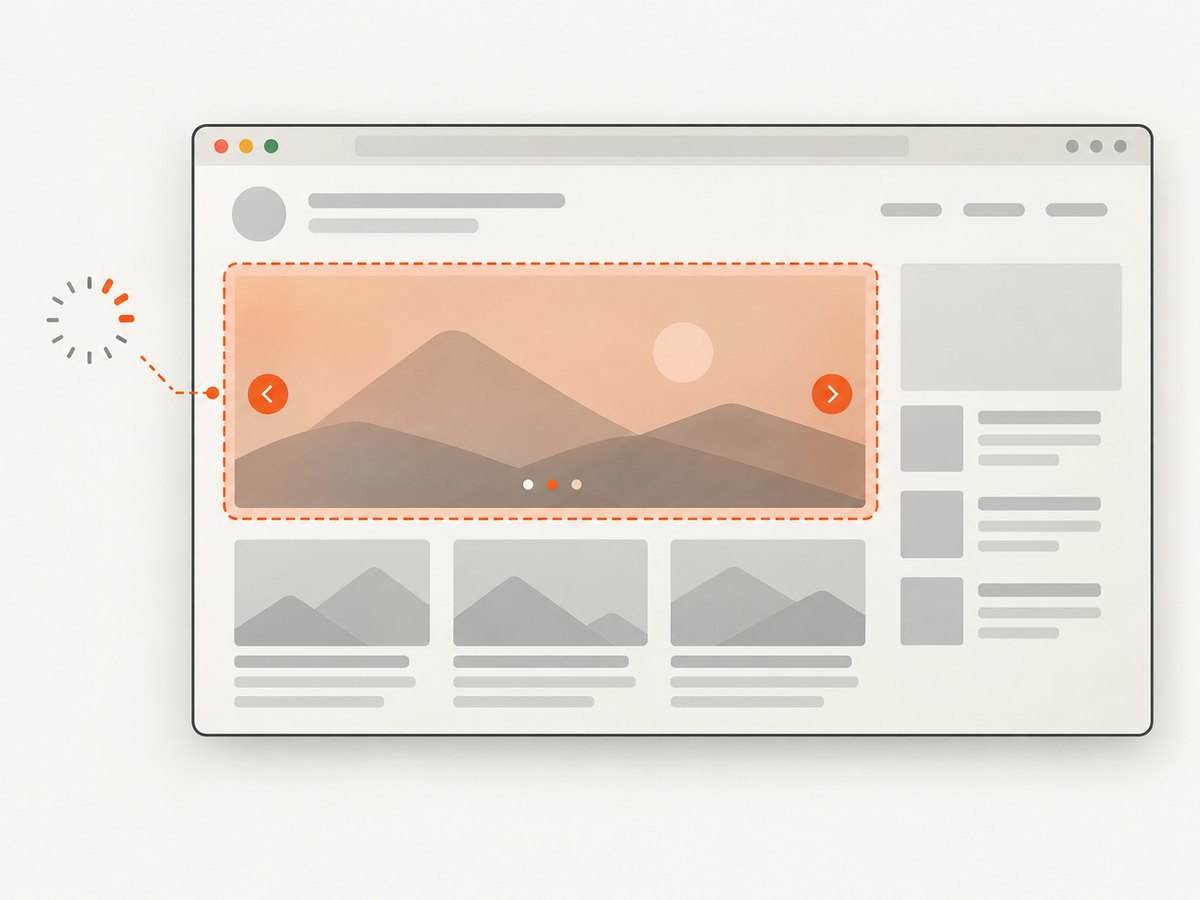
For a straightforward rectangular mask, apply it to both images before computing the metric. Add this helper and call it before cv2.absdiff:
def mask_rectangles(image, rectangles, fill=(0, 0, 0)):
    """Return a copy with (x, y, width, height) areas neutralized."""
    result = image.copy()
    height, width = result.shape[:2]
    for x, y, w, h in rectangles:
        x0, y0 = max(0, x), max(0, y)
        x1, y1 = min(width, x + w), min(height, y + h)
        if x0 < x1 and y0 < y1:
            result[y0:y1, x0:x1] = fill
    return result

# Example, after loading both images:
volatile = [(1120, 80, 180, 40)]  # measured for this fixed viewport
baseline = mask_rectangles(baseline, volatile)
current = mask_rectangles(current, volatile)
Keep coordinates tied to the pinned viewport. A more maintainable approach is to obtain a bounding box for a known element with Selenium, then mask that box in each capture. If the dynamic element moves or grows, decide whether that movement is itself a regression before masking it. For a component that can be hidden reliably, inject test CSS using a stable selector before capture instead.
6. Capture an element instead of the whole window
Selenium WebElements support screenshot capture. This is useful when only a component’s visual contract matters. Replace the full-window capture portion with:
element = WebDriverWait(driver, 20).until(
    EC.visibility_of_element_located((By.CSS_SELECTOR, "[data-test='summary-card']"))
)
element.screenshot("summary-card.png")
current = cv2.imread("summary-card.png", cv2.IMREAD_COLOR)
Element screenshots may have different dimensions if the element’s content changes, which should usually be treated as a meaningful difference. If your comparator supports alignment or resizing, use it only when the size change is acceptable by the test’s contract. Blindly resizing can hide a real regression. Selenium’s screenshot methods and WebElement capture are described in its official documentation.
7. Pick and calibrate the fuzzy metric
The example uses the fraction of pixels with a channel delta larger than 18. It is easy to explain and fast, but it treats every pixel equally and can react strongly to small shifts around text. Consider these alternatives:
- Absolute pixel difference: simple and auditable; best when the environment is stable.
- Thresholded changed-pixel ratio: tolerates small channel variation; choose both a per-pixel threshold and an allowed changed-area fraction.
- Structural or perceptual metrics: can better reflect visual similarity, but document the library, parameters, and failure interpretation.
- Hybrid checks: combine visual comparison with DOM assertions for text, accessibility attributes, and component state.
Calibrate with at least three kinds of examples: two captures expected to be equivalent, an intentional small visual change that should pass or fail according to policy, and a known regression that must fail. Look at the diff images, not just the numeric score. A global percentage can conceal a serious small defect, so teams often add per-region checks or a maximum connected changed area alongside the overall threshold.
8. Run it reliably in pytest and CI
Keep browser setup in a fixture so cleanup occurs even after assertion failures. Save current images and diffs as CI artifacts on every failed comparison. Use meaningful test names and stable baseline filenames; avoid overwriting a baseline automatically in a normal CI run. A reviewer should be able to see the baseline, current capture, highlighted difference, and the metadata that explains how the image was produced.
The pytest plugin index lists Selenium integration and screenshot-on-failure or automatic Selenium screenshot plugins. Those can complement a custom comparator, especially for failures outside the visual assertion. Keep the comparator’s output path deterministic so plugin artifacts and your own diff artifacts are easy to find.
For large suites, capture only pages and components whose visual behavior is part of the test contract. Reuse a browser session carefully only when state is reset between cases. Parallel workers should write separate artifact paths, and baseline updates should be a reviewed operation to avoid races.
9. Troubleshooting common failures
| Symptom | Likely cause | Fix |
|---|---|---|
| Images have different dimensions | Viewport, device scale factor, browser chrome, or element size changed | Pin size and scale; compare the same capture scope; treat unexpected element resizing as a regression |
| Diffs vary between identical commits | Fonts, browser build, animation, live data, locale, timezone, or network response varies | Pin the environment, wait on a stable marker, stub data, disable animation, and mask only unavoidable volatile areas |
| Text edges dominate the diff | Rasterization or subpixel positioning differs | Use the same browser/container and fonts; inspect layout alignment; then calibrate a small pixel tolerance |
| Test captures a loading skeleton | It waits for document load but not application readiness | Wait for a stable test marker or content condition and ensure data requests have completed |
| Huge diff after an intended change | Baseline was not reviewed or updated for the new design | Review baseline, current, and diff; regenerate the baseline explicitly and commit it with the change |
| Diff is green despite a visible defect | Threshold too loose, mask too broad, or global score hides a local change | Tighten threshold, shrink masks, add region checks, or pair the image check with DOM assertions |
| PNG read returns null | Screenshot write failed, path is wrong, or file is not a valid image | Check Selenium’s return value, output path, and artifact existence before OpenCV reads it |
10. Performance, reliability, and maintenance cost
Browser startup and page loading usually cost more time than comparing two PNG arrays. Element captures reduce image size and often improve signal, while fewer captured pages keep CI faster. Avoid retrying flaky visual checks blindly: a retry can obscure a real intermittent defect. First save both captures and identify whether the source is timing, data, rendering environment, or an actual change.
Native Selenium plus OpenCV has no hosted visual-testing service charge, but your team owns browser infrastructure, baseline storage, masking, metric calibration, artifact retention, and review. SeleniumBase supplies a documented baseline comparison pattern; pytest plugins can help collect screenshots; a hosted visual-testing workflow can manage parts of comparison and review. Applitools documents Selenium WebDriver integrations, but check its current pricing, data handling, and terms directly before adopting it: Applitools Selenium integration. Avoid using dated pricing or performance claims in a tool comparison; assess current fit against your requirements.
11. Or skip the browser setup
If you need a clean screenshot for documentation, review, or a downstream image workflow rather than a browser-driven test assertion, ScreenshotNeo provides a screenshot API and MCP server. The API returns an image or PDF from one GET request. See the ScreenshotNeo API documentation for its parameters and response behavior.
curl -G "https://api.screenshotneo.com/v1/shot" -d access_key=YOUR_API_KEY --data-urlencode url=https://stripe.com -o shot.webpScreenshotNeo removes cookie banners, newsletter popups, and chat widgets before capture. Bot checks, blank pages, and failed loads are never billed. Its MCP server gives AI agents tools to take screenshots, get page information, and capture PDFs. The free plan includes 1,000 screenshots a month with no card; paid plans start at $5 for 3,000. It is a managed capture option, not a replacement for a deterministic Selenium baseline and calibrated visual assertion in your CI test.
Sign up free for 1,000 screenshots a month, with no card.
12. FAQ
Should a fuzzy comparison ignore every small difference?
No. The tolerance should represent acceptable rendering variation for a pinned environment. Keep it narrow enough to catch defects and validate it with known good and bad examples.
Can I compare screenshots from different browsers?
You can, but the result includes browser-specific rendering differences. For regression checks, compare like with like and maintain separate baselines when cross-browser appearance is itself under test.
Should I store screenshots in Git?
For modest baseline sets, version control makes baseline changes reviewable. Large suites may store images as CI artifacts or in managed storage, but preserve stable references and review history.
Can screenshots replace DOM or accessibility tests?
No. Pixels reveal appearance, while DOM and accessibility checks cover semantics and interaction properties that a screenshot cannot establish.


