How to Generate Certificate PDFs Automatically From Templates
Build a reliable certificate pipeline: reusable templates, structured data, PDF generation, validation, delivery, and a practical Python example.
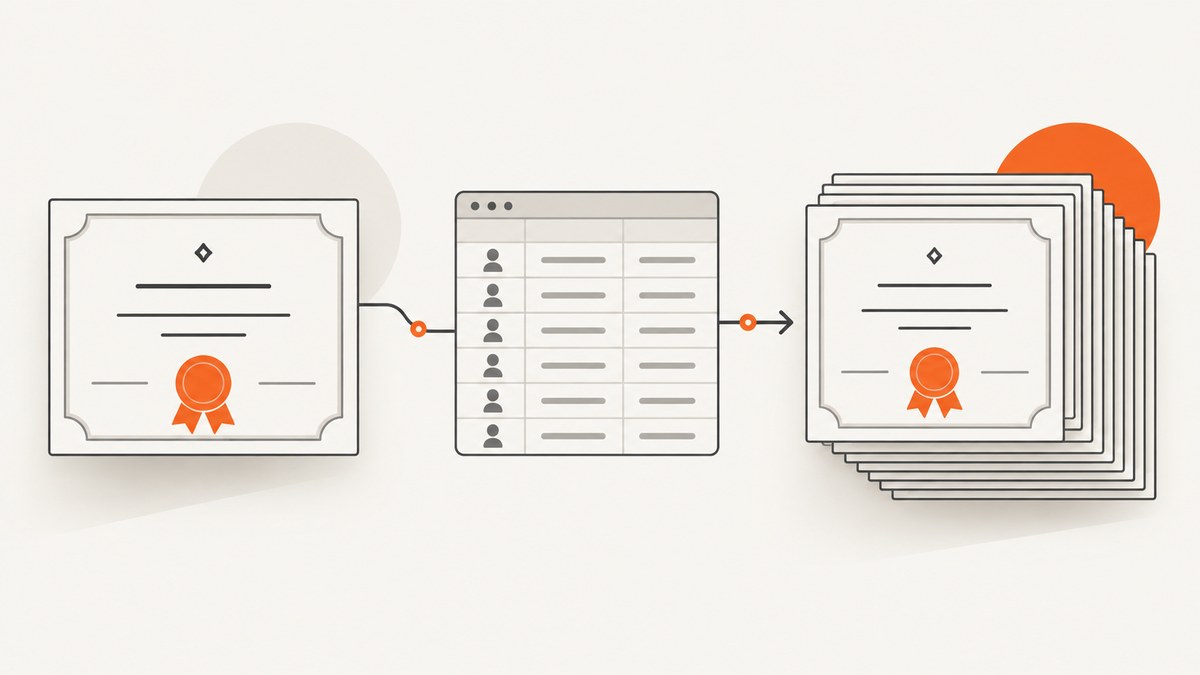
To generate certificate PDFs automatically, combine three parts: a reusable certificate template, structured recipient data, and a PDF generation step. The generator maps fields such as a name, course, completion date, hours, issuer, signature, and credential ID into the template, then writes one PDF per record. A production workflow also validates the data, checks representative files, records failures, and delivers the resulting PDFs securely.
This approach works for a small batch run from a spreadsheet and for recurring issuance from an application. Adobe documents a Word-template workflow in which tagged fields are merged with JSON data to produce PDF or Word output, while Adobe Experience Manager Forms Communications APIs describe bulk and asynchronous generation for enterprise workloads. A custom implementation can use a library such as ReportLab when you need complete control over layout and deployment.
1. Define the certificate fields and workflow
Start by writing down every value that can change from one certificate to another. Typical fields include:
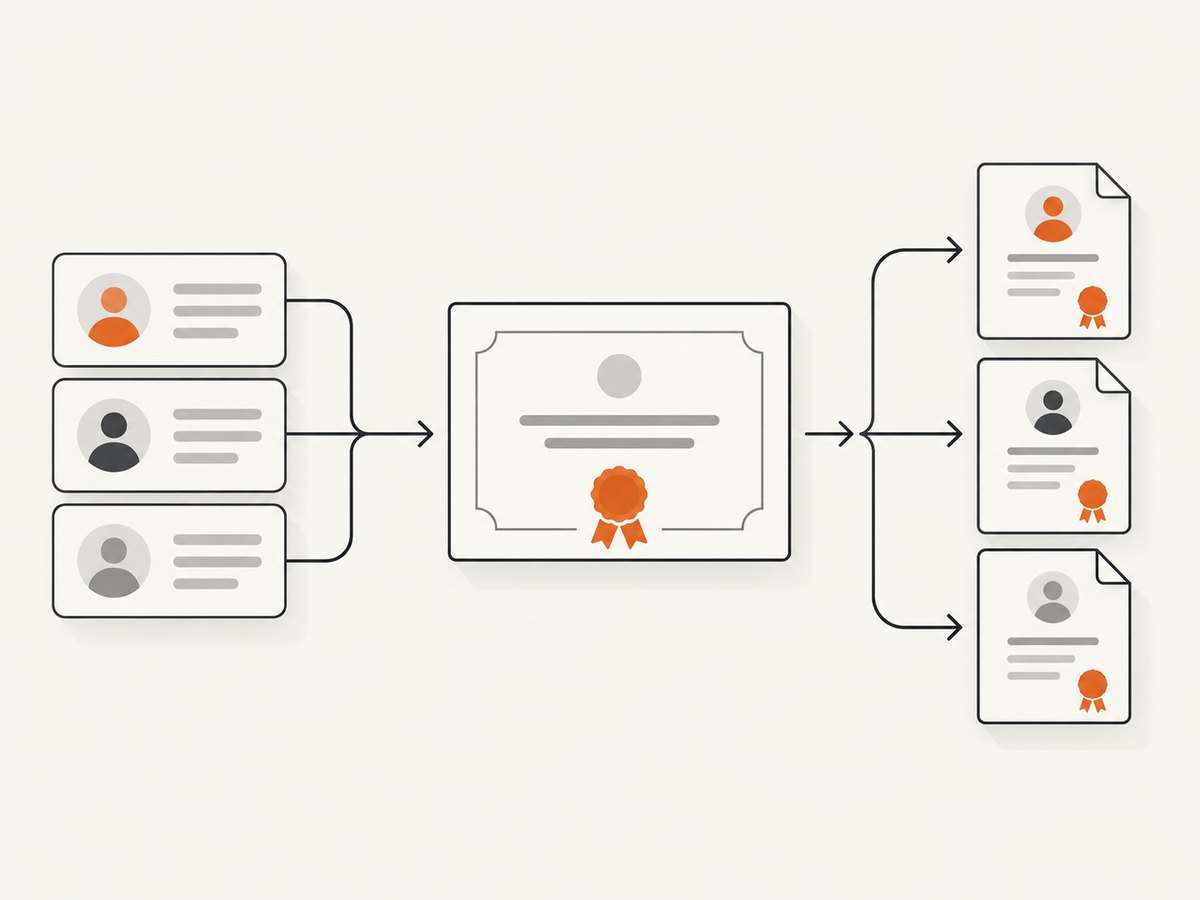
recipient_name: the learner or attendee’s full name.course_nameorevent_name: what the certificate recognizes.completion_date: preferably stored in an unambiguous format such as ISO 8601.hours: optional continuing-education or training hours.issuer_nameandissuer_title.credential_id: a unique identifier useful for support and verification.signature_image: an optional image path or asset identifier.
Decide what happens before and after generation. A common sequence is:
- Receive or export records from a form, learning system, database, or spreadsheet.
- Normalize names, dates, identifiers, and optional values.
- Validate required fields and reject duplicates or malformed records.
- Render each record against the approved template.
- Run layout and content checks on a sample and on every generated file where possible.
- Store PDFs with a deterministic filename and an audit record.
- Send download links or attachments, and optionally apply a signing step.
Keep the data and design separate. Updating a border, logo, or typography should not require changing the source records. Likewise, a new batch should not require editing the template by hand.
2. Choose a template format
A Word document with tagged fields is one documented implementation. Adobe’s course and degree certificate example shows a certificate scenario that merges student and course information, with optional signing and delivery. The Document Generation API accepts structured data for a tagged Word template and can produce PDF or Word output; its getting-started guide covers template tagging and API invocation.
Use a managed template service when designers need to maintain the document and your team prefers an API over maintaining a PDF layout engine. Use custom code when you need a special layout, private deployment, deterministic rendering, or integration with an existing Python service. ReportLab’s json2pdf documentation describes a data-to-PDF architecture that can be adapted to project-specific certificate templates.
| Choice | Best fit | Trade-offs |
|---|---|---|
| Word template plus document API | Branded templates maintained by non-developers | Requires provider setup and template-tag discipline |
| Custom PDF code | Full control over rendering and deployment | You own fonts, wrapping, layout tests, and maintenance |
| Enterprise communications service | Large or asynchronous batches | Access, limits, and deployment must be verified for your account |
| Spreadsheet-to-template workflow | Occasional jobs run by an operations team | Validate vendor capabilities, privacy terms, and error handling before relying on it |
3. Prepare structured data
Do not pass unvalidated spreadsheet cells directly into a generator. Convert each row to a predictable object and define required and optional fields. JSON is convenient for APIs:
{
  "recipient_name": "Ada Lovelace",
  "course_name": "Data Analysis Fundamentals",
  "completion_date": "2026-09-29",
  "hours": 12,
  "issuer_name": "Example Academy",
  "issuer_title": "Director of Learning",
  "credential_id": "DAF-2026-000184"
}
Validate that names are present, dates parse correctly, hours are numeric and non-negative, and credential IDs are unique within the batch. Normalize whitespace and Unicode before rendering. Keep the original value for audit purposes if normalization changes what is displayed.
4. A complete Python implementation with ReportLab
The following example creates one landscape certificate per JSON record. It draws a border, wraps long names, formats the date, and writes a manifest. Install the dependency with pip install reportlab. Save the script as generate_certificates.py.
import json
import re
from datetime import date
from pathlib import Path

from reportlab.lib import colors
from reportlab.lib.pagesizes import landscape, A4
from reportlab.pdfbase.pdfmetrics import stringWidth
from reportlab.pdfgen import canvas

PAGE = landscape(A4)
OUTPUT = Path("certificates")


def safe_filename(value):
    value = re.sub(r"[^A-Za-z0-9._-]+", "-", value.strip())
    return value.strip("-") or "certificate"


def validate(record, seen_ids):
    required = ["recipient_name", "course_name", "completion_date", "issuer_name", "credential_id"]
    missing = [key for key in required if not str(record.get(key, "")).strip()]
    if missing:
        raise ValueError(f"missing required fields: {', '.join(missing)}")
    credential_id = str(record["credential_id"]).strip()
    if credential_id in seen_ids:
        raise ValueError(f"duplicate credential_id: {credential_id}")
    seen_ids.add(credential_id)
    parsed = date.fromisoformat(str(record["completion_date"]))
    hours = record.get("hours")
    if hours is not None and float(hours) < 0:
        raise ValueError("hours cannot be negative")
    return parsed


def draw_wrapped_centered(c, text, y, font="Helvetica-Bold", size=30, max_width=600):
    text = " ".join(str(text).split())
    words = text.split()
    lines, current = [], ""
    for word in words:
        candidate = f"{current} {word}".strip()
        if stringWidth(candidate, font, size) <= max_width:
            current = candidate
        else:
            if current:
                lines.append(current)
            current = word
    if current:
        lines.append(current)
    c.setFont(font, size)
    for line in lines:
        c.drawCentredString(PAGE[0] / 2, y, line)
        y -= size + 8
    return y


def create_certificate(record, parsed_date, destination):
    c = canvas.Canvas(str(destination), pagesize=PAGE)
    width, height = PAGE
    margin = 32
    c.setStrokeColor(colors.HexColor("#1f3a5f"))
    c.setLineWidth(3)
    c.rect(margin, margin, width - 2 * margin, height - 2 * margin)
    c.setStrokeColor(colors.HexColor("#c7a64b"))
    c.setLineWidth(1)
    c.rect(margin + 10, margin + 10, width - 2 * (margin + 10), height - 2 * (margin + 10))

    c.setFillColor(colors.HexColor("#1f3a5f"))
    c.setFont("Helvetica-Bold", 25)
    c.drawCentredString(width / 2, height - 105, "CERTIFICATE OF COMPLETION")

    c.setFillColor(colors.black)
    c.setFont("Helvetica", 13)
    c.drawCentredString(width / 2, height - 145, "This certificate is presented to")
    y = height - 205
    y = draw_wrapped_centered(c, record["recipient_name"], y, max_width=650)

    c.setFont("Helvetica", 13)
    c.drawCentredString(width / 2, y - 5, "for successfully completing")
    c.setFont("Helvetica-Bold", 18)
    c.drawCentredString(width / 2, y - 38, str(record["course_name"]))

    details = f"Completed {parsed_date.strftime('%B %-d, %Y')}"
    if record.get("hours") not in (None, ""):
        details += f"  •  {record['hours']} hours"
    c.setFont("Helvetica", 12)
    c.drawCentredString(width / 2, y - 72, details)

    c.setFont("Helvetica", 11)
    c.drawString(85, 82, str(record["issuer_name"]))
    if record.get("issuer_title"):
        c.drawString(85, 66, str(record["issuer_title"]))
    c.drawRightString(width - 85, 82, f"Credential ID: {record['credential_id']}")
    c.save()


def main():
    source = Path("recipients.json")
    records = json.loads(source.read_text(encoding="utf-8"))
    OUTPUT.mkdir(exist_ok=True)
    seen_ids, manifest = set(), []
    for index, record in enumerate(records, start=1):
        parsed_date = validate(record, seen_ids)
        filename = f"{safe_filename(record['credential_id'])}-{safe_filename(record['recipient_name'])}.pdf"
        destination = OUTPUT / filename
        create_certificate(record, parsed_date, destination)
        manifest.append({"credential_id": record["credential_id"], "file": str(destination)})
        print(f"[{index}/{len(records)}] {destination}")
    (OUTPUT / "manifest.json").write_text(json.dumps(manifest, indent=2), encoding="utf-8")


if __name__ == "__main__":
    main()
Create recipients.json as an array of records using the schema above, then run python generate_certificates.py. The script fails the batch when required data is missing or a credential ID repeats. For a large operation, you may prefer a per-record error report so valid records continue while invalid rows are quarantined; make that choice explicit and document whether a partial batch is acceptable.
5. Template and layout edge cases
- Long names: wrap or reduce font size within a defined minimum. Test names with accents, apostrophes, hyphens, and multiple family names.
- Missing optional values: omit the label as well as the value. An empty “Hours:” line looks like a data error.
- Date and timezone: decide whether completion is based on the issuer’s timezone or the learner’s timezone, then format it consistently.
- Fonts: embed a font that supports the languages you issue. Check licensing before bundling fonts in a service.
- Images and signatures: verify file existence, dimensions, and transparency before rendering. Keep a safe fallback when a signature is optional.
- Page overflow: reserve space for the longest expected course title and issuer name. A PDF can be technically valid while text is clipped.
- Duplicate delivery: use the credential ID as an idempotency key. Re-running a job should not silently issue a second credential.
- Untrusted text: escape or treat data as plain text. Never interpret recipient fields as template instructions or executable code.
6. Bulk and asynchronous generation
For a few dozen certificates, a synchronous script is often sufficient. For recurring or high-volume issuance, separate intake, rendering, storage, and delivery. Queue records, process them in workers, and write a status for each record: queued, generated, failed, or delivered. Store a hash or version of the template with every output so you can explain which design produced a certificate.
Adobe’s AEM Forms Communications APIs describe on-demand, bulk, and asynchronous document generation. Confirm current access requirements, deployment options, and limits for your environment before designing around them.
7. Validation, delivery, and auditability
Review at least one short name, one long name, a non-ASCII name, the longest course title, an optional-hours record, and a record with every optional field populated. Open the PDFs in more than one viewer and extract text in an automated check if downstream systems need searchable content.
Use deterministic filenames such as credential-id-recipient.pdf, but avoid putting sensitive personal data in URLs. Restrict access to the output directory or object storage bucket. Record who requested a batch, when it ran, the input version, template version, output path, and error details. If certificates are emailed, prefer expiring download links when your delivery system supports them.
8. Troubleshooting common failures
| Symptom | Likely cause | Fix |
|---|---|---|
| Every PDF has blank fields | Template tags do not match JSON keys | Compare the exact field names, including case and nesting, and run a one-record test. |
| Names are clipped | Fixed-size text exceeds the reserved width | Wrap text, reduce size within a limit, or increase the text area; test worst-case names. |
| Dates are shifted | A timestamp was converted between timezones | Store a date-only value for date-only certificates, or define the conversion timezone. |
| Accented characters show as boxes | The selected PDF font lacks glyphs | Embed a Unicode font and verify its license and subset settings. |
| Only some records fail | Bad row data, duplicate IDs, or missing assets | Write a row-level error report containing the credential ID and validation message. |
| Output cannot be opened | Incomplete write or a failed renderer | Write to a temporary file, close it, check size and parseability, then rename atomically. |
| Recipients receive the wrong file | Filename or delivery mapping is not idempotent | Join delivery records by credential ID, not array position, and log the association. |
9. Performance, reliability, and cost considerations
Rendering time depends on the template, fonts, images, PDF engine, and batch size. Measure your own workload rather than assuming a throughput number. Reuse loaded fonts and template assets inside a worker, process independent records concurrently within memory limits, and avoid regenerating an unchanged certificate. For very large jobs, queue work and retry only transient failures.

Keep retries safe by using credential IDs as idempotency keys and by writing outputs atomically. A failed email should not force a second PDF render. Monitor queue depth, success rate, render duration, file size, and delivery failures. Retain enough logs to investigate a record without retaining more personal data than your policy allows.
Cost usually comes from the document service, compute, storage, email delivery, and any signing provider. Compare the cost and operational burden of a managed API with the engineering time required to maintain custom rendering. Do not claim a universal cheapest option: volume, frequency, privacy requirements, and design complexity change the result.
Or skip the browser setup
If your certificate workflow starts with an HTML preview or a hosted certificate page, ScreenshotNeo can turn that page into a clean PDF with one request. See the ScreenshotNeo documentation for the available capture options.
curl -G "https://api.screenshotneo.com/v1/shot" -d access_key=YOUR_API_KEY --data-urlencode url=https://example.com/certificate/DAF-2026-000184 -d format=pdf -o certificate.pdfimport requests
r = requests.get("https://api.screenshotneo.com/v1/shot", params={"access_key": "YOUR_API_KEY", "url": "https://example.com/certificate/DAF-2026-000184", "format": "pdf"}, timeout=90)
r.raise_for_status()
open("certificate.pdf", "wb").write(r.content)const q = new URLSearchParams({ access_key: 'YOUR_API_KEY', url: 'https://example.com/certificate/DAF-2026-000184', format: 'pdf' });
const res = await fetch(`https://api.screenshotneo.com/v1/shot?${q}`);
if (!res.ok) throw new Error(`HTTP ${res.status}`);
require('fs').writeFileSync('certificate.pdf', Buffer.from(await res.arrayBuffer()));Before the capture, cookie and consent banners are accepted and more than 60 known consent platforms, newsletter popups, and chat widgets are removed; each cleanup step can be turned off. Bot checks, blank pages, timeouts, failed loads, and cache hits are not billed, and the response identifies the result with X-Page-Verdict and X-Billed headers. ScreenshotNeo also provides an MCP server with take_screenshot, get_page_info, and capture_pdf tools for Claude, Cursor, and other MCP clients. The free plan includes 1,000 screenshots per month with no card; paid plans start at $5 for 3,000.
Create a free ScreenshotNeo account to try the PDF capture.
10. FAQ
Can I generate certificates from a spreadsheet?
Yes. Export rows to JSON or map spreadsheet columns to template fields, validate them, and generate one PDF per row. Keep a manifest linking each row’s credential ID to its output.
Do I need to print certificates?
No. The workflow produces digital PDFs. Printing is an optional distribution step with separate paper and printer requirements.
Should I sign every certificate?
Only when your policy or recipients require it. Signing can be added after rendering; Adobe’s documented certificate scenario treats signing and delivery as optional steps.
How do I change the design later?
Version the template, run a representative regression set, and record the template version with every generated PDF. Existing certificates should remain tied to the version that produced them.
When is asynchronous processing worthwhile?
Use a queue when batches are large, generation is slow, delivery can happen later, or you need retries and per-record status. A small one-off batch can remain synchronous.


