How to Generate and Download a PDF from an HTML File
Generate a PDF from HTML with Puppeteer or Playwright, control print layout, and download the result—or use a hosted PDF API.

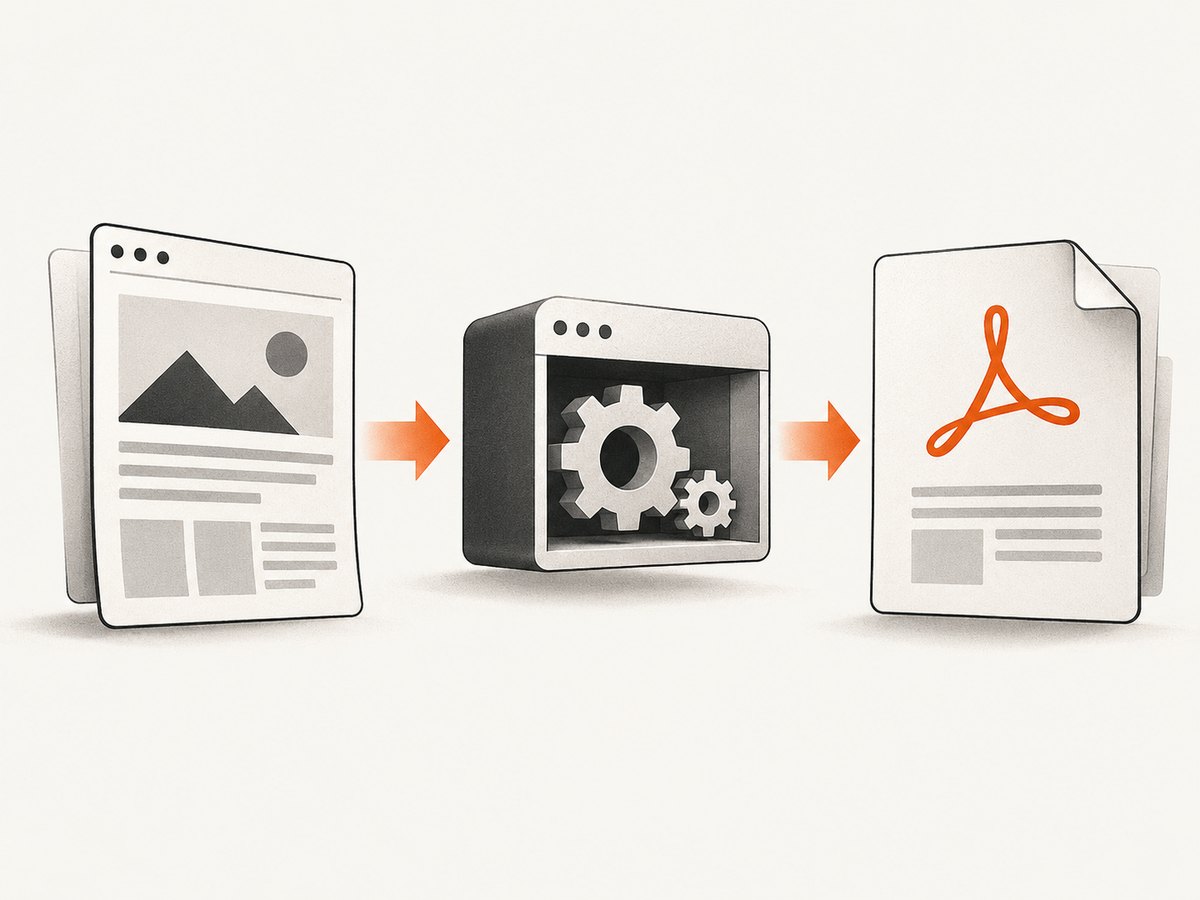
Direct answer: Use a browser automation library to render the HTML, then generate a PDF from the rendered page. With Puppeteer, the basic sequence is to launch Chromium, navigate to the HTML file or URL, call page.pdf(), and close the browser. Playwright provides a similar API. Both use print CSS by default; explicitly switch to screen media if you want screen styling.
This guide covers local HTML files, remote pages, print settings, readiness for dynamic content, returning a PDF as a download, troubleshooting, and a hosted option. The examples use Node.js because Puppeteer and Playwright are Node.js browser automation libraries.
1. Generate a PDF from a local HTML file with Puppeteer
Install Puppeteer. Its PDF guide demonstrates navigating to a page, saving the PDF to a path, and closing the browser. Page.pdf() waits for fonts by default. See the Puppeteer PDF generation guide.
npm install puppeteerSave this as html-to-pdf.mjs. It accepts an input HTML file and output path, with defaults if you omit either argument.
import puppeteer from 'puppeteer';
import { pathToFileURL } from 'node:url';
import path from 'node:path';

const input = path.resolve(process.argv[2] ?? 'index.html');
const output = path.resolve(process.argv[3] ?? 'output.pdf');
const browser = await puppeteer.launch({ headless: true });

try {
  const page = await browser.newPage();
  await page.goto(pathToFileURL(input).href, { waitUntil: 'load' });
  await page.pdf({
    path: output,
    format: 'A4',
    printBackground: true,
    margin: { top: '18mm', right: '16mm', bottom: '18mm', left: '16mm' },
    preferCSSPageSize: true
  });
  console.log(`Wrote ${output}`);
} finally {
  await browser.close();
}
node html-to-pdf.mjs ./index.html ./report.pdfFor a remote page, replace the page.goto(...) expression with its URL, for example await page.goto('https://example.com', { waitUntil: 'load' }). If the URL is supplied by a user, validate and restrict destinations before navigating from a server.
Print CSS for predictable pagination
PDF generation uses print styles by default. Define paper geometry and page-break behavior in the HTML when the document needs a deliberate layout.
<style>
  @page { size: A4; margin: 18mm 16mm; }
  body { font: 11pt/1.45 system-ui, sans-serif; }
  h1, h2 { break-after: avoid; }
  table, pre, figure { break-inside: avoid; }
  .new-page { break-before: page; }
  @media print { .screen-only { display: none; } }
</style>
2. Generate a PDF with Playwright
Playwright’s page.pdf() returns a buffer and supports a path option to write the result to disk. It uses print CSS by default. See the official Playwright Page API.
npm install playwright
npx playwright install chromium
import { chromium } from 'playwright';
import { pathToFileURL } from 'node:url';
import path from 'node:path';
const input = path.resolve(process.argv[2] ?? 'index.html');
const output = path.resolve(process.argv[3] ?? 'output.pdf');
const browser = await chromium.launch();
try {
const page = await browser.newPage();
await page.goto(pathToFileURL(input).href, { waitUntil: 'load' });
await page.pdf({
path: output,
format: 'A4',
printBackground: true,
preferCSSPageSize: true,
margin: { top: '18mm', right: '16mm', bottom: '18mm', left: '16mm' }
});
} finally {
await browser.close();
}Use whichever library already fits your project. The cited references do not establish a universal speed or rendering-fidelity winner; validate the target pages in your own environment.
3. Configure paper, media, and output
| Requirement | Setting | What it controls |
|---|---|---|
| Screen styling | Puppeteer: await page.emulateMediaType('screen'). Playwright: await page.emulateMedia({ media: 'screen' }). |
Switches away from the default print CSS media type. |
| Named paper | format: 'A4' or format: 'Letter' |
Sets a standard page size. |
| Custom page size | width, height; optionally landscape: true |
Sets custom geometry or landscape orientation. |
| Let CSS control page size | preferCSSPageSize: true |
Gives CSS @page size priority. Puppeteer’s format takes precedence over width and height when set. |
| Include background graphics | printBackground: true |
Includes background colors and images. Puppeteer defaults this option to false. |
| Margins | margin: { top, right, bottom, left } |
Sets printable space around content. |
| Page selection | Puppeteer: pageRanges: '1-3' |
Limits the PDF to selected pages. |
| Scale | Puppeteer: scale: 0.9 |
Scales printed content; check that text remains readable. |
| Headers and footers | Puppeteer: displayHeaderFooter: true with templates |
Enables browser-generated header and footer regions. They are disabled by default. |
For the full Puppeteer option set, consult the PDFOptions reference. Tagged PDF output is documented as experimental; inspect generated files before relying on it.
4. Wait for dynamic content before exporting
A navigation event alone may not mean that a client-rendered report, chart, or image is ready. Wait for an application-specific readiness signal. There is no single readiness condition that fits every page.
await page.goto(url, { waitUntil: 'load' });
await page.waitForSelector('[data-pdf-ready]');
await page.evaluate(() => document.fonts.ready);
await page.pdf({ path: 'output.pdf', printBackground: true });- Use
waitUntil: 'load'when the document load event is an appropriate starting point. A network-idle condition can be useful for some pages, but long-polling or analytics can prevent it from completing. - Prefer a selector or application-ready flag for client-rendered data over an arbitrary sleep.
- Check that image, chart, and font resources load successfully. Puppeteer waits for fonts by default according to its guide, but failed font requests still need fixing.
5. Return the PDF as a browser download
When generating a PDF in a Node.js service, send the PDF bytes with the PDF content type and an attachment filename. This Express example uses Puppeteer and closes the page even if generation fails.
import express from 'express';
import puppeteer from 'puppeteer';

const app = express();
const browser = await puppeteer.launch({ headless: true });

app.get('/report.pdf', async (req, res) => {
  const page = await browser.newPage();
  try {
    await page.goto('http://localhost:3000/report', { waitUntil: 'load' });
    const bytes = await page.pdf({ format: 'A4', printBackground: true });
    res.type('application/pdf')
      .set('Content-Disposition', 'attachment; filename="report.pdf"')
      .send(Buffer.from(bytes));
  } catch {
    res.status(500).json({ error: 'PDF generation failed' });
  } finally {
    await page.close();
  }
});

app.listen(8080);
For a long-running service, reuse the browser process, close each page in a finally block, and limit concurrent jobs so a burst of requests does not exhaust resources.
6. Or skip the browser setup
ScreenshotNeo is a website screenshot API and MCP server. One GET request can return a PDF from a URL. Its capture flow accepts cookie and consent banners and removes more than 60 known consent platforms, newsletter popups, and chat widgets before the shot; each step can be turned off.

See the ScreenshotNeo API docs for PDF parameters and other configuration. This cURL example saves a PDF:
curl -G "https://api.screenshotneo.com/v1/shot" \\
  -d access_key=YOUR_API_KEY \\
  --data-urlencode url=https://example.com \\
  -d format=pdf \\
  -o page.pdf
Python:
import requests

r = requests.get(
    "https://api.screenshotneo.com/v1/shot",
    params={"access_key": "YOUR_API_KEY", "url": "https://example.com", "format": "pdf"},
    timeout=90,
)
r.raise_for_status()
open("page.pdf", "wb").write(r.content)
Node.js:
const q = new URLSearchParams({
  access_key: 'YOUR_API_KEY',
  url: 'https://example.com',
  format: 'pdf'
});
const res = await fetch(`https://api.screenshotneo.com/v1/shot?${q}`);
if (!res.ok) throw new Error(`${res.status} ${await res.text()}`);
await Bun.write('page.pdf', res);
Configure PDF paper size, margins, landscape orientation, and page ranges through the documented parameters. Other available options include full-page capture with lazy images loaded; waiting for a selector, delay, or network idle; custom CSS and JavaScript; clicking or hiding elements; blocking ads, trackers, requests, or resource types; custom headers, cookies, user agent, and Authorization; timezone and geolocation; caching with a chosen TTL; signed links for public image tags; asynchronous jobs with signed webhooks; and bulk capture of up to 100 URLs per call. A usage API and OpenAPI spec are also available, and parameter names used by other screenshot APIs work too.
Only clean shots are billed. Bot checks or CAPTCHAs, blank pages, timeouts, failed loads, and cache hits cost nothing. The response reports the page verdict and billing status in X-Page-Verdict and X-Billed headers. The MCP server exposes take_screenshot, get_page_info, and capture_pdf for Claude, Cursor, and other MCP clients.
ScreenshotNeo includes 1,000 shots per month free with no card; paid plans start at $5 for 3,000 shots. Yearly billing gives two months free, and every feature is on every plan. Sign up for free.
7. Troubleshooting
| Symptom | Likely cause | Fix |
|---|---|---|
| Browser executable not found | The compatible browser was not installed or is not at the configured path. | Install the browser for your automation package, or configure its executable path for your environment. |
| Blank PDF | Content has not rendered, is hidden, or the page redirected to an authentication screen. | Check the final URL and page content, provide required credentials, and wait for an application-ready selector. |
| Missing images or charts | Resources were still loading or require authentication. | Wait for a chart-ready signal and required assets; provide appropriate cookies or headers. |
| Colors or backgrounds differ | Print media is active, or background printing is disabled. | Adjust print CSS; use screen emulation if appropriate; set printBackground: true in Puppeteer. |
| Unexpected page breaks | Content does not fit the sheet or has no break rules. | Review margins and @page; add CSS break rules and use preferCSSPageSize when CSS defines page size. |
| Wrong font | A font request failed, access was blocked, or the font was not ready. | Inspect font requests, ensure the renderer can access the font, and wait for document.fonts.ready. |
| Navigation hangs | The selected readiness condition never occurs, or the page keeps network connections open. | Choose a readiness signal that matches the app and investigate the page. Avoid masking the issue with a very long timeout. |
| Service memory or page count grows | Pages are not closed or too many jobs are running at once. | Close pages in finally, reuse the browser, and bound concurrency. |
8. Performance, reliability, and cost
- Performance: Browser startup adds work, so a service can keep a browser process warm and reuse it. Avoid blocking resources that affect the document you are exporting.
- Reliability: Keep package and browser versions compatible, log the URL and PDF options, and use an explicit readiness signal. Test representative short and long documents.
- Security: Server-side navigation to arbitrary URLs can expose internal services. Restrict destinations and access to credentials and local files.
- Cost: Self-hosting means managing browser installation, compute, and job capacity. ScreenshotNeo bills only clean shots; failed loads and cache hits are not billed, and a usage API is available.
The cited Puppeteer and Playwright documentation does not benchmark speed, fidelity, or resource use. Choose based on your existing stack and evaluate your own target document.
9. Before you ship
- Resolve the input path or URL explicitly.
- Choose print or screen media deliberately.
- Set paper size, margins, orientation, and background behavior.
- Wait for dynamic content and required assets.
- Add page-break rules for long tables and headings.
- Close pages and limit concurrent jobs.
- For HTTP downloads, return
application/pdfand an appropriate attachment filename.
FAQ
Can I generate a PDF from an HTML string?
Yes. Set the page content with your library’s page-content method, then wait for assets and fonts before generating. Give relative links a valid base URL.
Can I export only certain pages?
Puppeteer documents a pageRanges option. CSS page breaks may be easier when you control which sections start new pages.
Will the generated PDF match the screen exactly?
Not by default: PDF generation uses print media. Emulate screen media if that is the intended appearance, then check the resulting file.
Do I need Chromium installed?
Local Puppeteer and Playwright workflows need a compatible browser. A hosted PDF API handles the browser environment for you.


