How to Generate and Download PDFs with jsPDF in Blazor
Generate PDFs in Blazor with jsPDF, download them through JavaScript interop, and choose the right approach for browser or .NET-created files.
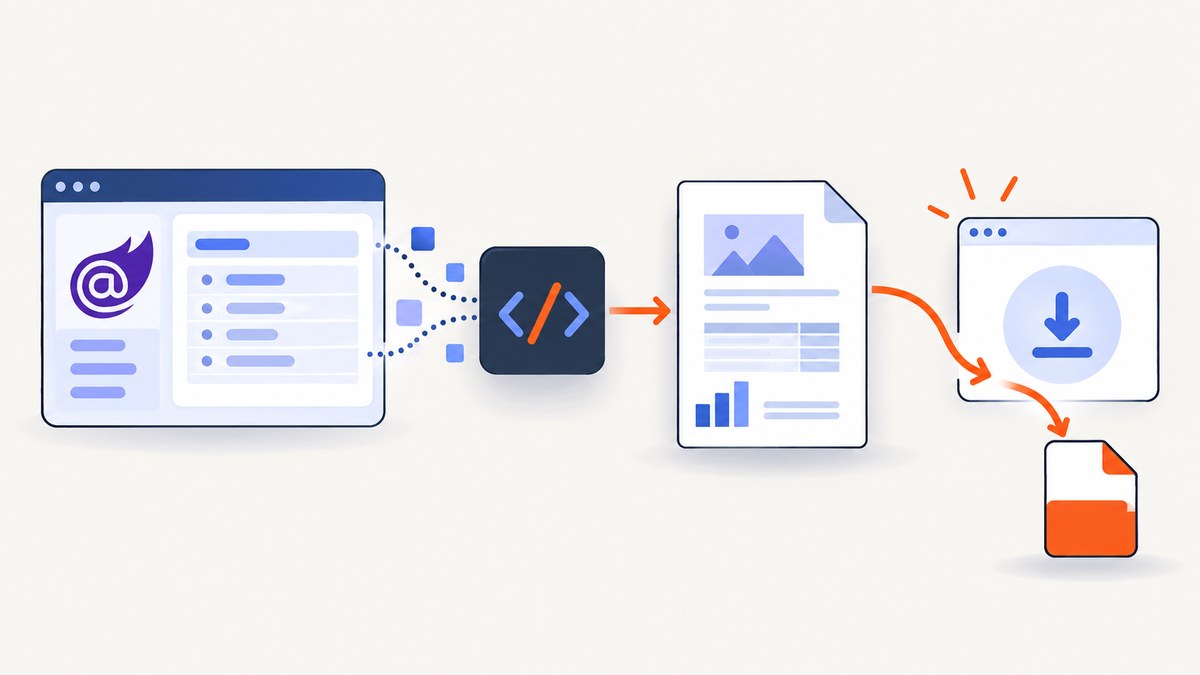
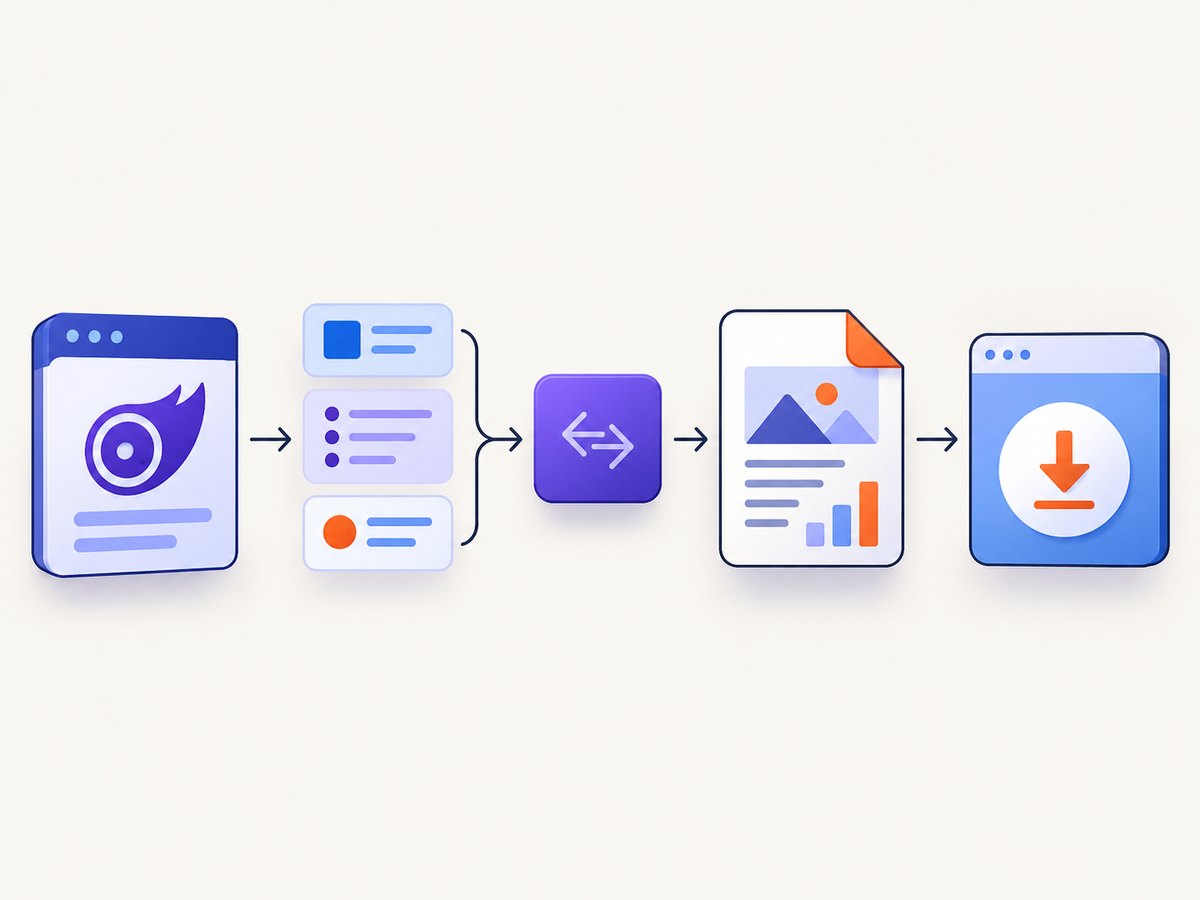
Direct answer: Generate the PDF in browser-side JavaScript with jsPDF, then call that function from your Blazor component through IJSRuntime. The smallest working flow is new jsPDF(), doc.text(...), and doc.save('report.pdf'). If .NET already owns the PDF bytes, use Blazor JavaScript interop with a DotNetStreamReference or a byte buffer and trigger the browser download from JavaScript.
This guide covers both architectures, setup, hosting considerations, larger files, security, troubleshooting, and an API alternative when your input is a web page rather than application data.
What jsPDF and Blazor each do
jsPDF is a JavaScript library that creates PDF files in the browser. Blazor runs .NET UI code and uses JavaScript interop when it needs browser APIs or JavaScript libraries. Your component decides when to generate the document; the JavaScript module creates the PDF and starts the download.
| Requirement | Recommended path |
|---|---|
| Report content is assembled in the browser | Call a JavaScript module that creates a jsPDF document and uses doc.save(). |
| .NET already generated PDF bytes | Pass a stream or byte array to JavaScript and download it as a Blob. |
| Large download | Prefer streaming and avoid copying the whole file into a JavaScript buffer. |
| Interactive browser APIs are unavailable yet | Wait until the component is rendered and JavaScript interop is available. |
Install jsPDF
The official project documents npm installation and script-tag loading. For a Blazor app with a JavaScript module, install the package:
npm install jspdf --saveBundle the module with your normal frontend build so that the browser can resolve the import. Alternatively, the project documents a script-tag/global build; module imports keep the PDF functions isolated from the global namespace.
Browser-side generation with a JavaScript module
1. Create the module
Create wwwroot/js/pdf.js (or the equivalent file included by your build):
import { jsPDF } from 'jspdf';

export function downloadReport(title, lines) {
  const doc = new jsPDF();

  doc.setFontSize(18);
  doc.text(title, 20, 20);

  doc.setFontSize(11);
  let y = 35;
  for (const line of lines) {
    doc.text(String(line), 20, y);
    y += 8;

    // Start a new page before content runs beyond the printable area.
    if (y > 280) {
      doc.addPage();
      y = 20;
    }
  }

  doc.save('report.pdf');
}
doc.save() is jsPDF’s browser convenience path for saving the generated document. The official starter example follows the same pattern: create a document, add text, and save it.
2. Import and call the module from a component
@page "/pdf"
@implements IAsyncDisposable
@inject IJSRuntime JS

<button @onclick="Download">Download PDF</button>

@code {
    private IJSObjectReference? module;

    protected override async Task OnAfterRenderAsync(bool firstRender)
    {
        if (firstRender)
        {
            module = await JS.InvokeAsync<IJSObjectReference>(
                "import", "./js/pdf.js");
        }
    }

    private async Task Download()
    {
        if (module is null)
            return;

        var lines = new[]
        {
            "Created by a Blazor component",
            $"Generated: {DateTimeOffset.UtcNow:O}",
            "The PDF was assembled in the browser."
        };

        await module.InvokeVoidAsync("downloadReport", "Example report", lines);
    }

    public async ValueTask DisposeAsync()
    {
        if (module is not null)
            await module.DisposeAsync();
    }
}
Blazor’s IJSRuntime is the bridge. Import the module after the first render, because browser-side module loading requires an active JavaScript environment. Dispose the module when the component is removed.
3. Pass structured data safely
Keep application data in .NET and pass simple serializable values to JavaScript. Validate lengths and formatting in .NET before invoking the module. jsPDF’s README says: “We strongly advise you to sanitize user input before passing it to jsPDF!” Treat titles, labels, and values as untrusted data and avoid placing attacker-controlled values into jsPDF output options.
Formatting a useful document
Text wrapping
export function downloadWrapped(title, paragraph) {
  const doc = new jsPDF({ format: 'a4', unit: 'mm' });
  doc.setFontSize(18);
  doc.text(title, 20, 20);

  doc.setFontSize(11);
  const lines = doc.splitTextToSize(String(paragraph), 170);
  doc.text(lines, 20, 35);
  doc.save('wrapped-report.pdf');
}
Use splitTextToSize for paragraphs instead of sending one long line beyond the page edge. For long reports, track the current vertical position and call addPage() when the remaining space is insufficient.
Images and fonts
Images must be available to the browser in a format jsPDF can embed, commonly a data URL or an ArrayBuffer. Custom fonts require adding the font data to jsPDF’s virtual file system and registering it before writing text. Keep binary assets out of untrusted input paths, and test the resulting file in the PDF viewers your users actually use.
Page settings
const doc = new jsPDF({
  orientation: 'landscape',
  unit: 'mm',
  format: 'letter'
});
Set orientation, measurement unit, and page format when creating the document. Make margins explicit in your own layout calculations; jsPDF does not automatically lay out an application report for you.
When .NET owns the PDF bytes
If a server-side library or a .NET service creates the PDF, do not rebuild it in jsPDF. Send the bytes to a JavaScript download helper. Microsoft Learn documents two relevant approaches: a client-side buffer for relatively small downloads and a streamed DotNetStreamReference for streaming to JavaScript. Microsoft describes files under 250 MB as the relatively-small boundary for the raw client-buffer approach; this is implementation guidance, not a hard limit for every Blazor download.
Stream a .NET file to JavaScript
Add a JavaScript helper:
export async function downloadStream(fileName, contentType, streamReference) {
  const arrayBuffer = await streamReference.arrayBuffer();
  const blob = new Blob([arrayBuffer], { type: contentType });
  const url = URL.createObjectURL(blob);

  try {
    const anchor = document.createElement('a');
    anchor.href = url;
    anchor.download = fileName;
    anchor.click();
  } finally {
    URL.revokeObjectURL(url);
  }
}
The caller is responsible for revoking a Blob URL created this way. That responsibility is separate from the direct doc.save() helper, which is jsPDF’s own convenience path.
Invoke it from .NET:
using Microsoft.JSInterop;

@inject IJSRuntime JS

@code {
    private IJSObjectReference? module;

    private async Task DownloadServerPdf()
    {
        await using var stream = await BuildPdfStreamAsync();
        using var streamReference = new DotNetStreamReference(stream);

        module ??= await JS.InvokeAsync<IJSObjectReference>(
            "import", "./js/pdf-download.js");

        await module.InvokeVoidAsync(
            "downloadStream",
            "server-report.pdf",
            "application/pdf",
            streamReference);
    }

    private static Task<Stream> BuildPdfStreamAsync()
    {
        // Replace with your .NET PDF generator.
        Stream stream = new MemoryStream(Array.Empty<byte>());
        return Task.FromResult(stream);
    }
}
Use a real PDF-producing stream in place of the placeholder. For a genuinely large file, prefer the streaming pattern described in the Microsoft guidance and avoid unnecessary byte-array copies.
Choosing the integration pattern
| Question | Browser jsPDF | .NET stream download |
|---|---|---|
| Where are content and bytes produced? | JavaScript in the browser | .NET or a server-side PDF service |
| Best API | doc.save('file.pdf') |
DotNetStreamReference plus a JavaScript Blob download |
| Interop timing | After browser rendering and module import | After browser rendering and module import |
| File-size concern | Browser memory holds the generated document | Use streaming when buffering is undesirable |
| Hosting/render mode | Requires browser JS interop at invocation time | Also requires browser JS interop for the final download |
Or skip the browser setup
If the input is a URL and you need a rendered page as a PDF, ScreenshotNeo provides a website screenshot and PDF API. It handles browser setup and supports PDF options such as paper size, margins, landscape mode, and page ranges. Cookie banners, newsletter popups, and chat widgets are removed before capture; bot checks, blank pages, timeouts, failed loads, and cache hits are not billed.

See the ScreenshotNeo API documentation for all parameters. A basic request is:
curl -G "https://api.screenshotneo.com/v1/shot" \
  -d access_key=YOUR_API_KEY \
  --data-urlencode url=https://stripe.com \
  -d format=pdf \
  -o page.pdf
import requests
r = requests.get(
"https://api.screenshotneo.com/v1/shot",
params={
"access_key": "YOUR_API_KEY",
"url": "https://stripe.com",
"format": "pdf",
},
timeout=90,
)
r.raise_for_status()
open("page.pdf", "wb").write(r.content)const q = new URLSearchParams({
access_key: 'YOUR_API_KEY',
url: 'https://stripe.com',
format: 'pdf'
});
const res = await fetch(`https://api.screenshotneo.com/v1/shot?${q}`);
if (!res.ok) throw new Error(`ScreenshotNeo returned ${res.status}`);
const pdf = Buffer.from(await res.arrayBuffer());
require('node:fs').writeFileSync('page.pdf', pdf);ScreenshotNeo also has an MCP server with take_screenshot, get_page_info, and capture_pdf tools for AI agents. The Free plan includes 1,000 shots per month with no card; paid plans start at $5 for 3,000 shots. Create a free ScreenshotNeo account.
Troubleshooting
| Symptom | Cause | Fix |
|---|---|---|
Could not find 'downloadReport' |
The module was not imported, the path is wrong, or a global function was expected. | Use JS.InvokeAsync<IJSObjectReference>('import', './js/pdf.js') and invoke the exported function on that module. |
| Interop is unavailable during prerendering | The component called JavaScript before browser rendering. | Move module import and browser calls into OnAfterRenderAsync and guard with firstRender. |
| PDF downloads but is blank | Content was drawn outside the page, a font/image failed, or the stream contains no bytes. | Check coordinates and page size, validate assets, and inspect the generated byte length before downloading. |
| Text is clipped | A long string exceeded the available width or page height. | Use splitTextToSize, track vertical space, and add pages before writing. |
| Download works once and fails later | A disposed module or stale object URL is being reused. | Keep the module reference for the component lifetime and revoke custom Blob URLs after the click. |
| Large files freeze the tab | The entire document or stream is buffered in browser memory. | Reduce document size, generate on the server, and use the streamed download approach. |
| Unexpected HTML or unsafe output appears | Untrusted values were passed into PDF output options or content generation. | Sanitize and validate input. Review the jsPDF HTML-injection advisory before selecting a dependency version. |
Performance, reliability, and cost notes
- Generate only when the user requests a download; avoid rebuilding the same document on every render.
- Reuse an imported module instead of importing it for every click.
- Keep images compressed and at the resolution required by the report.
- For server-generated PDFs, stream data where practical and avoid multiple full copies in memory.
- Handle cancellation and component disposal so a navigation event does not leave an interop call running.
- jsPDF runs in the user’s browser, so its CPU and memory cost is paid by that browser. A server-side generator moves that work to your infrastructure.
- ScreenshotNeo charges only for clean captures; responses identify the page verdict and billing status with
X-Page-VerdictandX-Billedheaders.
Security checklist
- Sanitize user input before passing it to jsPDF.
- Do not pass attacker-controlled values into output options.
- Review the current jsPDF HTML-injection advisory and verify the patched version against your dependency lockfile.
- Revoke Blob URLs created by your own download helper.
- Never expose private API keys in browser code; keep ScreenshotNeo keys in a protected server or trusted runtime when appropriate.
FAQ
Can jsPDF run in Blazor WebAssembly?
Yes, provided the JavaScript module is bundled and invoked after the browser has rendered the component.
Do I need JavaScript interop if .NET creates the PDF?
For a browser download, you still need a browser-side download call. Blazor can pass the stream to JavaScript with DotNetStreamReference.
Should I manually revoke the URL after doc.save()?
Manual revocation applies to Blob URLs your code creates. The direct jsPDF save helper is a separate convenience path.
Can jsPDF convert an arbitrary web page to a faithful PDF?
jsPDF creates a PDF from the content and drawing commands you provide. For rendered web pages, a browser capture service such as ScreenshotNeo is a more direct fit.
Where are the official references?
Use the jsPDF project documentation, jsPDF API documentation, and Microsoft’s JavaScript interop and file download guidance.


