Generate Dynamic PDFs with React
Build dynamic PDFs with @react-pdf/renderer, then choose browser or server rendering, pagination, downloads, and production troubleshooting.

Direct answer: use @react-pdf/renderer to define a PDF document as a React component tree built from Document, Page, View, Text, Image, and other PDF-specific primitives. Pass changing application data as props, then render the document in the browser with PDFViewer, PDFDownloadLink, BlobProvider, pdf().toBlob(), or usePDF. On a server, write a file or return a stream from an HTTP response. The library uses its own styling and layout engine; it does not convert an arbitrary browser DOM subtree or support every browser CSS property.
This guide shows a complete invoice-style example, browser downloads and previews, server-side output, pagination controls, dynamic page numbers, metadata, PDF/A considerations, and fixes for common failures.
1. Install the React PDF renderer
Install the package in the application that will create the document:
npm install @react-pdf/rendererThe official quick start introduces the same package and primitives in its quick-start guide. Keep PDF components separate from ordinary screen components so that you do not accidentally depend on DOM-only elements or browser CSS.
2. Define a dynamic PDF component
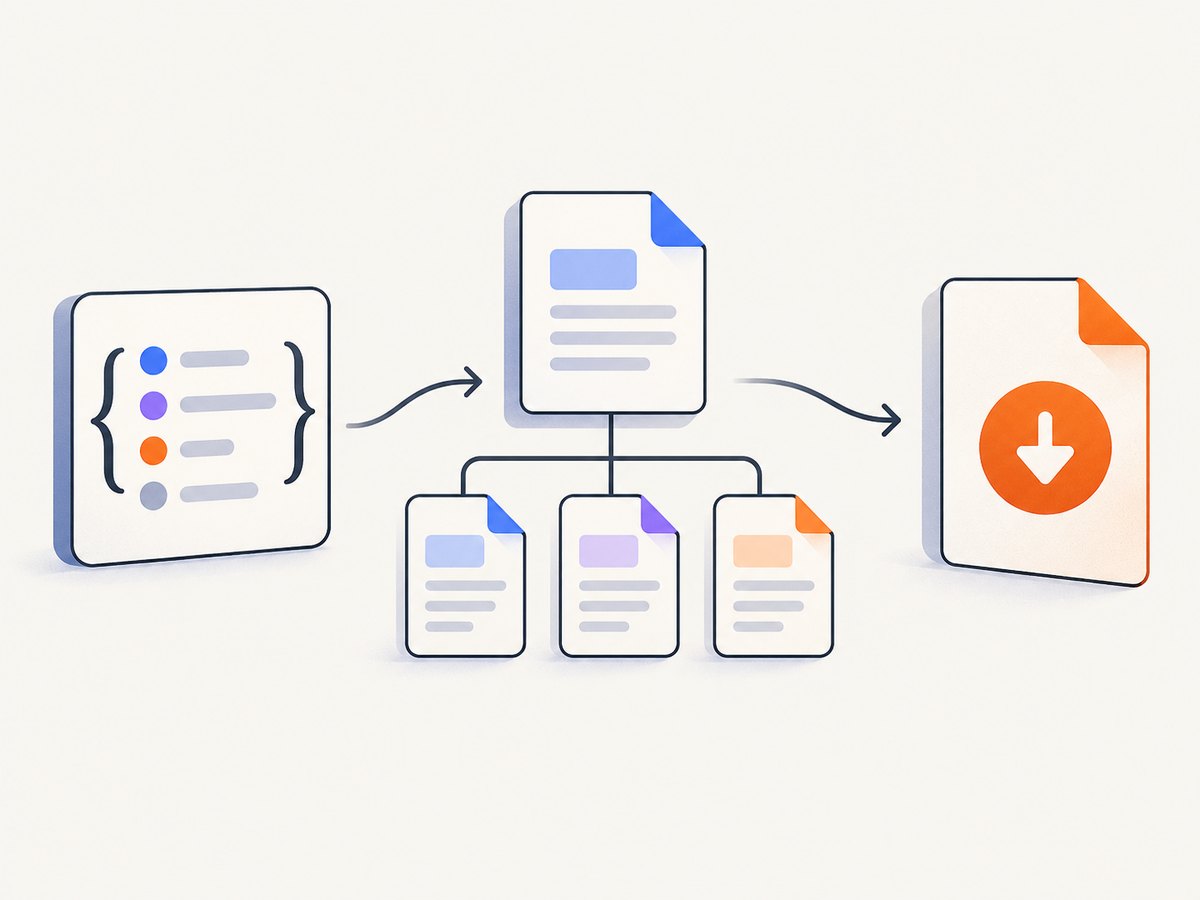
A PDF component is a normal React function that receives data. The root is Document; each printable page is a Page. Layout uses View and the library’s styling API, which is modeled partly on Flexbox.
import React from 'react';
import { Document, Page, Text, View, StyleSheet } from '@react-pdf/renderer';

const styles = StyleSheet.create({
  page: {
    padding: 40,
    fontSize: 10,
    fontFamily: 'Helvetica',
    color: '#202124'
  },
  header: {
    flexDirection: 'row',
    justifyContent: 'space-between',
    marginBottom: 24
  },
  title: { fontSize: 22, fontWeight: 700 },
  muted: { color: '#6b7280' },
  row: {
    flexDirection: 'row',
    borderBottom: '1 solid #e5e7eb',
    paddingVertical: 8
  },
  description: { flexGrow: 1 },
  amount: { width: 90, textAlign: 'right' },
  total: {
    marginTop: 18,
    alignSelf: 'flex-end',
    fontSize: 14,
    fontWeight: 700
  }
});

export function InvoicePdf({ invoice }) {
  return (
    <Document
      title={`Invoice ${invoice.number}`}
      author="Acme Inc."
      subject="Customer invoice"
    >
      <Page size="A4" style={styles.page}>
        <View style={styles.header}>
          <View>
            <Text style={styles.title}>Invoice</Text>
            <Text style={styles.muted}>{invoice.number}</Text>
          </View>
          <View>
            <Text>Issued: {invoice.issuedAt}</Text>
            <Text>Due: {invoice.dueAt}</Text>
          </View>
        </View>

        <Text>Bill to: {invoice.customer.name}</Text>
        <Text style={styles.muted}>{invoice.customer.email}</Text>

        <View style={{ marginTop: 24 }}>
          {invoice.items.map((item) => (
            <View style={styles.row} key={item.id}>
              <Text style={styles.description}>
                {item.description} ({item.quantity} × {item.unitPrice})
              </Text>
              <Text style={styles.amount}>{item.total}</Text>
            </View>
          ))}
        </View>

        <Text style={styles.total}>Total: {invoice.total}</Text>
      </Page>
    </Document>
  );
}
Use deterministic, already-formatted values for currency and dates. Formatting inside the PDF component keeps the tree simple, but locale and timezone decisions should happen in one well-defined layer so a browser and server produce the same output.
3. Render in the browser
Preview with PDFViewer
import { PDFViewer } from '@react-pdf/renderer';
import { InvoicePdf } from './InvoicePdf';

export function InvoicePreview({ invoice }) {
  return (
    <PDFViewer style={{ width: '100%', height: '800px' }}>
      <InvoicePdf invoice={invoice} />
    </PDFViewer>
  );
}
PDFViewer is useful when the user must inspect the result before saving it. It renders the generated PDF in an embedded viewer, so give the viewer an explicit height.
Offer a download link
import { PDFDownloadLink } from '@react-pdf/renderer';
import { InvoicePdf } from './InvoicePdf';

export function DownloadInvoice({ invoice }) {
  return (
    <PDFDownloadLink
      document={<InvoicePdf invoice={invoice} />}
      fileName={`invoice-${invoice.number}.pdf`}
    >
      {({ loading, error }) =>
        error ? 'Could not create PDF' : loading ? 'Preparing PDF…' : 'Download PDF'}
    </PDFDownloadLink>
  );
}
The v4 on-the-fly rendering guide also documents BlobProvider, pdf(document).toBlob(), and the usePDF hook.
Use the generated Blob yourself
import { pdf } from '@react-pdf/renderer';
import { InvoicePdf } from './InvoicePdf';

export async function downloadInvoice(invoice) {
  const blob = await pdf(<InvoicePdf invoice={invoice} />).toBlob();
  const url = URL.createObjectURL(blob);
  const link = document.createElement('a');
  link.href = url;
  link.download = `invoice-${invoice.number}.pdf`;
  link.click();
  URL.revokeObjectURL(url);
}
Control recomputation with usePDF
import { usePDF } from '@react-pdf/renderer';
import { InvoicePdf } from './InvoicePdf';

export function ControlledDownload({ invoice }) {
  const [instance, update] = usePDF({
    document: <InvoicePdf invoice={invoice} />
  });

  function regenerate() {
    update(<InvoicePdf invoice={invoice} />);
  }

  return (
    <div>
      <button onClick={regenerate} disabled={instance.loading}>
        Regenerate
      </button>
      {instance.error && <p>{instance.error.message}</p>}
      {instance.url && (
        <a href={instance.url} download={`invoice-${invoice.number}.pdf`}>
          Download
        </a>
      )}
    </div>
  );
}
PDF generation can be expensive for large documents. usePDF exposes loading, error, URL, and blob state and lets you decide when the document is recomputed. Avoid rebuilding it for unrelated UI state such as a sidebar toggle.
4. Render on the server
Server rendering is appropriate when the source data is private, PDFs must be generated from a trusted environment, or the client should receive only a finished file. The quick start documents file and stream output; the advanced guide includes an Express stream example.
Write a file with Node.js
import fs from 'node:fs';
import React from 'react';
import { renderToFile } from '@react-pdf/renderer';
import { InvoicePdf } from './InvoicePdf.js';

const invoice = {
  number: 'INV-1042',
  issuedAt: '2026-09-30',
  dueAt: '2026-10-30',
  customer: { name: 'Ada Lovelace', email: 'ada@example.com' },
  items: [
    { id: 'hosting', description: 'Hosting', quantity: 1, unitPrice: '$40', total: '$40' },
    { id: 'support', description: 'Support', quantity: 2, unitPrice: '$25', total: '$50' }
  ],
  total: '$90'
};

await renderToFile(<InvoicePdf invoice={invoice} />, './invoice.pdf');
console.log(fs.statSync('./invoice.pdf').size);
Use the server entry points documented for your installed version. Runtime support and bundler behavior can vary, so verify the current package documentation before deploying to an edge runtime or a serverless platform.
Return a stream from Express
import express from 'express';
import React from 'react';
import { renderToStream } from '@react-pdf/renderer';
import { InvoicePdf } from './InvoicePdf.js';

const app = express();
app.get('/invoices/:id.pdf', async (req, res, next) => {
  try {
    const invoice = await loadInvoice(req.params.id);
    const stream = await renderToStream(<InvoicePdf invoice={invoice} />);
    res.setHeader('Content-Type', 'application/pdf');
    res.setHeader('Content-Disposition', `attachment; filename="invoice-${invoice.number}.pdf"`);
    stream.pipe(res);
  } catch (error) {
    next(error);
  }
});

app.listen(3000);
5. Choose browser or server rendering
| Requirement | Better starting point | Reason |
|---|---|---|
| Immediate preview while editing | Browser | PDFViewer shows the current document. |
| One user-initiated download | Browser | PDFDownloadLink avoids an extra API endpoint. |
| Private records or signed documents | Server | Data and PDF generation remain under server control. |
| Scheduled reports or email attachments | Server | A job can render without a browser session. |
| Very large or shared documents | Server | Centralize work, caching, retries, and storage. |
There is no universal winner. Decide where the data already exists, whether a live preview matters, how much rendering work the client can handle, and which runtime your deployment supports.
6. Pagination and changing content
The layout engine automatically wraps supported content across pages. View, Text, and Link are breakable; images are unbreakable by default. Use the documented pagination controls from the advanced guide deliberately:
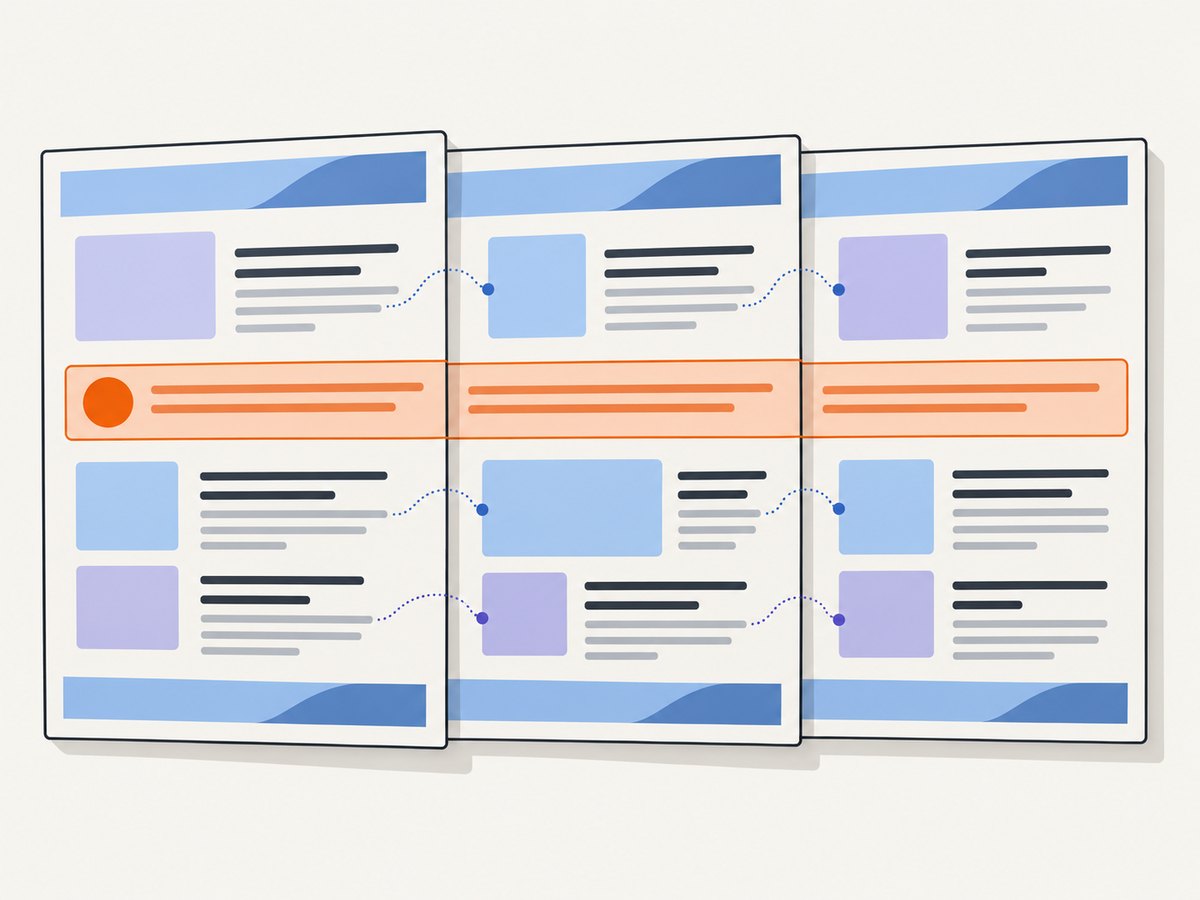
wrap={false}keeps a component together.breakforces a component onto a new page.fixedrepeats a header or footer on every page.- A
rendercallback can receive the current page number and total page count.
const styles = StyleSheet.create({
  page: { padding: 36, paddingTop: 72 },
  header: {
    position: 'absolute', top: 24, left: 36, right: 36,
    flexDirection: 'row', justifyContent: 'space-between'
  },
  footer: {
    position: 'absolute', bottom: 20, left: 36, right: 36,
    textAlign: 'center', fontSize: 9, color: '#6b7280'
  },
  keepTogether: { padding: 12, border: '1 solid #ddd' }
});

function PaginatedReport({ sections }) {
  return (
    <Document>
      <Page size="LETTER" style={styles.page}>
        <View fixed style={styles.header}>
          <Text>Quarterly report</Text>
          <Text>Acme Inc.</Text>
        </View>
        {sections.map((section) => (
          <View key={section.id} wrap={false} style={styles.keepTogether}>
            <Text>{section.title}</Text>
            <Text>{section.summary}</Text>
          </View>
        ))}
        <Text fixed style={styles.footer} render={({ pageNumber, totalPages }) =>
          `Page ${pageNumber} of ${totalPages}`
        } />
      </Page>
    </Document>
  );
}
A text render callback may be called twice while layout is calculated. Keep it deterministic and free of side effects such as analytics events, counters, or mutations. If a block is taller than a page, forcing wrap={false} can create overflow; allow it to wrap or split the data into smaller sections.
7. Page size, orientation, styles, and assets
Page accepts standard sizes such as A4 and LETTER, or a custom width and height. Set orientation="landscape" when tables need horizontal space. Keep style values explicit and test long strings, missing values, and unusually large numbers.
For custom fonts, register the font before rendering:
import { Font } from '@react-pdf/renderer';

Font.register({
  family: 'Inter',
  src: '/fonts/Inter-Regular.ttf'
});
The v4 Document reference describes metadata, PDF version, and PDF/A options. PDF/A support provides XMP conformance metadata and an sRGB OutputIntent, but only b-level visual conformance is supported. Every font must be embedded for PDF/A validation; register custom fonts rather than relying on the built-in standard fonts.
8. Data, security, and reliability checklist
- Validate IDs and permissions on the server before loading invoice or report data.
- Escape or sanitize user-provided strings according to your data policy; React text nodes are safer than injecting markup.
- Use stable keys for mapped rows.
- Make dates, currencies, locale, and timezone explicit.
- Retry data loading separately from PDF rendering so a layout error is not mistaken for a network error.
- Store generated files with access controls and short-lived download URLs when documents are sensitive.
- Log document ID, template version, and render error details without logging confidential content.
9. Performance and cost considerations
Rendering cost grows with page count, images, fonts, and repeated recomputation. In the browser, debounce edits before regenerating a large report and use usePDF when the user controls when to update. On the server, queue scheduled work, stream responses when appropriate, and cache immutable documents by a hash of the data and template version. Resize oversized source images before embedding them. Measure memory and response time with your own documents; the reviewed documentation does not establish universal benchmarks.
The library itself does not require a per-document service call. Your operational costs come from the browser or server resources, storage, and any infrastructure used to deliver the file. A server endpoint should set Content-Type: application/pdf and a safe Content-Disposition filename.
10. Troubleshooting
| Symptom | Likely cause | Fix |
|---|---|---|
| Blank or missing content | DOM elements or unsupported CSS were placed in the PDF tree. | Replace them with PDF primitives such as View and Text, then use supported styles. |
| Rows split unexpectedly | The wrapping engine is breaking a breakable element. | Apply wrap={false} to a small block, or restructure the content so it can split safely. |
| Footer does not repeat | The footer is not marked fixed. | Set fixed and use absolute positioning or page padding to reserve space. |
| Page numbers are wrong | Side effects or nondeterministic logic in render. |
Return a pure string from the callback; remember it can run twice. |
| Custom font fails or PDF/A validation fails | The font was not embedded or the source path is unavailable. | Call Font.register with a reachable font file and verify deployment asset paths. |
| Browser download stays loading | A promise, image, font, or data fetch never resolves. | Check asset URLs, resolve all asynchronous data before rendering, and surface instance.error. |
| Server crashes in production | A browser-only import, incompatible bundler, or unavailable asset. | Use the documented server APIs, keep browser code out of the server bundle, and test the target runtime. |
| Text overlaps or is clipped | A fixed-height container or forced unbreakable block is too small. | Allow wrapping, remove the fixed height, or split the content across pages. |
11. Or skip the browser setup
If your goal is to capture a web page or generated report as an image or PDF rather than build the PDF layout yourself, ScreenshotNeo provides a single GET request. It can capture a URL as PNG, JPEG, WebP, or PDF, and its clean-shot workflow accepts consent banners and removes more than 60 known consent platforms, newsletter popups, and chat widgets before capture.
See the ScreenshotNeo documentation for all options. The basic call is:
curl -G "https://api.screenshotneo.com/v1/shot" -d access_key=YOUR_API_KEY --data-urlencode url=https://stripe.com -o shot.webpimport requests
r = requests.get(
"https://api.screenshotneo.com/v1/shot",
params={"access_key": "YOUR_API_KEY", "url": "https://stripe.com"},
timeout=90,
)
r.raise_for_status()
open("shot.webp", "wb").write(r.content)const q = new URLSearchParams({ access_key: 'YOUR_API_KEY', url: 'https://stripe.com' });
const res = await fetch(`https://api.screenshotneo.com/v1/shot?${q}`);
if (!res.ok) throw new Error(`Screenshot failed: ${res.status}`);
const bytes = Buffer.from(await res.arrayBuffer());
await import('node:fs/promises').then(fs => fs.writeFile('shot.webp', bytes));Cookie banners, popups, and chat widgets are removed before the shot. Bot checks, blank pages, timeouts, failed loads, and cache hits are never billed, and response headers identify the page verdict and billing result. An MCP server lets Claude, Cursor, and other MCP clients use take_screenshot, get_page_info, and capture_pdf. The Free plan includes 1,000 screenshots a month with no card; paid plans start at $5 for 3,000 shots. Create a free ScreenshotNeo account.
12. Frequently asked questions
Can I pass an existing HTML element to react-pdf?
No. Build a document with the library’s PDF primitives and styling API. Convert the data and layout into a dedicated PDF component.
Should every PDF be rendered on the server?
No. Browser rendering is convenient for previews and user-triggered downloads; server rendering suits private, scheduled, or centrally managed documents.
How do I prevent a heading from being separated from its content?
Wrap the heading and short content in a small View with wrap={false}. Do not apply that setting to a block that can exceed a page.
How can I add a page count?
Use a fixed Text element with a render callback that reads pageNumber and totalPages.
When is PDF/A worth enabling?
Use it when an archival workflow requires PDF/A metadata and validation. Register and embed every font, and verify the resulting file with the validator used by your organization.


