How to Generate Ecommerce Banners With ChatGPT
Create accurate desktop and mobile ecommerce banners with ChatGPT using focused prompts, product references, export checks, and live-page QA.
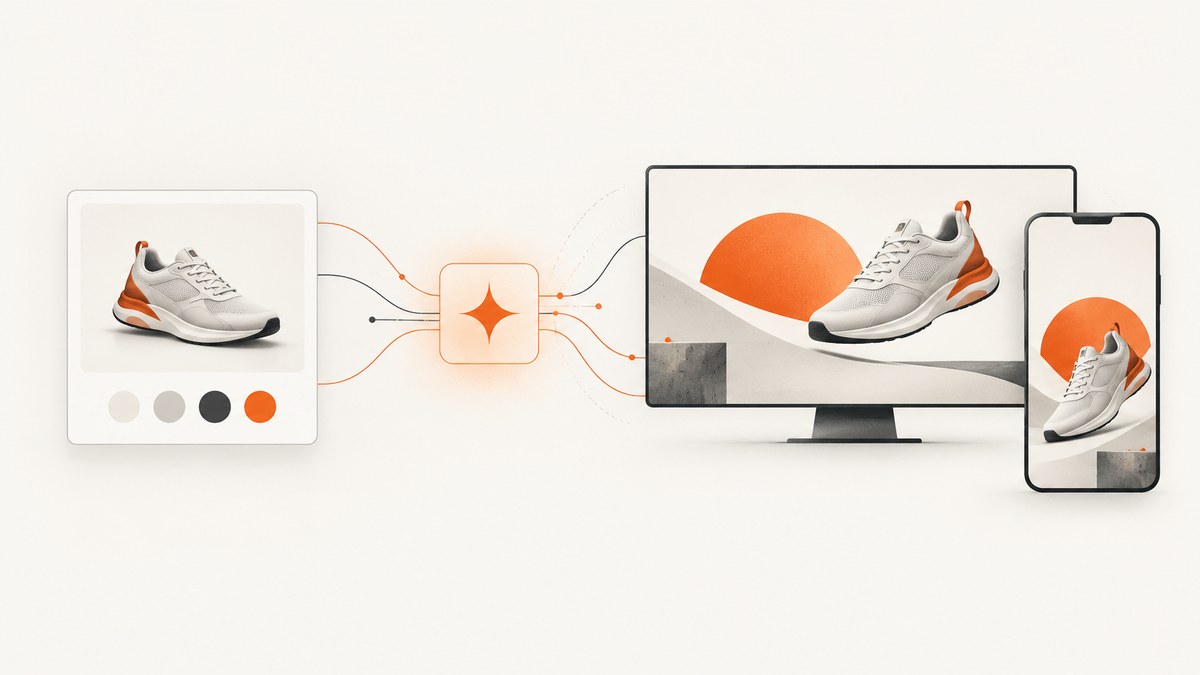
Short answer: ChatGPT can generate an ecommerce banner from a product description or reference image, then revise the composition and aspect ratio in natural language. The reliable workflow is to define the placement and offer, provide exact product facts, reserve text-safe space, generate one strong first pass, revise one variable at a time, and inspect every desktop and mobile crop before publishing.
1. Define the banner’s job before opening ChatGPT
A homepage hero, collection header, seasonal sale strip, retargeting ad, and email header have different constraints. Write a one-line brief with the channel and placement, audience, offer, destination, required action, and success condition. Decide what should be obvious at first glance: the product, the promotion, or a seasonal mood.
This brief prevents a visually attractive image from becoming an unusable banner. It also gives you a checklist for review.
2. Give ChatGPT accurate product material
Upload a clean product photo when available. You can also describe the product, but a reference image gives the model more information about shape and packaging. State the facts that must not change: color, material, dimensions, label, logo, package geometry, and included parts. Explicitly prohibit substitutions such as a different cap, altered label, or extra accessories.
Use a small set of reference images. One main product view plus a useful detail view is easier to control than a large, inconsistent set. If a logo, ingredient panel, or package claim matters, plan to verify it manually after generation.
3. Use a focused first prompt
OpenAI Academy recommends one to three clear sentences covering purpose, subject, action, setting, style, and framing or lighting constraints. This template includes the details ecommerce banners need:
Create a homepage hero ecommerce banner for [brand] aimed at [audience], promoting [product and offer]. Keep the exact product from the reference image: preserve its shape, color, label, packaging, and proportions. Use [background and scene], [lighting], and [brand palette]. Place the product on the [left/right/center] and leave uncluttered negative space on the [opposite side] for the short headline '[headline]'. Keep the composition premium, legible, and product-led. Generate a [desktop aspect ratio] version.For a first pass, ask for one composition and one aspect ratio. Extra requirements often compete for the same visual space. Once the composition is right, request the other crops.
4. Revise one variable at a time
Targeted edits make it easier to see what changed and reduce product drift. Useful follow-ups include moving the product farther right while preserving geometry, making the background calmer, changing the light, tightening the crop, or extending the canvas into matching negative space.
If an edit changes a protected fact, restate the constraint in the next request. For text-heavy layouts, specify font style, size, color, and placement, spell uncommon brand words letter by letter, and keep the copy short. Inspect every character; generated text can be wrong even when the overall design looks correct.
5. Build desktop and mobile variants deliberately
Do not assume a storefront’s automatic crop will preserve the focal point. Give ChatGPT the target ratio and safe area for each placement. A desktop hero often has room for a horizontal composition; a mobile hero needs a taller frame and a product that remains legible after narrow cropping.

| Variant | Specify | Review |
|---|---|---|
| Desktop hero | Wide ratio, product position, headline-safe side | Does the focal point survive the theme crop? |
| Mobile hero | Taller ratio, larger product, reduced detail | Is the product recognizable without zooming? |
| Square social tile | Centered or corner-safe composition | Does the offer remain readable at thumbnail size? |
| Email header | Short height, strong contrast, compressed detail | Does it work when images are blocked? |
Ask for variants from the same visual brief so the campaign feels related, then inspect each output independently.
6. Choose dimensions and export settings
Shopify’s current guidance puts many banner and background images between 1,920 and 2,560 pixels wide. Hero or main-content images commonly work between 1,200 and 1,280 pixels wide. Treat those as starting points and confirm the actual theme or ad placement. Oversized files can slow a page, so balance pixel dimensions, format, and file size.
Shopify also gives a 2,048 × 2,048 pixel and 300 dpi recommendation for square or 4:5 product images on Shopify or Amazon. That is product-image guidance, not a universal banner requirement. If you need transparency, export PNG; otherwise use the format your storefront serves efficiently.
- Confirm the placement’s ratio and upload limits.
- Generate large enough for the crop and display density.
- Resize a copy for the storefront instead of repeatedly recompressing the master.
- Check sharpness, color, transparency, and file weight on a real device.
7. Review product truth, accessibility, and claims
Compare the output with the source product image. Check logo and package text, proportions, color, closure, included items, prices, discount language, and every health or performance claim. Verify contrast, reading order, and the focal point at the smallest intended size.
Keep important offer details as real HTML text when possible. Provide meaningful alt text and ensure the call to action is available as a button or link outside the bitmap.
8. Shopify and other handoff options
Shopify Magic media generation is available on Basic, Grow, Advanced, and Plus plans. Shopify documents prompt-based background changes, scene generation, and outpainting to extend a canvas around a subject. Generated media defaults near one megapixel, so verify the export against your placement. Transparent-background images should be saved as PNG.
Adobe Firefly is useful for product mockups, stylized backgrounds, style-reference uploads, and editable Photoshop or Express templates. ChatGPT Images is useful for natural-language creation, direct edits, and reframing from a reference image. Compare tools on one-off speed, batch automation, reference control, editable layers, crop handling, review effort, and current plan and licensing terms.
9. When to use an API instead of the chat editor
Use ChatGPT Images for a one-off banner or iterative art direction. OpenAI’s API guidance positions the Image API for one-off creation or editing and the Responses API for a conversational, multi-step editor with image inputs and image generation as a built-in tool. API output controls include size, quality, format, compression, and multiple images per request.
An API workflow helps when a team needs repeatable prompts, variant batches, or a review queue. Store the brief, references, requested ratio, revisions, and approval with each asset.
10. Or skip the browser setup
If your next step is checking how the banner renders on a live store, ScreenshotNeo can capture the page through one request. It accepts a URL and returns PNG, JPEG, WebP, or PDF. Cookie and consent banners are accepted before capture, and more than 60 known consent platforms plus newsletter popups and chat widgets can be removed. Each step can be turned off.

See the ScreenshotNeo API docs for the full option list.
curl -G "https://api.screenshotneo.com/v1/shot" -d access_key=YOUR_API_KEY --data-urlencode url=https://stripe.com -o shot.webpimport requests
r = requests.get("https://api.screenshotneo.com/v1/shot", params={"access_key": "YOUR_API_KEY", "url": "https://stripe.com"}, timeout=90)
r.raise_for_status()
open("shot.webp", "wb").write(r.content)const q = new URLSearchParams({ access_key: 'YOUR_API_KEY', url: 'https://stripe.com' });
const res = await fetch(`https://api.screenshotneo.com/v1/shot?${q}`);
if (!res.ok) throw new Error(`Screenshot failed: ${res.status}`);
const fs = await import('node:fs/promises');
await fs.writeFile('shot.webp', Buffer.from(await res.arrayBuffer()));For banner QA, useful options include full-page capture with lazy images loaded, element capture by CSS selector, custom CSS or JavaScript, click-before-capture, waits for a selector, delay, or network idle, custom viewport and device presets, dark mode, retina scale, hide selectors, and image resizing. You can block ads, trackers, requests, or resource types; set headers, cookies, user agent, Authorization, timezone, and geolocation; choose a transparent background; cache with a TTL; create signed links for public image tags; run async jobs with signed webhooks; capture up to 100 URLs in one bulk call; and read usage through the usage API.
Only clean shots are billed. Bot checks or CAPTCHAs, blank pages, timeouts, failed loads, and cache hits cost nothing, and response headers report the page verdict and whether it was billed (X-Page-Verdict and X-Billed). ScreenshotNeo also provides an MCP server with take_screenshot, get_page_info, and capture_pdf for Claude, Cursor, and other MCP clients.
There is a free allowance of 1,000 shots per month with no card. Paid plans start at $5 for 3,000 shots; yearly billing gives two months free, and every feature is on every plan. Create a free ScreenshotNeo account to render and review your banner without setting up a browser.
11. Troubleshooting checklist
| Symptom | Cause | Fix |
|---|---|---|
| Product shape or label changed | Constraints were vague or edits drifted. | Re-upload the clean reference, list immutable facts, and revise one variable at a time. |
| Headline has wrong characters | Text generation is imperfect. | Use shorter copy, spell uncommon words, verify every character, or add text as HTML. |
| Mobile crop cuts off product | The desktop image was merely auto-cropped. | Generate a separate mobile ratio and inspect it on a phone-sized viewport. |
| Banner looks muddy | Dimensions or compression do not match the placement. | Export from the large master and check the uploaded file’s format, dimensions, and weight. |
| Screenshot shows consent dialog | Capture occurred before consent handling. | Enable ScreenshotNeo’s consent and popup removal options. |
| Screenshot is blank or times out | The page is blocked, still loading, or needs interaction. | Wait for a selector or network idle, click the required element, set headers or cookies, and inspect verdict headers. |
12. Performance, reliability, and cost notes
- Generation: keep the first prompt focused and revisions small.
- Publishing: choose dimensions for the actual placement, then optimize file size.
- QA: capture representative desktop and mobile viewports plus consent states.
- Automation: use an API for repeatable variants and retain human approval.
- Screenshot cost: ScreenshotNeo bills only clean shots; failed loads, bot checks, blank pages, timeouts, and cache hits are not billed.
FAQ
Can ChatGPT make a Shopify hero banner?
Yes. Provide the product reference, target ratio, placement, negative space, and short headline, then export a variant sized for the theme.
How much text belongs inside the image?
Keep it short and verify every character. Put detailed terms and the accessible call to action in page HTML when possible.
Should I generate one image and resize it?
Generate desktop, mobile, and other important placements from the same brief, then inspect each crop.
When is an API worth the setup?
Choose an API for repeatable edits, batch variants, stored prompts, or an automated review pipeline.
Can I verify the live banner without running Playwright?
Yes. ScreenshotNeo’s URL API can capture a rendered page, and its MCP tools let compatible AI agents request screenshots and page information.


